` | Sets the page's default language: `en`, `sv`, `da`, `fi` or `no`. |
| `address_autofill:off` | Turns off Google address autofill in the billing address form. |
This only works on the full `paymentPageLink`. The options can't be applied to `shortLinkUrl`, so if you want them in an SMS or a QR code, send the full link instead.
`method` takes the ID of any payment method the page supports, for example `CARD`, `KLARNA`, `SSWISH`, `SVIPPS` or `SMOBILEPAY`. New methods get their own ID as they are added to the page, so this list is not exhaustive. The method is only moved to the top if it is available for the order; otherwise the page keeps its default order, which puts the method the customer chose last time first and then card. To limit which methods appear at all, use `lockToPaymentMethods` on the order instead.
Unknown keys and unsupported `lang` values are ignored. The options apply when the page opens: if the customer picks another payment method or switches language themselves, their choice wins.
## Error Handling
Create-order failures come back as `status: "ERROR"` with an `OR_*` or `PS_*` code. The ones you will meet setting this up:
| Code | Cause |
|------|-------|
| `OR_0042` | Terminal not found. The `terminal$id` is wrong, or it belongs to another merchant. |
| `OR_0037` | The total does not reconcile with the line items. |
| `OR_0048` | Line items mix currencies. |
If the store's terminal list comes back without a `PaymentPage` entry, the store was created without `onlineInfo` — the two default terminals only come with an online store. A terminal that will not register, or one that is there but refuses a payment, usually means the store has not cleared domain verification or is still in approval. Check the store's online status before you look at the terminal call.
The [Create Order Error Codes](/developers/guides/create-order-error-codes) reference lists the rest, including errors raised by the payment initiation that happens inside the same call.
## Next Steps
- [Self-Hosted Checkout](/developers/guides/self-hosted-checkout) — keep the customer on your own page
- [Server-to-Server API](/developers/guides/server-to-server-api) — charge a stored card with no customer present
- [Capture a Payment](/developers/guides/capture-a-payment) — finalize a delayed-capture authorization
- [Refund an Order](/developers/guides/refund-an-order) — return funds after settlement
## Reference
- [Stores API](https://developers.surfboardpayments.com/api/stores)
- [Terminals API](https://developers.surfboardpayments.com/api/terminals)
- [Create Order API](https://developers.surfboardpayments.com/api/orders)
- [Payments API](https://developers.surfboardpayments.com/api/payments)
- [Developer Portal](https://developers.surfboardpayments.com/)
### Inter-App Integration
Category: in-store | Tags: In-Store, Android, iOS, Web, CheckoutX, App Switch
URL: /developers/guides/interapp-integration
## Overview
Surfboard's CheckoutX app handles payment acceptance on Android payment terminals and as a SoftPOS solution. If you have your own POS or business app, you can integrate with CheckoutX through **native app switch** -- your app opens CheckoutX to process a payment, and CheckoutX returns control to your app when done.
This guide covers terminal registration, the payment flow, and NFC tag scanning -- all through deep links.
> **Important:** Surfboard terminals operate in full online mode. All data exchange happens through APIs and deep link parameters -- no offline data passing is supported.
## How It Works
The inter-app flow is a bi-directional app switch:
1. **Your app -> CheckoutX** -- initiate a task (registration, payment, or tag scan)
2. **CheckoutX -> Your app** -- return the result via your redirect URL
There are three flows:
| Flow | Purpose | Frequency |
|------|---------|-----------|
| **Terminal Registration** | Link CheckoutX to a terminal | Once per device |
| **Payment** | Process a payment via CheckoutX | Every transaction |
| **Tag Scanning** | Read NFC product tags | As needed |
## Setting Up Your App for App Switch
Configure your app to receive the callback from CheckoutX after a task completes.
### Android
Register a deep link intent filter in your `AndroidManifest.xml`:
```xml
```
### iOS
Register a custom URL scheme in your `Info.plist` or Xcode project settings. Add your scheme (e.g., `posapp`) under **URL Types**.
### Browser-based POS
A web app has no scheme of its own to register. The switch out to CheckoutX works the same way, but the return needs a redirect URL that names the operator's browser -- see [Browser-Based POS (Web Apps)](#browser-based-pos-web-apps).
## Configure Terminal Before Payment
Before the first payment (especially after a device reboot), call the configuration route to prepare CheckoutX:
```
checkoutx://com.surfboard.checkoutx/configure?redirectUrl=REDIRECT_URL
```
Replace `REDIRECT_URL` with your base64-encoded app URL. CheckoutX will open, configure itself, and return with `isConfigured: true` when ready.
Use this step before starting the payment flow for optimal performance on the first transaction.
### Handling `PS_0025`, Terminal Not Connected
When initiating a payment you may occasionally see:
```
PS_0025: Terminal is not connected to server so unable to send transactions
```
Run the configure call again and then re-initiate the payment. You can do this seamlessly on your end, the transaction may be slightly slower, but this is the easiest way to recover, and no user action is needed. This is most common in SoftPOS setups where consumer devices can go idle or lose their server session between transactions; re-configuring re-establishes the connection before the next payment.
## Terminal Registration (One-Time Setup)
Register a terminal with CheckoutX once per device. This links your Surfboard terminal to the CheckoutX app.
### Step 1: Get an Interapp Code
Call the API to generate a registration code:
```json
GET /merchants/:merchantId/stores/:storeId/terminals/interapp
```
```json
// Response
{
"status": "SUCCESS",
"data": {
"registrationCode": "abc123..."
},
"message": "Interapp code generated successfully"
}
```
> The registration code is valid for **120 seconds**. Complete the app switch before it expires.
### Step 2: App Switch to Register
Build the registration deep link with the code:
```
checkoutx://com.surfboard.checkoutx/register?redirectUrl=REDIRECT_URL&data=REGISTRATION_CODE
```
- `REDIRECT_URL` -- your base64-encoded app callback URL
- `REGISTRATION_CODE` -- base64-encoded JSON: `{"registrationCode": "GENERATED_CODE"}`
### Step 3: Handle the Callback
After registration, CheckoutX calls your redirect URL with a `data` query parameter containing the `terminalId`:
```
posapp://hello/order?orderRef=...&data=
```
Decode the base64 `data` parameter to get the terminal ID:
```kotlin
// Kotlin
val data = String(Base64.getUrlDecoder().decode(uri.getQueryParameter("data")))
val jsonObject = serializer.fromJson(data, JsonObject::class.java)
val terminalId = jsonObject["terminalId"].asString
```
```swift
// Swift
guard let base64String = URLComponents(url: url, resolvingAgainstBaseURL: false)?
.queryItems?.first(where: { $0.name == "data" })?.value,
let jsonData = Data(base64Encoded: base64String),
let json = try? JSONSerialization.jsonObject(with: jsonData) as? [String: Any],
let terminalId = json["terminalId"] as? String
else { return }
```
Store the `terminalId` -- you need it for all future payments on this device.
### Step 4: Verify Registration
Confirm the registration status via API:
```json
GET /merchants/:merchantId/stores/:storeId/terminals/interapp/:interappCode
```
```json
// Response
{
"status": "SUCCESS",
"data": {
"registrationStatus": "REGISTERED",
"terminalId": "83abab731f6fb00704"
}
}
```
**Possible `registrationStatus` values:** `REGISTERED` | `NOT_REGISTERED`
## Payment Flow
Once the terminal is registered, process payments through app switch.
### Step 1: Create an Order via API
Create an order using the [Create Order API](/developers/guides/create-an-order) with the `terminalId` from registration. The response includes a `paymentId` and an `interAppJWT`:
```json
POST /orders
{
"terminal$id": "YOUR_TERMINAL_ID",
"orderLines": [
{
"id": "ITEM-001",
"name": "Running Shoes",
"quantity": 1,
"amount": { "regular": 50000, "total": 50000, "currency": "752" }
}
],
"totalOrderAmount": { "regular": 50000, "total": 50000, "currency": "752" },
"controlFunctions": {
"initiatePaymentsOptions": { "paymentMethod": "CARD" }
}
}
```
```json
// Response
{
"status": "SUCCESS",
"data": {
"orderId": "83a1ba32774149710b",
"paymentId": "83a1ba3264bd500106",
"interAppJWT": "eyJhbGciOiJIUzI1NiIs..."
}
}
```
### Step 2: App Switch to CheckoutX
Build the transaction deep link:
```
checkoutx://com.surfboard.checkoutx/transaction?redirectUrl=REDIRECT_URL&data=REQUIRED_DATA
```
- `REDIRECT_URL` -- your base64-encoded callback URL
- `REQUIRED_DATA` -- base64-encoded JSON containing the terminal ID and the `interAppJWToken`:
```json
{
"terminalId": "YOUR_TERMINAL_ID",
"interAppJWToken": "eyJhbGciOiJIUzI1NiIs..."
}
```
> **Required on both Android and iOS:** Include the `interAppJWToken` -- the `interAppJWT` value returned in the order response -- in the data parameter on every app switch transaction. This is required for the app switch flow on both platforms, not an iOS-only step.
### Step 3: Perform the App Switch
```kotlin
// Kotlin
val url = "checkoutx://com.surfboard.checkoutx/transaction?redirectUrl=$encodedRedirectUrl&data=$encodedData"
val intent = Intent(Intent.ACTION_VIEW)
intent.data = Uri.parse(url)
startActivity(intent)
```
```swift
// Swift
let url = "checkoutx://com.surfboard.checkoutx/transaction?redirectUrl=\(encodedRedirectUrl)&data=\(encodedData)"
if let deepLink = URL(string: url) {
UIApplication.shared.open(deepLink)
}
```
```dart
// Flutter
String url = "checkoutx://com.surfboard.checkoutx/transaction?redirectUrl=$encodedRedirectUrl&data=$encodedData";
Uri uri = Uri.parse(url);
if (await canLaunchUrl(uri)) {
await launchUrl(uri);
}
```
### Step 4: Handle the Result
CheckoutX calls your redirect URL with the result. Check the order status via API to confirm payment completion:
```json
GET /orders/:orderId/status
```
## Framing the Redirect URL
The redirect URL follows the format:
```
:///?
```
For example, if your scheme is `posapp` and host is `hello`:
```
posapp://hello/order?orderRef=6ba7b7db-519f-4ed9-9f6b-a834140466f7
```
This URL must be **base64-encoded** before passing it as the `redirectUrl` parameter:
```kotlin
// Kotlin
val url = "posapp://hello/order?orderRef=6ba7b7db-519f-4ed9-9f6b-a834140466f7"
val encoded = Base64.getUrlEncoder().encodeToString(url.toByteArray())
```
```swift
// Swift
let url = "posapp://hello/order?orderRef=6ba7b7db-519f-4ed9-9f6b-a834140466f7"
let encoded = Data(url.utf8).base64EncodedString()
```
```js
// JavaScript -- URL-safe base64, no padding
const encoded = btoa(url).replace(/\+/g, "-").replace(/\//g, "_").replace(/=+$/, "");
```
For a browser-based POS the redirect URL names the operator's browser instead of your app -- see [Browser-Based POS (Web Apps)](#browser-based-pos-web-apps).
## Browser-Based POS (Web Apps)
If your POS runs in a browser rather than as an installed app -- a web POS on an Android tablet, for instance -- the switch **out** to CheckoutX works exactly as described above. A `checkoutx://` deep link is just a link, and the browser hands it to CheckoutX.
The difference is the way **back**. A web app has no custom scheme to register, and an `https://` redirect URL does not return the operator to their browser: CheckoutX opens it in its own in-app browser, leaving the POS session behind in a tab nobody is looking at.
### Launching CheckoutX from a page
Build and encode the deep link exactly as elsewhere in this guide, then follow it:
```js
const deepLink =
`checkoutx://com.surfboard.checkoutx/transaction` +
`?redirectUrl=${encodedRedirectUrl}&data=${encodedData}`;
// A temporary anchor click is more reliable than assigning window.location,
// which some in-app browsers and webviews intercept
const a = document.createElement("a");
a.href = deepLink;
a.style.display = "none";
document.body.appendChild(a);
a.click();
setTimeout(() => a.remove(), 100);
```
### Returning to the browser
Point the redirect URL at the **browser**, not at a page. On Android Chrome:
```
googlechrome://com.android.chrome
```
Base64-encode it like any other redirect URL. Chrome comes to the front on the tab the flow started in -- nothing is navigated and nothing reloads, so the POS keeps its state.
If the return has to land on a specific page instead:
```
googlechrome://navigate?url=
```
This works too, but opens a **new tab** on every return and leaves the original behind. Prefer the first form unless a specific landing URL is essential.
> A `?url=` parameter on the first form is silently dropped -- `com.android.chrome` is a host Chrome ignores rather than a navigate endpoint. There is no same-tab-with-landing-URL variant.
### The return carries no data
Because the redirect names a browser rather than a URL, nothing comes back in it -- no `data` parameter to decode. That is not a limitation to work around: the API is the source of truth for the result in every flow, and a browser POS simply leans on it entirely.
- **Payment:** poll `GET /orders/:orderId/status` until it reaches a terminal state.
- **Registration:** poll `GET /merchants/:merchantId/stores/:storeId/terminals/interapp/:interappCode` until `registrationStatus` is `REGISTERED`, then store the returned `terminalId`.
Since the tab is never reloaded, becoming visible again is the signal that the operator is back:
```js
document.addEventListener("visibilitychange", () => {
if (!document.hidden && pendingOrderId) {
checkOrderStatus(pendingOrderId); // re-check immediately, then keep polling
}
});
```
Persist the pending `orderId` (and the registration code) in `localStorage` as well. The tab is not reloaded on the way back with the redirect above, but it can still be evicted while backgrounded, and the `navigate` form reloads by design.
### Other browsers
The mechanism is not Chrome-specific: **any browser that registers a launch scheme can be named in the redirect URL the same way.** Chrome on Android is simply the combination we verified end to end.
| Redirect URL | Behaviour |
|---|---|
| `googlechrome://com.android.chrome` | Chrome to the front, original tab, no reload -- verified on an Android tablet |
| `googlechrome://navigate?url=` | Chrome opens the given URL in a new tab -- verified |
| Another browser's scheme | Same shape, verify per browser |
To check what a given browser answers to on your target device:
```
adb shell am start -a android.intent.action.VIEW -d "://"
```
If the browser comes to the front, that scheme works as a redirect URL. Confirm on the device and browser your merchants actually use -- schemes differ between browsers and vendors, and some register none at all. Where a browser registers nothing, the flows still complete: polling reports the result, and the operator returns to the browser manually.
### What does not work from a browser
Measured against CheckoutX on Android, so you do not have to retry them:
| Redirect URL | Result |
|---|---|
| `intent://…#Intent;package=com.android.chrome;end` | No return at all, with or without `action=` and extras -- the redirect is not parsed as an intent URI |
| `https://your-pos.example.com/...` | Opens in CheckoutX's in-app browser rather than the operator's browser |
| An `https://` page that re-launches an `intent://` URI | Ignored as well -- the in-app browser does not follow it |
## NFC Tag Scanning
Scan product NFC tags through CheckoutX before or during a sale:
```
checkoutx://com.surfboard.checkoutx/scanProducts?redirectUrl=REDIRECT_URL&data=REQUIRED_DATA
```
The `REQUIRED_DATA` is a base64-encoded JSON specifying the read mode:
```json
{ "readMode": "SINGLE" }
```
| Read Mode | Description |
|-----------|-------------|
| `SINGLE` | Scan one product tag |
| `MULTIPLE_EDITABLE` | Scan multiple tags, allow editing scanned data |
| `MULTIPLE_NONEDITABLE` | Scan multiple tags, no editing allowed |
The redirect URL and app switch mechanics are identical to the payment flow.
## Example Repositories
- [Android Example App (Kotlin)](https://github.com/surfboardpayments/surfboard-interapp-kotlin-simple)
## Reference
- [Terminals API](https://developers.surfboardpayments.com/api/terminals)
- [Create an Order](/developers/guides/create-an-order)
- [Tap to Pay on iPhone](/developers/guides/tap-to-pay-iphone)
- [NFC Tag Reading](/developers/guides/nfc-tag-reading)
- [Developer Portal](https://developers.surfboardpayments.com/)
### Self-Hosted Checkout
Category: online | Tags: Online, SDK, JavaScript, Self-Hosted, Checkout
URL: /developers/guides/self-hosted-checkout
## Overview
The Self-Hosted Checkout (Online SDK) lets you embed payment fields directly in your website while Surfboard handles PCI compliance and payment processing. You get full control over the look and feel of your checkout page.
Surfboard renders secure input fields inside your page using the Online SDK. You control the layout, branding, and customer experience.
## Prerequisites
1. Create a developer account at the [Developer Portal](https://developers.surfboardpayments.com/sign-up)
2. Complete onboarding (merchant and store setup)
3. Register a terminal with the type set to **SelfHostedPage**
4. Note the terminal's `publicKey` from the registration response
### One Store per Checkout Domain
The SDK sends the host of the page it runs on, and Surfboard checks it against the store's `onlineInfo.paymentPageHostURL`. The check is an exact hostname match: `www.shop.example.com` and `shop.example.com` are different hosts, and wildcards are not supported.
If a merchant takes payments on more than one domain, for example their own webshop and a white-label site, create one online store per domain, each with its own `paymentPageHostURL` and its own SelfHostedPage terminal.
Each `paymentPageHostURL` has to pass domain verification before the store can take payments. If you host checkout on merchants' custom domains but their DNS sits with their own provider, you don't need them to add a TXT record: serve the verification key from `https:///.well-known/sb-domain-verification.txt` instead. See [Domain Verification](/developers/guides/store-management#domain-verification) for the file format.
> **Tip:** You can retrieve the terminal's public key later using the [Fetch Terminal by ID API](https://developers.surfboardpayments.com/api/terminals). It is returned as `terminalPublicKey` in the response.
## Initializing the SDK
To initialize the SDK, you need three parameters:
1. **`publicKey`** -- From terminal registration
2. **`orderId`** -- From the [Create Order API](https://developers.surfboardpayments.com/api/orders) response
3. **`nonce`** -- From the Create Order response (serves as access control)
```javascript
// Set up error handling
SurfboardOnlineSDK.errorCallback((code, message) => {
console.error(`Error [${code}]: ${message}`);
});
// Listen for payment status changes
SurfboardOnlineSDK.paymentStatusCallback = function (data) {
// data.paymentStatus: 'PAYMENT_INITIATED' | 'PAYMENT_COMPLETED' |
// 'PAYMENT_CANCELLED' | 'PAYMENT_FAILED' | 'PAYMENT_PROCESSING'
console.log("Payment status:", data.paymentStatus);
};
// Initialize
SurfboardOnlineSDK.initialiseOnlineSDK({
publicKey: "YOUR_PUBLIC_KEY",
orderId: "YOUR_ORDER_ID",
nonce: "YOUR_NONCE",
});
```
To re-initialize for a different order without a full page reload:
```javascript
SurfboardOnlineSDK.remountOnlineSDK({
publicKey: "YOUR_PUBLIC_KEY",
orderId: "NEW_ORDER_ID",
nonce: "NEW_NONCE",
});
```
### Error Codes
| Error Code | Message | Category |
|------------|---------|----------|
| -- | Surfboard SDK cannot function in the given environment | FATAL |
| -- | Surfboard SDK initialisation failed | FATAL |
| -- | Public key validation failed | FATAL |
| -- | Invalid Order ID | FATAL |
| -- | Invalid Nonce | FATAL |
| 401 | Invalid or Expired Link | FATAL |
## Available Data Objects
After successful initialization, the SDK exposes data objects on `SurfboardOnlineSDK`:
- **`order`** -- Order details, line items, and payment methods
- **`merchant`** -- Merchant name and organization number
- **`branding`** -- Colors, fonts, logos for your checkout styling
- **`store`** -- Store contact info, privacy policy, and terms URLs
- **`paymentMethods`** -- Supported payment methods for this terminal
- **`customer`** -- Customer details, saved cards, and addresses
> **Warning:** You are required to display the store contact information, privacy policy, and terms and conditions on your payment page.
## Payment Flow
### Updating Customer Information
Most payment methods require customer information. Provide it via the SDK or include it when creating the order.
| Payment Method | Required Fields |
|----------------|----------------|
| Card | Email, Phone, Address (email or phone, postal code and country code with [`relaxed3ds`](#collecting-fewer-details-with-relaxed-3-d-secure)) |
| Klarna | Email, Phone, Address, Shipping Address (physical goods) |
| Apple Pay | Email, Name, Phone, Postal Address |
```javascript
await SurfboardOnlineSDK.order.addCustomerInformation({
name: "Jane Doe",
email: "jane@example.com",
phone: { countryCode: "+46", number: "701234567" },
billingAddress: {
addressLine1: "Main Street 1",
city: "Stockholm",
postalCode: "11122",
countryCode: "SE",
},
});
```
> **Tip:** Include the customer address in the Create Order API request when you have it. This pre-fills the address so the customer does not need to enter it manually.
#### Collecting fewer details with relaxed 3-D Secure
If you don't want to ask for a full billing address on card payments, set `relaxed3ds` to `true` in `controlFunctions.online` when you [create the order](https://developers.surfboardpayments.com/api/orders):
```json
POST /orders
{
...,
"controlFunctions": {
"online": {
"relaxed3ds": true
}
}
}
```
With `relaxed3ds` on, a card payment only needs email **or** phone, plus postal code and country code. Street address and city aren't needed:
```javascript
await SurfboardOnlineSDK.order.addCustomerInformation({
email: "jane@example.com",
billingAddress: {
postalCode: "11122",
countryCode: "SE",
},
});
```
> **Warning:** Don't fill the customer fields with generated or placeholder data, including a fixed set of details per country. The details are passed to the card issuer, who decides how to treat the payment. Fake details lower 3-D Secure approval rates and go against card scheme rules. Use `relaxed3ds` instead.
### Card Payments
Mount the card input fields in your page:
```html
```
```javascript
SurfboardOnlineSDK.mount({
mountCardWidget: "card-details",
});
// When the customer clicks "Pay":
await SurfboardOnlineSDK.order.initiatePayments("CARD");
```
### Swish Payments
```javascript
const paymentAttempt = await SurfboardOnlineSDK.order.initiatePayments("NSWISH");
// For mobile: redirect to Swish app
const redirectUrl = paymentAttempt.getSwishAppRedirectUrl("https://your-site.com/callback");
// For web: display QR code
const qrData = paymentAttempt.getSwishQRData;
```
### Apple Pay
```html
```
```javascript
SurfboardOnlineSDK.mount({
mountApplePayWidget: "apple-pay",
});
// Payment is initiated automatically when the customer clicks the Apple Pay button
```
#### Domain verification
Apple Pay only shows on domains that host Surfboard's domain association file:
1. Download the [domain association file](https://firebasestorage.googleapis.com/v0/b/firebase-test-2e49.appspot.com/o/online-docs%2Fhost.txt?alt=media&token=a83e08cf-e178-4052-8829-dc9c7df414e5).
2. Host it at `https:///.well-known/apple-developer-merchantid-domain-association`.
3. Serve it as `text/plain`, publicly accessible, with no redirects.
The same file works for every merchant, in test and production. There is no separate production file, and you don't need your own Apple Pay certificates.
### Google Pay
When the SDK runs on your own website, Google Pay uses your own Google Pay merchant ID, and Google has to approve the domains your checkout runs on. Until that's done, pressing the Google Pay button fails with error `OR_BIBED_11`, which means Google doesn't recognise the page's domain for the merchant ID in use.
To set it up:
1. Sign up at the [Google Pay & Wallet Console](https://pay.google.com/business/console) and complete your business profile. This gives you a Google Pay merchant ID.
2. Go to **Google Pay API** → **Get started** / **Integrate with your website** and add the domains where your checkout runs.
3. Choose **Gateway** as the integration type, with `surfboard` as the gateway ID. Upload the screenshots of your checkout flow that Google asks for, and submit for approval.
4. Once Google approves you for production, set your merchant ID as `onlineInfo.googlePayMerchantId` on the store. The SDK picks it up automatically.
```json
POST /partners/:partnerId/merchants/:merchantId/stores
{
...,
"onlineInfo": {
"merchantWebshopURL": "https://shop.example.com",
"paymentPageHostURL": "https://shop.example.com/checkout",
"termsAndConditionsURL": "https://shop.example.com/terms",
"privacyPolicyURL": "https://shop.example.com/privacy",
"googlePayMerchantId": "YOUR_GOOGLE_PAY_MERCHANT_ID"
}
}
```
> **Warning:** Online info can only be set once, whether you send it when [creating the store](https://developers.surfboardpayments.com/api/stores) or when turning a physical store into an online store with [Update Store Details](https://developers.surfboardpayments.com/api/stores). If you want Google Pay, get your Google Pay merchant ID before you send `onlineInfo`.
### Klarna
```javascript
await SurfboardOnlineSDK.order.addCustomerInformation({
phone: { countryCode: "+46", number: "701234567" },
name: "Jane Doe",
email: "jane@example.com",
billingAddress: {
city: "Stockholm",
postalCode: "11122",
countryCode: "SE",
addressLine1: "Main Street 1",
},
});
await SurfboardOnlineSDK.order.initiatePayments("KLARNA");
```
## Styling the Card Fields
You can style the card input fields the SDK renders so they match the rest of your checkout. Each field and its label has its own class, which you can override in your own stylesheet:
| Field | Input class | Label class |
|-------|-------------|-------------|
| Card number | `sb-field-card` | `sb-field-label-card` |
| Cardholder name | `sb-field-name` | `sb-field-label-name` |
| Expiry date | `sb-field-expiryDate` | `sb-field-label-expiryDate` |
| CVC | `sb-field-cvc` | `sb-field-label-cvc` |
```css
.sb-field-card,
.sb-field-name,
.sb-field-expiryDate,
.sb-field-cvc {
border: 1px solid #d0d5dd;
border-radius: 8px;
padding: 12px;
font-family: inherit;
}
.sb-field-label-card,
.sb-field-label-name,
.sb-field-label-expiryDate,
.sb-field-label-cvc {
font-size: 14px;
color: #344054;
}
```
The `branding` data object gives you the merchant's colors, fonts, and logos if you want to style the fields from it.
> **Note:** The Apple Pay and Google Pay buttons can't be styled. Apple and Google own those buttons and render them according to their own guidelines.
## Payment Error Codes
| Code | Message | Category |
|------|---------|----------|
| ON_009 | Phone number required for Swish payment | Non Fatal |
| ON_010 | Payment method not supported for this order | Non Fatal |
| ON_011 | Payment already completed | Non Fatal |
| ON_012 | Error initiating payment -- retry | Non Fatal |
| ON_013 | Unknown error -- page reload may help | Non Fatal |
| ON_016 | Invalid card details | Non Fatal |
| ON_017 | Email required for this payment | Non Fatal |
| ON_018 | Billing address required for this payment | Non Fatal |
## Reference
- [React Sample App](https://github.com/surfboardpayments/react-next-online-sdk) for a complete working example
- [Create Order API](https://developers.surfboardpayments.com/api/orders)
- [Fetch Terminal API](https://developers.surfboardpayments.com/api/terminals)
- [Developer Portal](https://developers.surfboardpayments.com/)
### Server-to-Server API
Category: online | Tags: Online, API, Server-to-Server, MIT, Tokenization
URL: /developers/guides/server-to-server-api
## Overview
Merchant Initiated Transactions (MIT) allow you to initiate payments on behalf of customers entirely from your backend. This is the foundation for subscription billing, recurring charges, and any scenario where you need to charge a stored card without the customer being present.
The flow has two stages: the customer completes an initial payment (which tokenizes their card), then you use the stored token for subsequent charges.
## Prerequisites
1. Create a developer account at the [Developer Portal](https://developers.surfboardpayments.com/sign-up)
2. Complete onboarding (merchant and store setup)
3. Two terminal IDs:
- A **PaymentPage** or **SelfHostedPage** terminal for the initial customer payment
- A **MerchantInitiated** terminal for subsequent server-to-server payments
An online store comes with both a **PaymentPage** and a **MerchantInitiated** terminal already provisioned, so for the default setup this is a fetch, not a registration — list the store's terminals and take the two IDs. Only **SelfHostedPage** needs [registering](/developers/guides/terminal-device-management), and only if you are collecting the first payment on your own page.
## Stage 1: Initial Customer Payment
The first payment must be initiated by the customer. This step collects and tokenizes the card details.
### Step 1: Create Order with Tokenization
Use the [Create Order API](https://developers.surfboardpayments.com/api/orders) with `enforceTokenization` set to `true`:
```json
POST /orders
{
"terminal$id": "YOUR_PAYMENT_PAGE_TERMINAL_ID",
"orderLines": [
{
"id": "SUB-001",
"name": "Monthly Subscription",
"quantity": 1,
"amount": {
"total": 29900,
"currency": "752"
}
}
],
"controlFunctions": {
"enforceTokenization": true,
"initiatePaymentsOptions": {
"paymentMethod": "CARD",
"amount": 29900
}
}
}
```
### Step 2: Customer Completes Payment
The customer enters their card details on the payment page or your self-hosted checkout. Once payment completes, the card is tokenized and saved against the order.
### Step 3: Retrieve the Token
After the payment completes, call the [Fetch Tokens from Orders API](https://developers.surfboardpayments.com/api/orders) to retrieve the `tokenId` and card information:
```json
GET /orders/:orderId/tokens
```
Store the `tokenId` securely against the customer in your system. You will use it for all future charges.
> **Warning:** Store tokens securely on your backend. Never expose token IDs to the client or include them in frontend code.
## Stage 2: Merchant Initiated Payments
With the `tokenId` stored, you can now charge the customer from your backend at any time.
### Step 1: Create an Order
Create a new order using the **MerchantInitiated** terminal:
```json
POST /orders
{
"terminal$id": "YOUR_MIT_TERMINAL_ID",
"orderLines": [
{
"id": "SUB-002",
"name": "Monthly Subscription - February",
"quantity": 1,
"amount": {
"total": 29900,
"currency": "752"
}
}
]
}
```
### Step 2: Initiate Payment with Token
Use the [Initiate Payment API](https://developers.surfboardpayments.com/api/payments) with the stored `tokenId`:
```bash
curl -X POST YOUR_API_URL/payments \
-H 'Content-Type: application/json' \
-H 'API-KEY: YOUR_API_KEY' \
-H 'API-SECRET: YOUR_API_SECRET' \
-H 'MERCHANT-ID: YOUR_MERCHANT_ID' \
-d '{
"orderId": "YOUR_ORDER_ID",
"paymentMethod": "CTOKEN",
"paymentMethodParams": {
"tokenId": "YOUR_TOKEN_ID"
}
}'
```
> The `tokenId` goes inside `paymentMethodParams`. Sent at the top level, the payment is rejected with `PS_0046: TokenID is required to perform CTOKEN payments`.
### Step 3: Check Order Status
Verify the payment result using the [Fetch Order Status API](https://developers.surfboardpayments.com/api/orders):
```json
GET /orders/:orderId/status
```
The status will be `PAYMENT_COMPLETED` on success or `PAYMENT_CANCELLED` / `PAYMENT_FAILED` otherwise. You can also receive real-time updates via webhooks.
## Common Use Cases
| Use Case | Description |
|----------|-------------|
| **Subscriptions** | Charge customers monthly/yearly on a schedule |
| **Metered billing** | Charge variable amounts based on usage |
| **Retry failed payments** | Re-attempt a charge after a soft decline |
| **Installments** | Split a large payment into scheduled charges |
## Post-Payment Operations
Post-payment operations (refunds, receipts, reporting) work the same way as other online payment modes. Use the standard APIs:
- [Receipts API](https://developers.surfboardpayments.com/api/receipts) for sending digital receipts
- [Orders API](https://developers.surfboardpayments.com/api/orders) for refunds and order management
## Reference
- [Create Order API](https://developers.surfboardpayments.com/api/orders)
- [Initiate Payment API](https://developers.surfboardpayments.com/api/payments)
- [Token Management](https://developers.surfboardpayments.com/api/orders)
- [Developer Portal](https://developers.surfboardpayments.com/)
### Create an Order
Category: online | Tags: Online, API, Orders, In-Store
URL: /developers/guides/create-an-order
## Overview
An order is the starting point for every payment in Surfboard. You create an order against a `terminal$id`, include line items with pricing, and optionally initiate payment in the same call. The API returns an `orderId` and `paymentId` that you use for all subsequent operations.
This guide covers basic order creation, line items, customer details, tax handling, and common control functions.
## Prerequisites
1. Create a developer account at the [Developer Portal](https://developers.surfboardpayments.com/sign-up)
2. Complete onboarding (merchant and store setup)
3. A terminal to create the order against (any type -- in-store, PaymentPage, SelfHostedPage, or MerchantInitiated). In-store devices and SelfHostedPage are registered; an online store already carries a PaymentPage and a MerchantInitiated terminal, so fetch the store's terminals to find them.
## Basic Order
Order, payment, and receipt endpoints are **not** merchant-scoped in the path. The merchant travels in the `MERCHANT-ID` header alongside `API-KEY` and `API-SECRET`, so the path is `/orders`, not `/merchants/{merchantId}/orders`. See [API Conventions](/developers/guides/api-conventions) for the full header set.
Create an order with a single line item and initiate payment:
```json
POST /orders
{
"terminal$id": "YOUR_TERMINAL_ID",
"orderLines": [
{
"id": "ITEM-001",
"name": "Nike Shoes",
"quantity": 1,
"amount": {
"regular": 50000,
"total": 50000,
"currency": "752",
"tax": [
{ "amount": 10000, "percentage": 25, "type": "VAT" }
]
}
}
],
"totalOrderAmount": {
"regular": 50000,
"total": 50000,
"currency": "752",
"tax": [
{ "amount": 10000, "percentage": 25, "type": "VAT" }
]
},
"controlFunctions": {
"initiatePaymentsOptions": {
"paymentMethod": "CARD"
}
}
}
```
```json
// Response
{
"status": "SUCCESS",
"data": {
"orderId": "83a1ba32774149710b",
"paymentId": "83a1ba3264bd500106"
},
"message": "Order created successfully"
}
```
Store both `orderId` and `paymentId` -- you need them for status checks, captures, voids, and refunds.
## Line Items
Every order requires at least one line item in the `orderLines` array. Each line item must include:
| Field | Required | Description |
|-------|----------|-------------|
| `id` | Yes | Unique line item identifier |
| `name` | Yes | Product name |
| `quantity` | Yes | Quantity (negative for refunds) |
| `amount.regular` | Yes | Unit price in smallest currency unit |
| `amount.total` | Yes | **Unit** price after shipping and campaign (`regular + shipping - campaign`). Not the line total |
| `amount.currency` | Yes | Numeric ISO 4217 code (e.g., `"752"` for SEK) |
| `amount.tax` | Yes | Tax array for the line. Required even at zero rate -- send a `0` entry rather than omitting it |
Optional fields include `description`, `brand`, `imageUrl`, `gtin`, `categoryId`, `unit`, and `metadata`.
> **`amount.total` is per unit, not per line.** This is the single most common first-integration error, and it only shows up once a cart has a quantity above one. `total` must equal `regular + shipping - campaign` for **one** unit; the order total is `sum(total * quantity)`. Sending `unitPrice × quantity` returns `P_0001: Invalid item price for item id `.
Two lines, one of them with a quantity above one:
```json
"orderLines": [
{
"id": "ITEM-001",
"name": "Flat white",
"quantity": 2,
"amount": {
"regular": 4500,
"total": 4500,
"currency": "752",
"tax": [{ "amount": 900, "percentage": 25, "type": "VAT" }]
}
},
{
"id": "ITEM-002",
"name": "Gift card",
"quantity": 1,
"amount": {
"regular": 10000,
"total": 10000,
"currency": "752",
"tax": [{ "amount": 0, "percentage": 0, "type": "VAT" }]
}
}
]
```
The first line contributes `4500 * 2 = 9000`, not `4500`. The order total is `19000`. The gift card is zero-rated and still carries a `tax` entry: omitting it returns `P_0001: Input data validation failed. Cannot read properties of undefined (reading 'vatValue')`.
> **Currency format:** All amounts use the smallest currency unit. For example, 10.00 SEK = `1000`, 5.00 EUR = `500`.
> **Prices include tax.** `amount.regular` and `amount.total` are gross. The `tax` array reports the VAT *contained within* that price, not an amount to add on top. See [API Conventions](/developers/guides/api-conventions) if you are coming from a sales-tax market.
## Customer, Billing, and Shipping
Include customer, billing, and shipping details when available:
```json
{
"terminal$id": "YOUR_TERMINAL_ID",
"customer": {
"person": {
"name": { "firstName": "John", "lastName": "Doe" },
"email": "john@example.com",
"phoneNumber": { "code": "46", "number": "768100190" }
},
"company": {
"vatId": "SE556026998601"
}
},
"billing": {
"name": { "firstName": "John", "lastName": "Doe" },
"phoneNumber": { "code": "46", "number": "768100190" },
"address": {
"addressLine1": "Storgatan 1",
"city": "Stockholm",
"postalCode": "11122",
"countryCode": "SE"
}
},
"shipping": {
"name": { "firstName": "John", "lastName": "Doe" },
"phoneNumber": { "code": "46", "number": "768100190" },
"address": {
"addressLine1": "Storgatan 1",
"city": "Stockholm",
"postalCode": "11122",
"countryCode": "SE"
}
},
"orderLines": [...]
}
```
All customer fields are optional but recommended for invoice payments, fraud prevention, and receipt delivery.
To link the order to a customer in your own system, send your own identifier in `customer.customerId`, for example a GUID such as `3f2504e0-4f89-11d3-9a0c-0305e82c3301`. Surfboard stores it as your external reference and returns it as `customer.customerId`. It is not used to match or merge customers on Surfboard's side.
## Order Line Level Calculation
The `orderLineLevelCalculation` control function changes how `totalOrderAmount` is computed from line items.
| Setting | Formula | Example |
|---------|---------|---------|
| `false` (default) | Sum of `(total * quantity)` per line | `(50 * 2) + (150 * 1) = 250` |
| `true` (recommended) | Sum of `((regular * quantity) - campaign + shipping)` per line | `((200 * 2) - 100 + 50) = 350` |
Enable it when your line items have campaigns or shipping costs:
```json
{
"controlFunctions": {
"orderLineLevelCalculation": true,
"initiatePaymentsOptions": { "paymentMethod": "CARD" }
}
}
```
## Adjustments
Adjustments modify the total order value for tips, donations, gift cards, or discounts:
```json
{
"terminal$id": "YOUR_TERMINAL_ID",
"orderLines": [...],
"adjustments": [
{ "type": "TIP", "value": 1000 }
],
"totalOrderAmount": {
"regular": 50000,
"total": 51000,
"currency": "752"
},
"controlFunctions": {
"initiatePaymentsOptions": { "paymentMethod": "CARD" }
}
}
```
The `totalOrderAmount.total` should reflect the adjusted amount (regular + adjustments).
## Delay Capture
To authorize payment now but capture funds later (e.g., at shipment), set `delayCapture: true`:
```json
{
"controlFunctions": {
"delayCapture": true,
"initiatePaymentsOptions": { "paymentMethod": "CARD" }
}
}
```
When the final amount isn't known yet, use `authMode: "PRE-AUTH"` instead (spelled with a hyphen). It holds the amount, turns on delayed capture for you, and lets you capture a lower or higher amount later:
```json
{
"controlFunctions": {
"authMode": "PRE-AUTH",
"initiatePaymentsOptions": { "paymentMethod": "CARD" }
}
}
```
See the [Capture a Payment](/developers/guides/capture-a-payment) guide for the full flow.
## Check Order Status
After creating an order, check its status at any time:
```json
GET /orders/:orderId/status
```
```json
// Response
{
"status": "SUCCESS",
"data": {
"orderStatus": "PAYMENT_COMPLETED",
"payments": [
{
"paymentId": "83a1ba3264bd500106",
"paymentStatus": "PAYMENT_COMPLETED",
"paymentMethod": "CARD",
"amount": 50000
}
],
"paymentIds": ["83a1ba3264bd500106"]
}
}
```
**Order statuses:** `PENDING` | `PAYMENT_COMPLETED` | `PAYMENT_CANCELLED` | `PARTIAL_PAYMENT_COMPLETED` | `PAYMENT_PROCESSED`
**Payment statuses:** `PAYMENT_INITIATED` | `PAYMENT_PROCESSING` | `PAYMENT_PROCESSED` | `PAYMENT_COMPLETED` | `PAYMENT_FAILED` | `PAYMENT_CANCELLED`
Every payment ends in one of three terminal states:
| Payment Status | Order Status | Description |
|----------------|--------------|-------------|
| `PAYMENT_COMPLETED` | `PAYMENT_COMPLETED` | Payment succeeded -- the order is closed. |
| `PAYMENT_CANCELLED` | `PENDING` | Payment was cancelled -- the order remains open and a new payment can be initiated using the existing `orderId`. |
| `PAYMENT_FAILED` | `PENDING` | Payment failed -- the order remains open and a new payment can be initiated using the existing `orderId`. |
## Error Handling
Create order responses return `status: "ERROR"` with a code in the `OR_*`, `PS_*`, `GC_*`, or `SP_*` prefix when validation or initiation fails. The most common ones are `OR_0042` (terminal not found), `OR_0037` (invalid total), `OR_0048` (mixed currencies), and `PS_0025` (terminal not connected -- retry after configure).
See the [Create Order Error Codes](/developers/guides/create-order-error-codes) reference for the full list, including errors thrown by the initiate payment step when both happen in the same call.
## Next Steps
Once you have an order created, you can:
- [Capture a Payment](/developers/guides/capture-a-payment) -- finalize a delayed-capture authorization
- [Cancel a Payment](/developers/guides/cancel-a-payment) -- stop an in-progress payment
- [Void a Payment](/developers/guides/void-a-payment) -- reverse a completed payment before settlement
- [Refund an Order](/developers/guides/refund-an-order) -- return funds after settlement
- [Partial Payments](/developers/guides/partial-payments) -- split an order across multiple payments
## Reference
- [Create Order API](https://developers.surfboardpayments.com/api/orders)
- [Payments API](https://developers.surfboardpayments.com/api/payments)
- [Create Order Error Codes](/developers/guides/create-order-error-codes)
- [Payment Lifecycle](/developers/guides/payment-lifecycle)
- [Developer Portal](https://developers.surfboardpayments.com/)
### Merchant Onboarding
Category: online | Tags: Onboarding, Merchant, KYB, Prefill, MCC, Store, Partners, API
URL: /developers/guides/merchant-onboarding
## Overview
Merchant onboarding is the first step before accepting payments on Surfboard. A partner creates a merchant application through the API and receives a ready-to-use web onboarding link (**web KYB**, Know Your Business) that is handed to the merchant to finish. You can onboard merchants for both in-store and online payments using the same endpoint.
When you pre-enter the merchant's details, Surfboard does two things before returning the link:
1. **Registry prefill** -- the company's registry data (legal name, address, directors and beneficial owners where available) is resolved from the national business registry for the merchant's country.
2. **Business classification (MCC)** -- the free-text `businessDescription` is classified into a merchant category, which in turn determines the exact documents the merchant must supply (a taxi licence, association statutes, and so on) and any category-specific questions.
The link that comes back is therefore already populated. The merchant only has to add what a partner cannot know for them: their **bank account**, any **required documents** for their business category, and the **signing** (identity verification and e-signature) of the signatories and beneficial owners.
If any part of the prefill cannot be resolved, the call still succeeds and returns a working link. The merchant simply fills those sections in the web KYB flow as normal. Prefill is an accelerator, never a blocker.
The typical flow is:
1. **Create Merchant** -- submit the merchant's details and receive the web KYB link
2. **Merchant completes the web KYB** -- confirms the prefilled data, adds bank account and documents, signs
3. **Check Application Status** -- poll for the result or listen for webhooks
4. **Store Setup** -- optionally create additional stores after onboarding completes
## Prerequisites
Before onboarding merchants:
1. Create a developer account at the [Developer Portal](https://developers.surfboardpayments.com/sign-up)
2. Obtain your `partnerId` from the Developer Portal Console
3. Generate API credentials (API key and secret)
Merchant applications in test and demo environments are approved automatically.
## Step 1: Create a Merchant Application
Send a `POST` request to the Create Merchant endpoint. The same endpoint handles in-store and online merchants; the difference is whether you include `onlineInfo` in the store configuration.
```
POST /partners/{partnerId}/merchants
```
The body has three parts:
- `country` and `organisation` -- who the merchant is. Required.
- `controlFields` -- how the onboarding should behave (store, acquirer, flags). Optional.
- `controlFields.preEnteredInformation` -- the data you prefill on the merchant's behalf. Optional, but this is what unlocks the accelerated flow.
### The minimum request
Country and corporate ID are enough to create an application. Surfboard resolves the legal name and registered address from the business registry, and the merchant fills in everything else in the web KYB:
```json
{
"country": "SE",
"organisation": {
"corporateId": "5591631360"
}
}
```
`country` is one of `SE`, `NO`, `DK`, `FI`, `IE`, and the format of `corporateId` is validated per country. Add `localeSelected` (`sv`, `da`, `fi`, `en`) to set the language of the web KYB; it defaults to the country's language.
### Create the first store in the same call
Include `controlFields.store` to create the merchant's first store during onboarding. This is recommended, since the merchant needs a store before it can take payments. `paymentChannels` tells Surfboard where the merchant takes payments; at least one channel must be `true`, and `physicalSharePercent` (1-99) only matters when both are.
```json
{
"country": "SE",
"organisation": {
"corporateId": "5591631360"
},
"controlFields": {
"store": {
"name": "Main Street Store",
"email": "store@example.com",
"phoneNumber": {
"code": "46",
"number": "701234567"
},
"address": {
"addressLine1": "Main Street 123",
"city": "Stockholm",
"countryCode": "SE",
"postalCode": "123 45"
},
"paymentChannels": { "physical": true, "online": false }
}
}
}
```
For online payments, add the `onlineInfo` object to the store with the webshop URL, terms and conditions, and privacy policy. To stop the merchant from changing those URLs in the web KYB, set `controlFields.disableFields.onlineInfo` to `true`; that then requires `merchantWebshopURL`, `termsAndConditionsURL` and `privacyPolicyURL` in the same request.
```json
{
"country": "SE",
"organisation": {
"corporateId": "5591631360"
},
"controlFields": {
"disableFields": { "onlineInfo": true },
"store": {
"name": "My Webshop",
"email": "shop@example.com",
"address": {
"addressLine1": "Main Street 123",
"city": "Stockholm",
"countryCode": "SE",
"postalCode": "123 45"
},
"paymentChannels": { "physical": false, "online": true },
"onlineInfo": {
"merchantWebshopURL": "https://shop.example.com",
"paymentPageHostURL": "https://pay.example.com",
"termsAndConditionsURL": "https://shop.example.com/terms",
"privacyPolicyURL": "https://shop.example.com/privacy"
}
}
}
}
```
### Prefill the application
Everything under `controlFields.preEnteredInformation` is optional. Supply what you know; anything you omit is collected from the merchant in the flow, and nothing you prefill is discarded.
**Describe the business.** `businessDescription` is what the merchant will *primarily use the payment solution for*: the specific activity that generates card transactions, not the general company purpose. "Selling coffee and pastries at our café" is right; "Food and beverage services" is not. Supplying it triggers automatic category (MCC) classification, which sets the required documents and category questions. If you already know the MCC, pass `organisation.mccCode` instead.
**Name the people.** You can prefill the `applicant` (the main contact), plus `signatories`, `ubos` (beneficial owners) and `chairpersons`. When you supply a person, give at least their `name` and `email`. A person can hold more than one role: the applicant is often both a signatory and a beneficial owner, which you express with `isSignatory` and `isUbo`.
> **Who receives a signing link:** signing invitations go only to the people who must sign, i.e. the signatories and the beneficial owners. Being the applicant or a chairperson alone does not trigger a signing link; that person signs only if they are also a signatory or UBO.
The ownership fields (`ownershipPercent`, `ownershipType`, `entityName`) describe beneficial ownership and only apply when a person is a UBO. `ownershipType` is `direct` or `indirect`; an indirect owner holds the shares through another company, and then `entityName` (the intermediary company) is required.
**Add trading details.** `openingInfo`, `giftcards`, `prePayments` and `fundsInfo` answer the questions the merchant would otherwise be asked in the flow. A few rules apply on the backend: `isOpenAllYear` and `isSeasonalOpen` must be opposites, `monthsOpen` is required when not open all year, and `reasonForOpeningAtNight` is required when `isStoreOpenAtNight` is `true`. Include `giftcards` and `prePayments` only if the merchant actually sells gift cards or takes prepayments.
### Full example
A Danish café, prefilled by the partner. The registry resolves the legal name and address; the business description classifies the merchant; the applicant is both signatory and sole direct owner, with a second, indirect owner listed under `ubos`.
```json
{
"country": "DK",
"localeSelected": "da",
"organisation": {
"corporateId": "12345678"
},
"controlFields": {
"generateShortLink": true,
"store": {
"name": "Havnens Café",
"email": "hello@havnenscafe.dk",
"phoneNumber": { "code": "45", "number": "31234567" },
"address": {
"addressLine1": "Havnegade 12",
"city": "København",
"countryCode": "DK",
"postalCode": "1058"
},
"paymentChannels": { "physical": true, "online": true, "physicalSharePercent": 80 }
},
"preEnteredInformation": {
"businessDescription": "Selling coffee, pastries and light lunches at our harbourside café.",
"applicant": {
"email": "owner@havnenscafe.dk",
"name": "Mette Jensen",
"isSignatory": true,
"isUbo": true,
"ownershipPercent": 100,
"ownershipType": "direct"
},
"ubos": [
{
"name": "Lars Holm",
"email": "lars@example.dk",
"ownershipPercent": 0,
"ownershipType": "indirect",
"entityName": "Holm Holding ApS"
}
],
"openingInfo": {
"isOpenAllYear": true,
"isSeasonalOpen": false,
"monthsOpen": [1, 2, 3, 4, 5, 6, 7, 8, 9, 10, 11, 12],
"isStoreOpenAtNight": false,
"reasonForOpeningAtNight": ""
},
"giftcards": { "revenueSharePercent": 15, "averageValidDays": 365 },
"fundsInfo": {
"averageTransactionValuePerDay": 4000,
"estimatedAmountPerYear": 1200000,
"priceOfMostExpensiveItemSold": 250,
"estimatedAmountPerTransaction": 95,
"estimatedFrequencyOfTransactions": "DAILY"
}
}
}
}
```
### Response
A successful request returns the application ID and the web KYB link. `shortLinkUrl` is present when you asked for it with `generateShortLink`, and `storeId` when you supplied a store.
```json
{
"status": "SUCCESS",
"message": "Merchant application created successfully.",
"data": {
"applicationId": "845adba035abb00310",
"webKybUrl": "https://onboarding.surfboard.se/845adba035abb00310?pi=…",
"shortLinkUrl": "https://sb.fyi/abcd12",
"validUntil": "2026-12-01T00:00:00.000Z",
"merchantId": "83af75d53169b0070e",
"storeId": "845adbc0a3f2b00711"
}
}
```
Share `webKybUrl` (or `shortLinkUrl`) with the merchant. Treat it as sensitive: it grants access to the application. The link is valid until `validUntil`. Each call creates a new application, so do not call again for the same merchant to recover a link; the current link is always available from the status endpoint in Step 3.
### Key fields
| Field | Description |
|-------|-------------|
| `country` | Two-letter ISO country code: `SE`, `NO`, `DK`, `FI` or `IE`. Required. |
| `localeSelected` | Language of the web KYB (`sv`, `da`, `fi`, `en`). Defaults to the country's language. |
| `organisation.corporateId` | The merchant's corporate or organisation number. Required. |
| `organisation.legalName`, `organisation.address` | Resolved from the registry if omitted. Mandatory for Payment Facilitator (PF) partners. |
| `organisation.mccCode` | Merchant Category Code, if you already know it. Otherwise derived from `businessDescription`. |
| `controlFields.store` | Create a store during onboarding (recommended). |
| `controlFields.store.paymentChannels` | Whether the merchant takes payments in person, online, or both. |
| `controlFields.preEnteredInformation` | Business description, people and trading details to prefill. |
| `controlFields.disableFields.onlineInfo` | Lock the webshop URLs against merchant edits. Requires `store.onlineInfo`. |
| `controlFields.showProductCatalogue` | Show the terminal catalogue step. Requires the catalogue to be enabled for your programme. |
| `controlFields.preSelectProducts` | Pre-select terminals to ship automatically. |
| `controlFields.linkUsers` | Existing user IDs to link to the new merchant. |
| `controlFields.redirectUrl` | Where to send the merchant after they finish the web KYB. |
| `controlFields.generateShortLink` | Set `true` to also receive a shortened link. |
| `controlFields.merchantConfig.settlementFrequency` | Payout cadence: `daily`, `weekly`, `monthly` and more. |
| `controlFields.acquirerConfig`, `controlFields.directMerchantCreation` | PF programmes and direct acquirer agreements only. Leave unset otherwise. |
### Pre-selecting terminals
You can pre-select devices for automatic shipment using `preSelectProducts`, or let the merchant choose from a catalogue by setting `showProductCatalogue` to `true` and optionally filtering with `displayProducts`:
```json
{
"controlFields": {
"showProductCatalogue": true,
"preSelectProducts": [
{
"productId": "PRODUCT_ID",
"quantity": "2",
"pricingPlanId": "PLAN_ID"
}
]
}
}
```
### Linking a service provider
If a service provider already exists when you onboard the merchant, you can link it and set its standing share in the same call under `controlFields.merchantConfig.serviceProvider`. See [Service Providers & Split Payouts](/developers/guides/service-providers).
## Step 2: The Merchant Completes the Web KYB
The merchant opens `webKybUrl` and, because you prefilled the rest, only needs to:
1. **Confirm the prefilled company and people**, already populated from the registry and your data
2. **Add their bank account** for settlement
3. **Upload any required documents** for their business category, determined automatically from `businessDescription`
4. **Complete signing**: each signatory and beneficial owner verifies their identity and e-signs
Signing invitations are sent by email to the signatories and beneficial owners you named, or that the registry returned. Once everyone has signed, the compliance team reviews the application, typically within 3-4 business days. Applications in test and demo environments are approved automatically.
## Step 3: Check Application Status
Poll the application status to track progress. The response also carries the current `webKybUrl` while the application is open, so you never need to store the link from the create call.
```
GET /partners/{partnerId}/merchants/{applicationId}/status
```
```json
{
"status": "SUCCESS",
"data": {
"applicationId": "845adba035abb00310",
"webKybUrl": "https://onboarding.surfboard.se/845adba035abb00310?pi=…",
"applicationStatus": "APPLICATION_SUBMITTED",
"merchantId": "83af75d53169b0070e",
"storeId": "845adbc0a3f2b00711",
"onlineOnboardingStatus": "PENDING",
"billingPlans": [],
"paymentMethods": [
{ "paymentMethod": "card", "enabledSchemes": ["VISA", "MASTERCARD"], "status": "ACTIVE" }
],
"domainVerification": []
},
"message": "Application status fetched successfully"
}
```
### Application statuses
| Status | Description |
|--------|-------------|
| `APPLICATION_INITIATED` | Application created; the merchant has not started. |
| `APPLICATION_STARTED` | The merchant has opened the link and begun. |
| `APPLICATION_SUBMITTED` | The merchant has submitted all information. |
| `APPLICATION_PENDING_INFORMATION` | Awaiting additional information or documents from the merchant. |
| `APPLICATION_SIGNED` | All required signatories and beneficial owners have signed. |
| `APPLICATION_REJECTED` | Application rejected. |
| `APPLICATION_EXPIRED` | The link expired before the application was completed. Create a new application. |
| `APPLICATION_COMPLETED` | Compliance review passed; the merchant is being created. |
| `MERCHANT_CREATED` | The merchant is live and can transact. `merchantId` and `storeId` are returned. |
> **Tip:** You can also receive status updates via webhooks instead of polling. Configure webhooks in the Developer Portal Console. See [Webhooks & Notifications](/developers/guides/webhooks-notifications).
## Step 4: Create Additional Stores
A default store is typically created during onboarding. If the merchant needs additional stores, use the Create Store API:
```
POST /partners/{partnerId}/merchants/{merchantId}/stores
```
```json
{
"storeName": "Second Location",
"email": "store2@example.com",
"phoneNumber": {
"code": 46,
"number": "709876543"
},
"address": "Second Street 456",
"city": "Gothenburg",
"zipCode": "411 01",
"country": "SE"
}
```
For an online store, add `onlineInfo` with your webshop URLs:
```json
{
"storeName": "Online Store",
"email": "online@example.com",
"phoneNumber": {
"code": 46,
"number": "709876543"
},
"address": "Main Street 123",
"city": "Stockholm",
"zipCode": "103 16",
"country": "SE",
"onlineInfo": {
"merchantWebshopURL": "https://shop.example.com",
"termsAndConditionsURL": "https://shop.example.com/terms",
"privacyPolicyURL": "https://shop.example.com/privacy"
}
}
```
### Domain Verification (Online Stores)
Online stores in production require domain verification before they can process payments:
1. **Get verification keys** -- returned in the Create Store response (`merchantURLDomainVerificationKey` and `paymentPageURLDomainVerificationKey`)
2. **Publish the key** -- add the verification key as a TXT record on your domain, or serve it at `https:///.well-known/sb-domain-verification.txt` if you can't edit the DNS (see [Store Management](/developers/guides/store-management#option-b-https-file))
3. **Trigger verification** -- Surfboard checks automatically every 6 hours, or use the Verify Domain API to trigger it manually
4. **Monitor status** -- use the Fetch Store Details API to check the `onlineOnboardingStatus` field
> **Note:** Domain verification is only required in production (not in demo/sandbox). A verified domain applies to all merchants under the same partner account.
## Notes and Behaviours
- **Prefill.** Registry data and category classification are resolved as part of the create call, so the returned link is already populated. If either cannot be resolved, the call still returns a valid link and the merchant completes those sections manually.
- **Documents are category-driven.** The `businessDescription` sets the merchant category, which sets exactly which documents are mandatory and any category-specific questions. You do not specify documents in the request.
- **Prefill is additive.** Anything you omit is collected from the merchant in the flow; nothing you prefill is discarded.
- **One application per call.** Each call creates a new application. Avoid duplicate calls for the same merchant. The current link for an application is always available from the status endpoint.
## Reference
- [Create Merchant API](https://developers.surfboardpayments.com/api/merchants)
- [Check Application Status API](https://developers.surfboardpayments.com/api/merchants)
- [Create Store API](https://developers.surfboardpayments.com/api/stores)
- [Verify Domain API](https://developers.surfboardpayments.com/api/stores)
- [Webhook Reference](https://developers.surfboardpayments.com/references/webhooks/merchants/application-completed)
- [Service Providers & Split Payouts](/developers/guides/service-providers)
- [Developer Portal](https://developers.surfboardpayments.com/)
### Device Registration
Category: in-store | Tags: In-Store, Terminal, API, Device Management, Onboarding
URL: /developers/guides/device-registration
## Overview
Before a terminal can accept payments -- or receive a partner POS app -- it must be **registered to a store** under a merchant. Registration links the physical (or software) device to your merchant hierarchy. Once a terminal is registered to a store, it cannot be repurposed by another merchant. You can still move it between stores under the same merchant using the [Change Store](/developers/guides/terminal-device-management) endpoint.
Surfboard supports several registration methods so you can pick the lowest-friction option for your setup. They are **not mutually exclusive** -- the same terminal can be registered through whichever path the merchant has available.
> If you integrate through one of our SDKs (Android SoftPOS, Tap to Pay on iPhone), the SDK handles registration for you and you do not need to call the registration APIs directly. See [Android SoftPOS SDK](/developers/guides/android-softpos-sdk) and [Tap to Pay on iPhone](/developers/guides/tap-to-pay-iphone).
## When Is Registration Needed?
| Terminal type | Registration required? | Typical method |
|---------------|------------------------|----------------|
| **EMV** (countertop, mobile POS, kiosk) | Yes -- the terminal must be registered before it can receive a partner POS app or take payments | Rotating code, QR/registration link, or pre-shipped code |
| **SoftPOS** (CheckoutX on Android) | Yes | In-app (interapp) registration, or any of the code-based methods |
| **SDK-based** (Android SoftPOS SDK, Tap to Pay on iPhone) | Handled by the SDK | N/A -- SDK methods cover registration |
## Registration Methods at a Glance
| Method | How the merchant registers | Code validity | Best for |
|--------|----------------------------|---------------|----------|
| **Rotating 6-digit code** | Reads a code from the terminal screen and enters it into the Surfboard merchant portal or the partner's portal/app | ~90 seconds (rotates) | Attended setup where someone is in front of both the terminal and a portal |
| **QR / registration link** | Taps the QR icon on the terminal's registration screen and scans a QR generated by the partner or Surfboard merchant portal | Short-lived | Fast, near zero-touch scan-to-register |
| **Pre-shipped code** | Enters a code provided ahead of time (e.g. a welcome email or SMS) directly on the terminal registration screen | Longer-lived | Unattended setup, or when the 90-second rotation is impractical |
| **In-app (interapp)** | Switches to CheckoutX, which registers the device automatically -- no code entry | n/a | SoftPOS / CheckoutX only |
---
## Method 1 -- Rotating 6-Digit Code
When a terminal starts up on its registration screen, it displays a **6-digit code that rotates roughly every 90 seconds**. The merchant reads this code and enters it into a registration screen -- either the **Surfboard merchant portal** or the **partner's own portal or app**.
Behind the scenes, the portal calls the **Register Device** API with the code as the `registrationIdentifier`:
```
POST /merchants/:merchantId/stores/:storeId/devices
```
```json
{
"registrationIdentifier": "250901",
"terminalName": "Kiosk One"
}
```
| Parameter | Required | Description |
|-----------|----------|-------------|
| `registrationIdentifier` | Yes | The 6-digit code shown on the terminal. For SurfPad and Printer devices, use the serial number printed on the back instead. |
| `terminalName` | No | A human-readable label to identify the terminal. |
**Response:**
```json
{
"status": "SUCCESS",
"data": {
"terminalId": "813ca2cb12ce400405",
"registrationStatus": "REGISTERED"
},
"message": "Terminal registered successfully"
}
```
`registrationStatus` is either `REGISTERED` (new device) or `ALREADY_REGISTERED` (device was previously linked). Store the returned `terminalId` -- you need it for all subsequent calls on this device.
> Because the code rotates every ~90 seconds, complete the entry promptly. If it expires, read the new code from the screen and try again.
See the [Register Device API reference](https://developers.surfboardpayments.com/references/api/terminals/register-device) for the full request/response and error codes.
---
## Method 2 -- QR Code / Registration Link
The terminal's registration screen also shows a **QR icon**. Tapping it opens the camera so the merchant can scan a QR code provided by the **partner** or by the **Surfboard merchant portal**. The QR encodes a `registrationLink` -- a deep link that registers the device automatically, with no manual code entry.
Generate the link with the **Get Device Registration Code** API:
```
GET /merchants/:merchantId/stores/:storeId/device-registration
```
**Response:**
```json
{
"status": "SUCCESS",
"data": {
"registrationCode": "905788",
"registrationLink": "checkoutx://com.surfboard.checkoutx/register?data=eyJyZWdpc3RyYXRpb25Db2RlIjoiOTA1Nzg4In0="
},
"message": "Registration Code Generated Successfully"
}
```
| Field | Description |
|-------|-------------|
| `registrationCode` | A 6-digit code the merchant can enter manually (see Method 3). |
| `registrationLink` | A deep link that, encoded as a QR code, registers the device when scanned. |
Render `registrationLink` as a QR code in your partner portal or app, or let the Surfboard merchant portal generate it for you. The merchant scans it from the terminal's registration screen and the device registers itself.
See the [Get Device Registration Code API reference](https://developers.surfboardpayments.com/references/api/terminals/get-device-registration-code).
---
## Method 3 -- Pre-Shipped Code
The same **Get Device Registration Code** API also returns a `registrationCode`. Unlike the rotating on-screen code, this code has **longer validity**, which makes it a good fit for setups where the ~90-second rotation is impractical.
A common pattern: a partner generates the code ahead of time and delivers it to the merchant out of band -- for example in a **welcome email or SMS** sent before the terminal ships. When the device arrives, the merchant simply enters the code on the terminal's registration screen and the device registers.
This supports a near zero-touch onboarding experience: the merchant never has to coordinate a live, time-limited code between the terminal and a portal.
---
## Method 4 -- In-App (Interapp) Registration for SoftPOS
For **SoftPOS** running CheckoutX, you can register a device by switching into the CheckoutX app -- **no code entry needed**. Your app opens CheckoutX via a deep link, CheckoutX registers the terminal, and control returns to your app with the resulting `terminalId`.
This is the smoothest option for SoftPOS and partner POS apps that already integrate with CheckoutX. It is **not available for EMV terminals**, which must use one of the code- or QR-based methods above.
For the full app-switch flow -- generating the interapp code, building the deep link, and handling the callback -- see the [Inter-App Integration](/developers/guides/interapp-integration) guide.
---
## After Registration
Once a terminal is registered:
- Use the returned `terminalId` to create orders and initiate payments. See [Create an Order](/developers/guides/create-an-order).
- Apply configuration (network, language, restart schedule, and more) -- see [Terminal & Device Management](/developers/guides/terminal-device-management).
- Move the terminal between stores under the same merchant with the Change Store endpoint, or reassign across merchants (partner-managed inventory) with Move Terminal -- both covered in [Terminal & Device Management](/developers/guides/terminal-device-management).
## API Quick Reference
| Operation | Method | Endpoint |
|-----------|--------|----------|
| Register a device | POST | `/merchants/:merchantId/stores/:storeId/devices` |
| Get registration code & link | GET | `/merchants/:merchantId/stores/:storeId/device-registration` |
| Get interapp code (SoftPOS) | GET | `/merchants/:merchantId/stores/:storeId/terminals/interapp` |
## Reference
- [Register Device API](https://developers.surfboardpayments.com/references/api/terminals/register-device)
- [Get Device Registration Code API](https://developers.surfboardpayments.com/references/api/terminals/get-device-registration-code)
- [Inter-App Integration](/developers/guides/interapp-integration)
- [EMV Terminal Integration](/developers/guides/emv-terminal-integration)
- [Terminal & Device Management](/developers/guides/terminal-device-management)
### Payment Lifecycle
Category: online | Tags: Online, API, Payments, Refunds, Capture
URL: /developers/guides/payment-lifecycle
## Overview
Every payment follows a lifecycle: create an order, authorize payment, capture funds, and settle. At each stage you can intervene -- void before settlement, cancel before completion, or refund after. This guide covers each operation with the API calls you need.
## Lifecycle at a Glance
| Operation | When to Use | Endpoint | Method |
|-----------|-------------|----------|--------|
| **Create Order** | Start a new payment | `/orders` | POST |
| **Capture** | Finalize a delayed-capture auth | `/payments/:paymentId/capture` | POST |
| **Void** | Reverse before settlement | `/payments/:paymentId/void` | POST |
| **Cancel** | Stop before completion | `/payments/:paymentId` | DELETE |
| **Refund** | Full return after settlement | `/orders` | POST |
| **Partial Refund** | Partial return after settlement | `/orders` | POST |
## Order and Payment Statuses
**Order statuses:** `PENDING` | `PAYMENT_COMPLETED` | `PAYMENT_CANCELLED` | `PARTIAL_PAYMENT_COMPLETED` | `PAYMENT_PROCESSED`
**Payment statuses:** `PAYMENT_INITIATED` | `PAYMENT_PROCESSING` | `PAYMENT_PROCESSED` | `PAYMENT_COMPLETED` | `PAYMENT_FAILED` | `PAYMENT_CANCELLED`
### Status Flow
A payment moves through progressive statuses before settling into one of three final (terminal) states. The happy path is:
```
PAYMENT_INITIATED → PAYMENT_PROCESSING → PAYMENT_PROCESSED → PAYMENT_COMPLETED
→ PAYMENT_FAILED
→ PAYMENT_CANCELLED
```
`PAYMENT_CANCELLED` and `PAYMENT_FAILED` can also occur **directly after** `PAYMENT_INITIATED` -- for example, if the customer abandons checkout or the payment is rejected before processing begins.
#### Progressive statuses
| Payment Status | Description |
|----------------|-------------|
| `PAYMENT_INITIATED` | Payment has been created on the order and is awaiting processing. Can transition to `PAYMENT_PROCESSING`, `PAYMENT_CANCELLED`, or `PAYMENT_FAILED`. |
| `PAYMENT_PROCESSING` | Payment is actively being processed by the network. |
| `PAYMENT_PROCESSED` | Payment has been authorised and processed, but is not yet in its final state (for example, awaiting capture or confirmation). |
#### Order-level intermediate status
| Order Status | Description |
|--------------|-------------|
| `PARTIAL_PAYMENT_COMPLETED` | Only set on the **order**, not on an individual payment. Indicates that one or more payments against the order have completed, but the full order amount has not yet been paid. |
### Terminal Payment States
Every payment ends in one of three terminal states. Once a payment reaches a terminal state, it is final and cannot change.
| Payment Status | Order Status | Description |
|----------------|--------------|-------------|
| `PAYMENT_COMPLETED` | `PAYMENT_COMPLETED` | Payment succeeded and the order is closed. For a `delayCapture` or `PRE-AUTH` order this means the payment is authorized (held); funds are captured only when you [capture the payment](#capture-a-payment). |
| `PAYMENT_CANCELLED` | `PENDING` | Payment was cancelled -- the order remains open and a new payment can be initiated using the existing `orderId`. |
| `PAYMENT_FAILED` | `PENDING` | Payment failed -- the order remains open and a new payment can be initiated using the existing `orderId`. |
> **Tip:** When a payment is cancelled or fails, you do not need to create a new order. Simply initiate a new payment against the same `orderId` to retry.
## Create an Order
Every payment starts with an order containing line items and a terminal ID.
```json
POST /orders
{
"terminal$id": "YOUR_TERMINAL_ID",
"orderLines": [{
"id": "ITEM-001",
"name": "Running Shoes",
"quantity": 1,
"amount": { "regular": 50000, "total": 50000, "currency": "752",
"tax": [{ "amount": 10000, "percentage": 25, "type": "VAT" }] }
}],
"totalOrderAmount": { "regular": 50000, "total": 50000, "currency": "752",
"tax": [{ "amount": 10000, "percentage": 25, "type": "VAT" }] },
"controlFunctions": {
"initiatePaymentsOptions": { "paymentMethod": "CARD" }
}
}
```
```json
// Response
{ "status": "SUCCESS",
"data": { "orderId": "83a1ba32774149710b", "paymentId": "83a1ba3264bd500106" },
"message": "Order created successfully" }
```
Store both `orderId` and `paymentId` -- you need them for all subsequent operations.
### Delay Capture
To authorize now but capture later (e.g., charge at shipment), set `delayCapture: true` in `controlFunctions`. When the final amount isn't known yet (a hotel stay, a bar tab), use `authMode: "PRE-AUTH"` instead: it holds the amount, turns on delayed capture for you, and lets you capture a lower or higher amount later.
## Capture a Payment
When an order uses `delayCapture: true`, explicitly capture to finalize the charge.
```json
POST /payments/:paymentId/capture
{ "amount": 50000 }
```
The `amount` field is only for `PRE-AUTH` orders, to capture a different amount than was held: lower, or higher for extras. Leave it out to capture the held amount. For an order with only `delayCapture`, always send an empty body `{}`.
```json
// Response
{ "status": "SUCCESS", "message": "Payment captured successfully" }
```
Check capture status with `GET /payments/:paymentId/capture`. Possible `captureStatus` values: `PENDING`, `SUCCESS`, `ERROR`.
Card captures are processed asynchronously, so a `SUCCESS` response to the capture request does not mean the capture has completed, and no webhook is sent when it does. Poll the capture status instead. See [Capture a Payment](/developers/guides/capture-a-payment) for the full flow, including how long an authorization lasts.
## Void a Payment
Voiding reverses a completed payment **before settlement** -- no money moves.
```json
POST /payments/:paymentId/void
{}
```
```json
// Response
{ "status": "SUCCESS",
"data": { "voidStatus": "VOIDED" },
"message": "Payment voided successfully" }
```
Possible `voidStatus` values: `VOID_INITIATED`, `CANNOT_VOID`, `VOIDED`.
> **Important:** Voiding is only possible before 23:00 UTC on the transaction day, and only for completed payments. After settlement cutoff, use a refund instead.
## Cancel a Payment
Cancellation stops a payment **before it completes** -- for example, if the customer abandons checkout while payment is processing.
```json
DELETE /payments/:paymentId
```
```json
// Response
{ "status": "SUCCESS",
"data": { "paymentStatus": "PAYMENT_CANCELLED" },
"message": "Payment cancelled successfully" }
```
> **Cancel vs. Void:** Cancel applies to in-progress payments (before completion). Void applies to completed payments (before settlement).
## Refund an Order
A full refund is a **new order** with negative quantities and the original `orderId` as `purchaseOrderId` on each line item.
```json
POST /orders
{
"terminal$id": "YOUR_TERMINAL_ID",
"orderLines": [{
"id": "ITEM-001",
"purchaseOrderId": "ORIGINAL_ORDER_ID",
"name": "Running Shoes",
"quantity": -1,
"amount": { "regular": 50000, "total": -50000, "currency": "752",
"tax": [{ "amount": 10000, "percentage": 25, "type": "VAT" }] }
}],
"totalOrderAmount": { "regular": 50000, "total": -50000, "currency": "752",
"tax": [{ "amount": 10000, "percentage": 25, "type": "VAT" }] },
"controlFunctions": {
"initiatePaymentsOptions": { "paymentMethod": "CARD" }
}
}
```
Key details:
- Set `quantity` to a negative value to indicate a return
- Set `amount.total` to a negative value
- Include the original `purchaseOrderId` on each line item
- For card refunds, `CARD_NP` is the recommended payment method
- Transaction fees are charged again on refunds
## Partial Refund
Works the same as a full refund, but only include the specific items or reduced quantities you want to return.
```json
POST /orders
{
"terminal$id": "YOUR_TERMINAL_ID",
"orderLines": [{
"id": "ITEM-002",
"purchaseOrderId": "ORIGINAL_ORDER_ID",
"name": "Water Bottle",
"quantity": -1,
"amount": { "regular": 15000, "total": -15000, "currency": "752",
"tax": [{ "amount": 3000, "percentage": 25, "type": "VAT" }] }
}],
"totalOrderAmount": { "regular": -15000, "total": -15000, "currency": "752",
"tax": [{ "amount": 3000, "percentage": 25, "type": "VAT" }] },
"controlFunctions": {
"initiatePaymentsOptions": { "paymentMethod": "CARD" }
}
}
```
> **Note:** All payment methods except NSWISH, SVIPPS, and SMOBILEPAY support partial refunds.
## Checking Order Status
Query the current state of any order at any point:
```json
GET /orders/:orderId/status
```
```json
// Response
{ "status": "SUCCESS",
"data": {
"orderStatus": "PAYMENT_COMPLETED",
"payments": [{ "paymentId": "83a1ba3264bd500106",
"paymentStatus": "PAYMENT_COMPLETED", "paymentMethod": "CARD", "amount": 50000 }],
"paymentIds": ["83a1ba3264bd500106"]
} }
```
## Decision Guide
| Situation | Action |
|-----------|--------|
| Payment initiated but not completed | **Cancel** -- `DELETE /payments/:paymentId` |
| Payment completed, not yet settled (before 23:00 UTC) | **Void** -- `POST /payments/:paymentId/void` |
| Payment settled, need full reversal | **Full Refund** -- create order with negative quantities |
| Payment settled, need partial reversal | **Partial Refund** -- create order with specific negative items |
| Delayed-capture order, ready to charge | **Capture** -- `POST /payments/:paymentId/capture` |
## Reference
- [Create Order API](https://developers.surfboardpayments.com/api/orders)
- [Payments API](https://developers.surfboardpayments.com/api/payments)
- [Developer Portal](https://developers.surfboardpayments.com/)
### Capture a Payment
Category: online | Tags: Online, API, Payments, Capture, In-Store
URL: /developers/guides/capture-a-payment
## Overview
When you create an order with `delayCapture: true` or `authMode: "PRE-AUTH"`, funds are authorized but not immediately captured. This lets you verify inventory, confirm fulfillment, or adjust the final amount before charging the customer.
This guide walks through the full capture flow: create an authorized order, capture the payment, and verify the result.
## Delay Capture or Pre-Authorization?
Both authorize the card now and charge it later. The difference is what you can capture:
| | `delayCapture: true` | `authMode: "PRE-AUTH"` |
|---|---|---|
| At checkout | The full amount is authorized | The amount is held on the card |
| What you capture | Exactly the authorized amount | The final amount: the same, lower, or higher |
| Capture body | Empty `{}` | `{ "amount": ... }`, or empty for the held amount |
| Typical use | Capture at shipment | Hotel stays, car rental, bar tabs |
| `delayCapture` | You set it | Set for you |
## When to Use Delay Capture
| Scenario | Description |
|----------|-------------|
| **E-commerce fulfillment** | Authorize at checkout, capture at shipment |
| **Pre-authorization** | Hold a variable amount (e.g., hotel deposit), capture actual charge later |
| **Service bookings** | Authorize upfront, capture after service delivery |
| **Digital products** | Authorize, verify access, then capture |
## Step 1: Create an Order with Delay Capture
Create an order with `delayCapture: true` in `controlFunctions`:
```json
POST /orders
{
"terminal$id": "YOUR_TERMINAL_ID",
"orderLines": [
{
"id": "ITEM-001",
"name": "Nike Shoes",
"quantity": 1,
"amount": {
"regular": 50000,
"total": 50000,
"currency": "752",
"tax": [
{ "amount": 10000, "percentage": 25, "type": "VAT" }
]
}
}
],
"totalOrderAmount": {
"regular": 50000,
"total": 50000,
"currency": "752",
"tax": [
{ "amount": 10000, "percentage": 25, "type": "VAT" }
]
},
"controlFunctions": {
"delayCapture": true,
"initiatePaymentsOptions": {
"paymentMethod": "CARD"
}
}
}
```
```json
// Response
{
"status": "SUCCESS",
"data": {
"orderId": "83ac302f7c5130810b",
"paymentId": "83ac302f24bfb00b06"
},
"message": "Order created successfully"
}
```
Store the `paymentId` -- you need it to capture.
### Webhooks at Authorization
When the customer pays, you receive `order.paymentinitiated`, sometimes `order.paymentprocessed`, and then `order.paymentcompleted`. For a delayed-capture order, `order.paymentcompleted` means the payment is **authorized**, not captured. No webhook is sent when the payment is later captured, so use the capture status call in [Step 3](#step-3-check-capture-status) to follow the capture.
### Payment Methods
`delayCapture` is accepted for every payment method, but not every method can hold funds:
| Payment method | Behavior with `delayCapture` |
|----------------|------------------------------|
| **Card** | Authorized at checkout, captured when you call capture |
| **Apple Pay / Google Pay** | Same as card |
| **Klarna** | Supports delayed capture and partial capture |
| **Swish** | No separate authorization step. The payment settles when the customer approves it and the flag has no effect |
### How Long an Authorization Lasts
Surfboard does not limit how long after authorization you can capture. The limit is set by the card scheme and acquirer, typically around **7 days** for cards, so capture well within that window.
Surfboard never captures or voids an authorization automatically. If you neither capture nor [void](/developers/guides/payment-lifecycle#void-a-payment) it, the authorization lapses at the issuer and the funds are released back to the customer. Void authorizations you no longer intend to capture rather than letting them lapse.
### Pre-Authorization Mode
When the final amount isn't known at checkout, for example a hotel stay where the minibar is added at check-out, hold an amount with `authMode: "PRE-AUTH"` and capture the real total later. Set it on `controlFunctions`, spelled `PRE-AUTH` with a hyphen. `delayCapture` is turned on for you, so you don't need to send it:
```json
{
"controlFunctions": {
"authMode": "PRE-AUTH",
"initiatePaymentsOptions": {
"paymentMethod": "CARD"
}
}
}
```
**What the customer and you see after they pay:**
- The order and payment read `PAYMENT_COMPLETED`, the same as a normal sale. For a pre-authorized order this means *held*, not charged. Nothing is charged until you capture.
- The transaction is a `PURCHASE` with `settlementStatus: "NOT_SETTLED"` until the capture is processed.
**Changing the amount:** once the customer has paid, the order itself can't be edited (Update Order answers `OR_0041`). Send the final amount with the capture instead, as shown in Step 2.
**Not charging at all:** [void the payment](/developers/guides/payment-lifecycle#void-a-payment) before you capture. That releases the whole hold.
## Step 2: Capture the Payment
Once ready to finalize, call the capture endpoint with the `paymentId`:
```json
POST /payments/:paymentId/capture
{}
```
For `PRE-AUTH` orders, send the final amount in the smallest currency unit. It can differ from the held amount in either direction:
- **Lower**, e.g. 300 SEK on a 500 SEK hold: only 300 SEK is charged.
- **Higher**, e.g. 650 SEK on a 500 SEK hold, for extras added at check-out.
```json
POST /payments/:paymentId/capture
{
"amount": 45000
}
```
Leave the body empty (`{}`) to capture exactly the held amount.
```json
// Response
{
"status": "SUCCESS",
"message": "Payment captured successfully"
}
```
> The `amount` field is only valid for `PRE-AUTH` orders. For an order with only `delayCapture`, send an empty body to capture the full authorized amount.
A `SUCCESS` response means the capture request was accepted and sent on. For cards, captures are processed asynchronously in batches, and the acquirer can still decline the capture afterwards, so a successful response is not yet a completed capture.
## Step 3: Check Capture Status
There is no webhook for a completed or failed capture. Poll the capture status instead, starting about 30 minutes after the capture request:
```json
GET /payments/:paymentId/capture
```
```json
// Response
{
"status": "SUCCESS",
"data": {
"captureStatus": "SUCCESS"
}
}
```
**Possible `captureStatus` values:** `PENDING` | `SUCCESS` | `ERROR`
- **`PENDING`** -- the capture has not been processed yet. Check again later.
- **`ERROR`** -- the capture did not go through. It is safe to send `POST /payments/:paymentId/capture` again for a capture that never completed.
- If a capture stays `PENDING` well beyond the normal processing time, contact Surfboard support with the `paymentId`.
## Reference
- [Create Order API](https://developers.surfboardpayments.com/api/orders)
- [Payments API](https://developers.surfboardpayments.com/api/payments)
- [Create an Order](/developers/guides/create-an-order)
- [Payment Lifecycle](/developers/guides/payment-lifecycle)
### Terminal & Device Management
Category: in-store | Tags: In-Store, Terminal, API, Device Management, Configuration
URL: /developers/guides/terminal-device-management
## Overview
Once merchants are onboarded and stores are created, the next step is registering and managing terminals. Surfboard supports both physical in-store devices and online payment terminals. This guide covers registration, configuration, and ongoing operations like moving or rebooting terminals.
## Terminal Types
| Type | Category | Description |
|------|----------|-------------|
| **EMV** | In-Store | Traditional card-present terminals (countertop, mobile POS, kiosk) |
| **SoftPOS** | In-Store | Tap-to-pay on Android smartphones or tablets |
| **PaymentPage** | Online | Surfboard-hosted checkout page with a payment link |
| **SelfHostedPage** | Online | Surfboard renders card fields on your own web page via the Online SDK |
| **iFrame** | Online | Embedded payment frame within your site |
| **MerchantInitiated** | Online | Server-to-server payments using stored card tokens (subscriptions, recurring) |
## Registering In-Store Terminals
Register physical terminals by providing the device's registration code and the store it belongs to.
```
POST /merchants/{merchantId}/stores/{storeId}/devices
```
```json
{
"registrationIdentifier": "250901",
"terminalName": "Checkout 1"
}
```
The `registrationIdentifier` is a 6-digit code displayed when you power on the terminal. For SurfPad and Printer devices, use the serial number printed on the back instead.
**Response:**
```json
{
"status": "SUCCESS",
"data": {
"terminalId": "trm_abc123",
"registrationStatus": "REGISTERED"
},
"message": "Terminal registered successfully"
}
```
The `registrationStatus` will be either `REGISTERED` (new device) or `ALREADY_REGISTERED` (device was previously linked).
## Registering Online Terminals
Two online terminals arrive with the store. Creating an online store provisions a `PaymentPage` terminal, for payment links and hosted checkout, and a `MerchantInitiated` terminal, for backend charges against a stored token. Neither takes a registration call — fetch the store's terminals to get their IDs:
```
GET /merchants/{merchantId}/stores/{storeId}/terminals
```
The remaining modes, `SelfHostedPage` and `iFrame`, are registered per store with the mode named in the body:
```
POST /merchants/{merchantId}/stores/{storeId}/online-terminals
```
```json
{
"onlineTerminalMode": "SelfHostedPage"
}
```
> **Note:** The default terminals exist from the moment the online store does, but no online terminal can take a payment until the store's domains are verified and the store is approved.
**Response:**
```json
{
"status": "SUCCESS",
"data": {
"terminalId": "trm_xyz789",
"publicKey": "pk_live_...",
"registrationStatus": "REGISTERED"
},
"message": "Terminal registered successfully"
}
```
For `SelfHostedPage` terminals, the response includes a `publicKey` used to initialize the Online SDK on your checkout page.
## Terminal Configuration
Terminal settings follow a hierarchy: merchant-level defaults cascade down to store-level, which cascade down to terminal-level. Terminal-level settings always take precedence.
### Setting Terminal Config
```
PATCH /merchants/{merchantId}/stores/{storeId}/terminals/{terminalId}
```
```json
{
"wifiSsid": "StoreNetwork",
"wifiPassword": "securepass",
"preferredNetwork": "WIFI",
"preferredRestartTime": "03:00",
"language": "en",
"showReceipt": true,
"alwaysShowMinorUnits": 1
}
```
Key configuration options:
| Parameter | Description |
|-----------|-------------|
| `preferredRestartTime` | Scheduled restart in HH:MM format (default `02:00`). Terminals restart within a 1-hour window. |
| `preferredNetwork` | `WIFI` or `GSM` |
| `language` | ISO language code: `en`, `fi`, `da`, `se` |
| `autoSleep` | Sleep timeout in seconds (battery-powered devices only) |
| `showStatusBar` | Show/hide the status bar (SurfPad only) |
| `openPosOnReboot` | `enabled` or `disabled` -- auto-launch POS after restart |
| `enableRefundLock` | Require PIN for refunds (Android terminals only) |
### Fetching Terminal Config
```
GET /merchants/{merchantId}/stores/{storeId}/terminals/{terminalId}/config
```
Returns all active configuration values for the terminal, including inherited settings from merchant and store levels.
## Device Operations
### Change Store
Move a terminal between stores under the same merchant. The terminal ID stays the same.
```
POST /terminals/change
```
```json
{
"terminal$id": "trm_abc123",
"storeId": "str_newstore456"
}
```
> Terminals can only be moved between stores belonging to the same merchant. To reassign across merchants, use the Move Terminal endpoint.
### Move Terminal (Cross-Merchant)
Partners who manage terminal inventory in bulk can reassign a hardware terminal to a different merchant entirely.
```
PUT /partners/{partnerId}/terminals/{terminalSerialNo}/move
```
```json
{
"targetMerchantId": "mrc_target789"
}
```
This endpoint uses the terminal's serial number rather than its terminal ID.
### Reboot Terminal
Remotely restart a terminal for troubleshooting or to apply firmware updates.
```
POST /terminals/{terminalId}/reboot
```
```json
{}
```
**Response:**
```json
{
"status": "SUCCESS",
"message": "Reboot command published successfully"
}
```
A `SUCCESS` status means the reboot command was sent. It does not guarantee the terminal has rebooted -- the device must be connected to the network and not processing another command.
## API Quick Reference
| Operation | Method | Endpoint |
|-----------|--------|----------|
| Register in-store device | POST | `/merchants/{merchantId}/stores/{storeId}/devices` |
| Register online terminal | POST | `/merchants/{merchantId}/stores/{storeId}/online-terminals` |
| Set terminal config | PATCH | `/merchants/{merchantId}/stores/{storeId}/terminals/{terminalId}` |
| Fetch terminal config | GET | `/merchants/{merchantId}/stores/{storeId}/terminals/{terminalId}/config` |
| Change store | POST | `/terminals/change` |
| Move terminal | PUT | `/partners/{partnerId}/terminals/{terminalSerialNo}/move` |
| Reboot terminal | POST | `/terminals/{terminalId}/reboot` |
For full endpoint details, see the [Terminals API](https://developers.surfboardpayments.com/api/terminals) and [Stores API](https://developers.surfboardpayments.com/api/stores) reference documentation.
### Cancel a Payment
Category: online | Tags: Online, API, Payments, In-Store
URL: /developers/guides/cancel-a-payment
## Overview
Cancellation stops a payment **before it completes** -- for example, if the customer abandons checkout while payment is processing, or you need to halt a transaction before funds are transferred.
> **Cancel vs. Void:** Cancel applies to in-progress payments (before completion). If the payment has already completed, use [Void a Payment](/developers/guides/void-a-payment) instead.
## When to Use Cancel
| Scenario | Description |
|----------|-------------|
| **Customer abandons checkout** | Payment initiated but customer leaves |
| **Timeout** | Payment processing takes too long |
| **Error detected** | Issue found after payment initiation |
| **Duplicate order** | Accidentally created a second payment |
## Step 1: Cancel the Payment
Call the delete endpoint with the `paymentId` from the original order:
```json
DELETE /payments/:paymentId
```
```json
// Response
{
"status": "SUCCESS",
"data": {
"paymentStatus": "PAYMENT_CANCELLED"
},
"message": "Payment cancelled successfully"
}
```
**Possible `paymentStatus` values:** `PAYMENT_COMPLETED` | `PAYMENT_FAILED` | `PAYMENT_CANCELLED`
If the payment already completed before your cancel request was processed, the status will show `PAYMENT_COMPLETED` and you should use a [void](/developers/guides/void-a-payment) or [refund](/developers/guides/refund-an-order) instead.
## Step 2: Verify Order Status
Confirm the order reflects the cancellation:
```json
GET /orders/:orderId/status
```
```json
// Response
{
"status": "SUCCESS",
"data": {
"orderStatus": "PAYMENT_CANCELLED",
"payments": [
{
"paymentId": "83a1ba3264bd500106",
"paymentStatus": "PAYMENT_CANCELLED",
"paymentMethod": "CARD",
"amount": 50000
}
]
}
}
```
## Decision Guide
| Payment State | Action |
|---------------|--------|
| In progress (not completed) | **Cancel** -- `DELETE /payments/:paymentId` |
| Completed, not settled (before 23:00 UTC) | [Void](/developers/guides/void-a-payment) -- `POST /payments/:paymentId/void` |
| Settled | [Refund](/developers/guides/refund-an-order) -- create order with negative quantities |
## Reference
- [Payments API](https://developers.surfboardpayments.com/api/payments)
- [Create an Order](/developers/guides/create-an-order)
- [Payment Lifecycle](/developers/guides/payment-lifecycle)
### Webhooks
Category: online | Tags: Online, API, Webhooks, Events
URL: /developers/guides/webhooks-notifications
## Overview
Webhooks enable you to receive real-time notifications for payment-related events in Surfboard, eliminating the need for repeated polling of the Surfboard APIs. When an event occurs, Surfboard sends an HTTP `POST` request to a URL on your server with the event details in the request body. All webhook messages include a signature for authenticity verification.
Surfboard supports two webhook mechanisms:
1. **Console webhooks:** Persistent, account-level subscriptions configured in the Surfboard Console. Support retries, failure alerts, and signature verification.
2. **Callback URL (per-order webhook):** A dynamic webhook URL set per order via `controlFunctions.callBackUrl`. Useful for order-level status updates during checkout.
Webhooks are also offered alongside other integration methods such as SSE (Server Sent Events) and event bus-based solutions (Kafka, Azure Event Stream, Google Pub/Sub, etc.).
## Available Events
You can subscribe to the following event categories to receive real-time updates within your platform.
### Order and Payment Events
Order and payment events provide real-time updates on order status and payment flow. These notifications help track orders, detect issues, and improve the checkout experience.
- **Order Updated** -- The order has been modified (e.g. order lines changed).
- **Order Payment Initiated** -- A payment attempt has started for the order.
- **Order Payment Processed** -- The payment is being processed by the payment provider.
- **Order Payment Completed** -- The payment has been successfully completed.
- **Order Payment Failed** -- The payment attempt has failed.
- **Order Payment Cancelled** -- The payment has been cancelled.
- **Order Cancelled** -- The entire order has been cancelled.
- **Order Customer Identity** -- A customer taps their card on the terminal, enabling you to identify the customer during a transaction and personalize the experience. Event type: `order.customer.identify`.
- **Order Terminal Event** -- Triggered for every state the terminal undergoes during a transaction (e.g. tip selection, card presented, PIN entry, authorizing). Also covers online terminal states such as page loaded, wallet SDK mounted, and payment initiated. Event type: `order.terminal.event`.
### Logistics Events
Logistics events notify you about updates on shipments, including terminals and accessories. These events help track order progress from placement to delivery.
- **Logistics Order Update** -- A logistics shipment status has changed.
### Merchant Application Events
Merchant application events provide updates during the onboarding process, from application creation to approval. These notifications help ensure smooth and timely onboarding for merchants.
- **Application Initiated** -- A new merchant application has been created.
- **Application Submitted** -- The application has been submitted for review.
- **Application Signed** -- The application has been signed by the merchant.
- **Application Started** -- Processing of the application has begun.
- **Application Pending Merchant Information** -- Additional information is required from the merchant.
- **Application Completed** -- The application review is complete.
- **Application Merchant Created** -- The merchant account has been created.
- **Application Expired** -- The application has expired.
- **Application Rejected** -- The application has been rejected.
## Event Payload Details
### Order Customer Identity
This event is triggered when a customer taps their card on the terminal, before the order is finalized or payment is processed. It enables customer identification early in the transaction flow.
**Event type:** `order.customer.identify`
**Payload example:**
```json
{
"eventType": "order.customer.identify",
"metadata": {
"eventId": "832cf9fe1806581dff",
"created": 1747553660038,
"retryAttempt": 0,
"webhookEventId": "81a214e74b107801ff"
},
"data": {
"orderId": "832cf9f93d2fd0410b",
"cardId": "c550c29e80908c887a"
}
}
```
| Field | Type | Description |
|-------|------|-------------|
| `data.orderId` | string | Unique identifier for the order. |
| `data.cardId` | string | Tokenized identifier for the customer's card, used to recognize or link the customer to the order. |
> **Note:** The `cardId` is a tokenized representation and should be treated as sensitive data.
### Order Terminal Event
This event is triggered for every state the terminal undergoes during a transaction, including stages like tip selection, card presentation, PIN entry, authorization, and completion.
**Event type:** `order.terminal.event`
**Payload example:**
```json
{
"eventType": "order.terminal.event",
"metadata": {
"eventId": "81a214e74b107801ff",
"created": 1695793998732,
"retryAttempt": 0,
"webhookEventId": "81a214e7455ed01cff"
},
"data": {
"orderId": "81b5f2624b16e0080b",
"merchantId": "8248db4c5c8dd0130e",
"paymentId": "81b5f26215e9583a06",
"terminalTransactionStatus": "STARTED",
"orderStatus": "PAYMENT_INITIATED"
}
}
```
| Field | Type | Description |
|-------|------|-------------|
| `data.orderId` | string | Unique identifier for the order. |
| `data.merchantId` | string | Unique identifier of the merchant. |
| `data.paymentId` | string | Unique identifier for the payment. |
| `data.terminalTransactionStatus` | string | Current terminal state (see table below). |
| `data.orderStatus` | string | Current order status. |
| `data.metadata` | object | Optional metadata passed with the order creation. |
**Terminal transaction statuses:**
| Status | Description |
|--------|-------------|
| `STARTED` | Transaction initiated on the terminal. |
| `SELECT_TIP` | Tip selection screen displayed. |
| `AWAITING_CARD` | Waiting for card tap/insert. |
| `CARD_PRESENTED` | Customer has presented card. |
| `SELECT_APPLICATION` | Card has multiple applications; selection required. |
| `ENTER_PIN` | Customer needs to enter PIN. |
| `WRONG_PIN` | Wrong PIN entered. |
| `AUTHORIZING` | Payment authorization initiated. |
| `SUBMITTED` | Authorization submitted to the backend. |
| `AUTHORIZED` | Authorization complete. |
| `PAGE_LOADED` | Online only -- payment page fully loaded. |
| `SECURE_CHANNEL_INITIALISED` | Online only -- page ready for card details. |
| `GOOGLE_PAY_MOUNTED` | Online only -- Google Pay SDK mounted. |
| `APPLE_PAY_MOUNTED` | Online only -- Apple Pay SDK mounted. |
| `CUSTOMER_INTERACTION_IN_FORM` | Online only -- customer started entering information. |
| `CARD_PAYMENT_INITIATED` | Online only -- card payment initiated. |
| `APPLE_PAY_ATTEMPT_INITIATED` | Online only -- Apple Pay attempt initiated. |
| `GOOGLE_PAY_ATTEMPT_INITIATED` | Online only -- Google Pay attempt initiated. |
| `APPLE_PAY_PAYMENT_INITIATED` | Online only -- Apple Pay payment process initiated. |
| `GOOGLE_PAY_PAYMENT_INITIATED` | Online only -- Google Pay payment initiated. |
## Getting Started
To set up webhooks via the Surfboard Console:
1. Log in to the [Surfboard Developer Portal](https://developers.surfboardpayments.com).
2. Click **Add new Webhook**.
3. Enter a name and the URL of your webhook endpoint.
4. Enter an email address to receive notifications in case of webhook failures.
5. Choose which events you would like to receive.
6. Save the **webhook secret** that is displayed. This secret is used to verify that messages originate from Surfboard. It is only shown once -- store it securely.
7. Click **Test webhooks** to send a test notification to your endpoint and confirm it is working.
> **Note:** You can add multiple webhooks to listen to different events. You can also customise your URLs so that each endpoint receives only specific events -- useful for microservice or service-oriented architectures.
## Testing Webhooks
When you create or test a webhook in the Console, Surfboard sends a test message to verify your endpoint is reachable. The test message has the following structure:
```json
{
"eventType": "test.webhook",
"metadata": {
"eventId": "string",
"created": 1234567890,
"retryAttempt": 0,
"webhookEventId": "string"
}
}
```
Your endpoint should return a `200` status code to acknowledge receipt.
## Callback URL (Per-Order Webhook)
In addition to Console webhooks, you can set a per-order callback URL when creating an order. This is useful for receiving status updates for a specific order during checkout.
Set `controlFunctions.callBackUrl` in the [Create Order API](https://developers.surfboardpayments.com/api/orders) request:
```json
POST /orders
{
"terminal$id": "YOUR_TERMINAL_ID",
"orderLines": [ ... ],
"controlFunctions": {
"callBackUrl": "https://your-server.com/webhooks/payments",
"initiatePaymentsOptions": {
"paymentMethod": "CARD"
}
}
}
```
> **Note:** Retries and alert emails are not supported for callback URL webhooks. The validation process is the same as regular webhooks -- you can obtain the webhook certificate for signature validation from the [Surfboard Developer Portal](https://developers.surfboardpayments.com).
## Handling Duplicate Deliveries
> **Info:** Surfboard guarantees **at-least-once delivery** for webhook callbacks. Because the system operates in a distributed multi-cloud environment, your endpoint may receive duplicate notifications for the same event. Surfboard performs deduplication on its side, but you must also handle duplicates on yours.
Use the combination of `orderId` and `paymentId` as your idempotency key. When you receive a callback, update the payment status to the value in the payload rather than applying it as an incremental state change.
**Important:** Due to network conditions, callbacks may arrive out of order. Once a payment reaches a terminal state -- `PAYMENT_COMPLETED`, `PAYMENT_FAILED`, or `PAYMENT_CANCELLED` -- do not overwrite it with an earlier status update. Your implementation should treat these three statuses as final and ignore any subsequent callbacks that would move the payment to a non-terminal state.
## Handling Failures and Retries
### Retry Logic
When a webhook delivery fails (your endpoint does not return a `200` status code), Surfboard retries automatically:
- **Attempts:** Up to 3 total delivery attempts.
- **First retry:** 5 minutes after the initial failure.
- **Second retry:** 10 minutes after the first retry.
### Failure Alerts and Automatic Disabling
- An **alert email** is sent on the first delivery failure.
- If the endpoint continues to fail, subsequent alerts are sent every 24 hours for up to 7 days.
- After 7 days of continuous failure with no action taken, the webhook is **automatically disabled**.
- To re-enable a disabled webhook, fix the underlying issue and re-run **Test Webhook** in the Console.
### Failures on Surfboard's Side
Surfboard guarantees to deliver events at least once. If Surfboard experiences an outage, all queued events are republished once the servers recover. Ensure your system can handle a burst of incoming events in this scenario.
> **Tip:** As a safety net for payment events, perform a status query via the API if you have not received a webhook within 60 seconds of initiating a payment. Do not rely solely on webhooks for critical payment status confirmation.
## Verifying Webhook Signatures
Every webhook event is signed using the secret key provided when you created the webhook. The signature is included in the `x-webhook-signature` header of the `POST` request. Always validate this signature to confirm that the message originates from Surfboard.
The signature is an HMAC-SHA512 hash of the JSON request body, encoded as Base64. Below are examples in several languages:
### TypeScript
```typescript
import { createHmac } from 'node:crypto';
function generateHMACSignature(certificate: string, message: string): string {
return createHmac('sha512', certificate)
.update(message)
.digest()
.toString('base64');
}
// Verify incoming webhook
function verifyWebhook(secret: string, body: string, receivedSignature: string): boolean {
const expectedSignature = generateHMACSignature(secret, body);
return expectedSignature === receivedSignature;
}
```
### PHP
```php
**Two meanings of "ECR".** Elsewhere in the Surfboard docs, "ECR" can also mean an external POS that drives a payment terminal over a cable or the API. This guide is about the fiscal cash register: the register record, its control unit, shifts, and reports. The API section for it is the [Electronic Cash Register (ECR) V2 API](https://developers.surfboardpayments.com/api/electronic-cash-register).
### What Surfboard provides, and what you build
| Layer | Surfboard provides | You build |
|-------|-------------------|-----------|
| Payments | Terminals (SurfTouch, SurfPad, SurfPrint, CheckoutX SoftPOS), card, Swish, Klarna, gift cards, refunds | The checkout flow that creates orders |
| Products | Product Catalog API: catalogs, products, variants, barcodes, prices, VAT, inventory | The sync from your ERP into the catalog |
| Fiscal register | Cash register record, paired control unit, register and control-unit details for Skatteverket | The declaration workflow your merchant follows |
| Daily operation | Open and close shift, petty cash, cash withdrawals, End of Day, scheduled close, register state | The cashier screens that call these |
| Receipts | Receipt data on the order, digital receipt link, email, terminal printing, ESC/POS | Where in your flow receipts are offered |
| Reporting | Z-report, X-report, journal memory files per register, SIE bookkeeping files per merchant, portal views | Any push into your own back office |
## How the Pieces Fit
The cash register sits inside the same hierarchy as everything else on the platform:
```
Partner (you)
└── Merchant (your customer, onboarded and KYB-approved)
└── Store (a physical location)
├── Cash registers (one or more per store, each with a cashRegisterId)
├── Terminals (registered devices, each with a terminalId)
└── Product catalog (products, variants, inventory for the store)
```
Cash registers belong to the store, not to a terminal. A store can have several. The link between a register and a terminal is made when a shift is opened on that terminal, and it is removed again when the shift is closed. Between shifts a register has no terminal, and a terminal has no register. This is a change from the first version of the ECR API, where a register was tied permanently to one terminal.
Your POS application can live in either of two places:
- **On the Surfboard terminal.** SurfTouch and SurfPrint run Android. Your app runs on the device beside the payment application and hands off payments with a native app switch. See [Inter-App Integration](/developers/guides/interapp-integration).
- **On your own hardware.** A tablet, a PC, or your cloud backend creates orders over the API against the terminal, and the terminal takes the payment. See [Create an Order](/developers/guides/create-an-order).
Either way the cash register is the same record, operated with the same twelve endpoints, and every sale is an order created against the terminal that currently holds an open shift on the register. A phone running CheckoutX SoftPOS is a terminal like any other here: it opens shifts, takes sales and closes shifts on a register exactly as the hardware terminals do.
## Prerequisites
1. A partner account with API credentials from the [Developer Portal](https://developers.surfboardpayments.com/), and the base URL, key and secret in configuration as described in [API Conventions](/developers/guides/api-conventions).
2. ECR enabled for your partner account. [Get Partner Config](https://developers.surfboardpayments.com/api/partners) returns `ecrEnabled`, which states whether the partner has access to the cash-register features. If it is `false`, ask your Surfboard contact to enable it before you start.
3. A Swedish merchant onboarded through [Merchant Onboarding](/developers/guides/merchant-onboarding), with a store. You need the `merchantId` and `storeId`.
4. A terminal registered to that store, so you have its `terminalId`. See [Device Registration](/developers/guides/device-registration). You can list a store's terminals with `GET /merchants/:merchantId/stores/:storeId/terminals`.
> **Note:** A charge applies for every cash register created under a merchant. Create the registers a store actually needs, not one per test run.
All ECR endpoints are merchant-scoped and take the standard header set:
```
Content-Type: application/json
API-KEY: YOUR_API_KEY
API-SECRET: YOUR_API_SECRET
MERCHANT-ID: YOUR_MERCHANT_ID
```
## Step 1: Sync Your ERP into the Product Catalog
Your ERP is the source of truth for articles, barcodes, prices and stock. Mirror it into a Surfboard product catalog so the terminal, the merchant portal and the receipts all show the same products, and so sales statistics and inventory are tracked per store.
Create one catalog per store:
```json
POST /catalog
{
"storeId": "8136a645a2c2d1bb0f"
}
```
```json
// Response
{
"status": "SUCCESS",
"data": {
"catalogId": "8219688f18ebb8020a"
},
"message": "Product catalog created successfully"
}
```
Then create each article as a product. This is the request example from the reference, with the fields that matter for a POS sync:
```json
POST /catalog/:catalogId/products
{
"storeId": "8136a645a2c2d1bb0f",
"name": "SurfPad Purple Logo",
"type": "PRODUCT",
"unitType": "FIXED_UNIT",
"costPrice": 2000,
"sellingPrice": 4500,
"currencyCode": "752",
"tax": [
{
"type": "VAT",
"percentage": "25"
}
],
"description": "SurfPad Payment Terminal in Purple",
"category": "electronics",
"unit": "nos",
"productImages": [
"https://res.cloudinary.com/martinsurf/image/upload/v1619101937/surfboardpayments/surfboard-icon.svg"
],
"hsnCode": "723453",
"barcode": "7812123454323"
}
```
How the ERP fields map:
| Your ERP holds | Catalog field | Notes |
|----------------|---------------|-------|
| Article name | `name` | Required. |
| Physical good or service | `type` | `PRODUCT` or `SERVICE`. Required. |
| Sold per piece, by weight, or open price | `unitType` | `FIXED_UNIT`, `VARIABLE_UNIT` or `FREE_UNIT`. Required. |
| Sales price | `sellingPrice` | Required. Integer in the smallest unit, so 45.00 SEK is `4500`. Tax-inclusive. |
| Cost price | `costPrice` | Optional, same unit rules. |
| VAT rate | `tax[].type` and `tax[].percentage` | `VAT` with the rate as a string. |
| Barcode / EAN | `barcode` | Scanned at the till, and carried onto the order line as `gtin`. |
| Unit of measure | `unit` | Required. `nos` for pieces, `kg`, `l`, and the other listed units. |
| Product group | `category` or `categoryId` | Free text, or an existing category identifier. |
| Your own article number or anything else | `metadata` | Free-form key/value object for your own use. |
| Sizes, colours | Variants | Add with `POST /catalog/:catalogId/products/:productId/variants`. |
`productImages` is required by the endpoint, so send at least one image URL per product.
Keep stock in step with your ERP with the inventory endpoint. Send a `STOCK_UP` when goods arrive and a `STOCK_DOWN` for shrinkage or manual corrections:
```json
PATCH /catalog/:catalogId/products/:productId/inventory
{
"storeId": "8136a645a2c2d1bb0f",
"operation": "STOCK_UP",
"quantity": 10,
"unit": "nos"
}
```
The full catalog lifecycle, including variants, related products and statistics, is in [Product Catalog](/developers/guides/product-catalog).
## Step 2: Create the Cash Registers
A cash register is created under a store. Create as many as the store needs: typically one per till position, each with a name the cashier will recognise when choosing a register at shift open.
```json
POST /merchants/:merchantId/stores/:storeId/cash-register
{
"cashRegisterName": "Main Register",
"deviceId": "{{terminalId}}",
"emails": [
"store.manager@example.com"
]
}
```
| Parameter | Required | Description |
|-----------|----------|-------------|
| `cashRegisterName` | Yes | Name of the register, letters and digits only. Spaces and punctuation are rejected by the control unit provider's validation, so `Kassa1` works and `Kassa 1` does not. This is the name the merchant will see on reports. |
| `deviceId` | Yes | A terminal or device identifier. The reference lists it as required at creation. The terminal that actually operates the register is set when a shift is opened, see Step 4. |
| `emails` | No | Addresses that receive this register's reports, in addition to the merchant's own configured email. |
```json
// Response
{
"status": "SUCCESS",
"data": {
"cashRegister": {
"cashRegisterId": "{{cashRegisterId}}"
}
},
"message": "Cash register subscribed successfully"
}
```
Store `cashRegisterId` in your system. Every shift, close, and report call is addressed to it, and it is what the cashier chooses from when opening a shift.
Creating the register also pairs it with a control unit. There is no separate control-unit call: the pairing is done by the platform, and the control unit's details come back in the register record in the next step. The control unit is shared by all of a merchant's registers, so a second or third register under the same merchant reuses it.
> **Note:** Report recipients can be added but not removed through the portal or the API. If an address is entered by mistake, write to Surfboard to have it removed.
To verify what exists under a merchant, or to rebuild your mapping after a reinstall, list the registers:
```
GET /merchants/:merchantId/cash-register
```
Each entry carries `cashRegisterId`, `storeId`, `terminalId`, `merchantId` and `cashRegisterName`. Filter on `storeId` to get the registers for one store. `terminalId` is the terminal currently linked by an open shift, and it is `null` while no shift is open on that register. This list is what your POS shows the cashier when they pick a register at shift open.
## Step 3: Declare the Register with Skatteverket
A cash register must be reported to Skatteverket before it is taken into use. The merchant does this in Skatteverket's e-service *Anmäl, ändra, felanmäl och avanmäl kassaregister* (report, change, report faults, and deregister cash registers). Only an authorised representative of the company can file, or a registration agent (*registreringsombud*) the company has appointed with Skatteverket's form. You as the partner cannot file on the merchant's behalf unless you have been appointed that way, so the declaration step belongs in your merchant onboarding flow, not in your backend.
Everything the form asks for about the register and its control unit is in the register record:
```
GET /merchants/:merchantId/stores/:storeId/cash-register/:cashRegisterId
```
```json
// Response
{
"status": "SUCCESS",
"data": {
"cashRegisterId": "{{cashRegisterId}}",
"cashRegisterName": "Main Register",
"activationDate": "2026-04-15",
"closingTime": "23:00",
"designation": "Register 1",
"modelOrProgram": "Surfboard ECR 1.0",
"address": "Main Street 1, Stockholm",
"email": [
"store.manager@example.com"
],
"controlUnitAddress": "Main Street 1, Stockholm",
"controlUnitManufacturer": "Surfboard",
"controlUnitType": "SOFTWARE",
"controlUnitModel": "CU-100",
"controlUnitSerialNumber": "{{controlUnitSerialNumber}}",
"notifications": [
{
"email": "store.manager@example.com",
"reports": [
"Z_REPORT"
]
}
]
},
"message": "Fetched cash register successfully"
}
```
What Skatteverket asks for, and where it comes from:
| Skatteverket asks for | Field in the register record |
|-----------------------|------------------------------|
| Cash register designation (*beteckning*) | `designation` |
| Model or program (*modell eller program*) | `modelOrProgram` |
| Address where the register is used | `address` |
| Control unit manufacturer | `controlUnitManufacturer` |
| Control unit type | `controlUnitType` |
| Control unit model | `controlUnitModel` |
| Control unit serial number (*tillverkningsnummer*) | `controlUnitSerialNumber` |
| Control unit address | `controlUnitAddress` |
The same details are shown on the register's **Info** tab in the partner portal, where a **Declare with Skatteverket** button opens the e-service. See [Cash Registers (ECR)](/partner-portal/cash-registers) in the partner portal guide.
A practical onboarding flow for your merchants:
1. Create the register as soon as the store exists.
2. Show the merchant the register and control-unit details from the record above, or point them to the Info tab in the portal.
3. Have the merchant file the declaration in the e-service. Skatteverket sends a confirmation and later a registration certificate.
4. Only then open the first shift.
Declare production registers only. A register created in the demo environment carries demo control-unit details, and those are not valid for a Skatteverket declaration.
Changes must be reported to Skatteverket within two weeks. Moving the register to another address, replacing it, or taking it out of service are all changes, so pair every delete in Step 8 with a deregistration.
> **The 2027 deadline.** Skatteverket's regulation SKVFS 2021:17 applies to all cash registers from 1 January 2027, and cloud control systems certified under SKVFS 2020:9 are the alternative to a physical control unit. The register and control unit Surfboard provisions are what you declare; you do not source or certify a control unit yourself. Skatteverket's own pages cover [how to report a cash register](https://www.skatteverket.se/servicelankar/otherlanguages/englishengelska/businessesandemployers/startingandrunningaswedishbusiness/cashregisters/howtoreportacashregister.4.57cadbbd15a3688ff44de5a.html) and the [exemptions from the cash register requirement](https://www.skatteverket.se/servicelankar/otherlanguages/englishengelska/businessesandemployers/startingandrunningaswedishbusiness/cashregisters/exemptionsfromthecashregisterrequirement.4.57cadbbd15a3688ff44deba.html).
## Step 4: Run the Business Day
The ECR API follows the shape of a trading day. Your POS needs four screens for it: open shift, cash in and out, close shift, and end of day. Read the register state before each so the UI only offers what the register will accept.
The terminal enters the picture at shift open. Opening a shift links the terminal the POS is using to the register the cashier chose, and closing the shift removes that link. While the shift is open, the register is addressed either by its `cashRegisterId` or, for the cash calls, by the `terminalId` linked to it.
The rules that follow from that model, and that your POS has to respect:
- **One open shift per register.** Opening a second shift on a register that already has one is rejected.
- **One register per terminal at a time.** A terminal with an open shift cannot open a shift on another register until that shift is closed. The error names the register it is still mapped to.
- **No shift, no sales.** An order created on a terminal with no open shift is rejected.
- **Two tills trading at once need two registers.** A shop counter and a market stall selling at the same time is two terminals and two registers, each with its own shift and its own Z-report.
- **A terminal can move between registers.** Close the shift on one register, open a shift on another. The same phone can run the store register one day and the market register the next.
### Check the register state
```
GET /merchants/:merchantId/stores/:storeId/cash-register/:cashRegisterId/state-info
```
```json
// Response
{
"status": "SUCCESS",
"data": {
"cashRegisterState": "CASH_REGISTER_OPEN",
"cashRegisterId": "{{cashRegisterId}}",
"cashRegisterName": "Main Register",
"currencyCode": "SEK",
"shiftInfo": {
"shiftNumber": 1,
"shiftState": "SHIFT_OPEN",
"cashierName": "John Doe",
"shiftOpenedAt": "2026-04-15T12:00:00Z",
"shiftClosedAt": null
},
"pettyCash": 5000,
"openedAt": "2026-04-15T08:00:00Z",
"closedAt": null
},
"message": "Fetched cash register state successfully"
}
```
`cashRegisterState` is the register's lifecycle state and `shiftInfo.shiftState` the current or most recent shift. `pettyCash` is the cash float currently held. Use this call when the POS starts, after a crash, and before every shift action.
| Field | Values you will see | Meaning |
|-------|---------------------|---------|
| `cashRegisterState` | `CASH_REGISTER_OPEN` | Register is open for the trading day |
| | `CASH_REGISTER_CLOSED` | Register is closed, after End of Day or before its first shift |
| `shiftInfo.shiftState` | `SHIFT_OPEN` | A shift is active and the register accepts sales |
| | `SHIFT_CLOSED` | No active shift |
### Open a shift
A shift must be open before the register accepts payments. Your POS lists the store's registers, the cashier picks one, counts the float into the drawer, and you open the shift on that register with the ID of the terminal the POS is using. From this point the terminal is linked to the register.
```json
PUT /merchants/:merchantId/stores/:storeId/cash-register/:cashRegisterId/open-shift
{
"terminalId": "{{terminalId}}",
"pettyCash": 5000,
"cashierName": "John Doe"
}
```
| Parameter | Required | Description |
|-----------|----------|-------------|
| `terminalId` | Yes | The terminal to link to this register for the shift. |
| `pettyCash` | Yes | Opening cash float for the shift. |
| `cashierName` | No | Name of the cashier. It is also what appears as the cashier on the shift record. |
```json
// Response
{
"status": "SUCCESS",
"data": {},
"message": "Shift opened successfully"
}
```
### Deposit and withdraw cash
Every movement of cash in or out of the drawer that is not a sale goes through these two calls, so the fiscal journal and the drawer agree at close. Both are addressed by the terminal rather than the register: pass the `terminalId` that opened the shift, and the platform resolves the register linked to it.
Adding a float top-up:
```json
POST /merchants/:merchantId/stores/:storeId/cash-register/deposit-petty-cash
{
"terminalId": "{{terminalId}}",
"amount": 1000
}
```
```json
// Response
{
"status": "SUCCESS",
"data": {
"cashRegisterId": "{{cashRegisterId}}",
"newPettyCash": 6000
},
"message": "Petty cash inserted successfully"
}
```
Taking cash out, for a bank drop or a paid-out:
```json
PUT /merchants/:merchantId/stores/:storeId/cash-register/withdraw
{
"amount": 500,
"terminalId": "{{terminalId}}"
}
```
```json
// Response
{
"status": "SUCCESS",
"message": "Cash withdrawn successfully"
}
```
Both require an active shift.
### Close a shift
When the cashier goes off duty, close the shift. This also de-links the terminal from the register, so the terminal is free to open a shift on another register, and the register is free to be opened from another terminal. The response returns the shift number and the petty-cash balance at close, which is the figure to reconcile against the counted drawer:
```
PUT /merchants/:merchantId/stores/:storeId/cash-register/:cashRegisterId/close-shift
```
```json
// Response
{
"status": "SUCCESS",
"data": {
"cashRegisterId": "{{cashRegisterId}}",
"shiftNumber": 1,
"pettyCash": 5000
},
"message": "Shift closed successfully"
}
```
A register can run several shifts in one day; open the next one with a fresh float, from the same terminal or a different one.
### End of Day
End of Day closes the register for the trading day and generates the Z-report. It runs automatically at the register's scheduled close time, or you trigger it from the POS when the store closes:
```
PUT /merchants/:merchantId/stores/:storeId/cash-register/:cashRegisterId/end-of-day
```
```json
// Response
{
"status": "SUCCESS",
"message": "Cash register closed successfully"
}
```
> **Warning:** End of Day is a one-time action and cannot be undone. Once it has been called, the register cannot accept payments for the rest of the day, and it cannot be reopened until the next day. Put a confirmation step in front of it, and never wire it to an automatic "logout".
The automatic close runs at the scheduled close time whether or not anyone called End of Day, and whether or not a shift is still open. From the next day the register is available again, and the first Open-Shift of the day starts the new trading day. A register that was closed by End of Day during the day stays closed for that day.
### Set the scheduled close time
Every register has an automatic End of Day. The reference documents the default as 00:00 local time. A store that trades past midnight, or one that wants its Z-report cut at closing time, sets its own:
```json
PATCH /merchants/:merchantId/stores/:storeId/cash-register/:cashRegisterId/closing-time
{
"closingTime": "23:00"
}
```
```json
// Response
{
"status": "SUCCESS",
"data": {
"cashRegisterId": "{{cashRegisterId}}",
"newClosingTime": "23:00",
"shiftCloseType": "CUSTOM",
"scheduledClosingTime": "2026-04-16T23:00:00Z"
},
"message": "Cash register closing time updated successfully"
}
```
Sending a closing time sets the register's shift close type to `CUSTOM`. The current setting is also returned as `closingTime` on the register record.
### The day, end to end
| Moment | Call | What the POS shows |
|--------|------|--------------------|
| POS starts | Fetch Cash Registers, then Get Cash Register State | The store's registers, each with its status and float |
| Store opens | Open-Shift on the chosen register with this terminal's ID and the counted float | Terminal linked to the register, sales enabled |
| Float top-up or bank drop | Deposit Petty Cash / Withdraw Cash | Updated float |
| Cashier change | Close-Shift, then Open-Shift | Shift summary to reconcile, terminal de-linked and re-linked |
| Store closes | End of Day, or wait for the scheduled close | Z-report on its way to the report recipients |
## Step 5: Ring Up Sales
A sale on your POS is an order created against the terminal that has an open shift on the register. The order lines come straight from your catalog sync, and the order is flagged for the cash register with `controlFunctions.ecrEnabled`. The reference lists `ecrEnabled` as "whether ECR (electronic cash register) mode is enabled" on the order.
The example below follows the Create Order reference exactly. Two units of the same article, tax-inclusive prices, the barcode carried as `gtin`, your ERP line reference as `externalItemId`, and the cashier's name passed through to the receipt:
```json
POST /orders
{
"terminal$id": "{{terminalId}}",
"referenceId": "POS-2026-000123",
"orderLines": [
{
"id": "1",
"externalItemId": "ART-10442",
"name": "SurfPad Purple Logo",
"quantity": 2,
"gtin": "7812123454323",
"amount": {
"regular": 4500,
"total": 4500,
"currency": "752",
"tax": [
{
"amount": 900,
"percentage": 25,
"type": "VAT"
}
]
}
}
],
"totalOrderAmount": {
"regular": 9000,
"total": 9000,
"currency": "752",
"tax": [
{
"amount": 1800,
"percentage": 25,
"type": "VAT"
}
]
},
"controlFunctions": {
"ecrEnabled": true,
"receipt": {
"cashierName": "John Doe"
},
"initiatePaymentsOptions": {
"paymentMethod": "CARD"
}
}
}
```
The response returns `orderId` and `paymentId`. Store both against your POS receipt so refunds and receipt lookups can find them later.
Three rules from [Create an Order](/developers/guides/create-an-order) that matter more on a till than anywhere else:
- **`amount.total` is per unit, not per line.** The line above is two units at 45.00 SEK. `total` stays `4500`; only `totalOrderAmount` carries the `9000`.
- **Prices are tax-inclusive.** The `tax` array states how much VAT is inside the price, never an amount to add on top. Sweden's 25, 12 and 6 percent rates each go on their own lines with their own `tax` entries.
- **Currencies are numeric ISO 4217 codes as strings.** SEK is `"752"`.
Fields under `controlFunctions.receipt` are printed on the receipt. Besides `cashierName` you can send `autoPrintReceipt` and `autoSendReceiptIfEmailAvailable`. If you prefer to add receipt details after the payment, use `PUT /orders/:orderId/receipt` as described in [Receipts](/developers/guides/receipts).
> **The receipt number is the register's, not yours.** On an order that goes through a Surfboard register, the receipt number shown on the receipt is generated by the register in line with the regulations, and the series is per cash register: two registers give two series. A `sequenceNumber` you send is stored on the order for your own reference but does not change the printed number. The `cashRegisterName` and `controlUnitSerialNumber` receipt fields are for the bring-your-own-control-unit path in Step 6, not for Surfboard registers. Keep the `orderId` on your side; it is printed on every Surfboard receipt and is the key to find a sale when a customer comes back with one.
### Returns and refunds
A return is an order with negative quantities. Set `purchaseOrderId` on each returned line to the `orderId` of the original sale; the reference marks it as mandatory for a return item. The full flow, including refunding to the original payment, is in [Refund an Order](/developers/guides/refund-an-order) and [Partial Refund](/developers/guides/partial-refund).
### Cash sales
Cash is a payment method like any other; a cash sale is still an order on the register, so it lands in the fiscal journal and on the Z-report. The [Partial Payments](/developers/guides/partial-payments) guide shows a second payment taken with the `CASH` method. Cash movements that are not sales, such as floats and bank drops, are the petty-cash calls in Step 4.
### Split and mixed payments
Card plus gift card, or card plus cash, are handled with partial payments on the same order. See [Partial Payments](/developers/guides/partial-payments) and [Gift Cards & Promotions](/developers/guides/gift-cards-promotions).
## Step 6: Receipts
Once the payment completes, the receipt options are the same as for any Surfboard payment:
- **Digital receipt link.** `GET /receipts/{id}/link` returns a hosted receipt URL to show as a QR code or send in an SMS.
- **Email.** `PUT /receipts/{id}/email` sends the receipt to the customer.
- **Print on the terminal.** `POST /receipts/{id}/print` prints from a Surfboard template on a terminal with a built-in printer or on a FinPrinter. See [Receipt Printing](/developers/guides/receipt-printing).
- **Your own layout.** `PUT /receipts/{terminalId}/escpos` prints a receipt you have rendered yourself. See [ESC/POS Printing](/developers/guides/escpos-printing).
All of them are covered in [Receipts](/developers/guides/receipts).
> **Already have a certified control unit?** If your existing POS keeps its own control unit and you only use Surfboard for payments and receipts, you can attach that unit's data to the receipt instead of creating a Surfboard register. `POST /receipts/:id` in the [Receipts API](https://developers.surfboardpayments.com/api/receipts) takes `receiptNumber`, `cashRegisterName`, `controlUnitSerial` and `cashierName`. That path is for partners who bring their own fiscal setup; everything else in this guide assumes Surfboard's.
## Step 7: Reports and Bookkeeping
Every End of Day produces a Z-report for the register, and the register also keeps X-reports and journal memory. They are emailed to the merchant's configured address and to every address in the register's notification list, and they can be fetched by API for your own back office:
```
GET /merchants/:merchantId/stores/:storeId/cash-register/:cashRegisterId/files?reportType=value&startDate=value&endDate=value
```
All three query parameters are optional and each is applied only when present. `reportType` filters to one report type, `startDate` and `endDate` bound the period.
```json
// Response
{
"status": "SUCCESS",
"data": [
{
"fileName": "z-report-2026-04-15.pdf",
"fileType": "application/pdf",
"reportType": "Z_REPORT",
"sequence": 1,
"fileUrl": "https://files.example.com/z-report-2026-04-15.pdf"
}
],
"message": "Cash register files fetched successfully."
}
```
`sequence` is the file's ordinal within its report type, so a gap in the Z-report sequence in your archive means a day you have not fetched yet. The partner portal offers the same files under the register's **Reports** tab, filtered by *Z report*, *X report* or *Journal Memory* and a date range.
For accounting, the merchant can also receive **SIE files**. These are generated per merchant, not per register, and sent for every payout Surfboard makes to the merchant. They are switched on with **Enable bookkeeping** on the merchant's Cash-Register tab in the partner portal. Settlement and payout reporting for the same money is in [Settlements & Reporting](/developers/guides/settlements-reporting).
## Step 8: Decommission a Register
When a till is retired or a store closes, delete the register:
```
DELETE /merchants/:merchantId/stores/:storeId/cash-register/:cashRegisterId
```
```json
// Response
{
"status": "SUCCESS",
"message": "Cash register unsubscribed successfully."
}
```
> **Warning:** Deleting a register cannot be undone. Fetch and archive its files first, and remind the merchant to deregister it in Skatteverket's e-service within two weeks.
## Releasing Your ECR
The build order that gets a first merchant live with the least rework:
1. **Build in demo.** Demo credentials come with your developer account. Create a test merchant and store, register a terminal, and run the full day: create register, open shift, sales, cash movements, close shift, End of Day, fetch the Z-report. Demo terminals run in payment page mode and take test cards only, so exercise the register flow there and the terminal hardware once you have live credentials. See [API Conventions](/developers/guides/api-conventions) for the environments.
2. **Wire the catalog sync.** Decide what triggers a product update in your ERP and push it to the catalog on that event. A nightly full sync plus event-driven price changes is the usual shape.
3. **Put the state check first.** Every register screen in your POS starts with Fetch Cash Registers for the store and Get Cash Register State for the chosen one. It is what keeps a cashier from opening a shift on a register that is already open elsewhere, or calling End of Day twice.
4. **Make End of Day deliberate.** Confirmation dialog, and a visible note that it cannot be undone. Set the scheduled close time per store so a forgotten End of Day still happens.
5. **Listen for payment events.** Subscribe to order and payment webhooks so the POS learns the outcome of a payment without polling. See [Webhooks](/developers/guides/webhooks-notifications).
6. **Register your POS with the control unit provider.** Before the first production register can be created, Surfboard registers your POS software with the control unit provider. Send your Surfboard contact:
- Company name and organisation number. The company name cannot be changed once the application is submitted, so use the entity that will own the product.
- A unique cash register software identifier in reverse-domain form, 1 to 64 characters, for example `se.yourcompany`.
- An application name that includes `SE`, for example `YourPOS SE 1.0.0`. Regulation requires the market code in the name. It is visible on internal dashboards only, not on receipts.
- A point of contact: name, email and phone number.
7. **Self-certify.** Surfboard sends a test-case sheet covering the register flow and the payment flow. You run each case and fill in the IDs it asks for, and walk the full flow with Surfboard on a call. Two things are hard requirements from day one: support for every Swedish VAT rate including 12 percent, even if the merchant you start with never uses it, and a receipt for every sale. Paperless is fine: attach the digital receipt link as evidence and note that you do not print. Receipt copies are handled by Surfboard's receipt product, so your POS does not track copy limits or the "KOPIA" marking.
8. **Go live.** Live credentials and a new base URL are issued after certification. Keep host, key and secret in configuration so the switch is a config change.
9. **Roll out per merchant.** For each merchant: onboard, create the store, register the terminals, create the store's registers, hand the merchant each register's control-unit details, wait for the Skatteverket declarations, then open the first shift from a terminal.
## API Quick Reference
| Operation | Method | Endpoint |
|-----------|--------|----------|
| Create cash register | POST | `/merchants/:merchantId/stores/:storeId/cash-register` |
| Fetch cash registers | GET | `/merchants/:merchantId/cash-register` |
| Get cash register by ID | GET | `/merchants/:merchantId/stores/:storeId/cash-register/:cashRegisterId` |
| Get cash register state | GET | `/merchants/:merchantId/stores/:storeId/cash-register/:cashRegisterId/state-info` |
| Open shift | PUT | `/merchants/:merchantId/stores/:storeId/cash-register/:cashRegisterId/open-shift` |
| Close shift | PUT | `/merchants/:merchantId/stores/:storeId/cash-register/:cashRegisterId/close-shift` |
| End of day | PUT | `/merchants/:merchantId/stores/:storeId/cash-register/:cashRegisterId/end-of-day` |
| Deposit petty cash | POST | `/merchants/:merchantId/stores/:storeId/cash-register/deposit-petty-cash` |
| Withdraw cash | PUT | `/merchants/:merchantId/stores/:storeId/cash-register/withdraw` |
| Update scheduled close time | PATCH | `/merchants/:merchantId/stores/:storeId/cash-register/:cashRegisterId/closing-time` |
| Get cash register files | GET | `/merchants/:merchantId/stores/:storeId/cash-register/:cashRegisterId/files` |
| Delete cash register | DELETE | `/merchants/:merchantId/stores/:storeId/cash-register/:cashRegisterId` |
| Create order on the register | POST | `/orders` with `controlFunctions.ecrEnabled` |
| Add receipt information | PUT | `/orders/:orderId/receipt` |
## Reference
- [Electronic Cash Register (ECR) V2 API](https://developers.surfboardpayments.com/api/electronic-cash-register)
- [Orders API](https://developers.surfboardpayments.com/api/orders)
- [Receipts API](https://developers.surfboardpayments.com/api/receipts)
- [Cash Registers (ECR) in the partner portal](/partner-portal/cash-registers)
- [Product Catalog](/developers/guides/product-catalog)
- [Create an Order](/developers/guides/create-an-order)
- [Receipts](/developers/guides/receipts)
- [Device Registration](/developers/guides/device-registration)
- [Merchant Onboarding](/developers/guides/merchant-onboarding)
- [Skatteverket: How to report a cash register](https://www.skatteverket.se/servicelankar/otherlanguages/englishengelska/businessesandemployers/startingandrunningaswedishbusiness/cashregisters/howtoreportacashregister.4.57cadbbd15a3688ff44de5a.html)
### Notification Subscriptions
Category: online | Tags: Online, API, Notifications, Email, Slack, SFTP, Reports
URL: /developers/guides/notification-subscriptions
## Overview
Notification subscriptions let you set up persistent, account-wide delivery of event notifications at the merchant or partner level. Unlike [webhooks](/developers/guides/webhooks-notifications), which deliver HTTP callbacks to your server, notification subscriptions deliver events through **email**, **Slack**, and **SFTP** channels.
Use notification subscriptions for ongoing operational alerts such as daily settlement reports, rather than real-time payment status updates.
## Subscribing to Notifications
### Merchant Report Notifications
```json
POST /merchants/:merchantId/notifications/reports
{
"event": "DAILY_FILE_TRANSFER",
"email": "finance@yourcompany.com",
"slackUrl": "https://hooks.slack.com/services/T00/B00/xxx"
}
```
You must provide at least one delivery channel (`email`, `slackUrl`, or `sftpInfo`). You can include multiple channels in a single request.
**Response:**
```json
{
"status": "SUCCESS",
"data": [
{
"notificationId": "abc123",
"NotificationChannel": "EMAIL"
},
{
"notificationId": "def456",
"NotificationChannel": "SLACK"
}
],
"message": "Notification subscription created successfully"
}
```
### Partner Notifications
Partners use the same structure with the partner endpoint:
```json
POST /partners/:partnerId/notifications/reports
{
"event": "DAILY_FILE_TRANSFER",
"email": "ops@partner.com"
}
```
## SFTP Delivery Channel
For automated file-based delivery (such as settlement CSVs), include `sftpInfo`:
```json
{
"event": "DAILY_FILE_TRANSFER",
"sftpInfo": {
"host": "sftp.yourserver.com",
"user": "surfboard-reports",
"port": 22,
"remoteDirectory": "/reports/daily",
"separator": ","
}
}
```
The response includes a `publicKey` for SFTP channels. Add this key to your SFTP server's authorized keys to allow Surfboard to deliver files.
## Fetching Existing Subscriptions
Retrieve all configured notification subscriptions for a merchant or partner:
```
GET /merchants/:merchantId/notifications
GET /partners/:partnerId/notifications
```
Both endpoints support optional query parameters: `event`, `notificationChannel`, and `notificationId`.
```json
{
"status": "SUCCESS",
"data": [
{
"notificationId": "abc123",
"event": "DAILY_FILE_TRANSFER",
"notificationChannel": "EMAIL",
"address": { "email": "finance@yourcompany.com" },
"status": "ACTIVE"
}
]
}
```
## Unsubscribing
Remove a subscription by its ID:
```
DELETE /merchants/:merchantId/notifications/:notificationId
DELETE /partners/:partnerId/notifications/:notificationId
```
## Best Practices
- **Store notification IDs.** Save the `notificationId` returned when subscribing -- you need it to unsubscribe or filter notifications later.
- **Monitor subscriptions.** Periodically fetch your active subscriptions with the GET endpoint to confirm they are still active and correctly configured.
- **Use multiple channels.** Combine email and Slack for critical alerts to ensure visibility across your team.
- **Secure SFTP access.** After adding the Surfboard public key to your SFTP server, restrict access to the designated directory and user.
## API Reference
| Action | Method | Endpoint |
|--------|--------|----------|
| Subscribe merchant reports | POST | `/merchants/:merchantId/notifications/reports` |
| Subscribe partner reports | POST | `/partners/:partnerId/notifications/reports` |
| Fetch merchant notifications | GET | `/merchants/:merchantId/notifications` |
| Fetch partner notifications | GET | `/partners/:partnerId/notifications` |
| Unsubscribe merchant | DELETE | `/merchants/:merchantId/notifications/:notificationId` |
| Unsubscribe partner | DELETE | `/partners/:partnerId/notifications/:notificationId` |
### Recurring Payments
Category: online | Tags: Online, API, Recurring, Subscriptions, Tokenization, MIT
URL: /developers/guides/recurring-payments
## Overview
Recurring payments let you charge customers on a schedule without requiring them to re-enter card details each time. This guide covers the full lifecycle: tokenizing a card during the initial payment, configuring subscription parameters, charging with stored tokens, and managing the subscription over time.
This builds on the concepts introduced in the [Server-to-Server API](/guides/server-to-server-api) guide. If you are new to Merchant Initiated Transactions (MIT) and tokenization, start there first.
## How It Works
1. **Initial payment** -- The customer pays through a PaymentPage or SelfHostedPage terminal. Tokenization stores their card for future use.
2. **Subscription configuration** -- You define frequency, amount type, and payment count using the `recurring` object.
3. **Recurring charges** -- Your backend creates orders against a MerchantInitiated terminal and pays using the stored token.
4. **Lifecycle management** -- You handle renewals, cancellations, amount changes, and failed payment retries.
## Prerequisites
- A **PaymentPage** or **SelfHostedPage** terminal for the initial customer-present payment
- A **MerchantInitiated** terminal for subsequent server-to-server charges
- API credentials (API key, API secret, merchant ID)
Both `PaymentPage` and `MerchantInitiated` terminals are provisioned when the online store is created, so unless you are taking the first payment on your own page with `SelfHostedPage`, there is nothing to register — list the store's terminals and use the IDs it returns.
## Step 1: Create the Initial Tokenized Order
The first order collects card details and sets up the recurring agreement. Use `enforceTokenization` together with the `recurring` configuration and set `subscription` to `true`:
```json
POST /orders
{
"terminal$id": "YOUR_PAYMENT_PAGE_TERMINAL_ID",
"orderLines": [
{
"id": "SUB-001",
"name": "Pro Plan - Monthly",
"quantity": 1,
"amount": {
"regular": 9900,
"total": 9900,
"currency": "752"
}
}
],
"controlFunctions": {
"initiatePaymentsOptions": {
"paymentMethod": "CARD",
"amount": 9900
},
"online": {
"enforceTokenization": true,
"subscription": true,
"recurring": {
"subscriptionAmountType": "fixed",
"frequency": "monthly",
"numberOfPayments": 12,
"uniqueReference": "cust-42-pro-monthly",
"validation": "validated"
}
}
}
}
```
The customer completes this payment on the payment page. Once the payment succeeds, the card is tokenized.
## Step 2: Retrieve and Store the Token
After the initial payment completes, fetch the token:
```
GET /orders/:orderId/tokens
```
Store the returned `tokenId` securely on your backend, associated with the customer record. This token is used for all future recurring charges.
> **Warning:** Never expose token IDs in client-side code or logs.
## Recurring Configuration Reference
The `controlFunctions.online.recurring` object controls how the subscription behaves:
| Field | Required | Type | Description |
|-------|----------|------|-------------|
| `subscriptionAmountType` | Yes | string | `"fixed"` for same amount each cycle, `"variable"` for amounts that change |
| `maxAmount` | No | number | Maximum charge amount in smallest currency unit. Only used with `"variable"` amount type |
| `frequency` | Yes | string | Billing cycle. See frequency options below |
| `numberOfPayments` | No | number | Total number of payments for the subscription. Omit for indefinite |
| `uniqueReference` | No | string | Your unique identifier for this recurring agreement |
| `validation` | Yes | string | `"validated"` if the initial payment is authenticated (3DS), `"notValidated"` otherwise |
### Frequency Options
| Value | Cycle |
|-------|-------|
| `daily` | Every day |
| `twiceWeekly` | Twice per week |
| `weekly` | Every week |
| `tenDays` | Every 10 days |
| `fortNightly` | Every 2 weeks |
| `monthly` | Every month |
| `everyTwoMonths` | Every 2 months |
| `trimester` | Every 4 months |
| `quarterly` | Every 3 months |
| `twiceYearly` | Every 6 months |
| `annually` | Every year |
| `unscheduled` | No fixed schedule (usage-based or on-demand) |
## Step 3: Charge with the Stored Token
When a billing cycle is due, create an order on the MerchantInitiated terminal and pay with the token:
### Create the recurring order
```json
POST /orders
{
"terminal$id": "YOUR_MIT_TERMINAL_ID",
"referenceId": "sub-cust42-2026-02",
"orderLines": [
{
"id": "SUB-002",
"name": "Pro Plan - February 2026",
"quantity": 1,
"amount": {
"regular": 9900,
"total": 9900,
"currency": "752"
}
}
]
}
```
### Initiate payment with the token
```json
POST /payments
{
"orderId": "ORDER_ID_FROM_ABOVE",
"paymentMethod": "CTOKEN",
"paymentMethodParams": {
"tokenId": "STORED_TOKEN_ID"
}
}
```
> The `tokenId` goes inside `paymentMethodParams`. Sent at the top level, the payment is rejected with `PS_0046: TokenID is required to perform CTOKEN payments`.
### Verify the result
```
GET /orders/:orderId/status
```
A successful charge returns `orderStatus: "PAYMENT_COMPLETED"`.
## Variable-Amount Subscriptions
For metered billing or usage-based pricing, set `subscriptionAmountType` to `"variable"` and specify a `maxAmount`:
```json
"recurring": {
"subscriptionAmountType": "variable",
"maxAmount": 50000,
"frequency": "monthly",
"uniqueReference": "cust-42-usage",
"validation": "validated"
}
```
Each recurring charge can then use a different amount (up to `maxAmount`) based on the customer's usage for that period.
## Handling Failed Payments
When a recurring charge fails, the order status will show `PAYMENT_FAILED` or `PAYMENT_CANCELLED`. Common reasons include expired cards, insufficient funds, or issuer declines.
**Retry strategy:**
1. Check the `failureReason` on the payment status response.
2. For soft declines (insufficient funds, temporary issuer issues), retry the same order by calling the Initiate Payment API again with the token.
3. Space retries over increasing intervals (e.g., 1 day, 3 days, 7 days).
4. After repeated failures, notify the customer to update their card details. Direct them to a new payment page order with `enforceTokenization: true` to capture a fresh token.
5. Replace the old token with the new one in your system.
## Managing the Subscription Lifecycle
| Action | How to implement |
|--------|-----------------|
| **Pause** | Stop creating new orders on your billing schedule. The token remains valid. |
| **Resume** | Start creating orders again using the same stored token. |
| **Cancel** | Stop billing. Optionally delete the stored token via your internal records. |
| **Upgrade / downgrade** | Change the amount on the next order you create. For variable subscriptions this works within `maxAmount`. For fixed subscriptions, create a new initial order with the updated recurring configuration. |
| **Update payment method** | Direct the customer to a new payment page order with tokenization enabled, then replace the stored token. |
## Reference
- [Server-to-Server API Guide](/guides/server-to-server-api) -- Tokenization and MIT fundamentals
- [Create Order API](https://developers.surfboardpayments.com/api/orders)
- [Initiate Payment API](https://developers.surfboardpayments.com/api/payments)
- [Token Management](https://developers.surfboardpayments.com/api/orders)
### Void a Payment
Category: online | Tags: Online, API, Payments, In-Store
URL: /developers/guides/void-a-payment
## Overview
Voiding reverses a **completed** payment before it settles -- no money moves from the customer's account to the merchant's. This is the quickest way to reverse a transaction on the same day, avoiding refund processing fees.
> **Void vs. Cancel vs. Refund:**
> - **Cancel** -- payment is still in progress (not yet completed)
> - **Void** -- payment completed but not yet settled (same day, before 23:00 UTC)
> - **Refund** -- payment has settled (next day or later)
## When to Use Void
| Scenario | Description |
|----------|-------------|
| **Wrong amount charged** | Customer was overcharged, caught same day |
| **Duplicate transaction** | Same payment processed twice |
| **Customer changed mind** | Immediate post-purchase reversal |
| **Incorrect product** | Wrong item charged at point of sale |
## Step 1: Void the Payment
Call the void endpoint with the `paymentId`:
```json
POST /payments/:paymentId/void
{}
```
```json
// Response
{
"status": "SUCCESS",
"data": {
"voidStatus": "VOIDED"
},
"message": "Payment voided successfully"
}
```
**Possible `voidStatus` values:** `VOID_INITIATED` | `CANNOT_VOID` | `VOIDED`
> **Important:** Voiding is only possible before 23:00 UTC on the transaction day. After the settlement cutoff, you must process a [refund](/developers/guides/refund-an-order) instead.
## Step 2: Verify Order Status
Confirm the void was applied:
```json
GET /orders/:orderId/status
```
The order's transaction data will show `voided: true` for the affected transaction.
## Handling `CANNOT_VOID`
If the void returns `CANNOT_VOID`, the payment has either:
- Already been settled (past 23:00 UTC cutoff)
- Not yet completed (use [Cancel](/developers/guides/cancel-a-payment) instead)
In these cases, process a [full refund](/developers/guides/refund-an-order) or [partial refund](/developers/guides/partial-refund) as needed.
## Reference
- [Payments API](https://developers.surfboardpayments.com/api/payments)
- [Create an Order](/developers/guides/create-an-order)
- [Payment Lifecycle](/developers/guides/payment-lifecycle)
### Receipts
Category: in-store | Tags: In-Store, API, Receipts, Printing, ESC/POS
URL: /developers/guides/receipts
## Overview
After a payment is completed, Surfboard gives you several ways to deliver receipts to customers. You can attach cash register details for regulatory compliance, email a digital copy, retrieve a shareable link, print directly on a Surfboard terminal, or send fully custom ESC/POS commands for branded receipt output.
All receipt endpoints accept a Transaction ID, Payment ID, or Order ID as the identifier, so you can work with whichever reference suits your integration.
## Prerequisites
Before working with receipts, make sure you have:
- A Surfboard developer account with valid API credentials (`API-KEY` and `API-SECRET`)
- At least one completed transaction, payment, or order
- For printing: a registered [terminal with a built-in printer](/products/?requirements=printer) or a [FinPrinter](/products/fins/finprinter)
## Adding Receipt Information
Use this endpoint to store cash register-specific details against an order. This data is used when generating receipt output and is often required for fiscal compliance in Nordic markets. If the register itself runs on Surfboard, see [Build Your Own ECR](/developers/guides/electronic-cash-register) for the full register lifecycle.
```
PUT /receipts/{orderId}
```
**Request body:**
```json
{
"sequenceNumber": "1234567",
"cashRegisterName": "Kassa 1",
"controlUnitSerialNumber": "9876543",
"cashierName": "Amanda",
"customerName": "Tom"
}
```
**Request parameters:**
| Parameter | Type | Required | Description |
|-----------|------|----------|-------------|
| `sequenceNumber` | string | Yes | Receipt sequence number from your cash register. |
| `cashRegisterName` | string | Yes | Cash register designation or name. |
| `controlUnitSerialNumber` | string | Yes | Control unit or control system manufacturing number. |
| `cashierName` | string | No | Name of the cashier handling the transaction. |
| `customerName` | string | No | Name of the customer. |
**Response:**
```json
{
"status": "SUCCESS",
"message": "Receipt information added successfully"
}
```
| Parameter | Type | Description |
|-----------|------|-------------|
| `status` | string | `SUCCESS` or `ERROR`. |
| `message` | string | Human-readable status message. |
## Emailing Receipts
Send a digital receipt directly to a customer's email address. This is the simplest way to deliver post-payment confirmation without any printing hardware.
```
PUT /receipts/{id}/email
```
The `{id}` path parameter accepts a Transaction ID, Payment ID, or Order ID.
**Request body:**
```json
{
"email": "customer@example.com"
}
```
| Parameter | Type | Required | Description |
|-----------|------|----------|-------------|
| `email` | string | Yes | Email address to deliver the receipt to. |
**Response:**
```json
{
"status": "SUCCESS",
"message": "Receipt email sent successfully"
}
```
| Parameter | Type | Description |
|-----------|------|-------------|
| `status` | string | Status of the request. |
| `message` | string | Description of the result. |
> **Tip:** You can call this endpoint multiple times with different email addresses if the customer or merchant both need a copy.
## Fetching a Receipt Link
Retrieve a URL that points to a hosted digital receipt. This is useful when you want to display a QR code on the terminal screen, include a link in an SMS, or embed it in your own notification flow.
```
GET /receipts/{id}/link
```
The `{id}` path parameter accepts a Transaction ID, Payment ID, or Order ID.
**Request body:** None (empty `GET` request).
**Response:**
```json
{
"status": "SUCCESS",
"data": {
"receiptURL": "https://receipts.surfboardpayments.com/r/abc123xyz"
},
"message": "Receipt link fetched successfully"
}
```
| Parameter | Type | Description |
|-----------|------|-------------|
| `status` | string | `SUCCESS` or `ERROR`. |
| `data.receiptURL` | string | URL to access the hosted digital receipt. |
| `message` | string | Description of the result. |
## Printing Receipts on a Terminal
Print a receipt directly on a Surfboard device with a printer: a [terminal with a built-in printer](/products/?requirements=printer), such as SurfPrint Pro, or a [FinPrinter](/products/fins/finprinter), the standalone cloud printer. Surfboard renders the receipt from the template configured in the Partner Portal, so the request carries an ID and a target device, nothing more.
```
POST /receipts/{id}/print
```
The `{id}` path parameter accepts a Transaction ID, Payment ID, or Order ID.
**Request body:**
```json
{
"terminalId": "trm_abc123",
"templateType": "TRANSACTION_RECEIPT"
}
```
| Parameter | Type | Required | Description |
|-----------|------|----------|-------------|
| `terminalId` | string | No | Target a specific printing-enabled device. If omitted, prints on the terminal that handled the transaction. |
| `templateType` | string | No | `TRANSACTION_RECEIPT` (default) or `SALES_SUMMARY`. |
**Response:**
```json
{
"status": "SUCCESS",
"message": "Receipt sent to the printer successfully."
}
```
| Parameter | Type | Description |
|-----------|------|-------------|
| `status` | string | Status of the request. |
| `message` | string | Description of the result. |
> **Note:** A `SUCCESS` response means the print command was dispatched to the terminal. The terminal must be online and not processing another command for the receipt to print.
> **Note:** Which template renders is set in the Partner Portal at partner, merchant or store level, and the receipt content comes from the order's `orderLines`. The older `PUT /receipts/{id}/print` form with `templateId` and `language` still works but is superseded. For how templates are set up, how the FinPrinter fits in, and when to choose ESC/POS instead, see [Receipt Printing](/developers/guides/receipt-printing).
## Custom ESC/POS Printing
For full control over receipt layout and branding, send raw ESC/POS commands to a terminal's built-in printer. This lets you design completely custom receipts -- including logos, formatted tables, QR codes, and styled text -- using the industry-standard ESC/POS command set.
```
PUT /receipts/{terminalId}/escpos
```
Note that this endpoint uses the `terminalId` directly in the path, not a transaction or order ID.
**Request body:**
```json
{
"escposCommands": "G0AbYQEbRQFTdXBlciBNYXJ0CjEyMyBNYWluIFN0ChtFABthAERhdGU6IDIwMjQvMTAvMDgKVGltZTogMTI6MDAgUE0KG0UBLS0tLS0tLS0tLQobRQAbYQBJdGVtIEE6IFdhdGVyClByaWNlOiAkMS4wMApJdGVtIEI6IEJyZWFkClByaWNlOiAkMi4wMAobRQEtLS0tLS0tLS0tClRvdGFsOiAkMy4wMAobRQAbYQFUaGFuayB5b3UhCgoKHVYA",
"codePages": "UTF-8"
}
```
| Parameter | Type | Required | Description |
|-----------|------|----------|-------------|
| `escposCommands` | string | Yes | A stream of ESC/POS commands encoded as a Base64 string. |
| `codePages` | string | No | Send `UTF-8` to opt in to the validated ESC/POS contract. Omitting it keeps the deprecated legacy flow. |
**Response:**
```json
{
"status": "SUCCESS",
"message": "ESC/POS receipt sent to terminal"
}
```
| Parameter | Type | Description |
|-----------|------|-------------|
| `status` | string | Status of the request. |
| `message` | string | Description of the result. |
### Building ESC/POS Commands
ESC/POS is a command protocol originally developed by Epson and now supported by most thermal receipt printers. A few common commands:
| Command | Hex | Description |
|---------|-----|-------------|
| Initialize printer | `1B 40` | Reset printer to default settings. |
| Bold on | `1B 45 01` | Enable bold text. |
| Bold off | `1B 45 00` | Disable bold text. |
| Center align | `1B 61 01` | Center-align subsequent text. |
| Left align | `1B 61 00` | Left-align subsequent text. |
| Cut paper | `1D 56 00` | Full cut of the receipt paper. |
**Workflow:**
1. Compose your ESC/POS byte stream (text interspersed with control commands).
2. Encode the entire byte stream as a Base64 string.
3. Send the Base64 string in the `escposCommands` field, with `"codePages": "UTF-8"`.
> **Note:** The table above is a starting point, not the full picture. Once you send `"codePages": "UTF-8"`, payloads are validated against a defined contract: UTF-8 text, a fixed command set, and line widths that vary by text size. Commands outside that set -- including `GS v 0` raster images and `ESC t` charset selection -- are rejected before they reach the terminal. See the [ESC/POS Printing](/developers/guides/escpos-printing) guide for the complete contract, a worked receipt, and a preflight validator.
> **Tip:** Generic ESC/POS libraries (`escpos` for Python, `node-escpos` for Node.js) can generate the byte stream for you, but their defaults often emit raster images and charset commands that the contract rejects. Check what your library actually produces before sending it.
## API Quick Reference
| Operation | Method | Endpoint |
|-----------|--------|----------|
| Add receipt information | PUT | `/receipts/{orderId}` |
| Email a receipt | PUT | `/receipts/{id}/email` |
| Fetch receipt link | GET | `/receipts/{id}/link` |
| Print receipt on terminal | POST | `/receipts/{id}/print` |
| Print custom ESC/POS receipt | PUT | `/receipts/{terminalId}/escpos` |
For full endpoint details, see the [Receipts API](https://developers.surfboardpayments.com/api/receipts) reference documentation. For a comparison of template printing and ESC/POS, see [Receipt Printing](/developers/guides/receipt-printing).
### Refund an Order
Category: online | Tags: Online, API, Payments, Refunds, In-Store
URL: /developers/guides/refund-an-order
## Overview
A full refund in Surfboard is processed by creating a **new order** with negative quantities and negative amounts, referencing the original order's `orderId` as the `purchaseOrderId` on each line item. When the payment completes, the full amount is returned to the customer.
## When to Use Full Refund
| Scenario | Description |
|----------|-------------|
| **Product return** | Customer returns all items |
| **Service not delivered** | Full service cancellation |
| **Order error** | Wrong order fulfilled entirely |
| **Post-settlement reversal** | Payment already settled, void no longer possible |
> If the payment hasn't settled yet (same day, before 23:00 UTC), consider using [Void a Payment](/developers/guides/void-a-payment) instead -- it's faster and avoids refund processing fees.
## Step 1: Create a Refund Order
Create a new order with negative `quantity` and negative `amount.total` for each line item. Include the original `orderId` as `purchaseOrderId`:
```json
POST /orders
{
"terminal$id": "YOUR_TERMINAL_ID",
"referenceId": "refund-order-001",
"orderLines": [
{
"id": "ITEM-001",
"purchaseOrderId": "ORIGINAL_ORDER_ID",
"name": "Nike Shoes",
"quantity": -2,
"amount": {
"regular": 10000,
"total": -20000,
"currency": "752",
"tax": [
{ "amount": 4000, "percentage": 25, "type": "VAT" }
]
}
},
{
"id": "ITEM-002",
"purchaseOrderId": "ORIGINAL_ORDER_ID",
"name": "Apple Pods",
"quantity": -1,
"amount": {
"regular": 20000,
"total": -20000,
"currency": "752",
"tax": [
{ "amount": 4000, "percentage": 25, "type": "VAT" }
]
}
}
],
"totalOrderAmount": {
"regular": 30000,
"total": -30000,
"currency": "752",
"tax": [
{ "amount": 8000, "percentage": 25, "type": "VAT" }
]
},
"controlFunctions": {
"initiatePaymentsOptions": {
"paymentMethod": "CARD_NP",
"refundProcessingParams": {
"purchasePaymentId": "ORIGINAL_PAYMENT_ID",
"refundReason": "CUSTOMER_INITIATED_RETURN"
}
}
}
}
```
```json
// Response
{
"status": "SUCCESS",
"data": {
"orderId": "83b2ca45889a317b0b",
"paymentId": "83b2ca4564bd500606"
},
"message": "Order created successfully"
}
```
The `terminal$id` only needs to be a **valid** terminal -- it does **not** have to be the same terminal that processed the original purchase.
Key details:
- Set `quantity` to a negative value to indicate a return
- Set `amount.total` to a negative value
- Include the original `purchaseOrderId` on each line item
- `totalOrderAmount.total` must be negative (the refund amount)
## Payment Method for Refunds
Set `paymentMethod` to either the method the customer originally paid with, or `CARD_NP`:
| Original Payment Method | Refund Method |
|------------------------|---------------|
| CARD | `CARD_NP` (recommended) or `CARD` |
| KLARNA | `KLARNA` |
| SWISH | `SWISH` |
| Other digital methods | Same as original |
For card refunds, the two card methods behave differently:
| Method | Behaviour |
|--------|-----------|
| `CARD_NP` | **Card not present.** Refunds straight back to the card that paid -- no terminal interaction. This is the recommended default for card refunds. |
| `CARD` | **Card present.** Triggers a card tap on the terminal, so a card must be physically presented to receive the refund. |
> **Note:** Transaction fees are charged again on refunds.
## Refund Processing Parameters
Pass refund metadata through `refundProcessingParams` inside `initiatePaymentsOptions`:
```json
{
"controlFunctions": {
"initiatePaymentsOptions": {
"paymentMethod": "CARD_NP",
"refundProcessingParams": {
"purchasePaymentId": "ORIGINAL_PAYMENT_ID",
"refundReason": "CUSTOMER_INITIATED_RETURN"
}
}
}
}
```
| Parameter | Required | Description |
|-----------|----------|-------------|
| `purchasePaymentId` | No | The `paymentId` of the **original purchase** (returned when the original order was created). This is the payment-level reference, distinct from the `purchaseOrderId` you set on each line item. |
| `refundReason` | No | Why the refund is being issued. See the allowed values below. |
| `otherReason` | Conditional | Free-text explanation. **Required when `refundReason` is `OTHER`.** |
### Refund Reasons
| Value | Meaning |
|-------|---------|
| `CUSTOMER_INITIATED_RETURN` | The customer returned the goods or requested the refund. |
| `SUSPECTED_MALFUNCTION` | The product is suspected to be faulty or not working. |
| `SUSPECTED_FRAUD` | The transaction is suspected to be fraudulent. |
| `DUPLICATE_TRANSACTION` | The original charge was a duplicate. |
| `OTHER` | Any other reason -- requires a message in `otherReason`. |
When using `OTHER`, include the explanation:
```json
{
"controlFunctions": {
"initiatePaymentsOptions": {
"paymentMethod": "CARD_NP",
"refundProcessingParams": {
"purchasePaymentId": "ORIGINAL_PAYMENT_ID",
"refundReason": "OTHER",
"otherReason": "Goodwill credit for delayed delivery"
}
}
}
}
```
## Step 2: Check Refund Status
Verify the refund completed:
```json
GET /orders/:orderId/status
```
The order status will show `PAYMENT_COMPLETED` once the refund is processed. You can also track refund status via [webhooks](/developers/guides/webhooks-notifications).
## Adjustments in Refunds
If the original order included adjustments (tips, discounts), the refund includes them by default. Control this with `includeAdjustmentsForRefund`:
```json
{
"controlFunctions": {
"includeAdjustmentsForRefund": false,
"initiatePaymentsOptions": {
"paymentMethod": "CARD"
}
}
}
```
For partial returns, by default the first refund order includes adjustments (`true`) and subsequent ones do not (`false`).
## Refund via Partner Portal
You can also process refunds through the UI:
1. Log in to **Partner Portal** > **Merchants** > select merchant > **Transactions**
2. Select the transaction to refund
3. Click **Create Refund** > **Full Refund** > **Process Refund**
## Refund FAQ
> **How long after a purchase can I issue a refund?**
> Refunds can be issued up to **90 days** after the original purchase. This limit is enforced by Surfboard across all payment methods -- there is no difference between card, Swish, Klarna, or other methods. If you need to reverse a transaction older than 90 days (e.g., an event ticket refund a year later), it cannot be processed through the API.
> **How long does it take for the customer to receive the refund?**
> Processing time depends on the payment method:
>
> | Payment Method | Refund Timeline |
> |----------------|-----------------|
> | **Card** (CARD, CARD_NP) | Up to 7 days. Depends on the issuer and acquirer fraud systems. |
> | **Swish** (SSWISH, NSWISH) | Instant |
> | **Vipps** (SVIPPS) | Instant |
> | **MobilePay** (SMOBILEPAY) | Up to 10 banking days |
> | **Klarna** (KLARNA) | Up to 10 days |
## Reference
- [Create Order API](https://developers.surfboardpayments.com/api/orders)
- [Partial Refund](/developers/guides/partial-refund)
- [Payment Lifecycle](/developers/guides/payment-lifecycle)
- [Developer Portal](https://developers.surfboardpayments.com/)
### Partial Refund
Category: online | Tags: Online, API, Payments, Refunds, In-Store
URL: /developers/guides/partial-refund
## Overview
A partial refund returns a portion of the order amount to the customer. Like a full refund, it works by creating a **new order** with negative quantities -- but only for the specific items being returned.
## When to Use Partial Refund
| Scenario | Description |
|----------|-------------|
| **Single item return** | Customer returns one item from a multi-item order |
| **Partial quantity** | Customer returns 1 of 3 identical items |
| **Price adjustment** | Discount applied after purchase |
| **Damaged goods** | Partial compensation for a defective item |
## Step 1: Create a Partial Refund Order
Include only the line items being refunded, with negative `quantity` and negative `amount.total`. Reference the original order's `orderId` as `purchaseOrderId`:
```json
POST /orders
{
"terminal$id": "YOUR_TERMINAL_ID",
"referenceId": "partial-refund-001",
"orderLines": [
{
"id": "ITEM-002",
"purchaseOrderId": "ORIGINAL_ORDER_ID",
"name": "Apple Pods",
"quantity": -1,
"amount": {
"regular": 20000,
"total": -20000,
"currency": "752",
"tax": [
{ "amount": 4000, "percentage": 25, "type": "VAT" }
]
}
}
],
"totalOrderAmount": {
"regular": -20000,
"total": -20000,
"currency": "752",
"tax": [
{ "amount": 4000, "percentage": 25, "type": "VAT" }
]
},
"controlFunctions": {
"initiatePaymentsOptions": {
"paymentMethod": "CARD_NP",
"refundProcessingParams": {
"purchasePaymentId": "ORIGINAL_PAYMENT_ID",
"refundReason": "CUSTOMER_INITIATED_RETURN"
}
}
}
}
```
```json
// Response
{
"status": "SUCCESS",
"data": {
"orderId": "83c4db56990b428c0b",
"paymentId": "83c4db5674ce610706"
},
"message": "Order created successfully"
}
```
The `terminal$id` only needs to be a **valid** terminal -- it does **not** have to be the same terminal that processed the original purchase.
## Payment Method for Refunds
Set `paymentMethod` to either the method the customer originally paid with, or `CARD_NP`:
| Original Payment Method | Refund Method |
|------------------------|---------------|
| CARD | `CARD_NP` (recommended) or `CARD` |
| KLARNA | `KLARNA` |
| SWISH | `SWISH` |
| Other digital methods | Same as original |
For card refunds, the two card methods behave differently:
| Method | Behaviour |
|--------|-----------|
| `CARD_NP` | **Card not present.** Refunds straight back to the card that paid -- no terminal interaction. This is the recommended default for card refunds. |
| `CARD` | **Card present.** Triggers a card tap on the terminal, so a card must be physically presented to receive the refund. |
> **Note:** All payment methods except NSWISH, SVIPPS, and SMOBILEPAY support partial refunds.
## Refund Processing Parameters
Pass refund metadata through `refundProcessingParams` inside `initiatePaymentsOptions`:
```json
{
"controlFunctions": {
"initiatePaymentsOptions": {
"paymentMethod": "CARD_NP",
"refundProcessingParams": {
"purchasePaymentId": "ORIGINAL_PAYMENT_ID",
"refundReason": "CUSTOMER_INITIATED_RETURN"
}
}
}
}
```
| Parameter | Required | Description |
|-----------|----------|-------------|
| `purchasePaymentId` | No | The `paymentId` of the **original purchase** (returned when the original order was created). This is the payment-level reference, distinct from the `purchaseOrderId` you set on each line item. |
| `refundReason` | No | Why the refund is being issued. See the allowed values below. |
| `otherReason` | Conditional | Free-text explanation. **Required when `refundReason` is `OTHER`.** |
### Refund Reasons
| Value | Meaning |
|-------|---------|
| `CUSTOMER_INITIATED_RETURN` | The customer returned the goods or requested the refund. |
| `SUSPECTED_MALFUNCTION` | The product is suspected to be faulty or not working. |
| `SUSPECTED_FRAUD` | The transaction is suspected to be fraudulent. |
| `DUPLICATE_TRANSACTION` | The original charge was a duplicate. |
| `OTHER` | Any other reason -- requires a message in `otherReason`. |
When using `OTHER`, include the explanation:
```json
{
"controlFunctions": {
"initiatePaymentsOptions": {
"paymentMethod": "CARD_NP",
"refundProcessingParams": {
"purchasePaymentId": "ORIGINAL_PAYMENT_ID",
"refundReason": "OTHER",
"otherReason": "Goodwill credit for delayed delivery"
}
}
}
}
```
## Step 2: Check Refund Status
Verify the partial refund completed:
```json
GET /orders/:orderId/status
```
Track refund status via the API response or through [webhooks](/developers/guides/webhooks-notifications).
## Partial Refund via Partner Portal
1. Log in to **Partner Portal** > **Merchants** > select merchant > **Transactions**
2. Select the transaction to refund
3. Click **Create Refund** > **Partial Refund**
4. Choose **Select Line Items** or **Enter Custom Amount**
5. **Process Refund** with a refund reason
## Multiple Partial Refunds
You can issue multiple partial refunds against the same original order. Each refund creates a separate return order referencing the same `purchaseOrderId`.
When the original order included adjustments (tips, discounts), the first partial refund includes adjustments by default. Subsequent partial refunds do not. Override this with `includeAdjustmentsForRefund` in `controlFunctions`.
## Reference
- [Create Order API](https://developers.surfboardpayments.com/api/orders)
- [Refund an Order](/developers/guides/refund-an-order)
- [Payment Lifecycle](/developers/guides/payment-lifecycle)
- [Developer Portal](https://developers.surfboardpayments.com/)
### Tips Configuration
Category: in-store | Tags: In-Store, API, Tips, Configuration, Terminal
URL: /developers/guides/tips-configuration
## Overview
Surfboard Payments provides flexible tipping capabilities across all native Android payment terminals, including SurfTouch, SurfPad, SurfPrint, and SoftPOS. You can enable tips, define preset percentage options, allow custom amounts, and control how tip values are displayed to customers -- all through the API.
Tip settings follow a hierarchical model. Configuration set at a higher level acts as the default for everything below it, while lower-level settings override higher-level ones. This lets you define a baseline across your entire merchant account and then fine-tune individual stores or terminals as needed.
## Configuration Hierarchy
Settings cascade downward and lower levels always take precedence:
```
Partner (default)
└── Merchant
└── Store
└── Terminal (highest priority)
```
**How the hierarchy works:**
- If a terminal has its own tip config, that config is used -- regardless of what is set at the store, merchant, or partner level.
- If a terminal has no config, the system checks the store level, then the merchant level, and finally falls back to the partner-level default.
- Each parameter is resolved independently. You can set `tipLevel1` at the merchant level and override only `tipLevel2` at a specific store.
## Configuration Parameters
All three levels (merchant, store, terminal) accept the same set of parameters:
| Parameter | Type | Description |
|-----------|------|-------------|
| `tipConfig` | string | Enable or disable tips. Values: `ENABLED`, `DISABLED`. |
| `tipLevel1` | number | First preset tip percentage shown to the customer (e.g., `10` for 10%). |
| `tipLevel2` | number | Second preset tip percentage (e.g., `20` for 20%). |
| `tipLevel3` | number | Third preset tip percentage (e.g., `30` for 30%). |
| `freeAmountEnabled` | boolean | When `true`, customers can enter a custom tip amount. |
| `defaultCustomAmount` | number | Pre-filled custom amount shown when `freeAmountEnabled` is `true`. |
| `displayCalculatedAmount` | string | Show the calculated tip in the local currency on screen. Values: `ENABLED`, `DISABLED`. |
| `tipDisplayFormat` | string | How tip options are presented. Values: `PERCENTAGE`, `AMOUNT`. |
> **Note:** All parameters are optional on every request. You can update a single field without resending the entire configuration. The system merges your changes with the existing config.
## Setting Merchant-Level Tips
Apply a tip configuration to all terminals registered under a merchant. This is the best starting point when you want a consistent tipping experience across every location.
```
PATCH /merchants/{merchantId}/tips
```
**Request body:**
```json
{
"tipConfig": "ENABLED",
"tipLevel1": 10,
"tipLevel2": 15,
"tipLevel3": 20,
"freeAmountEnabled": true,
"defaultCustomAmount": 50,
"displayCalculatedAmount": "ENABLED",
"tipDisplayFormat": "PERCENTAGE"
}
```
**Response:**
```json
{
"status": "SUCCESS",
"message": "Merchant tip configuration updated successfully"
}
```
### Fetching Merchant-Level Tips
Retrieve the current tip configuration for a merchant.
```
GET /merchants/{merchantId}/tips
```
**Response:**
```json
{
"status": "SUCCESS",
"data": {
"tipConfig": "ENABLED",
"tipLevel1": 10,
"tipLevel2": 15,
"tipLevel3": 20,
"defaultCustomAmount": 50,
"displayCalculatedAmount": "ENABLED",
"tipDisplayFormat": "PERCENTAGE"
},
"message": "Merchant tip configuration fetched successfully"
}
```
## Setting Store-Level Tips
Override the merchant defaults for a specific store. Useful when different locations have different tipping norms -- for example, a restaurant store might offer higher preset percentages than a retail store under the same merchant.
```
PATCH /merchants/{merchantId}/stores/{storeId}/tips
```
**Request body:**
```json
{
"tipConfig": "ENABLED",
"tipLevel1": 15,
"tipLevel2": 20,
"tipLevel3": 25
}
```
**Response:**
```json
{
"status": "SUCCESS",
"message": "Store tip configuration updated successfully"
}
```
### Fetching Store-Level Tips
```
GET /merchants/{merchantId}/stores/{storeId}/tips
```
**Response:**
```json
{
"status": "SUCCESS",
"data": {
"tipConfig": "ENABLED",
"tipLevel1": 15,
"tipLevel2": 20,
"tipLevel3": 25,
"defaultCustomAmount": 50,
"displayCalculatedAmount": "ENABLED",
"tipDisplayFormat": "PERCENTAGE"
},
"message": "Store tip configuration fetched successfully"
}
```
> **Note:** The response includes all effective values, including those inherited from the merchant level (such as `defaultCustomAmount` and `displayCalculatedAmount` in this example).
## Setting Terminal-Level Tips
Apply a tip configuration to a single terminal. Terminal-level settings have the highest priority and override everything above them.
```
PATCH /merchants/{merchantId}/terminals/{terminalId}/tips
```
**Request body:**
```json
{
"tipConfig": "ENABLED",
"tipLevel1": 5,
"tipLevel2": 10,
"tipLevel3": 15,
"freeAmountEnabled": false,
"tipDisplayFormat": "AMOUNT"
}
```
**Response:**
```json
{
"status": "SUCCESS",
"message": "Terminal tip configuration updated successfully"
}
```
### Fetching Terminal-Level Tips
```
GET /merchants/{merchantId}/terminals/{terminalId}/tips
```
**Response:**
```json
{
"status": "SUCCESS",
"data": {
"tipConfig": "ENABLED",
"tipLevel1": 5,
"tipLevel2": 10,
"tipLevel3": 15,
"freeAmountEnabled": false,
"displayCalculatedAmount": "ENABLED",
"tipDisplayFormat": "AMOUNT"
},
"message": "Terminal tip configuration fetched successfully"
}
```
## Example: Multi-Level Configuration
Consider a restaurant chain with one merchant account, two stores, and several terminals. The merchant enables tips at 10/15/20%, the fine dining store overrides to 15/20/25%, and the bar terminal at that store switches to amount display with no custom entry:
```
Merchant "Nordic Bistro Group" → ENABLED, 10/15/20%, PERCENTAGE
└── Store "Casual Eatery" → inherits merchant config
└── Terminal "Checkout 1" → 10% / 15% / 20%, PERCENTAGE
└── Terminal "Checkout 2" → 10% / 15% / 20%, PERCENTAGE
└── Store "Fine Dining" → overrides to 15/20/25%
└── Terminal "Table POS" → 15% / 20% / 25%, PERCENTAGE
└── Terminal "Bar POS" → 15% / 20% / 25%, AMOUNT, no custom
```
Each terminal resolves its effective config by merging all levels, with the most specific setting winning.
## API Quick Reference
| Operation | Method | Endpoint |
|-----------|--------|----------|
| Set merchant tips | PATCH | `/merchants/{merchantId}/tips` |
| Fetch merchant tips | GET | `/merchants/{merchantId}/tips` |
| Set store tips | PATCH | `/merchants/{merchantId}/stores/{storeId}/tips` |
| Fetch store tips | GET | `/merchants/{merchantId}/stores/{storeId}/tips` |
| Set terminal tips | PATCH | `/merchants/{merchantId}/terminals/{terminalId}/tips` |
| Fetch terminal tips | GET | `/merchants/{merchantId}/terminals/{terminalId}/tips` |
For full endpoint details, see the [Terminals API](https://developers.surfboardpayments.com/api/terminals) and [Merchants API](https://developers.surfboardpayments.com/api/merchants) reference documentation.
### ESC/POS Printing
Category: in-store | Tags: In-Store, API, Receipts, Printing, ESC/POS, UTF-8
URL: /developers/guides/escpos-printing
## Overview
Surfboard is standardising ESC/POS printing across every payment terminal. You opt in by adding a single field to the print request you already send. In return, your payload is validated before it reaches hardware -- so you get a clear API error instead of a garbled receipt -- and the output is adapted automatically to every terminal model, current and legacy.
The opt-in is deliberately small. The work is in the rules the contract enforces, which this guide covers: UTF-8 text, a fixed set of supported commands, and line widths that depend on the text size you select.
> **Note:** This guide covers the ESC/POS contract specifically. If you have not yet decided whether to render receipts yourself or let Surfboard print them from a template, start with [Receipt Printing](/developers/guides/receipt-printing), which compares the two paths and covers the printers, including the FinPrinter. For email, hosted links and fiscal receipt data, see the [Receipts](/developers/guides/receipts) guide.
## Prerequisites
- A Surfboard developer account with valid API credentials (`API-KEY` and `API-SECRET`)
- A registered [terminal with a built-in printer](/products/?requirements=printer)
- The terminal's `terminalId`
> **Note:** This contract is for payment terminals with a built-in printer. The [FinPrinter](/products/fins/finprinter) takes ESC/POS on the same endpoint, but without `codePages`, and can also open a cash drawer. See [ESC/POS on the FinPrinter](/developers/guides/receipt-printing#escpos-on-the-finprinter) and [Open a cash drawer](/developers/guides/receipt-printing#open-a-cash-drawer).
## Opting in
Add `codePages` to your existing ESC/POS request:
```
PUT /receipts/{terminalId}/escpos
```
**Request body:**
```json
{
"escposCommands": "",
"codePages": "UTF-8"
}
```
| Parameter | Type | Required | Description |
|-----------|------|----------|-------------|
| `escposCommands` | string | Yes | Your ESC/POS byte stream, Base64-encoded. |
| `codePages` | string | No | `UTF-8` is the only accepted value. Omitting it keeps the legacy flow. |
Note that this endpoint takes a `terminalId` in the path, not a transaction or order ID.
Three things follow from opting in:
- **Validation is atomic.** An invalid stream is rejected whole with `PR_0006`, quoting the byte offset and the offending command. Nothing partial ever prints.
- **Request bodies cap at 75 KB**, which is roughly 55 KB of decoded ESC/POS.
- **The legacy flow is deprecated** and will be removed once migration completes. Omitting `codePages` keeps you on it for now.
## Character encoding
All text must be UTF-8. Do not send Latin-1 or CP1252 bytes, and do not send any codepage or charset selection command -- the platform manages character encoding per device, which is precisely what makes one payload work across mixed hardware.
The quickest way to confirm your encoding is to check a single character. `ä` must be two bytes:
```
ä = C3 A4 ✅ UTF-8
ä = E4 ❌ Latin-1, will be rejected
```
For reference, the Nordic characters most likely to appear on a receipt:
| Lowercase | UTF-8 bytes | Uppercase | UTF-8 bytes |
|---|---|---|---|
| `ä` | `C3 A4` | `Ä` | `C3 84` |
| `å` | `C3 A5` | `Å` | `C3 85` |
| `ö` | `C3 B6` | `Ö` | `C3 96` |
If you are migrating from a charset-based integration, translate national characters to their real UTF-8 form rather than relying on the old substitutions -- `{` meaning `ä`, `}` meaning `å`, and so on. Those substitutions depended on a charset command that is no longer accepted.
## Line widths
Line width depends on the terminal's paper and on the text size active at that point in the stream. Count characters, not bytes: `Örsundsbro väg 1` is 16 characters even though it is 18 bytes.
| Context | Payment terminals (58mm) | Printer terminals (80mm) |
|---|---|---|
| Normal text (Font A) | **32** | **48** |
| Fine print (Font B) | **42** | -- |
| Big text (2×) | **16** | **24** |
| Biggest text (3×) | **10** | **16** |
Lines longer than the budget wrap mid-word, which is almost never what you want on a receipt. Because the fonts are monospace, align columns by padding with spaces rather than tabs.
Images are capped at **384 dots wide on every device**, regardless of paper width.
## Supported commands
| Purpose | Command | Bytes (hex) | Notes |
|---|---|---|---|
| Initialise | `ESC @` | `1B 40` | Required as the first bytes of every job |
| Line feed | `LF` | `0A` | Ends and prints a line |
| Feed n lines | `ESC d n` | `1B 64 n` | Use `1B 64 04` at the end so the receipt clears the tear bar |
| Paper cut | `GS V 0` | `1D 56 00` | Cuts on 80mm printer terminals; safely ignored on handheld terminals, which have no cutter. `1D 56 42 n` (feed-then-cut) also accepted |
| Bold on/off | `ESC ! 08` / `ESC ! 00` | `1B 21 08` / `1B 21 00` | `ESC E 1` / `ESC E 0` (`1B 45 n`) also accepted. One bold level only |
| Fine print (Font B) | `ESC ! 01` / `ESC ! 00` | `1B 21 01` / `1B 21 00` | `ESC M n` (`1B 4D n`) also accepted |
| Bold + Font B | `ESC ! 09` | `1B 21 09` | `ESC !` bits: `0x01` Font B, `0x08` bold |
| Text size | `GS ! n` | `1D 21 00` / `1D 21 11` / `1D 21 22` | Normal / Big (2×) / Biggest (3×) |
| Underline on/off | `ESC - 1` / `ESC - 0` | `1B 2D n` | Renders on current terminals; legacy prints the text without the underline. Send *after* any `ESC !` on the same line |
| Alignment | `ESC a n` | `1B 61 00/01/02` | Left / centre / right. Text only -- images always print left-aligned |
| Line spacing | `ESC 3 24` / `ESC 2` | `1B 33 18` / `1B 32` | For wrapping image stripes only |
| QR code | `GS ( k` | see below | The only QR method |
| Image / logo | `ESC *` mode 33 | see below | The only image format |
Two rules are worth stating separately, because they are the ones existing integrations most often break:
- **Size is set only via `GS !`**, never via the size bits of `ESC !`. Nothing above `GS ! 22` is accepted.
- **Anything not in the table above is rejected.** That includes `GS v 0` (raster images), `ESC t` / `ESC u` / `ESC R` (charset selection), `GS B` (reverse print), and any unknown command. These can corrupt or damage terminals, so the API blocks them before they reach hardware.
## QR codes
Send the data as a string and let the terminal render it. Five commands, in order:
```
1D 28 6B 04 00 31 41 32 00 # model 2
1D 28 6B 03 00 31 43 06 # module size: 6 dots (1-16)
1D 28 6B 03 00 31 45 31 # error correction: 30=L 31=M 32=Q 33=H
1D 28 6B pL pH 31 50 30 # store data; pL + pH*256 = len(data) + 3
1D 28 6B 03 00 31 51 30 # print
```
The only part that varies is the fourth line's length prefix. For 20 bytes of data, `pL + pH*256` is 23, so `pL = 17` (hex) and `pH = 00`.
## Images and logos
Monochrome only, maximum 384 dots wide. Encode the image as 24-dot-tall horizontal stripes in column format:
```
1B 33 18 # line spacing = 24 dots, so stripes butt together
for each 24-row stripe:
1B 2A 21 nL nH # nL + nH*256 = width in dots; data = width × 3 bytes
0A # LF after each stripe
1B 32 # restore default line spacing
```
In column format each of the `width` columns contributes 3 bytes, making 24 vertical dots, with the most significant bit at the top. Pixel `(x, y)` within a stripe lives in byte `x*3 + y/8` at bit `7 - y%8`.
Images always print left-aligned, so `ESC a` will not centre them. To centre one, prepend blank columns: `pad = (384 - width) / 2`.
## A complete receipt
This builds a 259-byte receipt with real Swedish characters, correct column alignment, and a fine-print tax line. Every line is inside its budget for the size active on it.
```python
ESC, GS = 0x1B, 0x1D
out = bytearray()
raw = out.extend
txt = lambda s: out.extend(s.encode("utf-8"))
raw(bytes([ESC, 0x40])) # init
raw(bytes([ESC, 0x61, 0x01])) # centre
raw(bytes([GS, 0x21, 0x11])) # big (2x)
raw(bytes([ESC, 0x21, 0x08])) # bold
txt("Kaffebaren\n") # 10 chars, budget 16 at 2x
raw(bytes([GS, 0x21, 0x00])) # size back to normal
raw(bytes([ESC, 0x21, 0x00])) # style off
txt("Örsundsbro väg 1\n") # 16 chars, budget 32
raw(bytes([ESC, 0x61, 0x00])) # left
txt("-" * 32 + "\n")
txt(f"{'Bryggkaffe':<26}{'29,00':>6}\n")
txt(f"{'Kanelbulle':<26}{'35,00':>6}\n")
txt("-" * 32 + "\n")
raw(bytes([ESC, 0x21, 0x08])) # bold
txt(f"{'Totalt':<22}{'64,00 SEK':>10}\n")
raw(bytes([ESC, 0x21, 0x00]))
raw(bytes([ESC, 0x21, 0x01])) # fine print (Font B, 42 cols)
txt("Moms 12% ingår med 6,86 SEK\n")
raw(bytes([ESC, 0x21, 0x00]))
raw(bytes([ESC, 0x64, 0x04])) # feed out past the tear bar
import base64
print(base64.b64encode(bytes(out)).decode())
```
Which prints as (the first line is double-width, so its ten characters occupy twenty of the thirty-two columns):
```
Kaffebaren
Örsundsbro väg 1
--------------------------------
Bryggkaffe 29,00
Kanelbulle 35,00
--------------------------------
Totalt 64,00 SEK
Moms 12% ingår med 6,86 SEK
```
And sends as:
```json
{
"escposCommands": "G0AbYQEdIREbIQhLYWZmZWJhcmVuCh0hABshAMOWcnN1bmRzYnJvIHbDpGcgMQobYQAtLS0tLS0tLS0tLS0tLS0tLS0tLS0tLS0tLS0tLS0tLQpCcnlnZ2thZmZlICAgICAgICAgICAgICAgICAyOSwwMApLYW5lbGJ1bGxlICAgICAgICAgICAgICAgICAzNSwwMAotLS0tLS0tLS0tLS0tLS0tLS0tLS0tLS0tLS0tLS0tLQobIQhUb3RhbHQgICAgICAgICAgICAgICAgIDY0LDAwIFNFSwobIQAbIQFNb21zIDEyJSBpbmfDpXIgbWVkIDYsODYgU0VLChshABtkBA==",
"codePages": "UTF-8"
}
```
**Response:**
```json
{
"status": "SUCCESS",
"message": "ESC/POS receipt sent to terminal"
}
```
## Validating before you send
`PR_0006` tells you exactly what is wrong, but catching it in your own test suite is faster than catching it against a terminal. This preflight checks the three things that actually break integrations -- an out-of-contract command, non-UTF-8 text, and an over-long line:
```python
ESC, GS, LF = 0x1B, 0x1D, 0x0A
WIDTH = {0x00: 32, 0x11: 16, 0x22: 10} # GS ! n -> chars per line, 58mm Font A
SKIP = {0x40: 2, 0x64: 3, 0x61: 3, 0x21: 3, 0x45: 3, 0x4D: 3, 0x2D: 3, 0x33: 3, 0x32: 2}
def preflight(data):
errs, i, size, font_b, line, start = [], 0, 0x00, False, bytearray(), 0
if data[:2] != bytes([ESC, 0x40]):
errs.append("stream must begin with ESC @ (1B 40)")
while i < len(data):
b = data[i]
if b == LF:
if line:
try:
s = line.decode("utf-8")
budget = 42 if (font_b and size == 0x00) else WIDTH[size]
if len(s) > budget:
errs.append(f"byte {start}: {len(s)} chars exceeds {budget}: {s!r}")
except UnicodeDecodeError:
errs.append(f"byte {start}: line is not valid UTF-8")
line, i = bytearray(), i + 1
continue
if b == ESC and data[i+1] in SKIP:
n = data[i+1]
if n == 0x21:
if data[i+2] & ~0x09:
errs.append(f"byte {i}: ESC ! sets size bits; use GS ! for size")
font_b = bool(data[i+2] & 0x01)
i += SKIP[n]
continue
if b == GS and data[i+1] == 0x21:
if data[i+2] not in WIDTH:
errs.append(f"byte {i}: GS ! {data[i+2]:02X} must be 00, 11 or 22")
else:
size = data[i+2]
i += 3
continue
if b in (ESC, GS):
errs.append(f"byte {i}: unsupported command {b:02X} {data[i+1]:02X}")
i += 2
continue
if not line:
start = i
line.append(b)
i += 1
return errs
```
Handle `ESC *` images, `GS ( k` QR blocks, and `GS V` cuts before this runs, or extend it to skip over them -- their payloads contain arbitrary bytes that would otherwise be read as text.
## Errors
| Code | Meaning | Action |
|---|---|---|
| `PR_0006` | Out-of-contract command. The message names the command, its byte offset, and what to use instead: `unsupported ESC/POS command 1D 76 at byte offset 214` | Replace the command. `1D 76` is raster imaging -- use `ESC *` mode 33 |
| `codePages must be 'UTF-8' when provided` | Wrong opt-in value | Send exactly `"UTF-8"` |
> **Note:** Because validation is atomic, a `PR_0006` means nothing printed at all. There is no half-receipt to clear from the printer.
## Migration checklist
- [ ] Add `"codePages": "UTF-8"` to your print requests
- [ ] Encode all text as UTF-8 -- test that `ä` is two bytes (`C3 A4`), not one (`E4`)
- [ ] Remove charset commands (`ESC t`, `ESC u`, `ESC R`) and translate national characters to real UTF-8
- [ ] Replace `GS v 0` raster images with `ESC *` mode 33 stripes
- [ ] Keep `GS V 0` and `GS V 66 n` cuts; remove any other cut variant (`ESC i`, `ESC m`)
- [ ] Set size only with `GS ! 00`, `11`, or `22`, and respect the width for each
- [ ] Format normal-text lines to 32 characters
- [ ] End every job with `ESC d 4` so the receipt clears the tear bar
> **Tip:** Generic ESC/POS libraries are a common source of rejections, because their defaults often emit raster images and charset commands. Check what your library actually produces before assuming it is in contract -- the preflight above will tell you.
## API Quick Reference
| Operation | Method | Endpoint |
|-----------|--------|----------|
| Print custom ESC/POS receipt | PUT | `/receipts/{terminalId}/escpos` |
For the full endpoint reference, see the [Receipts API](https://developers.surfboardpayments.com/api/receipts) documentation. To print from a Surfboard template instead of rendering the receipt yourself, see [Receipt Printing](/developers/guides/receipt-printing). For the other receipt delivery methods, see the [Receipts](/developers/guides/receipts) guide.
### Receipt Printing
Category: in-store | Tags: In-Store, API, Receipts, Printing, Templates, ESC/POS, FinPrinter, Cash Drawer
URL: /developers/guides/receipt-printing
## Overview
Surfboard prints on two kinds of device: [terminals with a built-in printer](/products/?requirements=printer), such as SurfPrint Pro, and the [FinPrinter](/products/fins/finprinter), the standalone cloud printer for a counter, a pickup point or a kitchen. There are two ways to get a receipt onto paper, and you pick whichever fits your POS better. Both paths work on both kinds of device. On the FinPrinter, the ESC/POS path is sent without the `codePages` opt-in; see [ESC/POS on the FinPrinter](#escpos-on-the-finprinter).
| | Printing templates | ESC/POS |
|---|---|---|
| Who renders the receipt | Surfboard | You |
| What you send | An ID: `paymentId`, `transactionId` or `orderId` | The complete ESC/POS byte stream |
| Layout control | Add or remove pre-defined receipt elements | Full control, line by line |
| Where the layout lives | Partner Portal, at partner, merchant or store level | Your code |
| Requirement | `orderLines` on the order | UTF-8 text inside the [ESC/POS contract](/developers/guides/escpos-printing) |
| Fonts | Handled by the template | One font, with bold and size variations |
| Maintenance | Surfboard | You |
| Prints more than receipts | No | Yes: kitchen slips, bongs, pickup tickets |
If you already send `orderLines` on every order and want a receipt that looks right without owning its layout, use templates. If you need a layout Surfboard does not offer, or you want to print things that are not receipts at all, use ESC/POS. The two are not exclusive: many integrations print the customer receipt from a template and a kitchen slip from ESC/POS on the same device.
> **Note:** This guide is about paper. For email receipts, hosted receipt links and the fiscal receipt fields, see the [Receipts](/developers/guides/receipts) guide.
## Prerequisites
- A Surfboard developer account with valid API credentials (`API-KEY` and `API-SECRET`)
- A [terminal with a built-in printer](/products/?requirements=printer) or a [FinPrinter](/products/fins/finprinter), registered to a merchant and store, and its `terminalId`
- For templates: orders created with `orderLines`, and access to the Partner Portal
## The printers
Both kinds of device are registered the same way and get a `terminalId`, so the template print endpoint does not care which one it is talking to. The device must be online for a job to print; a `SUCCESS` response means the job was dispatched, not that paper came out.
| Device | Printer | Paper | Typical placement |
|---|---|---|---|
| [Terminals with a built-in printer](/products/?requirements=printer) | Built in | 58 mm | Handheld: prints at the table, on the floor or at the counter |
| [FinPrinter](/products/fins/finprinter) | Standalone, cloud-connected | 80 mm | Counter, pickup point or kitchen, with no terminal beside it |
**Terminals with a built-in printer** print where the payment happens. The terminal that took the payment is the default target of the print call, so a receipt on the device the customer just tapped needs no `terminalId` at all. The current line-up is on the [products page](/products/?requirements=printer), filtered to devices with a printer.
**FinPrinter** has no screen and takes no payments. It connects over Wi-Fi or Ethernet, and you register it with the same device registration call as a terminal, using the serial number on the back of the unit as the registration identifier. See [Device Registration](/developers/guides/device-registration). Once registered it shows up as a device next to the merchant's terminals in the portals and the API, and both print endpoints accept its `terminalId`. It also has a drawer port, so it can [open a cash drawer](#open-a-cash-drawer). Because every job routes through Surfboard's cloud, your POS needs no driver and no cable to the printer.
Templates adapt to the paper width on their own, so the same template prints correctly on both devices.
## Path 1: Printing templates
On this path you never render a receipt. You describe what the receipt should contain by choosing from Surfboard's pre-defined receipt fields, Surfboard lays it out, and at print time you send an ID. Surfboard maps that ID to the order, fills in the template and prints.
### Set up the template
Templates are configured in the Partner Portal. A template is a list of the receipt elements you want, built from the pre-defined fields: merchant details, the order lines with quantities and prices, VAT breakdown, the payment details from the card scheme, footer text and so on. Add and remove elements to fit what you and the merchant need.
A template can be set at three levels:
| Level | Use it for |
|---|---|
| Partner | The default for every merchant you board |
| Merchant | A merchant whose receipt should differ from your default |
| Store | One location that needs its own variant, for example a different footer or fiscal line |
The most specific level wins, so the usual setup is one partner-level default and overrides only where a merchant or store asks for one. If you would rather set the merchant default from code, the merchant configuration endpoint takes a `terminalReceiptTemplateId`:
```
PATCH /merchants/{merchantId}/configuration
```
```json
{
"terminalReceiptTemplateId": ""
}
```
### Send order lines
The one requirement on this path is that the receipt data comes from the order, so `orderLines` must be present on the [create order](/developers/guides/create-an-order) call. An order created without lines has nothing for the template to render. If your POS already sends lines, which it does if the terminal shows a basket, there is no extra work beyond setting up the template.
The fiscal fields that Nordic regulators expect on a receipt, such as the register name and control unit serial, are stored against the order separately with `PUT /receipts/{orderId}`. That call is covered in [Receipts](/developers/guides/receipts), and the template picks the fields up when they are present.
### Print
```
POST /receipts/{id}/print
```
The `{id}` is a `paymentId`, `transactionId` or `orderId`, whichever your POS has to hand. Surfboard resolves it to the order and its receipt data.
**Request body:**
```json
{
"terminalId": "trm_abc123",
"templateType": "TRANSACTION_RECEIPT"
}
```
| Parameter | Type | Required | Description |
|-----------|------|----------|-------------|
| `terminalId` | string | No | The device to print on. Defaults to the terminal that processed the transaction. Set it to send the receipt to a FinPrinter at the counter, or to a different terminal than the one that took the payment. |
| `templateType` | string | No | `TRANSACTION_RECEIPT` (default) prints the customer receipt. `SALES_SUMMARY` prints a summary instead. |
**Response:**
```json
{
"status": "SUCCESS",
"message": "Receipt sent to the printer successfully."
}
```
Which template renders is decided by the configuration in the Partner Portal, resolved from the store up through the merchant to the partner. Nothing in the print call names a template, which is what lets you change a merchant's receipt without touching the POS.
> **Note:** The older `PUT /receipts/{id}/print` form, which took a `templateId` and a `language` in the body, still works but is superseded by the `POST` above. New integrations should use `POST`.
For a register built on Surfboard, the order itself can carry `autoPrintReceipt` under `controlFunctions.receipt`, so the receipt prints when the payment completes with no print call at all. See [Build Your Own ECR](/developers/guides/electronic-cash-register).
## Path 2: ESC/POS
On this path you build the whole receipt: every line, every column, every bold header. You send the finished ESC/POS byte stream to a specific terminal with a built-in printer, and Surfboard validates it and passes it through. This is the path when you already have a receipt renderer in your POS, when the templates cannot express the layout you need, or when the thing you are printing is not a receipt.
```
PUT /receipts/{terminalId}/escpos
```
Note that the path takes a `terminalId`, not a payment or order ID. Nothing ties the job to an order, which is what makes it usable for kitchen slips and pickup tickets.
> **Note:** The ESC/POS contract described here applies to terminals with a built-in printer. It does not apply to the FinPrinter, which takes ESC/POS on the same endpoint without `codePages`. See [ESC/POS on the FinPrinter](#escpos-on-the-finprinter).
**Request body:**
```json
{
"escposCommands": "",
"codePages": "UTF-8"
}
```
Three things to know before you commit to this path:
- **One font.** The terminal printers support a single typeface, with bold, a condensed variant and two larger sizes. If a design calls for anything else, it has to be sent as an image, and images are capped at 384 dots wide.
- **The contract is enforced.** With `"codePages": "UTF-8"` set, the stream is validated before it reaches hardware. Text must be UTF-8, only a fixed set of commands is accepted, and an invalid stream is rejected whole with `PR_0006` rather than printed halfway. The full rules, a worked receipt and a preflight validator are in [ESC/POS Printing](/developers/guides/escpos-printing).
- **Formatting and maintenance sit with you.** Line widths differ by text size, starting from 32 columns of normal text on a 58 mm terminal, so every line has to be fitted by your code. When a merchant wants a different footer, that is a change in your code, not in a portal.
The trade is the same one a template makes in the other direction: you own the layout, so you own the work of keeping it right.
## ESC/POS on the FinPrinter
The [FinPrinter](/products/fins/finprinter) takes ESC/POS on the same endpoint, addressed by its own `terminalId`:
```
PUT /receipts/{terminalId}/escpos
```
**Request body:**
```json
{
"escposCommands": ""
}
```
Leave `codePages` out. The `"UTF-8"` opt-in is only for payment terminals with a built-in printer: with it set, the API prepares the stream for those printers and adds a command the FinPrinter is not meant to receive. The validated contract, its command list and its line widths in [ESC/POS Printing](/developers/guides/escpos-printing) do not apply here.
As on every ESC/POS job, the decoded stream must start with the ESC byte (`0x1B`), so begin it with `ESC @` (`1B 40`).
### Open a cash drawer
The FinPrinter has a drawer port, so a cash drawer at the counter opens from the same API as the receipt:
```
Cash drawer → RJ12 cable → FinPrinter drawer port
```
1. Connect the cash drawer to the FinPrinter's drawer port with an RJ12 cable.
2. Add the drawer-kick commands to the ESC/POS job you send to the FinPrinter.
3. The FinPrinter prints the job and sends a 24 V pulse down the RJ12 cable. The drawer opens.
The drawer-kick command is `ESC p`. Drawers are wired to either pin 2 or pin 5 of the port, so send both pulses:
| Command | Bytes (hex) | Meaning |
|---|---|---|
| `ESC p 0 25 250` | `1B 70 00 19 FA` | Pulse drawer pin 2: on for 25 units, off for 250 |
| `ESC p 1 25 250` | `1B 70 01 19 FA` | Pulse drawer pin 5: on for 25 units, off for 250 |
A drawer opens on the pulse for its own pin and ignores the other, so the pair opens any 24 V drawer. Pin 2 alone leaves a drawer wired to pin 5 shut while the receipt prints normally.
To open the drawer as part of a receipt, append the ten bytes to the end of the receipt stream:
```python
import base64
ESC, GS = 0x1B, 0x1D
out = bytearray()
out.extend(bytes([ESC, 0x40])) # init
out.extend("Kvitto\n".encode("utf-8"))
out.extend(bytes([ESC, 0x64, 0x04])) # feed past the tear bar
out.extend(bytes([GS, 0x56, 0x00])) # cut
out.extend(bytes([ESC, 0x70, 0x00, 0x19, 0xFA])) # open the cash drawer: pin 2
out.extend(bytes([ESC, 0x70, 0x01, 0x19, 0xFA])) # and pin 5
print(base64.b64encode(bytes(out)).decode())
```
**Request body:**
```json
{
"escposCommands": "G0BLdml0dG8KG2QEHVYAG3AAGfobcAEZ+g=="
}
```
To open the drawer without printing, for a float count or a no-sale, send the two commands on their own. Their Base64 is `G3AAGfobcAEZ+g==`:
```json
{
"escposCommands": "G3AAGfobcAEZ+g=="
}
```
> **Note:** Do not send `"codePages": "UTF-8"` on these calls. It is meant for payment terminals with a built-in printer, not the FinPrinter.
## Choosing, in practice
- **A POS that already sends `orderLines` and has no receipt renderer.** Templates. Set one at partner level and you are done.
- **A POS with its own receipt engine, migrating to Surfboard.** ESC/POS, which lets you keep the receipts your merchants already know. Read the contract first; generic ESC/POS libraries often emit raster images and charset commands it rejects.
- **Customer receipt plus kitchen slip.** Both. Templates for the receipt on the terminal that took the payment, ESC/POS for the bong on a terminal with a built-in printer in the kitchen.
- **A receipt that must carry something the template fields do not have.** Check the available elements in the Partner Portal first; if the field is not there, ESC/POS.
## Troubleshooting
| Symptom | Likely cause | Fix |
|---|---|---|
| `SUCCESS` but nothing printed | Device offline, or busy with another command | Check the device in the Merchant Portal and retry |
| Template receipt is empty or missing lines | Order was created without `orderLines` | Send lines on the create order call; they cannot be added after the fact |
| Receipt prints on the wrong device | `terminalId` omitted, so it defaulted to the terminal that took the payment | Pass the `terminalId` of the printer you want |
| Template changes do not show | A more specific level overrides yours | Check for a merchant or store template overriding the partner default |
| `PR_0006` on the ESC/POS path | A command outside the contract, or non-UTF-8 text | The message names the byte offset. See the [ESC/POS Printing](/developers/guides/escpos-printing) error table |
| Cash drawer does not open, but the receipt prints | Drawer wired to the other pin, cable in the wrong port, drawer-kick bytes missing, or `codePages` sent | Send both pulses (`1B 70 00 19 FA 1B 70 01 19 FA`), use the drawer port, and leave `codePages` out for the FinPrinter. See [Open a cash drawer](#open-a-cash-drawer) |
## API Quick Reference
| Operation | Method | Endpoint |
|-----------|--------|----------|
| Print from a template | POST | `/receipts/{id}/print` |
| Print a custom ESC/POS job | PUT | `/receipts/{terminalId}/escpos` |
| Open a cash drawer on a FinPrinter | PUT | `/receipts/{terminalId}/escpos` |
| Set a merchant's default template | PATCH | `/merchants/{merchantId}/configuration` |
| Register a FinPrinter | POST | `/merchants/{merchantId}/stores/{storeId}/devices` |
For the full endpoint reference, see the [Receipts API](https://developers.surfboardpayments.com/api/receipts) documentation. For the ESC/POS contract itself, see [ESC/POS Printing](/developers/guides/escpos-printing); for email, links and fiscal receipt data, see [Receipts](/developers/guides/receipts).
### NFC Tag Reading
Category: in-store | Tags: In-Store, API, NFC, RFID, Terminal
URL: /developers/guides/nfc-tag-reading
## Overview
The NFC Reading API enables payment terminals to read NFC (RFID) tags attached to physical products. Instead of manually scanning barcodes or keying in item codes, store staff can place tagged items near the terminal and let the reader capture product identifiers automatically. This is useful for retail scenarios involving apparel, electronics, or high-value goods with embedded NFC tags.
## How It Works
1. **Create a session** -- Start a reading session on a terminal, choosing single-tag or multi-tag mode.
2. **Read tags** -- The terminal scans NFC tags as products are presented.
3. **Retrieve results** -- Fetch scanned tags or poll the session status.
4. **Complete the session** -- Close the session when all items have been scanned.
You can also tie NFC reading into the order creation flow by including `readTags` in your order request (covered below).
## Creating a Read Session
Start an NFC reading session on a terminal by specifying the scanning mode.
```
POST /terminals/{terminalId}/sessions
```
**Request:**
```json
{
"mode": "single"
}
```
| Parameter | Type | Required | Description |
|-----------|--------|----------|-------------|
| `mode` | string | Yes | Number of tags the session can read. Possible values: `single` (one tag only) or `multiple` (continuous reading until completed). |
**Response:**
```json
{
"status": "SUCCESS",
"data": {
"sessionId": "ses_a1b2c3d4e5"
},
"message": "Session created successfully"
}
```
| Parameter | Type | Description |
|------------------|--------|-------------|
| `status` | string | `SUCCESS` or `ERROR`. |
| `data.sessionId` | string | Unique identifier for the NFC reading session. Use this ID in all subsequent session calls. |
| `message` | string | Human-readable description of the result. |
Use `single` mode when scanning one product at a time (e.g., verifying a single item). Use `multiple` mode for basket-scanning workflows where several tagged items need to be captured in one session.
## Fetching Session Status
Check the current state of an NFC reading session to determine whether it is still active, has timed out, or has been completed.
```
GET /terminals/{terminalId}/sessions/{sessionId}/status
```
**Response:**
```json
{
"status": "SUCCESS",
"data": {
"sessionStatus": "PENDING",
"nfcTags": ["dGFnLWRhdGEtYmFzZTY0"]
},
"message": "Session status retrieved successfully"
}
```
| Parameter | Type | Description |
|----------------------|--------|-------------|
| `status` | string | `SUCCESS` or `ERROR`. |
| `data.sessionStatus` | string | Current session state. Possible values: `PENDING`, `COMPLETED`, `CANCELLED`, `TIMED_OUT`, `NOT_FOUND`. |
| `data.nfcTags` | array | List of NFC tag values read so far (Base64-encoded RFID data). |
| `message` | string | Human-readable description of the result. |
You can poll this endpoint to build real-time UI updates showing scan progress. The possible `sessionStatus` values are: `PENDING` (terminal still listening), `COMPLETED` (explicitly closed), `CANCELLED` (cancelled early), `TIMED_OUT` (expired), and `NOT_FOUND` (invalid session ID).
## Listing Sessions for a Terminal
Retrieve all NFC reading sessions that have been created on a specific terminal. This is useful for auditing or reviewing past scanning activity.
```
GET /terminals/{terminalId}/sessions
```
**Response:**
```json
{
"status": "SUCCESS",
"data": [
{
"sessionId": "ses_a1b2c3d4e5",
"action": "start",
"mode": "multiple"
},
{
"sessionId": "ses_f6g7h8i9j0",
"action": "end",
"mode": "single"
}
],
"message": "Sessions retrieved successfully"
}
```
| Parameter | Type | Description |
|------------------|--------|-------------|
| `data.sessionId` | string | Unique identifier for the reading session. |
| `data.action` | string | Stage of the session lifecycle. Possible values: `start`, `end`. |
| `data.mode` | string | Tag reading mode used. Possible values: `single`, `multiple`. |
## Retrieving Scanned Tags
Fetch all NFC tags that were read during a specific session. Each tag entry includes the session it belongs to and a unique tag identifier.
```
GET /terminals/{terminalId}/sessions/{sessionId}/tags
```
**Response:**
```json
{
"status": "SUCCESS",
"data": [
{
"sessionId": "ses_a1b2c3d4e5",
"tagId": "tag_nike_shoe_001"
},
{
"sessionId": "ses_a1b2c3d4e5",
"tagId": "tag_nike_shoe_002"
}
],
"message": "Tags retrieved successfully"
}
```
| Parameter | Type | Description |
|------------------|--------|-------------|
| `data.sessionId` | string | Session the tag was read under. |
| `data.tagId` | string | Unique identifier of the scanned NFC tag. |
Use these tag IDs to look up product information in your inventory system and build the order accordingly.
## Completing a Session
When all items have been scanned, explicitly complete the session to stop the terminal from listening for additional tags.
```
POST /terminals/{terminalId}/sessions/{sessionId}/complete
```
**Request:**
```json
{
"result": "COMPLETED"
}
```
| Parameter | Type | Required | Description |
|-----------|--------|----------|-------------|
| `result` | string | No | Final state of the session. Defaults to `COMPLETED` if omitted. |
**Response:**
```json
{
"status": "SUCCESS",
"message": "Session completed successfully"
}
```
Always complete sessions when scanning is finished. Uncompleted sessions eventually time out, but explicit completion frees the terminal for new sessions immediately.
## Combining NFC Reading with Orders
You can integrate NFC tag reading directly into the order creation flow by adding `readTags` to the `controlFunctions` object in your order request. This tells the terminal to perform an NFC read as part of processing the order.
```
POST /orders
```
Include the `readTags` control function alongside your standard order payload:
```json
{
"terminal$id": "83abab731f6fb00704",
"orderLines": [
{
"id": "0000CHI01",
"name": "Nike Shoes",
"quantity": 1,
"amount": {
"regular": 500,
"total": 500,
"currency": "752"
}
}
],
"totalOrderAmount": {
"regular": 500,
"total": 500,
"currency": "752"
},
"controlFunctions": {
"readTags": "SINGLE",
"initiatePaymentsOptions": {
"paymentMethod": "CASH"
}
}
}
```
The `readTags` field accepts `SINGLE` or `MULTIPLE`, matching the session mode behaviour. The terminal reads tags before or during payment processing, associating scanned items with the order. The response returns the `orderId`, `paymentId`, and an `interAppJWT` for inter-app communication.
## Typical Integration Flow
1. Call `POST /terminals/{terminalId}/sessions` with `mode: "multiple"` to start scanning.
2. Present tagged products to the terminal.
3. Poll `GET .../sessions/{sessionId}/status` until `sessionStatus` is no longer `PENDING`.
4. Call `GET .../sessions/{sessionId}/tags` to get all scanned tag IDs.
5. Map tag IDs to products in your inventory system.
6. Call `POST .../sessions/{sessionId}/complete` to close the session.
7. Create the order using the mapped product data.
## API Quick Reference
| Operation | Method | Endpoint |
|-----------|--------|----------|
| Create reading session | POST | `/terminals/{terminalId}/sessions` |
| Fetch session status | GET | `/terminals/{terminalId}/sessions/{sessionId}/status` |
| List sessions for terminal | GET | `/terminals/{terminalId}/sessions` |
| Retrieve scanned tags | GET | `/terminals/{terminalId}/sessions/{sessionId}/tags` |
| Complete session | POST | `/terminals/{terminalId}/sessions/{sessionId}/complete` |
### Partial Payments
Category: online | Tags: Online, API, Payments, In-Store
URL: /developers/guides/partial-payments
## Overview
Partial payments let you split a single order across multiple payment transactions. The customer pays a portion with one method (e.g., card), then completes the balance with another (e.g., cash or Swish). The order stays open until the total of all payments equals the `totalOrderAmount`.
## When to Use Partial Payments
| Scenario | Description |
|----------|-------------|
| **Mixed payment methods** | Customer pays part by card, part by cash |
| **Gift card + balance** | Gift card covers partial amount, card covers the rest |
| **Split between payers** | Two customers splitting a bill |
| **Installment at POS** | Collecting payment in stages |
## Step 1: Create Order with Partial Amount
Create an order and specify a partial `amount` in `initiatePaymentsOptions`. This initiates the first payment for less than the total:
```json
POST /orders
{
"terminal$id": "YOUR_TERMINAL_ID",
"referenceId": "split-order-001",
"orderLines": [
{
"id": "ITEM-001",
"name": "Nike Shoes",
"quantity": 1,
"amount": {
"regular": 50000,
"total": 50000,
"currency": "752",
"tax": [
{ "amount": 5000, "percentage": 10, "type": "VAT" }
]
}
},
{
"id": "ITEM-002",
"name": "Apple Pods",
"quantity": 1,
"amount": {
"regular": 50000,
"total": 50000,
"currency": "752",
"tax": [
{ "amount": 5000, "percentage": 10, "type": "VAT" }
]
}
}
],
"totalOrderAmount": {
"regular": 100000,
"total": 100000,
"currency": "752",
"tax": [
{ "amount": 10000, "percentage": 10, "type": "VAT" }
]
},
"controlFunctions": {
"initiatePaymentsOptions": {
"paymentMethod": "CARD",
"amount": 50000
}
}
}
```
```json
// Response
{
"status": "SUCCESS",
"data": {
"orderId": "83d5ec67aab053970b",
"paymentId": "83d5ec6784df720806"
},
"message": "Order created successfully"
}
```
The order total is 100,000 but only 50,000 is charged in this first payment. The order remains in `PENDING` or `PARTIAL_PAYMENT_COMPLETED` status.
## Step 2: Initiate Remaining Payments
Use the Initiate Payment API to pay the remaining balance. Specify the `orderId` from the first step:
```json
POST /payments
{
"orderId": "83d5ec67aab053970b",
"paymentMethod": "CARD",
"amount": 50000
}
```
```json
// Response
{
"status": "SUCCESS",
"data": {
"paymentId": "83d5ec6794ef830906"
},
"message": "Payment initiated successfully"
}
```
You can split across more than two payments -- keep initiating payments until the total equals `totalOrderAmount`.
> An order is considered **complete** only when the sum of all partial payments equals the order's total amount.
## Step 3: Check Order Status
Verify the order is fully paid:
```json
GET /orders/:orderId/status
```
```json
// Response
{
"status": "SUCCESS",
"data": {
"orderStatus": "PAYMENT_COMPLETED",
"payments": [
{
"paymentId": "83d5ec6784df720806",
"paymentStatus": "PAYMENT_COMPLETED",
"paymentMethod": "CARD",
"amount": 50000
},
{
"paymentId": "83d5ec6794ef830906",
"paymentStatus": "PAYMENT_COMPLETED",
"paymentMethod": "CARD",
"amount": 50000
}
],
"paymentIds": ["83d5ec6784df720806", "83d5ec6794ef830906"]
}
}
```
## Mixing Payment Methods
Each partial payment can use a different method. For example, first payment by card, second by cash:
```json
// First payment (at order creation)
"initiatePaymentsOptions": { "paymentMethod": "CARD", "amount": 50000 }
// Second payment
{ "orderId": "...", "paymentMethod": "CASH", "amount": 50000 }
```
## Reference
- [Create Order API](https://developers.surfboardpayments.com/api/orders)
- [Initiate Payment API](https://developers.surfboardpayments.com/api/payments)
- [Create an Order](/developers/guides/create-an-order)
- [Payment Lifecycle](/developers/guides/payment-lifecycle)
### Multi-Merchant Terminals
Category: in-store | Tags: In-Store, API, Multi-Merchant, Terminal, Partners
URL: /developers/guides/multi-merchant-terminals
## Overview
A multi-merchant terminal allows several independent businesses to accept payments through a single physical device. Each merchant retains its own merchant account -- orders, transactions, and payouts are routed individually -- but they share the same hardware.
This setup is designed for scenarios where multiple vendors operate in close proximity and dedicated terminals per merchant would be impractical or cost-prohibitive. The Multi-Merchant Group API lets partners create a group, onboard merchants into it, and register shared devices.
## Use Cases
| Scenario | Description |
|----------|-------------|
| **Food courts** | Multiple food vendors in a shopping centre share terminals at a central checkout or at individual stalls. |
| **Music festivals and events** | Pop-up vendors at concerts, markets, or festivals share a limited pool of terminals. Each vendor's sales are tracked and settled separately. |
| **Co-working retail spaces** | Small businesses sharing a physical storefront use the same terminal while keeping financials separate. |
| **Seasonal markets** | Temporary setups like Christmas markets or farmers' markets where deploying one terminal per vendor is impractical. |
## Setup Flow
Setting up multi-merchant terminals involves three steps:
1. **Create a multi-merchant group** -- Establishes the shared group and generates a group-level merchant and store.
2. **Add merchants to the group** -- Onboard new businesses straight into the group, or link merchants you have already onboarded.
3. **Register a terminal** -- Assign a physical device to the group so all linked merchants can process payments.
After setup, each merchant creates orders using their own `merchantId`, but the payment is processed on the shared terminal.
## Step 1: Create a Multi-Merchant Group
Create the group under your partner account. This generates a group-level `merchantId` and `storeId` that you will use when registering shared terminals.
```
POST /partners/{partnerId}/multi-merchant
```
**Request:**
```json
{
"country": "SE",
"zipCode": "123456",
"name": "Central Food Court",
"email": "foodcourt@example.com"
}
```
| Parameter | Type | Required | Description |
|-----------|--------|----------|-------------|
| `country` | string | Yes | Two-letter ISO country code in uppercase (e.g., `SE`, `DK`, `NO`). |
| `zipCode` | string | Yes | ZIP/postal code of the shared location. |
| `name` | string | No | Human-readable name for the group (e.g., "Stockholm Food Hall"). |
| `email` | string | No | Contact email for the multi-merchant group. |
**Response:**
```json
{
"status": "SUCCESS",
"data": {
"applicationId": "app_mm_a1b2c3",
"merchantId": "8353ffb4664d900d0e",
"storeId": "str_mm_d4e5f6"
},
"message": "Multi-merchant group created successfully"
}
```
| Parameter | Type | Description |
|----------------------|--------|-------------|
| `status` | string | `SUCCESS` or `ERROR`. |
| `data.applicationId` | string | Use this ID to track the status of the group creation request. |
| `data.merchantId` | string | Group-level merchant ID. Use this when registering shared terminals (Step 3). |
| `data.storeId` | string | Group-level store ID. Use this when registering shared terminals (Step 3). |
| `message` | string | Human-readable description of the result. |
Save the `merchantId` and `storeId` from this response -- you will need them when registering devices in Step 3.
## Step 2: Add Merchants to the Group
There are two ways to get a merchant into the group. A new merchant is linked at onboarding, by passing the group's `multiMerchantId` in the standard Create Merchant request. A merchant you have already onboarded is linked with a separate call, covered in [Adding an Existing Merchant](#adding-an-existing-merchant) below.
> **Warning:** Every merchant and store in a group must have the same zip code as the group. If the zip codes differ, payments on the shared terminal fail. Check the merchant's store address before you add it.
```
POST /partners/{partnerId}/merchants
```
**Request (minimal):**
```json
{
"country": "SE",
"organisation": {
"corporateId": "5566692092"
},
"multiMerchantId": "8353ffb4664d900d0e",
"controlFields": {
"transactionPricingPlan": "SP_SE_Fix129"
}
}
```
| Parameter | Type | Required | Description |
|----------------------------------------|--------|----------|-------------|
| `country` | string | Yes | Two-letter ISO country code in uppercase. |
| `organisation.corporateId` | string | Yes | Corporate/organisation ID of the merchant being added. |
| `organisation.legalName` | string | Conditional | Legal name of the organisation. Required for Payment Facilitator (PF) partners. |
| `organisation.mccCode` | string | Conditional | Merchant Category Code. Required for PF partners. |
| `multiMerchantId` | string | Yes | The `merchantId` returned from Step 1. Links this merchant to the shared group. |
| `controlFields.transactionPricingPlan` | string | Conditional | Billing plan for transaction costs. Required if more than one plan exists. |
**Response:**
```json
{
"status": "SUCCESS",
"data": {
"applicationId": "app_merch_g7h8i9",
"webKybUrl": "https://kyb.surfboardpayments.com/app_merch_g7h8i9",
"merchantId": "mrc_vendor_001"
},
"message": "Merchant application created successfully"
}
```
| Parameter | Type | Description |
|----------------------|--------|-------------|
| `data.applicationId` | string | Track the merchant onboarding status with this ID. |
| `data.webKybUrl` | string | KYB (Know Your Business) link. Share this with the merchant to complete their verification. |
| `data.merchantId` | string | The merchant's individual ID (PF partners only -- returned when the merchant is created immediately). |
| `data.storeId` | string | The merchant's store ID (PF partners only). |
| `data.shortLinkUrl` | string | Shortened KYB URL, returned when `generateShortLink` is set to `true`. |
Repeat this step for every merchant that should be part of the group. Each merchant completes their own KYB verification independently.
### Adding Merchants via the Partner Portal
You can also add merchants through the Partner Portal UI:
1. Log in to your **Partner Portal** and go to the **Applications** section.
2. Click **Create Application**.
3. Enable the **MultiMerchant** toggle.
4. Select the group from the **MultiMerchantId or name** dropdown.
5. Fill in the required merchant details and click **Create Application**.
6. Share the generated WebKYB link with the merchant.
### Organisation and Address Details
For PF partners or when full merchant details are required, you can include comprehensive organisation information:
```json
{
"country": "SE",
"organisation": {
"corporateId": "5566692092",
"legalName": "Vendor AB",
"mccCode": "5812",
"address": {
"addressLine1": "Storgatan 10",
"city": "Stockholm",
"countryCode": "SE",
"postalCode": "11123"
},
"phoneNumber": {
"code": 46,
"number": "701234567"
},
"email": "vendor@example.com"
},
"multiMerchantId": "8353ffb4664d900d0e",
"controlFields": {
"transactionPricingPlan": "SP_SE_Fix129"
}
}
```
### Adding an Existing Merchant
A merchant that is already onboarded under your partner account does not need a new application. Link it to the group with its own `merchantId` in the path and the group's ID in the body:
```
PUT /partners/{partnerId}/merchants/{merchantId}/multi-merchant-group
```
**Request:**
```json
{
"multiMerchantId": "8353ffb4664d900d0e"
}
```
| Parameter | Type | Required | Description |
|-------------------|--------|----------|-------------|
| `multiMerchantId` | string | Yes | The group-level `merchantId` returned from Step 1. |
The `merchantId` in the path is the individual merchant being added, not the group. The zip code rule above applies here too: if the merchant's store sits in a different zip code than the group, its payments on the shared terminal will fail.
To confirm the link, fetch the group's members with `GET /partners/{partnerId}/multi-merchants/{merchantId}`, using the group-level `merchantId`.
### Removing a Merchant from the Group
To take a merchant out of the group, for example when a vendor leaves the food court, call the same path with `DELETE`. There is no request body.
```
DELETE /partners/{partnerId}/merchants/{merchantId}/multi-merchant-group
```
Again, the `merchantId` in the path is the individual merchant. The call removes the link to the group only; it is not how you close a merchant account.
## Step 3: Register a Device to the Group
Once the group is created, register a physical terminal using the group-level `merchantId` and `storeId` from Step 1. This makes the terminal available to all merchants in the group.
```
POST /merchants/{merchantId}/stores/{storeId}/devices
```
Use the **group-level** `merchantId` and `storeId` returned in Step 1, not an individual merchant's IDs.
**Request:**
```json
{
"registrationIdentifier": "250901",
"terminalName": "Kiosk One"
}
```
| Parameter | Type | Required | Description |
|--------------------------|--------|----------|-------------|
| `registrationIdentifier` | string | Yes | 6-digit code shown on the terminal at startup. For SurfPad and Printer devices, use the serial number from the back of the device. |
| `terminalName` | string | Yes | A friendly name for the terminal (e.g., "Food Court Register 1"). |
**Response:**
```json
{
"status": "SUCCESS",
"data": {
"terminalId": "trm_shared_001",
"registrationStatus": "REGISTERED"
},
"message": "Terminal registered successfully"
}
```
| Parameter | Type | Description |
|---------------------------|--------|-------------|
| `data.terminalId` | string | Terminal ID of the registered device. |
| `data.registrationStatus` | string | `REGISTERED` for a new device, `ALREADY_REGISTERED` if the device was previously linked. |
## Processing Payments
After setup, each merchant processes payments independently using their own `merchantId` -- the shared terminal handles the routing automatically. When creating an order, the merchant specifies the terminal ID of the shared device:
```json
{
"terminal$id": "trm_shared_001",
"orderLines": [...],
"totalOrderAmount": {...}
}
```
Key points for payment processing on shared terminals:
- **Orders** are tied to the individual merchant's `merchantId`, not the group.
- **Payouts** are settled to each merchant's own bank account.
- **Transaction history** is kept separate per merchant.
- The terminal displays the correct merchant name and receipt details for each transaction.
## Important Considerations
- **One location per group.** A multi-merchant group represents a single physical location. If you have vendors across multiple sites, create a separate group for each location.
- **Same zip code for everyone.** The merchants and stores added to a group must share the group's zip code. If the zip codes differ, payments will fail.
- **Merchant independence.** Adding a merchant to a group does not affect their ability to have their own dedicated terminals elsewhere. The `multiMerchantId` link only applies to the shared setup.
- **KYB is still required.** Each merchant must complete their own Know Your Business verification regardless of being part of a group. The group setup does not bypass compliance requirements.
- **Terminal limits.** You can register multiple terminals to the same group. There is no restriction on the number of devices per group.
## API Quick Reference
| Operation | Method | Endpoint |
|-----------|--------|----------|
| Create multi-merchant group | POST | `/partners/{partnerId}/multi-merchant` |
| Add new merchant to group | POST | `/partners/{partnerId}/merchants` |
| Add existing merchant to group | PUT | `/partners/{partnerId}/merchants/{merchantId}/multi-merchant-group` |
| Remove merchant from group | DELETE | `/partners/{partnerId}/merchants/{merchantId}/multi-merchant-group` |
| List merchants in a group | GET | `/partners/{partnerId}/multi-merchants/{merchantId}` |
| Register shared terminal | POST | `/merchants/{merchantId}/stores/{storeId}/devices` |
### Store Management
Category: online | Tags: Online, API, Stores, Domain Verification, Management
URL: /developers/guides/store-management
## Overview
Stores are the organizational units that sit beneath merchants in the Surfboard hierarchy. Every terminal, whether physical or online, is registered under a store. This guide covers the full store lifecycle: creating in-store and online stores, retrieving store details, updating store information, verifying domains for online payments, listing terminals, and deactivating stores you no longer need.
A default store is often created automatically during merchant onboarding. Both merchants and partners can create additional stores at any time through the API or the Partner Portal.
## Prerequisites
- A registered **partner** and **merchant** in the Surfboard system
- Your `partnerId` and `merchantId`
- API credentials (API key and API secret)
## Create an In-Store (Physical) Store
Use the Create Store endpoint to add a new physical store under a merchant. The store will be assigned a unique `storeId` on creation.
```
POST /partners/:partnerId/merchants/:merchantId/stores
```
### Request
```json
{
"storeName": "Stockholm Flagship",
"email": "flagship@example.com",
"phoneNumber": {
"code": 46,
"number": "701234567"
},
"address": "Drottninggatan 10",
"city": "Stockholm",
"zipCode": "103 16",
"country": "SE"
}
```
### Key Request Parameters
| Parameter | Type | Required | Description |
|-----------|------|----------|-------------|
| `storeName` | string | Yes | Name of the store |
| `email` | string | No | Store email. Mandatory for online payment support |
| `phoneNumber.code` | number | Yes | International dialing code (e.g., `46` for Sweden) |
| `phoneNumber.number` | string | Yes | Phone number, 5-15 digits |
| `address` | string | Yes | Address line 1 |
| `city` | string | Yes | City name |
| `zipCode` | string | Yes | Postal code |
| `country` | string | Yes | Two-letter ISO country code (e.g., `SE`) |
| `acquirerMID` | string | No | Acquirer Merchant ID, required for PF partners with store-based acquiring |
### Response
The response includes the new `storeId` along with the full store object:
```json
{
"status": "SUCCESS",
"data": {
"storeId": "store-abc-123",
"merchantId": "merchant-xyz-789",
"name": "Stockholm Flagship",
"address": {
"addressLine1": "Drottninggatan 10",
"city": "Stockholm",
"countryCode": "SE",
"postalCode": "103 16"
},
"phone": "+46701234567",
"email": "flagship@example.com"
},
"message": "Store created successfully"
}
```
## Create an Online Store
Online stores require additional properties in the `onlineInfo` object to enable e-commerce payment acceptance. You can either create a new online store directly or update an existing physical store to add online capabilities.
```
POST /partners/:partnerId/merchants/:merchantId/stores
```
### Request
```json
{
"storeName": "Web Store",
"email": "webstore@example.com",
"phoneNumber": {
"code": 46,
"number": "701234567"
},
"address": "Drottninggatan 10",
"city": "Stockholm",
"zipCode": "103 16",
"country": "SE",
"onlineInfo": {
"merchantWebshopURL": "https://shop.example.com",
"paymentPageHostURL": "https://shop.example.com/payment",
"termsAndConditionsURL": "https://shop.example.com/terms",
"privacyPolicyURL": "https://shop.example.com/privacy"
}
}
```
### Online Info Parameters
| Parameter | Type | Required | Description |
|-----------|------|----------|-------------|
| `onlineInfo.merchantWebshopURL` | string | Yes | The merchant's webshop URL |
| `onlineInfo.paymentPageHostURL` | string | No | Payment page URL. Required for SDK mode integration |
| `onlineInfo.termsAndConditionsURL` | string | Yes | URL to terms and conditions (must include refund policy) |
| `onlineInfo.privacyPolicyURL` | string | Yes | URL to the privacy policy |
When an online store is created, the response includes two domain verification keys:
- `merchantURLDomainVerficationKey` -- used to verify ownership of the webshop domain
- `paymentPageURLDomainVerficationKey` -- used to verify the payment page domain (if provided)
You must complete domain verification before the store is approved for online payments.
## Domain Verification
After creating an online store, verify that you own the domains you provided. This is a two-step process: publish the verification key, then trigger the check.
### Step 1: Publish the Verification Keys
The keys are returned when the store is created, and you can fetch them again at any time with [Fetch Store Domains](https://developers.surfboardpayments.com/api/stores):
```
GET /partners/:partnerId/merchants/:merchantId/stores/:storeId/online
```
Each entry in `domains` carries the domain `name` to verify and its `verificationKey`. Publish each key in one of two ways.
#### Option A: DNS TXT record
Add the verification key as a **TXT record** in the domain's DNS configuration.
#### Option B: HTTPS file
If you can serve pages on the domain but can't edit its DNS, serve the key from a well-known file instead. This suits platforms that host a merchant's custom domain while the DNS stays with the merchant's own provider: you can publish the file for every merchant automatically, with no action from them.
Serve the file on the same host as the URL you registered on the store:
```
https:///.well-known/sb-domain-verification.txt
```
If the store's URL is `https://www.example.com`, serve it at `https://www.example.com/.well-known/sb-domain-verification.txt`. Serving it on the root domain, `https://example.com/.well-known/sb-domain-verification.txt`, also works. You only need one of the two.
- The URL you serve it on must return `200` directly over HTTPS, with no redirect. If your root domain redirects to `www`, serve the file on the `www` host.
- Serve it as plain text (`Content-Type: text/plain`), not JSON.
- The body is the verification key with its `sb-domain-verification-key=` prefix.
- If the store has two keys (webshop and payment page) on the same domain, put both in the same file, one per line.
```
sb-domain-verification-key=7fd242dd862a9f9f74ae11d62216f5729a5e5600e00b8d44300db41b4efcce68
```
Check it before you trigger verification:
```bash
curl -i https://www.example.com/.well-known/sb-domain-verification.txt
```
The response should be `200` with `content-type: text/plain` and the key in the body.
### Step 2: Trigger Verification
Surfboard checks pending domains automatically every 6 hours, through either method, so a store waiting for verification is picked up without further action once the record or file is live. To verify right away, call:
```
POST /partners/:partnerId/merchants/:merchantId/stores/:storeId/verify
```
```json
{
"domainType": "MERCHANT_WEBSHOP_URL"
}
```
The `domainType` value specifies which domain to verify. Use `MERCHANT_WEBSHOP_URL` for the webshop domain or `PAYMENT_PAGE_HOST_URL` for the payment page domain.
### Check Verification Status
You can retrieve the current domain verification status at any time:
```
GET /partners/:partnerId/merchants/:merchantId/stores/:storeId/online
```
Once verification succeeds, the store enters an internal approval process. After approval, the store can take online payments.
### Default Online Terminals
Creating an online store provisions two online terminals automatically: a **PaymentPage** terminal, used for payment links and hosted checkout, and a **MerchantInitiated** terminal, used for backend charges against a stored token. You do not register either one — list the store's terminals to pick up their IDs. They exist as soon as the store does, but cannot take a payment until the domains verify and the store is approved.
**SelfHostedPage** and **iFrame** terminals are not provisioned. Register those with the [Register Online Terminal](https://developers.surfboardpayments.com/api/terminals) endpoint when you need them:
```
POST /merchants/:merchantId/stores/:storeId/online-terminals
```
```json
{
"onlineTerminalMode": "SelfHostedPage"
}
```
## Fetch Store Details
Retrieve complete information about a specific store, including its status and online onboarding status.
```
GET /partners/:partnerId/merchants/:merchantId/stores/:storeId
```
### Response
```json
{
"status": "SUCCESS",
"data": {
"storeId": "store-abc-123",
"merchantId": "merchant-xyz-789",
"name": "Web Store",
"status": "ACTIVE",
"onlineOnboardingStatus": "APPROVED",
"address": {
"addressLine1": "Drottninggatan 10",
"city": "Stockholm",
"countryCode": "SE",
"postalCode": "103 16"
},
"phone": "+46701234567",
"email": "webstore@example.com",
"onlineInfo": {
"merchantWebshopURL": "https://shop.example.com",
"paymentPageHostURL": "https://shop.example.com/payment",
"termsAndConditionsURL": "https://shop.example.com/terms",
"privacyPolicyURL": "https://shop.example.com/privacy"
}
},
"message": "Store details fetched successfully"
}
```
Store status values: `ACTIVE`, `DEACTIVATED`, `BLOCKED`, `INACTIVE`.
Online onboarding status values: `APPROVED`, `INITIATED`, `FAILED`.
## List All Stores
Retrieve every store registered under a merchant to get a complete overview.
```
GET /partners/:partnerId/merchants/:merchantId/stores
```
The response returns an array of store objects, each with the same structure as the single-store response above.
## Update Store Details
Modify an existing store's name, contact information, address, or add online capabilities. Send only the fields you want to change.
```
PUT /partners/:partnerId/merchants/:merchantId/stores/:storeId
```
### Request
```json
{
"storeName": "Stockholm Flagship - Updated",
"email": "new-email@example.com",
"phoneNumber": {
"code": 46,
"number": "709876543"
}
}
```
All parameters are optional. You can also add `onlineInfo` to convert a physical store into an online store. Note that online info can only be added once.
If you add `onlineInfo` during an update, the response will include the domain verification keys, and you must complete domain verification as described above.
## Fetch Store Terminals
Retrieve all terminals registered under a specific store. You can optionally filter by terminal type.
```
GET /partners/:partnerId/merchants/:merchantId/stores/:storeId/terminals
```
Optional query parameter: `terminalType` (e.g., `surfpad`, `PaymentPage`, `SelfHostedPage`, `MerchantInitiated`).
### Response
```json
{
"status": "SUCCESS",
"data": [
{
"terminalId": "terminal-001",
"terminalType": "PaymentPage",
"terminalStatus": "ACTIVE",
"storeId": "store-abc-123",
"terminalName": "Online Checkout",
"startDate": "2025-06-15T10:00:00Z"
},
{
"terminalId": "terminal-002",
"terminalType": "MerchantInitiated",
"terminalStatus": "ACTIVE",
"storeId": "store-abc-123",
"startDate": "2025-06-15T10:00:00Z"
}
],
"message": "Terminals fetched successfully"
}
```
This is the call that hands you the IDs of the `PaymentPage` and `MerchantInitiated` terminals an online store comes with. An online store returns both from the moment it is created, alongside any physical or SDK terminals you registered yourself.
Terminal types include: `surfpad`, `surftouch`, `surfprint`, `checkoutPro`, `checkoutX`, `PaymentPage`, `SelfHostedPage`, `MerchantInitiated`, `printer`, `surftester`.
Terminal statuses: `REGISTERED`, `ACTIVE`, `IN_ACTIVE`, `DE_REGISTERED`.
## Deactivate a Store
Remove a store that is no longer needed. You can deactivate immediately or schedule deactivation for a future date.
```
DELETE /partners/:partnerId/merchants/:merchantId/stores/:storeId
```
Optional query parameter: `deactivationDate` in `yyyy-mm-dd` format. If omitted, the store is deactivated immediately.
> **Important:** A store can only be deactivated if it has no terminals registered to it. If active terminals exist, you must first delink them or move them to another store under the same merchant. Remember that an online store carries its two default terminals, `PaymentPage` and `MerchantInitiated`, so the terminal list is never empty by default — deactivate those before you deactivate the store.
### Response
```json
{
"status": "SUCCESS",
"message": "Store deactivated successfully"
}
```
## API Quick Reference
| Operation | Method | Endpoint |
|-----------|--------|----------|
| Create store | POST | `/partners/:partnerId/merchants/:merchantId/stores` |
| Fetch store details | GET | `/partners/:partnerId/merchants/:merchantId/stores/:storeId` |
| List all stores | GET | `/partners/:partnerId/merchants/:merchantId/stores` |
| Update store | PUT | `/partners/:partnerId/merchants/:merchantId/stores/:storeId` |
| Verify domain | POST | `/partners/:partnerId/merchants/:merchantId/stores/:storeId/verify` |
| Fetch domain status | GET | `/partners/:partnerId/merchants/:merchantId/stores/:storeId/online` |
| Fetch store terminals | GET | `/partners/:partnerId/merchants/:merchantId/stores/:storeId/terminals` |
| Deactivate store | DELETE | `/partners/:partnerId/merchants/:merchantId/stores/:storeId` |
### Gift Cards & Promotions
Category: online | Tags: Online, API, Gift Cards, Promotions, Commerce
URL: /developers/guides/gift-cards-promotions
## Overview
Surfboard Payments provides APIs for two complementary commerce features: **gift cards** for stored-value and entitlement-based programs, and **promotions** for marketing campaigns displayed across merchant channels. This guide covers creating and managing both, with full API details and request/response examples.
## Gift Cards
Gift cards in Surfboard come in two types:
- **FUND** -- A stored monetary balance. Customers spend down the balance over one or more transactions.
- **ENTITLEMENT** -- A usage-limited card. Instead of a cash value, the card grants a fixed number of redemptions (e.g., "5 free coffees").
### Create a Gift Card
```
POST /gift-cards
```
#### FUND Type Request
```json
{
"cardType": "FUND",
"amount": 500,
"currency": "SEK",
"name": "Holiday Gift Card",
"accessControl": "OPEN",
"expiryDate": "12/31/2026",
"note": "Happy Holidays!"
}
```
#### ENTITLEMENT Type Request
```json
{
"cardType": "ENTITLEMENT",
"redemptionLimit": 10,
"name": "Loyalty Reward Card",
"accessControl": "OPEN",
"expiryDate": "06/30/2027",
"note": "Thank you for being a valued customer"
}
```
#### Request Parameters
| Parameter | Type | Required | Description |
|-----------|------|----------|-------------|
| `cardType` | string | Yes | `FUND` or `ENTITLEMENT` |
| `amount` | number | Conditional | Monetary amount in smallest currency unit. Required for `FUND` type |
| `redemptionLimit` | number | Conditional | Number of allowed uses. Required for `ENTITLEMENT` type |
| `currency` | string | No | ISO currency code (e.g., `SEK`, `EUR`) |
| `name` | string | No | Display name for the gift card |
| `accessControl` | string | No | Access control level (e.g., `OPEN`) |
| `expiryDate` | string | No | Expiry date in `mm/dd/yyyy` or `mm-dd-yyyy` format |
| `note` | string | No | Optional note or message |
#### Response
```json
{
"status": "SUCCESS",
"data": {
"giftCardId": "gc-abc-123",
"pan": "6789012345678901",
"name": "Holiday Gift Card",
"cardType": "FUND",
"amount": 500,
"currency": "SEK",
"accessControl": "OPEN",
"status": "ACTIVE",
"expiryDate": "12/31/2026",
"shareableLink": "https://giftcards.surfboardpayments.com/gc-abc-123",
"formats": {
"qrCode": "data:image/png;base64,...",
"nfcData": "NFC_ENCODED_DATA",
"barcode": "data:image/png;base64,..."
},
"externalId": "ext-001",
"externalIdType": "CUSTOM"
},
"message": "Gift card created successfully"
}
```
The response includes multiple format representations (QR code, NFC data, barcode) for flexible distribution. The `shareableLink` provides a URL that can be sent directly to the recipient.
### List All Gift Cards
Retrieve a paginated list of all gift cards for a merchant, with optional filtering.
```
GET /gift-cards
```
#### Query Parameters
| Parameter | Type | Required | Description |
|-----------|------|----------|-------------|
| `type` | string | No | Filter by card type: `FUND` or `ENTITLEMENT` |
| `status` | string | No | Filter by card status |
#### Response
```json
{
"status": "SUCCESS",
"data": [
{
"giftCardId": "gc-abc-123",
"pan": "6789012345678901",
"name": "Holiday Gift Card",
"cardType": "FUND",
"amount": 500,
"currentAmount": 350,
"usageCount": 2,
"currency": "SEK",
"accessControl": "OPEN",
"status": "ACTIVE",
"expiryDate": "12/31/2026",
"lastTransactionAt": "2026-01-15T14:30:00Z",
"transactionCount": 2,
"totalRedeemed": 150
}
],
"message": "Gift cards fetched successfully"
}
```
Note the tracking fields: `currentAmount` shows the remaining balance for FUND cards, `usageCount` tracks how many times the card has been used, and `totalRedeemed` shows the cumulative amount spent.
### Get Gift Card Details
Retrieve full details for a single gift card, including customer information and format representations.
```
GET /gift-cards/:id
```
#### Response
```json
{
"status": "SUCCESS",
"data": {
"giftCardId": "gc-abc-123",
"pan": "6789012345678901",
"name": "Holiday Gift Card",
"cardType": "FUND",
"amount": 500,
"currentAmount": 350,
"usageCount": 2,
"currency": "SEK",
"status": "ACTIVE",
"expiryDate": "12/31/2026",
"lastTransactionAt": "2026-01-15T14:30:00Z",
"transactionCount": 2,
"totalRedeemed": 150,
"customerDetails": {
"customerId": "cust-456",
"firstName": "Anna",
"surname": "Svensson",
"countryCode": "SE",
"emails": [{ "email": "anna@example.com" }],
"phoneNumbers": [
{
"phoneNumber": {
"countryCode": "46",
"number": "701234567"
}
}
]
},
"shareableLink": "https://giftcards.surfboardpayments.com/gc-abc-123",
"formats": {
"qrCode": "data:image/png;base64,...",
"nfcData": "NFC_ENCODED_DATA",
"barcode": "data:image/png;base64,..."
}
},
"message": "Gift card details fetched successfully"
}
```
### Get Gift Card Transactions
View the transaction history for a specific gift card. Supports filtering by transaction type and pagination via the `x-page-number` header.
```
GET /gift-cards/:giftCardId/transactions
```
#### Query Parameters
| Parameter | Type | Required | Description |
|-----------|------|----------|-------------|
| `transactionType` | string | No | Filter by type: `ISSUED`, `CREDIT`, or `DEBIT` |
#### Response
```json
{
"status": "SUCCESS",
"data": [
{
"paymentId": "pay-789",
"transactionType": "DEBIT",
"transactionAmount": 150,
"currency": "SEK",
"valueBefore": 500,
"valueAfter": 350,
"orderId": "order-456",
"merchantId": "merchant-xyz-789",
"storeId": "store-abc-123",
"metadata": {}
},
{
"paymentId": "pay-001",
"transactionType": "ISSUED",
"transactionAmount": 500,
"currency": "SEK",
"valueBefore": 0,
"valueAfter": 500,
"merchantId": "merchant-xyz-789",
"metadata": {}
}
],
"message": "Transactions fetched successfully"
}
```
Each transaction record shows the `valueBefore` and `valueAfter` fields, giving a clear audit trail of the gift card balance over time.
## Promotions
Promotions let you create and manage marketing campaigns that appear across merchant channels, such as on payment terminals, receipts, and idle screens. Each promotion is scoped to a specific merchant and store.
### Create a Promotion
```
POST /merchants/:merchantId/stores/:storeId/promotions
```
#### Request
```json
{
"title": "Summer Sale",
"name": "summer-sale-2026",
"description": "50% off all summer items",
"assetUrl": "https://cdn.example.com/promo-summer.png",
"type": "RECEIPT_BIG",
"assetOpacity": "0.8",
"backgroundColor": "#1e3a5f",
"contentTextColor": "#ffffff",
"endProductUrl": "https://shop.example.com/summer",
"endProduct": "SUMMER-COLLECTION",
"buttonLabel": "Shop Now",
"priority": 1,
"startDate": "06-01-2026",
"endDate": "08-31-2026"
}
```
#### Request Parameters
| Parameter | Type | Required | Description |
|-----------|------|----------|-------------|
| `name` | string | Yes | Unique name for the promotion |
| `type` | string | Yes | Promotion type (e.g., `RECEIPT_BIG`, `RECEIPT_SMALL`) |
| `priority` | number | Yes | Display priority. Lower numbers = higher priority |
| `startDate` | string | Yes | Start date in `MM-DD-YYYY` format |
| `endDate` | string | Yes | End date in `MM-DD-YYYY` format |
| `title` | string | No | Display title for the promotion |
| `description` | string | No | Brief description of the promotion |
| `assetUrl` | string | No | URL of the promotional image |
| `assetOpacity` | string | No | Image opacity, `0` (transparent) to `1` (opaque) |
| `backgroundColor` | string | No | Background color in hex format |
| `contentTextColor` | string | No | Text color in hex format |
| `endProductUrl` | string | No | URL of the promoted product |
| `endProduct` | string | No | Product ID linked to the promotion |
| `buttonLabel` | string | No | Label for the call-to-action button |
#### Response
```json
{
"status": "SUCCESS",
"data": {
"promotionId": "promo-abc-456"
},
"message": "Promotion created successfully"
}
```
### List All Promotions
Retrieve all promotions for a merchant's store to view, manage, and track active and past campaigns.
```
GET /merchants/:merchantId/stores/:storeId/promotions
```
#### Response
```json
{
"status": "SUCCESS",
"data": [
{
"promotionId": "promo-abc-456",
"merchantId": "merchant-xyz-789",
"storeId": "store-abc-123",
"name": "summer-sale-2026",
"title": "Summer Sale",
"description": "50% off all summer items",
"assetUrl": "https://cdn.example.com/promo-summer.png",
"endProduct": "SUMMER-COLLECTION",
"buttonLabel": "Shop Now",
"startDate": "2026-06-01T00:00:00Z",
"endDate": "2026-08-31T00:00:00Z",
"priority": "1",
"assetOpacity": "0.8",
"backgroundColor": "#1e3a5f",
"contentTextColor": "#ffffff",
"endProductUrl": "https://shop.example.com/summer"
}
],
"message": "Promotions fetched successfully"
}
```
### Get Promotion by ID
Retrieve the full configuration and current state of a single promotion.
```
GET /merchants/:merchantId/stores/:storeId/promotions/:promotionId
```
The response structure is identical to a single item in the list response above.
### Update a Promotion
Modify any attributes of an existing promotion. Send only the fields you want to change.
```
PUT /merchants/:merchantId/stores/:storeId/promotions/:promotionId
```
#### Request
```json
{
"description": "Up to 60% off all summer items - extended!",
"endDate": "09-30-2026",
"priority": 1
}
```
All fields are optional. The response confirms the update:
```json
{
"status": "SUCCESS",
"message": "Promotion updated successfully"
}
```
### Delete a Promotion
Permanently remove a promotion and its associated data.
```
DELETE /merchants/:merchantId/stores/:storeId/promotions/:promotionId
```
#### Response
```json
{
"status": "SUCCESS",
"message": "Promotion deleted successfully"
}
```
> **Warning:** Deletion is permanent. The promotion will no longer be active or visible on any channel.
## API Quick Reference
| Operation | Method | Endpoint |
|-----------|--------|----------|
| Create gift card | POST | `/gift-cards` |
| List all gift cards | GET | `/gift-cards` |
| Get gift card details | GET | `/gift-cards/:id` |
| Get gift card transactions | GET | `/gift-cards/:giftCardId/transactions` |
| Create promotion | POST | `/merchants/:merchantId/stores/:storeId/promotions` |
| List all promotions | GET | `/merchants/:merchantId/stores/:storeId/promotions` |
| Get promotion by ID | GET | `/merchants/:merchantId/stores/:storeId/promotions/:promotionId` |
| Update promotion | PUT | `/merchants/:merchantId/stores/:storeId/promotions/:promotionId` |
| Delete promotion | DELETE | `/merchants/:merchantId/stores/:storeId/promotions/:promotionId` |
### Product Catalog
Category: online | Tags: Online, API, Products, Catalog, Inventory
URL: /developers/guides/product-catalog
## Overview
The Product Catalog API lets you build a structured product hierarchy for your stores. You can create catalogs, add products with pricing and tax configuration, define variants (such as sizes and colours), manage stock levels, and pull sales statistics -- all through a single set of REST endpoints.
This guide walks through every operation in the catalog lifecycle, from creating an empty catalog to pulling performance analytics.
## Prerequisites
- A configured **store** with a valid `storeId`
- API credentials (API key, API secret)
## Step 1: Create a Product Catalog
A catalog is the top-level container that groups products for a store. Each store can have one or more catalogs.
### Create catalog
```json
POST /catalog
{
"storeId": "8136a645a2c2d1bb0f"
}
```
**Response:**
```json
{
"status": "SUCCESS",
"data": {
"productcatalogId": "cat_91a3f..."
},
"message": "Product catalog created successfully"
}
```
### List catalogs
Retrieve all catalogs that exist under the store:
```
GET /catalog
```
The response returns `data.productcatalogId` as an array of catalog IDs associated with the store.
## Step 2: Add Products
With a catalog in place, add products to it. Each product requires a name, type, pricing, tax, and descriptive metadata.
```json
POST /catalog/:catalogId/products
{
"storeId": "8136a645a2c2d1bb0f",
"name": "SurfPad Purple Logo",
"type": "PRODUCT",
"unitType": "FIXED",
"costPrice": 20,
"sellingPrice": 45,
"currencyCode": "752",
"tax": [
{
"type": "VAT",
"percentage": "3"
}
],
"description": "SurfPad Payment Terminal in Purple",
"category": "electronics",
"unit": "nos",
"productImages": [
"https://example.com/images/surfpad-purple.png"
],
"hsnCode": "723453",
"barCode": "7812123454323"
}
```
**Response:**
```json
{
"status": "SUCCESS",
"data": {
"productId": "prod_82f4a..."
},
"message": "Product created successfully"
}
```
### Product types and unit types
| Field | Values | Description |
|-------|--------|-------------|
| `type` | `PRODUCT`, `SERVICE` | Whether the item is a physical product or a service |
| `unitType` | `FIXED`, `VARIABLE`, `FREE_AMOUNT` | How quantity and pricing are determined |
### Fetch a single product
```
GET /catalog/:catalogId/products/:productId
```
Pass `storeId` as a query parameter. The response includes the full product object with pricing, tax, attributes, and inventory status.
### List all products in a catalog
```
GET /catalog/:catalogId/products
```
Returns an array of products including their variants, inventory, billing plans, campaign info, and tax breakdown.
## Step 3: Add Product Variants
Variants represent different versions of a product, such as colour or size options. Attach them to an existing product.
```json
POST /catalog/:catalogId/products/:productId/variants
{
"storeId": "8136a645a2c2d1bb0f",
"variants": [
{
"name": "SurfPad Blue Variant",
"description": "Blue variant of SurfPad",
"costPrice": 10,
"sellingPrice": 12,
"currencyCode": "752",
"productImages": [
"https://example.com/images/surfpad-blue.png"
],
"hsnCode": "123453",
"barCode": "1212123454323",
"attributeValues": [
{
"attributeKey": "colour",
"displayName": "blue",
"value": "#0000FF"
},
{
"attributeKey": "size",
"displayName": "medium",
"value": "M"
}
]
}
]
}
```
**Response:**
```json
{
"status": "SUCCESS",
"data": {
"variants": ["var_73b1c..."]
},
"message": "Variants added successfully"
}
```
Each variant in the `attributeValues` array uses an `attributeKey` (e.g. `colour`, `size`) paired with a `displayName` and `value` so the storefront can render selectable options.
## Step 4: Link Related Products
Drive cross-sell and upsell opportunities by associating related products with a primary product.
```json
POST /catalog/:catalogId/products/:productId/related-products
{
"storeId": "8136a645a2c2d1bb0f",
"relatedProducts": [
{
"productId": "prod_82f4a...",
"relatedProductId": "prod_55d2b..."
}
]
}
```
The API returns a `SUCCESS` status when the association is saved.
## Step 5: Update Products and Variants
### Update a product
Use `PATCH` to modify any product field. Only the fields you include will be changed.
```json
PATCH /catalog/:catalogId/products/:productId
{
"storeId": "8136a645a2c2d1bb0f",
"name": "SurfPad Black Logo",
"sellingPrice": 15,
"description": "SurfPad Payment Terminal in Black"
}
```
### Update a variant
The same partial-update approach works for variants:
```json
PATCH /catalog/:catalogId/products/:productId/variants/:variantId
{
"storeId": "8136a645a2c2d1bb0f",
"name": "SurfPad Black Logo - Large",
"sellingPrice": 18,
"description": "SurfPad Payment Terminal in Black - Large Size"
}
```
Both endpoints return `{ "status": "SUCCESS" }` on success.
## Step 6: Manage Inventory
Track stock at both the product level and the individual variant level.
### Update product inventory
```json
PATCH /catalog/:catalogId/products/:productId/inventory
{
"storeId": "8136a645a2c2d1bb0f",
"inventory": {
"productId": "prod_82f4a...",
"inventory": {
"quantity": 10,
"reorderLevel": 5,
"reorderQuantity": 10
}
}
}
```
### Update variant inventory
```json
PATCH /catalog/:catalogId/products/:productId/variants/:variantId/inventory
{
"storeId": "8136a645a2c2d1bb0f",
"operation": "STOCK_UP",
"quantity": 15,
"unit": "nos"
}
```
The `operation` field controls how stock is modified (e.g. `STOCK_UP` to add inventory). The `unit` field accepts standard measurement units such as `nos`, `kg`, `l`, `m`, and many others.
## Step 7: View Statistics
### Product statistics
Get sales performance, inventory levels, and VAT breakdowns for a single product:
```
GET /catalog/:catalogId/products/:productId/statistics
```
Optionally pass `startDate` and `endDate` query parameters in `YYYY-MM-DD` format to filter by date range. The response includes:
- **Sales by currency** -- units sold, units returned, revenue, VAT, campaign discounts, order count, and average order value
- **Inventory status** -- current stock, stock in, stock out
- **VAT breakdown** -- amount and taxable total per VAT percentage
- **Variant-level stats** -- the same metrics broken down per variant
### Catalog statistics
Get an aggregate view across the entire catalog:
```
GET /catalog/:catalogId/products/statistics
```
This returns:
- **Summary** -- total products, total variants, and aggregated sales metrics by currency
- **VAT breakdown** -- catalog-wide tax totals
- **Top-selling products** -- ranked by units sold and revenue, with per-currency breakdowns
Both endpoints support optional `startDate` and `endDate` query parameters.
## API Quick Reference
| Operation | Method | Endpoint |
|-----------|--------|----------|
| Create catalog | POST | `/catalog` |
| List catalogs | GET | `/catalog` |
| Create product | POST | `/catalog/:catalogId/products` |
| Fetch product by ID | GET | `/catalog/:catalogId/products/:productId` |
| List all products | GET | `/catalog/:catalogId/products` |
| Update product | PATCH | `/catalog/:catalogId/products/:productId` |
| Add variants | POST | `/catalog/:catalogId/products/:productId/variants` |
| Update variant | PATCH | `/catalog/:catalogId/products/:productId/variants/:variantId` |
| Add related products | POST | `/catalog/:catalogId/products/:productId/related-products` |
| Update product inventory | PATCH | `/catalog/:catalogId/products/:productId/inventory` |
| Update variant inventory | PATCH | `/catalog/:catalogId/products/:productId/variants/:variantId/inventory` |
| Product statistics | GET | `/catalog/:catalogId/products/:productId/statistics` |
| Catalog statistics | GET | `/catalog/:catalogId/products/statistics` |
### Settlements & Reporting
Category: online | Tags: Online, API, Settlements, Reporting, Charges, Adjustments
URL: /developers/guides/settlements-reporting
## Overview
Once transactions are processed, you need visibility into what was settled, what fees were applied, and how to bill merchants for additional services. The Settlements and Reporting APIs give you that visibility.
This guide covers four related capabilities:
1. **Settlement reports** -- retrieve payout summaries for a merchant over a given period.
2. **Adjustments** -- view tips, surcharges, insurance, and other amounts applied to orders.
3. **Merchant charges** -- create, update, and list one-time or recurring charges billed to a merchant.
4. **Customer details** -- register customer profiles with addresses, contact information, and linked payment cards.
It also covers [reading a settlement report](#reading-a-settlement-report): why a monthly total and the payouts inside that month rarely match, and which figure answers which merchant question.
## Prerequisites
- A valid `partnerId` and `merchantId`
- API credentials (API key, API secret)
## Settlement Reports
Settlement reports summarize a merchant's settled transactions for a selected time period. Reports can be configured as `DAILY` or `MONTHLY` depending on the merchant's setup.
### Fetch settlement reports
```
GET /partners/:partnerId/merchants/:merchantId/reports
```
**Response:**
```json
{
"status": "SUCCESS",
"data": [
{
"payoutId": "po_83a1f...",
"merchantId": "m_91b2c...",
"transactionStartDate": "2026-01-01",
"transactionEndDate": "2026-01-31",
"settlementDate": "2026-02-03",
"reportType": "MONTHLY",
"url": "https://reports.surfboardpayments.com/settlements/po_83a1f...",
"totalSale": 1250000,
"totalRefund": 35000,
"fee": 18750,
"payout": 1196250
}
],
"message": "Settlement reports fetched successfully"
}
```
### Response fields
| Field | Type | Description |
|-------|------|-------------|
| `payoutId` | string | Identifies this specific payout |
| `transactionStartDate` | string | First transaction date covered (`YYYY-MM-DD`) |
| `transactionEndDate` | string | Last transaction date covered (`YYYY-MM-DD`) |
| `settlementDate` | string | Date the payout was issued (`YYYY-MM-DD`) |
| `reportType` | string | `MONTHLY` or `DAILY` |
| `url` | string | Direct link to view the full report |
| `totalSale` | number | Total sales amount in smallest currency unit |
| `totalRefund` | number | Total refunded amount |
| `fee` | number | Total fees deducted |
| `payout` | number | Net payout to the merchant |
Use the `url` field to download or redirect merchants to a detailed breakdown of every transaction in the settlement period.
## Reading a Settlement Report
This is the part support gets asked about most, so it is worth understanding before a merchant asks you.
A monthly report carries two fee totals, and they are usually different numbers:
- The **header figure** is the fee on transactions that happened in that calendar month. It is on a **transaction-date** basis.
- The **fee column in the payouts breakdown** sums the fees of the payouts issued during that month. It is on a **payout-date** basis.
Both are correct. They measure different things, and at a month boundary they cannot agree.
### Why the two totals differ
Payouts lag transactions by two to three days. A payout issued on 1 May settles transactions from the end of April, and the transactions from the last days of May are paid out in June. So the payout-date total borrows from the previous month at one end and loses to the next month at the other.
Take a merchant on daily payouts in May:
| Transactions | Paid out | Fee |
|---|---|---|
| 29--30 April | 1--2 May | 43.50 |
| 1--28 May | during May | 1,196.50 |
| 29--31 May | 1--3 June | 87.20 |
The monthly report header reads **1,283.70**, the fee on May's transactions: `1,196.50 + 87.20`. The fee column of the payouts breakdown reads **1,240.00**, the fee on May's payouts: `43.50 + 1,196.50`. Nothing has been charged twice, and neither figure is wrong.
The same shift applies to the sales and payout columns, not just fees. It is simply most visible on fees, because that is the number merchants ask about.
### Mapping a transaction to its report
One rule covers every case:
> **The monthly report follows the transaction date. The payouts breakdown follows the payout date.**
Every transaction is therefore counted in two places, and at a month boundary those two places are different months:
| Transaction happened | Paid out | Counted in the monthly report for | Appears in the payouts breakdown for |
|---|---|---|---|
| 30 April | 2 May | **April** | **May** |
| 15 May | 17 May | May | May |
| 31 May | 2 June | **May** | **June** |
The middle row is what people expect. The first and last rows are what the questions are about.
Drawn on a calendar, the two views are the same trading, shifted by the settlement lag:
```
transactions │ 29 Apr 30 Apr │ 01 May ... 30 May 31 May │
paid out │ 01 May 02 May │ 03 May ... 01 Jun 02 Jun │
└──────┬───────┘ └──────┬──────┘
April's trading, May's trading,
inside May's payouts inside June's payouts
```
To show a merchant where a specific transaction went, take its date, add the settlement lag, and read off both columns. That is the whole mapping.
### The fee is not taken out of the payout
A payout settles transactions. The Surfboard fee for the period is collected separately, once the month has closed, rather than being netted off each payout as it goes.
That matters when a merchant reconciles a bank statement. They see payouts arriving through the month, then one fee deduction afterwards. **The deduction that lands in early June is May's fees, and it matches the May monthly report header, not the sum of the May payout rows.** A merchant who compares the June deduction against the May payout breakdown is comparing two different periods and will always find a gap.
If you do see a fee deducted from an individual payout, that is not the normal arrangement -- check the merchant's billing setup before explaining it as expected behaviour.
### Which figure answers which question
| The merchant asks | Use |
|---|---|
| "What were my fees for May?" | The **monthly report header** fee. Transaction basis, the month they actually traded. |
| "What was deducted from my account in June?" | The **May monthly report** fee total. Fees are collected after the month closes. |
| "Why was this payout this amount?" | The **payout row**, or the daily report for that settlement date. |
| "What did I sell in May?" | The **monthly report header** sales figure, not the sum of May's payouts. |
The short version to give a merchant: *your monthly report tells you what you traded and what it cost you that month; your payouts tell you what arrived in the bank and when. The two are offset by a couple of days at each end of the month.*
### Refunds land in the period they were processed
A refund processed in June against a May sale reduces June's payouts. It does not reopen May. A merchant looking for a refund in the month of the original sale will not find it, and the monthly totals are not wrong for lacking it.
### Before escalating a mismatch
Work through this first -- it resolves most reports of a mismatch:
1. Take the two figures and subtract. Does the difference equal the fees or sales of the days either side of the month boundary? If so, the report is right and this is the transaction-date versus payout-date offset.
2. Is a refund or an adjustment sitting in a different period from its original sale?
3. Is the merchant comparing a fee deduction against the payouts of the same month rather than the month before?
If none of those explain it, raise it with support with the `payoutId` values and the two figures you are comparing. Both come from the same [settlement reports endpoint](#fetch-settlement-reports), so quoting the IDs is faster than describing the rows.
### Getting the numbers over the API
The report list gives you both bases without downloading a file. `transactionStartDate` and `transactionEndDate` are the transaction basis; `settlementDate` is the payout basis. Filter on the pair you mean:
```
GET /partners/:partnerId/merchants/:merchantId/reports
```
- Fees a merchant incurred in May: the `MONTHLY` report whose `transactionStartDate` falls in May.
- Fees inside payouts issued in May: sum `fee` across the reports whose `settlementDate` falls in May.
Reading those two into a support tool, side by side and labelled, answers the question before it gets asked.
## Adjustments
Adjustments represent additional amounts applied to orders during a transaction -- tips, surcharges, insurance payments, and similar line items. The Adjustments API lets you retrieve all adjustments at the merchant level for tracking and reconciliation.
### Fetch adjustments
```
GET /partners/:partnerId/merchants/:merchantId/adjustments?startDate=2026-01-01&endDate=2026-01-31
```
Both `startDate` and `endDate` are required query parameters in `YYYY-MM-DD` format.
**Response:**
```json
{
"status": "SUCCESS",
"data": [
{
"adjustmentId": "adj_44c2e...",
"adjustmentType": "TIP",
"amount": "2500"
},
{
"adjustmentId": "adj_55d3f...",
"adjustmentType": "SURCHARGE",
"amount": "1500"
}
],
"message": "Adjustments fetched successfully"
}
```
### Response fields
| Field | Type | Description |
|-------|------|-------------|
| `adjustmentId` | string | Unique identifier for the adjustment |
| `adjustmentType` | string | Type of adjustment (e.g. `TIP`, `SURCHARGE`, `INSURANCE`) |
| `amount` | string | Adjustment amount in smallest currency unit |
## Merchant Charges
Merchant charges let partners bill merchants for services, fees, or subscriptions. A charge can be one-time or recurring, and supports VAT.
### Create a charge
```json
POST /partners/:partnerId/merchants/:merchantId/charges
{
"description": "Monthly platform fee",
"currency": "752",
"amount": 5000000,
"vat": 35,
"billingDate": "2026-03-01",
"recurring": {
"frequency": "monthly",
"billingEndDate": "2027-03-01"
}
}
```
**Response:**
```json
{
"status": "SUCCESS",
"data": {
"chargeId": "chg_72a4d..."
},
"message": "Charge created successfully"
}
```
### Create charge request fields
| Field | Type | Required | Description |
|-------|------|----------|-------------|
| `description` | string | Yes | Brief description of the charge |
| `currency` | string | Yes | Three-digit ISO currency code |
| `amount` | number | Yes | Charge amount in smallest currency unit |
| `vat` | number | No | VAT amount |
| `billingDate` | string | No | Effective date (`YYYY-MM-DD`) |
| `recurring.frequency` | string | No | Billing frequency (see table below) |
| `recurring.billingEndDate` | string | No | When to stop recurring charges (`YYYY-MM-DD`) |
### Frequency options
| Value | Cycle |
|-------|-------|
| `daily` | Every day |
| `twiceWeekly` | Twice per week |
| `weekly` | Every week |
| `tenDays` | Every 10 days |
| `fortNightly` | Every 2 weeks |
| `monthly` | Every month |
| `everyTwoMonths` | Every 2 months |
| `trimester` | Every 4 months |
| `quarterly` | Every 3 months |
| `twiceYearly` | Every 6 months |
| `annually` | Every year |
| `unscheduled` | No fixed schedule |
### Fetch a charge by ID
```
GET /partners/:partnerId/merchants/:merchantId/charges/:chargeId
```
The response includes subscription details, VAT, frequency, billing dates, and any associated `subCharges`. Sub-charges are individual billing instances generated from a recurring charge.
**Key response fields:**
| Field | Type | Description |
|-------|------|-------------|
| `isSubscriptionCharge` | boolean | Whether this is a recurring charge |
| `description` | string | Charge description |
| `amount` | number | Charge amount in smallest currency unit |
| `vat` | number | VAT applied |
| `frequency` | string | Billing frequency |
| `billingStartDate` | string | Start date (ISO 8601) |
| `billingEndDate` | string | End date (ISO 8601) |
| `subCharges` | array | Individual billing instances with their own `chargeId`, `amount`, `status`, and `billingDate` |
### Update a charge
Modify an existing charge's amount, VAT, or recurring configuration:
```json
PUT /partners/:partnerId/merchants/:merchantId/charges/:chargeId
{
"amount": 650000,
"vat": 15,
"recurring": {
"updateType": "onlyNext",
"billingEndDate": "2027-10-23"
}
}
```
The `recurring.updateType` field controls the scope of the update:
| Value | Behaviour |
|-------|-----------|
| `onlyNext` | Apply the change only to the next billing cycle |
| `allFuture` | Apply the change to all future billing cycles |
### List all merchant charges
```
GET /partners/:partnerId/merchants/:merchantId/charges
```
Returns a paginated list of all charges (one-time and recurring) for the merchant, including `chargeId`, `description`, `amount`, `vat`, `status`, `billingDate`, and whether the charge is subscription-based.
## Billing Plans
A merchant charge is what a merchant is billed. A billing plan is the pricing behind it: the rates that apply to a card brand, a payment method and a terminal type, broken down by where the card comes from and what kind of card it is. Plans are defined once at partner level and then assigned to merchants.
### Create billing plans
```json
POST /partners/:partnerId/billing-plans
{
"plans": [
{
"id": "SP_STANDARD_CARD",
"paymentMethod": "CARD",
"cardBrand": "VISA",
"terminalType": "STANDARD",
"planType": "FIXED",
"description": "Standard card pricing 2026",
"domesticDebitNonCommercial": 0.6,
"domesticCreditNonCommercial": 0.9,
"eeaDebitNonCommercial": 0.8,
"eeaCreditNonCommercial": 1.1,
"internationalDebitNonCommercial": 1.9,
"internationalCreditNonCommercial": 2.3,
"fixedCost": 30,
"vatPercentage": 25
}
]
}
```
`plans` is an array, so a full price list goes up in one call.
| Field | Description |
|-------|-------------|
| `id` | Your identifier for the plan. |
| `paymentMethod`, `cardBrand`, `terminalType` | What the plan applies to. One plan per combination. |
| `planType` | `FIXED` for a flat percentage or amount, `VARIABLE` for pricing that depends on transaction type. |
| `domestic*`, `eea*`, `international*` | Percentage rates, split by debit or credit and commercial or non-commercial. |
| `minimumCeiling` | Minimum amount for the rate to apply. |
| `fixedCost` | Fixed cost per transaction, in minor units. |
| `fixedPercentage` | Flat percentage across the board. |
| `vatPercentage` | VAT applied to the plan. |
The twelve rate fields are not padding. Interchange differs by card origin and card type, so a single blended rate either loses money on international commercial cards or overcharges on domestic debit. Price the grid.
### Manage plans
```
GET /partners/:partnerId/billing-plans
GET /partners/:partnerId/billing-plans/:id
DELETE /partners/:partnerId/billing-plans/:id
GET /partners/:partnerId/merchants/:merchantId/plans
```
The last one is the useful one in support: it returns the plans actually assigned to a merchant, which is the answer to "why was I charged this". Plans are attached to a merchant during onboarding through the `transactionPricingPlan` and `displayProducts` control fields — see [Merchant Onboarding](/developers/guides/merchant-onboarding) and [Order and Return Terminals](/developers/guides/terminal-logistics).
## Customer Details
The Customer API lets you create and retrieve customer profiles. Profiles store personal information, addresses, contact details, and linked payment cards, enabling richer order data and streamlined checkout experiences.
### Create a customer
```json
POST /customers
{
"firstName": "John",
"middleName": "Doe",
"birthDate": "1990/03/04",
"countryCode": "SE",
"address": [
{
"addressLine1": "Storgatan 12",
"city": "Stockholm",
"countryCode": "SE",
"postalCode": "111 23",
"role": "shipping"
}
],
"phoneNumbers": [
{
"phoneNumber": {
"code": "46",
"number": "701234567"
},
"role": "own"
}
],
"emails": [
{
"email": "john.doe@example.com",
"role": "personal"
}
],
"cardIds": [
"824c514bfe001805f0"
]
}
```
**Response:**
```json
{
"status": "SUCCESS",
"data": {
"customerId": "cust_61e3b..."
},
"message": "Customer created successfully"
}
```
### Customer fields
| Field | Type | Required | Description |
|-------|------|----------|-------------|
| `firstName` | string | No | Customer's first name |
| `lastName` | string | No | Customer's last name |
| `birthDate` | string | No | Date of birth (`YYYY/MM/DD`) |
| `countryCode` | string | No | Two-letter ISO country code |
| `address` | array | No | Array of address objects (shipping, billing, etc.) |
| `address.addressLine1` | string | Yes | Primary address line |
| `address.city` | string | Yes | City |
| `address.countryCode` | string | Yes | Two-letter ISO country code |
| `address.postalCode` | string | Yes | Postal code |
| `address.role` | string | No | Address purpose (`shipping`, `billing`) |
| `emails` | array | No | Array of email objects with `email` and `role` |
| `phoneNumbers` | array | No | Array of phone objects with nested `phoneNumber` (`code`, `number`) and `role` |
| `cardIds` | array | No | Payment card identifiers to associate with the customer |
### Fetch a customer
```
GET /customers/:customerId
```
Returns the full customer profile including all addresses, emails, phone numbers, and linked card IDs.
## API Quick Reference
| Operation | Method | Endpoint |
|-----------|--------|----------|
| Fetch settlement reports | GET | `/partners/:partnerId/merchants/:merchantId/reports` |
| Fetch adjustments | GET | `/partners/:partnerId/merchants/:merchantId/adjustments` |
| Create merchant charge | POST | `/partners/:partnerId/merchants/:merchantId/charges` |
| Fetch charge by ID | GET | `/partners/:partnerId/merchants/:merchantId/charges/:chargeId` |
| Update merchant charge | PUT | `/partners/:partnerId/merchants/:merchantId/charges/:chargeId` |
| List all merchant charges | GET | `/partners/:partnerId/merchants/:merchantId/charges` |
| Create billing plans | POST | `/partners/:partnerId/billing-plans` |
| Fetch billing plans | GET | `/partners/:partnerId/billing-plans` |
| Fetch billing plan by ID | GET | `/partners/:partnerId/billing-plans/:id` |
| Remove billing plan | DELETE | `/partners/:partnerId/billing-plans/:id` |
| Fetch a merchant's plans | GET | `/partners/:partnerId/merchants/:merchantId/plans` |
| Create customer | POST | `/customers` |
| Fetch customer by ID | GET | `/customers/:customerId` |
### Account & Service Provider Management
Category: online | Tags: Online, API, Accounts, Service Providers, Partners
URL: /developers/guides/account-management
## Overview
The Surfboard API provides administrative endpoints for managing accounts, service providers, and notification subscriptions. With these APIs you can:
- **Create user accounts** for merchants and partners with role-based access control
- **Register service providers** under a partner and track their onboarding lifecycle
- **Query service providers** linked to a merchant or partner
- **Subscribe to notifications** for automated report delivery via email, Slack, or SFTP
## User Accounts & Roles
Every account is assigned a role that controls access. The `role` field is optional when creating accounts.
| Role | Description |
|------|-------------|
| `SUPER_ADMIN` | Full access to all features and settings. Typically the account owner. |
| `ADMIN` | Can manage resources, invite users, and configure integrations. |
| `USER` | Read access with limited operational permissions. |
### Create a Merchant Account
```
POST /merchants/{merchantId}/accounts
```
```json
{ "email": "admin@merchant.com", "role": "ADMIN" }
```
| Parameter | Type | Required | Description |
|-----------|------|----------|-------------|
| `email` | string | Yes | Email address. An invitation is sent to this address. |
| `role` | string | No | `SUPER_ADMIN`, `ADMIN`, or `USER`. Defaults if omitted. |
Returns `{ "status": "SUCCESS", "message": "..." }` on success.
### Create a Partner Account
Uses the same request body and response format, scoped to the partner:
```
POST /partners/{partnerId}/accounts
```
```json
{ "email": "admin@partner.com", "role": "ADMIN" }
```
## Service Provider Management
Service providers are third-party entities that participate in transaction processing, revenue sharing, or value-added services. Partners register them, track onboarding, and query them at both partner and merchant level.
For the full split-payout flow, including linking a service provider to a merchant and setting the share on an order, see [Service Providers & Split Payouts](/developers/guides/service-providers).
### Register a Service Provider
Submit a new application. The response includes an `applicationId` and a `webKybUrl` for KYB verification.
```
POST /partners/{partnerId}/service-providers
```
```json
{
"country": "SE",
"organisation": { "corporateId": "3532007322" },
"controlFields": { "isServiceProvider": true }
}
```
| Parameter | Type | Required | Description |
|-----------|------|----------|-------------|
| `country` | string | Yes | Two-letter ISO country code (e.g., `SE`, `NO`, `DK`). |
| `organisation.corporateId` | string | Yes | Corporate identification number. |
| `controlFields.isServiceProvider` | boolean | Yes | Must be `true`. |
**Response:**
```json
{
"status": "SUCCESS",
"data": {
"applicationId": "app-abc123",
"webKybUrl": "https://kyb.surfboardpayments.com/application/app-abc123"
},
"message": "Service provider application created"
}
```
Share the `webKybUrl` with the service provider so they can complete KYB.
### List All Applications
Retrieve all service provider applications, optionally filtered by lifecycle stage.
```
GET /partners/{partnerId}/service-providers/applications?applicationType=ONBOARDING
```
| Query Parameter | Type | Description |
|-----------------|------|-------------|
| `applicationType` | string | `ONBOARDING`, `RENEWAL`, or `ONBOARDING,RENEWAL`. Defaults to `ONBOARDING`. |
**Response** returns an array of application objects:
```json
{
"status": "SUCCESS",
"data": [{
"applicationId": "app-abc123",
"country": "SE",
"corporateId": "3532007322",
"applicationStatus": "APPLICATION_SUBMITTED",
"createdAt": "2025-06-15T10:30:00Z",
"lastUpdatedAt": "2025-06-16T08:00:00Z",
"legalName": "Acme Services AB"
}]
}
```
### Check Application Status
```
GET /partners/{partnerId}/service-providers/applications/{applicationId}
```
```json
{
"status": "SUCCESS",
"data": {
"onboardingStatus": "COMPLETED",
"applicationStatus": "MERCHANT_CREATED",
"serviceProviderId": "sp-789xyz"
}
}
```
The `serviceProviderId` is `null` while pending and populated once approved.
### Fetch Service Providers for a Partner
```
GET /partners/{partnerId}/service-providers
```
```json
{
"status": "SUCCESS",
"data": {
"serviceProviders": [{
"serviceProviderId": "sp-789xyz",
"corporateId": "3532007322",
"name": "Acme Services AB",
"email": "contact@acmeservices.com",
"address": { "addressLine1": "Birger Jarlsgatan 10", "city": "Stockholm", "countryCode": "SE", "postalCode": "114 34" },
"phoneNumber": { "code": "46", "number": "812345678" }
}]
}
}
```
### Fetch Service Providers for a Merchant
Same response structure as above, scoped to the merchant: `GET /merchants/{merchantId}/service-providers`
## External Notifications
Subscribe to automated event reports delivered via email, Slack, or SFTP. At least one channel is required per subscription.
### Subscribe to Reports
```
POST /merchants/{merchantId}/notifications/reports
POST /partners/{partnerId}/notifications/reports
```
```json
{
"event": "DAILY_FILE_TRANSFER",
"email": "finance@merchant.com",
"slackUrl": "https://hooks.slack.com/services/T00/B00/xxx",
"sftpInfo": {
"host": "sftp.merchant.com",
"user": "surfboard-reports",
"port": 22,
"remoteDirectory": "/reports/daily",
"separator": ","
}
}
```
**Response** returns a `notificationId` per channel. For SFTP, a `publicKey` is included -- add it to your server's authorized keys.
```json
{
"status": "SUCCESS",
"data": [
{ "notificationId": "notif-001", "NotificationChannel": "EMAIL" },
{ "notificationId": "notif-002", "NotificationChannel": "SLACK" },
{ "notificationId": "notif-003", "NotificationChannel": "SFTP", "publicKey": "ssh-rsa AAAA..." }
]
}
```
### Fetch Existing Notifications
Retrieve configured subscriptions with optional filters (`event`, `notificationChannel`, `notificationId`):
```
GET /merchants/{merchantId}/notifications
GET /partners/{partnerId}/notifications
```
### Unsubscribe
Remove a subscription by its ID:
```
DELETE /merchants/{merchantId}/notifications/{notificationId}
DELETE /partners/{partnerId}/notifications/{notificationId}
```
Returns `{ "status": "SUCCESS", "message": "..." }` on success.
## API Quick Reference
| Operation | Method | Endpoint |
|-----------|--------|----------|
| Create merchant account | POST | `/merchants/{merchantId}/accounts` |
| Create partner account | POST | `/partners/{partnerId}/accounts` |
| Register service provider | POST | `/partners/{partnerId}/service-providers` |
| List SP applications | GET | `/partners/{partnerId}/service-providers/applications` |
| Check SP application status | GET | `/partners/{partnerId}/service-providers/applications/{applicationId}` |
| Fetch SPs for partner | GET | `/partners/{partnerId}/service-providers` |
| Fetch SPs for merchant | GET | `/merchants/{merchantId}/service-providers` |
| Subscribe merchant reports | POST | `/merchants/{merchantId}/notifications/reports` |
| Subscribe partner reports | POST | `/partners/{partnerId}/notifications/reports` |
| Fetch merchant notifications | GET | `/merchants/{merchantId}/notifications` |
| Fetch partner notifications | GET | `/partners/{partnerId}/notifications` |
| Unsubscribe merchant | DELETE | `/merchants/{merchantId}/notifications/{notificationId}` |
| Unsubscribe partner | DELETE | `/partners/{partnerId}/notifications/{notificationId}` |
### Service Providers & Split Payouts
Category: online | Tags: Online, In-Store, API, Service Providers, Flow, Payouts, Partners
URL: /developers/guides/service-providers
## Overview
Surfboard Flow lets a partner route part of a payment to someone other than the merchant: a platform fee, a commission, a franchise royalty, or a tip that belongs to an individual. The recipient is called a **service provider**. Once a service provider is onboarded and linked to a merchant, you name it on the order and Surfboard tracks the share, settles it, and reports it. One payment in, several payouts out, with no separate billing or payout code on your side.
There are three steps, all at the partner level:
1. **Onboard the service provider** -- submit an application, the recipient completes KYB (Know Your Business) or signs an agreement, and Surfboard issues a `serviceProviderId`
2. **Link it to a merchant** -- a service provider can only take a share from merchants it is linked to
3. **Set the split on the order** -- add the service provider and its share under `controlFunctions.serviceProviders`
```
Partner
├── Service provider (onboarded once, reused across merchants)
└── Merchant
├── link ──────► Service provider
└── Order
└── controlFunctions.serviceProviders[]
└── { serviceProviderId, amount }
```
The same mechanism works for in-store and online orders and for every payment method and acquirer.
## Prerequisites
1. A partner account with API credentials and your `partnerId` from the [Developer Portal](https://developers.surfboardpayments.com/)
2. At least one onboarded merchant. See [Merchant Onboarding](/developers/guides/merchant-onboarding)
3. Flow enabled on your partner account. Contact your Surfboard account manager if the service provider endpoints return `403`
Service provider endpoints are partner-scoped. Send `API-KEY` and `API-SECRET`. The `MERCHANT-ID` header is optional on these calls and, when present, must match the merchant in the path. See [API Conventions](/developers/guides/api-conventions).
## Step 1: Onboard a Service Provider
Every recipient goes through an application before it can receive funds. This is how Surfboard, as a licensed payment institution, meets its KYC and AML obligations for the entity being paid. There are two kinds of application.
| Kind | Who | Verification | Endpoint |
|------|-----|--------------|----------|
| **Company** | A registered business (a franchisor, a software vendor, a marketplace operator) | Hosted web KYB, same as merchant onboarding | `POST /partners/{partnerId}/service-providers` |
| **Individual** | A private person tied to one merchant (a waiter who should receive their own tips, a stylist, a driver) | Hosted signing flow | `POST /partners/{partnerId}/service-providers/individual` |
### Company service provider
Submit the company's country and corporate ID:
```
POST /partners/{partnerId}/service-providers
```
```json
{
"country": "SE",
"organisation": {
"corporateId": "5560000000"
},
"controlFields": {
"isServiceProvider": true
}
}
```
| Parameter | Type | Required | Description |
|-----------|------|----------|-------------|
| `country` | string | Yes | Two-letter ISO country code where the company is registered. |
| `organisation.corporateId` | string | Yes | Corporate registration number, validated against `country`. |
| `controlFields.isServiceProvider` | boolean | Yes | Must be `true`. Marks the application as a service provider rather than a merchant. |
The response returns the application and a hosted KYB link:
```json
{
"status": "SUCCESS",
"data": {
"applicationId": "838ca3a7c530200810",
"webKybUrl": "https://kyb.surfboardpayments.com/838ca3a7c530200810?pi=..."
},
"message": "Service provider company application created successfully"
}
```
Share `webKybUrl` with the company. A signatory fills in the company details, contact information, and bank account for payouts, then signs. Treat the link as sensitive: it grants access to the application.
### Individual service provider
The typical individual is an employee who should receive money that belongs to them rather than to the business. Tips are the clearest case. Without Flow, a tip left on the terminal is paid out to the restaurant, taxed as the restaurant's revenue, and only then shared with the waiter through payroll. With the waiter onboarded as an individual service provider, the tip is split off at settlement and paid to the waiter directly.
An individual is onboarded for one specific merchant, so pass the `merchantId` up front. You can also attach a fee configuration if the person should receive a share of the order amount itself, for example a commission:
```
POST /partners/{partnerId}/service-providers/individual
```
```json
{
"email": "anna@restaurant.example",
"countryCode": "SE",
"merchantId": "8385f437bc6d200b50",
"spType": "INDIVIDUAL",
"config": {
"deductApplicableTransactionFee": false
}
}
```
| Parameter | Type | Required | Description |
|-----------|------|----------|-------------|
| `email` | string | Yes | Where the signing link is sent. |
| `countryCode` | string | Yes | Two-letter ISO country code of the individual. |
| `merchantId` | string | Yes | The merchant this individual will take a share from. |
| `spType` | string | No | Type of service provider, for example `INDIVIDUAL`. |
| `config.feePercentage` | number | No | Percentage of each applicable transaction that goes to the individual. |
| `config.feeFixedAmount` | number | No | Fixed amount per applicable transaction, in minor currency units. |
| `config.deductApplicableTransactionFee` | boolean | No | When `true`, Surfboard's transaction fee is deducted from the individual's share rather than the merchant's. For a waiter receiving tips you normally leave this `false` so the tip arrives in full. |
The response returns a signing session instead of a KYB link:
```json
{
"status": "SUCCESS",
"data": {
"applicationId": "838ca3a7c530200810",
"signingLink": "https://sign.surfboardpayments.com/838ca3a7c530200810",
"signingSessionId": "8391b7c2ad4e100722",
"status": "APPLICATION_INITIATED"
},
"message": "Individual SP onboarding initiated successfully"
}
```
The individual receives the link by email, identifies themselves, and signs the service provider agreement. Once approved, the waiter is associated with the restaurant and can be named on its orders. No separate link step is needed.
### Track the application
There are no webhooks for service provider applications yet, so poll. Fetch a single application to get its status and, once approved, the `serviceProviderId` you need for the next step:
```
GET /partners/{partnerId}/service-providers/applications/{applicationId}
```
```json
{
"status": "SUCCESS",
"data": {
"onboardingStatus": null,
"applicationStatus": "SERVICE_PROVIDER_CREATED",
"serviceProviderId": "839ab2f1c47d300a20"
},
"message": "Service provider application status fetched successfully"
}
```
`serviceProviderId` is `null` until the application is approved. The statuses follow the merchant application lifecycle:
| Status | Meaning |
|--------|---------|
| `APPLICATION_INITIATED` | Application created, link not yet opened. |
| `APPLICATION_STARTED` | The recipient has opened the KYB or signing link. |
| `APPLICATION_SUBMITTED` | Details submitted, awaiting signature or review. |
| `APPLICATION_PENDING_INFORMATION` | Surfboard needs more information from the recipient. |
| `APPLICATION_SIGNED` | All required signatures collected. |
| `APPLICATION_UNDER_REVIEW` | Compliance review in progress. |
| `APPLICATION_APPROVED` / `APPLICATION_COMPLETED` | Approved, service provider being created. |
| `SERVICE_PROVIDER_CREATED` | Done. `serviceProviderId` is populated. |
| `APPLICATION_REJECTED` | Did not pass review. |
| `APPLICATION_EXPIRED` | Not completed in time. Create a new application. |
To see every application under the partner, including renewals, list them:
```
GET /partners/{partnerId}/service-providers/applications?applicationType=ONBOARDING,RENEWAL
```
`applicationType` defaults to `ONBOARDING`. Each entry carries `applicationStatus`, `legalName`, `webKybUrl` while the link is still valid, and `endDate` for renewals.
Once created, service providers appear in the partner roster with their contact and address details:
```
GET /partners/{partnerId}/service-providers
```
## Step 2: Link the Service Provider to a Merchant
A service provider can only be named on orders from merchants it is linked to. Naming an unlinked one fails order creation with `SP_0001` (see [Create Order Error Codes](/developers/guides/create-order-error-codes)). Company service providers are linked explicitly. Individuals are associated with the merchant given at onboarding.
Link an onboarded service provider:
```
POST /partners/{partnerId}/merchants/{merchantId}/service-providers/link
```
```json
{
"serviceProviderId": "839ab2f1c47d300a20"
}
```
```json
{
"status": "SUCCESS",
"message": "Service provider linked to merchant successfully"
}
```
One service provider can be linked to many merchants, and one merchant can have several service providers. A franchisor, for example, is onboarded once and linked to every franchisee.
### Verify the link
```
GET /partners/{partnerId}/merchants/{merchantId}/service-providers
```
```json
{
"status": "SUCCESS",
"data": {
"activeServiceProviders": [
{
"merchantId": "8385f437bc6d200b50",
"partnerId": "8113d3f8403b380409",
"isActive": true,
"serviceProvider": {
"id": "839ab2f1c47d300a20",
"name": "Nordic Franchise AB"
}
}
]
},
"message": "Active service providers fetched successfully"
}
```
The merchant can see the same list through the merchant-scoped endpoint `GET /merchants/{merchantId}/service-providers`, which returns full contact details.
### Unlink
To stop a service provider from taking a share of a merchant's payments, remove the link. Orders already created keep their split.
```
DELETE /partners/{partnerId}/merchants/{merchantId}/service-providers/unlink
```
```json
{
"serviceProviderId": "839ab2f1c47d300a20"
}
```
### Linking at merchant creation
If the service provider already exists when you onboard a new merchant, you can link it and set a standing share in the same call. Add `merchantConfig.serviceProvider` to the [Create Merchant](/developers/guides/merchant-onboarding) request:
```json
{
"country": "SE",
"organisation": { "corporateId": "5591631360" },
"controlFields": {
"merchantConfig": {
"serviceProvider": [
{
"serviceProviderId": "839ab2f1c47d300a20",
"deductApplicableTransactionFee": false,
"amount": {
"percentage": "5",
"fixed": 200,
"adjustmentTypes": ["TIPS"]
}
}
]
},
"store": { "...": "..." }
}
}
```
The `amount` object has the same shape as on the order, described below. A share set here becomes the merchant's standing configuration for that service provider.
### Partner Portal
Both steps can also be done by hand. The Service Providers page in the [Partner Portal](/partner-portal/service-providers) creates applications and shows their status, and each merchant's Service Providers tab links and unlinks providers.
## Step 3: Set the Split on the Order
With the service provider linked, name it on the order. Nothing else about the order changes: same line items, same totals, same payment initiation.
```
POST /orders
```
```json
{
"terminal$id": "YOUR_TERMINAL_ID",
"orderLines": [
{
"id": "TABLE-12",
"name": "Dinner for two",
"quantity": 1,
"amount": {
"regular": 120000,
"total": 120000,
"currency": "752",
"tax": [{ "amount": 12857, "percentage": 12, "type": "VAT" }]
}
}
],
"totalOrderAmount": {
"regular": 120000,
"total": 120000,
"currency": "752",
"tax": [{ "amount": 12857, "percentage": 12, "type": "VAT" }]
},
"controlFunctions": {
"tipsMode": "STANDARD",
"serviceProviders": [
{
"serviceProviderId": "839ab2f1c47d300a20",
"amount": {
"percentage": "100",
"adjustmentTypes": ["TIPS"]
}
}
],
"initiatePaymentsOptions": {
"paymentMethod": "CARD"
}
}
}
```
| Field | Type | Required | Description |
|-------|------|----------|-------------|
| `serviceProviders[]` | array | No | One entry per recipient. Every `serviceProviderId` must be linked to the merchant in the `MERCHANT-ID` header. |
| `serviceProviderId` | string | Yes | The ID returned when the application was approved. |
| `amount` | object | No | The share for this order. Omit it to fall back to the share configured on the merchant link. |
| `amount.percentage` | string | No | Percentage of the order total, for example `"5"` for 5%. |
| `amount.fixed` | string | No | Fixed amount in minor currency units, for example `"200"` for 2 SEK. |
| `amount.adjustmentTypes` | array | No | Adjustment types the share is taken from, for example `["TIPS"]`. A tip added on the terminal is an adjustment on top of the order total, so it is not included unless listed here. |
In the example above the service provider is the waiter serving table 12. The order total goes to the restaurant as usual. Whatever the guest adds as a tip on the terminal is an adjustment of type `TIPS`, and the entry routes it to the waiter, who is paid at settlement without the amount passing through the restaurant's books. See [Tips Configuration](/developers/guides/tips-configuration) for enabling tips on the terminal.
`percentage` and `fixed` can be combined. A 3% commission plus a 2 SEK fee is `{ "percentage": "3", "fixed": "200" }`. The Create Order reference documents both as strings; the Update Order reference accepts numbers.
Several service providers on one order each get their own entry:
```json
"serviceProviders": [
{ "serviceProviderId": "839ab2f1c47d300a20", "amount": { "percentage": "3" } },
{ "serviceProviderId": "83a1c4e7f20b100c11", "amount": { "fixed": "500" } }
]
```
### What happens next
Surfboard authorises and captures the payment as usual. When the payment completes, each share is recorded against the transaction. At settlement, the merchant is paid the order amount less the shares, and each service provider is paid its share to the bank account from its application. The split is visible in settlement reports, SFTP exports, and the order itself. Fetching the order returns `controlFunctions.serviceProviders` exactly as sent, so your reconciliation can read the split from the same place it was written. See [Settlements & Reporting](/developers/guides/settlements-reporting).
Refunds follow the money. A refund of a split order reverses the service provider's share in proportion, so you refund the order the same way as any other. See [Refund an Order](/developers/guides/refund-an-order).
### Changing the split
The split can be changed with [Update Order](https://developers.surfboardpayments.com/api/orders) while the order is still pending. Once the payment is completed, the shares are locked to the transaction.
## Common Patterns
**Platform fee.** The partner onboards itself, or its billing entity, as a company service provider, links it to every merchant, and adds a percentage on each order. The platform's revenue arrives with settlement instead of through monthly invoicing.
**Franchise royalty.** The franchisor is one service provider linked to every franchisee. Each franchisee's orders carry the royalty percentage. Because the split is per order, campaigns or exempt product lines can simply omit the entry.
**Restaurant tips.** Each waiter is onboarded as an individual service provider for the restaurant. The POS puts the waiter serving the table on the order with `adjustmentTypes: ["TIPS"]`, and the tip is paid to the waiter at settlement instead of being paid out to the restaurant, taxed, and shared through payroll.
**Staff commissions.** The same setup pays a stylist, trainer, or driver a cut of the order itself. Set `feePercentage` in `config` at onboarding, or a `percentage` on each order for the person who did the work.
**Marketplace seller.** The seller is a company service provider and the marketplace is the merchant. Set the seller's share to the item price less the marketplace's take, using `percentage` for a take rate or `fixed` for a listing fee.
## Error Handling
| Error | Cause | Fix |
|-------|-------|-----|
| `SP_0001` Service provider IDs `[...]` not associated with this merchant | The ID on the order is not linked to the merchant in `MERCHANT-ID`, or the application is not yet approved. | Check the application status, then link the service provider (Step 2). |
| `400` Missing required parameter `serviceProviderId` | Link or unlink called without a body. | Send `{ "serviceProviderId": "..." }`. |
| `403` on service provider endpoints | Flow is not enabled for the partner. | Contact your account manager. |
| `404` Resource not found | Wrong `partnerId`, `merchantId`, or `applicationId`. | The merchant must belong to the partner in the path. |
| `APPLICATION_EXPIRED` | The KYB or signing link was not completed in time. | Create a new application. The old ID cannot be revived. |
## API Quick Reference
| Method | Endpoint | Purpose |
|--------|----------|---------|
| `POST` | `/partners/{partnerId}/service-providers` | Create a company service provider application |
| `POST` | `/partners/{partnerId}/service-providers/individual` | Onboard an individual for a merchant |
| `GET` | `/partners/{partnerId}/service-providers/applications` | List applications, filter by `applicationType` |
| `GET` | `/partners/{partnerId}/service-providers/applications/{applicationId}` | Application status and `serviceProviderId` |
| `GET` | `/partners/{partnerId}/service-providers` | All service providers under the partner |
| `POST` | `/partners/{partnerId}/merchants/{merchantId}/service-providers/link` | Link a service provider to a merchant |
| `DELETE` | `/partners/{partnerId}/merchants/{merchantId}/service-providers/unlink` | Remove the link |
| `GET` | `/partners/{partnerId}/merchants/{merchantId}/service-providers` | Active links on a merchant |
| `GET` | `/merchants/{merchantId}/service-providers` | Merchant-scoped view with contact details |
| `POST` | `/orders` | Set the split in `controlFunctions.serviceProviders` |
## Reference
- [Service Providers API](https://developers.surfboardpayments.com/api/service-providers)
- [Create Order API](https://developers.surfboardpayments.com/api/orders)
- [Create Merchant API](https://developers.surfboardpayments.com/api/merchants)
- [Surfboard Flow](/flow)
- [Partner Portal: Service Providers](/partner-portal/service-providers)
### Payment Methods
Category: online | Tags: Online, API, Payment Methods, In-Store
URL: /developers/guides/payment-methods
## Overview
Card payments are enabled by default for all merchants. Use the Payment Methods API to activate or deactivate additional methods like Swish, Klarna, AMEX, Vipps, MobilePay, B2B invoicing, and account-to-account transfers. Payment methods can be set at the merchant or store level.
## Available Payment Methods
| Method | Parameter | Description |
|--------|-----------|-------------|
| Card | `card` | Visa, Mastercard (enabled by default) |
| AMEX | `amex` | American Express |
| Swish | `swish` | Swedish mobile payments |
| Klarna | `klarna` | Buy now, pay later |
| B2B Invoice | `b2binv` | B2B invoice payments |
| Account-to-Account | `acc2acc` | Bank transfer |
| Vipps | `svipps` | Norwegian mobile payments |
| MobilePay | `smobilepay` | Danish mobile payments |
## Activate Payment Methods
Enable one or more payment methods for a merchant in a single request. Set each method to `true` to activate it.
```
POST /merchants/:merchantId/payment-methods
```
### Request
```json
{
"card": true,
"swish": true,
"klarna": true,
"b2binv": true
}
```
### Response
```json
{
"status": "SUCCESS",
"data": [
{
"method": "card",
"paymentMethodId": "pm_abc123",
"status": "SUCCESS"
},
{
"method": "swish",
"paymentMethodId": "pm_def456",
"status": "SUCCESS"
}
],
"message": "Payment methods activated successfully"
}
```
Each activated method returns a `paymentMethodId` you'll need for fetching details or deactivating later.
### Via Partner Portal
1. Log in to the **Partner Portal** > **Merchants** > select the merchant > **Payment Methods**
2. Select the payment methods you want to enable
3. Click **Activate Selected Methods**
## List All Payment Methods
Retrieve all available payment methods and their activation status for a merchant.
```
GET /merchants/:merchantId/payment-methods
```
### Response
```json
{
"status": "SUCCESS",
"data": [
{
"paymentMethodId": "pm_abc123",
"paymentMethod": "CARD"
},
{
"paymentMethodId": "pm_def456",
"paymentMethod": "SWISH"
}
],
"message": "Payment methods retrieved successfully"
}
```
## Get Payment Method Details
Fetch the configuration and status of a specific payment method.
```
GET /merchants/:merchantId/payment-methods/:paymentMethodId
```
### Response
```json
{
"status": "SUCCESS",
"data": {
"paymentMethodId": "pm_abc123",
"paymentMethod": "CARD",
"status": "ACTIVATED",
"acquirerMID": "12345678"
},
"message": "Payment method retrieved successfully"
}
```
The `status` field is either `ACTIVATED` or `DEACTIVATED`. For AMEX, the response includes an `amexMID`. For card payments, it includes an `acquirerMID`.
## Deactivate a Payment Method
Remove a payment method from a merchant using its `paymentMethodId`.
```
DELETE /merchants/:merchantId/payment-methods/:paymentMethodId
```
### Response
```json
{
"status": "SUCCESS",
"message": "Payment method deactivated successfully"
}
```
### Via Partner Portal
1. Log in to the **Partner Portal** > **Merchants** > select the merchant > **Payment Methods**
2. Find the method to remove and click the **Delete** icon
## Store-Level Configuration
You can scope payment methods to a specific store by including `storeId` in the activation request:
```json
{
"storeId": "YOUR_STORE_ID",
"swish": true,
"klarna": true
}
```
This lets different stores under the same merchant accept different payment methods.
### Client Auth Tokens
Category: online | Tags: Online, API, Authentication, Security
URL: /developers/guides/client-auth-tokens
## Overview
Client auth tokens let client-side applications (web browsers, mobile apps) authenticate with the Surfboard API without exposing your `API-KEY` or `API-SECRET`. Use them for customer-facing operations where you need to call the API directly from the frontend.
## What You Can Do With Client Tokens
Client tokens support operational API requests:
- Orders
- Payments
- Transactions
- Tips
- Reporting
- Branding
- Receipts
> **Note:** Client tokens cannot perform administrative tasks like creating merchants, managing stores, or other backend operations. Those still require full API credentials.
## Create a Token
Generate a token by sending a `POST` request with your auth provider credentials.
```
POST /partners/:partnerId/token
```
### Request
```json
{
"providerId": "YOUR_PROVIDER_ID",
"providerCertificate": "YOUR_PROVIDER_CERTIFICATE",
"externalUserId": "user_12345"
}
```
| Parameter | Type | Required | Description |
|-----------|------|----------|-------------|
| `providerId` | string | Yes | Provider ID of the auth provider |
| `providerCertificate` | string | Yes | Certificate of the auth provider |
| `externalUserId` | string | Yes | Unique identifier for the user (e.g., a customer ID from your system) |
| `email` | string | No | Email address of the user |
> **Note:** To get your `providerId` and `providerCertificate`, contact [integrations@surfboard.se](mailto:integrations@surfboard.se) or reach out via Slack.
### Response
```json
{
"token": "eyJhbGciOiJIUzI1NiIs...",
"validUntil": "3600",
"status": "SUCCESS",
"message": "Token created successfully"
}
```
The `validUntil` field indicates the token's validity period in seconds. When a token expires, generate a new one.
## Using Client Tokens
Include the token in the `Authorization` header as a Bearer token:
```
Authorization: Bearer
```
### Example: Initiate a Payment
```bash
curl -X POST YOUR_API_URL/payments \
-H 'Content-Type: application/json' \
-H 'Authorization: Bearer ' \
-d '{
"orderId": "o_RelSnor1A6gqgKzZxrbM7",
"paymentMethod": "CARD"
}'
```
## Token Lifecycle
1. **Generate** a token from your backend using full API credentials
2. **Pass** the token to your frontend application
3. **Use** the token for client-side API calls
4. **Refresh** the token when it expires by generating a new one from your backend
Keep your `API-KEY` and `API-SECRET` on the server side. Only the generated token should reach the client.
### Partner Branding
Category: online | Tags: Online, API, Branding, White-Label
URL: /developers/guides/partner-branding
## Overview
Surfboard is fully white-label. Use the Branding API to configure colors, fonts, logos, and images that apply to all terminals and customizable pages under your partner account. Branding can be set at the partner level and inherited by all merchants and stores beneath it.
## Set Partner Branding
Configure the visual appearance for your payment pages and terminals.
```
PATCH /partners/:partnerId/branding
```
### Request
```json
{
"backgroundColor": "#071132",
"brandColor": "#0e44e1",
"accentColor": "#00ffa7",
"footerColor": "#071132",
"rectShape": "rounded",
"fontType": "sans-serif",
"logoUrl": "https://your-cdn.com/logo.svg",
"iconUrl": "https://your-cdn.com/icon.png",
"primaryCoverImage": "https://your-cdn.com/cover-primary.jpg",
"secondaryCoverImage": "https://your-cdn.com/cover-secondary.jpg"
}
```
All fields are optional -- only include the ones you want to update.
### Branding Parameters
| Parameter | Description |
|-----------|-------------|
| `backgroundColor` | Background color for pages (hex) |
| `brandColor` | Primary brand color for buttons and accents (hex) |
| `accentColor` | Secondary color that complements the brand color (hex) |
| `footerColor` | Footer background color (hex) |
| `rectShape` | Button shape: `rounded`, `pill`, or `edgy` |
| `fontType` | Font family: `sans-serif`, `serif`, or `mono` |
| `logoUrl` | URL to your logo image |
| `iconUrl` | URL to your icon/favicon image |
| `primaryCoverImage` | URL to the primary cover image |
| `secondaryCoverImage` | URL to the secondary cover image |
### Response
```json
{
"status": "SUCCESS",
"message": "Branding updated successfully"
}
```
### Via Partner Portal
Navigate to **Settings** > **Set Partner Branding Config**, enter your branding values, and click **Save Changes**.
## Fetch Partner Branding
Retrieve the current branding configuration for your partner account.
```
GET /partners/:partnerId/branding
```
### Response
```json
{
"status": "SUCCESS",
"data": {
"backgroundColour": "#071132",
"brandColor": "#0e44e1",
"accentColor": "#00ffa7",
"footerColor": "#071132",
"rectShape": "rounded",
"fontType": "sans-serif",
"logoUrl": "https://your-cdn.com/logo.svg",
"iconUrl": "https://your-cdn.com/icon.png",
"primaryCoverImage": "https://your-cdn.com/cover-primary.jpg",
"secondaryCoverImage": "https://your-cdn.com/cover-secondary.jpg"
},
"message": "Branding retrieved successfully"
}
```
## How Branding Applies
Partner-level branding is the default for all merchants and stores under your account. It applies to:
- **Payment pages** -- hosted checkout UI
- **Terminals** -- on-screen branding for smart terminals
- **Receipts** -- logo and styling on digital receipts
This means your merchants' customers see your brand, not Surfboard's, across all payment touchpoints.
### Create Order Error Codes
Category: online | Tags: Online, API, Orders, Errors, Reference
URL: /developers/guides/create-order-error-codes
## Overview
This reference lists the error codes returned by the create order and initiate payment flows. Most create order calls also initiate a payment in the same request (via `controlFunctions.initiatePaymentsOptions`), so errors from either step can surface on the same endpoint.
See the [Create an Order](/developers/guides/create-an-order) guide for request/response shape and the [Payment Lifecycle](/developers/guides/payment-lifecycle) guide for status semantics.
## Error Response Shape
Errors return a `status` of `ERROR` along with an error code and message. Example:
```json
{
"status": "ERROR",
"errorCode": "OR_0042",
"message": "Terminal not found"
}
```
Error code prefixes indicate the source:
| Prefix | Source |
|--------|--------|
| `OR_` | Orders service (validation, order state, terminal/store checks) |
| `PS_` | Payment service (payment initiation, refund handling) |
| `GC_` | Gift card service |
| `SP_` | Service provider |
| `P_` | Platform-level validation, ahead of the services above |
Messages may contain placeholders like ``, ``, ``, or `` -- the API substitutes the real value at runtime.
### `P_0001`, where the message is the code
Payload validation that fails before the order reaches the Orders service comes back as `P_0001`, with the specific reason in free text:
```
P_0001: Input data validation failed.
```
`P_0001` is the only code in this reference where looking the code up tells you nothing. There is one code covering many faults, so **the message is the discriminator**. The three seen most often on a first integration:
| Message fragment | Cause | Fix |
|---|---|---|
| `Invalid item price for item id ` | `amount.total` sent as the line total | `total` is the **unit** price. See [Create an Order](/developers/guides/create-an-order) |
| `Invalid total order price` | Tax added on top of the price | Prices are tax-inclusive; `total` must equal `regular`. See [API Conventions](/developers/guides/api-conventions) |
| `Cannot read properties of undefined (reading 'vatValue')` | A line is missing `amount.tax` | Send a `tax` entry on every line, including zero-rated ones |
The same underlying faults are also described by `OR_0023` and `OR_0037` below, which is what you get when the order reaches the Orders service before failing. Either code can carry the same message.
## Create Order Errors
Errors thrown while validating and creating the order.
### Validation and Schema
| Code | Message | Notes |
|------|---------|-------|
| `OR_0015` | Order validation failed | Wraps the raw schema validator error. Check required fields and types. |
| `OR_0022` | Invalid order line item. Missing item price | At least one line is missing `amount.regular` or `amount.total`. |
| `OR_0023` | Invalid item price for item id `[]`, `` | Price on the named line item failed validation. |
| `OR_0037` | Invalid total order price | `totalOrderAmount` does not reconcile with the order lines and adjustments. |
| `OR_0049` | *(empty message)* | Reserved / edge-case validation failure. |
### Merchant, Store, and Terminal
| Code | Message | Notes |
|------|---------|-------|
| `PS_0059` | No Merchant found with the given Merchant ID | The `MERCHANT-ID` header does not match a merchant. Order endpoints are not merchant-scoped in the path -- the merchant travels in the header. |
| `OR_0001` | No Merchant Details found for the Merchant ID | Merchant exists but is missing required configuration. |
| `OR_0002` | Order creation is not allowed for this merchant type `` | The merchant type does not permit direct order creation. |
| `OR_0028` | Store is not in an active state | Activate the store before creating orders. |
| `OR_0042` | Terminal not found | `terminal$id` does not match any terminal. |
| `OR_0007` | The Terminal ID is not associated with this merchant | Terminal exists but belongs to another merchant. |
| `OR_0006` | The terminal is in deregistered state | Re-register the terminal before use. |
| `OR_0050` | Order cannot be created, terminal is in an inactive state | Terminal is registered but not active. |
### Currency
| Code | Message | Notes |
|------|---------|-------|
| `OR_0003` | Currency Code is not present for this merchant | Merchant has no configured currency -- contact your onboarding contact. |
| `OR_0004` | The currency code is not associated with this merchant | Use a currency enabled on the merchant. |
| `OR_0005` | Currency is mandatory as the merchant has more than one currency | Multi-currency merchants must set `amount.currency` explicitly. |
| `OR_0048` | Currencies should be same in order lines | All line items must use the same currency. |
### Payment Method Locking
| Code | Message | Notes |
|------|---------|-------|
| `OR_0031` | No Payment Method found with the given payment method id | The `lockToPaymentMethods` id is unknown. |
| `OR_0032` | Lock to payment method is not allowed for this merchant | The merchant does not have the lock-to-method feature enabled. |
| `SP_0001` | Service provider IDs `[]` not associated with this merchant | One or more service provider IDs are invalid for this merchant. |
### Refunds (on create order)
Refunds are created as new orders with negative quantities and a `purchaseOrderId` on each line. These errors surface during that validation.
| Code | Message | Notes |
|------|---------|-------|
| `OR_0010` | No purchase order found with ID: `` | `purchaseOrderId` does not match any completed order. |
| `OR_0035` | Cannot refund from purchase order that is not completed. Status: `` | Only completed orders can be refunded. |
| `OR_0039` | Cannot refund more than the original order amount | Refund amount exceeds the remaining refundable balance. |
| `PS_0043` | Invalid order line item. Missing purchase order id for refund line | Every refund line must carry `purchaseOrderId`. |
| `PS_0010` | Unlinked refunds are only supported for CARD payment methods | Unlinked refunds cannot be issued on non-card methods. |
| `GC_0004` | Gift card refunds are not supported | Gift card payments cannot be refunded via this flow. |
## Initiate Payment Errors
When the create order request also initiates a payment, these errors can be returned from the same call. They also surface when you call initiate payment directly.
### Order State
| Code | Message | Notes |
|------|---------|-------|
| `PS_0057` | Order not found | The order referenced by the payment request does not exist. |
| `PS_0062` | Order already paid | The order has already been fully paid. |
| `OR_0046` | Order cancelled | The order is in a cancelled state and cannot accept payments. |
| `PS_0019` | Cannot pay `[]`, amount payable `[]` | Requested amount exceeds the outstanding balance on the order. |
### Amount and Validation
| Code | Message | Notes |
|------|---------|-------|
| `PS_0008` | Payment amount cannot be less than 0.01 | Send a positive amount in the smallest currency unit. |
| `PS_0033` | `empty payload - payment initiation rejected` or `Initiate payment validation failed with error ` | Payload is missing or failed schema validation. |
| `PS_0025` | Payment initiation failed: `` | Wraps unexpected exceptions from downstream services. See the *Handling `PS_0025`* section below. |
### Terminal, Merchant, and Store
| Code | Message | Notes |
|------|---------|-------|
| `OR_0042` | Terminal not found | Terminal ID unknown. |
| `OR_0006` | Terminal `[]` is not active | Re-activate the terminal. |
| `PS_0013` | No linked terminals found / Terminal not linked to merchant / Terminal not linked to store | Link the terminal to the merchant/store before initiating. |
| `PS_0059` | Merchant not found | Merchant ID unknown. |
| `PS_0058` | Store not found | Store ID unknown. |
### Refund-Specific
| Code | Message | Notes |
|------|---------|-------|
| `OR_0053` | Mixed linked and unlinked refund lines are not supported | Split mixed refunds into separate requests. |
| `PS_0104` | Multiple `purchasePaymentId` values found in refund lines / This purchase order has partial payments | Specify which payment to refund using `purchasePaymentId`. |
| `PS_0017` | No valid purchase payments found for the specified payment IDs / Purchase payment not found | The `purchasePaymentId` does not match a refundable payment. |
| `PS_0010` | Payment method `` not supported for returns / No payments with matching payment method found / Unlinked refunds are not enabled for this merchant / Unlinked refunds are only supported for `[]` / Purchase payment does not support CARD\_NP refund | Refund is not allowed for the given method or configuration. |
| `PS_0032` | Cannot refund amount `` (not enough remaining / not enough in card / not enough in other methods / exceeds max for ``) | Refund would exceed the available balance. |
| `PS_0068` | Cannot refund amount `` as there are no card payments in the purchase order | No card payments are available to refund against. |
| `PS_0096` | Cannot initiate refund as there are no payments of type `` | No payments of the requested method exist on the order. |
| `PS_0034` | Message is missing | Card-not-present refund is missing the `message` field. |
| `PS_0044` | Cannot refund amount `` as message `` is not allowed / Purchase payment id is required, more than one purchase matches the criteria | Card-not-present refund message/ID disambiguation required. |
## Combined Flow Errors
When the create order call also initiates a payment, downstream payment failures (processor, network, 3DS) are reported through the payment object rather than as a top-level error:
```json
{
"status": "ERROR",
"errorCode": "",
"message": "Payment failed",
"payment": {
"error": {
"errorMessage": "...",
"errorCode": ["..."],
"psErrorCodes": ["..."]
}
}
}
```
Merge `payment.error.errorCode` and `payment.error.psErrorCodes` to get the full list of processor codes for logging and support.
## Handling `PS_0025` -- Terminal Not Connected
A common `PS_0025` variant is:
```
PS_0025: Terminal is not connected to server so unable to send transactions
```
Re-run the terminal configure call and retry the payment. This can be done transparently -- no user interaction is required. It is most common on SoftPOS, where the consumer device can drop its server session between transactions.
See [Interapp Integration](/developers/guides/interapp-integration) for the full recovery pattern.
## Handling Patterns
- **Retryable vs. terminal.** Treat `PS_0025`, `PS_0013`, and network-class errors as retryable after a configure/refresh. Treat `OR_*` validation errors as terminal -- fix the payload and resubmit.
- **User-facing vs. internal.** `OR_0022`, `OR_0023`, `OR_0037`, `OR_0048` are actionable by the merchant integration team. `PS_0025`, `PS_0059`, `PS_0058` usually mean misconfiguration -- surface them to an internal log rather than to the cardholder.
- **Refund edge cases.** When handling `PS_0104`, always re-issue the refund with an explicit `purchasePaymentId` -- there is no sensible default when multiple payments exist on one order.
- **Log the full response.** Capture `errorCode`, `message`, and `payment.error.*` together. Support tickets without the error code are very hard to trace.
## Reference
- [Create an Order](/developers/guides/create-an-order)
- [Payment Lifecycle](/developers/guides/payment-lifecycle)
- [Interapp Integration](/developers/guides/interapp-integration) -- `PS_0025` recovery
- [Create Order API](https://developers.surfboardpayments.com/api/orders)
- [Payments API](https://developers.surfboardpayments.com/api/payments)
### Customer Identification on Card Tap
Category: in-store | Tags: In-Store, API, Webhooks, Loyalty, Personalisation
URL: /developers/guides/customer-identification
## Overview
A card is an identity as well as an instrument. When a customer taps at the terminal, Surfboard sends you a webhook carrying a token for that card and the order it belongs to — before the payment is processed. If you recognise the token, you have a short window to change the order: apply a member price, redeem points, add a loyalty discount, attach the customer to the receipt.
The customer does nothing but pay. No app, no scan, no "are you a member with us?" at the till.
> **Android terminals only.** The feature is available for card payments on Surfboard's Android terminals. Support for further payment methods is on the roadmap.
## The Flow
| Step | Who | What happens |
|------|-----|--------------|
| 1 | You | Create the order as normal |
| 2 | Customer | Taps their card at the terminal |
| 3 | Surfboard | Sends `order.customer.identify` with the order and a card token |
| 4 | You | Look the token up, and update the order if you recognise it |
| 5 | You | Initiate the payment against the updated order |
The window between steps 3 and 5 is where your business logic lives, and it is short — the customer is standing at the terminal. Treat the lookup as a fast path: an indexed read on your side, not a report.
## Prerequisites
1. A registered Android terminal under an onboarded merchant and store
2. A webhook endpoint subscribed to `order.customer.identify` — see [Webhooks](/developers/guides/webhooks-notifications)
3. Somewhere to store card tokens against your customers
## Step 1: Create the Order
Nothing changes here. Create the order the way you always do, with the line items you have at the point of sale.
```json
POST /orders
{
"terminal$id": "8386af3b0f71b80b04",
"referenceId": "till-2-0418",
"orderLines": [
{
"id": "ITEM-001",
"name": "Nike Shoes",
"quantity": 1,
"amount": {
"regular": 50000,
"total": 50000,
"currency": "752",
"tax": [{ "amount": 10000, "percentage": 25, "type": "VAT" }]
}
}
],
"totalOrderAmount": {
"regular": 50000,
"total": 50000,
"currency": "752",
"tax": [{ "amount": 10000, "percentage": 25, "type": "VAT" }]
}
}
```
Leave `initiatePaymentsOptions` out. Payment is initiated as its own call in step 4, once you have had your chance to change the order — an order that starts paying immediately gives you no window to act in.
## Step 2: The Customer Taps
The terminal reads the card and Surfboard raises the event. The payment has not been processed at this point; the tap is being used for identification.
## Step 3: Receive `order.customer.identify`
```json
{
"eventType": "order.customer.identify",
"metadata": {
"eventId": "832cf9fe1806581dff",
"created": 1747553660038,
"retryAttempt": 0,
"webhookEventId": "81a214e74b107801ff"
},
"data": {
"orderId": "832cf9f93d2fd0410b",
"cardId": "c550c29e80908c887a"
}
}
```
`cardId` is a tokenized stand-in for the card, stable for that card, and it is the only identity you get. It is not the card number and cannot be turned back into one, but treat it as personal data: it identifies a person across visits, which is the whole point of it.
Acknowledge with `200 OK` inside 10 seconds. A failed delivery is retried twice — after 5 minutes and then 10 — which is far too late for a customer at a till, so do the work on receipt rather than queueing it for later. Deduplicate on `metadata.eventId`.
You can also pull the same card data from the order rather than waiting for the webhook:
```
GET /orders/:orderId/tokens
```
See [Tokens](/developers/guides/tokens) for what comes back.
### Matching the Token
The first time you see a `cardId` you will not recognise it, and that is the normal state of a new customer:
- **Known token** — load the customer, apply what they are entitled to, move to step 4.
- **Unknown token** — take the payment unchanged. Store the token against the customer if they later identify themselves another way, and the next tap will be recognised.
Never block a payment on your lookup. If your service is slow or down, initiate the payment as it stands; a missed discount is a support ticket, a stalled till is a queue.
## Step 4: Update the Order
Apply what you found with the Update Order API. The order keeps its `orderId`.
```json
PUT /orders/:orderId
{
"terminal$id": "8386af3b0f71b80b04",
"customer": {
"customerId": "cus_88213",
"person": {
"name": { "firstName": "John", "lastName": "Doe" },
"email": "john@example.com"
}
},
"orderLines": [
{
"id": "ITEM-001",
"name": "Nike Shoes",
"quantity": 1,
"amount": {
"regular": 50000,
"campaign": 5000,
"total": 45000,
"currency": "752",
"tax": [{ "amount": 9000, "percentage": 25, "type": "VAT" }]
}
}
],
"totalOrderAmount": {
"regular": 50000,
"campaign": 5000,
"total": 45000,
"currency": "752",
"tax": [{ "amount": 9000, "percentage": 25, "type": "VAT" }]
},
"metadata": {
"loyaltyTier": "gold",
"memberSince": "2023-11-02"
},
"controlFunctions": {
"orderLineLevelCalculation": true
}
}
```
What you change depends on what you are giving them:
| Intent | Where it goes |
|--------|---------------|
| Member price or loyalty discount | `campaign` on the line, or an order-level `adjustment` |
| Points redeemed as money off | An `adjustment`, so it is visible as its own line in reporting |
| Attach the person to the order | `customer`, which also carries the receipt to their email |
| Anything your own systems need later | `metadata`, on the order or the line |
Recalculate `totalOrderAmount` to match. A total that does not reconcile with its lines is rejected with `OR_0037`.
> **The window closes at payment.** Once a payment has been initiated for an order, it can no longer be updated. Everything you want to change has to be in before step 4.
## Step 5: Initiate the Payment
```json
POST /payments
{
"orderId": "832cf9f93d2fd0410b",
"paymentMethod": "CARD",
"amount": 45000
}
```
The customer pays the amount you just set. From here it is an ordinary payment: `order.paymentcompleted` fires on success, and the receipt shows the discount as a line the customer can see.
## Storing Tokens Responsibly
The card token turns anonymous footfall into a recognisable customer, so it deserves the treatment personal data gets:
- Store it against a customer record, not in a log line.
- Give the customer a way to be forgotten that removes the token as well as the profile.
- Tell them what you are doing. "We recognised your card" is a good experience when the customer knows it can happen, and a bad one when they do not.
- The token is scoped to your merchant. It is not a national identifier, and it is not portable.
## Error Handling
| Symptom | Likely cause |
|---------|--------------|
| No webhook on tap | The endpoint is not subscribed to `order.customer.identify`, or the terminal is not an Android terminal. |
| `PUT /orders/:orderId` returns 404 | The `orderId` is wrong, or the order belongs to another merchant. |
| Update rejected after a tap | A payment has already been initiated for the order. The window has closed. |
| `OR_0037` on update | The new `totalOrderAmount` does not reconcile with the line items. |
## Reference
- [Order Customer Identity webhook](https://developers.surfboardpayments.com/references/webhooks)
- [Update Order API](https://developers.surfboardpayments.com/api/orders)
- [Payments API](https://developers.surfboardpayments.com/api/payments)
- [Tokens](/developers/guides/tokens)
- [Webhooks](/developers/guides/webhooks-notifications)
- [Create an Order](/developers/guides/create-an-order)
### Tokens
Category: online | Tags: Online, API, Tokenization, Cards, MIT
URL: /developers/guides/tokens
## Overview
A token is a reference to a card that Surfboard holds and you do not. The customer enters their details once, on a page or a terminal that is already in scope for PCI DSS, and you get back a `tokenId` you can charge later without the card ever touching your systems.
That is what makes the rest possible: subscription renewals, one-click repeat purchases, deposits settled after the fact, refunds routed back to the original card. This guide covers producing a token, reading it, and storing it. Charging one is [Server-to-Server API](/developers/guides/server-to-server-api), and scheduling the charges is [Recurring Payments](/developers/guides/recurring-payments).
| Where the card is entered | What tokenization gives you |
|---------------------------|------------------------------|
| Payment page or Online SDK | Card data handled inside Surfboard's PCI scope, never yours |
| MerchantInitiated terminal | A card you can charge with no customer present |
| Refunds | A reference back to the card that paid, without storing the card |
## Step 1: Ask for a Token
Set `enforceTokenization` when you create the order. On an online order it belongs inside `controlFunctions.online`:
```json
POST /orders
{
"terminal$id": "YOUR_TERMINAL_ID",
"orderLines": [
{
"id": "ITEM-001",
"name": "First month",
"quantity": 1,
"amount": { "regular": 19900, "total": 19900, "currency": "752" }
}
],
"totalOrderAmount": { "regular": 19900, "total": 19900, "currency": "752" },
"controlFunctions": {
"initiatePaymentsOptions": { "paymentMethod": "CARD", "amount": 19900 },
"online": {
"enforceTokenization": true
}
}
}
```
Three flags decide how hard you insist, and the difference matters when the card or the issuer will not play along:
| Flag | Behaviour |
|------|-----------|
| `enforceTokenization` | Tokenize the card for future use. Overrides the terminal's own configuration. |
| `tokenisationIfPossible` | Tokenize where it is supported, and carry on quietly where it is not. |
| `errorIfTokenizationFails` | Fail the whole payment if the card cannot be tokenized. |
Pick by what breaks if there is no token. A subscription with no token to renew against is worse than a failed first payment, so `errorIfTokenizationFails` is right there. A shop offering "save this card for next time" should not lose the sale over it, so `tokenisationIfPossible` is right there.
For subscriptions, pair tokenization with the `recurring` block so the first payment is authorised as the start of a series rather than a one-off — see [Payment Page](/developers/guides/payment-page#recurring-orders).
## Step 2: Fetch the Token
The token exists once the payment succeeds. Read it from the order:
```
GET /orders/:orderId/tokens
```
```json
// Response
{
"status": "SUCCESS",
"data": [
{
"cardBrand": "VISA",
"cardholderName": "Tom",
"tokenId": "822d544dc48c200308",
"createdAt": "2024-04-25T11:22:24.845Z",
"expiryMonth": 7,
"expiryYear": 2026,
"truncatedPan": "8907",
"cardArt": "iVBORw0KGgoAAAANSUhEUgAAAUQAAA......"
}
],
"message": "Fetched the card information."
}
```
| Field | What it is for |
|-------|----------------|
| `tokenId` | The handle you charge against. The only field that does anything. |
| `cardBrand`, `truncatedPan` | "Visa ending 8907" — how you show a saved card back to a customer. |
| `expiryMonth`, `expiryYear` | When the token stops working. Worth acting on before it does. |
| `cardholderName` | As given by the card. |
| `cardArt` | Base64 card image, if you want the saved card to look like the card. |
The response is an array. An order paid in parts, or retried on a second card, produces more than one token, so do not assume `data[0]`.
## Step 3: Store It
Store the `tokenId` against the customer in your own system, along with enough to describe it back to them — brand, last four, expiry. That pairing is the whole point: the token is meaningless without knowing whose card it is, and useless if the customer cannot tell which of their two Visas it is.
Store it where you would store an account identifier: your primary datastore, encrypted at rest, out of logs and analytics events. A token is not card data, but it is a bearer reference to someone's money.
## Charging a Stored Token
Pass it into a payment with `paymentMethod: "CTOKEN"` and the token inside `paymentMethodParams`:
```json
POST /payments
{
"orderId": "83a1ba32774149710b",
"paymentMethod": "CTOKEN",
"paymentMethodParams": {
"tokenId": "822d544dc48c200308"
}
}
```
> The `tokenId` goes inside `paymentMethodParams`. Sent at the top level, the payment is rejected with `PS_0046: TokenID is required to perform CTOKEN payments`.
A charge with no customer present is a Merchant Initiated Transaction, and it needs a terminal in `MerchantInitiated` mode — the terminal the customer paid on cannot do it. An online store is provisioned with one, so this is usually a matter of reading the store's terminal list rather than registering anything. [Server-to-Server API](/developers/guides/server-to-server-api) covers the setup and the rules that come with MIT.
## Expiry and Housekeeping
Tokens do not live forever, and the failure is silent until you try to charge:
- **The card expires.** You have `expiryMonth` and `expiryYear` at the point of tokenization, so you can warn a subscriber before the renewal that will fail rather than after it.
- **The card is replaced, lost or cancelled.** The token stops working with no notice to you. Handle the failure on the charge and ask the customer to re-authorise.
- **The customer asks you to forget them.** Delete your side of the mapping. A token with no customer attached is not usable and should not be kept.
Build the re-authorisation path before you need it: a link back to a payment page that tokenizes a fresh card and swaps the token on the subscription. It is the difference between a churned subscriber and a two-minute interruption.
## Reference
- [Fetch Tokens from Order](https://developers.surfboardpayments.com/api/orders)
- [Payments API](https://developers.surfboardpayments.com/api/payments)
- [Server-to-Server API](/developers/guides/server-to-server-api)
- [Recurring Payments](/developers/guides/recurring-payments)
- [Payment Page](/developers/guides/payment-page)
### Order and Return Terminals
Category: in-store | Tags: In-Store, API, Logistics, Terminals, Partners
URL: /developers/guides/terminal-logistics
## Overview
Before a merchant can take a card payment in a shop, a physical device has to arrive at that shop. The Logistics API is how you place that order, follow it to the door, and send hardware back when a merchant leaves or a device fails.
There are two moments to order from, and they are different calls:
| When | How |
|------|-----|
| During onboarding | Control fields on the Create Merchant call — the merchant picks from a catalogue you curate, or you preselect for them |
| Any time after | The Create Shipment call, against an existing merchant |
Returns are one call plus a waybill, and everything in flight reports its progress through a single webhook.
## Prerequisites
1. A partner account with API credentials and your `partnerId`
2. Product IDs and pricing plans for the hardware you resell — Surfboard provides both
3. A webhook endpoint subscribed to `logistics.orderupdate`
## Ordering During Onboarding
Terminals can be chosen as part of merchant creation, which is the tidiest path: the merchant signs up and orders hardware in the same sitting. It is configured with control fields on [Create Merchant](/developers/guides/merchant-onboarding).
```json
POST /partners/:partnerId/merchants
{
"country": "SE",
"organisation": { "corporateId": "1234567890", "legalName": "Example AB" },
"controlFields": {
"showProductCatalogue": true,
"displayProducts": [
{ "productId": "815db2c5adc9b00301", "pricingPlans": ["816192c7efa2b0091a"] }
],
"preSelectProducts": [
{
"productId": "815db2c5adc9b00301",
"quantity": 2,
"pricingPlanId": "816192c7efa2b0091a"
}
],
"transactionPricingPlan": "816192c7efa2b0091a"
}
}
```
| Control field | What it does |
|---------------|--------------|
| `showProductCatalogue` | Shows the hardware catalogue during onboarding. |
| `displayProducts` | Restricts the catalogue to the products you list, each with the pricing plan that merchant gets. |
| `preSelectProducts` | Ships the listed products without asking. Use it when the hardware is part of the package rather than a choice. |
Curate `displayProducts` per segment rather than showing everything. A merchant choosing between two terminals decides; a merchant choosing between nine calls support.
## Ordering After Onboarding
For additional terminals, replacements, or accessories, create a shipment directly:
```json
POST /partners/:partnerId/merchants/:merchantId/shipment
{
"shippingAddress": {
"name": "John Doe",
"addressLine1": "Main Street 123",
"addressLine2": "Building C",
"city": "Stockholm",
"countryCode": "SE",
"postalCode": "123 45",
"phoneNumber": { "code": "46", "number": "771890089" },
"email": "store@example.com",
"deliveryInstruction": "Reception, ask for the store manager"
},
"lineItems": [
{ "productId": "815db2c5adc9b00301", "quantity": 1 }
]
}
```
```json
// Response
{
"status": "SUCCESS",
"data": { "orderId": "81376ad8ebedf80310" },
"message": "Order for shipping terminal successfully created"
}
```
`shippingAddress` is optional and falls back to the merchant's registered address. Send it anyway when the hardware goes to a shop rather than a head office — the registered address is where the company is incorporated, not where the till is.
| Line item field | Notes |
|-----------------|-------|
| `productId` | The Surfboard product ID, unique to you as a partner. |
| `quantity` | How many of that product. |
| `billingPlanId` | Optional. Falls back to the default plan for that product. |
| `replacementFor` | The `terminalId` of a device being replaced. |
### Replacements
Set `replacementFor` to the failing terminal's ID and the shipment is handled as a swap: Surfboard supplies a waybill for the old device, and the merchant can return it in the box the new one arrived in. It saves a separate return request, and it keeps the two halves of the swap linked in reporting.
```json
{
"lineItems": [
{
"productId": "815db2c5adc9b00301",
"quantity": 1,
"replacementFor": "816a0ff6bc0fb00404"
}
]
}
```
## Tracking the Shipment
Every change of state raises `logistics.orderupdate` against your webhook endpoint:
```json
{
"eventType": "logistics.orderupdate",
"metadata": {
"eventId": "81a214e74b107801ff",
"created": 1695793998732,
"retryAttempt": 0
},
"data": {
"merchantId": "81412e2e4102f80f0e",
"orderId": "81376ad8ebedf80310",
"orderStatus": "ORDER_SHIPPED",
"trackingUrl": "https://www.dhl.com/home/tracking.html",
"packageDetails": [
{ "productId": "817361bb0a23400701", "serial": "658364" }
]
}
}
```
| `orderStatus` | Meaning |
|---------------|---------|
| `ORDER_PLACED` | The order is accepted. |
| `ORDER_PENDING_FOR_STOCK` | Waiting on stock. Worth surfacing to the merchant — this is the status behind "where is my terminal". |
| `ORDER_SHIPPED` | In transit. Carries `trackingUrl` and `packageDetails`. |
| `ORDER_COMPLETED` | Delivered and fulfilled. |
`trackingUrl` and `packageDetails` appear only on `ORDER_SHIPPED`. Store the serials from `packageDetails` as they arrive: that is the link between a shipment and the physical device a merchant will later register, and the fastest way to answer "which terminal did we send to which store". Registration itself is covered in [Device Registration](/developers/guides/device-registration).
Acknowledge with `200 OK` within 10 seconds, and deduplicate on `metadata.eventId`. Failed deliveries are retried twice, after 5 and 10 minutes.
## Returning a Terminal
When a merchant churns, downsizes, or has a device that will not come back to life:
```json
POST /partners/:partnerId/logistics/return
{
"terminalId": "816a0ff6bc0fb00404",
"name": "John Doe",
"email": "store@example.com",
"phoneNumber": { "code": "46", "number": "771890089" },
"address": {
"addressLine1": "Main Street 123",
"addressLine2": "Building C",
"city": "Stockholm",
"countryCode": "SE",
"postalCode": "123 45"
},
"deliveryInstruction": "Go left after the elevator",
"comment": "Merchant closed the second location",
"reasonForReturn": "NOT_USING_SERVICE"
}
```
The address here is the pickup address — where the device is now, not where it was originally shipped. A terminal that moved between stores moved with a `changeStore` call, and the return has to follow the device rather than the paperwork.
List what is in flight:
```
GET /partners/:partnerId/logistics/return
```
> **Deactivating a store?** A store cannot be deactivated while terminals are registered to it. Move them to another store under the same merchant, or return them first. See [Store Management](/developers/guides/store-management).
## What to Build Around This
Three things repay the effort:
- **Mirror `orderStatus` onto the merchant's own view.** Most support contact about hardware is "has it shipped", and the answer is already in your database.
- **Keep serial-to-store mapping from the shipped event.** It turns a later terminal fault into a lookup rather than an investigation.
- **Treat `ORDER_PENDING_FOR_STOCK` as an alert, not a status.** It is the one state where the merchant is waiting and nobody is working on it.
## Reference
- [Logistics API](https://developers.surfboardpayments.com/api/logistics)
- [Logistics Order Update webhook](https://developers.surfboardpayments.com/references/webhooks)
- [Merchant Onboarding](/developers/guides/merchant-onboarding)
- [Device Registration](/developers/guides/device-registration)
- [Terminal & Device Management](/developers/guides/terminal-device-management)
### Transactions and Reports
Category: online | Tags: Online, API, Transactions, Reporting, Reconciliation, In-Store
URL: /developers/guides/transactions-and-reports
## Overview
A payment leaves two trails. There is the transaction, which is what happened at the terminal or the checkout, and there is the payout, which is money arriving in a bank account days later net of fees. Reconciliation is the work of tying those together, and most of the questions merchants ask about money are really questions about the gap between them.
This guide covers both halves: the transaction APIs you query directly, and how to read the monthly report that summarises a period.
## Fetching Transactions
### All Transactions
```
GET /transactions
```
Returns the merchant's transactions, newest first. Filter to a period with `startDate` and `endDate`:
```
GET /transactions?startDate=2026-04-01&endDate=2026-04-30
```
Responses are paged at 100 items. Ask for a page with the `X-PAGE-NUMBER` request header, and read `x-total-items` off the response to know how far to keep going:
```bash
curl 'YOUR_API_URL/transactions?startDate=2026-04-01&endDate=2026-04-30' \
-H 'API-KEY: YOUR_API_KEY' \
-H 'API-SECRET: YOUR_API_SECRET' \
-H 'MERCHANT-ID: YOUR_MERCHANT_ID' \
-H 'X-PAGE-NUMBER: 2'
```
```
< x-page-number: 2
< x-total-items: 230
```
Past the last page you get `SUCCESS` with an empty `data` array rather than an error, so loop until the array comes back empty or you have seen `x-total-items` rows. Pagination works the same way on every list endpoint in the platform.
### One Order, One Payment, One Transaction
```
GET /transactions/:id/list
```
Accepts an `orderId`, a `paymentId` or a `transactionId` and returns every transaction attached to it. This is the call for an order settled in parts: one order, several payments, several transactions, all of them here. See [Partial Payments](/developers/guides/partial-payments) for how those orders come about.
### Search
```
GET /transactions/search?query=8208822
```
Free-text search across transaction data. It is the endpoint behind a support tool: a merchant reads out a number from a receipt or a bank statement, you paste it in, and you get the transaction without knowing which field it came from.
## The Monthly Report
The monthly report summarises sales, charges and payouts for a period. It is the document a merchant's bookkeeper opens, and the source of the single most common support question, which is some version of *why is the payout not the same as the sales?*
**Sales and payout do not happen in the same period.** A transaction made at the end of a month is often paid out in the next one. So total net sales is not the amount that landed in the bank that month, and it is not supposed to be.
### 1. Monthly Summary
The first page carries the totals.
**Total net sales in the period** — everything sold in the report period, after refunds. In plain terms: what was sold this month, net of what was given back.
**Total charges in the period** — everything deducted in the period:
| Line | What it is |
|------|------------|
| **Fees** | Charges tied to the payments themselves. |
| **Adjustments** | Other deductions affecting the payout, such as partner fees, itemised further down the report. |
| **VAT** | VAT on the fees and services that carry it. |
```
Fees + Adjustments + VAT = Total Charges
```
### 2. Total Payout in the Period
The total instructed for payout during the month. This is the money-moved number, and it is why the distinction matters: a payout made on 1 May can contain sales from 30 April. Total payout is not comparable, line for line, with total net sales for the same month.
### 3. Of Which: From Last Period
How much of this month's payouts came from the previous report period.
Sale on 30 April, payout on 1 May: the payout falls in May's *total payout*, but because the sale belongs to April, the same net amount also shows as *of which: from last period*.
### 4. Unsettled Amount From Period
Amounts belonging to this period that did not make it into this period's payouts. It is normal at the end of a month, and more pronounced around weekends and public holidays.
A payment taken on 31 May belongs to May's net sales. If the money is paid out in early June, it is not in May's payout — it sits here instead, and turns up in a later payout.
### 5. Why Net Sales and Payout Differ
Net sales follows the **sale**. Payout follows the **money**. In any given month, the payouts contain:
- sales from the previous month paid out in this one,
- sales from this month paid out in the next one,
- and the fees and adjustments attached to each payout.
So `Total Net Sales − Total Charges` is not `Total Payout` for a single month. Both numbers are right; they answer different questions.
### 6. A Worked Example
| Line | Amount |
|------|--------|
| Total net sales | 100 000 kr |
| Total charges | 5 000 kr |
| Total payout | 92 000 kr |
| Of which: from last period | 2 000 kr |
| Unsettled from period | 5 000 kr |
Nothing is missing here, even though 100 000 − 5 000 ≠ 92 000. Part of what was paid out this month came from the previous period, and part of this month's sales has not been paid out yet.
### 7. Behind the Summary
Three detail sections explain any total on the summary page:
| Section | What it shows |
|---------|---------------|
| **Monthly Payouts** | The individual payouts, and which sales periods they cover. |
| **Monthly Adjustments** | The individual adjustments behind the Adjustments total. |
| **Sales breakdown** | How sales split by store, payment method and so on. |
When a summary figure needs explaining, the answer is in one of these three.
### 8. How to Reconcile a Period
1. Check **total net sales** against your own sales report. Manual payment methods are not included in Surfboard's sales figures.
2. Check **total charges** and its split into fees, adjustments and VAT.
3. Look at **total payout**, and how much of it is marked *from last period*.
4. Check **unsettled amount from period** — sales from this period that have not been paid out yet.
5. For a single figure that still looks wrong, use the detail sections to find the transactions, fees or adjustments behind it.
### 9. Around Month Boundaries
Transactions and payouts near a month boundary can land in different report periods depending on when each was registered. That does not mean anything is missing. Two dates decide where a number appears:
- **Transaction date** — which sales period the payment belongs to.
- **Payout date** — when the money actually left.
### If It Still Does Not Add Up
Come to support with the specifics, and it is usually resolved in one pass:
- Merchant or company name
- The report period
- The two amounts that disagree
- The transaction ID, if it is about one transaction
- Whatever you are comparing the report against
## Reconciling With the API
The report is the summary; the API is the ledger behind it. A reconciliation job that runs monthly usually does this:
1. Pull the period's transactions with `GET /transactions?startDate=&endDate=`, paging to the end.
2. Pull the settlement reports for the same period — `GET /partners/:partnerId/merchants/:merchantId/reports`. See [Settlements & Reporting](/developers/guides/settlements-reporting).
3. Group transactions by their own date, and payouts by payout date. Do not expect the two groupings to agree; the difference is exactly *from last period* plus *unsettled from period*.
4. Investigate the individual items by ID with `GET /transactions/:id/list`.
Automate the grouping and the two reconciling numbers, and month-end stops being a conversation.
## Reference
- [Reporting API](https://developers.surfboardpayments.com/api/reporting)
- [Settlements & Reporting](/developers/guides/settlements-reporting)
- [Partial Payments](/developers/guides/partial-payments)
- [Payment Lifecycle](/developers/guides/payment-lifecycle)
- [Notification Subscriptions](/developers/guides/notification-subscriptions) — settlement reports delivered by email or SFTP
### AI Product Images and Branding
Category: online | Tags: Online, API, AI, Catalog, Branding
URL: /developers/guides/ai-merchandising
## Overview
Two of the slowest parts of onboarding a merchant have nothing to do with payments. Someone has to photograph the products, and someone has to pick the colours. The AI API does both from what the merchant already has: a snapshot taken on the shop floor, and the URL of their website.
| Endpoint | What it takes | What it returns |
|----------|---------------|-----------------|
| `POST /ai/enhance-image` | A product photo and its name | Enhanced images, plain or in a scene |
| `POST /ai/branding` | A website URL | Colour schemes, shapes and fonts for that brand |
Both are ordinary authenticated calls — API key, secret and merchant ID — and both are rate limited. Ask support if you need the limit raised.
## Enhancing Product Images
A catalog full of photos taken under shop lighting is the difference between a POS people use and one they abandon. Send the image you have:
```json
POST /ai/enhance-image
{
"productName": "Wireless Bluetooth Headphones",
"url": "https://example.com/images/product-12345.jpg",
"mode": "STANDARD"
}
```
```json
// Response
{
"status": "SUCCESS",
"data": {
"imageUrls": [
"https://cdn.example.com/enhanced/image-abc123-v1.jpg",
"https://cdn.example.com/enhanced/image-abc123-v2.jpg",
"https://cdn.example.com/enhanced/image-abc123-v3.jpg"
]
},
"message": "Image enhanced successfully"
}
```
| Field | Notes |
|-------|-------|
| `productName` | Context for the model. "Wireless Bluetooth Headphones" produces a better result than "IMG_4821". |
| `url` | Must be publicly reachable, in a normal web format — JPEG or PNG. |
| `mode` | `STANDARD` cleans up the photo. `SCENE` places the product in a generated setting. |
You get several variants back, not one. Show them to the merchant and let them choose — this is a suggestion, not a replacement, and the person who sells the product is the one who knows whether it looks right.
`SCENE` is the more computationally expensive mode and takes longer. Use `STANDARD` for the bulk import and offer `SCENE` for the handful of products that carry a storefront.
### Wiring It Into Onboarding
The natural place for this is the product catalog. A merchant uploads whatever photos they have, you enhance them in the background, and the catalog is presentable before they finish the rest of the form. See [Product Catalog](/developers/guides/product-catalog) for how products and variants are stored, and the POS template in [POS Templates](/developers/guides/pos-templates) for how they are laid out on the till.
Treat the returned URLs as inputs you store, not as a live dependency: download them and put them in your own storage before pointing a catalog entry at them.
## Generating Branding
A merchant's website already says what their brand is. Point the endpoint at it:
```json
POST /ai/branding
{
"url": "https://example-company.com"
}
```
```json
// Response
{
"status": "SUCCESS",
"data": {
"options": [
{
"brandingOptions": [
{
"backgroundColor": "#FDFDFF",
"brandColor": "#38488F",
"accentColor": "#38488F",
"rectShape": "rounded",
"fontType": "mono",
"logoUrl": "",
"iconUrl": "",
"footerColor": "#F0F0F2"
}
],
"metadata": {
"inputTokens": 1043,
"outputTokens": 85,
"outputType": "text"
}
}
]
},
"message": "Branding generated successfully"
}
```
Each option is a complete set: background, brand and accent colours, a footer colour, a corner style and a font family, plus logo and icon URLs where they could be derived.
These map onto the branding you can already configure for terminals, payment pages and portals, so the output of this call is the input to that one. [Partner Branding](/developers/guides/partner-branding) covers where each value lands and at which level it applies.
Present the options as a choice with a preview. Generated colour is a starting point that saves a merchant an hour, not a decision made on their behalf — and a brand colour applied without asking is the kind of surprise that generates a support ticket rather than delight.
## Practical Notes
- **Both endpoints are rate limited.** Queue bulk work rather than firing a request per row of an import.
- **Handle the slow path.** Image work, `SCENE` in particular, is not instant. Do it in a background job with a status the merchant can see, not in a request they are waiting on.
- **A 404 on `/ai/enhance-image` means the image URL was unreachable**, not that the endpoint is wrong. Check that the URL is public before retrying.
- **Nothing here is authoritative.** The output is a draft for a human to accept. Keep the original photo and the merchant's own colours; a generated asset should always be replaceable by the real one.
## Reference
- [AI API](https://developers.surfboardpayments.com/api/ai)
- [Product Catalog](/developers/guides/product-catalog)
- [Partner Branding](/developers/guides/partner-branding)
- [POS Templates](/developers/guides/pos-templates)
### POS Templates
Category: in-store | Tags: In-Store, API, POS, Templates, Configuration
URL: /developers/guides/pos-templates
## Overview
A POS template is the layout of the till: which product categories appear, in what order, how many products fit on a page, which payment method is offered first, and which terminal the sale goes to. Templates are defined per store, so a chain can run one layout in a flagship and another in a kiosk.
The `autoSet` field is the one that earns its keep. A café that sells pastries until 11:00 and lunch after it can hold two templates and let the clock switch between them, instead of asking staff to find the right screen during a queue.
## Creating a Template
```json
POST /merchants/:merchantId/stores/:storeId/templates
{
"name": "Lunch service",
"paymentMethodOrder": ["SWISH"],
"productsPerPage": 10,
"product": [
{
"category": "lunch",
"productOrder": ["82674cfdf77f500001", "82674cfdf77f500002"]
},
{
"category": "drinks",
"productOrder": ["82674cfdf77f500003"]
}
],
"autoSet": [
{ "start": "11:00", "end": "14:00" }
],
"terminal": {
"primaryTerminal": "82674beadf0f700405",
"terminalOrder": ["82674beadf0f700405"]
},
"metaData": {
"till": "counter-2"
}
}
```
```json
// Response
{
"status": "SUCCESS",
"data": { "templateId": "8271dfa5782e380148" },
"message": "Pos-Template Created Successfully"
}
```
| Field | Required | What it does |
|-------|----------|--------------|
| `name` | Yes | The label staff see. Name it after the situation — "Lunch service", "Market stall" — not after the file. |
| `paymentMethodOrder` | No | Payment methods in the order they are offered. |
| `productsPerPage` | No | Products per page on the POS. |
| `product[].category` | Yes | A product category. |
| `product[].productOrder` | Yes | Product IDs in display order. |
| `autoSet[]` | No | Time windows, as `HH:MM` in 24-hour format, when this template applies. |
| `terminal.primaryTerminal` | No | The terminal this template sends payments to first. |
| `terminal.secondaryTerminal` | No | The fallback terminal. |
| `terminal.terminalOrder` | No | Terminal IDs in preferred order. |
| `metaData` | No | Free key-value pairs for your own use. |
**Order is meaningful in every array here.** `paymentMethodOrder`, `productOrder` and `terminalOrder` are display order, not sets, so the first entry is what a member of staff reaches for without thinking. Put the thing they sell most at the front and the layout does the training.
Product IDs come from the catalog. See [Product Catalog](/developers/guides/product-catalog) for creating products, variants and categories.
## Managing Templates
```
GET /merchants/:merchantId/stores/:storeId/templates
GET /merchants/:merchantId/stores/:storeId/templates/:templateId
PUT /merchants/:merchantId/stores/:storeId/templates/:templateId
DELETE /merchants/:merchantId/stores/:storeId/templates/:templateId
```
Update carries the same body as create. Keep the template's `name` stable when you change its contents — staff learn the name, and renaming a layout they know costs more than the change was worth.
## Designing Templates That Work
A till is used by someone who is being watched by a customer, so the rules are unforgiving:
- **Fewer products per page beats more.** `productsPerPage` is a temptation to fit everything; a page of ten items that are found instantly beats a page of thirty that must be read.
- **One template per situation, not per person.** Lunch, evening, and the summer terrace are situations. Individual staff preferences are not, and they multiply.
- **Let `autoSet` do the switching.** A template that has to be chosen manually will be the wrong one at the busiest moment of the day.
- **Mind the gaps between windows.** `autoSet` windows that do not cover opening hours leave the till on whatever was last used. Cover the full day, or keep one template as the default that others interrupt.
## Reference
- [Templates API](https://developers.surfboardpayments.com/api/templates)
- [Product Catalog](/developers/guides/product-catalog)
- [Payment Methods](/developers/guides/payment-methods)
- [Terminal & Device Management](/developers/guides/terminal-device-management)
### API Conventions
Category: online | Tags: Online, API, Pagination, Conventions, Authentication
URL: /developers/guides/api-conventions
## Overview
Every endpoint in the platform shares the same shape. Learn it once and the rest of the reference reads faster: you will know where the data is, how amounts are expressed, and how to page through a list before you have opened the page for a particular call.
## Authentication
Most calls take a key and secret pair, plus the merchant they act on behalf of:
```
API-KEY: YOUR_API_KEY
API-SECRET: YOUR_API_SECRET
MERCHANT-ID: YOUR_MERCHANT_ID
```
**The merchant is a header, not a path segment.** Order, payment, and receipt endpoints are `/orders`, `/payments`, and `/receipts` — there is no `/merchants/{merchantId}/orders`. That path returns a bare `404 Not Found` with no hint about its shape, so it reads as a bad merchant ID rather than a bad URL. If a create-order call 404s, check the path before you check the ID.
Configuration endpoints — stores, terminals, tips, notifications, payment methods — *are* merchant-scoped and do carry `:merchantId` in the path.
Partner-level endpoints — onboarding a merchant, logistics, billing plans — carry the `partnerId` in the path and often do not need `MERCHANT-ID` at all. Where it is optional and you send it anyway, it must match the `:merchantId` in the path.
Three other schemes exist for cases where a long-lived secret cannot travel:
| Scheme | Header | Used by |
|--------|--------|---------|
| Bearer JWT | `Authorization` | Server-side integrations that already hold a session |
| API token | `X-Surfboard-Api-Token` | Scoped machine access |
| Nonce | `X-Surfboard-Nonce` | Self-hosted checkout pages, issued per order |
Anything running in a browser or on a customer's phone uses a short-lived token instead of your key and secret. That is what [Client Auth Tokens](/developers/guides/client-auth-tokens) is for, and it is not optional: a key in client code is a key in public.
## The Response Envelope
Every response is the same three fields.
```json
{
"status": "SUCCESS",
"data": { },
"message": "Order created successfully"
}
```
| Field | Notes |
|-------|-------|
| `status` | `SUCCESS` or `ERROR`. Check this, not just the HTTP code. |
| `data` | The payload. An object for a single resource, an array for a list. Absent or `null` on errors. |
| `message` | Human-readable. Log it; do not branch on it — the wording is not a contract. |
Errors keep the envelope and add a code where one applies:
```json
{
"status": "ERROR",
"message": "Invalid request body."
}
```
| HTTP | Meaning |
|------|---------|
| 400 | The body is malformed or a required field is missing. |
| 401 | Credentials are wrong, missing, or not valid for this account. |
| 403 | Authenticated, but not permitted to do this. |
| 404 | An identifier in the path does not resolve. |
| 500 | Server-side. Retry with backoff; if it persists, contact support. |
Order creation adds its own codes in the `OR_*`, `PS_*`, `GC_*` and `SP_*` families — see [Create Order Error Codes](/developers/guides/create-order-error-codes).
## Amounts and Currencies
**Amounts are integers in the smallest currency unit.** 10.00 SEK is `1000`. 5.00 EUR is `500`. There are no decimal amounts anywhere in the API, and passing one is a class of bug that survives testing and surfaces in production at a hundredth of the intended price.
**Currencies are numeric ISO 4217 codes, as strings.** SEK is `"752"`, EUR is `"978"`, NOK is `"578"`, DKK is `"208"`. Not `"SEK"`.
```json
"amount": {
"regular": 50000,
"total": 50000,
"currency": "752"
}
```
**Prices are tax-inclusive.** Every amount you send is gross: the tax is already inside it. The `tax` array reports how much VAT is *contained within* the price, and never an amount to add on top. That is why `regular` and `total` match in the example above -- it is the rule, not a coincidence of round numbers.
```json
"totalOrderAmount": {
"regular": 10999,
"total": 10999,
"currency": "752",
"tax": [{ "amount": 2200, "percentage": 25, "type": "VAT" }]
}
```
`totalOrderAmount.total` must equal `regular` plus shipping, minus campaign discounts and adjustments. Adding tax on top so that `total` exceeds `regular` returns `P_0001: Invalid total order price`.
If you are coming from a sales-tax market, this is a real transformation rather than a field rename. A system that stores net prices and computes tax at checkout has to gross each unit up before building the order, and round per unit rather than on the order total. It is worth checking early: net prices pass every local test and fail on the first call to the API.
Countries, by contrast, are two-letter ISO 3166-1 alpha-2 codes in uppercase — `"SE"`, `"NO"` — and phone numbers split into a dialling code without the plus and a national number:
```json
"phoneNumber": { "code": "46", "number": "701234567" }
```
## Identifiers and Dates
Identifiers are opaque hex strings — `"83a1ba32774149710b"`. Do not parse them, infer type from them, or assume a length; store them as strings and hand them back unchanged. A `terminal$id` carries a `$` in its field name, which trips up some ORMs and query builders — quote it.
Dates and timestamps are ISO 8601 (`2026-04-04T10:20:30+02:00`). Durations, where a field takes one, are `` with the unit as `m`, `h` or `d`: `15m`, `2h`, `3d`.
## Pagination
List endpoints are page-based, and the rules are the same everywhere:
- Sorted newest to oldest by creation time.
- **Page size is fixed at 100.** There is no page-size parameter.
- The total is returned in a header, so the body keeps its shape.
Ask for a page with the `X-PAGE-NUMBER` request header. Without it you get the first page.
```bash
curl 'YOUR_API_URL/transactions' \
-H 'Content-Type: application/json' \
-H 'API-KEY: YOUR_API_KEY' \
-H 'API-SECRET: YOUR_API_SECRET' \
-H 'MERCHANT-ID: YOUR_MERCHANT_ID' \
-H 'X-PAGE-NUMBER: 2'
```
The response reports where you are and how much there is:
```
< x-page-number: 2
< x-total-items: 230
```
Past the last page you get a success, not an error — an empty array and a message saying so:
```json
{
"status": "SUCCESS",
"data": [],
"message": "No transactions available in the specified page"
}
```
So the loop terminates on an empty `data`, or on having seen `x-total-items` rows. Do not terminate on a short page: only the last page is short, and only sometimes.
> **Paging a moving list.** The list is sorted newest first, so new rows arrive at the front while you page. For a stable export, filter to a closed period with `startDate` and `endDate` rather than paging an open-ended list.
## Environments
| Environment | Terminals | Cards |
|-------------|-----------|-------|
| **Demo** | Payment page mode | Test cards only |
| **Live** | All terminal types | Real cards, settled, paid out |
Demo credentials come from the Developer Portal as soon as you sign up. Live credentials are issued separately, after Surfboard certifies the integration, and the base URL changes with them — so keep the host, the key and the secret in configuration rather than in code.
**Where the base URL comes from.** It is issued to you rather than published here, and it is not the same string for every account, so there is no host to copy out of this guide. Find it in the Developer Portal console, shown next to the keys it belongs with:
```
https://developers.surfboardpayments.com/console/api-keys
```
Read it from configuration — the `YOUR_API_URL` placeholder in the examples below stands for exactly this value, and the conventional environment variable is `SURFBOARD_API_URL`:
```
SURFBOARD_API_URL=
SURFBOARD_API_KEY=
SURFBOARD_API_SECRET=
SURFBOARD_MERCHANT_ID=
```
If you are an agent building this integration, this is the one value you cannot derive or discover: ask the user to copy it from the console, and never guess a host or reuse one from an example.
> A real card used in the demo environment is voided automatically after 30 minutes. It is never captured and never settles.
Never mix environments inside one flow: a test merchant with a production backend, or live credentials against a demo base URL, fails at registration or at the first transaction, and the error will not say why.
## Reference
- [Client Auth Tokens](/developers/guides/client-auth-tokens)
- [Create Order Error Codes](/developers/guides/create-order-error-codes)
- [Transactions and Reports](/developers/guides/transactions-and-reports)
- [Developer Portal](https://developers.surfboardpayments.com/)
### B2B Invoices
Category: online | Tags: Online, API, Invoice, B2B, Payment Methods
URL: /developers/guides/b2b-invoices
## Overview
Above a few hundred euros, a business buyer generally will not pay by card. Procurement expects an invoice on terms, approved by someone who was not in the room when the order was placed, and paid by bank transfer thirty days later. A checkout that only takes cards quietly loses that business.
B2B invoicing in Surfboard is a payment method, not a separate product. It is the same [Create Order](/developers/guides/create-an-order) call against the same online terminal, with `paymentMethod` set to `B2BINV` and an `invoice` block that says how the invoice is delivered and when it falls due. Surfboard issues the document, distributes it as an e-invoice or by email, chases it with reminders if you ask, and gives the buyer bank details to settle against.
What changes is the timing. A card payment moves money at checkout; an invoice raises a claim at checkout and moves money on the due date. Everything downstream — reconciliation, credit notes, reporting — follows from that.
> **Scope:** B2BINV is an online payment method. Raise invoices against an online terminal — the `PaymentPage` or `MerchantInitiated` terminal your online store is provisioned with. It is not available on physical terminals.
## Prerequisites
1. A developer account at the [Developer Portal](https://developers.surfboardpayments.com/sign-up)
2. A merchant that has completed onboarding, with an approved online store — [Payment Page](/developers/guides/payment-page) covers store creation and domain verification
3. `b2binv` active on the merchant or the store
4. The `terminalId` of the store's online terminal
## Step 1: Activate B2B Invoicing
Card is on by default; `b2binv` is not. Activate it through the Payment Methods API:
```json
POST /merchants/:merchantId/payment-methods
{
"b2binv": true
}
```
You can also activate it from the Partner Portal or the Merchant Portal — the three paths write to the same configuration, so pick whichever suits how the merchant is managed. To scope invoicing to one store rather than the whole merchant, use the store-level endpoint:
```
POST /merchants/:merchantId/stores/:storeId/payment-methods
```
See [Payment Methods](/developers/guides/payment-methods) for the full activation and deactivation flow. Until the method is active, the payment initiation inside Create Order will fail, so do this before you send the first invoice.
## Step 2: Identify the Buyer
This is the part that has no equivalent in a card payment. You are not charging a person, you are billing a legal entity, and the invoice has to name it correctly and say where to send it. Two blocks do that work: `customer`, which identifies who owes the money, and `billing`, which is the address the invoice is issued to.
### The Customer
Send both `person` and `company`:
```json
"customer": {
"person": {
"name": { "firstName": "Elin", "lastName": "Berg" },
"email": "ap@radio-ocean.example",
"phoneNumber": { "code": "46", "number": "701234567" }
},
"company": {
"companyName": "Radio Ocean AB",
"vatId": "SE556000000001",
"registrationNumber": "5560000000"
}
}
```
| Field | Notes |
|-------|-------|
| `company.companyName` | The legal name of the entity being billed, as it should appear on the invoice. |
| `company.vatId` | VAT registration number, including the country prefix. |
| `company.registrationNumber` | Company registration number. |
| `person.email` | Where an `EMAIL` invoice is delivered. Use the buyer's accounts-payable address, not the salesperson's. |
| `person.name`, `person.phoneNumber` | The contact on the buying side. |
The company details identify who owes the money and are what the invoice is issued against. Get them from the buyer at checkout rather than inferring them from an email domain — a wrong registration number is an invoice the buyer's finance team can reject.
### The Billing Address
`billing` is optional on a Create Order call in general. **For a B2B invoice it is mandatory** — an invoice is a document addressed to somewhere, and there is no sensible default.
```json
"billing": {
"address": {
"addressLine1": "Surfgatan 1",
"city": "Stockholm",
"postalCode": "11122",
"countryCode": "SE"
}
}
```
| Field | Required | Notes |
|-------|----------|-------|
| `billing.address.addressLine1` | Yes | Street address of the entity being billed. |
| `billing.address.city` | Yes | City. |
| `billing.address.postalCode` | Yes | Postal code. |
| `billing.address.countryCode` | Yes | ISO 3166-1 alpha-2, uppercase. |
| `billing.address.careOf` | No | Attention line — useful when invoices go to a named accounts-payable desk. |
| `billing.address.addressLine2`, `addressLine3` | No | Further address lines. |
| `billing.name`, `billing.email`, `billing.phoneNumber` | No | A billing contact distinct from `customer.person`. |
This is the buyer's registered billing address, which is not necessarily where the goods go. If you are shipping somewhere else, put that in `shipping` and leave `billing` as the address finance works from.
## Step 3: Create the Invoice Order
The call is Create Order with the invoice configuration carried in `controlFunctions.initiatePaymentsOptions.paymentMethodParams.invoice`:
```json
POST /orders
{
"terminal$id": "813ca2cb12ce400405",
"referenceId": "order-2026-0418",
"billing": {
"address": {
"addressLine1": "Surfgatan 1",
"city": "Stockholm",
"postalCode": "11122",
"countryCode": "SE"
}
},
"orderLines": [
{
"id": "83dddf1596c8d03937",
"name": "7'8 Radio Ocean Liner",
"description": "7'8 Radio Ocean Liner surfboard",
"quantity": 1,
"amount": {
"regular": 179200,
"total": 179200,
"currency": "752",
"tax": [{ "type": "VAT", "percentage": 25, "amount": 35840 }]
}
}
],
"customer": {
"person": {
"name": { "firstName": "Elin", "lastName": "Berg" },
"email": "ap@radio-ocean.example",
"phoneNumber": { "code": "46", "number": "701234567" }
},
"company": {
"companyName": "Radio Ocean AB",
"vatId": "SE556000000001",
"registrationNumber": "5560000000"
}
},
"controlFunctions": {
"initiatePaymentsOptions": {
"paymentMethod": "B2BINV",
"paymentMethodParams": {
"invoice": {
"invoiceDistribution": "EINVOICE",
"dueDate": "30d",
"reminder": false,
"invoicePaymentMethods": ["BANK", "DIRECT_BANK"]
}
}
}
}
}
```
```json
// Response
{
"status": "SUCCESS",
"data": {
"orderId": "845712d3b9674383020b",
"paymentId": "845712d3b9675f900206",
"interAppJWT": "eyJhbGciOiJIUzI1NiIsInR5cCI6IkpXVCJ9...",
"paymentPageLink": "https://pay.withsurfboard.com/845712d3b9674383020b?pi=ocaY_Xgzq9SqhTPR-ry9d8Ne2s3Cl9rB...",
"invoiceDetails": {
"invoiceId": 5100232680,
"invoicePdfUrl": "https://b2b.payer.se/api/v1/receiptViewer/invoice/pdf/1946a1ab-141f-441c-938d-8044278922ed",
"iban": "SE0000000000000000000000",
"accountHolderName": "Surfboard Payments AB",
"bic": "DNBASESX",
"bankgiro": "0000000",
"ocr": "00845712396759002065"
}
},
"message": "Order created successfully"
}
```
Amounts follow the same rules as every other order: minor units, a numeric ISO 4217 `currency` (`752` is SEK), and tax stated per line. `totalOrderAmount` is optional, but when you send it, it has to reconcile with the lines.
Give every line a `description` as well as a `name`. On a card payment nobody reads the line items; on an invoice they are the document, and the person approving it may never have seen the order. A line that says only "Liner" is a line someone has to email you about.
### The Invoice Block
| Field | Required | Notes |
|-------|----------|-------|
| `invoiceDistribution` | Yes | `EINVOICE` or `EMAIL`. E-invoice is routed to the company; email goes to `customer.person.email`. |
| `dueDate` | Yes | A relative duration such as `30d` for Net 30, or an absolute date. |
| `invoicePaymentMethods` | Yes | How the buyer may settle: `BANK`, `DIRECT_BANK`, `CARD`. Send the ones you will accept. |
| `reminder` | Yes | Whether Surfboard sends reminders as the due date passes. |
| `debtCollectionEnabled` | No | Hands a past-due invoice to the debt-collection flow. |
| `contractReference` | No | Your reference for the underlying contract, carried on the invoice. |
`dueDate` is a commercial decision, not a technical one. Net 30 is the common default for procurement; longer terms are a financing choice the merchant is making on the buyer's behalf. Set `reminder` and `debtCollectionEnabled` deliberately too — both change what the buyer receives after the due date, and both should match what the merchant agreed with them.
### What Comes Back
Because the payment is initiated inside the same call, the response carries the invoice itself in `invoiceDetails`:
| Field | Type | Description |
|-------|------|-------------|
| `invoiceId` | number | The invoice identifier. Note it is a **number**, not a string — store it as one. |
| `invoicePdfUrl` | string | The invoice document. This is the thing the buyer's finance team will actually open. |
| `iban` | string | The account to transfer to, for international settlement. |
| `bic` | string | Bank identifier code for that account. |
| `accountHolderName` | string | The account holder shown on the invoice. |
| `bankgiro` | string | Swedish bankgiro number, for domestic transfers. |
| `ocr` | string | The OCR reference the buyer quotes on the payment so it reconciles automatically. |
`bankgiro` and `ocr` are how a Swedish buyer settles a `BANK` transfer, and the OCR is what matches their payment back to this invoice without anyone reading a bank statement. `iban` and `bic` cover payment from outside the country. All of them appear on the PDF, so you do not have to surface them yourself — but store `invoiceId` and `ocr` against your own accounts-receivable record, because those are what reconciliation is keyed on later.
The response also carries the usual `orderId` and `paymentId`, plus a `paymentPageLink` — the same hosted page a card order returns, where a buyer can settle through whichever of `DIRECT_BANK` or `CARD` you allowed in `invoicePaymentMethods`.
If you initiate the payment separately rather than inside Create Order, the same `invoiceDetails` block comes back from the [Initiate Payment](https://developers.surfboardpayments.com/api/payments) call instead.
## Step 4: Confirm and Reconcile
Order status works the same as for any other order:
```
GET /orders/:orderId/status
```
Subscribe to `order.paymentcompleted` and `order.paymentfailed` rather than polling on a timer — see [Webhooks](/developers/guides/webhooks-notifications) for subscriptions, retries and signature verification.
The thing to hold on to is that an invoice settles on its own timetable. The order tells you the invoice was raised and where it stands; the money arriving is a separate event on the buyer's terms. Reconcile invoice revenue against [Settlements & Reporting](/developers/guides/settlements-reporting) rather than treating order creation as cash in the bank.
## Crediting an Invoice
When an invoice was wrong or the goods come back, the buyer gets a credit invoice. **How you raise it depends on whether the original invoice has been paid**, and this is the one thing to get right before you write any code:
| The original invoice | What you do | One call or two |
|----------------------|-------------|-----------------|
| Raised, not yet paid | Cancel the order | One call, no body |
| Paid | Create a return order | A full order payload |
Because an invoice sits unpaid for the whole of its term by design, the unpaid case is the one you will hit most.
### Unpaid: Cancel the Order
There is nothing to give back yet, so this is a cancellation rather than a refund. Cancelling the order raises a credit invoice by default:
```
DELETE /orders/:orderId
```
The endpoint takes no request body.
```json
// Response
{
"status": "SUCCESS",
"message": "Order cancelled successfully"
}
```
That is the whole operation. Use it for the ordinary cases — wrong amount, wrong entity, the buyer walked away after the invoice went out.
### Paid: Create a Return Order
Once the buyer has settled, crediting is a refund and takes the standard return-order shape: a new order with negative quantities, each line pointing back at the order and the payment it credits.
```json
POST /orders
{
"terminal$id": "813ca2cb12ce400405",
"referenceId": "credit-2026-0418",
"billing": {
"address": {
"addressLine1": "Surfgatan 1",
"city": "Stockholm",
"postalCode": "11122",
"countryCode": "SE"
}
},
"customer": {
"person": {
"name": { "firstName": "Elin", "lastName": "Berg" },
"email": "ap@radio-ocean.example",
"phoneNumber": { "code": "46", "number": "701234567" }
},
"company": {
"companyName": "Radio Ocean AB",
"vatId": "SE556000000001",
"registrationNumber": "5560000000"
}
},
"orderLines": [
{
"id": "83dddf1596c8d03937",
"name": "7'8 Radio Ocean Liner",
"description": "7'8 Radio Ocean Liner surfboard",
"quantity": -1,
"purchaseOrderId": "845712d3b9674383020b",
"purchasePaymentId": "845712d3b9675f900206",
"amount": {
"regular": 179200,
"total": 179200,
"currency": "752",
"tax": [{ "type": "VAT", "percentage": 25, "amount": 35840 }]
}
}
],
"controlFunctions": {
"initiatePaymentsOptions": {
"paymentMethod": "B2BINV",
"paymentMethodParams": {
"invoice": {
"invoiceDistribution": "EMAIL",
"dueDate": "30d",
"reminder": false,
"invoicePaymentMethods": ["BANK", "DIRECT_BANK"]
}
}
}
}
}
```
Key details:
- `quantity` goes negative on every credited line. `amount.total` stays positive.
- `purchaseOrderId` and `purchasePaymentId` both belong **on the line item**: the `orderId` and `paymentId` returned when the original invoice was created.
- Repeat the `billing` address and the `invoice` block. The credit is its own addressed document and can be distributed differently from the original — `EMAIL` here, where the original went out as `EINVOICE`.
- Credit only some of the lines and you have a partial credit. The mechanics are the same as [Partial Refund](/developers/guides/partial-refund).
> **`OR_0035: Cannot refund from purchase order that is not completed. Status: PENDING`** means exactly what the two paths above describe — the invoice has not been paid, so there is nothing to refund. Cancel the order instead.
The buyer keeps the original invoice and receives a credit against it. Both documents stand; the credit does not erase the original.
## Error Handling
Failures come back as `status: "ERROR"` with an `OR_*` or `PS_*` code, and the ones you will meet setting this up are mostly configuration rather than payload:
- **The method is not active.** `b2binv` has to be activated on the merchant or store before an invoice payment can initiate. This is the most common first failure.
- **The company block is missing.** A B2B invoice needs an entity to bill; a `customer` with only a `person` is not enough.
- **The billing address is missing.** `billing.address` is optional on Create Order generally and mandatory here. Easy to miss if you are adapting a working card payload.
- **The invoice block is incomplete.** `invoiceDistribution`, `dueDate`, `invoicePaymentMethods` and `reminder` are all required by the payment initiation, even though Create Order will accept the order without them.
- **You refunded an invoice nobody paid.** `OR_0035` on a return order means the original is still `PENDING`. Cancel it instead.
- **A credit line has no `purchaseOrderId`.** Every negative line must reference the order it credits, and carry the `purchasePaymentId` alongside it.
[Create Order Error Codes](/developers/guides/create-order-error-codes) lists the full set, including the errors raised by the payment initiation that happens inside the same call.
## Next Steps
- [Payment Methods](/developers/guides/payment-methods) — activating and deactivating `b2binv`
- [Create an Order](/developers/guides/create-an-order) — line items, tax and control functions in full
- [Refund an Order](/developers/guides/refund-an-order) — the card-side equivalent of a credit invoice
- [Settlements & Reporting](/developers/guides/settlements-reporting) — reconciling what has actually been paid
- [Payment Page](/developers/guides/payment-page) — the store and terminal setup this guide assumes
## Reference
- [Create Order API](https://developers.surfboardpayments.com/api/orders)
- [Cancel an Order API](https://developers.surfboardpayments.com/api/orders) — the one-call credit for an unpaid invoice
- [Initiate Payment API](https://developers.surfboardpayments.com/api/payments)
- [Payment Methods API](https://developers.surfboardpayments.com/api/payment-methods)
---
## Partner Portal Guides
Documentation for ISV partners using the Surfboard Payments Partner Portal to manage merchants, terminals, payment methods, shipments, and more.
### Dashboard Overview
Category: getting-started | Tags: Dashboard, Analytics, Overview, Navigation
URL: /partner-portal/dashboard-overview
## Overview
The dashboard is the first page you see after logging in to the Partner Portal at **[partner.surfboardpayments.com](https://partner.surfboardpayments.com/)**. It greets you by partner name and gives a snapshot of your whole portfolio: what needs your attention, how much your merchants are selling, and how your onboarding pipeline is doing.
> **Tip:** Open **Support → Messages** early and subscribe a shared email address. That is where Surfboard publishes settlement, integration, and service notices. See [Messages](/partner-portal/messages).
## The Partner Lifecycle
As a partner, your core job is to onboard merchants and get their terminals taking payments. The portal follows that sequence:
1. **Application** -- create an application for the merchant and send them the onboarding link. See [Applications & Merchant Onboarding](/partner-portal/applications).
2. **Signing** -- the merchant completes the web KYB and the signatories sign. Once approved, the merchant account is created.
3. **Hardware** -- ship terminals to the merchant, or order in bulk to yourself. See [Shipments & Returns](/partner-portal/shipments-and-returns).
4. **Activation** -- link each terminal to the merchant. See [Terminal Management](/partner-portal/terminals).
5. **Registration** -- register the terminal under one of the merchant's stores so it can take payments.
6. **Configuration** -- payment methods, terminal settings, branding, and reports.
7. **Support** -- raise [tickets](/partner-portal/tickets) whenever you need help from Surfboard.
## The Sidebar
The left sidebar holds all portal sections, grouped like this:
| Group | Items |
|-------|-------|
| *(top)* | **Home** |
| **Merchants** | **Applications**, **Renewals**, **Merchants**, **Service Providers** |
| **Operations** | **Devices**, **Shipments**, **Returns** |
| **Support** | **Messages**, **Tickets**, **Refund lookup** |
| **Configuration** | **Branding**, **Marketing**, **Billing Plans**, **Developers**, **Terminal apps**, **Settings** |
At the bottom you'll find **System status**, with a coloured dot showing the current service status, and **Sign out**.
Some items depend on your partner agreement and are only shown if they're enabled for your account:
- **Service Providers** (split payouts through Surfboard Flow)
- **Billing Plans**
- The **Cash Register** tab on a merchant's page
If you expect to see one of these and it's missing, ask your account manager.
**Messages** shows a badge with the number of unread notices. The sidebar can be collapsed with the button next to the logo; collapsed items show their label on hover.
The **Search** box at the top of the sidebar opens global search (**⌘K** on Mac, **Ctrl+K** on Windows). See [Search, Assistant & System Status](/partner-portal/search-assistant-status).
## Cards That Need Your Attention
Above the totals, the dashboard shows short lists of things waiting on you or your merchants. Each card hides itself when there is nothing to show, lists at most three rows, and has a **View** (or **View all**) link.
### Renewals
Merchants whose renewal application is in progress or has expired. Each row shows how long is left (for example **3 days left**, **1 day left** or **Overdue**) or that it has **Expired**. See [Renewals](/partner-portal/renewals).
### Applications
Onboarding applications that are waiting on something:
| Label | Meaning |
|-------|---------|
| **Pending signature** | The merchant has submitted the web KYB and signatures are still missing |
| **Information requested** | Surfboard needs more information from the merchant |
| **Agreements needed** | The card agreements still need to be linked before the merchant can go live |
Click a row to open that application's details on the [Applications](/partner-portal/applications) page.
## Key Totals
| Card | What it shows |
|------|---------------|
| **Total volume** | Combined sales volume across your merchants, with a breakdown of purchases and returns underneath |
| **Applications** | Number of onboarding applications |
| **Merchants** | Number of merchants in your portfolio |
| **Transactions** | Total transaction count |
## Sales Trend
The **Sales Trend** chart shows payment volume over time. Use the dropdown to change the period:
- **Daily (Last 7 Days)**
- **Weekly (Last 30 Days)** (default)
- **Quarterly (Last 3 Months)**
- **Yearly (Last 12 Months by Quarter)**
## Application Status
A donut chart with the number of applications in each status (for example Initiated, Submitted, Expired and Created), with the total in the middle. Use it to spot a growing pile of expired or stalled applications.
## Currency Breakdown
Volume per currency, with the number of transactions and each currency's share of the total. Useful if your merchants trade in more than one country.
## Top Merchants
Your ten most active merchants. Choose the period (**30 days**, **90 days** or **12 months**) and whether to rank by **Volume** or **Count**.
## Onboarding
Further down, the **Onboarding** section shows how your merchant applications are performing:
- **Filters** -- time frame (from the last 24 hours to year to date), type (**Onboarding** or **Renewal**) and status (**In progress**, **Completed**, **Failed**, **Under review**)
- **Totals** -- applications in the period, completed, rejected, expired, and how many are still open
- **Applications over time** -- a chart of new applications
- **Breakdown table** -- by country, type or status, with applications, completed, rejected, expired and conversion rate
## New Partner Accounts
Until you have your first merchant and transaction, the dashboard shows a **Get started with your partner portal** card with three shortcuts:
- **Create application** -- onboard your first merchant
- **Set up branding** -- customize your brand appearance ([Branding](/partner-portal/branding))
- **Terminal defaults** -- configure terminal settings ([Settings](/partner-portal/settings))
## The Assistant
At the bottom of every page there is an **Ask Surfboard anything…** box. It answers questions about the portal and your own data. See [Search, Assistant & System Status](/partner-portal/search-assistant-status).
## Related
- [Search, Assistant & System Status](/partner-portal/search-assistant-status)
- [Applications & Merchant Onboarding](/partner-portal/applications)
- [Renewals](/partner-portal/renewals)
- [Merchant Management](/partner-portal/merchant-management)
- [Messages](/partner-portal/messages)
### Search, Assistant & System Status
Category: getting-started | Tags: Search, Assistant, AI, Status, Shortcuts
URL: /partner-portal/search-assistant-status
## Overview
Three tools are available on every page of the Partner Portal:
- **Global search** -- jump to a merchant, a page or a transaction, or paste an ID to find what it belongs to
- **The Surfboard assistant** -- ask questions in plain language and get answers from the documentation and your own data
- **System status** -- see whether Surfboard, and the services it depends on, are running normally
## Global Search
Open search with the **Search** box at the top of the sidebar, or press **⌘K** (Mac) / **Ctrl+K** (Windows) from anywhere. Press **Esc** to close it.
Start typing; results appear after two characters. They're grouped into sections:
| Section | What you get |
|---------|--------------|
| **Terminal** | Shown when what you typed looks like a terminal ID or serial number. Finds the terminal across all your merchants. |
| **ID lookup** | Shown when what you typed looks like a terminal, store, transaction or order ID |
| **Navigation** | Portal pages, such as Applications, Devices, Shipments or Settings |
| **Merchants** | Merchants matching the name, ID or email |
| **Actions** | Shortcuts, such as **Create Application** |
| **Transactions** | Matching transactions, with card brand or method, type, masked card number, RRN, date and amount |
Use the arrow keys to move through results and **Enter** to open one.
With an empty search box, you'll see your five most recent searches (**Clear** removes them) and a few quick links.
### Looking up an ID
Paste a terminal, store, transaction or order ID and search tells you what it is. These IDs belong to a merchant, so search needs to know which one:
- On a merchant's page, it looks under that merchant.
- Otherwise it uses the merchant your last successful lookup was under.
- If neither applies, it asks you to pick the merchant. You can type a merchant name or paste a merchant ID.
If nothing is found, choose **Look this ID up under a different merchant** to try another one.
### Finding a terminal
Paste a terminal ID or serial number to find the terminal directly, without picking a merchant first. The result shows the terminal's name, serial number, model, status, and merchant. Select it to open the terminal page.
Serial numbers are matched exactly, ignoring upper and lower case. If no terminal matches, the **Terminal** section isn't shown.
### Searching transactions
Transaction search starts at three characters. On a merchant's page it searches that merchant's transactions; elsewhere it searches across your portfolio. Selecting a hit opens the transaction's detail page.
## The Surfboard Assistant
The assistant answers questions about how the portal works and about your own merchants, terminals, transactions, refunds, settlements and tickets. It's at the bottom of every page: the **Ask Surfboard anything…** box, which shrinks to a small **⌘J** pill while you scroll or work.
### Asking a question
1. Click the box, or press **⌘J** (Mac) / **Ctrl+J** (Windows).
2. Type your question and press **Enter**. **Shift+Enter** adds a new line.
3. While it works, the assistant shows what it's checking, for example looking up applications or loading transactions. Use the stop button to cancel.
4. The answer appears in the conversation sheet, with a list of the sources it used and a button to copy the answer.
Use **New chat** to start over, and the hide button (or **Esc**) to close the sheet. A **Chat** button on the composer reopens it and shows a dot when an answer finished while the sheet was closed.
### It knows which page you're on
On a merchant, store, terminal, transaction or ticket page, the assistant knows what you're looking at. The placeholder changes to, for example, **Ask about this transaction…**, and a chip shows the record. It also suggests questions for the page, such as:
| Page | Suggested questions |
|------|---------------------|
| Transaction | "What happened to this transaction?", "Has this been refunded?", "When will this be settled?" |
| Merchant | "Why hasn't this merchant been paid out yet?", "Were there any refunds this week?" |
| Store | "Which terminals are in this store?", "How do I register a terminal in this store?" |
| Terminal | "What's the status of this terminal?", "What were its latest transactions?" |
| Ticket | "Summarize this ticket", "What's the latest on this ticket?" |
| Anywhere else | "How do I register a new terminal?", "How do refunds work?" |
### What it can and can't do
- **It's read-only.** It can look things up, but it can't change anything: it won't create refunds, register terminals or edit settings. It will tell you where in the portal to do it.
- **It sees what you can see.** It works with your login, so it has no access beyond your own partner account.
- **Check important details.** As the footer says, *AI can make mistakes. Check important details in the portal.* Before acting on an amount, status or date, open the record it links to.
- The conversation is kept while your browser tab is open. Very long conversations eventually ask you to start a new chat.
If you don't see the assistant box at the bottom of the page, it isn't enabled for your account.
## System Status
Click **System status** at the bottom of the sidebar. The dot next to it shows the overall state at a glance.
The page has two parts:
- **Surfboard services** -- Surfboard's own platform, with a badge (**Operational**, **Degraded**, **Disruption** or **Maintenance**). During an incident you'll see its title, severity, when it started, and the updates posted so far. **Public status page** opens the public page at status.surfboardpayments.com.
- **Third-party dependencies** -- the external services Surfboard relies on, with their own status and any active incidents.
The page refreshes every minute while it's open; the refresh button at the top forces an update.
### The status banner
If Surfboard's own service has an incident, a banner appears at the top of every portal page:
| Heading | Meaning |
|---------|---------|
| **Service disruption** | Something is down |
| **Degraded performance** | Things work but are slower or partly failing |
| **Scheduled maintenance** | Planned work |
Use **View details** to open the System status page, **Status page** for the public incident page, or dismiss the banner. A dismissed banner comes back if the incident gets worse or a new one starts. Problems with third-party services don't trigger the banner; check the System status page for those.
### The messages banner
Important notices from Surfboard can also appear as a banner at the top of the portal until you've read them: red for critical, amber for warnings, blue for information and product updates. Click it to open the message. See [Messages](/partner-portal/messages).
## Related
- [Dashboard Overview](/partner-portal/dashboard-overview)
- [Messages](/partner-portal/messages)
- [Support Tickets](/partner-portal/tickets)
### Applications & Merchant Onboarding
Category: merchants | Tags: Applications, Onboarding, KYB, Signing, Merchants
URL: /partner-portal/applications
## Overview
Every new merchant starts as an application. You create it in the Partner Portal, the merchant completes Surfboard's web KYB (Know Your Business) through an onboarding link, the signatories sign, and once Surfboard approves it the merchant account and its first store are created.
You find applications under **Merchants → Applications** in the sidebar.
## The Application List
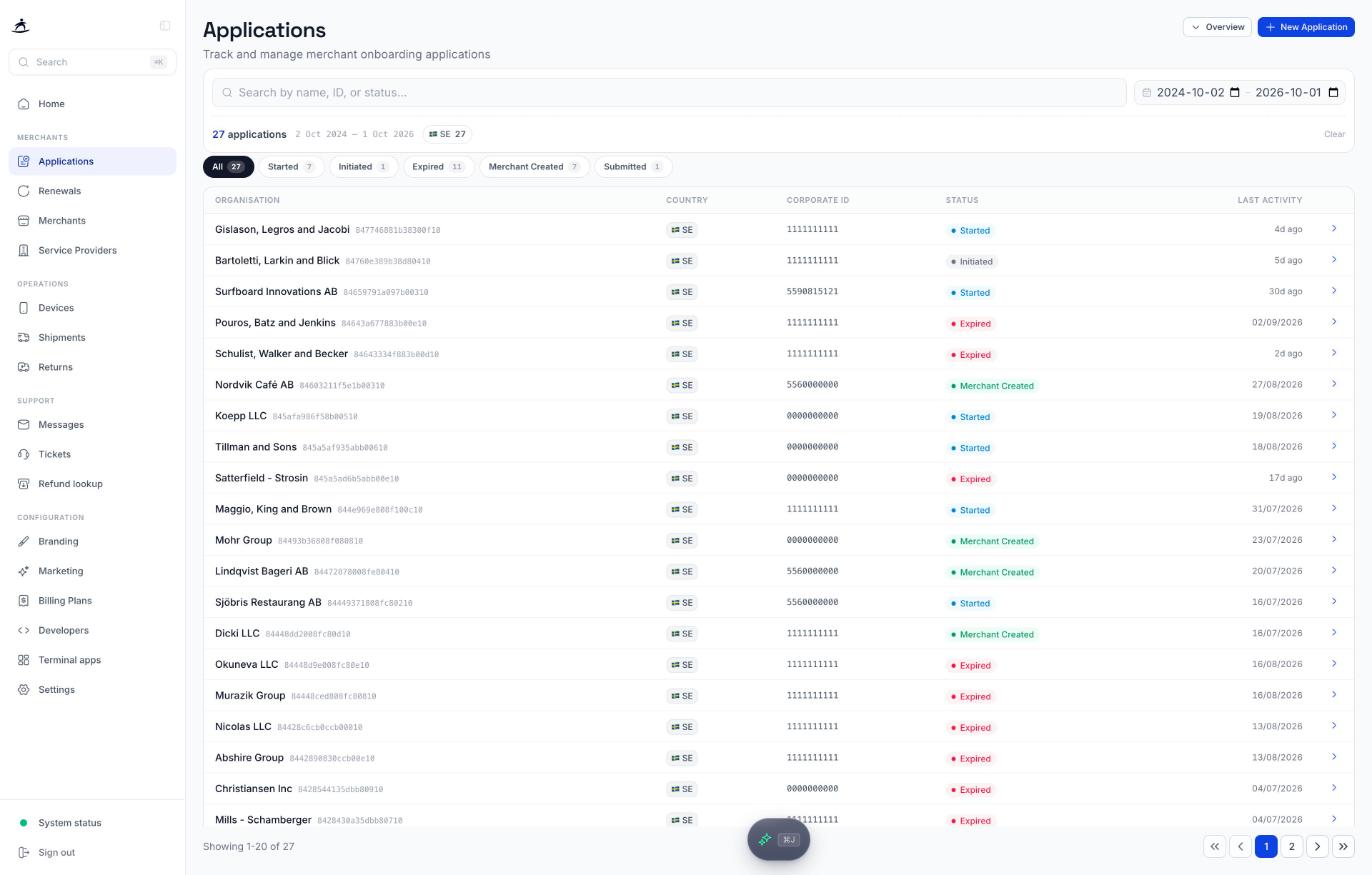
Each row shows:
| Column | Description |
|--------|-------------|
| **Organisation** | The merchant's legal name and the application ID |
| **Country** | Where the merchant is registered |
| **Corporate ID** | The organisation number |
| **Status** | Where the application is now, see [Application statuses](#application-statuses) |
| **Last Activity** | When the application last changed |
To narrow the list:
- **Search** by name, ID, corporate ID or status
- Set a **date range** with the two date fields
- Click a **country** chip to show only that country
- Click a **status** chip (**All**, **Started**, **Expired**, and so on) to show one status. Each chip shows its count.
**Clear** resets the filters. The list shows 20 applications per page.
The **Overview** button at the top opens a panel with onboarding figures for the period, the same numbers as the Onboarding section on the [dashboard](/partner-portal/dashboard-overview#onboarding).
## Application Statuses
| Status | What it means |
|--------|---------------|
| **Session Initiated** / **Initiated** | The application has been created and the web KYB link generated. The merchant now needs to fill in their information. |
| **Started** | The merchant has started the application but hasn't submitted it. |
| **Submitted** | The merchant has finished the web KYB and submitted it. Signatures may still be missing. |
| **Awaiting Acquirer Mapping** | Submitted, and a BAX has been ordered from the acquirer. Processing continues automatically when the acquirer returns it. |
| **Pending Info** | Under review, and Surfboard needs more information from the merchant. |
| **Signed** | The signatories and beneficial owners have signed. |
| **Completed** | Approved. The merchant account is being created. |
| **Merchant Created** | Done. The merchant account and store exist. |
| **Rejected** | Reviewed and rejected. |
| **Expired** | Nothing happened for 30 days. Each application is valid for 30 days; after that it expires and you need to create a new one. |
## Application Details
Click a row to open the details panel. It explains the current status in a sentence, and shows the **Application ID**, **Status**, and, once they exist, the **Merchant ID** and **Store ID** as links.
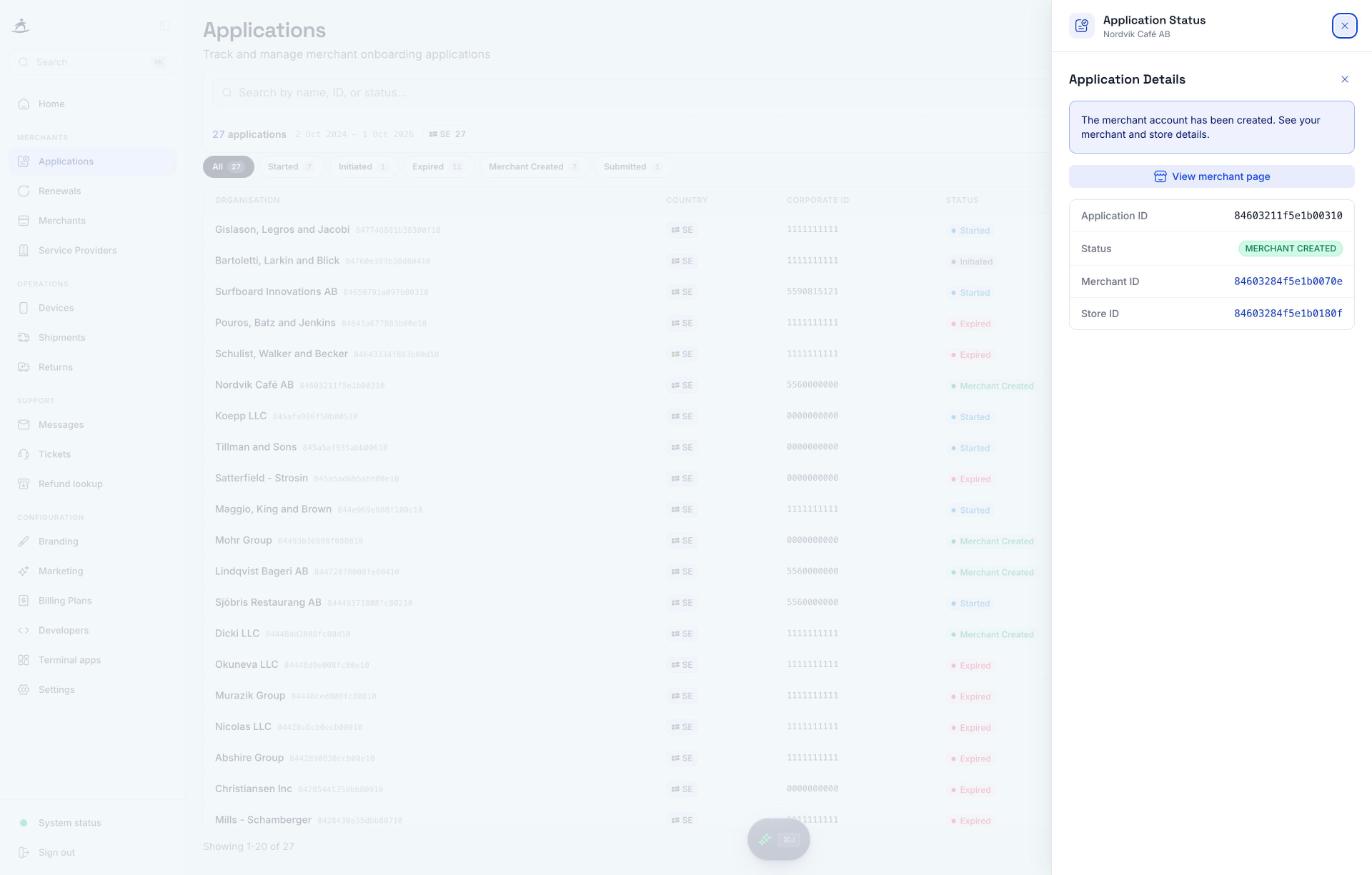
Depending on the status, the panel also shows:
- **View merchant page** -- once the merchant is created
- **Web KYB URL** -- the merchant's onboarding link, while the application is still open, depending on your partner agreement
- **A note from Surfboard** -- titled **Information requested** (Surfboard needs something from the merchant), **Acquirer registration**, or **Action needed**. Read it before contacting support; it usually says exactly what's missing.
### Signing
Once the merchant has submitted the application, the panel shows who needs to sign:
- **Signatories** -- for example *1 of 2 signed*, with each person marked **signed** or **pending**. Next to each, you'll see whether the signing link was emailed to them, or *no email · send link manually*.
- **Any one of these groups completes signing** -- when the company can be signed for in more than one way, the panel lists the combinations of signatories that are enough.
- **Beneficial owners** -- the owners who also need to sign, with the same count.
- **Signing links** -- one per signing flow, marked **COMBINED**, **SIGNATORY** or **UBO**, each with **Copy link**. Use these to chase a missing signature.
If someone was entered in the application but isn't an authorised signatory, the panel warns you: their signature won't complete the application.
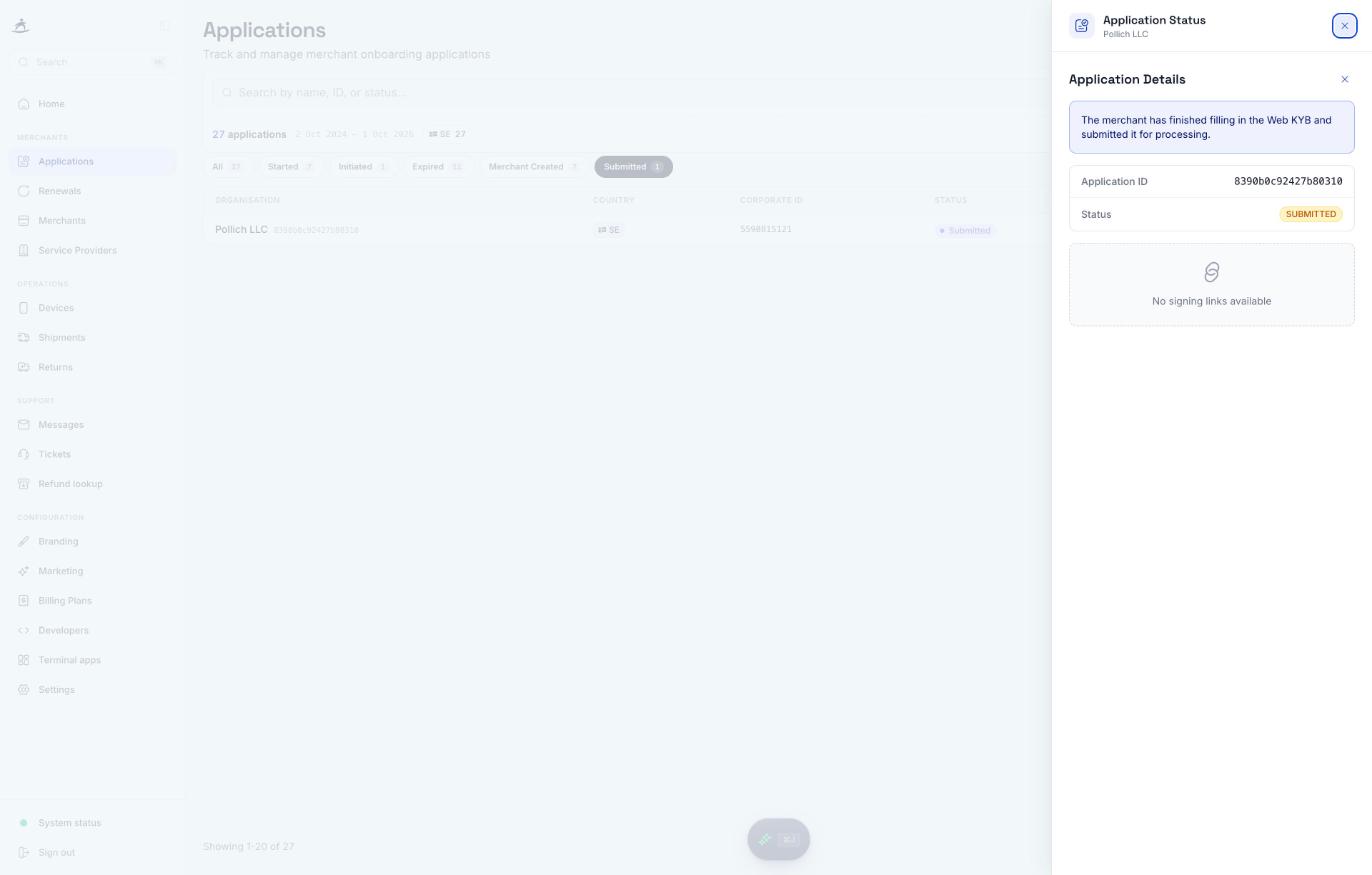
## Creating an Application
Click **New Application** (or **Onboard Merchant** on the Merchants page). The form has four steps: **Business**, **Store**, **Prefill** and **Review**. Your progress is shown at the top.
The form saves a draft in your browser as you go. If you leave and come back within 7 days, it picks up where you left off; **Start over** discards the draft. **Cancel** discards it too.
**Continue** stays disabled until the step's required fields are filled in. A yellow box lists what's still missing.
### Step 1: Business
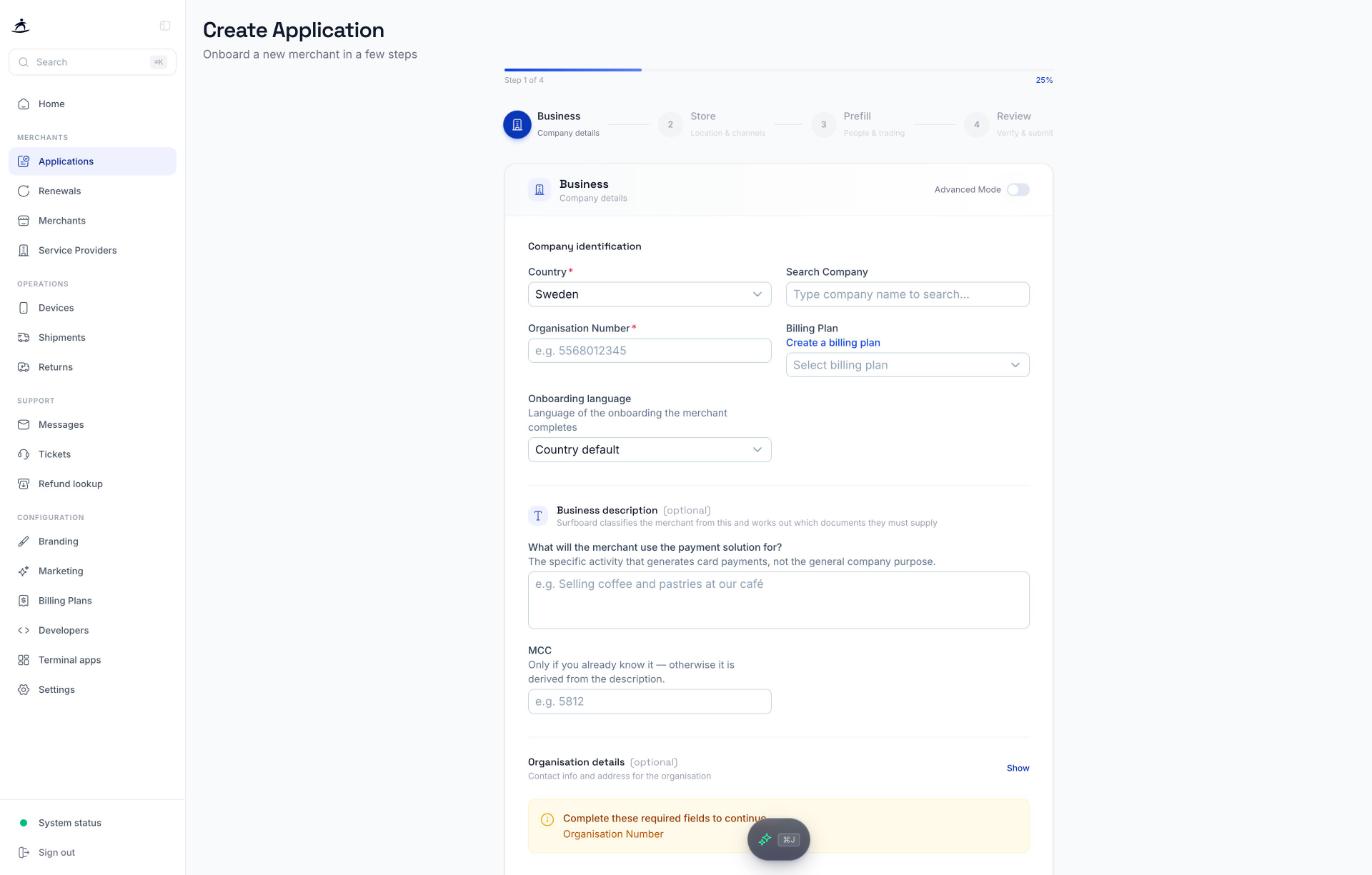
**Company identification**
| Field | Notes |
|-------|-------|
| **Country** | Required. You can only choose the countries your partner account is set up for. If there is only one, it's selected for you. |
| **Search Company** | Type the company name to search the business registry. Picking a result fills in the organisation number, name and address. If nothing is found, enter the details manually. |
| **Organisation Number** | Required. |
| **Billing Plan** | The pricing the merchant will be on, if billing plans are enabled for your account. If you don't have the plan you need, click **Create a billing plan**: your application is kept, and you return to it with the new plan selected. See [Billing Plans](/partner-portal/billing-plans). |
| **Onboarding language** | The language the merchant sees in the web KYB: **Country default**, **English**, **Swedish**, **Danish**, **Finnish** or **Norwegian**. |
**Business description** (optional)
- **What will the merchant use the payment solution for?** Describe the activity that generates card payments, not the general company purpose, for example *Selling coffee and pastries at our café*. Surfboard classifies the merchant from this and works out which documents they need to supply.
- **MCC** -- only if you already know the merchant category code. Otherwise it's derived from the description.
**Multi-Merchant Group** (optional) -- shown only if you have [multi-merchant groups](/partner-portal/multi-merchant-groups). Switch it on and pick the group the merchant should join.
**Organisation details** (optional) -- click **Show** to add the company's email, phone and address. Once you fill in any address field, the address line, city, country and zip code become required.
### Step 2: Store
The store is optional. If you add one, the merchant's first store is created together with the merchant account. Once you enter a **Store Name**, the store's email, phone number and address become required. Switch on **Same as organisation** to reuse the organisation address.
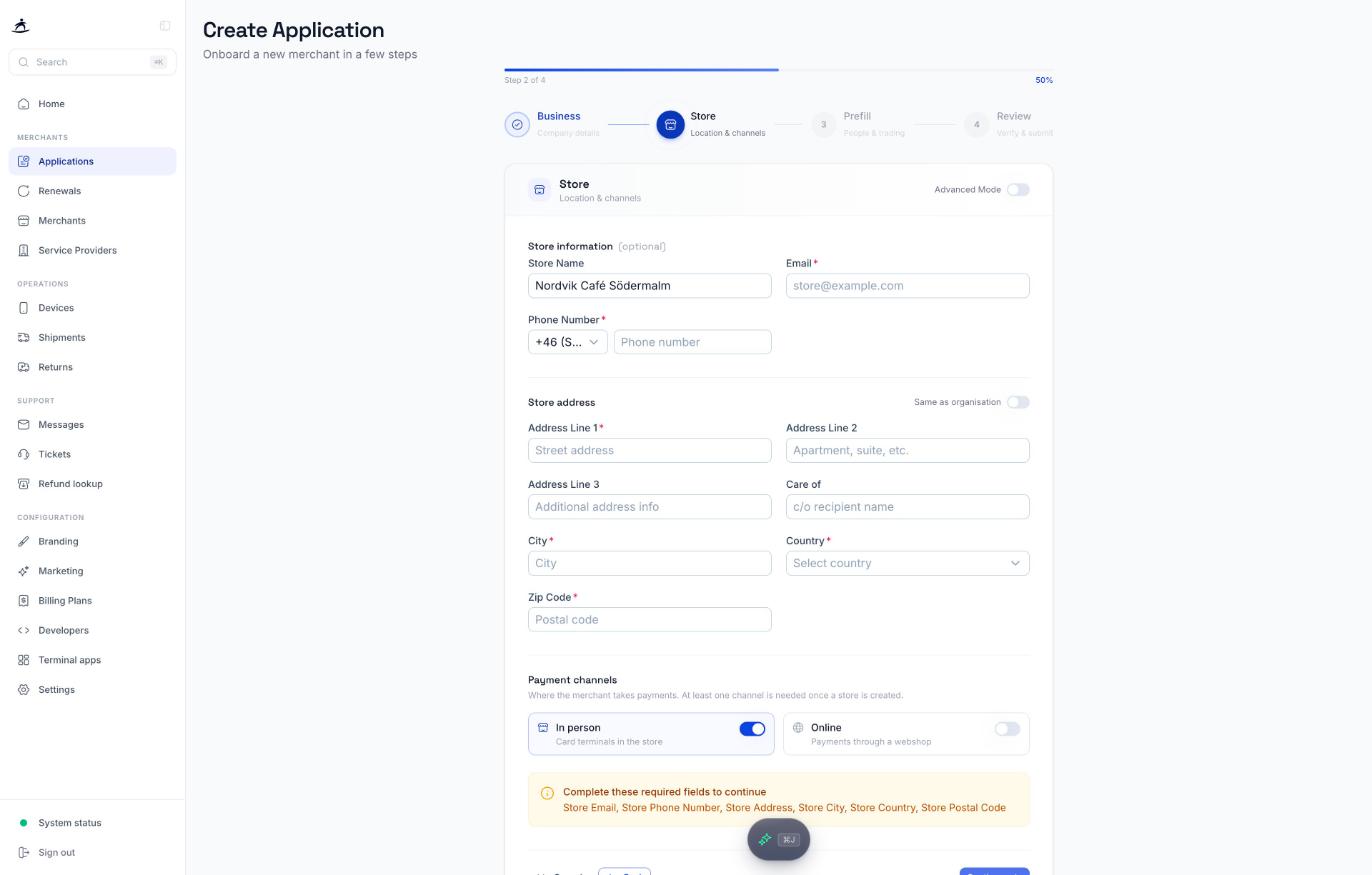
**Payment channels** -- where the merchant takes payments. At least one is needed once a store is added:
- **In person** -- card terminals in the store
- **Online** -- payments through a webshop
With both switched on, a slider sets the **Share of turnover taken in person**; the rest is assumed to be online.
With **Online** on, fill in:
| Field | Required |
|-------|----------|
| **Webshop URL** | Yes |
| **Terms & Conditions URL** | Yes |
| **Privacy Policy URL** | Yes |
| **Payment Page URL** | Only for SDK integrations |
| **Google Pay Merchant ID** | Only for SDK integrations |
Switch on **Lock online store URLs** if the merchant shouldn't change them: they'll see the URLs you entered but can't add or edit them while completing the application.
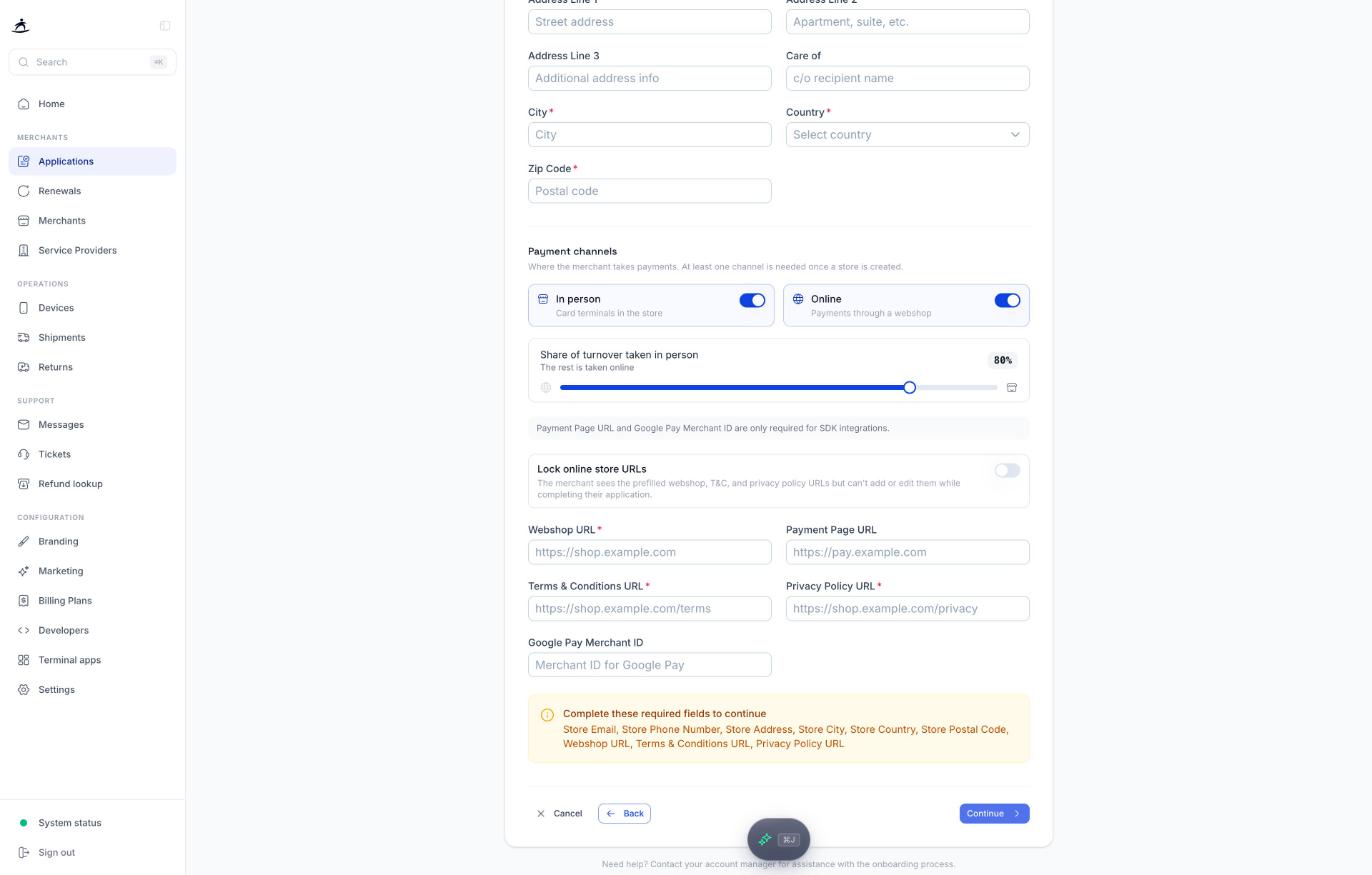
### Step 3: Prefill
Everything on this step is optional. What you fill in is already in place when the merchant opens their onboarding; anything left blank or switched off is asked in the flow instead. Prefilling saves the merchant time and avoids mistakes.
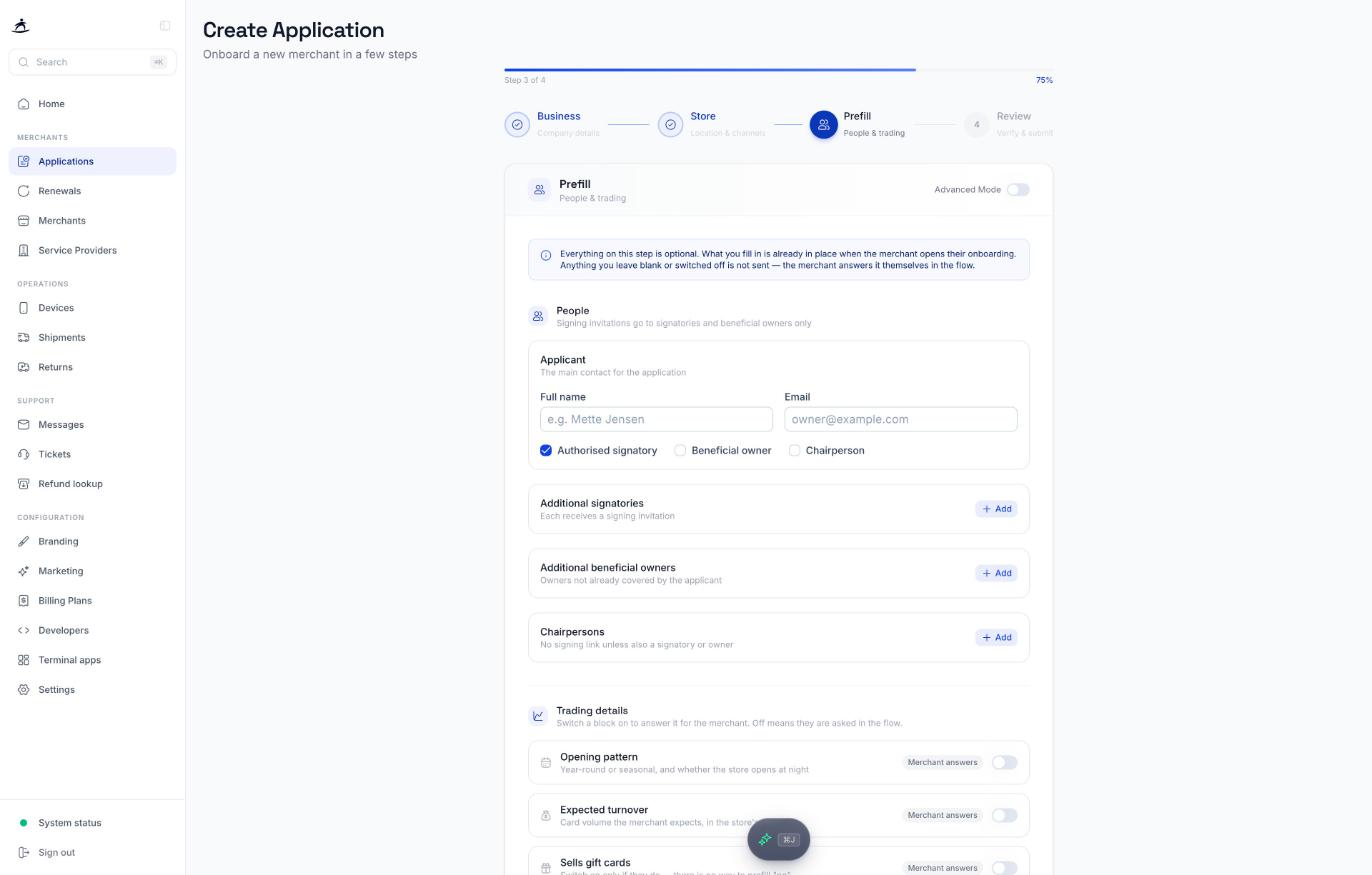
**People** -- signing invitations go to signatories and beneficial owners only.
- **Applicant** -- the main contact. Enter their full name and email and tick their roles: **Authorised signatory**, **Beneficial owner** and/or **Chairperson**. For a beneficial owner, add the ownership percentage and whether the ownership is direct or indirect (through another company, which you name).
- **Additional signatories** -- each receives a signing invitation.
- **Additional beneficial owners** -- owners not already covered by the applicant.
- **Chairpersons** -- they don't get a signing link unless they're also a signatory or owner.
Every person you add needs a name and a valid email.
**Trading details** -- each block has a switch. Off shows **Merchant answers** (they're asked in the flow); on shows **Prefilled** and the fields to fill in:
| Block | What you fill in |
|-------|------------------|
| **Opening pattern** | Open all year or which months, and whether the store opens at night (and why) |
| **Expected turnover** | Yearly card turnover, sales per day, average transaction, most expensive item, and how often they take payments |
| **Sells gift cards** | Share of yearly revenue and average validity. Switch on only if they do; there's no way to prefill "no". |
| **Takes prepayments** | Customers pay before delivery: average time to delivery and share of yearly sales. Switch on only if they do. |
### Step 4: Review
The review lists everything you've entered, grouped by section, with an **Edit** button that takes you back to the step. Check the **Billing Plan** row: it shows **Not selected** if you haven't picked one.
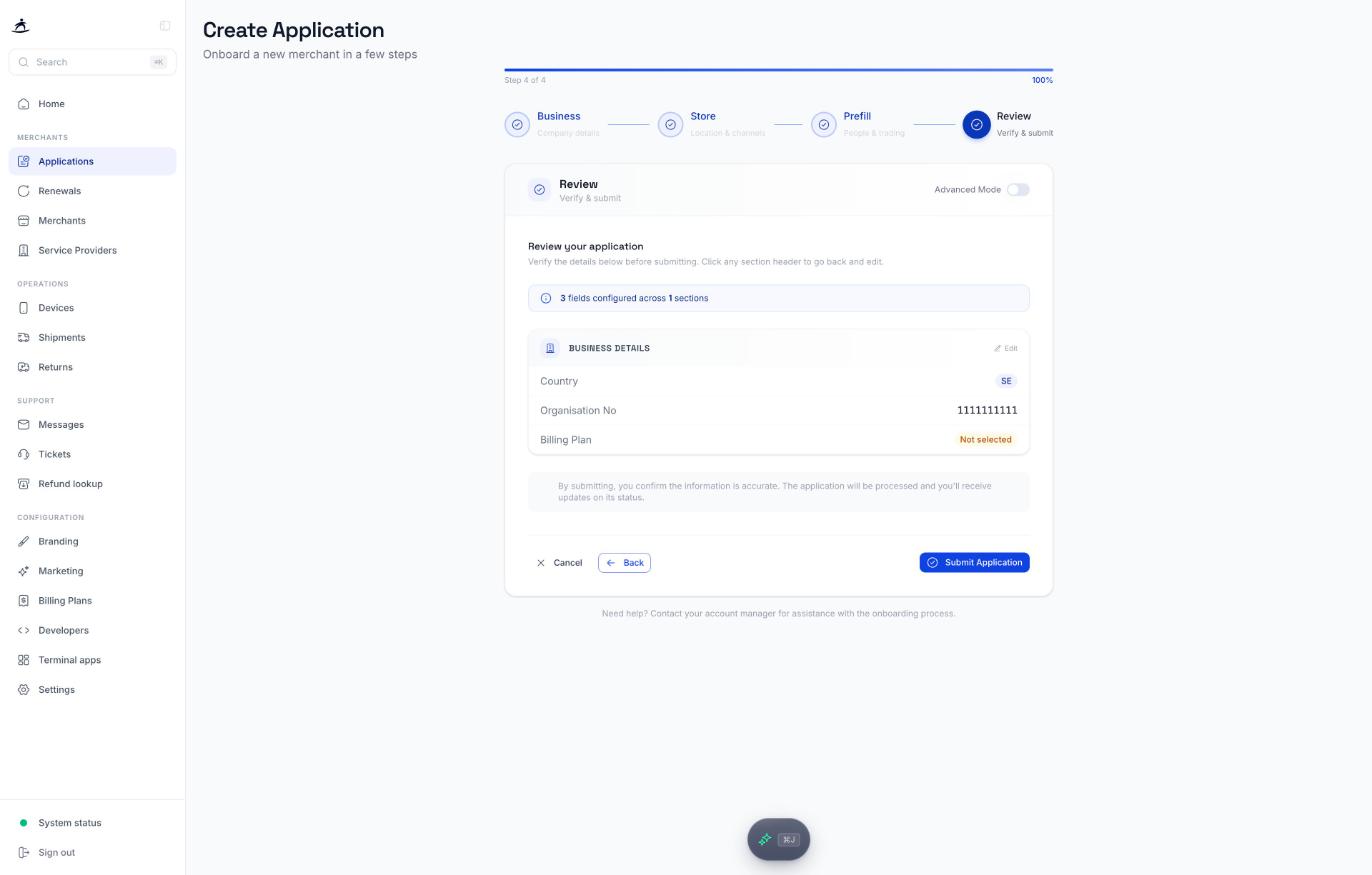
Click **Submit Application**.
### After submitting
The confirmation screen shows the merchant's onboarding link as a **Short link** and a **Full link**, each with **Copy**, and the date the link is valid until.
> **Note:** Treat the onboarding link as sensitive. Anyone with the link can open the application, so send it only to the merchant.
Send the link to the merchant. They complete the web KYB, the signatories sign, and you can follow progress in the application list. If the submission fails because of the billing plan, the error offers to create a billing plan or choose an existing one.
## Advanced Mode
Some partner accounts have an **Advanced Mode** switch at the top of the form. It's only shown if it's enabled for your account; ask your account manager if you need it.
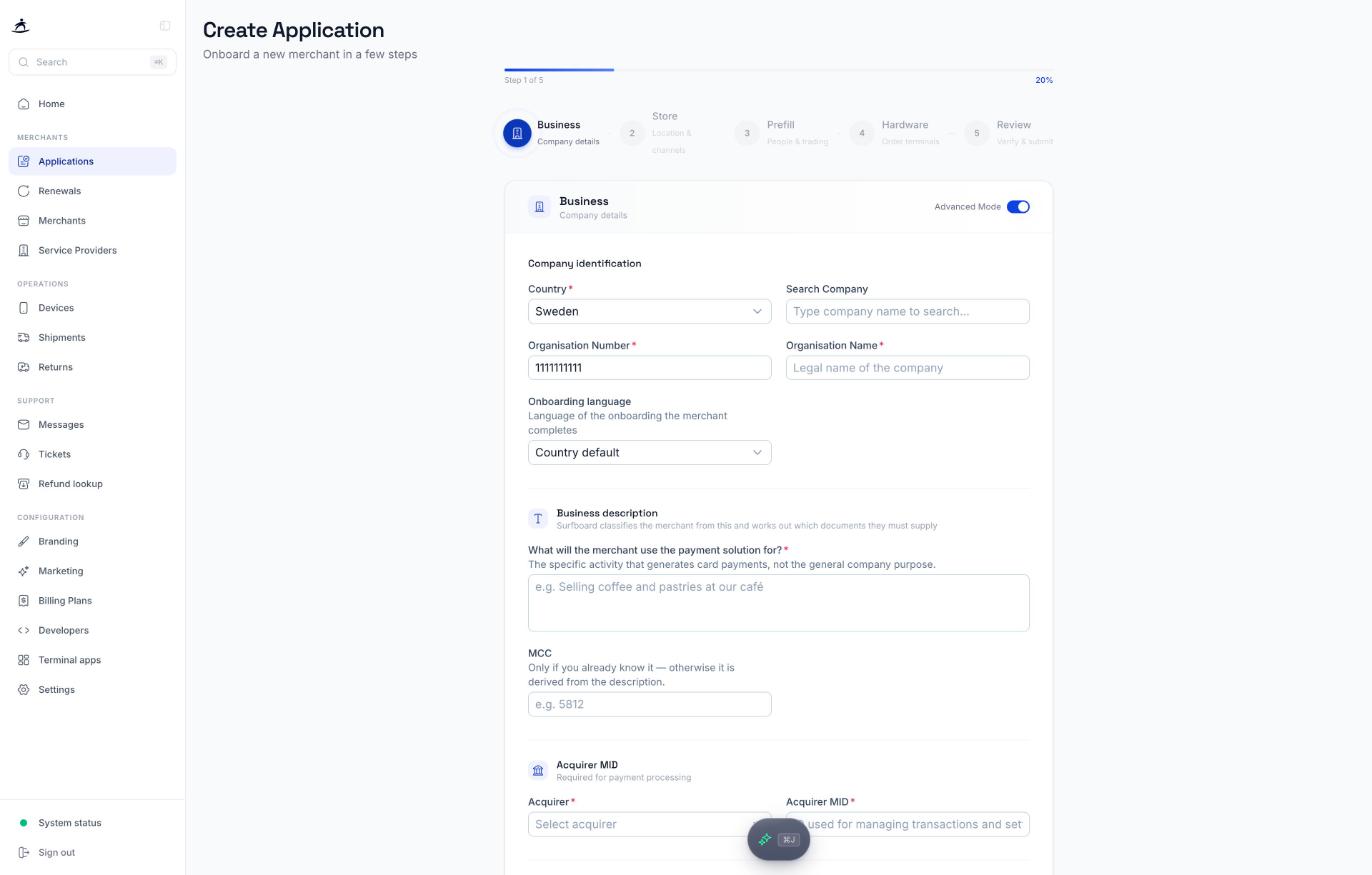
Advanced Mode is for partners who hold more of the merchant setup themselves:
- **Organisation Name** is required, and the organisation details become required.
- An **Acquirer MID** section asks for the **Acquirer** and the merchant's **Acquirer MID**. For Nets, the field is **BAX ID**: enter an existing BAX ID to have Nets copy it, or leave it empty to order a new one. If the BAX ID isn't 7 digits, you're asked to confirm it's correct.
- The billing plan field is hidden.
- An extra **Hardware** step lets you order terminals with the application, delivered to the business address, the store address, or another address such as your own office. Once the merchant exists, you still need to [activate](/partner-portal/terminals) each terminal to it before it can be registered.
## Tips
- **Prefill what you know.** Every field you prefill is one less question for the merchant and one less chance of a typo.
- **Chase stalled applications.** Filter on **Started** and **Submitted** regularly. Open the details to see exactly which signature is missing and copy the signing link.
- **Watch the 30-day limit.** An application that expires has to be created again.
## Related
- [Renewals](/partner-portal/renewals)
- [Billing Plans](/partner-portal/billing-plans)
- [Merchant Management](/partner-portal/merchant-management)
- [Multi-Merchant Groups](/partner-portal/multi-merchant-groups)
- [Shipments & Returns](/partner-portal/shipments-and-returns)
### Renewals
Category: merchants | Tags: Renewals, KYB, Applications, Merchants
URL: /partner-portal/renewals
## Overview
Know Your Business information doesn't stay valid forever. When a merchant's details need to be confirmed again, a **renewal application** is opened for them. The merchant completes it through the same kind of web KYB flow as their original onboarding.
As the partner, you don't fill in the renewal, but you're the one who can see that it's due and remind the merchant. The portal shows renewals in three places:
- the **Renewals** page in the sidebar
- a **Renewals** card on the [dashboard](/partner-portal/dashboard-overview)
- a banner on the merchant's own page
## The Renewals Page
Open **Merchants → Renewals** in the sidebar. The list shows every renewal application across your merchants, with the ones closest to expiring at the top.
| Column | Description |
|--------|-------------|
| **Organisation** | The merchant's name |
| **Corporate ID** | The organisation number |
| **Country** | Where the merchant is registered |
| **Status** | The renewal's status. These are the same as for onboarding applications, see [Application statuses](/partner-portal/applications#application-statuses). |
| **Expiry** | How long the merchant has left |
The **Expiry** badge is shown while the renewal is initiated or started:
- **N days left** -- green, or orange when three days or fewer remain
- **Expired** -- red; the deadline has passed
Use the search box to find a renewal by name, ID, corporate ID or status, and the status chips to show one status. The refresh button at the top reloads the list.
If the page is empty, none of your merchants currently has a renewal.
### Renewal details
Click a row to open the same details panel as for onboarding applications. It shows the status in plain language, any note from Surfboard (for example **Information requested**), the signing progress and signing links, and a **View merchant page** button.
When the merchant has started but not finished, copy the signing link or the onboarding link from the panel and send it to them again. See [Application Details](/partner-portal/applications#application-details) for what each part of the panel means.
## On the Dashboard
The **Renewals** card on the dashboard lists up to three renewals that need attention, with counts of how many are in progress and how many have expired. Each row says **Overdue**, **N days left**, **In progress** or **Expired**. **View** or **View all** opens the Renewals page.
## On the Merchant's Page
When a merchant's renewal expires within 20 days, or is already overdue, a banner appears at the top of their page:
- **Application renewal due soon** -- with the number of days left and the date
- **Application renewal overdue** -- with the date it expired
The banner has two buttons:
- **Open renewal** -- opens the merchant's renewal flow, so you can check it or pass the link on
- **View all** -- opens the Renewals page
## Tips
- **Check renewals weekly.** Sort is by soonest expiry, so the top of the list is where to start.
- **Contact the merchant early.** Renewals often need a signatory, and getting hold of the right person takes time. Don't wait for the orange badge.
- **Read Surfboard's note** in the details panel before contacting support. If it says **Information requested**, it usually says what's missing.
## Related
- [Applications & Merchant Onboarding](/partner-portal/applications)
- [Dashboard Overview](/partner-portal/dashboard-overview)
- [Merchant Management](/partner-portal/merchant-management)
- [Support Tickets](/partner-portal/tickets)
### Merchant Management
Category: merchants | Tags: Merchants, Management, Users, Charges, Configuration, Hardware
URL: /partner-portal/merchant-management
## Overview
The **Merchants** page lists every merchant onboarded under your partner account. Open a merchant and you get its own page, with a tab for each area you can manage: transactions, stores, terminals, reports, payment methods, users, configuration, and more.
This guide covers the list, the merchant header, and each tab in turn. The larger areas have their own guides, linked from each section.
## The Merchants list
Click **Merchants** in the sidebar.
| Column | Description |
|--------|-------------|
| **Merchant** | Name and merchant ID |
| **Email** | The merchant's contact email |
| **Org. Nr** | Corporate registration number |
| **Country** | Country code |
| **Activity** | When the merchant was created, or *No activity* |
### Search, sort, and view
- **Search** -- type a name, merchant ID, or email. Press **⌘F** (Ctrl+F) to jump to the search box. Searching starts after two characters.
- **Sort** -- **Name (A-Z)**, **Name (Z-A)**, **Recently Created**, or **Last Transaction**.
- **View** -- switch between the list and a card grid with the toggle next to the sort menu.
Active filters show as chips above the list. **Clear all** removes them.
### Buttons at the top
- **Multi-Merchants** -- opens your multi-merchant groups. See [Multi-Merchant Groups](/partner-portal/multi-merchant-groups).
- **Export** -- downloads a CSV of all your merchants, across every page. Columns: Merchant Name, Merchant ID, Email, Company ID, City, Country, Currency, Created, Last Transaction.
- **Onboard Merchant** -- starts a new application. See [Applications & Merchant Onboarding](/partner-portal/applications).
## The merchant header
Click a merchant to open its page. The header stays at the top on every tab.
- **Name** and a status badge:
- **Active** -- the merchant has had at least one transaction in the last 30 days.
- **Inactive** -- no transactions in the last 30 days. This says nothing about the contract; it only reflects activity.
- **Merchant ID** with a copy button, plus email, country, and currency.
- **Invite** -- invite someone to the merchant's own portal (see [Users](#users)).
- **Config** -- jumps to the merchant's terminal settings.
- **Terminals** -- jumps to the Terminals tab.
### Inviting a merchant user
**Invite** opens **Invite to Merchant**:
| Field | Required | Notes |
|-------|----------|-------|
| **Email** | Yes | The person receives an invitation at this address |
| **First name** / **Last name** | No | |
| **Role** | Yes | **Admin** (default), **Super Admin**, or **User** |
Click **Send Invite**.
### Renewal banner
When the merchant's renewal application expires within 20 days, or is already overdue, a banner appears under the header: *Application renewal due soon* or *Application renewal overdue*. **Open renewal** opens the merchant's renewal form, and **View all** goes to [Renewals](/partner-portal/renewals).
## The tabs
The tab strip scrolls sideways when it doesn't fit; use the arrow at the right edge. The tabs, in order:
| Tab | What it's for |
|-----|---------------|
| [Overview](#overview-tab) | Sales figures and merchant details |
| [Transactions](#transactions) | Every payment, with filters, analytics, and refunds |
| [Stores](#stores) | The merchant's locations and online stores |
| [Terminals](#terminals) | Payment terminals, registration, software |
| [Printers](#printers) | Printer terminals |
| [Reports](#reports) | Settlement reports and report subscriptions |
| [Billing](#billing) | The billing plan assigned to the merchant |
| [Payment Methods](#payment-methods) | Which methods the merchant accepts |
| [Catalog](#catalog-and-promotions) | Products sold through the POS app |
| [Promotions](#catalog-and-promotions) | Campaigns on terminal receipts and screens |
| [Charges](#charges) | One-off or recurring charges to the merchant |
| [Contracts](#contracts) | The merchant's signed agreements |
| [Users](#users) | People with access to the merchant portal |
| [Service Providers](#service-providers) | Split-payout recipients linked to the merchant |
| [Configuration](#configuration) | Tips, branding, terminal defaults, app, settlement, receipts |
| [Hardware](#hardware) | Order terminals and accessories for this merchant |
| [Cash Register](#cash-register) | Cash registers (ECR) and bookkeeping |
**Service Providers** and **Cash Register** only appear if they're enabled for your partner account.
## Overview tab
The default tab gives a quick read on the merchant's business.
- **Summary cards** for the past three months: **Sales** (in the merchant's main currency, with other currencies noted below), **Transactions**, **Payment Methods** used, and **Avg. Transaction**.
- **Sales Trend** -- purchases over time. Switch between **Quarterly**, **Monthly** (default), **Weekly**, and **Daily**.
- **Payment Methods** -- how the volume splits across methods.
- **Adjustments** -- tips, charity, discounts, and surcharges, when the merchant has any.
- **Merchant Information** -- Merchant ID, Acquirer MID, Organisation No., MCC, Language, Currency.
- **Contact Details** -- email, phone, and address, each with a copy button.
- **Transactions by Currency** -- daily purchases, refunds, transaction count, and net purchases.
### Changing the merchant's logo
Click **Change Logo** next to the merchant name. Upload a PNG, JPEG, or SVG of up to 2 MB, then **Save logo**. **Remove** takes the logo away.
## Transactions
Every payment the merchant has taken, with search, filters, an **Analytics** view, CSV downloads, and refunds from the transaction page. See [Transactions & Reporting](/partner-portal/transactions-and-reporting) and [Refunds](/partner-portal/refunds).
## Stores
The merchant's physical and online stores. Create stores, edit their details, set up online payments, and register terminals to them. See [Stores](/partner-portal/stores).
## Terminals
All terminals under the merchant, with filters by type, store, and status. From here you register and activate devices, push or uninstall software, and change terminal settings. See [Terminal Management](/partner-portal/terminals) and [Terminal Configuration](/partner-portal/terminal-configuration).
## Printers
Printer terminals registered under the merchant's stores, with their store, status, serial number, and software version. Search by name, ID, serial, or store. Printers are registered the same way as payment terminals, from a store.
## Reports
**Settlement Reports** lists every settlement for the merchant: settlement date, the transaction dates it covers, report type, payout ID, sales, returns, fees, and the payout. Download any report from its row.
**Subscribe** sets up email (or Slack) delivery of **Daily Reports** or **Monthly Reports**. Existing subscriptions are listed under **Active Subscriptions**; the trash icon unsubscribes immediately, without asking. See [Transactions & Reporting](/partner-portal/transactions-and-reporting).
## Billing
Shows the billing plan the merchant is on, with the fee for each payment method and card type. This tab is read-only. Plans are created under [Billing Plans](/partner-portal/billing-plans) and chosen when the application is created.
## Payment Methods
Core methods (card, cash, SoftPOS) and the additional methods you can activate, such as Klarna, Swish, Vipps, MobilePay, American Express, and Account to Account. See [Payment Methods](/partner-portal/payment-methods).
## Catalog and Promotions
**Catalog** holds the products the merchant sells through the POS app, per store. **Promotions** are campaigns shown on terminal receipts and screens. See [Product Catalog & Promotions](/partner-portal/catalog-and-promotions).
## Charges
Charges let you bill the merchant for something outside the transaction fees, for example a terminal rental or a monthly service fee.
The table lists each charge with its description, amount, VAT, status (**PENDING**, **COMPLETED**, or **FAILED**), and billing date. Recurring charges are marked with an icon.
Click **Add Charge**:
| Field | Required | Notes |
|-------|----------|-------|
| **Description** | Yes | What the charge is for |
| **Amount (minor units)** | Yes | In the smallest currency unit: `10000` is 100.00 |
| **Currency** | | Numeric currency code. Defaults to `752` (SEK) |
| **VAT (minor units)** | No | The VAT part of the amount, also in minor units |
| **Billing Date** | No | When the charge is billed |
| **Recurring charge** | No | Tick to repeat the charge. Then choose a **Frequency** (Daily, Weekly, Monthly, Quarterly, Annually) and an optional **Billing End Date** |
Click **Create Charge**.
## Contracts
The merchant's contracts, with contract ID, type, and status. **View** opens the contract. Contracts appear once the merchant has completed onboarding.
## Users
People with access to the merchant's own portal, with their role and the date they joined.
- **Invite** sends a new invitation, the same as the button in the header.
- The pencil icon opens **Edit Profile**, where you can change the first name, last name, and avatar URL. The role can't be changed here.
## Service Providers
The service providers linked to this merchant, the people or companies that take a share of its payments through Surfboard Flow. **Link Service Provider** adds one; **Unlink** removes one after you confirm. See [Service Providers](/partner-portal/service-providers).
## Configuration
Merchant-wide settings, in six sub-tabs. Each setting here applies to all the merchant's stores and terminals unless a store or terminal overrides it.
| Sub-tab | What you set |
|---------|--------------|
| **Tips** | Tipping on all the merchant's terminals: on or off, percentage or amount, up to three preset levels, custom amounts |
| **Branding** | Colours, fonts, logo, and icon for this merchant. Removing it falls back to your partner branding. See [Branding](/partner-portal/branding) |
| **Terminal Defaults** | Default terminal settings for the merchant. See [Terminal Configuration](/partner-portal/terminal-configuration) |
| **Application** | Which features the POS app shows (see below) |
| **Settlement** | Net or gross settlement, the daily cut-off time, and settlement frequency. See [Changing a Merchant's Settlement Schedule](/partner-portal/settlement-schedule) |
| **Receipt** | The printed and digital receipt layout. See [Branding](/partner-portal/branding) |
### Application
**Application Configuration** controls which features are available in the merchant's POS app. These settings apply when the app runs in Standalone mode:
- **Show Today's Sales Aggregate** -- a summary of today's sales in the app.
- **Show Product Catalogue** -- makes the [product catalog](/partner-portal/catalog-and-promotions) available.
- **Show Transactions** -- lets staff view transaction history.
- **Enable Product Creation** -- lets staff create new products from the app.
Click **Save Application Configuration**.
> **Note:** Changes only take effect after the merchant's app is restarted.
## Hardware
Order terminals and accessories for this merchant without leaving its page.
**Order History** lists the merchant's previous hardware orders, each with status, delivery partner, packages and serial numbers, address, and a tracking link.
**Order Hardware** creates a new order:
1. Under **Products**, pick a product and quantity. **Add Product** adds another line. The list is your partner product catalogue.
2. Under **Shipping Information**, choose **Select Address** to use the merchant's address or one of its store addresses, or **Add a new address manually**.
3. Check the required fields: **Name**, **Street Address**, **Email**, **City**, **Postal Code**, and **Country**. Phone, a second address line, and **Delivery Instructions** are optional.
4. Click **Create Order**.
The order also appears under [Shipments](/partner-portal/shipments-and-returns).
## Cash Register
Only shown if cash registers are enabled for your partner account. Add and declare cash registers, run shifts and end of day, and turn on bookkeeping. See [Cash Registers (ECR)](/partner-portal/cash-registers).
## Related
- [Applications & Merchant Onboarding](/partner-portal/applications)
- [Stores](/partner-portal/stores)
- [Transactions & Reporting](/partner-portal/transactions-and-reporting)
- [Terminal Management](/partner-portal/terminals)
- [Multi-Merchant Groups](/partner-portal/multi-merchant-groups)
### Stores
Category: merchants | Tags: Stores, Online payments, Domains, Terminals, Merchants
URL: /partner-portal/stores
## Overview
A store is a place where a merchant takes payments: a shop, a restaurant, a kiosk, or a webshop. Every terminal belongs to a store, and many settings (tips, terminal configuration, branding, payment methods) can be set per store.
Stores live on the merchant's page. Open the merchant from **Merchants** and click the **Stores** tab.
## The store list
Each row shows the store name, an **Online** badge if the store takes online payments, the store ID, email, phone, and status. Search by name, ID, or email, and switch between list and grid with the toggles on the right. Click a store to open it.
## Creating a store
Click **Create Store**.
**Store Information**
| Field | Required | Notes |
|-------|----------|-------|
| **Store Name** | Yes | Up to 30 characters |
| **Email** | Yes | |
| **Phone Number** | No | Pick the country dial code, then the number |
**Address**
| Field | Required | Notes |
|-------|----------|-------|
| **Address Line 1** | Yes | |
| **Address Line 2**, **Address Line 3** | No | |
| **Care Of** | No | Up to 30 characters |
| **Postal Code** | | |
| **City** | Yes | Up to 30 characters |
| **Country** | Yes | Sweden, Denmark, Finland, Norway, Ireland, or United Kingdom. Defaults to your partner country |
**Online Payments**
Switch on **Enable online payments** if the store should accept payments through a webshop. Then fill in:
| Field | Required | Notes |
|-------|----------|-------|
| **Webshop URL** | Yes | |
| **Payment Page URL** | No | Only needed for Surfboard SDK integrations |
| **Terms & Conditions URL** | Yes | |
| **Privacy Policy URL** | Yes | |
| **Google Pay Merchant ID** | No | |
Click **Create Store**. The confirmation shows what happens next:
1. **Store created**
2. **Surfboard review** -- we verify and approve the store details
3. **Acquirer onboarding** -- typically takes 20-30 minutes once approved
## The store page
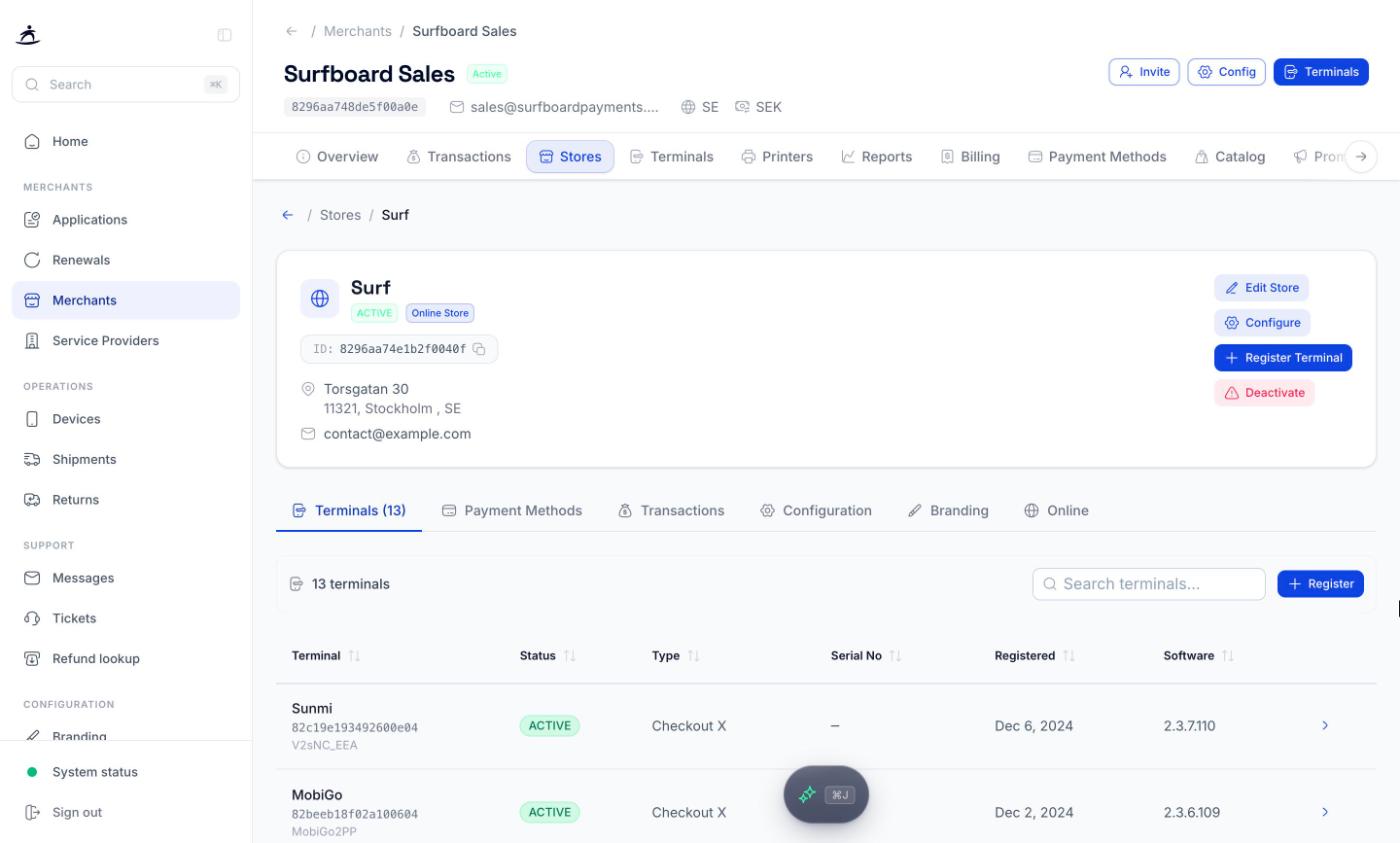
The header shows the store name, status, an **Online Store** badge for online stores, the store ID (with a copy button), address, email, and phone. Four actions sit on the right:
- **Edit Store** -- change contact details and address.
- **Configure** -- jumps to the store's **Configuration** tab.
- **Register Terminal** -- register a terminal to this store.
- **Deactivate** -- stop the store from accepting payments.
### Editing a store
**Edit Store** opens the same form as when creating a store, with a few limits:
- Changing the name, email, phone, or address sends the update to the acquirer. Some acquirers apply it automatically; others are updated manually by our team, so it can take a few working days.
- **Postal Code** and **Country** can't be changed here. Contact support to change them.
- Address Line 2, Address Line 3, and Care Of can be changed but not emptied once set. Contact support to remove them.
- The webshop, payment page, terms, and privacy policy URLs can only be edited before the online onboarding review starts. The **Google Pay Merchant ID** can be updated at any time.
Click **Update Store** to save.
### Deactivating a store
A store can only be deactivated when it has no terminals left. If terminals are still registered, the dialog tells you how many, and you need to move them first with **Change Store** on each terminal (see [Terminal Management](/partner-portal/terminals)).
When the store is empty:
1. Click **Deactivate**.
2. Under **When**, choose:
- **Immediately** -- the store stops accepting payments as soon as you confirm.
- **On a date** -- the store keeps trading until the date you pick. The date must be tomorrow or later.
3. Type the store name to confirm.
4. Click **Deactivate store** or **Schedule deactivation**.
> **Warning:** A deactivated store can no longer take payments. Check with the merchant before you do this.
## Store tabs
### Terminals
Every terminal registered to the store, with status, type, serial number, registration date, when it was last powered on, and software version.
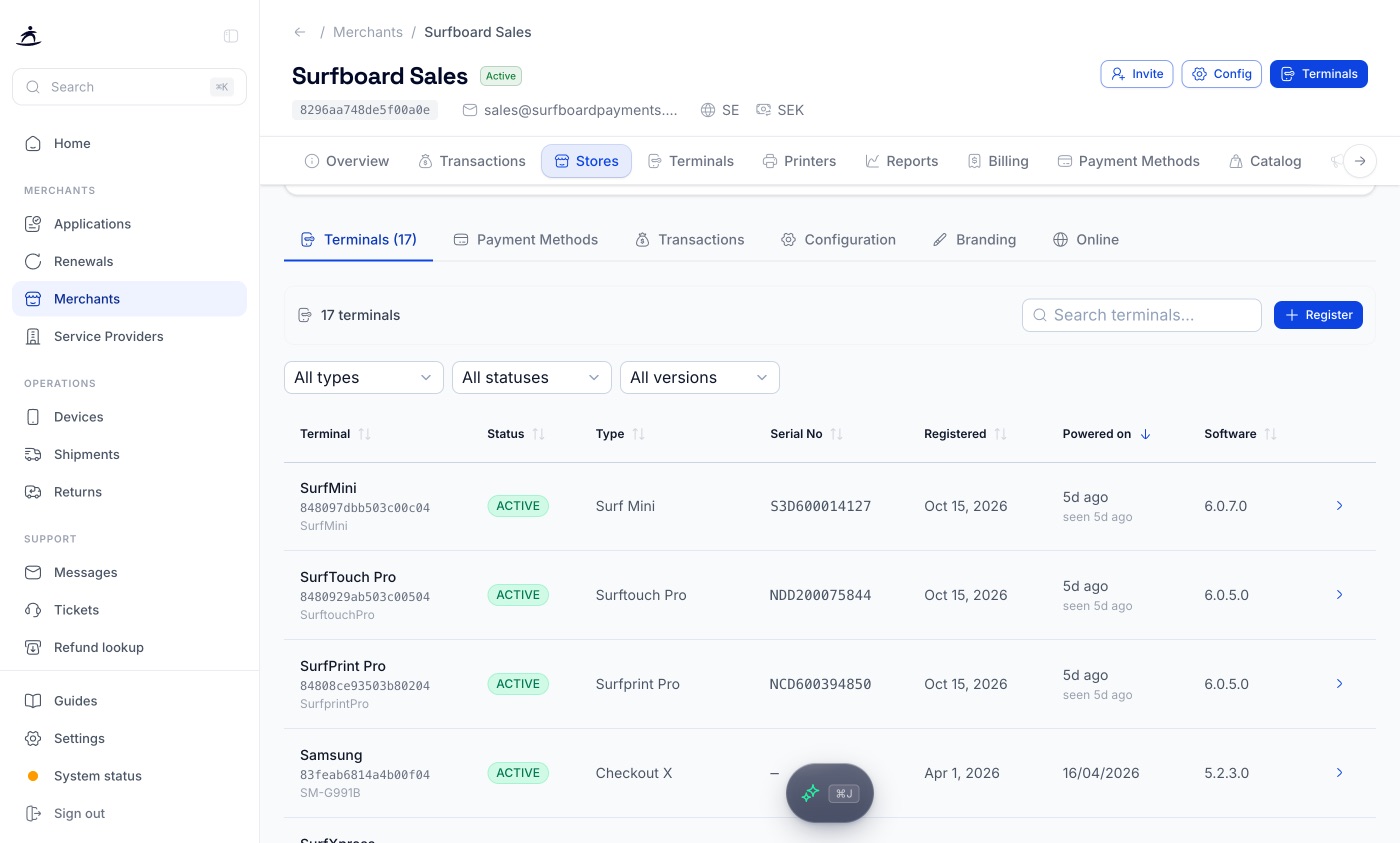
- Search by name, ID, serial number, model, or type.
- Filter by type, status, and software version. Only values that exist in the store are offered. **Clear filters** resets them, and the count shows how many terminals match.
- Sort by any column. The sort you choose is remembered across terminal lists.
**Register** opens the same dialog as **Register Terminal** in the header. Click a terminal to open it.
### Payment Methods
The payment methods for this store. It works like the merchant's [Payment Methods](/partner-portal/payment-methods) tab, scoped to the store. Apple Pay is only offered here, and only for stores set up with a self-hosted payment page.
### Transactions
The store's transactions, with the same list, filters, and **Analytics** view as the merchant's Transactions tab. See [Transactions & Reporting](/partner-portal/transactions-and-reporting).
### Configuration
Two panels that override the merchant-level settings for this store only:
- **Tips Configuration** -- **Enable Tips**, then choose **Display Format** (Percentage or Amount), up to three **Preset Tip Levels** (1-99, default 10, 20, 25), **Allow Custom Amount** with an optional default, and **Show Calculated Amount**. A preview shows what customers will see. Click **Save Tip Config**.
- **Terminal Configuration** -- display, network, behaviour, and security settings for the store's terminals. See [Terminal Configuration](/partner-portal/terminal-configuration).
### Branding
Colours, button shape, font, logo, and icon for this store's checkout. A store without its own branding inherits the merchant's. Set it here to override, or **Remove Branding** to go back to the merchant's. See [Branding](/partner-portal/branding).
### Online
What you see depends on whether the store takes online payments.
**Online stores** show **Domain Management**: each domain with its type, a **Verified** or **Pending** state, and the verification key. Add the key to the domain's DNS as a TXT record, or serve it as plain text at `https:///.well-known/sb-domain-verification.txt` (see [Store Management](/developers/guides/store-management#option-b-https-file)), then click **Verify**. Verification keys are generated shortly after online payments are enabled; click **Refresh** if none are listed yet.
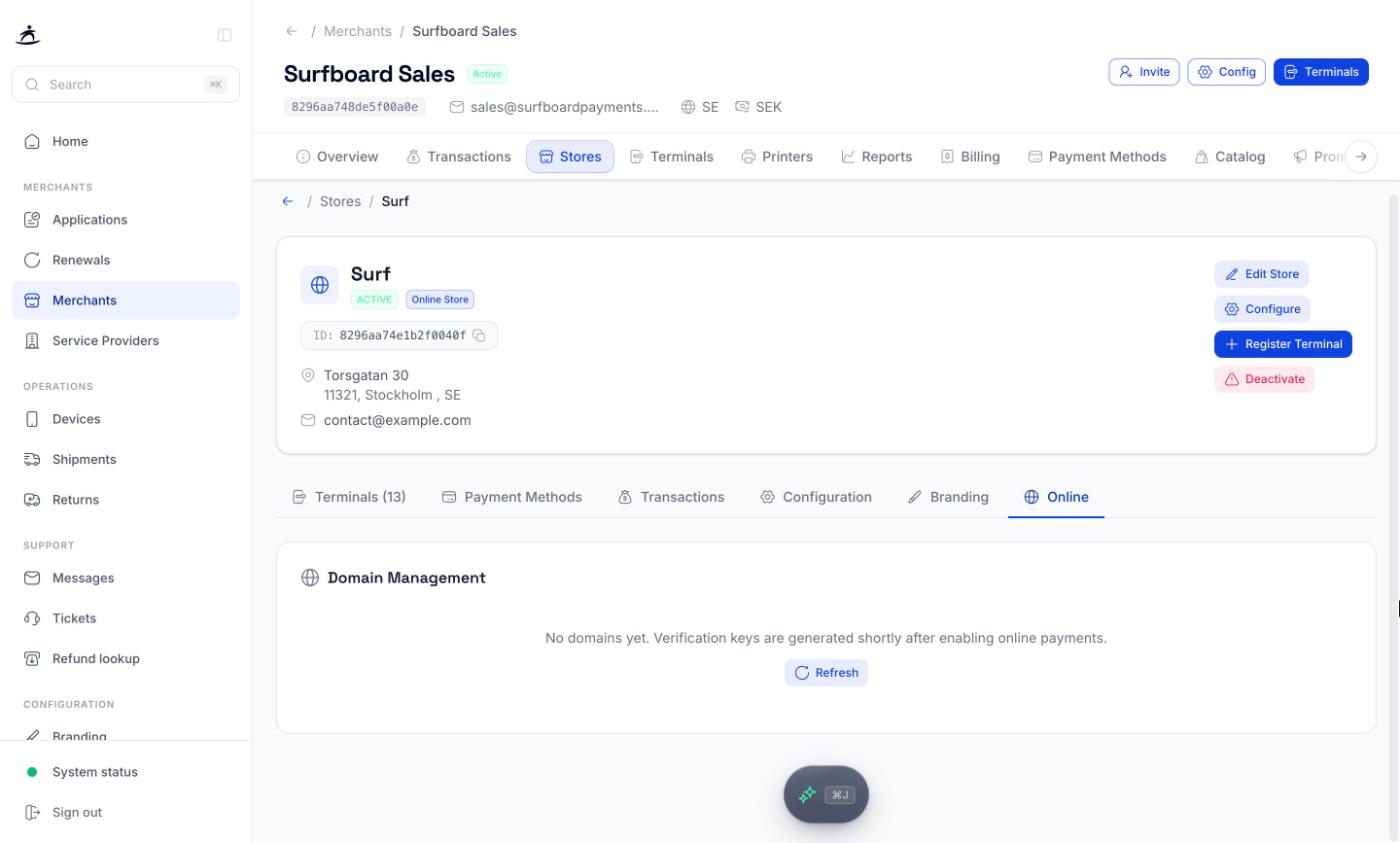
**Stores without online payments** show **Online Payments** instead. Fill in the **Webshop URL**, **Terms & Conditions URL**, and **Privacy Policy URL** (plus **Payment Page URL** for SDK setups and the optional **Google Pay Merchant ID**), then click **Enable online payments**. Domain verification keys are generated shortly after; add them to your DNS and verify the domains here.
## Registering a terminal to a store
Click **Register Terminal** in the store header, or **Register** on the Terminals tab. First choose the type:
### Physical terminal
For card terminals and printers.
1. Choose **Physical Terminal**.
2. Enter the **Registration Identifier**: the 6-digit code shown on the terminal screen during setup, or the serial number from the back of the device (SurfPad and printers). Spaces are removed automatically.
3. Optionally give it a **Terminal Name** (up to 30 characters), such as *Front Counter*.
4. Click **Register Device**.
> **Note:** A terminal must be activated to the merchant before it can be registered. If it isn't, the dialog says so and offers **Activate terminal**. See [Terminal Management](/partner-portal/terminals).
### Online terminal
Only available when the store takes online payments. Otherwise the option says *Requires online payments* and offers **Set up online payments**.
Choose a mode:
| Mode | Use it for |
|------|------------|
| **Payment Page** | A hosted checkout page managed by Surfboard |
| **Self Hosted Page (SDK)** | Your own checkout using the Surfboard SDK. Only offered when the store has a payment page URL |
| **Merchant Initiated** | Server-to-server payments without the cardholder present |
Click **Register Terminal**. If the store's online onboarding isn't finished, you'll see *Online payments aren't ready for this store yet* with a link to the **Online** tab.
After a successful registration, **Register Another** adds the next one and **Done** closes the dialog.
## Related
- [Merchant Management](/partner-portal/merchant-management)
- [Terminal Management](/partner-portal/terminals)
- [Terminal Configuration](/partner-portal/terminal-configuration)
- [Payment Methods](/partner-portal/payment-methods)
- [Branding](/partner-portal/branding)
### Multi-Merchant Groups
Category: merchants | Tags: Multi-Merchant, Groups, Shared terminals, Merchants
URL: /partner-portal/multi-merchant-groups
## Overview
A multi-merchant group ties several merchants together so they can share terminals. A typical case is a food hall or a shared counter, where several businesses take payments on the same device but each keeps its own merchant account and payouts.
A group is anchored to a country and a postal code. To collect payments through the group, a merchant's store must have the same postal code as the group.
For how shared terminals work in an integration, see the [multi-merchant terminals](/developers/guides/multi-merchant-terminals) developer guide.
## Finding your groups
Open **Merchants** in the sidebar and click **Multi-Merchants** at the top. The list shows each group's name, country, and postal code. Search by name or ID.
## Creating a group
Click **Create Multi-Merchant Group**.
| Field | Required | Notes |
|-------|----------|-------|
| **Country** | Yes | Sweden, Denmark, Finland, Norway, Ireland, or United Kingdom |
| **Postal Code** | Yes | Stores must share this postal code to collect payments through the group |
| **Name** | No | Makes the group easier to find |
| **Email** | No | |
Click **Create**. The group gets its own ID and you land on its **Info** page.
## The group page
A group has four tabs.
### Info
**Multi-Merchant Details** shows the group ID, name, country, postal code, and how many merchants are in it.
**Set up this group** walks you through the two things a new group needs:
- **Add a merchant** -- **Add Merchant** starts a new application with the group already selected. The merchant joins the group once it's created.
- **Register a terminal** -- **Register Terminal** takes you to the group's Terminals tab.
### Merchant Group
The **Merchants in Group** table lists each member with its merchant ID, number of transactions, total amount, and latest activity.
To add a merchant that already exists, use **Add Merchant to Group**:
1. Search for the merchant (at least three characters).
2. Select it and click **Add to Group**.
Only merchants that aren't already in a group can be added, and the merchant's store must be in the group's postal code.
**Remove** takes a merchant out of the group. The merchant stays active; only the group link is cleared.
### Terminals
The group's terminals, with ID, name, type, status, and store.
- **Activate Terminal** -- link terminals from your stock to the group by serial number, the same way you activate them to a merchant. See [Terminal Management](/partner-portal/terminals).
- **Register Device** -- register an activated terminal. Enter the 6-digit code from the terminal screen or the device serial number, and a **Terminal Name**. The name is required for group terminals. If the group has more than one store, pick the store as well.
### Stores
The stores that belong to the group, with ID, name, email, and status. Open a store to see its details and online information. Store details are read-only here; edit them from the merchant's own page.
## Groups elsewhere in the portal
- **New applications** -- on the **Business** step of the application form, switch on **Multi-Merchant Group** and pick the group. This is the same as starting from **Add Merchant** on the group's Info tab. The store's postal code must match the group's. See [Applications & Merchant Onboarding](/partner-portal/applications).
- **Devices** -- when you activate a device from your stock or port terminals in bulk, the merchant picker also finds groups. They're marked *Multi-merchant group*.
## Related
- [Applications & Merchant Onboarding](/partner-portal/applications)
- [Terminal Management](/partner-portal/terminals)
- [Merchant Management](/partner-portal/merchant-management)
- [Multi-merchant terminals](/developers/guides/multi-merchant-terminals) (developer guide)
### Transactions & Reporting
Category: merchants | Tags: Transactions, Reporting, Analytics, CSV, Settlements, Reports
URL: /partner-portal/transactions-and-reporting
## Overview
Every merchant has two places for payment data:
- The **Transactions** tab, with the list of payments, an **Analytics** view and the detail page for each transaction.
- The **Reports** tab, with settlement reports per payout and report subscriptions.
Open the merchant from **Merchants**, then pick the tab. The merchant's **Overview** tab also shows a summary of the last three months, described at the end of this guide.
## The Transactions List
The **Transactions** tab opens on the list, showing the current month to date. A one-line summary above the list describes the period, for example *"86,00 SEK across 19 transactions. Most used payment method: Cash."* It also counts returns and adjustments when there are any. If nothing happened in the period it reads *"No transactions in this period."*
Each row shows:
| Column | What it shows |
|--------|---------------|
| **Date / Time** | When the transaction happened |
| **Order / Transaction** | The order ID, with the transaction ID underneath. A marker shows when the order has adjustments |
| **Type** | **PURCHASE** or a return |
| **Payment** | The payment method, for example CARD, CASH or SWISH |
| **Amount** | Amount and currency |
| Settlement icon | A check when the transaction is settled, a clock while it is pending |
Click a row to open the transaction.
The filters, sort order, page and view are kept in the page address, so you can copy the URL and send a colleague exactly the list you are looking at.
### Searching
Type a payment ID, order ID or transaction ID in the search bar and click **Search**. The results show which field matched, and **Back to all** returns to the full list.
> **Note:** Search covers the last 90 days. Older transactions are still in the list and in the CSV export, so for anything older, narrow the list with the date filter instead.
### Filters
Click **Filters** to open the filter panel. The button shows how many filters are active.
| Filter | Options |
|--------|---------|
| **From date** / **To date** | Up to 30 days per query. To look at an earlier period, move **From** back |
| **Type** | All types, Purchase, Return |
| **Payment method** | Card, Swish, Cash, Klarna, Vipps, MobilePay, Account to Account |
| **Card brand** | Visa, Mastercard, Amex, Maestro, Discover, JCB, UnionPay, Diners |
| **Card type** | Debit Non-Commercial, Credit Non-Commercial, Debit Commercial, Credit Commercial |
| **Region** | Domestic, EEA (Intra), Non EEA (Inter) |
| **Terminal ID** | One terminal |
| **Store ID** | One store |
Click **Apply Filters** to run the query. **Clear** resets everything.
### Downloading transactions
There are two download buttons:
- **Download** asks for a date range and exports every transaction in it as CSV. Both dates are required and the range can be at most 31 days.
- **Download Filtered** appears when filters are active and exports exactly what the list is showing.
## Analytics
Switch from **Transactions** to **Analytics** at the top of the tab for totals and trends instead of single payments.
Set the period and how it is grouped:
- **Period** -- Last 7 days, Last 30 days, Last 90 days, Month to date, Last month, Quarter to date, Year to date, Last year, or a custom range.
- **Interval** -- Auto, Daily, Weekly, Monthly, Quarterly or Yearly.
- **Currency** -- for merchants trading in more than one currency.
- **Compare to previous period** -- shows the change against the period before.
The key figures are **Net sales**, **Gross sales**, **Transactions**, **Avg. ticket**, **Returns** and **Return rate**. Below them, a chart shows the selected figure over time. Switch to **Table** to see the numbers, or **CSV** to download them.
**Break down by** splits the period by **Store**, **Terminal**, **Payment method**, **Card brand**, **Entry mode** or **Device type**, with transactions, gross, returns, net, average ticket and share of gross for each. Click a row to drill into it; the active filter appears as a chip that you can clear, and **View transactions** opens the list filtered the same way.
The footer shows when the analytics data was last synced.
## Transaction Details
Clicking a transaction opens its detail page.
It shows:
- **Total**, the transaction type, and a **VOIDED** badge if the purchase was voided
- **Date**, **Method** and **Settlement** status, and the payout once it has settled
- For card payments: card brand, the truncated card number, POS entry mode and cardholder verification
- **Identifiers**: Transaction ID, Payment ID, Order ID, Terminal ID and Store ID
- **Order Details**: the items with quantity, VAT and amount, plus any adjustments such as tips
**Get receipt** opens the customer receipt. For a return, the page links back to the original purchase and also offers the refund receipt.
The **Refunds** section on a purchase shows what has been refunded so far and is where you start a new refund. See [Refunds & Refund Lookup](/partner-portal/refunds).
## Reports
The **Reports** tab lists the merchant's **Settlement Reports**, one row per report.
| Column | What it shows |
|--------|---------------|
| **Settlement Date** | When the report was produced |
| **Transaction Dates** | The trading period the report covers |
| **Report Type** | The kind of report, for example a daily settlement or a cash-register X or Z report |
| **Payout ID** | The payout the report belongs to |
| **Sales**, **Returns**, **Fee** | Totals for the period |
| **Payout** | The amount paid out |
Click the download icon at the end of a row to download that report. Use the search bar to find a report by payout ID, type or date.
For cash-register reports per register, see [Cash Registers (ECR)](/partner-portal/cash-registers).
### Report subscriptions
**Active Subscriptions** lists who already receives reports for this merchant: the report, the channel (**EMAIL**, **SLACK** or **SFTP**) and the address. Expand it to see the list.
To add one, click **Subscribe**:
1. Enter the **Email** address that should receive the reports.
2. Optionally add a **Slack Webhook URL** to post them to a Slack channel as well.
3. Pick the **Event**: **Daily Reports** or **Monthly Reports**.
4. Click **Subscribe**.
To stop a subscription, click the trash icon on its row. It is removed straight away, without a confirmation step.
### When a merchant asks for a different report interval
A merchant asking for "weekly reports" usually means one of two things. If they want a weekly *summary of what they sold*, they already have it -- reports cover any period they choose, whatever their settlement schedule. If they want to be *paid* weekly instead of daily, that is a settlement schedule change and needs the merchant's signature. [Changing a Merchant's Settlement Schedule](/partner-portal/settlement-schedule) covers both cases and the request flow.
### When a merchant says the totals do not match
A monthly report and the payouts inside that month are offset by two to three days at each end, because a payout settles transactions from a few days earlier. The monthly figure counts what the merchant traded that month; the payouts count what reached their bank. Fees are collected after the month closes, so a deduction seen in June is May's fees and matches May's monthly report rather than May's payouts.
[Reading a settlement report](/developers/guides/settlements-reporting#reading-a-settlement-report) works through the arithmetic, says which figure answers which merchant question, and lists what to check before escalating. The merchant-facing version is in [Reports](/merchant-portal/reports#why-two-totals-can-differ) if you would rather send the merchant a link than explain it yourself.
## Merchant Overview Analytics
The merchant's **Overview** tab summarises the past three months:
- **Sales**, **Transactions**, **Payment Methods** and **Avg. Transaction**
- **Sales Trend** for purchases, switchable between **Quarterly**, **Monthly**, **Weekly** and **Daily**
- **Payment Methods** distribution by volume
- **Adjustments** such as tips, charity, discounts and surcharges, when there are any
- **Transactions by Currency**, with daily purchases, refunds and net purchase
See [Merchant Management](/partner-portal/merchant-management) for the rest of the merchant page.
## Related
- [Refunds & Refund Lookup](/partner-portal/refunds) -- refund a purchase and trace where a refund is
- [Changing a Merchant's Settlement Schedule](/partner-portal/settlement-schedule) -- payout frequency, net or gross settlement, and cut-off time
- [Cash Registers (ECR)](/partner-portal/cash-registers) -- Z and X reports per register
- [Settlements & Reporting](/developers/guides/settlements-reporting) -- the reports over the API
### Refunds & Refund Lookup
Category: merchants | Tags: Refunds, Returns, Refund lookup, Transactions, Support
URL: /partner-portal/refunds
## Overview
You can refund a merchant's purchase directly from the partner portal, and you can check what happened to any refund, whoever started it. There are two places for this:
- The **Refunds** section on a purchase's transaction page, where you create a refund.
- **Support → Refund lookup**, where you paste any ID from a sale or a refund and get the whole story.
## Refunding a Purchase
1. Open the merchant from **Merchants**, go to **Transactions** and click the purchase.
2. In the **Refunds** section, click **Create refund**.

The **Initiate Refund** dialog opens.
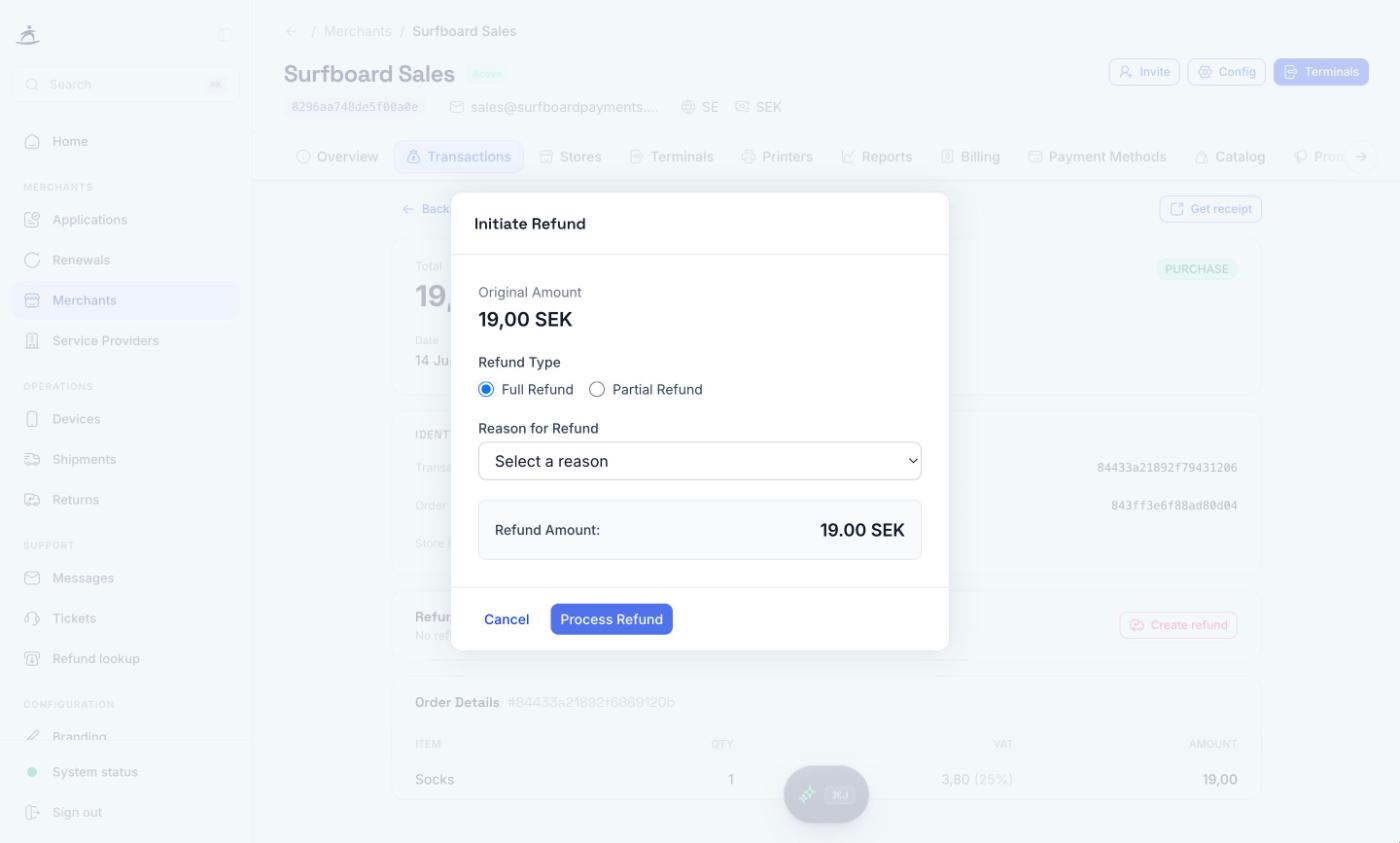
3. Choose the **Refund Type**:
- **Full Refund** refunds what is left of the purchase.
- **Partial Refund** lets you either enter a **Custom amount** (up to the remaining amount) or **Select items** from the order, with the quantity per item.
4. If the order had shipping, decide whether to **Include Shipping**.
5. Pick the **Reason for Refund**: **Customer initiated**, **Suspected malfunction**, **Suspected fraud**, **Duplicate transaction** or **Other**. The reason is required; for **Other**, describe it under **Specify Reason**.
6. If the order had adjustments such as a tip, decide whether to **Include Adjustments**.
7. Check the **Refund Amount** and click **Process Refund**.
The dialog waits for the payment provider and tells you how it went:
| Result | What it means |
|--------|---------------|
| **Refund completed successfully.** | The money is on its way back to the customer. You can open the **Refund receipt** from the dialog |
| **The refund was not completed by the payment provider.** | No money has been returned to the customer. Check the reason with Refund lookup before trying again |
| **The refund is still being processed.** | It can take a few minutes. Check back on the transaction page or in Refund lookup |
> **Note:** The original amount, what has already been refunded and what remains are shown at the top of the dialog. You cannot refund more than the remaining amount.
### Refund status on the purchase
After a refund, the **Refunds** section on the purchase lists every refund with date, order ID, status, amount and a link to its receipt. The heading line sums it up, for example:
- **No refunds issued**
- **X SEK refunded**
- **X SEK pending / not settled**
- **Fully refunded -- X SEK**
Only settled refunds count towards the refunded total. Pending ones are shown separately.
To refund more of the same purchase, click **Additional refund**. Once a purchase is fully refunded the button disappears.
A purchase that was voided was never completed, so there is nothing to refund and no refund button is shown.
## Refund Lookup
When a merchant says "the customer still hasn't got their money back", open **Support → Refund lookup** in the sidebar.
1. Pick the **Merchant**.
2. Paste an **ID**: the order, payment or transaction ID of either the original purchase or the refund itself.
3. Click **Look up**.
IDs belong to a merchant, so the lookup only finds them under the right one. If nothing comes back, check the merchant and that the whole ID was copied.
### Reading the result
At the top, a one-line verdict tells you where things stand, for example:
- *This refund of X has settled.*
- *This refund failed* -- with the reason.
- *This refund has not settled yet*, with the state of its payment.
- *No refunds have been raised against this purchase.*
- *Fully refunded: X has been returned.*
- A count of settled, pending and failed refunds when there are several.
Below the verdict:
- **Original purchase** -- order, amount, status, date and terminal, with **Open transaction**, and totals for settled, pending and failed refunds.
- **Refunds** -- one card per refund with amount, outcome (**Settled**, **Failed** or **Pending**), reason and method. The ID you pasted is marked **Your ID**. Expand a card to see its **Payment trail**: every attempt in order, with status, method, amount, time, IDs and any failure reason, plus **Open refund transaction**.
### When there is no refund to find
- *No refund orders exist for this purchase* means a refund was never created. If the merchant tried one, it stopped before a refund order was made, so check the terminal or the integration that started it.
- *No payment has been recorded on this refund order yet* means the refund was created but no payment has been attempted on it.
> **Tip:** The page address includes the merchant and ID you looked up. Copy it into a support ticket or send it to a colleague and they land on the same result.
## Related
- [Transactions & Reporting](/partner-portal/transactions-and-reporting) -- finding the purchase and its details
- [Support Tickets](/partner-portal/tickets) -- raise a ticket if a refund failed and you need help
- [Refund an order](/developers/guides/refund-an-order) -- refunds over the API
### Payment Methods
Category: merchants | Tags: Payment Methods, Klarna, Swish, Vipps, Amex, Apple Pay, Dankort
URL: /partner-portal/payment-methods
## Overview
The **Payment Methods** tab on a merchant shows every payment method the merchant has and lets you activate new ones. For most methods the merchant does not need their own agreement with the provider, because the flow goes through Surfboard.
Open the merchant from **Merchants** and click the **Payment Methods** tab. Stores have the same tab, see [Payment methods per store](#payment-methods-per-store).
## Core Methods
The top of the tab lists the methods the merchant already has, such as **CARD**, **CASH**, **CPOC** (SoftPOS, taking card payments on a phone) and **B2BINV** (B2B invoice). Each shows its payment method ID and a status:
| Status | Meaning |
|--------|---------|
| **ACTIVATED** | In use |
| **REGISTERED** | Registered, but not yet live |
| **DEACTIVATED** | Switched off |
CARD, CASH and CPOC are always available and cannot be deactivated.
## Additional Payment Methods
Below the core methods is the catalogue of methods you can add: **Klarna**, **American Express**, **Vipps**, **Account to Account**, **MobilePay** and **Swish**, plus **Apple Pay** on stores that qualify. What appears depends on your partner agreement and the merchant's country.
Each card shows a status badge, whether the method is in the merchant's billing plan, and an action at the bottom:
| What the card says | What you can do |
|--------------------|-----------------|
| **Ready to activate** | Click **Activate** |
| **No billing plan** -- *Add {method} to the merchant's billing plan to activate it* | Click **Set up billing plan** first, see below |
| **Active** | Shows the payment method ID. Click **Deactivate** to switch it off |
| **Registered** | Registered and waiting to go live |
| **Previously deactivated** | Click **Re-activate** |
| **Failed** | Shows why activation failed. Click **Retry** |
> **Note:** **Deactivate** takes effect immediately. There is no confirmation step, so make sure you have the right merchant and method.
### Add the method to the billing plan
A method can only be activated once the merchant's billing plan has a price for it. When the card says **No billing plan**, click **Set up billing plan**:
1. Enter the **In-store** pricing: **Fixed %**, **Fixed fee** and **Minimum fee**.
2. Tick **Set a different price for online payments** if online payments should cost something else, and fill in the same three fields for online.
3. Click **Add to plan**.
Fees cannot be negative, and the minimum fee must be greater than the fixed fee.
> **Important:** The price is added to the billing plan, not to this merchant alone. The dialog tells you how many merchants are on the plan, and all of them get the new price. If the merchant has no billing plan yet, the dialog says so, and the price can't be added until a plan is assigned.
See [Billing Plans](/partner-portal/billing-plans) for how plans work.
## Activating Methods
Click **Activate** on the method's card. Most methods activate straight away; some ask for more first.
### Swish
Confirm the activation. Nothing else is needed.
### Klarna
Usually a confirmation is enough. Depending on your partner agreement, you may be asked for the merchant's own **Klarna Merchant ID**, **Username** and **Password**.
### American Express
There are two routes:
- **Through Surfboard** -- click **Get signing link** and send the link to the merchant. Amex is activated once they sign. Activating again later shows the same link until it has been signed.
- **Merchant has their own Amex contract** -- enter the merchant's **Amex MID** and click **Register and open ticket**. Amex shows as **Registered** and a support ticket is opened automatically so Surfboard can complete the setup. The card links to that ticket.
Amex is activated per store. If the merchant has stores where it isn't active yet, the card offers **Activate for all stores**.
### Apple Pay
Apple Pay for online payments is activated on a store, not on the merchant, and only on stores whose checkout runs on their own domain with the Surfboard SDK. The merchant must host Apple's domain association file at `/.well-known/apple-developer-merchantid-domain-association` on that domain; the dialog links to the file. Click **Activate**. If the domain changes, use **Re-verify**.
### Dankort (Danish merchants)
For merchants in Denmark, an extra section lets you enable Dankort, the Danish domestic card, which is acquired through Nets. Enter the merchant's Nets **BAX ID** and click **Activate**.
Set on the merchant, it applies to all stores. A store can override it with its own BAX ID from the store's Payment Methods tab; otherwise the store inherits the merchant's setting.
## Payment Methods per Store
Each store has its own **Payment Methods** tab (open the store from the merchant's **Stores** tab). It works the same way as the merchant tab but shows the store's own methods. This is where you activate Apple Pay and set a store-specific Dankort BAX ID.
## Related
- [Billing Plans](/partner-portal/billing-plans) -- pricing per payment method
- [Stores](/partner-portal/stores) -- store details and online setup
- [Merchant Management](/partner-portal/merchant-management) -- the merchant page and its tabs
- [Payment Methods](/developers/guides/payment-methods) -- the developer guide
### Changing a Merchant's Settlement Schedule
Category: merchants | Tags: Settlements, Payouts, Reports, Signing, Merchants, Cut-off
URL: /partner-portal/settlement-schedule
## Overview
A merchant's settlement schedule decides how often their money is paid out, and with it, how often a settlement report is produced. It is set when the merchant is onboarded and can be changed afterwards -- but not by you alone. The schedule is part of the merchant agreement, so a change has to be signed by the merchant.
You start the request from the partner portal. The portal generates a signing link. You send that link to the merchant, they sign, and the new schedule takes effect.
The same **Settlement** page also holds two settings you can change yourself, without a signature: whether fees are deducted daily or monthly, and the daily cut-off time. They are covered further down.
## First, Check What They Actually Want
"Can we get weekly reports?" is usually one of two different requests, and only one of them needs a signature:
| What the merchant means | What they need |
|---|---|
| "Pay us weekly instead of daily" | A settlement schedule change -- the flow below |
| "Send us a weekly summary of what we sold" | Nothing. Reports already cover any period they choose |
Downloadable reports in the merchant's **Reports** tab are independent of the settlement schedule. A merchant on daily settlement can still pull a weekly or monthly report whenever they like, and so can you. If all they want is the numbers for a week, point them at [Reports](/merchant-portal/reports) and you are done -- no signature, no waiting.
Ask which one it is before starting a contract change.
## Requesting the Change
1. Open the merchant from the **Merchants** list.
2. Go to the **Configuration** tab and open **Settlement**.
3. Scroll to the **Settlement Frequency** card. **Current frequency** shows what the merchant is on today.
4. Choose the **Preferred new frequency**: **Daily**, **Weekly** or **Monthly**.
5. Click **Generate signing link**.
6. Copy the **Signing link** and send it to the merchant. Its status is shown next to it.
The merchant opens the link, chooses the frequency and signs. Your choice only pre-fills their form. Until they sign, the merchant stays on their current schedule -- the request on its own changes nothing.
> **You cannot sign on the merchant's behalf.** Settlement terms sit in the merchant agreement, which is why the signature is required rather than a formality. If the merchant does not sign, the request does not take effect.
## Available Schedules
| Schedule | Payout runs |
|---|---|
| `DAILY` | Every banking day |
| `WEEKLY` | Once per week |
| `MONTHLY` | Once per month |
These are the same values used by `settlementFrequency` when a merchant is created over the API -- see the [Merchants API](https://developers.surfboardpayments.com/api/merchants) for the onboarding side of this.
## What Changes, and What Does Not
**Changes with the schedule:**
- How often a payout reaches the merchant's bank account
- How often a settlement report is generated
**Does not change:**
- The transactions themselves, or their fees
- Access to daily, monthly, or cash-register reports in the Reports tab
- Anything already settled under the old schedule
A longer settlement period means fewer, larger payouts. Merchants sometimes ask for this to cut down on bank reconciliation work, then find it harder to match a payout back to a day's trading. [Reading a settlement report](/developers/guides/settlements-reporting#reading-a-settlement-report) is worth sending along with the change, because the arithmetic they are used to will shift.
## After the Change
The first payout on the new schedule covers the transactions that had not yet settled when the change took effect, so it can be an unusual size. That is expected, and it settles into the normal rhythm from the following period.
If a merchant asks why the first weekly payout does not match a week of trading, the offset explained in [When a merchant says the totals do not match](/partner-portal/transactions-and-reporting#when-a-merchant-says-the-totals-do-not-match) is the same effect.
## Net or Gross Settlement
At the top of the **Settlement** page you choose how fees are taken:
| Option | How fees are deducted |
|---|---|
| **Net Settlement** | Fees are deducted every day, from each payout |
| **Gross Settlement** | The merchant is paid the full amount, and fees are deducted on the first of the month |
## Settlement Cut-off Time
**Settlement cut-off time (UTC, 24-hour)** is the time each day when the day's sales are closed off for settlement. Pick the hour and minute; the default is **23:30**. The time is in UTC, not local time.
A tag next to the time shows what it means for payout timing:
- **T+1 settlement** -- sales are settled the next banking day. A cut-off just after midnight still counts as T+1, up to **01:45 UTC**.
- **T+2 settlement** -- a cut-off later than 01:45 UTC (up to midday) moves the previous day's sales to T+2, one day later.
Click **Save Settlement Configuration** to apply the settlement type and cut-off time. Neither needs a signature from the merchant.
## Related
- [Transactions & Reporting](/partner-portal/transactions-and-reporting) -- reports available per merchant
- [Merchant Management](/partner-portal/merchant-management) -- the merchant detail page and its tabs
- [Applications & Merchant Onboarding](/partner-portal/applications) -- signing links during onboarding
- [Settlements & Reporting](/developers/guides/settlements-reporting) -- the reports themselves, over the API
- [Reports](/merchant-portal/reports) -- the merchant-facing view
### Service Providers
Category: merchants | Tags: Service Providers, Flow, Onboarding, Linking, Tips
URL: /partner-portal/service-providers
## Overview
A service provider is someone other than the merchant who should receive part of a payment: a platform taking a fee, a franchisor collecting a royalty, or a waiter who should get their tips directly instead of having them paid out to the restaurant, taxed, and shared through payroll. This is Surfboard Flow, the split-payout engine.
Setting up a split has three steps. The Partner Portal handles the first two. The third happens in the order your POS or webshop sends to the API.
1. **Onboard the service provider** -- an application is created, the recipient completes verification or signs an agreement, and Surfboard issues a service provider ID
2. **Link it to a merchant** -- a service provider can only take a share from merchants it is linked to
3. **Set the split on the order** -- your integration names the service provider and its share on each order. See the [Service Providers & Split Payouts](/developers/guides/service-providers) developer guide
Service providers are only available on some partner agreements. If **Service Providers** is missing from the sidebar, contact your account manager.
## The Service Providers page
Click **Service Providers** in the sidebar. The page has two tabs, **Active Providers** and **Applications**, and a **Create Service Provider** button.
### Active Providers
Service providers that have completed onboarding and can be linked to merchants. The tab shows how many there are. Search by name, corporate ID, or email.
| Column | Description |
|--------|-------------|
| **Name** | Business or person name |
| **Corporate ID** | Business registration number, or the national ID for an individual |
| **Email** | Primary contact email |
| **Location** | Country |
Click a row to open **Service Provider Details**: provider ID, corporate ID, name, email, phone, service type, and address.
Each row also has two actions:
- **Link to Merchant** -- pick one of your merchants by ID or name and link the provider to it, without leaving the list
- **Copy Service Provider ID** -- the ID your integration puts on the order in step 3
### Applications
Every service provider application and where it sits in onboarding.
| Column | Description |
|--------|-------------|
| **Application ID** | Identifier of the application |
| **Corporate ID** | Business registration number |
| **Status** | Current application status, see below |
| **Last Activity** | When the application last changed |
Click a row to open the details. They show a description of the current status, and for applications that are submitted or signed, the signing links for each signatory so you can chase a missing signature. While the application is still open you can also copy the onboarding link to resend it. Once the application has moved past that stage, the link can no longer be copied.
## Creating a Service Provider
Click **Create Service Provider**. The form has two modes, **Company** and **Individual**, chosen at the top. They use different verification flows, so pick the right one before filling in the fields.
| Mode | Use it for | Verification |
|------|------------|--------------|
| **Company** | A registered business: a franchisor, a marketplace operator, your own platform entity for a platform fee | Web KYB (Know Your Business), the same hosted flow merchants go through |
| **Individual** | A private person tied to one merchant: a waiter receiving tips, a stylist, a driver | A signing flow where the person identifies themselves and signs a service provider agreement |
### Company
1. **Select the country** the company is registered in
2. **Search for the company** by name. Selecting a result fills in the corporate ID. If nothing is found, type the **Corporate ID** directly
3. Click **Create Service Provider**
The success screen shows the application ID and an **Onboarding Link**. Copy it and send it to a signatory at the company. They fill in company details, contact information, and the bank account that will receive payouts, then sign. The link is personal to the application, so share it only with the company.
### Individual
1. **Select the country** the person is based in
2. **Enter their email**. The signing invitation is sent here
3. **Associate with merchant**. Pick the merchant this person works for. An individual belongs to one merchant, and is linked to it automatically once approved, so there is no separate link step
4. Optionally open **Fee configuration** if the person should also receive a share of the order amount itself, such as a commission:
- **Percentage fee** -- percentage of each applicable transaction
- **Fixed fee** -- fixed amount per transaction, in minor units: `100` means 1.00
- **Deduct the applicable transaction fee from the service provider** -- take Surfboard's transaction fee out of the person's share instead of the merchant's. Leave this off for tips so the tip arrives in full
5. Click **Start Onboarding**
The success screen shows the application status and a **Signing Link**. The person also receives it by email. Once they have signed and the application is approved, they appear under Active Providers.
For a waiter who should only receive tips, no fee configuration is needed. The tip routing is set on the order, by the POS, as described in the developer guide.
## Linking to Merchants
A company service provider must be linked to each merchant it should take a share from. One provider can be linked to many merchants: a franchisor is onboarded once and linked to every franchisee.
There are two ways to link:
- From the **Active Providers** tab, click **Link to Merchant** on the provider's row and pick the merchant
- From the merchant's page, open the **Service Providers** tab and click **Link Service Provider**, then choose one of your active providers and click **Link**

The merchant's **Service Providers** tab lists everything currently linked, with the provider ID and status. To stop a provider from taking a share of the merchant's payments, click **Unlink** on its row and confirm. Orders already created keep their split.
If your integration names a service provider on an order that is not linked to the merchant, order creation fails with error `SP_0001`.
## Application Status Tracking
Service provider applications follow the same lifecycle as merchant applications.
| Status | Meaning |
|--------|---------|
| **Application Initiated** | Application created and the onboarding or signing link generated |
| **Application Started** | The recipient has opened the link and begun filling in details |
| **Application Submitted** | Details submitted and awaiting signature or review |
| **Application Pending Information** | Under review, Surfboard needs more information from the recipient |
| **Application Signed** | All required signatures collected |
| **Application Completed** | Approved. The service provider ID has been generated and the provider appears under Active Providers |
| **Application Rejected** | Reviewed and rejected |
| **Application Expired** | Applications are valid for 30 days. If nothing happens in that time the application expires and a new one must be created |
## Related
- [Service Providers & Split Payouts](/developers/guides/service-providers) -- the developer guide, including how to set the split on the order
- [Merchant Management](/partner-portal/merchant-management) -- the merchant's Service Providers tab
- [Surfboard Flow](/flow)
### Product Catalog & Promotions
Category: merchants | Tags: Catalog, Products, Inventory, Promotions, POS
URL: /partner-portal/catalog-and-promotions
## Overview
Two tabs on the merchant page help merchants sell more from the terminal:
- **Catalog** -- the products a store sells, so staff can pick items in the POS app instead of keying in amounts.
- **Promotions** -- campaigns with a headline, text, and image, shown on terminal receipts and screens.
Open the merchant from **Merchants** and click the tab.
## Product catalog
Catalogs are per store. Pick the store with the **Store** selector at the top.
If the store has no catalog yet, you'll see *No product catalog* with a **Create Catalog** button. Create it first, then add products.
### Adding a product
Click **Add Product**. The **Details** tab:
| Field | Required | Notes |
|-------|----------|-------|
| **Name** | Yes | |
| **Type** | Yes | **Product** or **Service** |
| **Unit Type** | Yes | **Fixed**, **Variable**, or **Free Amount** |
| **Selling Price** | Yes | |
| **Cost Price** | No | |
| **Category** | Yes | |
| **Unit** | No | Pieces, or a unit of mass, volume, length, area, power, or time |
| **VAT %** | No | |
| **Barcode** | No | |
| **HSN Code** | No | |
| **Description** | Yes | **Generate with AI** writes a draft for you |
| **Product Images** | Yes | At least one. **Upload** a PNG, JPEG, or SVG (up to 2 MB each) or **Paste URL** |
Click **Create Product**.
### Variants, inventory, and related products
Open an existing product to see three more tabs:
- **Variants** -- **Add Variant** for sizes, colours, and so on. Give each a **Variant Name**, and optionally a **Price Override** and an attribute and value.
- **Inventory** -- shows the current stock. **Update Stock** with **Stock Up** or **Stock Down**, a quantity, and a unit, then **Update Inventory**.
- **Related** -- **Link Products** to suggest items that go together, then **Link Selected**.
Click **Save Changes** after editing details.
### Deleting products
Tick the products to remove and click **Delete**. The products are deleted straight away, without a confirmation step, so check your selection first.
### Showing the catalog in the POS app
The catalog only appears in the merchant's POS app when **Show Product Catalogue** is on under **Configuration → Application**. **Enable Product Creation** lets staff add products from the app themselves. The app needs a restart to pick up the change. See [Merchant Management](/partner-portal/merchant-management#application).
## Promotions
A promotion is a short campaign shown on the merchant's terminal receipts and screens: a headline, a line of text, an image, and optionally a link.
The tab shows how many promotions are active, with a card for each. Deactivated promotions are listed separately.
### Creating a promotion
Click **Create Promotion**.
**Create with AI** is the quickest start. Describe what you're promoting, pick a style (**Photographic**, **Bold graphic**, **Minimal**, **Illustrated**, or **Festive**), optionally add a reference image and choose whether to put the headline in the image, then **Generate**. You get suggested wording and a square image; **Refine** or regenerate until you're happy, then **Use this** to fill in the form.
Or fill in the fields yourself:
| Field | Required | Notes |
|-------|----------|-------|
| **Campaign Name** | Yes | Internal name, not shown to customers |
| **Headline** | Yes | Up to 15 characters |
| **Body** | No | Up to 200 characters. Wrap text in `*asterisks*` for bold |
| **Image URL** | No | A square (1:1) image works best. The sparkle button generates one |
| **Redirect URL** | No | Where the promotion links to |
| **Schedule** | No | **Start** and **End** date and time |
| **Assign to Stores** | | The stores whose terminals show the promotion |
Click **Create Promotion**.
### Editing and deactivating
Open a promotion card to edit it and **Save Changes**. To stop showing a promotion, deactivate it and confirm. It moves to the deactivated list.
## Related
- [Merchant Management](/partner-portal/merchant-management)
- [Stores](/partner-portal/stores)
- [Branding](/partner-portal/branding)
### Terminal Management
Category: operations | Tags: Terminals, Devices, Activation, Registration, Lookup
URL: /partner-portal/terminals
## Overview
Every payment terminal passes through three stages before it can take payments: it sits in **your stock**, it is **activated** to a merchant, and it is **registered** to one of that merchant's stores. This guide covers each stage and the tools for managing terminals once they are live.
You manage terminals in two places:
- **Devices** in the sidebar, for your whole fleet across all merchants
- A merchant's **Terminals** tab, for that merchant's terminals only
How terminals behave (language, network, tips, PINs) is covered in [Terminal Configuration & Tips](/partner-portal/terminal-configuration). Installing and removing apps is covered in [Terminal Apps](/partner-portal/integrations).
## The terminal lifecycle
| Stage | What it means | Who acts next |
|-------|---------------|---------------|
| **Your Stock** | The device is in your inventory and not linked to any merchant. | You: activate it to a merchant. |
| **Activated** | The device is linked to a merchant but not yet to a store. | You or the merchant: register it to a store. |
| **Registered** | The device is a live terminal in a store and can take payments. | The merchant: start taking payments. |
> A terminal must be **activated** to a merchant before it can be **registered**, and it must be **registered** before it can take payments.
When you ship terminals directly to a merchant from **Shipments**, activation happens automatically and the merchant only needs to register. Terminals you bulk-order to yourself land in **Your Stock**. See [Shipments & Returns](/partner-portal/shipments-and-returns).
## The Devices page
Click **Devices** in the sidebar. The page has three tabs, each with a count: **Your Stock**, **Activated**, and **Registered**.
- **Search** by serial number, terminal ID, merchant ID, merchant name, or model.
- **Look up terminal** opens the [Terminal Info](#looking-up-a-terminal) page.
- **Refresh** reloads the lists.
- **Port terminals** moves a batch of terminals to a merchant in one go. See [Porting terminals in bulk](#porting-terminals-in-bulk).
Click a serial number or terminal ID to open that terminal's info page, or a merchant name to open the merchant.
### Your Stock
Lists devices you hold that are not yet linked to a merchant, with serial number, model, connectivity (IMEI, IMSI, UICCID), and status.
To activate a device, click **Activate** on its row, search for the merchant under **Activate for merchant** (type at least two characters), and click **Activate Device**. You can also activate to a [multi-merchant group](/partner-portal/multi-merchant-groups); groups show a **Multi-merchant group** badge in the search results. The device moves to **Activated**.
### Activated
Lists devices that belong to a merchant but have no store yet. Each row has two actions in its menu:
- **Register** assigns the device to a store and turns it into a terminal:
1. Choose the store under **Select store**. If the merchant has no stores yet, create one first (see [Stores](/partner-portal/stores)).
2. Enter the **Registration code**. For SurfPad and printer devices this is the serial number, which is pre-filled for you. For other terminals, enter the 6-digit code shown on the terminal screen during setup.
3. Optionally give it a **Terminal name**, such as "Counter 1".
4. Click **Register Device**.
- **Reassign merchant** moves the activated device to a different merchant. Pick the new merchant under **Reassign to merchant** and click **Change Merchant**.
### Registered
Lists live terminals with their name, ID, serial number, merchant, model, firmware, connectivity, and status.
The row action **Reassign merchant** deregisters the terminal and sends the device to a different merchant. You choose the new merchant, then confirm on a second step that warns you this is destructive. After **Deregister & Move**, the terminal must be registered again at the new merchant before it can take payments.
## Porting terminals in bulk
**Port terminals** on the Devices page reassigns many terminals to one merchant, each landing in a store.
1. Under **Port terminals to merchant**, search for the merchant or multi-merchant group.
2. Paste the **Serial numbers**, one per line or separated by commas or spaces. The dialog shows how many serials it detected and ignores duplicates.
3. Pick a **Destination store**. It applies to every serial, and you can override the store on individual rows.
4. Click **Port terminals**. The button only enables once every serial has a store.
The result lists each serial as ported or failed. **Port more** keeps the merchant and store and clears the serials so you can run another batch.
> **Note:** The merchant needs at least one active store before you can port terminals to it.
## Activating from the merchant
You can also activate terminals while you are on a merchant:
1. Open the merchant from **Merchants** and go to the **Terminals** tab.
2. Click **Activate**.
3. Enter the serial number printed on the terminal. Serials are 9 to 12 letters and digits. Each valid row is marked **Valid serial number**.
4. To activate several at once, click **Add another serial number** for each extra terminal. Duplicate serials are rejected.
5. Click **Activate**. The dialog shows the result for each serial.
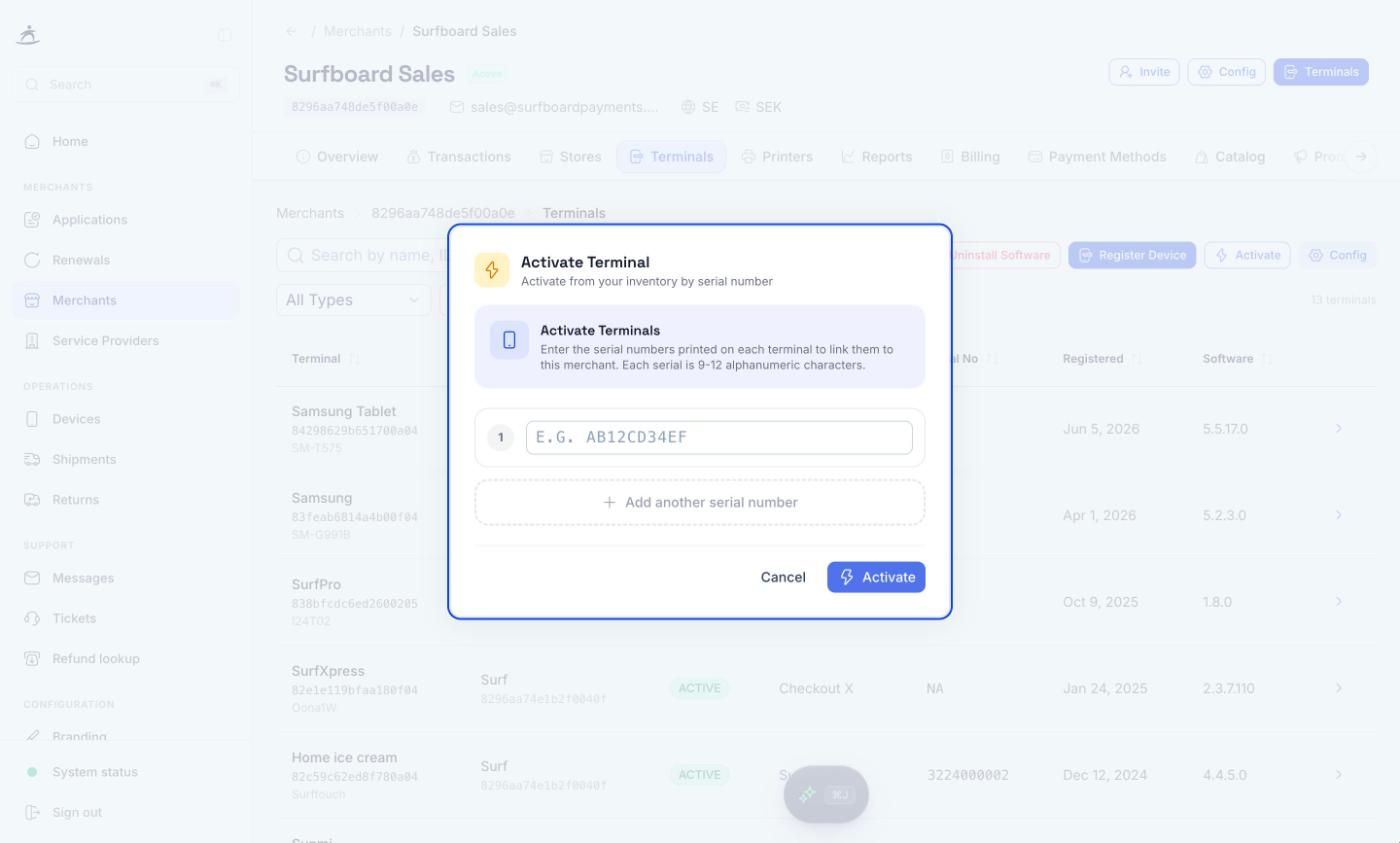
## Registering from the merchant
On the merchant's **Terminals** tab, click **Register Device**. Choose one of two modes:
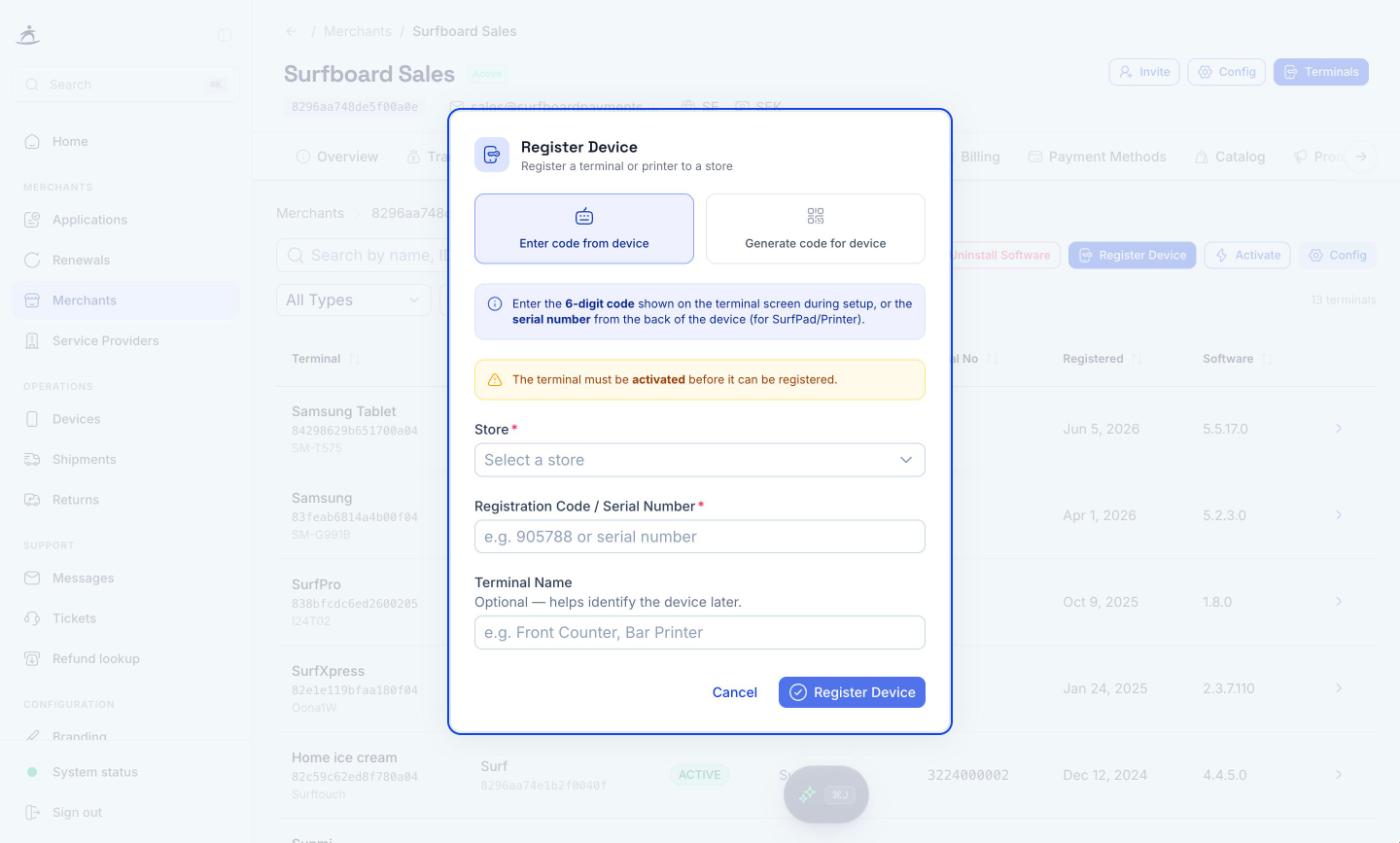
**Enter code from device**
1. Select the **Store**.
2. Enter the **Registration Code / Serial Number**: the 6-digit code shown on the terminal screen during setup, or the serial number from the back of the device for SurfPad and printers.
3. Optionally enter a **Terminal Name** to help identify the device later.
4. Click **Register Device**.
**Generate code for device**
1. Select the **Store**.
2. Click **Generate Code**.
3. Enter the code on the terminal to complete registration, or copy the registration link. Use **Regenerate Code** if you need a new one.
If the terminal has not been activated to this merchant yet, registration stops and offers to activate it first.
You can also register from a store's page with **Register Terminal**, which additionally lets you create online terminals (Payment Page, Self Hosted Page, Merchant Initiated). See [Stores](/partner-portal/stores).
## The merchant's Terminals tab
The **Terminals** tab lists every terminal under the merchant with its store, status, type, serial number, registration date, when it was last powered on, and software version. All columns can be sorted. The portal remembers the column and direction you sorted by, in every terminal list, until you change it.
**Powered on** shows how long ago the terminal was last switched on, with when it was last seen online underneath. Terminals that have never reported sort last.
- **Search** by name, ID, serial number, or type.
- Filter by **type** (for example CheckoutX, Surftouch Pro, Surfprint Pro, Surfpad, Payment Page, Printer), by **store**, and by **status**. **Clear filters** resets them.
- Buttons across the top: **Push Software**, **Uninstall Software** (see [Terminal Apps](/partner-portal/integrations)), **Register Device**, **Activate**, and **Config** (the merchant's terminal settings, see [Terminal Configuration & Tips](/partner-portal/terminal-configuration)).
Click a row to open the terminal.
## The terminal page
The terminal page shows the name, status, and type, the terminal ID and serial number (each with a copy button), the merchant and store it belongs to, and its software version.
- Click the pencil next to the name to **rename** the terminal (up to 20 characters). Quick picks suggest common names.
- Click the icon next to the store ID to **change store** within the same merchant.
The **More actions** menu (⋯) holds:
- **Push app to terminal** installs software on this terminal (only for terminals assigned to a store).
- **Uninstall app** removes software from this terminal.
- **Move to another merchant** transfers the terminal. Search for the new merchant (at least three characters) and confirm. The terminal goes back to the activated state, so it must be registered under a store at the new merchant before it can take payments again.
### Overview tab
The page opens on **Overview**, a summary of the terminal and everything it inherits.
- **Where this terminal sits:** the chain from your partner account to the merchant, the store (with its status), and the terminal. Settings flow down this chain: a terminal uses its store's settings, then its merchant's, then your partner defaults, unless it sets its own.
- **Device:** when the terminal was last seen (a green dot means recently), plus battery, charging, power source, network, and signal strength when the terminal reports them. Below that: device, serial number, software, operating system, currency, when it was last powered on, when it went into service, any linked terminal, and the payment methods enabled on it.
- **Partner apps:** how many apps the terminal reports, how many of those reports are stale, and the POS app with its version. **View** opens the **Apps** tab.
- **Settings in effect:** for terminal configuration, how many settings come from the terminal itself, its store, its merchant, and your partner defaults, with the ones set on the terminal listed by name. For **Tips** and **Branding**, a tag shows which level the terminal's values come from; click it to open that level. **Open** goes to the **Configuration** tab.
### Tabs
| Tab | What it shows |
|-----|---------------|
| **Overview** | Where the terminal sits, its device state, partner apps, and which level each setting comes from. See [Overview tab](#overview-tab). |
| **Transactions** | Transactions taken on this terminal, with the same search, filters, and analytics as the merchant's transactions. See [Transactions & Reporting](/partner-portal/transactions-and-reporting). |
| **Payment Links** | Only for Payment Page terminals. Create a hosted payment link for a custom amount, choose how long it stays valid (30 minutes to 12 months), and copy it. Existing links are listed below. |
| **Health** | Battery level, battery status, charging, power source, network strength, Wi-Fi and GSM signal, GSM connection, and network type, as reported by the terminal over today, 3 days, or 5 days. |
| **Apps** | Partner apps the terminal reports as installed, assigned, or removed, with a history of changes. Apps are matched by the terminal's serial number. |
| **Configuration** | Tips and terminal settings for this terminal only. See [Terminal Configuration & Tips](/partner-portal/terminal-configuration). |
| **Branding** | Colours, fonts, logo and icon for this terminal, overriding store and merchant branding. Only for terminals assigned to a store. |
| **Info** | Terminal ID, name, type, status, serial number, store, software version, device model, and operating system. |
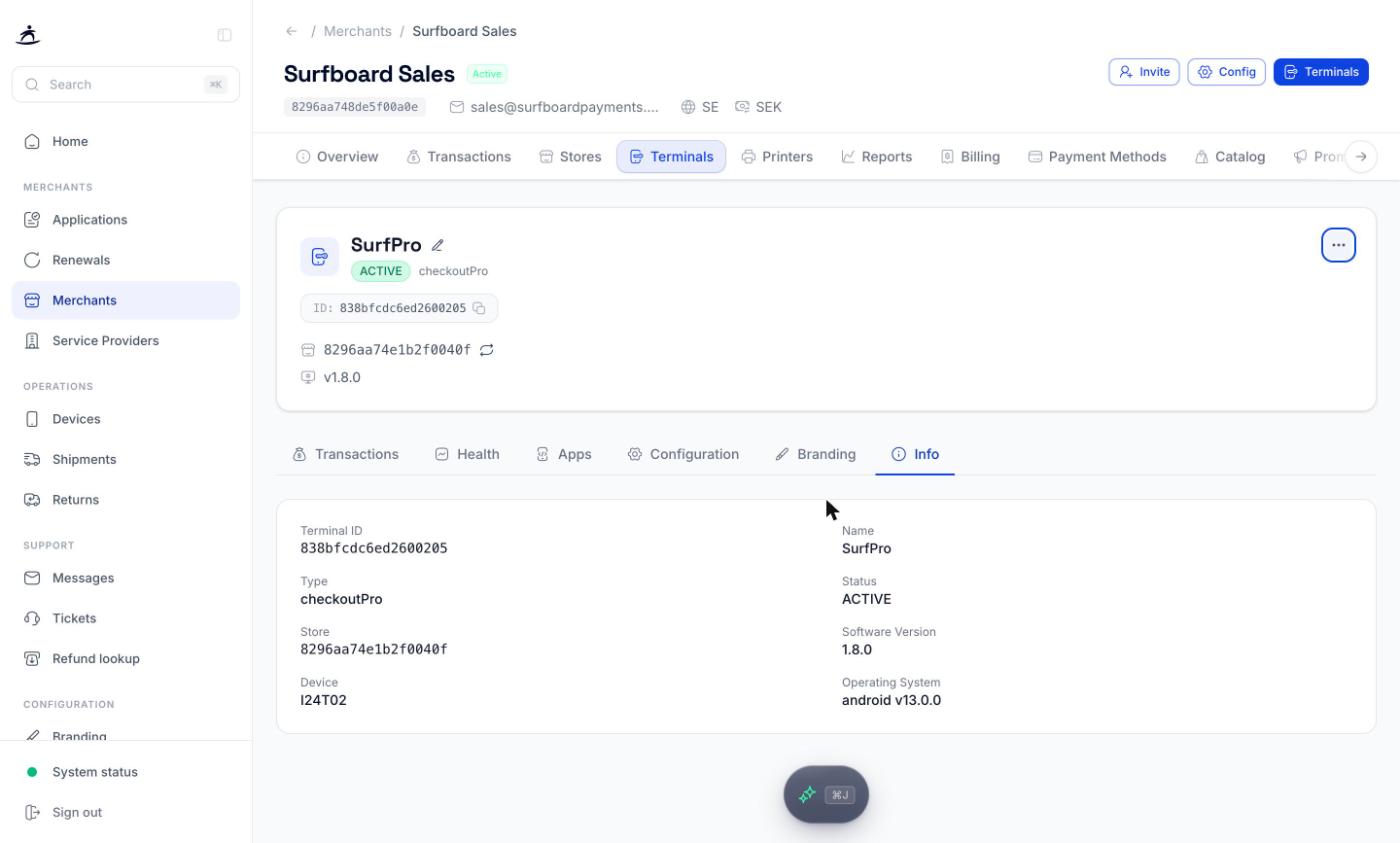
## Looking up a terminal
**Look up terminal** on the Devices page opens **Terminal Info**. Enter a terminal ID or serial number and click **Search**. You don't need to know which merchant the terminal belongs to: the lookup searches all your merchants. Serial numbers are matched exactly, ignoring upper and lower case. The page address includes what you searched for, so you can share a lookup with a colleague.
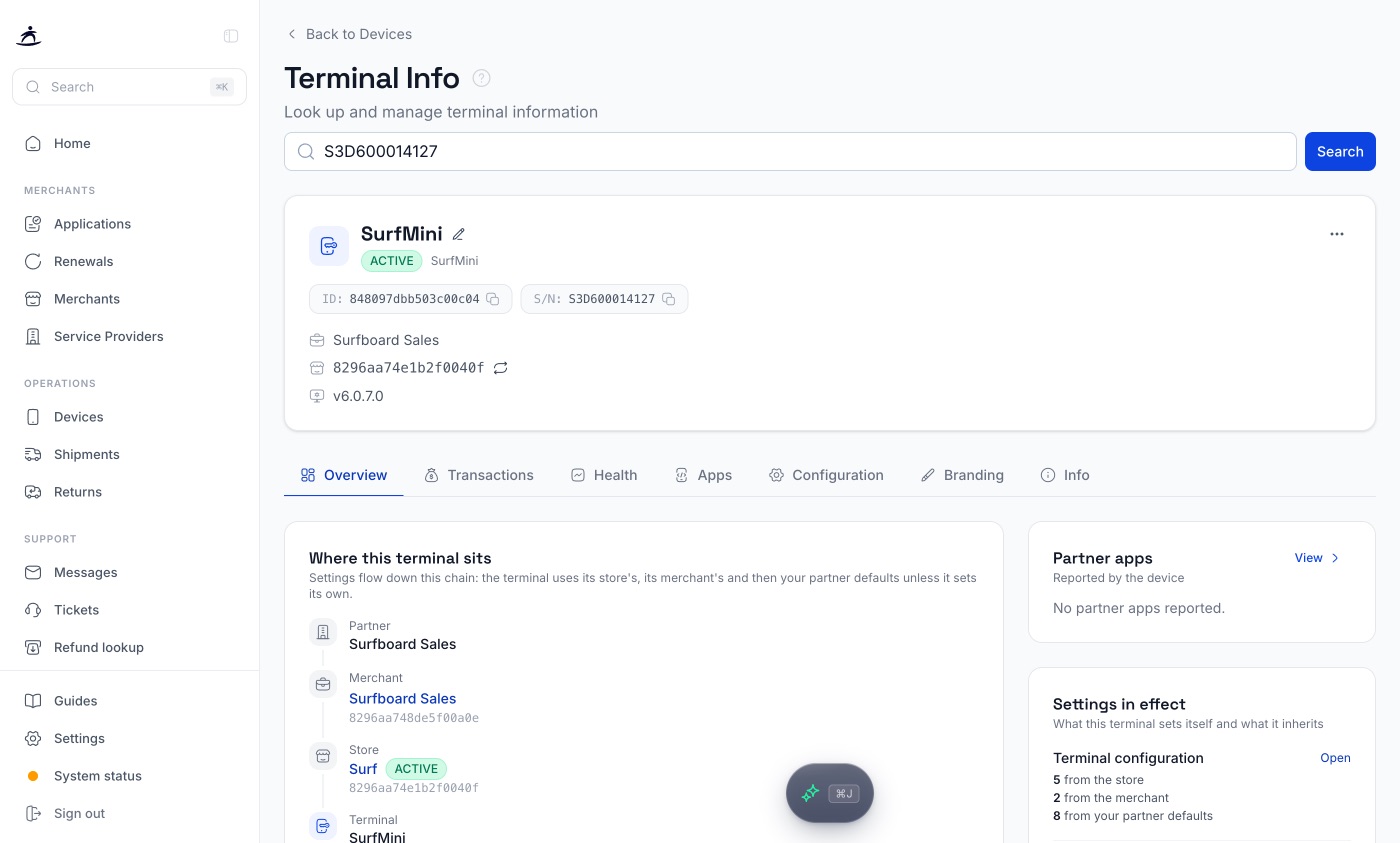
The result is the full [terminal page](#the-terminal-page), with the same header, **More actions** menu, and tabs: Overview, Transactions, Health, Apps, Configuration, Branding, and Info. You can rename the terminal, change its store, move it to another merchant, and push or uninstall apps from here.
You can also find a terminal from anywhere with [global search](/partner-portal/search-assistant-status#finding-a-terminal): paste its ID or serial number.
## Printers
A merchant's **Printers** tab lists printer terminals separately from payment terminals, with store, status, serial number, and software version. Search by name, ID, serial, or store. Printers are registered under a store in the same way as terminals, using the serial number from the back of the device.
## Related
- [Terminal Configuration & Tips](/partner-portal/terminal-configuration)
- [Terminal Apps](/partner-portal/integrations)
- [Shipments & Returns](/partner-portal/shipments-and-returns)
- [Stores](/partner-portal/stores)
- [Pair a Terminal with the Multicomm Base](/partner-portal/multicomm-base-pairing)
- [Connect a Terminal to the Hub](/partner-portal/hub-pairing)
### Terminal Configuration & Tips
Category: operations | Tags: Terminals, Configuration, Tips, PIN, Network
URL: /partner-portal/terminal-configuration
## Overview
Terminal settings control what the terminal screen shows, how it gets online, when it sleeps and restarts, and which PINs protect it. Tip settings control whether customers are offered a tip at checkout.
Both can be set at several levels. A setting made at a more specific level overrides the broader one:
| Level | Where | Applies to |
|-------|-------|------------|
| **Partner** | **Settings** → **Terminal defaults** | Every terminal in your portfolio |
| **Merchant** | Merchant → **Config** button, or **Configuration** → **Terminal Defaults** | All terminals of that merchant |
| **Store** | Store page → **Configuration** tab | All terminals in that store |
| **Terminal** | Terminal page → **Configuration** tab | That terminal only |
Terminal beats store, store beats merchant, merchant beats your partner defaults. Leave a setting empty at a level to inherit it from above.
After you save, terminals pick up the change within about 30 seconds.
## Partner defaults
Open **Settings** and choose the **Terminal defaults** tab. These settings are the starting point for every terminal you manage.
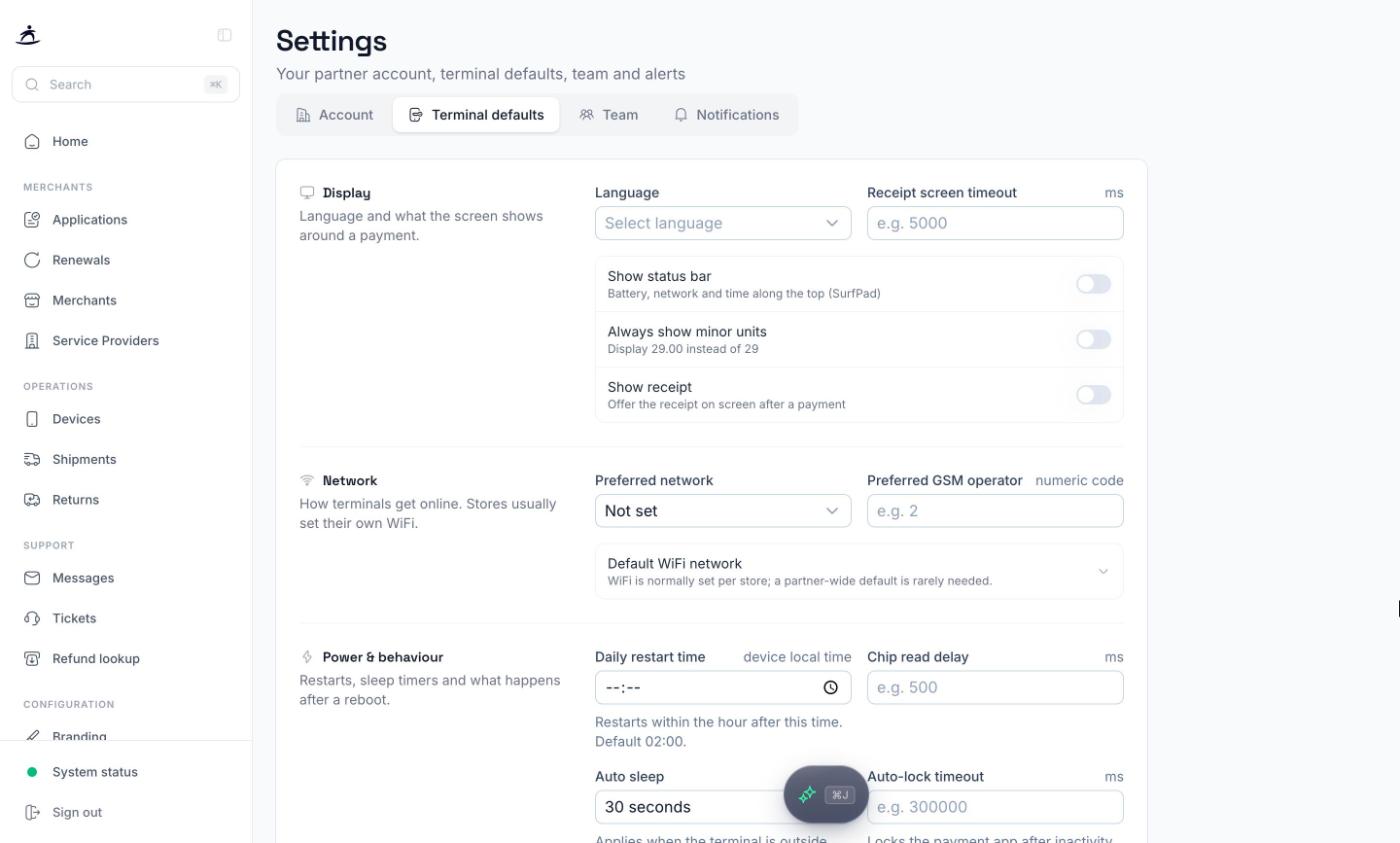
The page is grouped into **Display**, **Network**, **Power & behaviour**, and **Security**. Click **Save changes** to apply, or **Discard** to drop your edits. Fields you leave blank are not changed.
> **Tip:** WiFi is normally set per store, since each location has its own network. A partner-wide default WiFi network is rarely needed.
## Merchant settings
On a merchant's page, click **Config** in the header to open **Merchant Terminal Settings**. Changes here apply to all of that merchant's terminals unless a store or terminal overrides them.
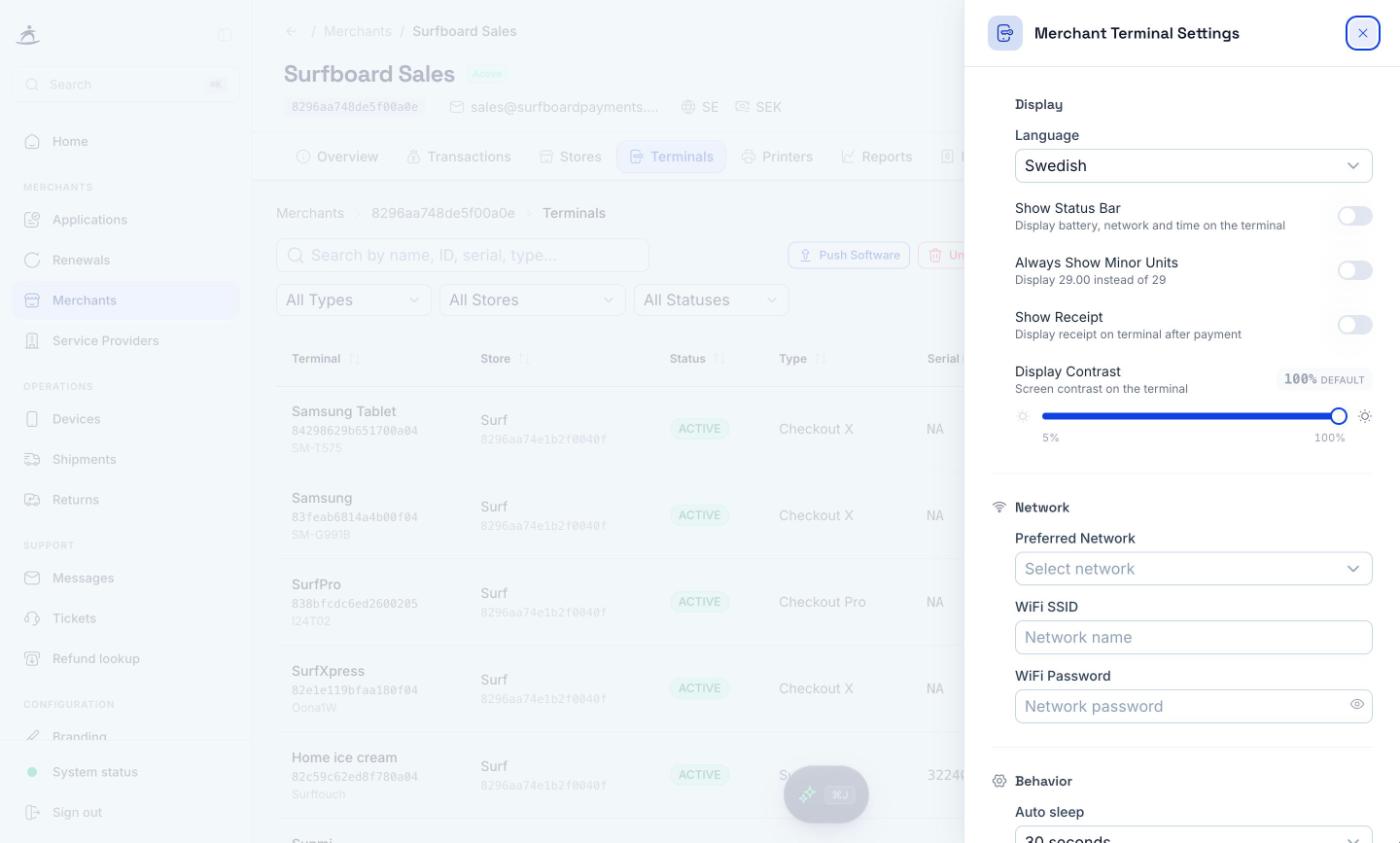
The merchant's **Configuration** tab also has a **Terminal Defaults** sub-tab with the same purpose. On Danish merchants it adds **Card Scheme Preference**, which chooses whether co-badged cards are processed as Dankort (domestic) or through the international scheme.
## Store and terminal settings
- **Store:** open the store from the merchant's **Stores** tab and choose the **Configuration** tab (or click **Configure**). It shows **Tips Configuration** next to **Terminal Configuration**.
- **Terminal:** open the terminal and choose its **Configuration** tab. The layout is the same, scoped to that one terminal.

Click **Save Configuration** to apply terminal settings at that level.
## Terminal settings reference
### Display
| Setting | What it does |
|---------|--------------|
| **Language** | Language shown on the terminal: English, Swedish, Danish, or Finnish. Norwegian is also offered in the merchant **Config** panel and on stores and terminals. |
| **Show Status Bar** | Shows battery, network, and time along the top of the screen. |
| **Always Show Minor Units** | Displays 29.00 instead of 29. |
| **Show Receipt** | Offers the receipt on screen after a payment. |
| **Display Contrast** | Screen contrast from 5% to 100%. Shown as default when not set. |
| **Receipt screen timeout** | How long the receipt stays on screen, in milliseconds. |
### Network
| Setting | What it does |
|---------|--------------|
| **Preferred Network** | Not set, WiFi, or GSM (mobile data). |
| **WiFi SSID** / **WiFi Password** | The WiFi network the terminal joins. |
| **Preferred GSM operator** | The mobile operator to prefer, as a numeric code. |
### Behaviour
| Setting | What it does |
|---------|--------------|
| **Auto sleep** | 15 seconds to 30 minutes. Applies when the terminal is outside CheckoutX, for example on the home screen or in a partner app. CheckoutX keeps the screen awake while it is open. |
| **Preferred Restart Time** | The terminal restarts once a day within an hour of this time. The default is 02:00. |
| **Auto Reboot** | Restarts the terminal on that schedule. |
| **Open POS on Reboot** | Launches the POS app automatically after the terminal restarts. |
| **Chip read delay** | Delay before reading a chip card, in milliseconds. |
| **Auto-lock timeout** | Locks the payment app after inactivity, in milliseconds. Needs a device PIN. |
### Security
| Setting | What it does |
|---------|--------------|
| **PIN Lock** | Requires a PIN to unlock the terminal. |
| **Device PIN** | A 4-digit PIN staff must enter to close the payment app, open settings, or reach the home screen. It does not affect payments. Android terminals only. |
| **Refund Lock** / **Refund PIN** | A 4-digit PIN required before a refund can be made on the terminal. Android terminals only. |
PINs are encrypted in your browser before they are sent to the terminal. In **Settings** → **Terminal defaults**, leave a PIN field blank to keep the current PIN.
## Tips
Tipping can be set for a whole merchant, a store, or a single terminal:
- **Merchant:** **Configuration** tab → **Tips**
- **Store:** store page → **Configuration** tab → **Tips Configuration**
- **Terminal:** terminal page → **Configuration** tab

| Setting | Description |
|---------|-------------|
| **Enable Tips** | Turns tipping on or off at this level. |
| **Display Format** | Show tip options as a **Percentage** or a fixed **Amount**. |
| **Preset Tip Levels** | Up to three preset options, each between 1 and 99. The defaults are 10, 20, and 25. |
| **Allow Custom Amount** | Lets the customer enter their own tip. You can pre-set a **Default Custom Amount**. |
| **Show Calculated Amount** | Shows the calculated tip value under each preset. |
The **Preview** shows how the tip screen will look, including the custom amount and **Pay without tips** options. Click **Save Tip Config** to apply.
## POS app features
Which features merchant staff see in the POS app (today's sales, product catalogue, transaction history, product creation) is set on the merchant's **Configuration** tab under **Application**. The app must be restarted before changes take effect. See [Merchant Management](/partner-portal/merchant-management).
## Related
- [Terminal Management](/partner-portal/terminals)
- [Settings & Notifications](/partner-portal/settings)
- [Stores](/partner-portal/stores)
- [Branding & Customization](/partner-portal/branding)
### Pair a Terminal with the Multicomm Base
Category: operations | Tags: Multicomm Base, Docking station, Ethernet, SurfPrint Pro, SurfPrint Pro K, Terminals
URL: /partner-portal/multicomm-base-pairing
## Overview
The Multicomm Base is a charging dock with an ethernet port. Once the base has power and a network cable, it creates its own short-range wireless network, and a paired terminal uses that network to reach the wired ethernet connection in the base.
There are two bases, one per terminal, and they pair the same way:
| Base | Terminal | Base model |
|------|----------|------------|
| [SurfPrint Pro Multicomm Base](/products/fins/surfprint-base) | SurfPrint Pro | D51 |
| [SurfPrint Pro K Multicomm Base](/products/fins/surfprint-pro-k-base) | SurfPrint Pro K | D53 |
Need wired ethernet for a terminal that is not docked, or for SurfTouch Pro? The [Hub](/products/fins/hub) does the same job as a separate box without a cradle. See [Connect a Terminal to the Hub](/partner-portal/hub-pairing).
Out of the box the base only charges. The terminal does not know about the base until you pair the two, and pairing happens on the terminal, not in the Partner Portal. It takes about a minute and only needs to be done once per terminal and base.
This guide is written for the person standing at the counter with the terminal in hand: a partner setting up a merchant, or a merchant following your instructions.
## Before you start
- Plug the base into power and connect an ethernet cable to its RJ45 port. The base needs both before the terminal can use it for networking. Some deliveries ship the base without its own adapter: it takes the USB-C cable and adapter that came with the terminal.
- Have the terminal nearby, switched on, with the CheckoutX app open.
- Turn the base over. The code on its underside is what the terminal scans to pair: a barcode on the SurfPrint Pro base, a QR code marked **Scan connection** on the SurfPrint Pro K base.
- The base's LED should be blinking. A base that has never been paired blinks slowly, on and off in half-second steps. See [What the LED tells you](#what-the-led-tells-you) below.
> **Note:** Pairing is done in the terminal's device settings, which sit behind the CheckoutX cogwheel. A merchant does not need Partner Portal access to follow these steps.
>
> Most terminals are set to **Lock to POS**, which keeps the terminal inside the payment app and blocks the device settings. If you cannot reach the cogwheel, switch off **Lock to POS** for the terminal in the [Partner Portal](/partner-portal/terminal-configuration), pair the terminal, then switch it back on. If you cannot change the mode yourself, [raise a support ticket](/partner-portal/tickets) in the Partner Portal and we will toggle it for you.
## Step 1: Enable the wireless docking station
1. In the CheckoutX app, tap the **cogwheel** to open the device settings.
2. Find **Wireless docking station settings** and open it.
3. Switch on the **Wireless docking station** toggle.
When the toggle is on, the screen expands to show the pairing status and the binding controls. A terminal that has never been paired shows **Disconnected**.
## Step 2: Scan the code on the base
1. Tap **Scan bind**. The terminal's camera opens.
2. Point the camera at the barcode or QR code on the underside of the Multicomm Base.
3. As soon as the code is read, pairing starts on its own. Wait for the status between the base and terminal icons to change from **Disconnected** to **Connected**.
After a successful pairing, **Auto bind** is switched on. Leave it on so the terminal reconnects to this base by itself whenever the base is in range.
At this point the terminal and base talk to each other directly, over a link the base's manual calls Wi-Fi P2P. It carries charging status and the pairing, but not internet traffic. That comes in the next step.
## Step 3: Enable Ethernet and return to CheckoutX
1. Switch on the **Ethernet** toggle. The terminal asks you to confirm, because its own Wi-Fi is switched off while the base's ethernet is in use. Confirm. The terminal now routes its network traffic through the base's ethernet connection.
2. Leave **DHCP** on unless the merchant's network requires a fixed address.
3. Tap the **back** arrow to return to the payment application.
The terminal is now set up. From here on it connects to the Multicomm Base whenever the base is available, without any further action.
## How the connection behaves
- **Lifting the terminal off the base keeps the connection.** The ethernet link runs over the base's own wireless network, so the terminal stays connected while it is within range, not only while it sits in the cradle.
- **Charging is unchanged.** The base charges the terminal whether or not it is paired.
- **One base per terminal.** Pairing a terminal with a different base replaces the previous pairing. Scan the new base's code to move it.
- **The terminal's own Wi-Fi steps aside.** While Ethernet is on, the terminal uses the base for networking rather than the venue's Wi-Fi. Switch Ethernet off again to go back to Wi-Fi or 4G.
## Unpair or move a base
You only need this when a base changes hands: a terminal is moving to another counter, or a base is being replaced.
- **From the terminal:** open **Wireless docking station settings**, tap **Scan bind** and confirm. The terminal drops the current base and is ready to scan a new one.
- **From the base:** press the **RESET** button on the underside of the base briefly, for about two seconds. The base forgets the terminal and its LED goes back to the slow blink.
Hold the reset button down for longer only if you mean to reset the base itself: a long press resets it to factory settings, and holding it while plugging in the power starts a firmware update.
## What the LED tells you
The power LED on the base doubles as a status light.
| LED | Meaning |
|-----|---------|
| Steady on | A terminal is connected to the base. |
| Fast blink, on and off every 0.2 s | Ethernet mode is on and the base is paired, waiting for the terminal to connect. |
| Slow blink, on and off every 0.5 s | The base is not paired with any terminal. |
| Long on, then two quick flashes | The base is paired but Ethernet mode is off, waiting for the terminal to connect. |
## Troubleshooting
| Symptom | What to check |
|---------|---------------|
| The cogwheel or device settings will not open | The terminal is set to **Lock to POS**. Switch it off for the terminal in the Partner Portal, pair, and switch it back on. If you cannot change it yourself, [raise a support ticket](/partner-portal/tickets) and we will toggle it for you. |
| Status stays **Disconnected** after scanning | Confirm the base has power and its LED is blinking. Wipe the code on the underside and scan again in good light. If the base was paired with another terminal before, press its reset button for two seconds and scan again. |
| **Connected**, but the terminal has no network | Check that the ethernet cable is plugged into the base and carries a live link. Confirm the **Ethernet** toggle is on: without it the link between base and terminal carries no internet traffic. |
| The terminal falls back to Wi-Fi or 4G | The terminal has moved out of range of the base. Bring it back within range, or rescan if it does not reconnect. |
| The LED blinks slowly although the terminal was paired | The base has been reset, or was paired with another terminal. Scan its code again. |
| The **Wireless docking station** setting is missing | The terminal is not a SurfPrint Pro or SurfPrint Pro K, or its software is out of date. Push the latest software from [Terminal Management](/partner-portal/terminals). |
## Related
- [SurfPrint Pro Multicomm Base](/products/fins/surfprint-base) for specifications and what is in the box.
- [SurfPrint Pro K Multicomm Base](/products/fins/surfprint-pro-k-base) for the SurfPrint Pro K version.
- [Connect a Terminal to the Hub](/partner-portal/hub-pairing) for wired ethernet without a dock, on a separate box under the counter or on the wall.
- [Terminal Management](/partner-portal/terminals) for activating, registering, and updating terminals from the Partner Portal.
### Connect a Terminal to the Hub
Category: operations | Tags: Hub, Docking station, Ethernet, SurfPrint Pro, SurfPrint Pro K, SurfTouch Pro, Terminals
URL: /partner-portal/hub-pairing
## Overview
The [Hub](/products/fins/hub) is a small network box. It takes the merchant's ethernet cable and creates its own short-range wireless network, and a paired terminal uses that network to reach the wired connection. Unlike the [Multicomm Base](/partner-portal/multicomm-base-pairing), the Hub does not charge the terminal and has no cradle: it sits wherever the network cable is, on a shelf, under the counter or screwed to a wall, and the terminal stays free to move around within range.
It works with the Pro-series terminals: SurfPrint Pro, SurfPrint Pro K and SurfTouch Pro.
Out of the box the Hub only powers up. The terminal does not know about it until you pair the two, and pairing happens on the terminal, not in the Partner Portal. It takes about a minute and only needs to be done once per terminal and Hub.
This guide is written for the person setting up the counter: a partner installing a merchant, or a merchant following your instructions.
## What is in the box
| Item | Note |
|------|------|
| Hub | Model DH10-W, the wireless version |
| Power adapter | 5V 2A, with a fixed USB-C cable |
| EU and UK plug heads | Clip the right one onto the adapter |
| Double-sided tape | Two 3M VHB strips, to fix the Hub to a surface |
| Quick reference guide | |
There is no ethernet cable in the box. Use the merchant's own cable from their router or network switch.
## Ports and lights
All the ports sit on one long side of the Hub:
| Port | Use |
|------|-----|
| Ethernet (RJ45) | The network cable from the router or switch. 10/100 Base-T. |
| RS232 | Serial connection for a cash register or other counter equipment. |
| 2x USB-A | USB devices, 5V at 500mA each. |
| USB-C | Power only. Connect the adapter that came with the Hub. |
The top of the Hub has a light for each connection, labelled **Ethernet** (network icon), **RS232**, **USB-1**, **USB-2** and **POWER**. The ethernet port itself has a yellow and a green link light, like any network socket.
The **reset button** sits in a small slot on the long side opposite the ports. A paper clip or SIM tool presses it.
## Before you start
- Place the Hub where the network cable reaches it. It does not need to be next to the terminal, but the terminal has to stay within wireless range of it. Avoid putting it inside a metal cabinet or right next to a computer screen or a wireless intercom, which can disturb the signal.
- Plug the power adapter into the Hub's USB-C port and into the wall. The **POWER** light comes on.
- Connect the ethernet cable from the router or switch to the Hub's RJ45 port.
- Turn the Hub over and find the QR code on the label underneath, marked **Sweep connection**. That is what the terminal scans to pair. If you plan to stick the Hub down or hang it on the wall, pair it first, while the code is still easy to reach.
- Have the terminal nearby, switched on, with the CheckoutX app open.
> **Note:** Pairing is done in the terminal's device settings, which sit behind the CheckoutX cogwheel. A merchant does not need Partner Portal access to follow these steps.
>
> Most terminals are set to **Lock to POS**, which keeps the terminal inside the payment app and blocks the device settings. If you cannot reach the cogwheel, switch off **Lock to POS** for the terminal in the [Partner Portal](/partner-portal/terminal-configuration), pair the terminal, then switch it back on. If you cannot change the mode yourself, [raise a support ticket](/partner-portal/tickets) in the Partner Portal and we will toggle it for you.
## Step 1: Enable the wireless docking station
The terminal treats the Hub as a wireless docking station, so the setting is the same one used for the Multicomm Base.
1. In the CheckoutX app, tap the **cogwheel** to open the device settings.
2. Find **Wireless docking station settings** and open it.
3. Switch on the **Wireless docking station** toggle.

When the toggle is on, the screen expands to show the pairing status and the binding controls. A terminal that has never been paired shows **Disconnected**.
## Step 2: Scan the QR code under the Hub
1. Tap **Scan bind**. The terminal's camera opens.
2. Point the camera at the QR code on the underside of the Hub.
3. As soon as the code is read, pairing starts on its own. Wait for the status to change from **Disconnected** to **Connected**.


After a successful pairing, **Auto bind** is switched on. Leave it on so the terminal reconnects to this Hub by itself whenever it is in range.
At this point the terminal and the Hub talk to each other directly, over a link the Hub's quick reference guide calls Wi-Fi P2P. It carries the pairing, but not internet traffic. That comes in the next step.
## Step 3: Enable Ethernet and return to CheckoutX
1. Switch on the **Ethernet** toggle. The terminal asks you to confirm, because its own Wi-Fi is switched off while the Hub's ethernet is in use. Confirm. The connection mode changes from Wi-Fi P2P to Wi-Fi AP, and the terminal now routes its network traffic through the Hub's ethernet connection.
2. Leave **DHCP** on unless the merchant's network requires a fixed address.
3. Tap the **back** arrow to return to the payment application.

The terminal is now set up. From here on it connects to the Hub whenever it is in range, without any further action.
## Mount the Hub
Once the terminal shows **Connected** with Ethernet on, put the Hub in its final place.
- **On a surface:** stick the two 3M VHB strips from the box to the underside and press the Hub down on a clean, dry surface, under the counter or on a shelf.
- **On a wall:** the underside has a keyhole slot. Hang the Hub on a screw with the ports pointing down or sideways so the cables do not pull on it.
Keep the vents on the sides of the Hub clear, and keep it away from heat, damp and dust. It is made for indoor use between -10°C and 40°C.
## How the connection behaves
- **The terminal moves freely.** The Hub never touches the terminal. Payments go over the Hub's ethernet as long as the terminal is within wireless range.
- **Charging is separate.** The Hub does not charge the terminal. Use the terminal's own charger or a charging base.
- **One Hub or base per terminal.** A terminal pairs with one docking device at a time. Pairing it with a different Hub, or with a Multicomm Base, replaces the previous pairing.
- **The terminal's own Wi-Fi steps aside.** While Ethernet is on, the terminal uses the Hub for networking rather than the venue's Wi-Fi. Switch Ethernet off again to go back to Wi-Fi or 4G.
## Unpair or move the Hub
You only need this when the Hub changes hands: a terminal is moving to another counter, or a Hub is being replaced.
- **From the terminal:** open **Wireless docking station settings**, tap **Scan bind** and confirm. The terminal drops the current Hub and is ready to scan a new one.
- **From the Hub:** press the **reset button** briefly, for about two seconds. The Hub forgets the terminal.
Hold the reset button down for longer only if you mean to reset the Hub itself: a long press resets it to factory settings, and holding it while plugging in the power starts a firmware update.
## Troubleshooting
| Symptom | What to check |
|---------|---------------|
| The cogwheel or device settings will not open | The terminal is set to **Lock to POS**. Switch it off for the terminal in the Partner Portal, pair, and switch it back on. If you cannot change it yourself, [raise a support ticket](/partner-portal/tickets) and we will toggle it for you. |
| The **POWER** light is off | Check that the adapter is plugged into the Hub's USB-C port, not one of the USB-A ports, and that the wall socket is live. |
| Status stays **Disconnected** after scanning | Wipe the QR code under the Hub and scan again in good light. If the Hub was paired with another terminal before, press its reset button for two seconds and scan again. |
| **Connected**, but the terminal has no network | Check that the ethernet cable is plugged into the Hub and that the yellow and green lights on the port are on. Confirm the **Ethernet** toggle is on: without it the link between Hub and terminal carries no internet traffic. |
| The terminal falls back to Wi-Fi or 4G | The terminal has moved out of range of the Hub, or something between them blocks the signal. Bring it closer, or move the Hub out of a metal cabinet or away from other electronics. |
| The **Wireless docking station** setting is missing | The terminal is not a Pro-series terminal, or its software is out of date. Push the latest software from [Terminal Management](/partner-portal/terminals). |
## Related
- [Hub](/products/fins/hub) for specifications and what is in the box.
- [Pair a Terminal with the Multicomm Base](/partner-portal/multicomm-base-pairing) for the charging dock with ethernet built in, for SurfPrint Pro and SurfPrint Pro K.
- [Terminal Management](/partner-portal/terminals) for activating, registering, and updating terminals from the Partner Portal.
### Cash Registers (ECR)
Category: operations | Tags: Cash Registers, ECR, Skatteverket, Z-report, Shifts
URL: /partner-portal/cash-registers
## Overview
The **Cash-Register** tab lets you manage a merchant's cash registers (ECR) directly from the partner portal. From here you can add and declare registers, view their details and control-unit information, check transactions and reports, and run daily operations like opening and closing shifts.
This guide walks through everything you can do with a merchant's cash registers, end to end.
> **Note:** The **Cash-Register** tab only appears when cash registers are enabled for your partner account. If you don't see it, contact your account manager.
> **Important (Swedish merchants):** Registering a cash register is mandatory under Swedish government regulations. A Swedish merchant without a connected cash register is not compliant with local tax law.
## Getting to the Cash-Register tab
Click the **Merchants** tab in the sidebar, select your merchant, then choose the **Cash-Register** sub-tab.
This tab is the home for all cash-register management. It shows every cash register under the merchant and is where you perform all cash-register actions -- adding registers, viewing details, checking transactions and reports, and operating shifts.
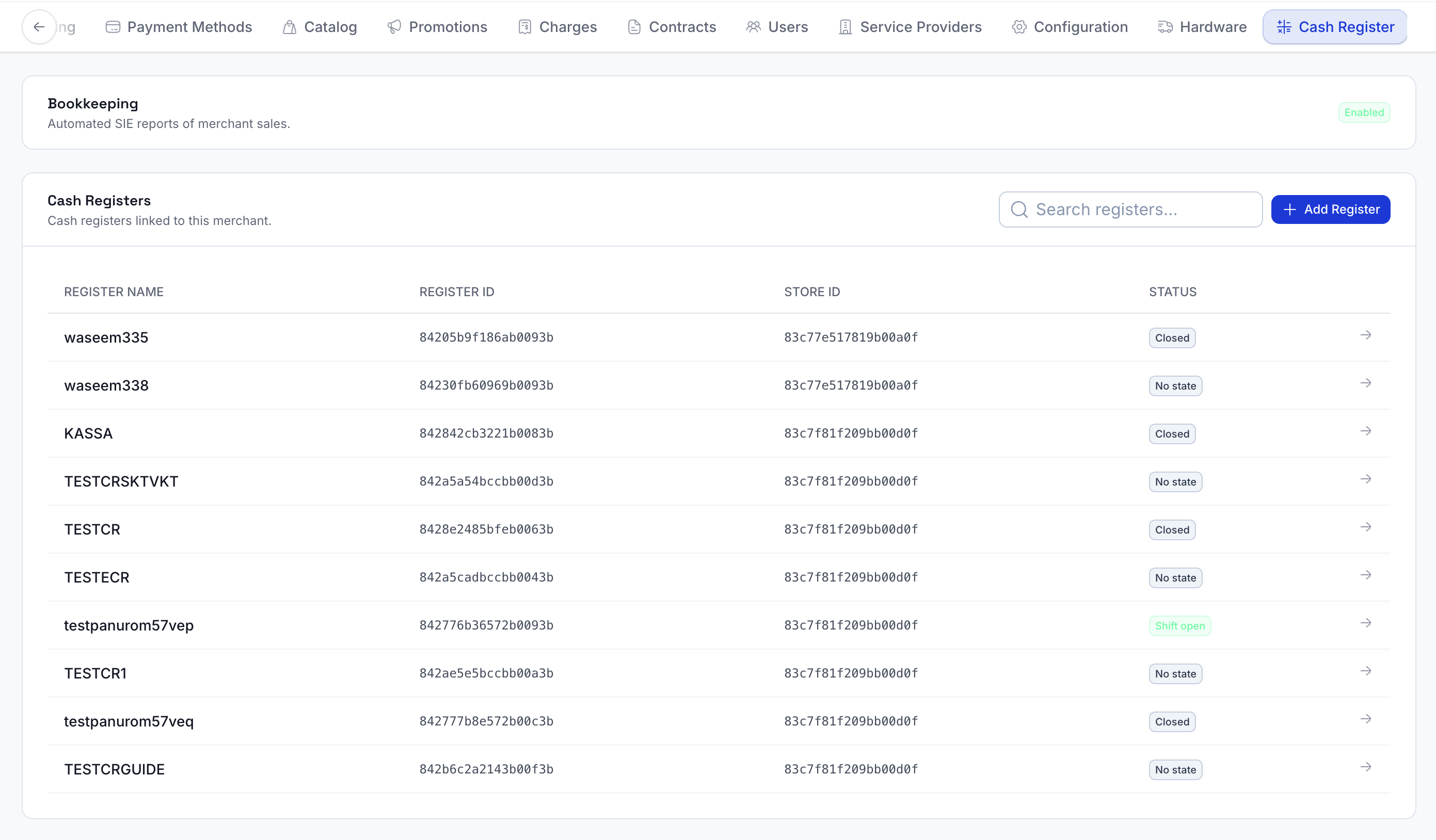
## Add a cash register
Click **+ Add Register** in the top right of the Cash Registers panel, then complete the form:
| Field | Required | Notes |
|-------|----------|-------|
| **Store** | Yes | The store the register belongs to. |
| **Terminal** | Yes | The terminal to use; this is used as the device ID. Select a store first to populate the list. |
| **Cash register name** | Yes | Letters and digits only. |
| **Notification emails** | No | Addresses that will receive ECR reports. Use **+ Add email** to add more. |
Then click **+ Add Register** to create it.
> **Note:** A charge applies for every cash register created under the merchant.
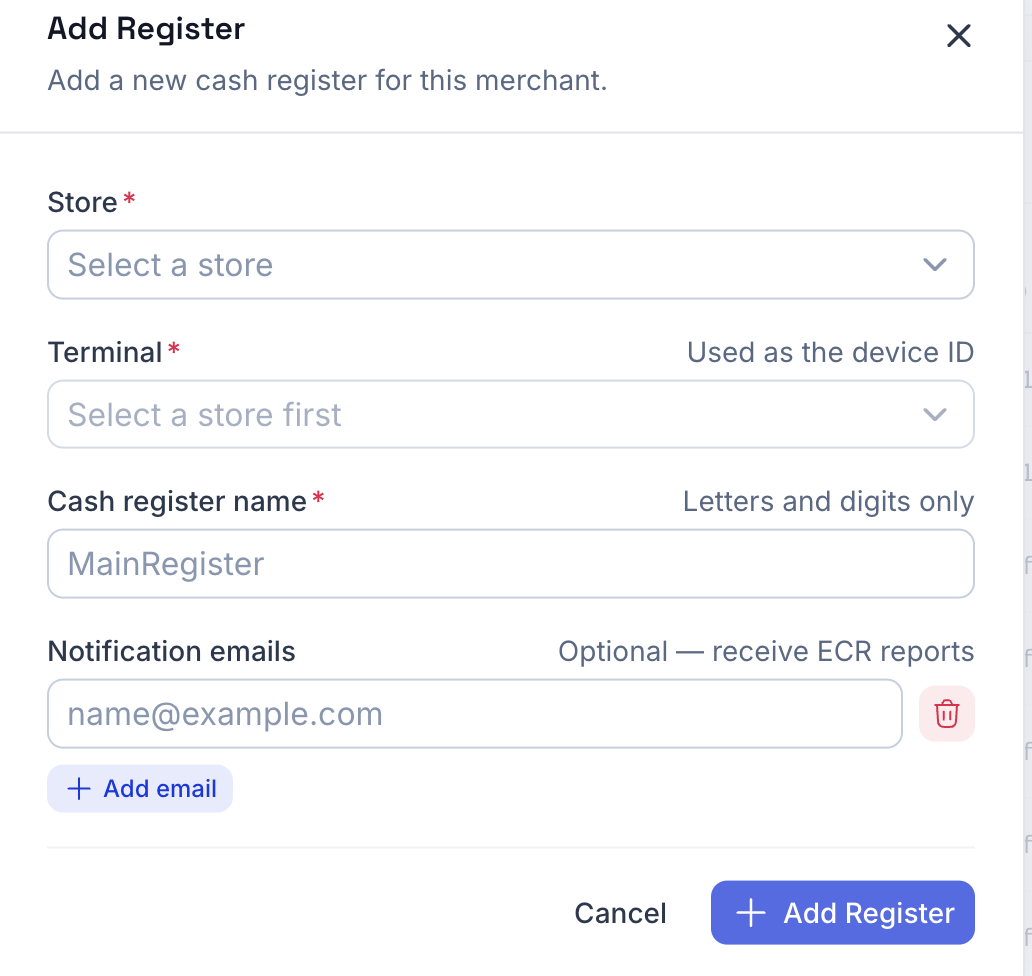
### Declare with Skatteverket
After the register is created, a **Cash register created** dialog confirms success. The register must be declared with the Swedish Tax Agency (Skatteverket) before it can be used, using the details in the register's **Info** tab.
- Click **Declare with Skatteverket** to declare it now, or
- Click **Do it later** to declare it from the Info tab afterward.
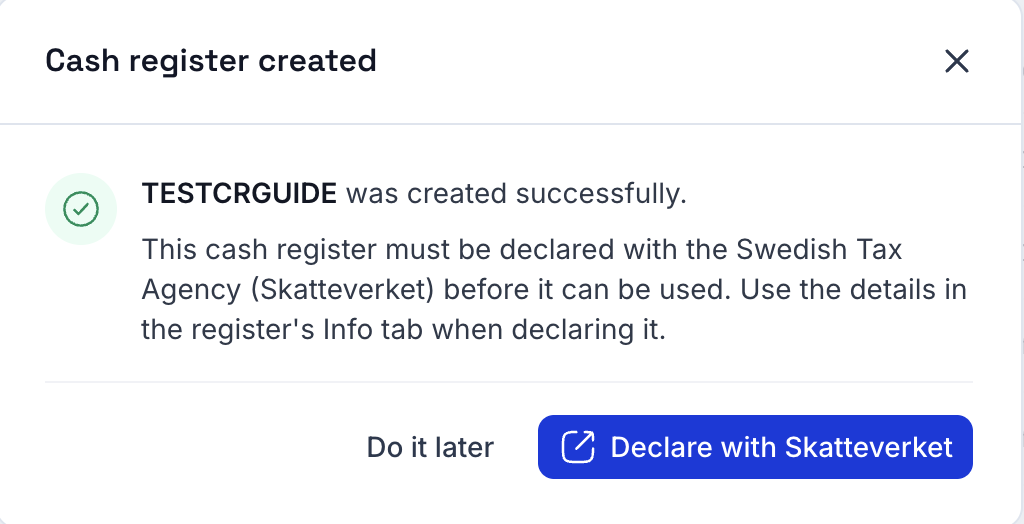
## View the cash-register list
The Cash Registers panel lists every cash register linked to the merchant. Each row shows the register name, register ID, store ID, and current status (for example, *Closed* or *No state*). After a cash register is added it's visible here. Click any row to open that register's details.
## View cash-register info
Selecting a register opens a side panel with four tabs: **Info**, **Transactions**, **Reports**, and **Operate**. The **Info** tab shows the register and control-unit details:
- **Cash register details** -- Cash Register ID, Cash Register Name, Activation Date, Designation, Model / Program, Address, and Email.
- **Control unit details** -- Control Unit Address, Manufacturer, Type, Model, and Serial Number.
These are the details you use to declare the cash register with Skatteverket.
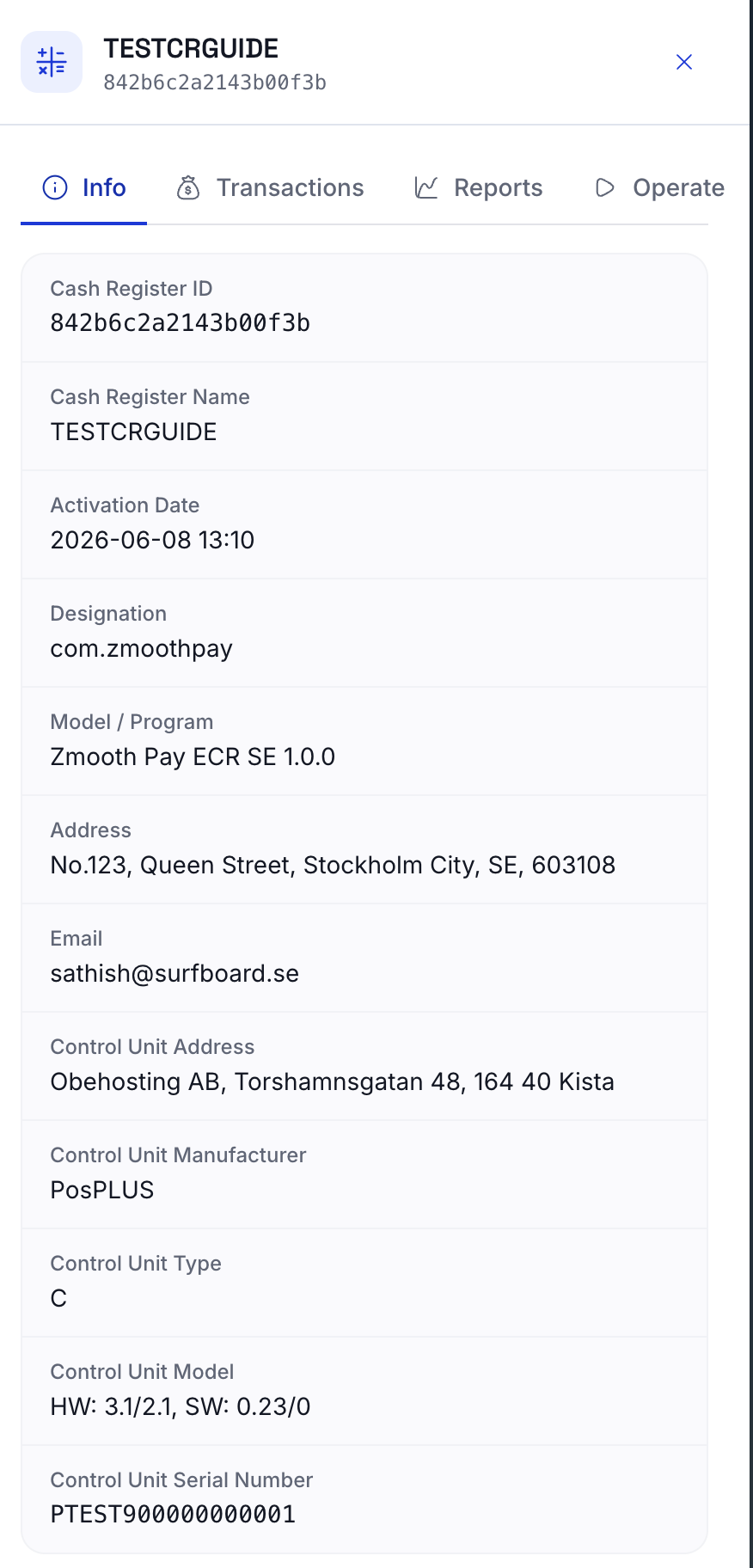
### Notification recipients
The **Notifications** section of the Info tab lists the additional email addresses that receive this register's ECR reports (Z-report, X-report, and SIE files). The merchant's configured email always receives the reports by default -- the addresses listed here receive them in addition to it.
To add another recipient, enter the address in the **Add email** box, click **+ Add**, and confirm.
> **Note:** Emails can only be added here -- they cannot be removed. If an address is entered by mistake, write to Surfboard to have it removed.
### Scheduled End of Day
Further down the Info tab, the **Scheduled End of Day** section shows when the End of Day action runs automatically each day (default *End of day (23:59)*, Swedish time). To change it, enter a new time under **Update End of Day time** and click **Update**.
### Delete a cash register
At the bottom of the Info tab, **Delete cash register** permanently removes the register. To confirm, you type the register's name.
> **Warning:** This action cannot be undone.
## Transactions
The **Transactions** tab lists the transactions made on this cash register. Each row shows the Order ID, Date, and Type (for example, *Purchase*). Use the pagination controls at the bottom to move through the list.
## Reports
The **Reports** tab fetches the reports generated for this cash register. Set the query parameters at the top, then click **Fetch reports**:
- **Type** -- *Z report*, *X report*, or *Journal Memory*.
- **Start date** and **End date** -- the date range to fetch.
Matching reports appear in a list below. Click **Open** on a report to view it.
## Operate
The **Operate** tab is where you run the register's daily operations. The actions available depend on whether a shift is currently open or closed.
### When the shift is closed
The tab shows the last shift's summary -- Shift status (*Closed*), Cashier, Shift closed time, Petty cash, and End of Day time -- with an **Open shift** button. Click **Open shift** to start a new shift so the register can accept payments. Opening a shift asks for:
- **Terminal** -- the terminal the shift runs on (required)
- **Petty cash** -- the cash float in the drawer, up to 15,000 SEK (required)
- **Cashier name** -- who is working the shift (optional)
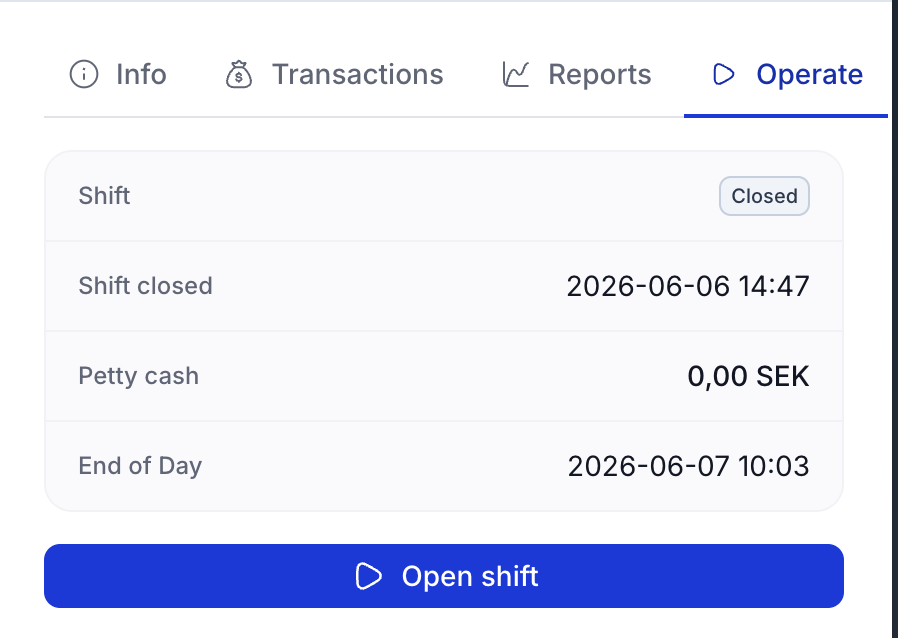
### When the shift is open
The tab shows the current shift -- Shift status (*Open*), Shift opened time, and Petty cash -- with two actions:
- **Close shift** -- closes the current shift and generates the X-report.
- **End of Day** -- generates the Z-report for the register. To confirm, you type the register's name.
> **Warning:** End of Day is a one-time action and cannot be undone. Once called, the cash register cannot accept payments for the rest of the day.
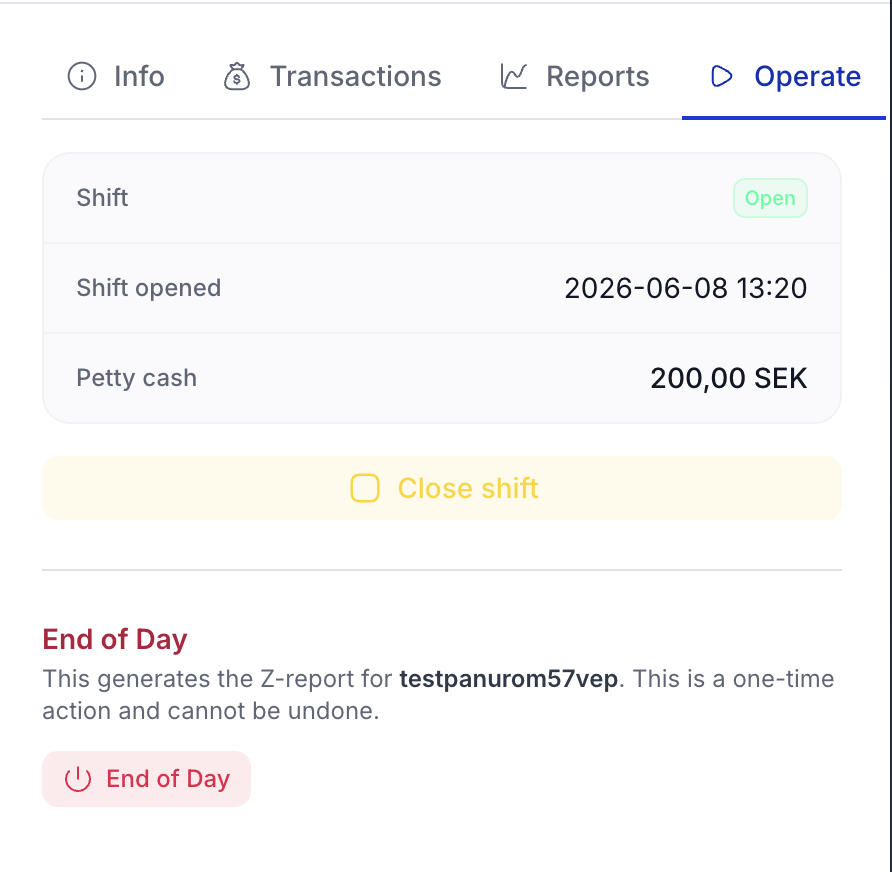
## Bookkeeping
On the cash-register tab there is a **Bookkeeping** block. Click **Enable Bookkeeping** and confirm if you want the merchant to receive SIE reports. SIE reports are generated on a per-merchant level and are sent out for every pay-out we send to the merchant.

### Shipments & Returns
Category: operations | Tags: Shipments, Returns, Replacements, Hardware, Logistics, Tracking
URL: /partner-portal/shipments-and-returns
## Overview
**Shipments** is where you order hardware and follow it to the door. **Returns** is where you send devices back, whether for repair, replacement, or because a merchant stopped using them. Both are under **Operations** in the sidebar.
You can also order hardware from two other places:
- A merchant's **Hardware** tab, which orders for that merchant and shows its order history
- The application wizard in **Advanced Mode**, which orders terminals while you onboard the merchant (see [Applications & Merchant Onboarding](/partner-portal/applications))
## Shipments
The Shipments page lists your hardware orders, newest first.
- **Search** by recipient, serial number, tracking number, product, order ID, city, or merchant.
- **Status chips** (**All**, **In progress**, **Completed**, **Cancelled**) filter the list when you have orders in more than one state.
- The list shows 20 orders at a time. Click **Show more** to load the next batch.
Each order card shows the recipient, order ID (with a copy button), where it ships to, the number of items, the merchant, and its status. A replacement ordered together with a return is marked **Replacement for** with the return's number. Up to four products are listed with their quantity and serial numbers. On the right you'll find the **Carrier**, the **Tracking number**, a **Track shipment** link to the carrier's tracking page, and **Order details**. Tracking appears once the order has shipped.
### Order details
Click **Order details** to open the order. A progress rail shows **Processing**, **Shipped**, and **Delivered** (or the carrier's own final status, such as **Completed**). Cancelled orders are marked in red.
The panel also shows:
- **Tracking**: carrier, tracking number, and a **Track shipment** link
- **Delivery**: address, phone, email, the note to the courier, and the merchant
- **Items**: every product and every serial number. Click a serial to copy it, or use **Copy all** on lines with several units.
## Creating a shipment
Click **Create Shipment**. First choose where the terminals are going.
| Option | What happens |
|--------|--------------|
| **Ship to a merchant** | The hardware goes straight to one of the merchant's stores. Activation happens automatically, so the merchant only needs to register the terminals. |
| **Bulk order to yourself** | The hardware comes to you, to distribute later. Each terminal must be activated to a merchant before it can be registered. |
> **Note:** Bulk orders to yourself are only available if you have a PCI-compliant storage facility and have signed the additional storage addendum.
The chosen mode is shown at the top of the wizard. Click **Change** to switch. The steps are:
- **Ship to a merchant:** Products → Merchant → Store → Review
- **Bulk order to yourself:** Products → Ship to → Review
You can click a completed step to go back to it.
### Products
1. Click a product to add it to **Your Order**. Use **Search products...** or the category chips (**All**, **Terminals**, **Accessories**, and others) to narrow the list.
2. Expand a row to see photos, details, and the accessories that go with that terminal. Add them with **Add**.
3. Adjust quantities with **+** and **−** in the basket. When prices are set for your account, the basket shows a total.
The catalogue is configured for your partner account. If a product is missing, contact Surfboard to add it.
### Merchant and store (ship to a merchant)
Search for the merchant by name, ID, or email, then pick the store. The store's address is filled in for you, and you can edit it on the review step.
### Ship to (bulk order)
Enter your own delivery address. It is remembered for next time. A reminder on this step explains that each terminal must be activated to its destination merchant before it can be registered (Merchant → **Terminals** → **Activate**).
### Address fields
| Field | Required |
|-------|----------|
| **Recipient Name** | Yes |
| **Address** | Yes |
| **Address Line 2** / **Address Line 3** | No |
| **Postal Code** | Yes |
| **City** | Yes |
| **Country** | Yes. Sweden, Norway, Finland, Denmark, Ireland, or United Kingdom |
| **Phone** | Yes. The carrier uses it to contact the recipient on delivery |
| **Email** | No |
| **Delivery Instructions** | No |
### Review and submit
Check the **Order Summary** and the delivery address, then click **Create Shipment** (or **Place Bulk Order** for bulk orders). The new order appears in the list.
> **Tip:** Your shipment is saved as a draft while you work, for up to 7 days. If you close the wizard before submitting, the button reads **Resume Shipment** and picks up where you left off. **Start over** clears the draft. Nothing is ordered until you submit.
After delivery, see [Terminal Management](/partner-portal/terminals) for activating and registering terminals.
## Ordering from a merchant's Hardware tab
Open the merchant and choose the **Hardware** tab. **Order History** lists the merchant's previous orders with status, carrier, serial numbers, address, and tracking.

Under **Order Hardware**:
1. Pick a **Product** and **Qty**. Click **Add Product** for more lines.
2. Under **Select Address**, choose the merchant's address, one of its stores, or **Add a new address manually**.
3. Fill in **Name**, **Street Address**, **Email**, **City**, **Postal Code**, and **Country**. **Phone**, **Address Line 2**, and **Delivery Instructions** are optional.
4. Click **Create Order**.
## Returns
**Returns** in the sidebar opens **Return Requests**, which tracks devices on their way back.
- **Search** by merchant, email, or return ID.
- Summary tiles show the total number of returns, the number of devices, and a count per status.
Each return card shows the merchant, status, number of devices, return ID, email, and address. When a replacement was ordered with the return, a badge shows **Replacement ordered**, **Replacement pending**, or **Replacement failed**. Click a card to see its devices: model, date, the return reason, a **Billing Stopped** badge when billing was stopped, and the terminal ID, merchant ID, serial number, and any comment.
### Return statuses
| Status | Meaning |
|--------|---------|
| **Created** | The return request has been submitted. |
| **Approved** | The return has been approved. The shipping label is available. |
| **Rejected** | The return was not approved. |
| **Shipped** | The device is on its way back. |
| **Delivered** | The device has arrived. |
### Return shipping label
Once a return is **Approved**, **Shipped**, or **Delivered**, the card shows **Return shipping label** with a **Download label** button. It downloads a PDF to print and attach to the package. Some returns approved before labels were stored may have no label; contact support if you need one.
### Creating a return request
Click **Create Return**. The request takes three steps.
1. **Merchant:** search for the merchant by name, ID, or email. For hardware that isn't linked to a merchant, such as a bulk order delivered to you, choose **Devices not linked to a merchant** instead (see [Returning devices that aren't linked to a merchant](#returning-devices-that-arent-linked-to-a-merchant)).
2. **Terminals:** tick the terminals to return. The filter box matches the terminal's name, ID, serial number, type, and model, so typing *surfprint pro* finds every SurfPrint Pro. If a terminal isn't listed, use **Can't find the terminal? Add it manually** and enter its terminal ID and serial number. Click **Continue**.
3. **Details:** for each device, fill in:
- **Serial Number** (required)
- **Reason** (required): Warranty, Not Using Service, Non-Warranty Broken, Technical Issues, or Compatibility Issues
- **Stop billing for this device**, to stop charging the merchant for it
- **Comment** (optional)
Then check the **Return Shipping Address**. It's filled in from the store the selected terminals are registered to (or the merchant's first store). If the merchant has more than one store, **Use address from store** lets you pick another store, and the address changes with it. Name, email, phone, address, city, postal code, and country are required. **Delivery Instructions** is optional.
To send the merchant a new terminal at the same time, turn on **Send a replacement** (see below).
Click **Submit Return Request**. The return appears in the list with the status **Created**.
> **Tip:** Closing the dialog doesn't lose your work. Open **Create Return** again and the merchant, terminals, and details you filled in are still there. **Clear**, at the top of the dialog, starts over. The form is also cleared once a return is submitted, or when you reload the page.
### Sending a replacement with a return
When a merchant's terminal is broken or being swapped, you can order the new terminal in the same step as the return, so the merchant isn't left without one.
1. On the **Details** step, turn on **Send a replacement**. Your product catalogue opens on **Terminals**.
2. A replacement is pre-selected for the terminals you're returning, based on their model. A SurfTouch is replaced by a SurfTouch Pro, a SurfPrint by a SurfPrint Pro, and a SurfPad by a SurfMini. If that model isn't in your catalogue, the same model or another terminal from the same family is used instead. You can always change it.
3. Under **Replacing**, each returned model has one-click picks: the **Suggested** terminal, the **Same model**, and others from the **Same family**. Click a pick to add it for as many devices as you're returning. Click it again to remove it.
4. Add anything else from the catalogue (chargers, stands, other terminals) and adjust quantities in **Your Order**.
5. The replacement **Ships to** the return address. To send it somewhere else, click **Ship to a different address** and fill in the address.
6. Click **Submit Return Request**.
The replacement is ordered as soon as the return is created; you don't have to wait for the old device to arrive. It appears under **Shipments** like any other order, marked **Replacement for** the return.
If no terminal is pre-selected, a note explains why: the suggested model isn't in your catalogue, or the returned terminal's model isn't known. Pick one yourself from the list. If your catalogue has no terminals at all, contact Surfboard.
> **Note:** Replacements can be shipped to Sweden, Norway, Finland, Denmark, and Ireland. They can't be shipped to the United Kingdom.
If the return is created but the replacement order fails, you'll see a warning and the return shows **Replacement failed**. Surfboard is notified and follows up; you don't need to create the return again.
### Returning devices that aren't linked to a merchant
Use **Devices not linked to a merchant** on the first step for hardware you hold yourself, for example from a bulk order.
1. Enter the devices' serial numbers. You can paste several at once, separated by spaces, commas, or new lines.
2. Under **Other items**, add anything that isn't a terminal, such as chargers or stands, with a description and quantity.
3. On **Details**, give a reason for each line and enter the address the parcel is collected from. Your partner name and email are filled in for you.
Surfboard matches each serial number against your own hardware.
## Related
- [Terminal Management](/partner-portal/terminals)
- [Applications & Merchant Onboarding](/partner-portal/applications)
- [Merchant Management](/partner-portal/merchant-management)
### Terminal Apps (Software)
Category: operations | Tags: Software, Apps, Push, Uninstall, Developer Portal
URL: /partner-portal/integrations
## Overview
**Terminal apps** in the sidebar opens the **Software** page. It is the bridge between the Developer Portal, where software is uploaded and signed, and your terminal fleet.
| Stage | Where | What you do |
|-------|-------|-------------|
| **Build** | Developer Portal | Create and upload your application |
| **Sign** | Developer Portal | Sign the package so it can be installed |
| **Push** | Partner Portal | Send it to your terminals, a merchant, or one terminal |
| **Install** | Terminal | The terminal downloads the app and installs it on restart |
The Software page has two tabs: **Available Apps** and **Configured Software**.
## Available Apps
Lists every signed software package available to your account, one row per software ID, with its type and the number of versions ("3 versions · latest 1.5.27"). Expand a row to see every version, newest first.
Search by ID, type, or version. A package that doesn't appear here has not been signed in the Developer Portal yet.
## Configured Software
Shows which software versions are configured to be installed, and at which level. Choose a scope, **Merchant**, **Store**, or **Terminal ID**, find the merchant, store, or terminal, and click **Search**.
Each row lists the software ID, version, type, device type, terminal type, whether it is a POS app, and the **Override Level**: the level the entry was set at (partner, merchant, store, or terminal). A more specific level wins: terminal beats store, store beats merchant, merchant beats partner.
## Pushing software
You can push from three places. The form is the same; only the reach differs.
| Where | Reaches |
|-------|---------|
| **Software** page → **Push Software** | All terminals on your partner account |
| Merchant → **Terminals** tab → **Push Software** | All of that merchant's terminals |
| Terminal page → **More actions** → **Push app to terminal** | That one terminal |
1. Select the **Software** and the **Version**. Versions are labelled with their platform, for example "1.5.27 · Android". iOS builds are listed last.
2. Optionally pick a **Terminal Type** to limit the push to one model: SurfprintPro, SurftouchPro, Surftouch, Surfprint, or Surfpad. Leave it on **All terminals** to reach every model. (Not shown when pushing to a single terminal.)
3. Switch on **Is this a POS app?** if the software is a point-of-sale application.
4. Click **Review & Push**, check the summary, and click **Confirm & Push**.
> **Note:** An iOS build won't install on Android card terminals such as Surfprint and Surftouch. The form blocks it and asks you to pick an Android version.
After you confirm, the dialog follows the download for about 30 seconds (**Software pushed**, then **Downloading onto** the devices, then **Restart to install**). You can **Skip the wait**. The app installs when the terminal restarts, so restart the devices once the download is done.
If the app doesn't appear after a restart, check that the terminal has internet, try switching it to Wi-Fi, keep it switched on, wait a minute, and restart again. If it still doesn't install, use **Create a ticket** to contact support.
## Uninstalling an app
Uninstall is not on the Software page. You start it from:
- Merchant → **Terminals** tab → **Uninstall Software**, for some or all of the merchant's terminals
- Terminal page → **More actions** → **Uninstall app**, for one terminal
- **Terminal Info** → **Uninstall App**, for one terminal
1. Select the app or apps to remove.
2. When starting from the merchant, choose **Uninstall from**: **All terminals** under the merchant, or **Select terminals** and pick them.
3. Review the confirmation. If an app is still configured for these terminals, it is flagged as **Still configured**, meaning it will be reinstalled. Tick an entry to also remove it from the configuration, otherwise the app comes back on the next configuration sync.
4. Type `UNINSTALL` and click **Uninstall**.
The app is removed without a restart. Terminals that are offline apply the uninstall when they reconnect. You can push the app again later.
> **Note:** Configuration entries set at store or terminal level can only be removed when uninstalling from a single terminal. Removing an entry set at partner level affects every terminal on your account, and the dialog warns you before you do.
## Checking what a terminal has installed
Open the terminal and choose the **Apps** tab. It lists the partner apps the terminal reports, each marked **Installed**, **Assigned**, or **Removed**, with how fresh the report is. Switch on **History** to see when each app was registered, confirmed as installed, changed version, or removed. A newly registered terminal shows its apps after its next check-in.
## Related
- [Terminal Management](/partner-portal/terminals)
- [Terminal Configuration & Tips](/partner-portal/terminal-configuration)
- [Support Tickets](/partner-portal/tickets)
### Branding & Receipts
Category: configuration | Tags: Branding, White-label, Receipts, Customization, Design
URL: /partner-portal/branding
## Overview
The **Branding** page, under **Configuration** in the sidebar, controls how your brand looks on the pages Surfboard hosts for you and on the receipts your terminals produce. It has two tabs:
- **Branding** -- colours, fonts, button shape, logo and icon
- **Receipt** -- the layout of printed and digital receipts
What you set here is the partner-wide default. Merchants, stores and individual terminals can override it, see [Branding at merchant, store and terminal level](#branding-at-merchant-store-and-terminal-level).
## Branding settings
### Live preview
The **Live Preview** on the left shows your settings applied to a Surfboard page. Switch between **Checkout** (the payment screen a customer sees) and **Onboarding** (the application flow a merchant fills in) to check both. The preview updates as you change values, before you save.
### Button shape and font
| Setting | Options |
|---------|---------|
| **Button Shape** | Rounded, Pill, Edgy |
| **Font Type** | Sans-Serif, Serif, Mono |
### Colours
Under **Color Settings**, set four colours as hex values (for example `#06B6D4`) or with the colour swatch:
| Colour | Used for |
|--------|----------|
| **Background Color** | Page background |
| **Brand Color** | Primary brand colour for key elements |
| **Accent Color** | Secondary colour for highlights |
| **Footer Color** | Footer background |
### Logo and icon
Under **Brand Assets**:
- **Logo Image** -- your full logo. Click **Upload Logo**.
- **Icon Image** -- a compact square mark for small placements. Click **Upload Icon**.
Both accept PNG, JPEG or SVG files up to 2 MB.
Click **Save Changes** when you are done. Nothing is applied until you save.
### Generate with AI
**Generate with AI**, top right of the settings card, builds branding from your website:
1. Enter your **Website URL** and click **Generate Branding**.
2. The portal extracts colours, logo, icon, fonts and button style from the site and shows a few **Generated Options**.
3. Click an option to apply it to the form.
4. Review the preview and click **Save Changes** to keep it.
Your logo is also used by the [Marketing Studio](/partner-portal/marketing-studio), which can place it on generated images.
## Branding at merchant, store and terminal level
Branding cascades. Each level uses the one above it unless it has its own:
| Level | Where to set it |
|-------|-----------------|
| **Partner** | **Branding** in the sidebar (this page) |
| **Merchant** | Merchant page, **Configuration** tab, **Branding** |
| **Store** | Store page, **Branding** tab |
| **Terminal** | Terminal page, **Branding** tab. Overrides store and merchant branding. |
Merchant, store and terminal branding use the same fields as the partner level, including **Generate with AI**.
When you save a new logo in a **merchant's** branding, the portal also sets it as that merchant's own logo, so the logo on the merchant's account matches its branding. Store and terminal branding don't change the merchant's logo. To go back to inheriting, use **Remove Branding** on that level and confirm. A merchant then falls back to your partner branding, and a store to its merchant's branding.
## Receipts
The **Receipt** tab holds two editors: **Printed Receipt** and **Digital Receipt**. Each shows your layout on the left and an **Output View** preview on the right.
### Printed receipt
The **Receipt blocks** list is the receipt from top to bottom. Blocks include Store Logo, Welcome Message, Store Name, Receipt Header, Copy Label, Transaction Date, Divider Line, Line Items, Totals & Balance, VAT Breakdown, Adjustments, Payment Details, System Identifiers, Receipt Type, Store Contact Info, QR Code, Barcode and Thank You Message.
- **Turn blocks on or off** with the switch next to each. Blocks marked **REQ** are required and can't be turned off.
- **Reorder** blocks by dragging the handle.
- **Divider lines** can be **Star**, **Solid**, **Dashed** or **Dotted**.
- **Add empty line** inserts spacing.
The counter at the top shows how many blocks are on. Below the list, **Active Template** shows the template your terminals currently use. To save a new layout, enter a template name and click **Create & Assign**. The new template becomes the active one.
### Digital receipt
The digital receipt is the receipt a customer opens on their phone. Drag **Receipt sections** to reorder them:
- Logo
- Company Name (required)
- Line Items (required), shown **Detailed** or **Compact**
- Post-Payment Adjustments
- Payment Details (required)
- Contact Details (required)
- Wallets
- QR Code
- Review Link
Optional sections can be switched off. Click **Save layout** to apply it.
### Receipts for a single merchant
To give one merchant its own receipt, open the merchant, go to the **Configuration** tab and choose **Receipt**. It has the same printed and digital editors.
## Related
- [Merchant Management](/partner-portal/merchant-management) -- the merchant Configuration tab
- [Stores](/partner-portal/stores) -- store-level branding
- [Terminal Configuration](/partner-portal/terminal-configuration) -- display and receipt settings on the terminal
- [Marketing Studio](/partner-portal/marketing-studio) -- social images in your brand
### Billing Plans
Category: configuration | Tags: Billing, Pricing, Plans, IC++, BIN ranges, Revenue
URL: /partner-portal/billing-plans
## Overview
A billing plan sets what your merchants pay for each payment method: a percentage, a fixed fee and a minimum fee per transaction, optionally different for in-store, online and SoftPOS payments. You create plans once and assign them to merchants when you onboard them.
You'll find it under **Configuration → Billing Plans** in the sidebar. Billing plans are available depending on your partner agreement; if the menu item is missing, your merchants' pricing is managed by Surfboard.
## The Plan List
The list shows every plan you have, with the number of payment methods in it, the terminal types it covers (for example **In-store** or **SoftPOS**) and the methods by name. Use **Search by Plan ID...** to find one.
Click the arrow on a plan to expand it. Each payment method shows its terminal type, plan type, card brand where relevant, and its fees (**FIXED** and **MIN CEIL**). Expand a method for its full fee structure by region (domestic, EEA, international) and card type.
Three icons sit on the right of each plan:
| Icon | What it does |
|------|--------------|
| **View assigned merchants** | Lists the merchants currently on the plan, each linking to the merchant |
| **Clone plan** | Opens a new plan with all settings copied, see [Changing a plan's pricing](#changing-a-plans-pricing) |
| **Delete** | Deletes the plan after a confirmation. A plan cannot be deleted while merchants are on it |
> **Note:** Deleting is permanent and removes all the plan's payment method configurations. A plan can't be deleted while merchants are on it, so check **View assigned merchants** first.
## Creating a Plan
Click **Add Plan**.
### 1. Plan details
- **Start from an existing plan** (optional) -- pick a plan to copy its prices, terminal types and payment methods as a starting point.
- **Plan ID** -- uppercase with underscores, for example `SP_SE_STANDARD_2024`. It must be unique and cannot be changed later.
- **Description** -- what the plan is for.
- **Plan Type**:
- **Flat Price** -- a fixed price per transaction.
- **IC++** -- interchange plus pricing.
### 2. Terminal types
Choose which kinds of payments the plan covers. You can pick more than one:
| Terminal type | Covers |
|---------------|--------|
| **Standard** | Physical payment terminals |
| **Online** | E-commerce and web payments |
| **SoftPOS** | Phone-based POS |
### 3. Pricing
Under **Apply fees to terminal types**, tick the terminal types the fees you enter should be written to. Tick several to give them identical pricing in one go; tick one to price it on its own. To give Online a different price from Standard, fill in Standard first, then select only Online and enter its prices.
The table lists the payment methods you can price: **Visa**, **Mastercard**, **Discover**, **American Express**, **Swish**, **Klarna**, **Vipps**, **Account to Account**, **MobilePay**, **Invoice** and **Svea**. Switch off the methods the plan shouldn't include, and for each one you keep, enter:
| Fee | Meaning |
|-----|---------|
| **Fixed %** | Percentage of the transaction amount |
| **Fixed Fee** | Flat amount added per transaction |
| **Min Fee** | The least a transaction is charged. Must be greater than the Fixed Fee |
For card brands, **Split cards** breaks the price down into 12 card types: domestic, EEA and international, each as debit or credit, consumer or commercial. Use it when, for example, commercial cards should cost more than consumer cards.
**Custom BIN ranges** let you price a specific range of card numbers. A BIN range price takes precedence over the card brand row for cards that fall inside the range. The available ranges are listed under **BIN ranges** further down the form and on the [Developers](/partner-portal/developers) page.
### 4. Save
Click **Create Plan**. The portal checks that:
- the Plan ID is unique,
- at least one terminal type is selected,
- at least one payment method has pricing,
- every minimum fee is greater than its fixed fee, and every split card type has a value.
Only methods with fees entered are saved in the plan.
## Changing a Plan's Pricing
Plans cannot be edited once created. To change pricing, clone the plan:
1. Click **Clone plan** on the plan in the list.
2. All settings are copied over and the Plan ID is suggested as the old ID with `_COPY` added. Pick the ID you want.
3. Adjust the prices and click **Create Plan**.
The original plan stays as it was, with its merchants. New merchants can then be onboarded on the new plan.
## Assigning Plans to Merchants
You choose the billing plan when you create the merchant's application, in the **Billing Plan** field on the **Business** step. If you have exactly one plan, it is used by default. If you don't have the plan you need yet, **Create a billing plan** takes you to the plan form and back to your application afterwards, with the new plan selected. See [Applications & Merchant Onboarding](/partner-portal/applications).
The merchant's **Billing** tab shows the active plan and its fees. It is read-only: the plan is the one chosen when the merchant's application was created.
### Adding a payment method to a merchant's plan
When you activate a payment method for a merchant and the plan has no price for it, the Payment Methods tab offers **Set up billing plan**. The price you enter there is added to the plan itself, so it applies to every merchant on that plan. See [Payment Methods](/partner-portal/payment-methods#add-the-method-to-the-billing-plan).
## Best Practices
- **Name plans so you can find them** -- include country and tier in the Plan ID, for example `SP_SE_STANDARD_2024`.
- **Clone instead of starting over** -- a cloned plan keeps every price, so you only change what differs.
- **Check assigned merchants before deleting** -- use **View assigned merchants** first.
## Related
- [Payment Methods](/partner-portal/payment-methods) -- activating methods and adding them to a plan
- [Applications & Merchant Onboarding](/partner-portal/applications) -- choosing the plan for a new merchant
- [Developers](/partner-portal/developers) -- BIN range IDs
### Marketing Studio
Category: configuration | Tags: Marketing, AI, Social media, Branding, Images
URL: /partner-portal/marketing-studio
## Overview
**Marketing** in the sidebar opens the Marketing studio. It creates social media and web images that feature Surfboard terminals and accessories, styled with your own brand colours, font and logo. Use it to announce a new terminal to your merchants, or to give them material for their own channels.
The page has two tabs: **Create**, where you set up and generate an image, and **Library**, where your creations are kept.
## Create an image
### 1. Choose a placement
The placement sets the format and aspect ratio:
| Placement | Ratio |
|-----------|-------|
| **Instagram post** | 4:5 |
| **Instagram story** | 9:16 |
| **LinkedIn post** | 1:1 |
| **X / Twitter post** | 16:9 |
| **Product hero** (web) | 16:9 |
### 2. Feature products
Pick one or more products to show. Filter with **All**, **Terminal** or **Accessories**, or use **Search products**. You need at least one product before you can generate.
### 3. Add direction (optional)
- **Quick starts** -- tap a suggestion such as a clean studio backdrop or a lifestyle setting to add it to the brief.
- **Headline text on image** -- for example "Summer Sale -- 20% off". Leave it empty for an image without text.
- **Extra brief (tone, message, setting)** -- anything else the image should convey.
- **Reference image URL (mimic a past post)** -- a link to an earlier post whose style you want to follow.
- **Add our logo to the image (bottom-right)** -- shown when your branding has a logo. If it's missing, add a logo on the [Branding](/partner-portal/branding) page first.
Click **Generate**. Colours, font and logo come from your partner branding automatically.
## Refine the result
When an image is ready, it opens in a workspace where you can:
- **Download** the image.
- **Show prompt** to see the instructions used, and **Copy** them.
- **Refine** with a written change, for example adding a headline, then **Apply change**.
- **Annotate**: drag a box over the part you want changed, describe the edit, and click **Apply edits**.
- Switch between earlier versions in **Version history** (v1, v2 and so on).
**New creation** starts over with a blank setup.
## Library
The **Library** tab lists everything you have generated, with **Edit** to reopen an image in the workspace and **Delete** to remove it.
> **Note:** The library is stored in this browser only. Your teammates don't see your creations, and they won't appear on another computer or browser. Download any image you want to keep. Delete takes effect immediately, without a confirmation.
## Related
- [Branding & Receipts](/partner-portal/branding) -- the colours, font and logo the studio uses
- [Catalog & Promotions](/partner-portal/catalog-and-promotions) -- promotions shown on terminal screens and receipts
### Developers: BIN Ranges & Messages API
Category: configuration | Tags: Developers, BIN ranges, Messages API, API keys, Integration
URL: /partner-portal/developers
## Overview
**Developers** in the sidebar has two tabs:
- **BIN ranges** -- card number ranges you can price in a billing plan or block on an order
- **Messages API** -- API keys and reference for fetching Surfboard notices from your own systems
## BIN ranges
A BIN range is a named set of card number ranges, for example all Discover cards or a specific domestic card programme. Each range has an ID.
Ranges are listed in two groups:
| Group | What it holds |
|-------|---------------|
| **Your BIN ranges** | Ranges configured for your partner account |
| **Global** | Ranges provided by Surfboard, such as the card scheme ranges |
Each range shows the card number ranges it covers and its ID. Click the copy icon to copy the ID.
### Block cards on an order
Pass one or more BIN range IDs in `controlFunctions.blockedBinRangeIds` when your integration creates an order. A card in a blocked range is declined with **Transaction declined - Not allowed for this card**.
A typical use is refusing a cultural payment card for an order that includes alcohol.
### Price a BIN range
In a [billing plan](/partner-portal/billing-plans), BIN ranges appear under **Custom BIN ranges** in the pricing table. A price set for a range takes precedence over the card brand price for cards that fall inside it.
> **Note:** BIN ranges are configured by Surfboard. To add one for your account, talk to your account manager.
## Messages API
The Messages API gives your systems the same notices and product updates you see on the [Messages](/partner-portal/messages) page, limited to what Surfboard marks as shareable. Use it to show notices in your own back office, or to pass them on to your merchants through your own channels.
Keep in mind:
- **Read-only.** Keys can only fetch messages.
- **Server to server.** Keep the key on your server. Never put it in a browser or an app.
- **Filter before forwarding.** Each message says which countries and currencies it concerns. Send it only to merchants it applies to.
- **Not for live incidents.** Outages and degraded service are posted in real time on [status.surfboardpayments.com](https://status.surfboardpayments.com). Subscribe there for incident alerts.
### API keys
Create one key per system, for example "Back office" and "Staging". You can have up to 5 active keys.
1. Enter a name under **API keys** and click **Create key**.
2. Copy the key. It is shown only once.
3. Click **I've stored it**.
The list shows each key's prefix, who created it and when it was last used. To revoke a key, click **Revoke**, then **Confirm revoke** within a few seconds.
### Fetching messages
The page shows the full endpoint for your portal. It is a `GET` request to `/api/v1/messages`, authenticated with your key as a Bearer token. It returns live messages shared with your partner account, oldest first. Expired and withdrawn messages drop out of the response.
| Parameter | Description |
|-----------|-------------|
| `since` | Optional. ISO 8601 timestamp. Only messages published after it. |
| `limit` | Optional. 1-100, default 50. When the response says there are more, call again from where it left off. |
```bash
curl "?since=2026-10-01T00:00:00Z&limit=50" \
-H "Authorization: Bearer "
```
The page also has a Node.js incremental sync example, a sample response and a table of message fields.
| Status | Meaning |
|--------|---------|
| `400` | Invalid `since` or `limit` parameter |
| `401` | Missing, invalid or revoked key |
| `429` | More than 10 requests a minute for this key. Wait for the time in the `Retry-After` header. |
| `503` | The API is temporarily unavailable. Retry later. |
**Good practice:** poll every 5 minutes, store the timestamp for your next `since`, and upsert by message ID, since a message can be delivered more than once.
## Related
- [Messages](/partner-portal/messages) -- the same notices in the portal and by email
- [Billing Plans](/partner-portal/billing-plans) -- pricing custom BIN ranges
### Settings & Notifications
Category: configuration | Tags: Settings, Team, Notifications, Slack, SFTP, Password
URL: /partner-portal/settings
## Overview
**Settings**, at the bottom of the **Configuration** group in the sidebar, has four tabs:
| Tab | What it holds |
|-----|---------------|
| **Account** | Partner details, merchant onboarding link, payment and billing overview, password |
| **Terminal defaults** | Settings applied to every terminal in your portfolio unless overridden |
| **Team** | People who can sign in to your partner account |
| **Notifications** | Email, Slack and SFTP alerts for partner events |
## Account
### Partner details
The top card shows your partner name, status, partner ID (with a copy button), partner type and country.
### Merchant onboarding link
Merchants who open this link sign up under your partner account. Click **Copy** to put it on your website or in an email, or the open icon to view it.
### Payments & billing
A read-only overview of what is set up for your partner account:
- **Payment methods** enabled for you
- **Billing plans** you have
- **Acquirers** per country
If a method or acquirer you expect is missing, contact your account manager.
### Password
Enter your **Current Password**, then a **New Password** of at least 8 characters, and repeat it under **Confirm New Password**. The form shows **Passwords match** when they agree. Click **Change Password**.
## Terminal defaults
Terminal defaults apply to every terminal in your portfolio. A merchant, store or terminal can override them.

Settings are grouped into **Display**, **Network**, **Power & behaviour** and **Security**. Fill in only what you want to set, then click **Save changes**, or **Discard** to undo. Saved settings reach terminals within about 30 seconds.
Every field, and how the levels override each other, is described in [Terminal Configuration](/partner-portal/terminal-configuration).
## Team
**Team members** lists everyone who can sign in to your partner account, with their email and the date they joined.
To add someone, click **Invite** and enter their email address. They receive an invitation to create their login.
To give someone access to a single merchant instead of your partner account, invite them from that merchant's page. See [Merchant Management](/partner-portal/merchant-management).
## Notifications
Notifications are alerts about events in your own portfolio, delivered by email, Slack or SFTP.
### Add an email or Slack notification
1. Click **Add** (or **Add Notification** when the list is empty).
2. Choose the **Event**:
| Event | Fires when |
|-------|-----------|
| **Merchant Onboarded** | A new merchant has been created |
| **Online Store Onboarded** | An online store has completed onboarding |
| **Terminal Registered** | A terminal is registered |
| **Terminal Shipped** | A terminal is shipped |
3. Enter an **Email** address, a **Slack Webhook URL**, or both. At least one is required.
4. Click **Subscribe**.
To stop a notification, unsubscribe it from the list.
### File transfers (SFTP)
**File Transfers** delivers payment reports to your own SFTP server on a schedule.
1. Pick an **Event Type**: **Daily File Transfer**, **Weekly File Transfer** or **Monthly File Transfer**.
2. Under **SFTP Configuration**, enter:
- **Host** -- hostname or IP only, without the port
- **Username**
- **Port** -- optional, defaults to 22
- **Remote Directory** -- optional
- **Host Key** -- optional
3. Save. Surfboard generates a key pair for this transfer and shows you the public key.
4. Add the public key to `~/.ssh/authorized_keys` for that user on your server.
5. Click **Test** on the notification. Once the connection passes, the subscription activates and reports start arriving on schedule.
You can copy the public key again or edit the transfer from its entry in the list.
> **Note:** Settlement report emails for a single merchant are set up on that merchant's **Reports** tab, not here. See [Transactions & Reporting](/partner-portal/transactions-and-reporting).
## Messages vs. notifications
The notifications on this page are about events in your portfolio. Notices *from Surfboard* -- settlement changes, integration updates, maintenance, product launches -- are on the **Messages** page under **Support**, and email delivery for those is set up there. Set up both, and subscribe a shared mailbox to Messages so your team hears about changes the day they are published. See [Messages](/partner-portal/messages).
## Related
- [Terminal Configuration](/partner-portal/terminal-configuration) -- every terminal setting and how overrides work
- [Messages](/partner-portal/messages) -- notices from Surfboard
- [Applications & Merchant Onboarding](/partner-portal/applications) -- onboarding merchants yourself
### Messages
Category: support | Tags: Messages, Notifications, Email, Notices, Product updates
URL: /partner-portal/messages
## Overview
**Messages** is where Surfboard talks to you as a partner. When we publish something that affects your portfolio -- a settlement change, an integration or API update, planned maintenance, a service change or a new product -- it lands here, addressed to your partner account.
You'll find it in the sidebar under **Support → Messages**. A badge on the menu item shows how many messages are unread.
> **Important:** Subscribe an email address on the Messages page as soon as your partner account is set up. An inbox only works if someone opens it. With a subscription, every message also goes out by email, so the people who run your integration and your merchant operations hear about a change when we publish it, not the next time somebody logs in.
## Reading messages
The list shows every message sent to your partner account. Each one has a kind, a date, a title and a short summary, and an unread dot until you open it. Product updates may also have a thumbnail.
| Kind | What it is |
|------|------------|
| **Product update** | A launch or new feature, such as a new terminal |
| **Notice** | An operational notice, such as a settlement or integration change |
| **Warning** | A notice that needs your attention |
| **Critical** | A notice with significant impact on you or your merchants |
When you have both notices and product updates, filter the list with **All**, **Notices** or **Product updates**.
Click a message to open it in the reading pane on the right. Messages can include images or video, formatted text and a link to the relevant page, guide or documentation. Opening a message marks it as read.
### Banner at the top of the portal
Important unread messages also appear as a banner across the top of every page: red for critical, amber for warnings, blue otherwise. Product updates are marked **New**. Click **Read message** (or **See what's new** for a product update) to open it. Some banners can be dismissed with the close button, which marks the message as read.
## Subscribe to email notifications
Below the inbox is the **Email notifications** card. Every address added here receives each message as an email, in addition to it appearing in the portal.
1. Open **Support → Messages** and scroll to **Email notifications**.
2. Enter the address -- the placeholder suggests `notifications@yourcompany.com` -- and click **Add**.
3. We send a confirmation link to that address. Until it's clicked, the address shows as **Pending** and receives nothing.
4. Once confirmed, the status changes to **Active** and emails start with the next message.
If the confirmation email didn't arrive, click **Resend** next to the pending address. To stop emails to an address, remove it from the list.
### Which address to use
Subscriptions belong to your partner account, not to an individual user, and the address does not need to be a portal login. Use shared mailboxes so a message survives holidays and staff changes:
- **finance@** for settlement and payout notices
- **integrations@** or your engineering on-call address, so API and integration changes reach the people who maintain your connection
- **support@** or your merchant-facing team, who are the ones merchants call when a terminal behaves differently
You can add several.
> **Tip:** Nothing is subscribed by default. A new partner account starts with an empty list, so if you skip this step, messages only live in the portal.
## Messages in your own systems
To show messages in your own back office, or to forward them to your merchants automatically, use the Messages API. The link at the bottom of the Messages page takes you there. See [Developers: BIN Ranges & Messages API](/partner-portal/developers).
## Messages vs. notifications
**Messages** are notices from Surfboard to you. The **Notifications** tab under [Settings](/partner-portal/settings#notifications) is different: those are alerts about events in your own portfolio -- merchant onboarding, terminal registration, file transfers -- delivered by email, Slack or SFTP. Set up both.
Live incidents and outages are not sent as messages. They are shown on [System status](/partner-portal/search-assistant-status) and at [status.surfboardpayments.com](https://status.surfboardpayments.com).
## Why it matters
As a partner you sit between Surfboard and your merchants. When we change a settlement schedule, retire an API version, or schedule maintenance, your merchants will ask you first. A subscribed shared mailbox means your team already knows.
### Support Tickets
Category: support | Tags: Support, Tickets, Help, Notifications
URL: /partner-portal/tickets
## Overview
Support tickets let you raise, track and respond to support requests directly with the Surfboard team. Every message, attachment and status change on an issue stays in one place, so you can follow the full history.
Open it from the sidebar under **Support → Tickets**. The page is titled **Support**.
From the Support page you can:
- See your tickets grouped by status
- Search for a ticket
- Filter by priority, type or merchant
- Create a ticket with **New ticket**
- Download the Partner Portal guide as a PDF with **Guide**
- Check ticket activity with the notification bell
## Ticket statuses
Tabs across the top group tickets by status. The number next to each tab is the count.
| Tab | Meaning |
|-----|---------|
| **Open** | Submitted and waiting for a response from Surfboard. This is the default tab. |
| **Action needed** | Surfboard has responded and is waiting for information from you |
| **In progress** | Surfboard is investigating or resolving the issue |
| **Resolved** | The issue has been resolved. Review it, and reopen if needed. |
| **Closed** | No further action is required |
| **All** | Every ticket |
| **Merchant** | Tickets your merchants opened from the merchant portal, in any status |
Merchant-raised tickets also carry a **Merchant** badge in the list.
## Finding tickets
### Search
Type in **Search tickets...** to find a ticket by its reference (for example `SURF-...`), a partner or merchant ID, or words from the title. Use the arrow keys and Enter to open a result.
### Filters
Click **+ Filter** to narrow the list:
- **Priority is** Urgent, High, Normal or Low
- **Type is** Terminal Issue, Payment Issue, Account Issue, Integration, Billing or Other
- **Merchant is** a merchant you search for
Filters and the selected tab are kept in the page address, so you can bookmark or share a filtered view. **Clear filters** removes them.
### List layout
Each row shows the priority, title, linked merchant, type, and when the ticket was created and last updated. Hover a row to **Copy link** or **Open in new tab**. The density picker switches between **Cozy** two-line rows (the default) and **Compact** single-line rows.
### Keyboard shortcuts
| Key | Action |
|-----|--------|
| **↑ / ↓** or **j / k** | Move between tickets |
| **↵** | Open the selected ticket |
| **/** | Focus the search |
| **c** | Create a ticket |
| **?** | Show all shortcuts |
| **Esc** | Close an overlay |
## Issue types and priorities
Choosing the right type routes your ticket to the most relevant team at Surfboard.
| Type | Use for |
|------|---------|
| **Terminal Issue** | Problems with a physical payment terminal |
| **Payment Issue** | Failed or declined transactions, or payment processing errors |
| **Account Issue** | Login, permissions or account configuration |
| **Integration** | API, webhook or third-party integration questions |
| **Billing** | Invoices, fees or billing plans |
| **Other** | Anything else. This is the default. |
| Priority | When to use |
|----------|-------------|
| **Urgent** | Critical issue causing immediate disruption to payments or operations |
| **High** | Significant issue affecting functionality |
| **Normal** | Standard issue with moderate impact. This is the default. |
| **Low** | Minor issue or general question |
## Raising a new ticket
Click **New ticket**, top right (or press **c**).
| Field | Required | Notes |
|-------|----------|-------|
| **Ticket title** | Yes | A clear one-line summary, up to 200 characters |
| **Description** | Yes | What happened, what you expected, and steps to reproduce. Supports bold, italic, underline and links. Enter adds a new line here. |
| **Priority** | -- | Defaults to Normal |
| **Type** | -- | Defaults to Other |
| **Merchant** | No | Link the ticket to one of your merchants. Type at least two characters to search. |
| **Attach files** | No | Up to 5 files per ticket, 5 MB each: PDF, images, CSV or Excel. You can also drop or paste files. |
| **Add link** | No | A link with an optional label. Use it for files larger than 5 MB. |
| **Reference IDs** | No | **Terminal ID**, **Order ID** and **Payment ID** for the transaction or device involved |
Click **Create ticket**. The ticket gets a reference and opens straight away, and the Surfboard team is notified.
> **Note:** If **Create ticket** is greyed out, the footer says why: the title or description is missing, an attachment is still uploading, or a failed attachment needs to be removed.
## Working with a ticket
The ticket page shows the reference, status, priority and type at the top, the title (click it to edit) and who opened the ticket.
### Replying
1. Click into **Write a reply...** at the bottom.
2. Format with bold, italic, underline or links, and add files with **Attach files** or **Add link** (same limits as a new ticket).
3. Press **Enter** to send, or click **Reply**. Use **Shift + Enter** for a new line.
Replying notifies the Surfboard team immediately. While you have the ticket open, new messages appear on their own, with a pill showing how many arrived.
Turn on **Show system events** to see status changes and other activity in the thread alongside the comments.
### Closing and reopening
Click **Close ticket** when you no longer need help. A closed ticket can be reopened at any time with **Reopen ticket**.
### The sidebar
| Section | What you can do |
|---------|-----------------|
| **Watchers** | See who gets notified. **Watch** or **Unwatch** the ticket yourself. |
| **Status** | Current status and priority |
| **Details** | Change the **Type**. See the severity. |
| **References** | The terminal, order, payment or transaction IDs on the ticket |
| **Identity** | The linked merchant. **Link merchant**, **Change** or unlink it. |
| **Timeline** | When the ticket was opened, first and last response, resolved and closed |
## Notifications
The bell at the top of the Support pages shows a badge with the number of unread updates on your tickets. Click it to see activity from the last 10 days, and click an entry to go to that ticket.
> **Tip:** To stop getting notifications for a ticket, open it and click **Unwatch** in the **Watchers** section.
## Best practices
- **Use a descriptive title.** "Terminal offline at Store #42, unable to process payments" is triaged faster than "Issue".
- **Set the right priority.** Keep **Urgent** for immediate, widespread disruption.
- **Pick the right type** so the ticket reaches the right team.
- **Link the merchant** when the issue concerns one, so support can look up the account without asking.
- **Add reference IDs.** A terminal, order or payment ID lets support find the exact transaction or device.
- **Include detail up front.** What happened, what you expected, the steps that led there, and screenshots or logs.
- **Respond promptly to Action needed.** Surfboard is waiting on you.
- **Check refunds yourself first.** [Refund lookup](/partner-portal/refunds) shows whether a refund settled, failed or is still pending.
For questions you can also email [support@surfboardpayments.com](mailto:support@surfboardpayments.com).
## Related
- [Refunds & Refund Lookup](/partner-portal/refunds)
- [Search, Assistant & System Status](/partner-portal/search-assistant-status) -- ask the assistant before opening a ticket
- [Messages](/partner-portal/messages) -- notices from Surfboard
---
## Merchant Portal Guides
Documentation for merchants using the Surfboard Payments Merchant Portal to run their business, manage stores, terminals, products, sales, reports, campaigns, gift cards, financing, integrations, and settings.
### Dashboard Overview
Category: getting-started | Tags: Dashboard, Overview, Navigation, Sidebar
URL: /merchant-portal/dashboard-overview
## Overview
The dashboard is the first page you see after logging in to the Merchant Portal. It shows how your business is doing at a glance, and the sidebar on the left takes you to every other part of the portal.
The page title greets you by your merchant name, for example **Good afternoon, Your Company**.
## Monthly sales
The **Monthly sales (last 12 months)** chart plots your sales volume month by month for the past year. Use it to spot growth, quiet months and seasonal patterns.
## Latest sales
The **Latest sales ›** panel on the right lists your most recent sales and returns:
- **Sales** and **Returns** show how many of each are in the list, with a bar showing the split.
- Up to six rows show the time, amount and type. Returns carry a **Return** label.
- Click a row to open that transaction. Click **Latest sales ›** (or **All sales ›** below the list) to go to [Sales](/merchant-portal/sales).
The panel shows today's sales. If you haven't had any sales yet today, it shows yesterday's. If there were none yesterday either, it stays empty, even if you've had sales earlier in the week. Use the period tabs on the [Sales](/merchant-portal/sales) page to look further back.
## Totals per currency
Below the charts, one row of tiles per currency shows all-time figures:
| Tile | What it shows |
|------|---------------|
| **Total sales** | The total value of your sales in that currency |
| **Total number of sales** | How many sales make up that total |
| **Average order value** | Total sales divided by the number of sales |
| **Returns** | The total refunded, with the number of refunds in brackets |
If you only take payments in one currency, you see one row.
## Quarterly Analytics
**Quarterly Analytics** compares **Sales** and **Returns** per quarter. If you take payments in more than one currency, pick the currency with the buttons next to the title. The menu icon in the top-right corner of the chart lets you download the chart.
## Filtering by store
If your business has two or more stores, the store switcher at the top of the sidebar (**Select store**) lets you pick one store or **All stores**. Your choice is remembered the next time you log in.
When you pick a store, the monthly chart, latest sales and totals show that store's figures, and the sidebar gains a section for that store (see below). If the store has no transactions, the dashboard says **No transactions found for this store** with a **View all** button that switches back to all stores.
## The sidebar
| Item | What you'll find |
|------|------------------|
| **Find transaction by ID...** | Search box. Paste a transaction ID, order ID, payment ID, card number ending or reference and press Enter. See [Sales](/merchant-portal/sales) |
| **Sales** | Every transaction, with insights, search and exports. See [Sales](/merchant-portal/sales) |
| **Reports** | Settlement and cash register reports, and CSV exports. See [Reports](/merchant-portal/reports) |
| **Terminals** | All your terminals and printers, registering new ones, and hardware deliveries. See [Terminals](/merchant-portal/terminals) |
| **Stores** | All your stores and creating new ones. See [Stores](/merchant-portal/stores) |
| **Campaigns** | Promotions on terminal idle screens and receipts. See [Campaigns](/merchant-portal/campaigns) |
| **Gift Cards** | Issue and track gift cards. See [Gift Cards](/merchant-portal/gift-cards) |
| **Support** | Your support tickets, chat and FAQ. See [Support](/merchant-portal/support) |
| **Messages** | Notices and product updates from Surfboard, with an unread counter. See [Messages](/merchant-portal/messages) |
| **Settings** | Company details, payment methods, users, notifications and more. See [Settings](/merchant-portal/settings) |
Not every account has every item. **Campaigns** and **Gift Cards** only show if they're enabled for your account.
When you've picked a store in the store switcher, **Terminals** and **Stores** are replaced by a section headed with the store's name: **Overview**, **Terminals**, and depending on your account **Products**, **Payment links** and **Cash register**, followed by **Brand** and **Settings**. **All stores** takes you back to the store list.
At the bottom of the sidebar:
- The **language picker** switches the portal between Svenska, English, Dansk, Suomi and Norsk. Your choice is remembered.
- The panel icon next to the store switcher collapses the sidebar to icons only. This gives wide tables, such as the transaction list, room to show every column.
There's no user menu. To log out, go to **Settings** and click **Log out** in the top-right corner.
### Get Started Wizard
Category: getting-started | Tags: Onboarding, Get Started, Setup, Branding
URL: /merchant-portal/get-started-wizard
## Overview
**Get Started** is a guided setup for new accounts. It works like a chat: the assistant asks one thing at a time, you answer with a button or a short form, and it sets up the portal for you as you go.
The page is titled **Get Started** with the subtitle *Set up your business to start accepting payments*. A **Progress** bar shows how far through setup you are, as a percentage.
## When you'll see it
The portal opens Get Started automatically the first time you log in, if your account has no transactions and no terminals yet. It isn't in the sidebar. To come back to it later, go to `/get-started` in the portal.
## The steps
### 1. Branding
The assistant starts by setting up your logo and colours. These are used on your receipts, payment pages and online checkout.
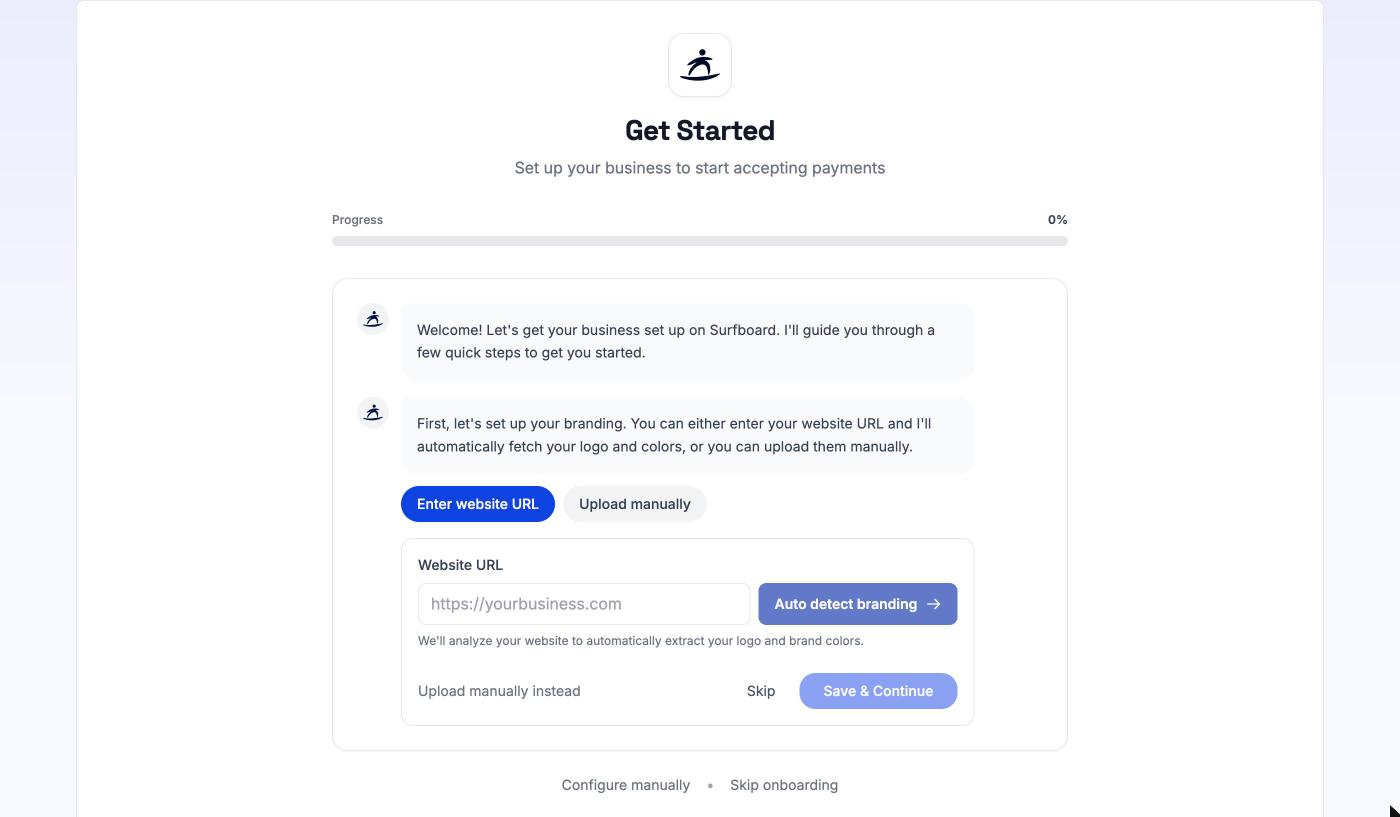
Choose one of two ways:
- **Enter website URL**: type your website address (for example `https://yourbusiness.com`) and click **Auto detect branding**. The portal reads your website and picks out your logo and brand colours.
- **Upload manually**: drag and drop your logo, or click to browse. Images up to 5 MB.
You then see a **Branding Preview**. If no logo was found, the assistant offers to use your icon as the logo instead. Under **Customize Colors** you can adjust the **Brand color**, **Background color** and **Accent color** before you click **Save & Continue**. Click **Skip** if you'd rather do this later from [Settings](/merchant-portal/settings).
### 2. Your first terminal
Next, the assistant asks whether you want to register a terminal. Click **Register Terminal**, or **Skip for now**.
To register, pick the store, give the terminal a name (for example *Front Counter*) and enter the registration ID shown on the terminal. Alternatively, under **Register with QR Code**, click **Generate QR** and scan the code with the terminal. See [Terminals](/merchant-portal/terminals) for the details of each method.
Once the terminal is registered, the assistant asks *Would you like to enable tips?*
- **Yes, set up tips**: choose the **Tip display format** (Percentage or Amount), set three tip levels and decide whether customers can enter a custom tip. Click **Save Tips**.
- **No, thanks** moves on without tips. You can set them up later. See [Terminal settings & tips](/merchant-portal/terminal-settings).
### 3. Test transaction
Depending on your setup, the assistant may offer to check that everything works with a test payment. It first asks *Is your terminal ready?*. Answer **Yes, it's ready** or **Not yet**.
- **Send Test Transaction** sends a small payment to the terminal. The test payment is voided afterwards, so no money is taken.
- If your terminal runs on its own rather than connected to a till system, the portal instead waits for you to take a real sale on the terminal and shows *Listening for transactions...*.
You can stop with **Cancel test** or skip the step with **Skip test**.
### 4. Products
If your account has product access, the assistant then helps you add your first products. You have three options:
- **Create Product**: enter a product name, price and description, then click **Create & Continue**.
- **Import CSV**: upload a spreadsheet of products.
- **Scan Menu**: upload a photo of your menu and let the portal read the products from it.
Click **Skip for now** to move on. See [Products & Catalog](/merchant-portal/products) for how each option works.
### Done
When every step is complete, you see **You're all set!**. Click **Go to Dashboard** to start using the portal.
## Leaving the wizard
Two links sit below the chat:
- **Configure manually** opens a dialog that explains you can set everything up yourself from the portal. Click **Go to Dashboard** to leave, or **Cancel** to stay.
- **Skip onboarding** marks setup as finished and takes you to the dashboard straight away. There's no confirmation step.
Anything you skip can be done later from the regular pages: branding under [Settings](/merchant-portal/settings) or a store's **Store branding** tab, terminals under [Terminals](/merchant-portal/terminals), and products under [Products & Catalog](/merchant-portal/products).
### Messages
Category: getting-started | Tags: Messages, Notices, Product updates, Email
URL: /merchant-portal/messages
## Overview
**Messages** is where Surfboard talks to you. When we publish something that concerns your business, it lands here, addressed to your merchant account. That could be a settlement change, a renewal reminder, planned maintenance, a service change or a new feature.
You'll find it in the sidebar between **Support** and **Settings**. A counter on the menu item shows how many messages you haven't read yet.
> **Important:** Subscribe an email address on the Messages page as soon as you have access to the portal. The inbox only helps if someone opens it. With a subscription, every notice also arrives as an email, so the right people hear about a settlement or service change when we publish it, not the next time somebody happens to log in.
## The inbox
The page is laid out like an email inbox: the list of messages on the left and the selected message on the right. Until you pick one, the right side says *Select a message to read it.*
Each row in the list shows:
- A **label** for the kind of message: **Product update**, **Critical**, **Warning** or **Notice**
- The date it was published
- The title and a short preview, and a thumbnail if the message has an image
- A dot if you haven't read it yet
If you've received both notices and product updates, a filter above the list lets you show **All**, only **Notices** or only **Product updates**.
Click a message to read it. It opens in the reading pane with its full text, any images or video, and sometimes a link button to the relevant page or guide. Opening a message marks it as read, and the unread counter in the sidebar goes down. The address in your browser changes to point at that message, so you can share the link with a colleague who also uses the portal.
If there are no messages yet, the page says **No messages yet**.
## Banners across the top of the portal
Some messages are also shown as a banner across the top of every page until you've read them, so you won't miss them even if you never open Messages.
- **Notices** show their text in the banner, sometimes with a link.
- **Product updates** show a **New** label and a **See what's new »** button that opens the full update on the Messages page.
Some banners can be closed with the **✕** on the right.
## Subscribe to email notifications
Below the inbox is the **Email notifications** card: *Get these notices by email too.* Any address you add here receives every notice we publish to your account by email, as well as seeing it in the portal.
To subscribe an address:
1. Open **Messages** from the sidebar and find **Email notifications**.
2. Enter the address (the placeholder suggests `notifications@yourcompany.com`) and click **Add**.
3. We send a confirmation link to that address. Until it's clicked, the address shows as **Pending** and receives nothing.
4. Once confirmed, the status changes to **Active**, and emails start with the next notice.
If the confirmation email didn't arrive, click **Resend** next to the pending address. To stop emails to an address, click the **✕** next to it. The address is removed straight away, with no confirmation step.
### Which address to use
Subscriptions belong to your merchant account, not to an individual user, and the address doesn't need to be a portal login. That makes a shared mailbox the best choice:
- **finance@** for anything about settlements and payouts
- **ops@** or **store@** so the people on the floor hear about terminal and service changes
- Your own address as well, if you're the one who acts on these notices
You can add several. Anyone on your team with portal access can add or remove addresses.
> **Tip:** Nothing is subscribed by default. A new merchant account starts with an empty list, so if you skip this step the notices only live in the portal.
## Messages vs. notifications
**Messages** are notices from Surfboard to you. **Settings → Notifications** is different: it sends your own reports and payment events by email, Slack or SFTP. See [Settings](/merchant-portal/settings#notifications). Set up both.
### Support
Category: getting-started | Tags: Support, Tickets, Chat, FAQ, Help
URL: /merchant-portal/support
## Overview
The **Support** page is where you get help from Surfboard. Open it from **Support** in the sidebar. It has two tabs:
- **My tickets**: raise a support ticket and follow it until it's solved. This is the default tab.
- **Chat & FAQ**: ask the support chat a question, call us, or look up an answer in the FAQ.
## My tickets
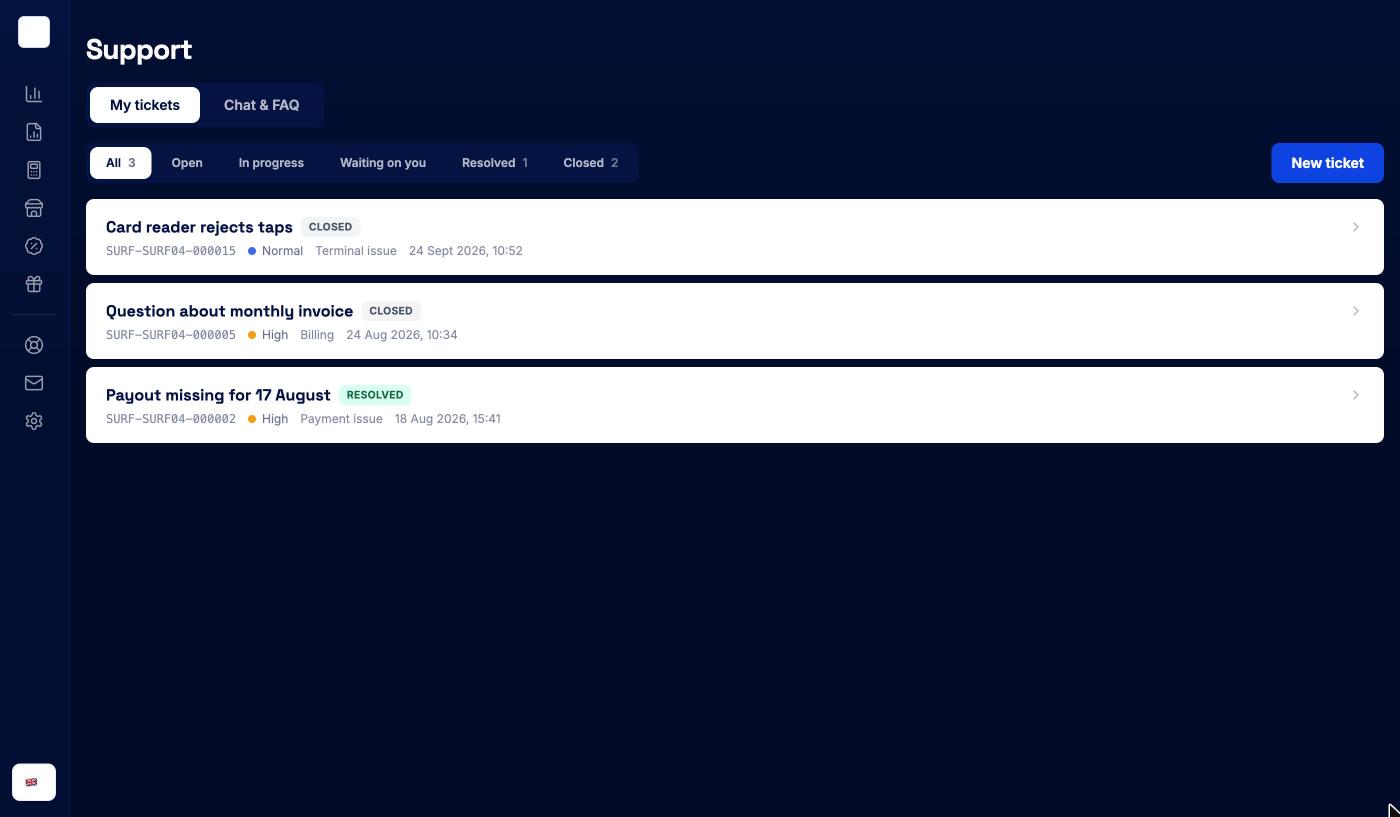
The list shows the tickets raised from your merchant account. Each row shows the ticket title, its status, its reference (for example `SURF-SURF04-000015`), its priority, its topic and when it last changed. Click a row to open the ticket.
The tabs above the list filter by status. The number next to each tab is how many tickets have that status.
| Status | What it means |
|--------|---------------|
| **Open** | The ticket has been raised and is waiting for Surfboard support |
| **In progress** | Surfboard support is working on it |
| **Waiting on you** | Surfboard support needs something from you. Open the ticket and reply |
| **Resolved** | Surfboard support considers the issue solved |
| **Closed** | The ticket is closed and can't be replied to |
If you have more tickets than fit on the page, click **Load more** at the bottom.
## Raising a ticket
Click **New ticket**.
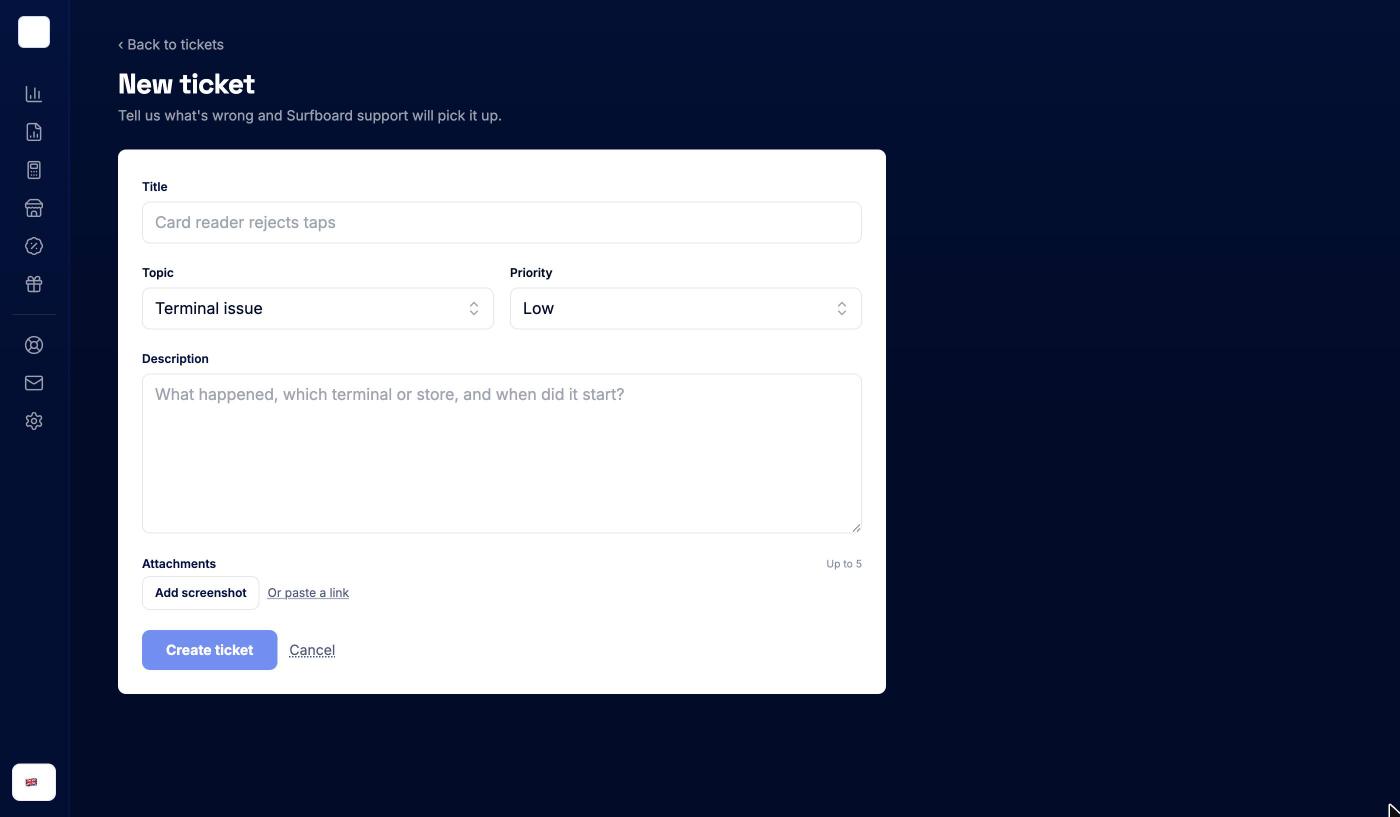
| Field | What to enter |
|-------|---------------|
| **Title** | A short summary, for example *Card reader rejects taps* |
| **Topic** | **Terminal issue**, **Payment issue**, **Account issue**, **Integration**, **Billing** or **Something else** |
| **Priority** | **Low**, **Normal**, **High** or **Urgent** |
| **Description** | What happened, which terminal or store, and when it started |
| **Attachments** | Up to 5. Click **Add screenshot** to upload an image (up to 5 MB each), or **Or paste a link** to add a link instead, for example to a larger file or a video |
Click **Create ticket**. The ticket opens and Surfboard support picks it up. Click **Cancel** to go back without creating it.
> **Tip:** Include IDs where you have them: the transaction ID from the [transaction page](/merchant-portal/sales), or the terminal's serial number from its **Info** tab. It saves a round trip.
If a screenshot is larger than 5 MB, the form tells you to add it as a link instead.
## Following up on a ticket
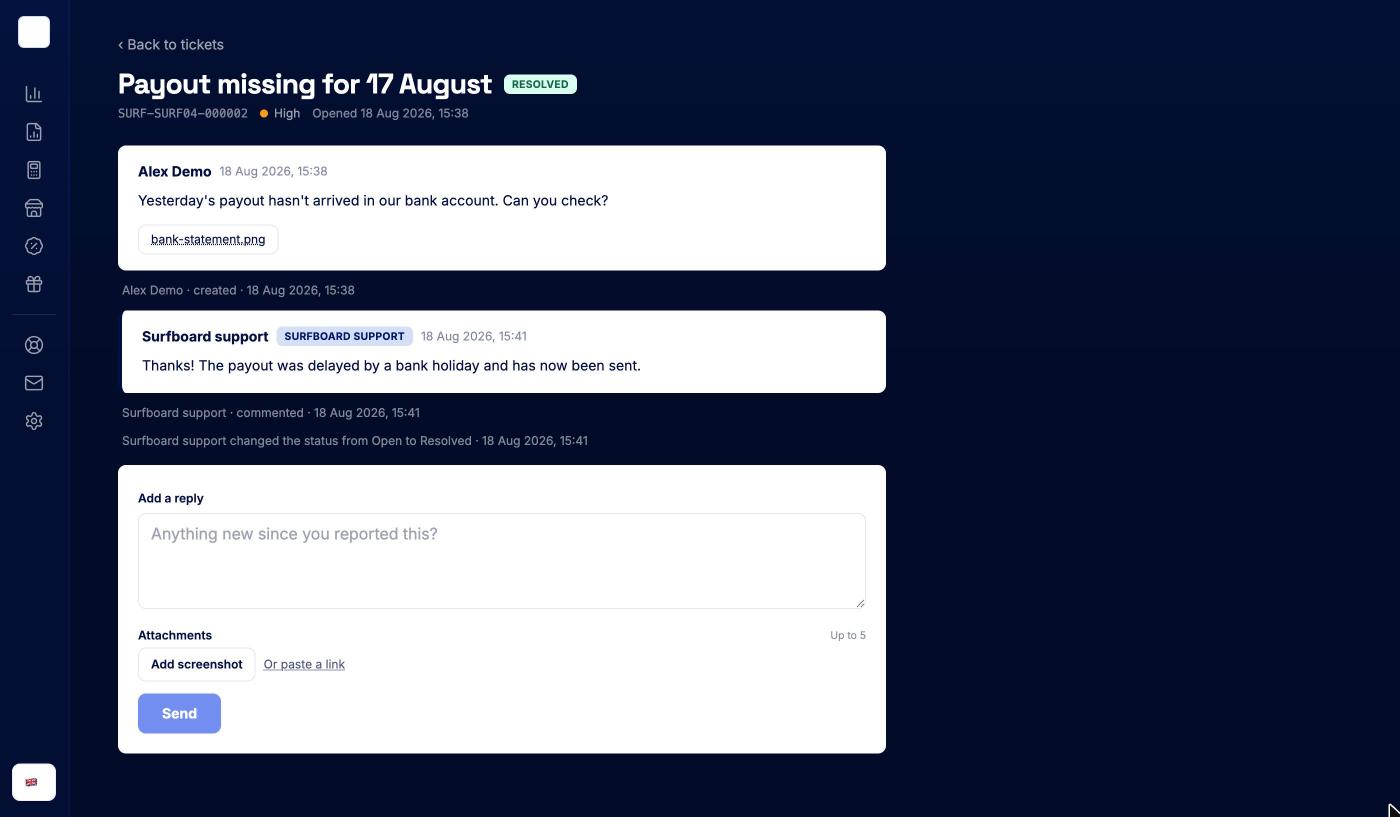
The ticket page shows the title, status, reference, priority and when the ticket was opened. Below that is the thread: your messages, replies from **Surfboard support**, and activity lines such as status changes.
To add something, write in **Add a reply** (*Anything new since you reported this?*), attach screenshots or links if needed, and click **Send**. When a ticket is **Waiting on you**, a reply is what moves it forward.
A closed ticket says *This ticket is closed. Create a new one if it comes back.* Raise a new ticket if the problem returns.
Click **‹ Back to tickets** to return to the list.
## Chat & FAQ
The **Chat & FAQ** tab gives you three ways to find an answer yourself:
- **Phone**: *Talk to me at +46 85 251 22 17*. This is a Swedish number, so call charges from your operator may apply.
- **Surfboard Support chat**: type your question in **Ask me anything...** and the support assistant answers in the chat. Its answers are AI-generated and may be inaccurate, so double-check anything important, or raise a ticket.
- **FAQ**: pick a category under the chat, such as **In-person Payments**, **Troubleshooting** or **Account**, to see common questions and answers. **Read more** opens the full article in a new tab.
If the chat or FAQ doesn't solve it, switch to **My tickets** and raise a ticket.
### Sales
Category: sales-reports | Tags: Sales, Transactions, Insights, Export, Search
URL: /merchant-portal/sales
## Overview
**Sales** is your transaction ledger. Every card payment, refund, and void from your terminals, payment links, and online checkout shows up here.
Open it from **Sales** in the sidebar. The page has three parts:
- **Period tabs** at the top choose which transactions you're looking at.
- **Summary figures** for that period: the all-time tiles on **Latest**, and the **Insights** block on every other tab.
- The **Transactions** table, with search and export.
To refund a sale, see [Refunds & Voids](/merchant-portal/refunds).
## Choosing a period
| Tab | What it shows |
|-----|---------------|
| **Latest** | Today's transactions. If there are none yet today, it shows yesterday's. If there were none yesterday either, the table is empty. |
| **Today** | Everything since midnight |
| **Last 7 days** | The past week |
| **Current month** | Month to date |
| **Last month** | The previous calendar month |
| **Custom date** | Any date and time range you pick |
The selected period appears next to the page title. Click the **✕** next to it to go back to **Latest**. The period is also saved in the page address, so you can bookmark it or share it with a colleague.
If you've picked a store in the store switcher at the top of the sidebar, the title and Insights follow that store. The transaction table still shows all stores. For one store's transactions, open the store and use its **Sales** tab (see [Stores](/merchant-portal/stores)).
## Insights
On every tab except **Latest**, an **Insights** block sits above the table. It compares the selected period with the one before it, and the line under the heading says which, for example "Compared with the month before" or "Compared with yesterday at the same time".
- **Key figures** -- **Net sales**, **Sales** (count), **Average sale**, and **Refunds** (amount, number of refunds, and refunds as a share of sales). Each shows the change in percent and the previous value.
- **Sales over time** -- a chart of this period against the previous one. Switch between **Net sales** and **Sales** with the toggle.
- **Highlights** under the chart -- **Best day** (or week or month), the average per day, and the **Strongest weekday**.
- **Breakdown** -- split the period by **Payment Methods**, **Card brands**, **Entry mode**, **Channel**, **Stores**, or **Terminals**. **Stores** only appears when you're looking at all stores and have more than one.
Click a row in the breakdown to narrow Insights to it. The filter appears under **Filtered by**, and **Clear filters** removes it. Breakdown filters apply to Insights only, not to the transaction table.
If you sell in more than one currency, a currency switch appears in the Insights header. Click **Hide** to collapse the block. The portal remembers your choice on this computer.
## The transaction table
| Column | What it shows |
|--------|---------------|
| **Title** | The order's title, if it has one (for example, the product sold). Click it to open the sale. |
| **Date** | Date and time of the transaction |
| **ID** | The transaction ID |
| **RRN** | The retrieval reference number from the card network. Useful when your customer or their bank asks about a payment. |
| **Method** | Card brand and the last four digits, or another payment method |
| **Type** | **Purchase**, **Return**, or a red **Voided** badge |
| **Terminal** | The terminal or online checkout that took the payment (click to open it) |
| **Store** | The store it belongs to (click to open it) |
| **Amount** | Returns show as negative amounts |
Click the **»** at the end of a row to open the sale. The table is wide. If the last columns are cut off, collapse the sidebar with the toggle next to the store switcher.
Click any column header to sort. **Show more** at the bottom loads the next 100 transactions.
### Searching the table
Use **Search by** to choose a field, then type in **Search**. The portal first filters the transactions already loaded. If nothing matches and you've typed at least three characters, it searches your whole transaction history. Matches found that way appear under "Not in the loaded list — found in your full transaction history".
## Finding a transaction by ID
The **Find transaction by ID...** field at the top of the sidebar is available on every page. Paste any reference you have, such as a transaction ID, order ID, payment ID, card label, the last digits of a card, a payment method, or your own external reference, and press Enter.
The results page lists every match. It shows which field matched, whether it's an **Exact match** or **Similar**, the type, the date, and the amount. Click **»** to open a result. You need at least three characters to search.
## The transaction page
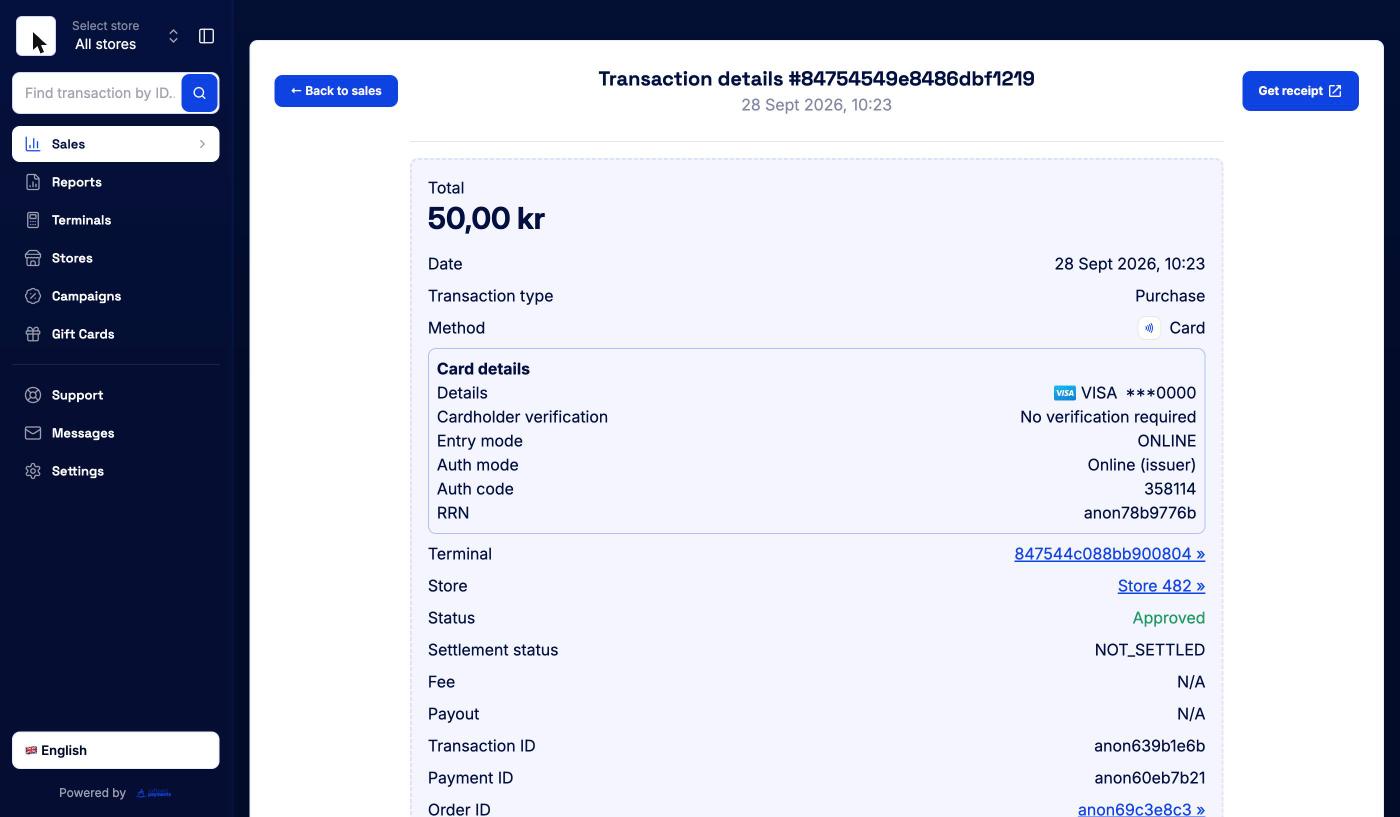
The transaction page shows everything about one payment:
- **Total**, **Date**, **Transaction type**, and **Method**.
- **Card details** (card payments): card brand and masked number, issuer country, how the cardholder was verified, entry mode (contactless, chip, online), auth mode, auth code, and RRN.
- **Terminal** and **Store**, both clickable.
- **Status** (**Approved** or **Not approved**) and **Settlement status**, with the settlement date once settled.
- **Fee** and **Payout** for the transaction, once known.
- **Transaction ID**, **Payment ID**, **Order ID** (opens the order), **Reference ID**, and **Order status**.
- **Customer** details and **Order details**: the order lines with quantity, unit price, VAT, and totals, plus any adjustments such as tips.
A return also shows **Paid back** and a link to **View original purchase »**. A voided transaction says it "was voided before settlement".
**Get receipt** at the top opens the customer's digital receipt in a new tab. From there you can print it or send the link.
### Capturing a delayed payment
If the order was created with delayed capture, for example a payment link with **Delay capture** switched on, the order details show a **Capture** button. Capture the full amount or part of it, then click **Complete**. Admins only.
## Exporting
### Excel export of the current view
**Download view (.xlsx)** exports the transactions for the selected period. In the **Export transactions** dialog, choose what to add under **Include order details**:
- **Reference ID** (on by default)
- **Order lines (summary)**
The file has one row per transaction. The columns are date, IDs, type, payment method, card brand and masked number, issuer country, settlement status, store, terminal, order, payment and reference IDs, RRN, entry mode, verification method, auth mode, currency, amount, fee, and payout. Fetching order details can take a while for long periods; **Cancel** stops the export.
> The Excel export doesn't include adjustments such as tips. For a file that includes them, use **Create report** on the [Reports](/merchant-portal/reports) page.
### PDF report of selected transactions
Tick the checkboxes on the rows you want, or the header checkbox for all of them. Then click **+ Create report**. A drawer shows a preview. Use the settings button to pick the columns: date, reference, name, method, sales, refund, fee, tip, VAT, currency, terminal, store, status, settlement date, card information, and payout. Then click **Download (.pdf)**.
## Related guides
- [Refunds & Voids](/merchant-portal/refunds) -- refund or void a sale from the transaction page
- [Reports](/merchant-portal/reports) -- settlement reports and CSV exports by date range
- [Dashboard Overview](/merchant-portal/dashboard-overview) -- the all-time figures and latest sales at a glance
### Refunds & Voids
Category: sales-reports | Tags: Refunds, Returns, Voids, Transactions
URL: /merchant-portal/refunds
## Overview
You refund or void a payment from its transaction page. Find the sale under [Sales](/merchant-portal/sales), or paste its ID into **Find transaction by ID...** at the top of the sidebar, and open it.
There are three ways to give money back:
| Option | When it's offered | What happens |
|--------|-------------------|--------------|
| **Void this payment** | A card payment made today, not yet refunded, before 23:00 UTC | The whole payment is cancelled before it settles. No refund is created. |
| **Create refund** | Any other purchase | A refund (a return transaction) is sent back to the card, in full or in part |
| **Void refund** | An online card refund made today by mistake, before 23:00 UTC | The refund is cancelled before it settles, so the money isn't sent back |
Admins and Users can both refund and void. See [User Levels](/merchant-portal/user-levels).
## Voiding a payment made today
If the payment was made today, the **Refunds** section on the transaction page shows **Void this payment**:
> This payment was made today, so it can be voided until *time* — reversing it in full instantly, with no refund needed.
1. Click **Void this payment**.
2. Confirm with **Yes**. The confirmation warns: "Void this payment in full? This instantly reverses the entire payment and cannot be undone."
A void always cancels the full amount. To give back only part of the payment, refund it instead. The void option disappears at 23:00 UTC on the day of the payment, and once the payment has been refunded.
## Refunding a purchase
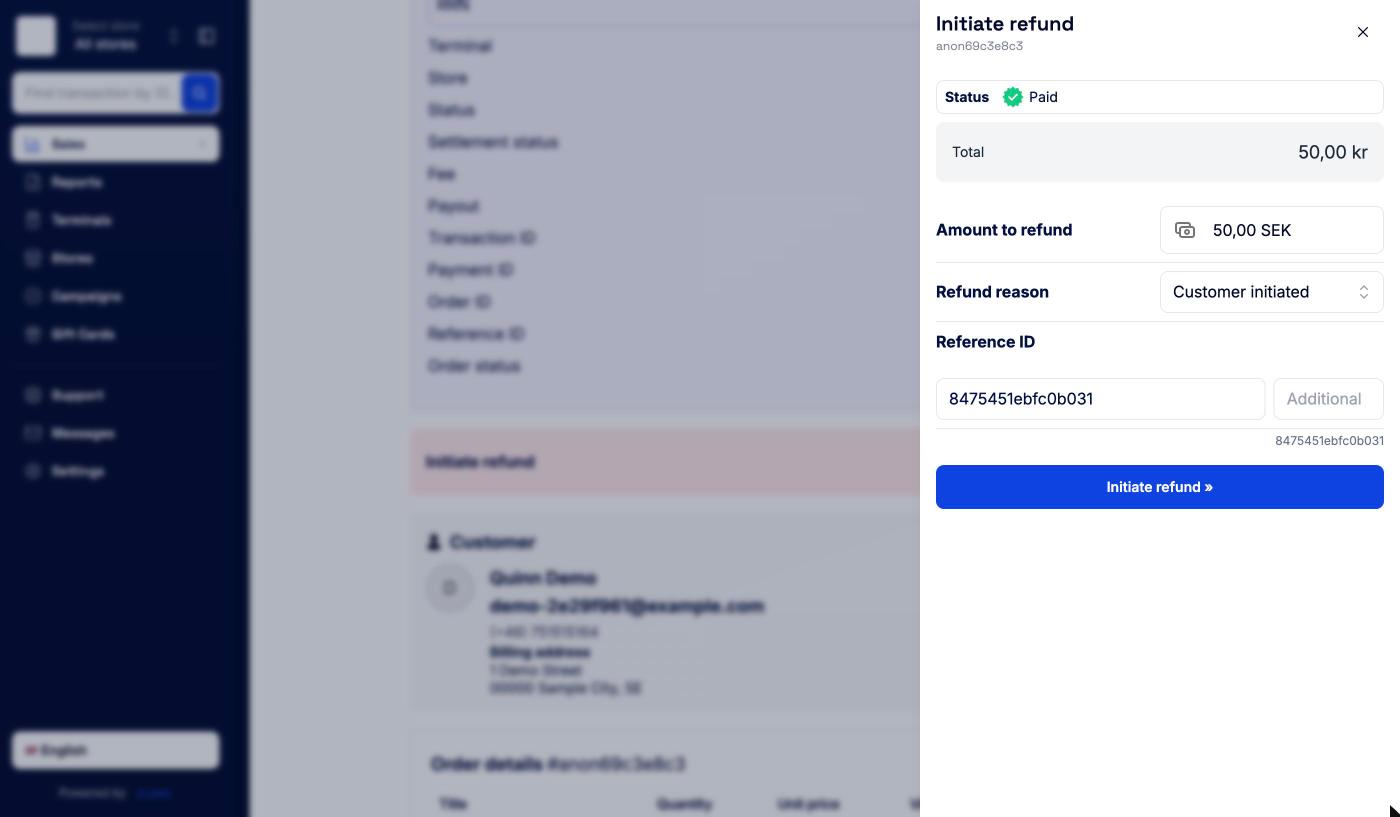
1. On the transaction page, find **Initiate refund** and click **Create refund**.
2. The drawer shows the payment's **Status** and **Total**. If the purchase has been refunded before, it also shows **Already refunded** and **Remaining**.
3. Enter the **Amount to refund**. It starts at the full remaining amount. Lower it for a partial refund. You can't refund more than what remains.
4. Pick a **Refund reason**: **Customer initiated**, **Suspected malfunction**, **Suspected fraud**, **Duplicate transactions**, or **Other**. If you choose **Other**, describe it under **Define refund reason**.
5. Check the **Reference ID**. It's prefilled from the original order. Use the **Additional** field to add your own suffix, for example a return number. The combined reference is shown underneath.
6. Click **Initiate refund »**, then confirm with **Yes** in the "Are you sure you want to proceed?" dialog.
You can refund a purchase several times, as long as the total stays within the original amount.
### Tips and other adjustments
If the order has adjustments, such as a tip, the drawer breaks the total down into **Order amount**, each adjustment, and **Total**. The amount field then refers to the order amount.
- For a **full refund**, switch on **Include adjustment in refund** to give back the tip as well.
- For a **partial refund**, the switch is hidden. Adjustments can't be refunded in part.
Changing the amount between full and partial resets the switch to off. Check it again before you confirm.
## Following a refund
Once you've confirmed, the refund appears under **Refund information** on the purchase, with its date, amount, and order ID. Its status updates on its own for about a minute:
| Status | Meaning |
|--------|---------|
| **Completed** | The refund went through. **View return transaction »** opens the return. |
| **Refund is being processed** | Still on its way. This can take a while. Don't start a new refund for the same purchase. |
| **Refund failed** | The refund couldn't be completed. Try again, or open a ticket under [Support](/merchant-portal/support). |
The return also appears in your Sales list as a **Return** with a negative amount.
## When a refund can't go through as normal
### The original terminal is deregistered
A card refund runs on a terminal. If the one that took the payment has been deregistered, you'll see **Terminal is deregistered**: "This refund can run on any registered terminal. Select one below and retry." Pick another terminal under **Select terminal** and click **Retry refund**. The retry starts the refund right away, without asking you to confirm again.
If you have no registered terminals at all, register one first. See [Terminals](/merchant-portal/terminals).
### The purchase is older than three months
The portal can't refund purchases older than three months. You'll see **This refund can't be processed automatically**, with the option to **Create a support ticket**. The ticket is filled in with the details you entered, and Surfboard processes the refund for you. Once it's created, **View ticket** takes you to it under [Support](/merchant-portal/support).
### Refunds handled in another system
For some merchants connected through a partner's checkout system, refunds are made in that system instead. In that case the refund button is disabled, and a message on the transaction page tells you where to refund.
## Voiding a refund made by mistake
If you refunded an online card payment by mistake, you can cancel the refund on the same day. Open the refund (the **Return** in Sales). If it can still be cancelled, you'll see **Stop this refund?** with a **Void refund** button:
> If this refund was initiated by mistake, you can still void it until *time*. After that the refund settles and can no longer be reversed.
Click **Void refund** and confirm. The confirmation reads: "This will cancel the refund and the customer will not receive the money back. Continue?"
The option is only offered for completed refunds of online card payments, until 23:00 UTC on the day of the refund. After that, the refund is final.
## Related guides
- [Sales](/merchant-portal/sales) -- find the transaction to refund
- [Reports](/merchant-portal/reports) -- refunds count in the month you issue them
- [Support](/merchant-portal/support) -- tickets for refunds the portal can't process
### Reports
Category: sales-reports | Tags: Reports, Settlement, Payouts, Accounting, Export
URL: /merchant-portal/reports
## Overview
**Reports** holds the files you need for bookkeeping and reconciliation: a report for each payout, plus cash register reports if you use a cash register. You can also export any date range of transactions as a CSV.
Open it from **Reports** in the sidebar.
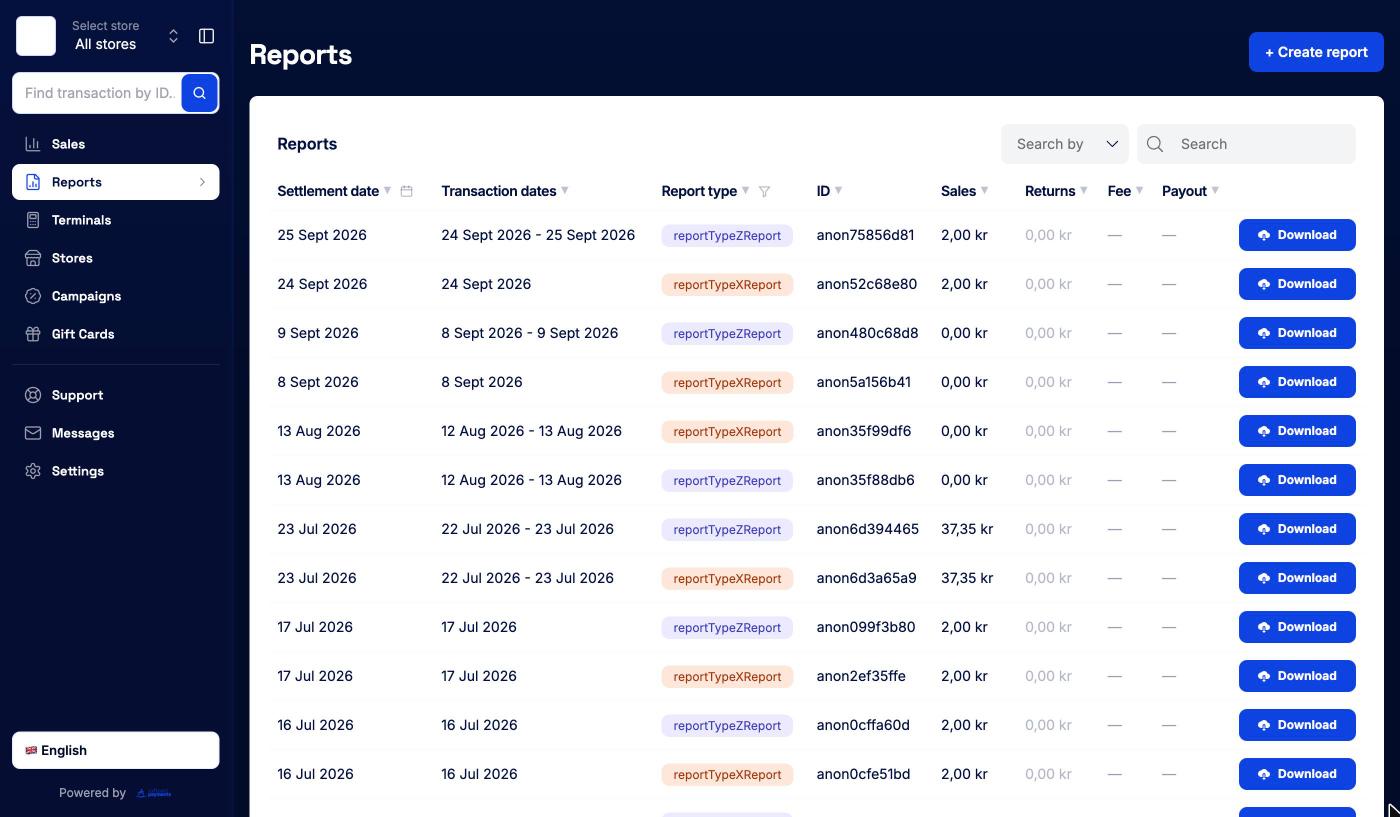
## The report list
Each row is one report:
| Column | What it shows |
|--------|---------------|
| **Settlement date** | The day the payout was settled. When several reports share a date, it's only shown on the first. |
| **Transaction dates** | The period of transactions the report covers |
| **Report type** | What kind of report it is (see below) |
| **ID** | The payout ID. Quote it when you ask us about a payout. |
| **Sales** | Sales in the report |
| **Returns** | Refunds in the report |
| **Fee** | Fees for the report. Shown as "—" on cash register reports. |
| **Payout** | The amount paid to your bank account. Shown as "—" on cash register reports. |
Click **Download** to open the report file in a new tab.
### Report types
| Type | What it is |
|------|------------|
| **Daily payout**, **Weekly payout**, **Monthly payout** | Settlement reports for each payout, depending on your payout schedule |
| **X report** | A cash register report of the day so far, without closing the day |
| **Z report** | The cash register's end-of-day report |
| **Register monthly** | The cash register's monthly summary |
| **Cash register** | Other cash register reports |
| **SIE export** | An accounting file in the Swedish SIE format, for import into bookkeeping software |
Cash register reports only appear if you use the [cash register](/merchant-portal/cash-register).
### Finding a report
- **Search** -- choose a field under **Search by** and type.
- **Filter by settlement date** -- click the calendar icon next to **Settlement date**. Pick **This month**, **Last month**, **Last 3 months**, **This year**, **All dates**, or a custom range in the calendar, then **Apply**.
- **Filter by report type** -- click the filter icon next to **Report type** and tick the types you want. Only types you actually have are listed, each with a count.
- **Sort** -- click a column header.
While a filter is on, the footer shows how many reports match. **Clear filters** removes all filters.
The list shows your most recent 1,000 reports.
## Exporting a date range (CSV)
Use **+ Create report** for a file of every transaction in a period, independent of payouts.
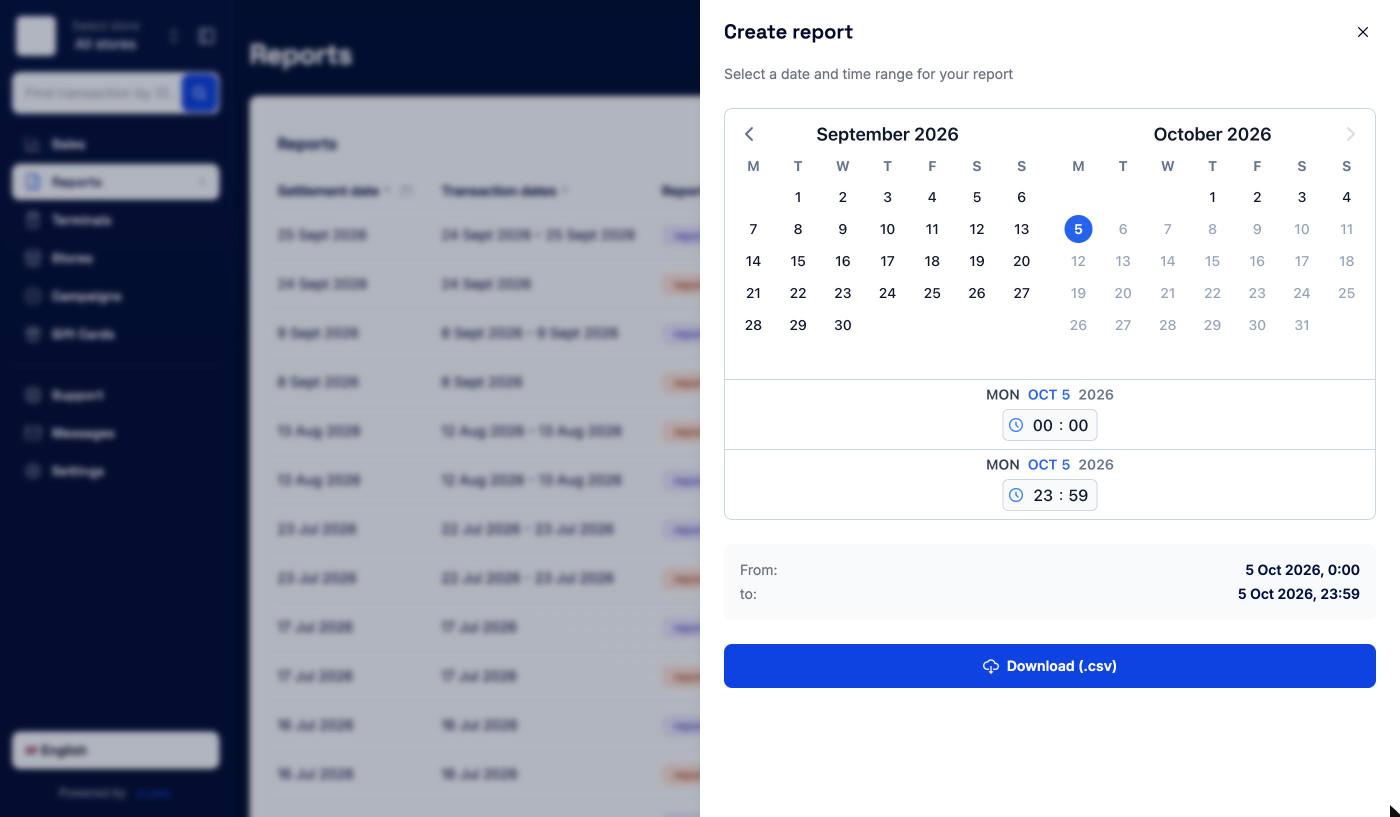
1. Click **+ Create report**.
2. Pick the start and end dates in the calendar, and set the start and end times underneath. **From** and **to** show the exact range.
3. Click **Download (.csv)**.
The portal fetches every transaction in the range and builds the file, so long ranges take a little while. The CSV has one row per transaction: date, transaction, order, payment, store and terminal IDs, type, payment method, amount, currency, card brand and masked number, entry mode, response code, verification method, auth mode, whether it was voided, settlement status, RRN, and an order summary.
It also includes the adjustments, such as tips, in an **ADJUSTMENT SUMMARY** and **ADJUSTMENT DETAIL** section. The Excel and PDF exports on the Sales page don't include those.
If there are no transactions in the range, you'll see "We couldn't find any transactions".
## Other ways to get your numbers
- **Reports by email, Slack, or SFTP** -- under **Settings → Notifications**, choose **Daily Reports** or **Monthly Reports**, or a daily, weekly, or monthly **File Transfer** to your own SFTP server. See [Settings](/merchant-portal/settings).
- **Excel or PDF from Sales** -- **Download view (.xlsx)** exports the period you're looking at, and **+ Create report** on selected rows gives you a PDF. See [Sales](/merchant-portal/sales#exporting).
## Why Two Totals Can Differ
The most common question about these reports: the fee on the monthly report does not match the fees added up across that month's payouts. Both numbers are right. They count different things.
- The **monthly report** covers the transactions you took during that calendar month.
- The **payouts** are the transfers that reached your bank during that month.
Payouts arrive two to three days after the transactions they cover. So the payout that lands on 1 May pays for transactions from the end of April, and the sales you take in the last days of May arrive in your bank in June. Line the two up and they are offset by a couple of days at each end.
| Transactions | Paid out | Fee |
|---|---|---|
| 29--30 April | 1--2 May | 43.50 |
| 1--28 May | during May | 1,196.50 |
| 29--31 May | 1--3 June | 87.20 |
Your May monthly report shows a fee of **1,283.70** -- what May's trading cost you. Adding up the payouts that arrived in May gives **1,240.00** -- because that set starts with two days of April and stops before the last days of May.
### Which Report Is a Sale In?
One rule covers it:
> **Your monthly report follows the date you took the payment. Your payouts follow the date the money moved.**
So a sale is counted in two places, and around the turn of a month those are different months:
| You took the payment | It reached your bank | On the monthly report for | Among the payouts for |
|---|---|---|---|
| 30 April | 2 May | **April** | **May** |
| 15 May | 17 May | May | May |
| 31 May | 2 June | **May** | **June** |
To find where a particular sale went, take the date you took it, add two to three days, and read across.
## Fees Are Collected After the Month Closes
Fees are not taken out of each payout. Payouts arrive in full through the month, and the fee for the whole month is collected afterwards in a single deduction.
So the deduction on your statement in early June is **May's** fees, and it matches the fee on your May monthly report. Comparing that deduction against May's payouts compares two different periods, and will never balance.
## Refunds Count in the Month You Issued Them
A refund you process in June against a sale from May comes off June's figures. It does not change your May report. If a refund is missing from the month of the original sale, that is why.
## Answering the Common Questions
| You want to know | Look at |
|---|---|
| What you traded, and what it cost you, in a given month | That month's **monthly report** |
| What was deducted from your account this month | **Last month's** monthly report fee |
| Why a specific transfer was the amount it was | The **payout row**, or that day's daily report |
| What to give your accountant for VAT | The **monthly report** |
## Tips
- Use the payout reports to match what reaches your bank, and the monthly payout report for bookkeeping and VAT.
- Use **+ Create report** when you need every transaction in a period, including tips, regardless of when it was paid out.
- Use the Z report from each cash register for your end-of-day cash-up.
### Stores
Category: operations | Tags: Stores, Locations, Storefront, Branding, Online
URL: /merchant-portal/stores
## Overview
A store is a place where you take payments: a shop, a restaurant, a kiosk, or a webshop. Every terminal belongs to a store, and products, payment links, cash registers, campaigns and branding are all organised per store.
Open **Stores** in the sidebar to see them all. If you have more than one store, you can also pick one in the **Select store** switcher at the top of the sidebar. The sidebar then shows that store's own sections (Overview, Terminals, Products, Payment links, Cash register, Brand, Settings) and an **All stores** link back.
## The store list
| Column | What it shows |
|--------|---------------|
| **Name** | Store name, with the store ID underneath |
| **Type** | **Omni** for stores that also take online payments, **Store** for in-person only |
| **Address** | Street and city |
| **Email** | The store's contact email |
| **Phone** | The store's phone number |
| **Status** | Whether the store is active |
Search with **Search by** and the search box, sort by clicking a column header, and click **»** to open a store.
## Creating a store
Admins can create stores. Click **+ Create new store**.
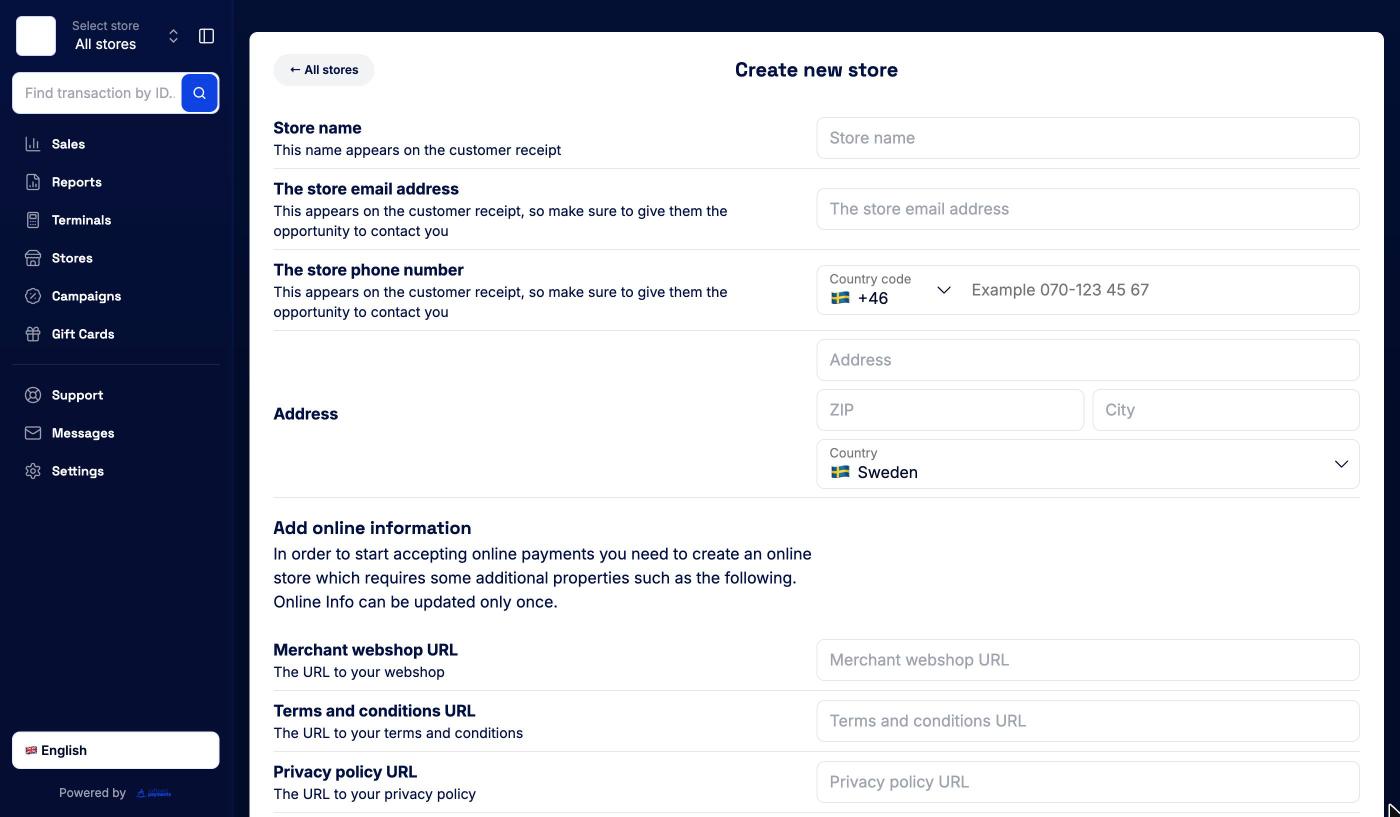
| Field | Notes |
|-------|-------|
| **Store name** | Appears on the customer receipt |
| **The store email address** | Appears on the customer receipt |
| **The store phone number** | Pick the country code, then enter the number. Appears on the receipt |
| **Address**, **ZIP**, **City**, **Country** | The store's address |
**Add online information** is optional. Fill it in if the store will take online payments (payment links or a storefront):
| Field | Notes |
|-------|-------|
| **Merchant webshop URL** | Your webshop's address |
| **Terms and conditions URL** | Link to your terms |
| **Privacy policy URL** | Link to your privacy policy |
All three URLs must start with `https://`, and if you fill in one, you need to fill in all of them. Online information can only be set once, so double-check the links before you save.
Click **Create new »**.
### Verifying your domain
If you added a webshop URL, the portal may take you to **Verify your domain** after creating the store. It shows a domain key. Add it as a TXT record in your domain's DNS settings, so we can confirm that you own the domain. Use the copy button next to the key, then click **Back to stores**. If you need help with the DNS record, contact support@surfboardpayments.com.
## The store page
Click a store to open it.
The header shows the store name, an **ONLINE** badge if the store takes online payments, its status and how many terminals it has. **← All stores** takes you back to the list.
The **Store overview** tab shows the store's all-time sales tiles, a **Store features** card for each section of the store, and the store's address on a map. The tabs across the top are:
| Tab | What it's for |
|-----|---------------|
| **Store overview** | Sales totals and shortcuts to the store's features |
| **Sales** | Sales for this store only |
| **Terminals** | The store's terminals, and **+ Register new** to add one. See [Terminals](/merchant-portal/terminals) |
| **Products** | The store's product catalogue. See [Products & Catalog](/merchant-portal/products) |
| **Payment links** | Links and online orders for this store. See [Payment Links](/merchant-portal/payment-links) |
| **Cash register** | Cash registers on this store's terminals. See [Cash Register](/merchant-portal/cash-register) |
| **Campaigns** | Campaigns that run in this store. See [Campaigns](/merchant-portal/campaigns) |
| **Storefront** | Your online shop. Only shown for stores with online information |
| **Store branding** | Colours, logo and fonts for this store |
| **Settings** | Store details, online information, and terminal settings and tips for the whole store |
Not every account has every tab. Products, Payment links, Cash register and Campaigns only appear if they're enabled for your account.
### Store sales
The **Sales** tab shows the store's totals per currency: total sales, number of sales, average order value and returns, with a breakdown per payment method and card brand. Pick a period at the top (**All time**, **Today**, **Last 7 days**, **Current month**, **Last month** or a custom date). The transaction list below works like the one in [Sales](/merchant-portal/sales), without the store column. Select transactions to create a PDF report of them.
## Storefront
Stores with online information can publish a simple online shop that sells the store's products.
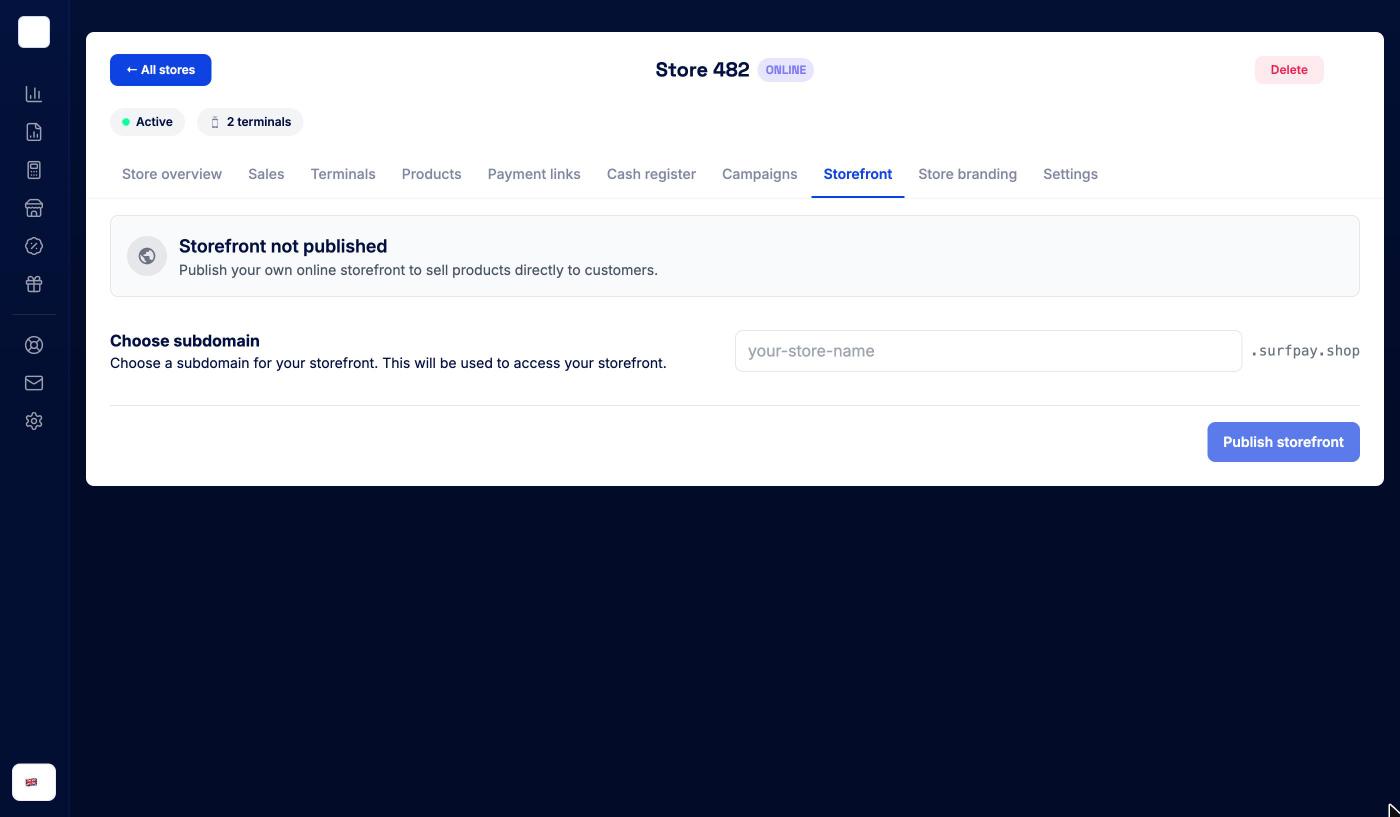
1. Open the store and go to the **Storefront** tab.
2. Under **Choose subdomain**, type a name. Your shop will live at `.surfpay.shop`. The portal checks that the name is free and suggests alternatives if it isn't.
3. Click **Publish storefront** (admins only).
Once published, the tab shows the storefront's status, its address and when it was last deployed, with these actions:
- **Visit store** opens the shop.
- **Create Product Link** opens the **Storefront Link Builder**. Pick products, choose whether the link should **Auto-redirect to payment**, add an optional **Promo code**, and copy the link.
- **Edit design** and **Edit products** take you to the store's branding and products.
- **Unpublish** (admins only) takes the shop offline after you confirm.
The products on the storefront come from the store's catalogue. See [Products & Catalog](/merchant-portal/products).
## Store branding
Branding controls how your checkout, payment page and storefront look for this store. Admins can change:
- **Company URL** with **Auto detect branding**: enter your website and the portal picks up your logo and colours for you
- **Background color**, **Brand color**, **Accent color** and **Footer color**
- **Logotype** and **Icon**
- **Primary cover image**, used in the online checkout
- **Font type**: Sans Serif, Serif or Monospace
- **Shapes**: Rounded, Square or Circle buttons
Click **Update »** to save. Merchant-wide branding lives under **Settings → Company details**. See [Settings](/merchant-portal/settings).
## Store settings
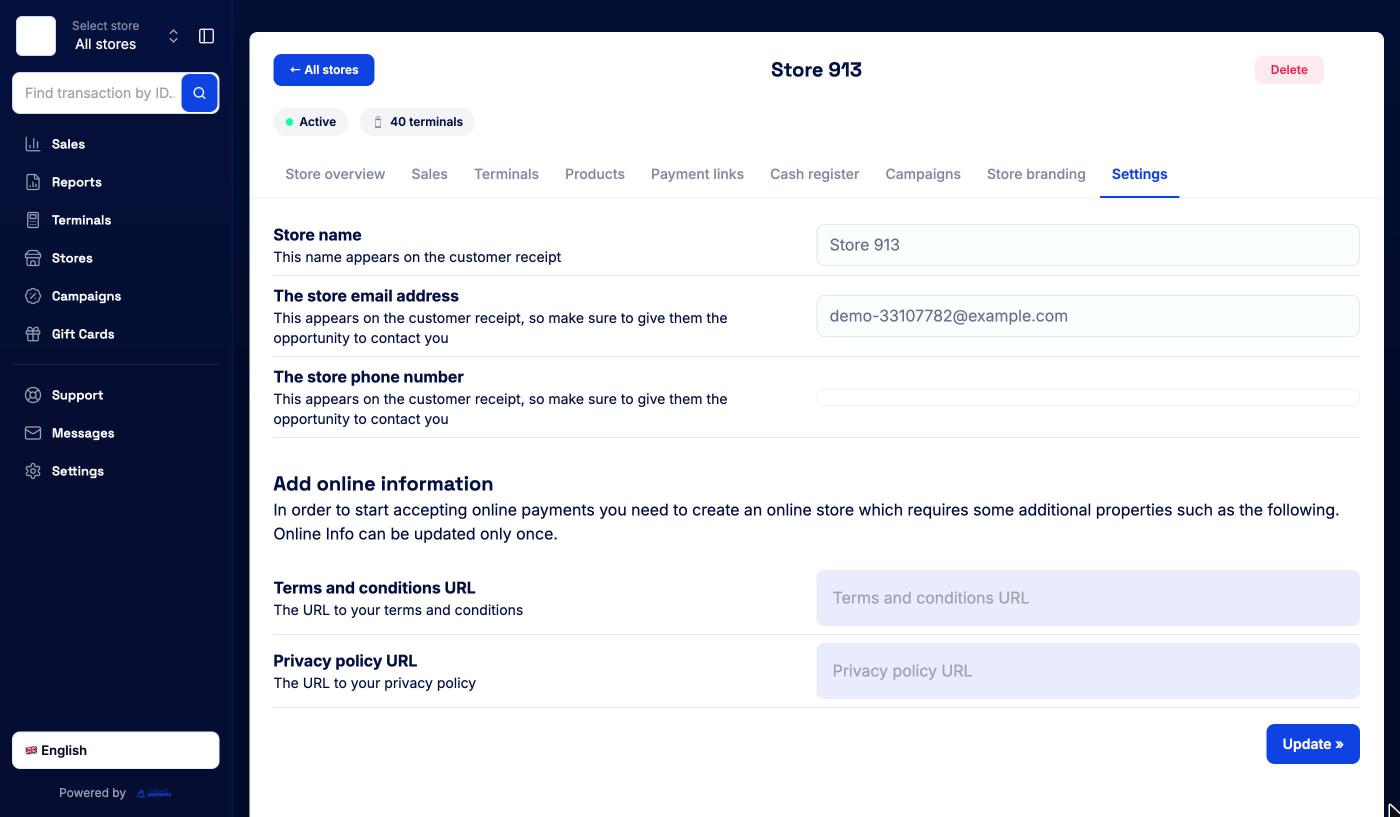
The **Settings** tab shows:
- **Store name**, **The store email address** and **The store phone number**. These are shown read-only. If they need to change, raise a ticket from [Support](/merchant-portal/support).
- **Add online information**, if the store doesn't take online payments yet: **Terms and conditions URL** and **Privacy policy URL**, then **Update »** (admins only). Online information can only be set once.
- Terminal settings and tips for the whole store, if the store has terminals. See [Terminal Settings & Tips](/merchant-portal/terminal-settings#settings-for-a-whole-store).
## Deleting a store
Admins see a **Delete** button in the store header. Click it, then confirm with **Delete** in the dialog that asks "Are you sure you want to proceed?".
### Terminals
Category: operations | Tags: Terminals, Hardware, CheckoutX, Printers, Registration
URL: /merchant-portal/terminals
## Overview
**Terminals** lists every device and checkout that can take payments for you: card terminals, CheckoutX on a phone or tablet, receipt printers, and the online "terminals" behind payment pages. Every terminal belongs to a store.
Open **Terminals** in the sidebar. If you've picked a store in the store switcher, the store's own **Terminals** section shows only that store's terminals.
## The terminal list
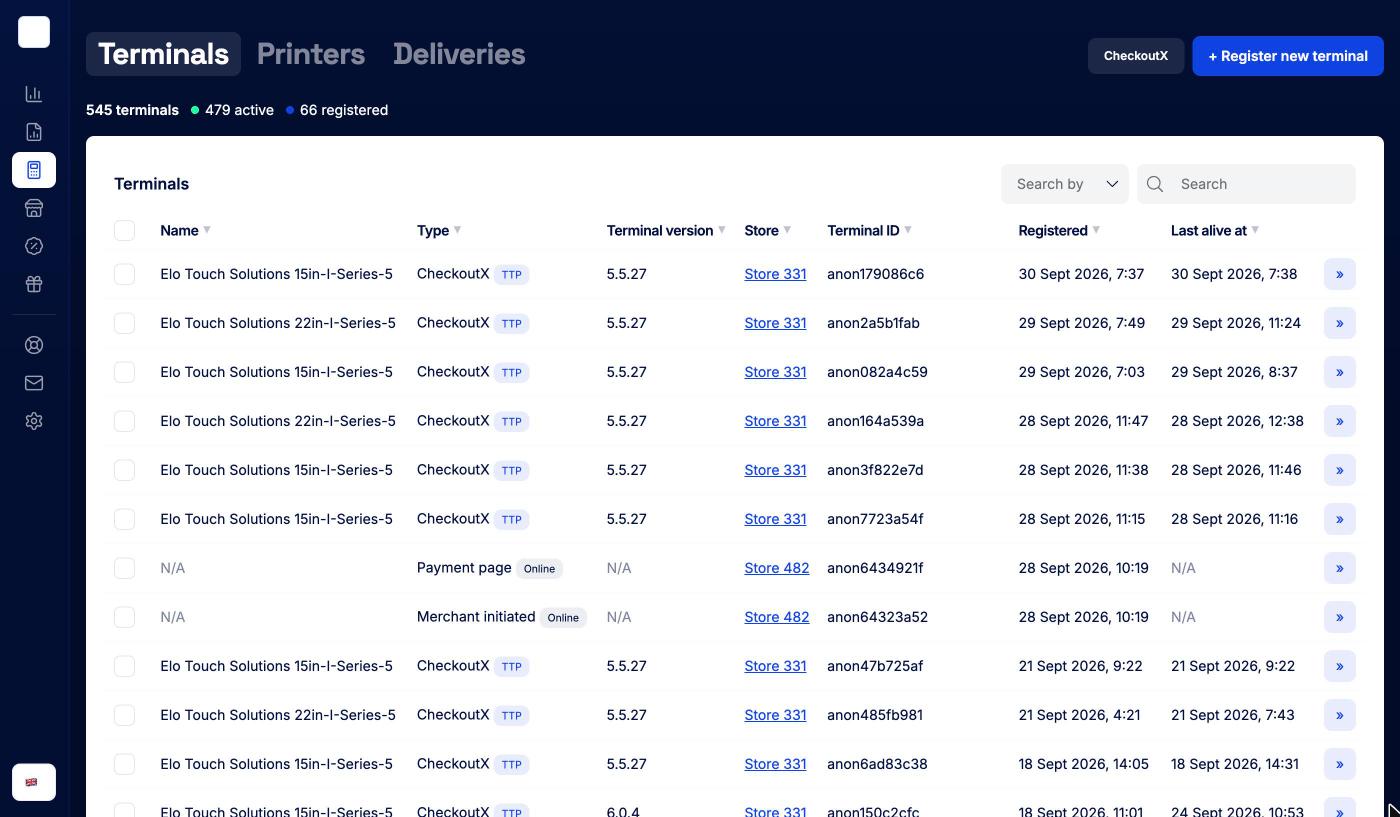
The page has three tabs: **Terminals**, **Printers** and **Deliveries**. Above the list, a summary shows how many terminals you have, how many are active and how many are registered.
| Column | What it shows |
|--------|---------------|
| **Name** | The terminal name, or the device model if it hasn't been named |
| **Type** | The terminal type, for example CheckoutX, SurfTouch, SurfPad or Payment page. A **TTP** badge marks Tap to Pay (CheckoutX); an **Online** badge marks payment pages and other online terminals |
| **Terminal version** | The installed payment app version |
| **Store** | The store the terminal belongs to. Click it to open the store |
| **Terminal ID** | The terminal's ID, with the serial number underneath |
| **Registered** | When the terminal was registered |
| **Last alive at** | When the terminal last checked in |
Search with **Search by** and the search box, and sort by clicking a column header. The table is wide; collapse the sidebar with the toggle at the top left to see every column. Click **»** to open a terminal.
**Printers** lists your receipt printers in the same way. **Deliveries** tracks hardware you've ordered from Surfboard (see below).
### Changing settings on several terminals at once
Tick the checkboxes on the left to select terminals. A bar shows how many are selected. Click the settings (gear) icon to open a drawer that applies the same configuration to all of them. See [Terminal Settings & Tips](/merchant-portal/terminal-settings#changing-several-terminals-at-once).
## Registering a terminal
Only admins can register terminals. Users see a note that they need an admin to do it.
Click **+ Register new terminal** on the Terminals page, or **+ Register new** on a store's Terminals tab.
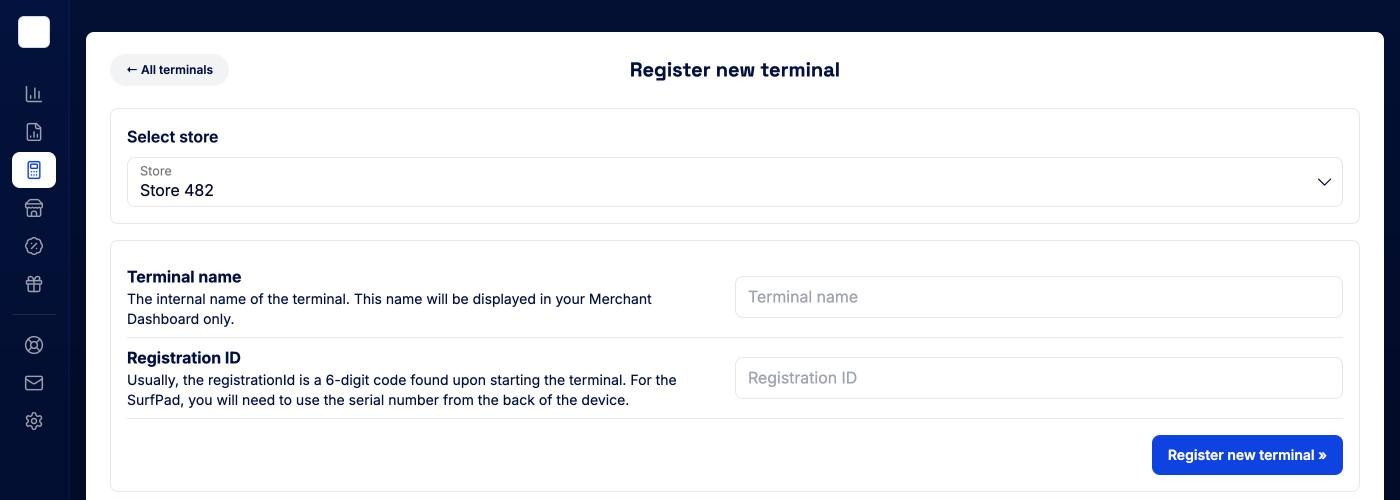
**With a registration ID**
1. Under **Select store**, pick the store the terminal belongs to. (If you came from a store, it's already chosen.)
2. Enter a **Terminal name**. It's only shown in the portal, not on the terminal itself.
3. Enter the **Registration ID**. This is usually a 6-digit code that the terminal shows when it starts. For SurfPad, use the serial number on the back of the device.
4. Click **Register new terminal »**. You're taken to the store, where the new terminal now appears.
**With a QR code or code**
Below the form, **Register with a QR code or code** works for all Android terminals and for CheckoutX SoftPOS. The portal creates a code for the selected store:
1. "Open the registration screen on the terminal, or in CheckoutX on your phone."
2. "Scan the QR code, or type in this code:" the 6-digit code shown on the page. Click the code to copy it.
The code is valid for two minutes, and the page shows a countdown. When the terminal registers, the page confirms it and the terminal appears under Terminals. If the code expires, click **New code**. You can also use **Copy link** or **Visit link ↗** to open the registration link on the device itself.
### CheckoutX
The **CheckoutX** button at the top of the Terminals page opens the same registration code in a dialog, so you can quickly add CheckoutX on a phone or tablet. Pick the store if you have more than one.
## Deliveries
**Deliveries** shows terminals and accessories you've ordered from Surfboard. Each order card shows the **Order ID**, its status (Placed, Confirmed, Shipped, Delivered or Cancelled), the carrier and tracking number, the items with their serial numbers once assigned, and a **Track shipment** link. If you haven't ordered anything, it says "No hardware orders". See [Order Hardware](/merchant-portal/order-hardware).
## The terminal page
Click a terminal to open it.
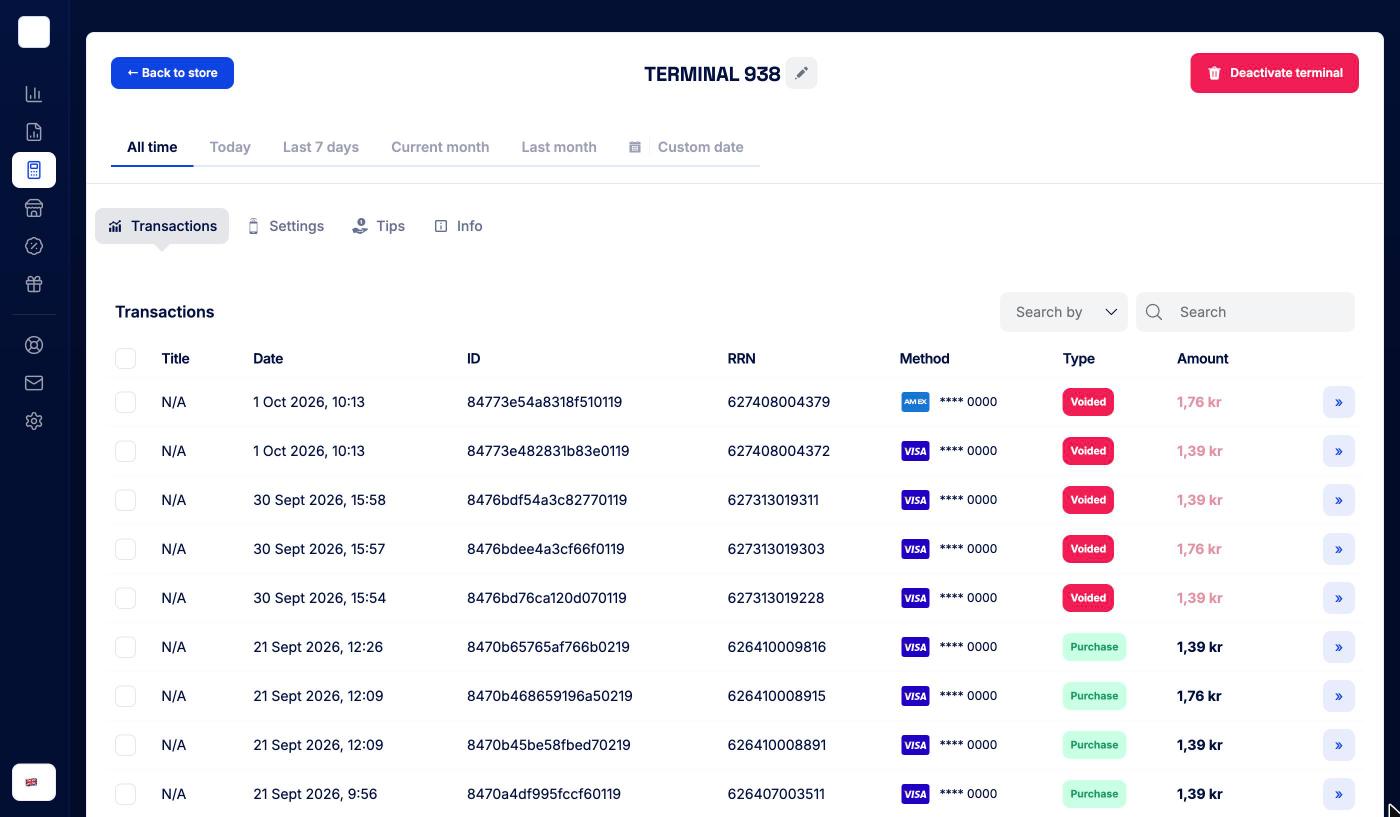
The header has **← Back to store**, the terminal name with a pencil to rename it, and **Deactivate terminal**. Below it, pick a period (**All time**, **Today**, **Last 7 days**, **Current month**, **Last month** or **Custom date**) for the terminal's sales.
| Tab | What it's for |
|-----|---------------|
| **Transactions** | The terminal's sales for the selected period. Click a row to open the transaction |
| **Settings** | Which store the terminal belongs to, and its device configuration |
| **Tips** | Tipping on this terminal |
| **Info** | Device details and when the terminal was last online |
| **Orders** | Payment page terminals only: the orders and payment links created on it |
Printers only have the **Settings** and **Info** tabs, plus a **Test print** button that prints your latest receipt on the printer.
### Info
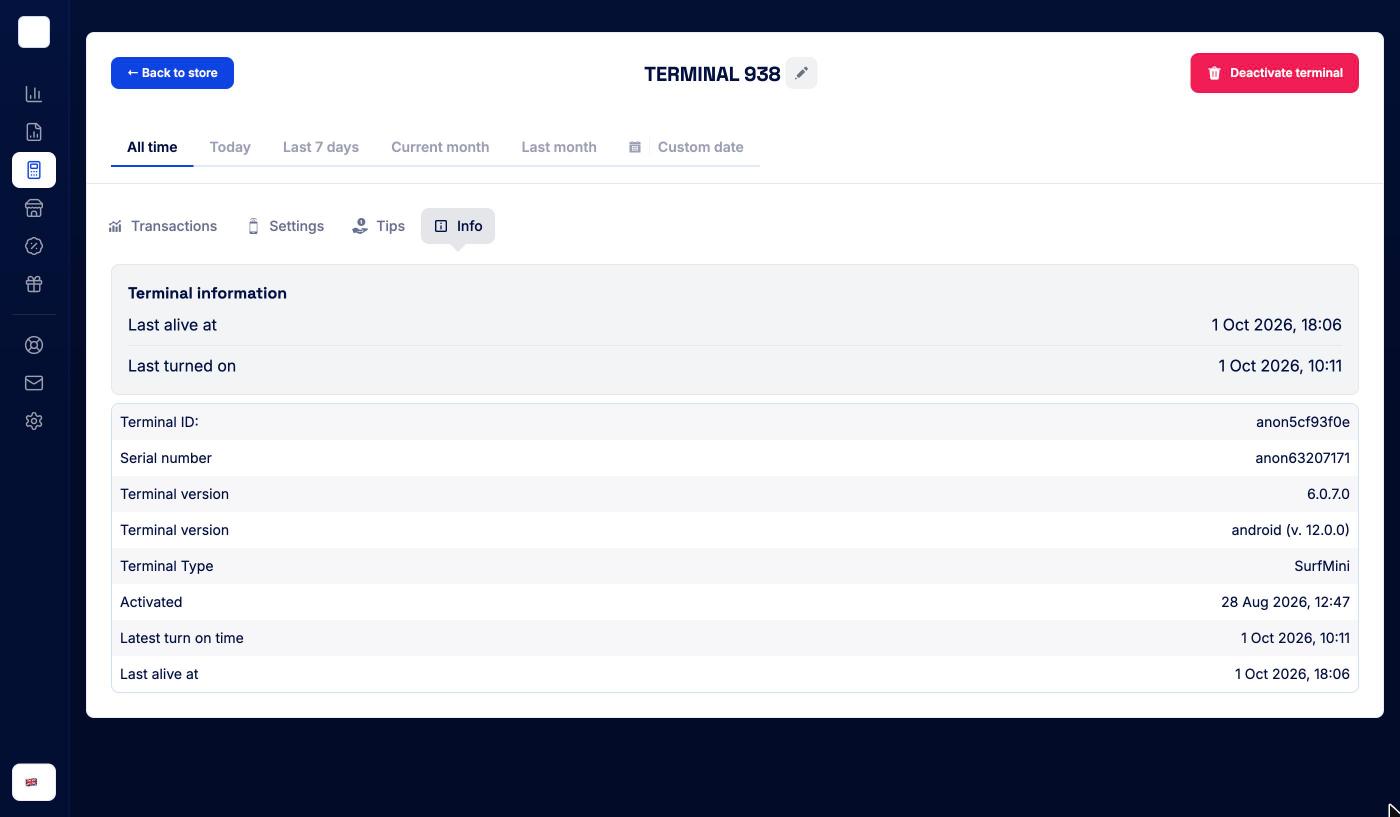
**Terminal information** shows when the terminal was last alive and last turned on, plus network, signal and battery status when the terminal reports them. Below that: **Terminal ID**, **Serial number**, the app and operating system versions, the terminal type, and when it was activated. Use this when you talk to support about a specific device.
### Renaming a terminal
Admins can click the pencil next to the name, enter a new **Terminal name** and save. The name is only used in the portal; it isn't shown on the terminal.
### Moving a terminal to another store
On the **Settings** tab, the **Store** box shows which store the terminal is connected to. Admins can click **Change Store**, pick the new store and save. This happens straight away, with no confirmation step. Online terminals (payment pages) can't be moved, because they're tied to the store's verified domain.
The rest of the Settings tab, and the Tips tab, are covered in [Terminal Settings & Tips](/merchant-portal/terminal-settings).
### Deactivating a terminal
Admins can click **Deactivate terminal**. The dialog warns that this can't be undone. Type `delete` in the box and click **Delete »**. The terminal is de-registered from your account and you're taken back to the store.
### Terminal Settings & Tips
Category: operations | Tags: Terminals, Settings, Tips, Configuration, PIN
URL: /merchant-portal/terminal-settings
## Overview
You can change how your terminals behave straight from the portal: what the screen shows, the language, receipts, the lock screen, the refund PIN, the network, and tipping. There are three places to do it:
- **One terminal**: the terminal's **Settings** and **Tips** tabs.
- **Several terminals**: select them in the terminal list and use the settings icon.
- **A whole store**: the store's **Settings** tab.
Saving settings and tips is for admins only. Users can see the settings but can't save them.
After you save, the portal shows **Settings saved**: "The terminal checks for new settings every 30 seconds, so the change can take up to 30 seconds to show on the device."
## Settings for one terminal
Open **Terminals**, click a terminal, and go to the **Settings** tab.
At the top, the **Store** box shows which store the terminal belongs to, with **Change Store**. See [Terminals](/merchant-portal/terminals#moving-a-terminal-to-another-store).
The device settings below are shown for Surfboard's Android card terminals. Which rows you see depends on the model; some only appear on SurfPad.
**Display settings**
| Setting | What it does |
|---------|--------------|
| **Keyboard backlight** | SurfPad only. Turns the keypad backlight on or off |
| **Show status bar** | SurfPad only. Shows the status bar at the top of the terminal screen |
| **Always show minor units** | Always shows decimals, even for whole amounts (29 is shown as 29.00) |
| **Auto sleep** | How long the terminal can be idle before the screen turns off to save battery: from 15 seconds to 30 minutes. Only applies on battery, and only outside the CheckoutX app (for example in a POS or partner app) |
| **Display contrast** | Screen contrast from 5% to 100%. The default is 100% |
| **Language** | The terminal's language: English, Svenska, Dansk or Suomi |
| **Show receipt** | Whether the digital receipt screen appears after a payment |
| **Receipt screen timeout** | How many seconds the receipt screen stays up before the terminal goes back to idle. Shown when **Show receipt** is on |
**Terminal behaviour**
| Setting | What it does |
|---------|--------------|
| **Auto-lock timeout** | Seconds of inactivity before the payment app locks itself. Only applies when the lock screen is on with a PIN. It doesn't turn the screen off |
| **Preferred restart time** | SurfPad only. The terminal must restart at least once every 24 hours, and installs updates when it does. Pick a time (HH:MM) when the store is closed |
| **Chip read delay** | SurfPad only. Delay in milliseconds before the card is read |
**Network settings**
| Setting | What it does |
|---------|--------------|
| **WiFi** and **WiFi Password** | SurfPad only. The WiFi network to join. **Find WiFi** lists the networks the terminal can see |
| **Preferred internet connection** | **GSM** (mobile data) or **WiFi** |
**OS settings**
| Setting | What it does |
|---------|--------------|
| **Open POS on reboot** | Opens the POS app automatically after the terminal restarts |
| **Enable lock screen** and **Lock screen PIN** | Locks the terminal behind a PIN |
| **Enable PIN code for refunds** and **Refund screen PIN** | Asks for a PIN before a refund can be made on the terminal |
Click **Update »** to save.
## Tips on one terminal
Go to the terminal's **Tips** tab.
1. Turn on **Use tips**.
2. Under **Tip display format**, choose **Percentage** or **Amount**.
3. Under **Pre-set tip**, fill in **Tip alternative 1**, **2** and **3**: the three choices the customer sees.
4. Turn on **Custom tips** if customers should also be able to enter their own amount. **Default custom tip amount** pre-fills that screen.
5. Turn on **Display calculated tip amount** to show the tip amount on the terminal.
6. Click **Set tips »**.
The **Preview** on the left shows what the customer will see: your three alternatives, **Select your own amount** and **Pay without tips »**.
To turn tipping off, switch off **Use tips** and click **Update »**.
## Changing several terminals at once
1. Open **Terminals** and tick the checkboxes next to the terminals you want to change.
2. Click the settings (gear) icon in the bar above the list.
3. The **Settings** drawer says "Set configuration for N terminals". Change the settings you need and save.
The same settings apply to every selected terminal. Terminals without a serial number (for example online terminals) are skipped.
## Settings for a whole store
Open the store and go to its **Settings** tab. Below the store details you'll find the same terminal settings, with **Update Store »**, and a tips section ("Configure the tip settings for the store") with its own preview.
The terminal settings only appear when the store has terminals. Use this when all terminals in a store should behave the same way, and a terminal's own Settings and Tips tabs when one device needs something different.
### Cash Register
Category: operations | Tags: Cash register, ECR, Skatteverket, X-report, Z-report
URL: /merchant-portal/cash-register
## Overview
Swedish rules require merchants to register their cash register with Skatteverket. The **Cash register** feature turns one of your terminals into a cash register: it keeps the journal, produces the daily X and Z reports, and gives you the details you need for the registration.
Cash register is set up per terminal and is managed from the store the terminal belongs to. Not every account has it. If you don't see a **Cash register** tab on your store page, it isn't enabled for your account.
## The Cash register tab
Open **Stores**, click the store, and go to **Cash register**.
The tab shows the reminder that cash registers must be registered with Skatteverket, and a list of the store's cash registers with their **Name**, **ID** and **Terminal**. Click a row to open the cash register. If the store has none yet, click **+ New cash register**.
## Setting up a cash register
Setup takes four steps. **← Back to store** at the top lets you leave at any time, and **← Back** goes to the previous step.
**1. Select terminal**
"Select the terminal you want to subscribe to the cash register." Click **»** next to the terminal. Terminals that already have a cash register are marked **Cash register active** and can't be picked again.
**2. Review pricing**
The cash register is an add-on with a monthly cost per terminal: "The cost is 149 SEK/month for this terminal. The cost will be deducted from your sales payout, so you don't have to handle any separate invoices." Tick **I accept the terms and pricing above** and click **Continue »**.
**3. Configure cash register**
Enter the email address that should receive the cash register's reports, then click **Enable cash register**. Reports and receipts from the cash register are sent to this address.
**4. Confirmation**
The portal confirms "The cash register was successfully registered" and shows **Register with Skatteverket** with the registration reminder. Click **See ECR info »** for the details you need for the registration, or **Back to store**.
## Registering with Skatteverket
Registering the cash register with Skatteverket is your responsibility as the merchant. Open the cash register and use the details on its **Info** tab, such as the **Cash register name** and **Cash register ID**, when you register.
## The cash register page
Click a cash register on the store's Cash register tab. The header shows the cash register's name, **Back to cash register** and **Deactivate ECR**.
| Tab | What it's for |
|-----|---------------|
| **Transactions** | Sales on the cash register for a period you pick: **All time**, **Today**, **Last 7 days**, **Current month**, **Last month** or a custom date |
| **Reports** | The cash register's reports |
| **Settings** | Who receives the cash register's reports by email |
| **Info** | The cash register's details for the Skatteverket registration |
### Report emails
On **Settings**, **Add Email for ECR Reports** lets you choose who receives the daily reports (X-day, Z-day and journal memory). Enter an address, click **+ Add another email** for more, remove one with the button next to it, and click **Save emails**.
The cash register's reports also show up on the [Reports](/merchant-portal/reports) page, and the email subscriptions for them are listed under **Settings → Notifications**. See [Settings](/merchant-portal/settings).
### Deactivating a cash register
Admins can click **Deactivate ECR**. Confirm by typing `delete` in the dialog. The cash register stops, and its page shows "The ECR has been deactivated".
### Products & Catalog
Category: operations | Tags: Products, Catalog, Inventory, Variants, CSV import, Menu
URL: /merchant-portal/products
## Overview
Each store has its own product catalogue. The products in it are what you sell in [payment links](/merchant-portal/payment-links), on the store's online storefront, and in [campaigns](/merchant-portal/campaigns) that promote a product.
Products are managed per store. Open the store from **Stores**, or pick it in the store switcher at the top of the sidebar, then open the **Products** tab. The catalogue is created automatically the first time you open the tab.
> Not every account has products. If the store has no **Products** tab, the feature isn't enabled for you.
## The product list
The tab shows how many products the store has, and:
- **Catalog Statistics** -- revenue, units sold, orders, average order value, and your top-selling products for the last **7d**, **30d**, **90d**, or **1y**. Until something has sold, it says "No sales data yet".
- **Export inventory (.csv)** -- a CSV with one row per product variant, for stock-taking or bulk editing elsewhere.
- The product table -- **Name** (with image), **Category**, **Price**, **Description**, and **Variants**. Search, sort, and click **»** to open a product.
If the store's catalogue is published on its storefront, a banner says "Product catalog is live on your storefront", with a link.
### Deleting several products
Tick products in the table and click the trash icon. Admins only. The products are deleted right away, without a confirmation step, so check your selection first.
## Adding products
The **+ Create new product** button has a menu next to it with three ways in:
| Option | Use it for |
|--------|------------|
| **+ Create new product** | One product at a time, with every setting |
| **Import CSV** | A product list from a spreadsheet or another shop system |
| **Scan Menu** | Photos of a printed menu or price list, read by AI |
### Import CSV
1. Choose **Import CSV** and drop your file in the dialog, or click to browse. Then click **Import CSV**.
2. Map your columns under **Field Mapping**. The portal suggests a mapping for each column, with how sure it is. **Product Name** and **Selling Price** are required. To group rows into one product with variants, map a column to **Handle**: rows with the same handle become variants of one product.
3. Check the preview of the first three products and click **Continue**.
4. Untick any products you don't want, then click **Import**. The button shows how many products and variants will be created.
### Scan Menu
Choose **Scan Menu** and upload one or more photos of your menu (JPG, PNG, or WEBP), then click **Scan Menu**. The AI lists the products it found with names and prices. Untick any you don't want, then save the rest as products. Check names, prices, and categories afterwards. The AI reads what's printed, and photos aren't always clear.
## Editing a product
Click **»** on a product, or **+ Create new product**, to open the product page.
**Product Statistics** at the top shows the product's revenue, units sold, orders, VAT, returns, campaign discounts, stock movements, and how each variant performs, for **7d**, **30d**, **90d**, or **1y**.
### Images
- **Upload** -- add product photos (image files up to 5 MB).
- **Generate AI Image** -- describe the product and pick one or more generated images to add.
- Hover over an image to **enhance** it (a studio shot of the product, or a lifestyle scene; you choose between the original and the enhanced version) or to remove it. Changes are saved when you save the product.
### Product details
**Product name**, **Product description**, and **Category** (required). **Auto-Write** drafts a description for you with AI.
### Price and VAT
| Field | Notes |
|-------|-------|
| **Product price** and **Currency** | SEK, EUR, USD, GBP, DKK, or NOK |
| **Product type** | **Product** or **Service** |
| **Unit type** | **Fixed** price, or **Free amount** where the amount is entered at the sale |
| **Unit** | What the price is per: a piece, or a weight, volume, length, time unit, and so on |
| **VAT** | The VAT rate in percent |
**Extra settings** holds **Cost price**, **HSN code**, **Barcode**, and product properties (size, weight, origin, manufacturer). **Metafields** lets you store your own name/value pairs on the product.
### Variants
Click **+ Add options like size or color**. Name an option (for example *Size*) and add its values (*S*, *M*, *L*). You can have up to three options. The portal creates a variant for each combination, and you can set a price per variant. Removing a variant asks you to confirm.
### Monthly plans
Under **Monthly Plans**, add subscription plans for the product: amount, currency, billing interval, whether it recurs, a binding period, and what happens on early termination.
### Stock
For a new product, enter the **Initial Quantity**. For an existing product, use **Inventory Management**. Enter a **Quantity**, choose **Stock Up** (received goods) or **Stock Down** (shrinkage, or goods taken out), pick the **Unit**, and click **Update Stock**. The current stock and status are shown above.
### Related products
Tick other products under **Related Products** and click **Add Selected Products** to link them to this product. **Currently Related Products** lists the links, and you can remove them there.
### Campaign price
Set a temporary discount on one product:
1. Enter a **Campaign name**, for example *Summer sale*.
2. Choose **Percentage** or **Fixed amount** and enter the discount. The new price is shown.
3. Click **Start campaign**.
The discount shows on the storefront and is applied in carts, orders, and payment links until you click **Remove campaign**. The campaign price is separate from [Campaigns](/merchant-portal/campaigns), which show promotions on your terminal screens.
### Saving and deleting
Click **Save *product name* »** at the bottom to save your changes.
To delete the product, click **Delete *product name*** at the top and type `delete` to confirm. Admins only. Users can create and edit products, but not delete them.
## Related guides
- [Payment Links](/merchant-portal/payment-links) -- sell catalogue products through a link
- [Stores](/merchant-portal/stores) -- the storefront that shows your catalogue online
- [User Levels](/merchant-portal/user-levels) -- who can create, edit, and delete products
### Payment Links
Category: operations | Tags: Payment Links, Online, Checkout, Orders
URL: /merchant-portal/payment-links
## Overview
A payment link lets a customer pay you online, without a terminal and without a webshop. You put together an order, the portal creates a link to Surfboard's hosted payment page, and you send it to the customer. They pay on their phone or computer, and the payment shows up in [Sales](/merchant-portal/sales) like any other.
Payment links are managed per store. Open the store and click the **Payment links** tab.
> Not every account has payment links. If the store has no **Payment links** tab, the feature isn't enabled for you.
## Setting up a store for payment links
A store needs two things before it can create links. If something is missing, the **Payment links** tab shows **Set Up Payment Links** with the remaining steps:
1. **Enable Online Store** -- enter the store's **Terms and conditions URL** and **Privacy policy URL**. The payment page links to them. You can only set the online information once, so double-check the URLs.
2. **Add Payment Terminal** -- register a payment page terminal for the store. This is the "terminal" that online payments run through.
3. **Create Your First Payment Link**.
Steps 1 and 2 are for admins. Once they're done, any user can create links.
## Creating a payment link
Click **+ Create payment link** on the store's **Payment links** tab.
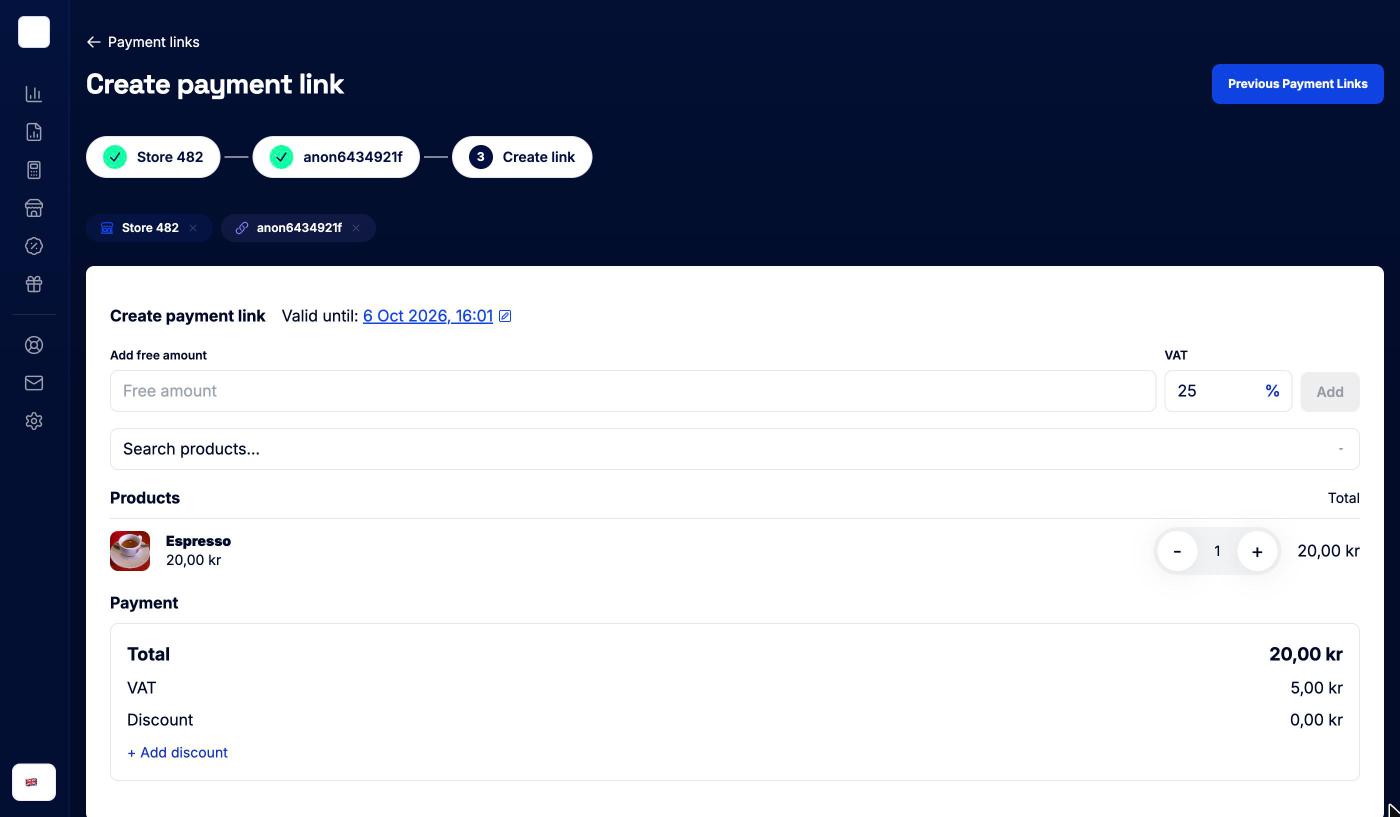
1. **Store** and **terminal** -- the steps at the top show the store and its payment page terminal. They're picked for you when there's only one; click a chip to change it.
2. **Valid until** -- how long the link can be paid. Click the date to choose **Half hour**, **One day**, **One week**, **One month**, **Three months**, or **One year**. It defaults to one day.
3. **Add what the customer pays for**:
- **Search products...** to add products from the store's [catalogue](/merchant-portal/products). Use **−** and **+** to change quantities. Product campaign prices are applied automatically.
- Or **Add free amount**: enter an amount and a **VAT** rate, and click **Add**. Use this for things that aren't in your catalogue.
4. **+ Add discount** -- a percentage or a fixed amount off the order. The **Payment** box shows the total, VAT, and discount.
5. Open **Customer** (optional) to fill in who is paying. Choose **Person** (name, email, phone, billing address, and a shipping address if it differs) or **Company** (company name, VAT ID, contact details, address, and purchase order details).
6. Open **Settings** if you need to change how the link works (see below).
7. Click **Create link**.
The **Your payment link** dialog then shows the link, a QR code, **Copy**, **Visit link**, and **Send link by email**. Send it however suits you: email, text message, chat, or the QR code printed on an invoice.
### Link settings
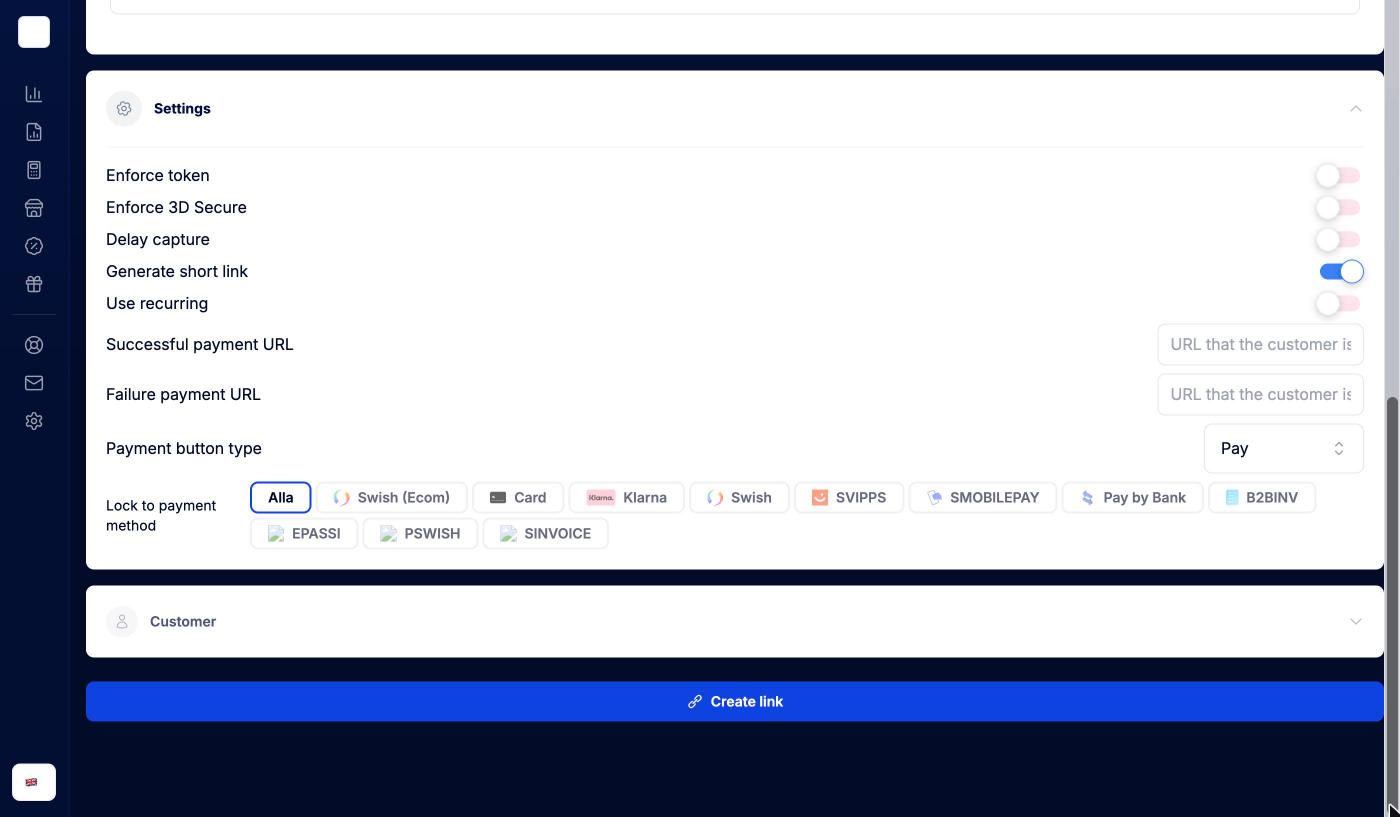
| Setting | What it does |
|---------|--------------|
| **Enforce token** | Saves the customer's card as a token with the payment |
| **Enforce 3D Secure** | Requires the customer to verify the card payment with their bank |
| **Delay capture** | Only reserves the amount. You capture it later from the transaction page (see [Sales](/merchant-portal/sales#capturing-a-delayed-payment)). |
| **Generate short link** | Creates a shorter link that's easier to share. On by default. |
| **Successful payment URL** / **Failure payment URL** | Where the customer is sent after paying, or after a failed payment |
| **Payment button type** | The wording on the pay button: **Pay**, **Book**, **Donate**, **Order**, **Top up**, **Buy**, **Checkout**, **Subscribe**, and more |
| **Lock to payment method** | Only offer certain payment methods on this link. Leave the first option selected to offer all of them. |
## Following your links
The store's **Payment links** tab lists every link created for the store.
Filter by status with **All statuses**, **Pending**, **Completed**, **Failed**, or **Cancelled**. Each chip shows a count. Use **Search** to find a link. Each row shows the link's ID, **Status**, **Terminal**, **Amount**, and **URL**. Use the copy icon to copy the URL again, and **»** to open the full order.
Click a row to expand it:
- The number of items, how long the link is valid for, and the total with VAT.
- How long is left (or **Expired**) and when the link ends.
- **Customer** -- name, email, phone, and your reference. If the order had no customer details, they're filled in once the customer enters them on the payment page.
- **Payment attempts** -- each try the customer made, with its result and method.
- **Order details »** -- the full order, with its payment history.
If some of your terminals take too long to answer, a warning says the list may be incomplete. Reload the page to try again.
### Changing a link's end time
For a link that's still open, click **Change end time** in the expanded row. Pick **In 1 hour**, **In 24 hours**, **In 7 days**, or **In 30 days**, or set a **New end time**, then **Save**. The end time must be in the future. Admins only.
### Cancelling a link
If a link was sent by mistake or no longer applies, expand it and click **Cancel payment link**. The portal asks you to confirm: "The link stops working immediately. The customer will not be able to pay afterwards." Click **Yes, cancel link**.
## Related guides
- [Products & Catalog](/merchant-portal/products) -- the products you can add to a link
- [Terminals](/merchant-portal/terminals) -- payment page terminals
- [Refunds & Voids](/merchant-portal/refunds) -- giving money back for a paid link
### Campaigns
Category: growth | Tags: Campaigns, Marketing, QR codes, Idle screen, Receipts
URL: /merchant-portal/campaigns
## Overview
A campaign is a short promotion shown on your payment terminals between payments, and on the digital receipt. It has a headline, a short description, an image, and a QR code that takes the customer to a page you choose, for example the product you're promoting. Each campaign runs for a set period in the stores you pick.
Open **Campaigns** in the sidebar. Not every account has Campaigns; if you don't see it, it isn't enabled for you. Creating, changing and deactivating campaigns is for admins.
## The campaigns page
At the top, **QR scans** counts how many customers opened a campaign link, for **Today**, **This week** and **This month**, with the number of unique scans under each. Filter it by where the QR code was scanned: **All**, **Receipt** or **Idle screen**.
Below are your campaigns. Each card shows the image, name, headline, up to two of its stores (plus how many more), and the date range, or **Unscheduled** if it has no dates. Click a card to open the campaign. The copy icon in the corner of a card duplicates it (see below).
Campaigns you've deactivated are collected under **Deactivated (N)** at the bottom. Open the section to see them.
## Creating a campaign
Click **+ Create Campaign**. You can let AI draft the campaign or write it yourself. A **LIVE PREVIEW** on the right shows how it will look on the terminal while you work.
### AI Create
1. Describe the campaign in the box, for example "Create a campaign for this fall that promotes our membership program". Or click one of the suggestions above the box; some of them use your own products.
2. Optionally click **Products**, pick a store and the products the campaign is about.
3. Click **Generate**. The AI fills in the campaign and switches to the **Manual** tab, so you can check and adjust everything before you save.
AI-generated text can be wrong, so read it through, especially prices and dates.
### Manual
| Field | Notes |
|-------|-------|
| **Campaign name** | Required. The internal name, only shown in the portal |
| **Campaign headline** | Required. The title on the terminal. Up to 15 characters |
| **Campaign description** | Up to 200 characters. Wrap text in `*` to make it bold: `*Was 155, now 77.50*` |
| **Campaign image** | Click **Upload image**. A horizontal 4:3 image works best |
| **Campaign end product URL** | Required. Where the QR code takes the customer, for example the product page |
| **Schedule** | **From** and **Until**: when the campaign runs |
| **Assign to stores** | Pick the stores, or use **Assign all** / **Remove all**. The counter shows how many are assigned |
Click **Create Campaign** to save, or **Cancel** to throw it away.
## Changing a campaign
Click a campaign card to open it.
The header shows the campaign's status and **Deactivate**. Below are the campaign's own **QR scans** and the **Campaign details** form, with the same fields as when you created it. Make your changes and click **Save changes**.
Under **Assign to stores**, search for a store and tick or untick it, or use **Assign all**. Store changes are saved the moment you click; there's no separate save and no confirmation step.
## Duplicating a campaign
Click the copy icon on a campaign card, active or deactivated. The form opens with everything filled in, the name ending in "(Copy)", and a schedule from now and 30 days ahead. Adjust it and click **Create Campaign**. This is also how you bring back a deactivated campaign.
## Deactivating a campaign
Open the campaign and click **Deactivate**. The dialog asks "Deactivate campaign?" and explains that the campaign moves to the deactivated section and stops showing on terminals. Click **Deactivate** to confirm.
## Campaigns in a store
Each store page also has a **Campaigns** tab. It lists the campaigns running in that store, with QR scan counts for them, and a link to the Campaigns page to create and manage them.
Products can also have a temporary discounted price that shows on your storefront and in payment links. That's set on the product itself; see [Products & Catalog](/merchant-portal/products).
### Gift Cards
Category: growth | Tags: Gift Cards, Entitlements, Vouchers
URL: /merchant-portal/gift-cards
## Overview
**Gift Cards** lets you issue your own gift cards and keep track of them. There are two kinds:
| Type | What it holds | Example |
|------|---------------|---------|
| **Fund** (monetary) | An amount of money that's used up as the customer pays with it | A 500 kr gift card |
| **Entitlement** (usage based) | A number of uses, or unlimited uses | A coffee card for 10 coffees, a punch card |
Open it from **Gift Cards** in the sidebar.
> Not every account has gift cards. If **Gift Cards** isn't in your sidebar, the feature isn't enabled for you.
## Overview figures
The tiles at the top summarise all your cards:
- **Total cards** and **Active cards**
- **Outstanding balance** -- what's still left to be spent on your cards, with the total issued underneath
- **Redeemed value** -- what has been spent
**Gift Card Analytics** below shows **Total redeemed**, the number of **Redemptions**, the **Average per redemption**, and **Redeemed by month** for the last six months.
## The card list
| Column | What it shows |
|--------|---------------|
| **Name** | The card's name. Click it to open the card. |
| **PAN** | The card number |
| **Status** | **Active**, **Created** (issued but not used yet), **Fully used**, **Expired**, **Cancelled**, **Blocked**, or **Inactive** |
| **Type** | **Fund** or **Entitlement** |
| **Balance** | For fund cards, the remaining amount and a bar showing how much is left. For entitlements, the uses taken out of the limit (∞ if unlimited). |
| **Redeemed** | How much has been spent |
| **Expiry Date** | Shown in red once the card has expired |
Search, sort by any column, and click **»** to open a card.
## Creating a gift card
Click **Create Gift Card**. Admins only.
| Field | Notes |
|-------|-------|
| **Name** | Required, for example *Summer Gift Card* |
| **Card Type** | **Monetary (Fund)** or **Usage Based (Entitlement)** |
| **Amount** | For fund cards: the value of the card |
| **Usage Limit** | For entitlements: how many times the card can be used. Leave it empty for unlimited use. |
| **Note (Optional)** | An internal note, for example *VIP customer gift* |
| **Expiry Date (Optional)** | Defaults to one year from today. Pick another date if you need to. |
Click **Create Card**. The confirmation shows the card's **Shareable Link**. Copy it and send it to the customer, who can open the card on their phone.
## A card's details
Click a card to see everything about it. The page address changes to include the card, so you can bookmark it or send it to a colleague.
- **Status** and **Type**.
- **Current Balance** with what has been redeemed, for fund cards. **Usage** (uses taken out of the limit) for entitlements.
- The card's QR code, card number, barcode, and **Card ID**.
- **Original amount**, **Total redeemed**, number of **Transactions**, **Expiry date**, and the last transaction.
- **Customer** details, if the card is linked to a customer.
- The **Shareable Link**, with **Copy**.
- **Recent Transactions** -- when the card was issued, topped up, and redeemed, with the balance after each. Click a redemption to open the payment in [Sales](/merchant-portal/sales).
Cards can't be edited, blocked, or cancelled from the portal. If a card needs to be stopped, contact us through [Support](/merchant-portal/support).
## Related guides
- [Campaigns](/merchant-portal/campaigns) -- promote your gift cards on your terminal screens
- [Sales](/merchant-portal/sales) -- payments made with gift cards
### Settings
Category: configuration | Tags: Settings, Company details, Payment methods, Users, Notifications, Disputes
URL: /merchant-portal/settings
## Overview
**Settings** holds everything about your merchant account as a whole. Open it from **Settings** at the bottom of the sidebar.
The header shows your merchant name and logo, the email you're logged in with, your **Merchant ID**, and your company's address and email. Below it are seven tabs:
| Tab | What it's for |
|-----|---------------|
| [**Profile**](#profile) | Your own user details |
| [**Company details**](#company-details) | Your company's details, verification status and branding |
| [**Payment Methods**](#payment-methods) | Turn payment methods such as Swish and Klarna on or off |
| [**Disputes**](#disputes) | Send us evidence when a customer disputes a payment |
| [**Contracts**](#contracts) | The contracts attached to your account |
| [**Users**](#users) | Invite and manage the people who use the portal |
| [**Notifications**](#notifications) | Send reports and payment events by email, Slack or SFTP |
Some changes are for admins only. They're marked below. See [User Levels](/merchant-portal/user-levels).
## Logging out
The red **Log out** button in the top-right corner of Settings ends your session and takes you back to the login page. There's no confirmation step. This is the only place in the portal to log out, so use it whenever you step away from a shared computer.
## Profile
**User details** shows your **First name**, **Last name**, **Email** and **Phone**. Fields you haven't filled in show *N/A*. These details are read-only here. An admin can change your name from the [Users](#users) tab.
## Company details
This tab shows your **Company name**, **Company registration number**, **Address**, **Email** and **Phone**.
**Admins only:** click **Edit** to change the company **Email** and **Phone**, then click **Update merchant details »**. Company name, registration number and address can't be changed here. [Raise a support ticket](/merchant-portal/support) if they need updating.
### KYB verification
Most accounts also see a **KYB verification** card. As a regulated payment institution, Surfboard has to keep your Know Your Business verification up to date. The card shows its status (from **Not started** through **Submitted — under review** to **Verified**, or **Expired**), when renewal is due, and how many days are left.
When renewal is close, or overdue, the card warns you. If the verification expires, payment processing is paused until you complete the renewal. Click **Renew KYB now »** to start the renewal.
### Merchant branding
Below the company details is **Merchant branding**: the logo, colours and fonts used on your receipts, payment pages and online checkout.
| Setting | What it controls |
|---------|------------------|
| **Company URL** | Enter your website and click **Auto detect branding** to pick up your logo and colours automatically |
| **Background color**, **Brand color**, **Accent color**, **Footer color** | The colours of your payment pages and online checkout |
| **Merchant logo** and **Icon** | Click **Change** to upload a new image |
| **Primary cover image** | The cover image in your online checkout |
| **Font type** | **Sans Serif**, **Serif** or **Monospace** |
| **Shapes** | Button shapes: **Rounded**, **Square** or **Circle** |
Click **Update »** to save (admins only). **Delete merchant branding »** removes your branding straight away, with no confirmation step.
Each store can have its own branding as well. See [Stores](/merchant-portal/stores).
## Payment Methods
This tab lists the payment methods your account can offer: **Card**, **Swish**, **Klarna**, **American Express**, **Vipps**, **MobilePay**, **Account to Account** and **B2B Invoice**. A switch shows whether each one is on. **Card** is always on.
**Admins only:** to turn a method on, click its switch. A dialog explains that the pricing is in your Merchant Cover Sheet.
Click **Agree and activate** to turn it on, or **Cancel** to leave it off. To turn a method off, click its switch and confirm with **Deactivate**.
## Disputes
When a customer disputes a payment with their bank, we contact you and ask for information to resolve it. Use this tab to send it to us:
1. **Dispute name**: an internal name, so you can refer to it later.
2. **Upload details**: attach proof of purchase or delivery, such as receipts, delivery confirmations or correspondence. You can attach several files.
3. **Message**: describe what happened.
4. Click **Send »**.
When it's sent, you see a confirmation. Click **Create another** to send more information.
## Contracts
The **Contracts** tab lists the contracts attached to your account. If there are none, it says *We couldn't find any contracts attached to this account. Contact us if you think this is wrong.* **Contact us** opens an email to Surfboard.
## Users
**User Management** lists everyone who can log in to your merchant portal, with their name, email and role (**USER** or **ADMIN**). Everyone can see the list. Only admins can invite or edit people.
### Inviting someone
1. Scroll to **Invite New User**.
2. Enter their **Email**. **First name** and **Last name** are optional.
3. Choose a **Role**. The form starts on **Admin**, so switch it to **User** for anyone who only needs day-to-day access. The two roles are described under the field.
4. Click **Send Invitation**.
They get an email with a sign-up link.
> **Choose the role carefully.** A role can't be changed after the invitation, and people can't be removed from this page. If you need to change someone's role or remove their access, [raise a support ticket](/merchant-portal/support).
### Editing someone
Click **Edit** next to a person to change their **First name**, **Last name** or **Profile image URL**, then click **Save**.
## Notifications
Use Notifications to send your own reports and payment events somewhere outside the portal: an email inbox, a Slack channel or an SFTP server. This is separate from [Messages](/merchant-portal/messages), which are notices from Surfboard to you.
**Active Notifications** lists what's set up: the event, the channel (for example **EMAIL**) and where it goes. Cash register report subscriptions you set up for a [cash register](/merchant-portal/cash-register), such as X-reports and Z-reports, appear here too.
**Admins only:** the red bin button removes a notification. It's removed straight away, with no confirmation step.
### Creating a notification
1. Under **Create New Notification**, choose the **Event Type**:
| Event Type | What you get |
|------------|--------------|
| **Daily Reports** | Your daily report |
| **Monthly Reports** | Your monthly report |
| **Payment Completed** | A message for each completed payment |
| **Daily File Transfer**, **Weekly File Transfer**, **Monthly File Transfer** | A transaction file on that schedule, typically sent to SFTP |
2. Enter where it should go: an **Email** address, a **Slack Webhook URL**, or both.
3. To deliver files to an SFTP server, tick **Configure SFTP** and fill in **SFTP Host**, **SFTP Username** and **SFTP Host Key** (all required), and optionally **SFTP Port**, **Remote Directory** and the **CSV Separator** (**Comma (,)**, **Semicolon (;)**, **Pipe (|)** or **Tab**).
4. Click **Create Notification**.
Anyone on the account can create a notification.
### User Levels
Category: configuration | Tags: Users, Roles, Permissions, Team
URL: /merchant-portal/user-levels
## Overview
Everyone who logs in to the Merchant Portal has one of two roles: **Admin** or **User**. You choose the role when you invite someone from **Settings → Users**. See [Settings](/merchant-portal/settings#users).
The split lets day-to-day staff take payments, handle refunds and look after products, while admins keep control of stores, terminals, payment settings, branding and the team.
Accounts created before roles existed have no role set. They work as **Admin**.
## Quick comparison
| What you can do | User | Admin |
|-----------------|:----:|:-----:|
| See sales, reports, terminals, stores and settings | ✅ | ✅ |
| Refund a payment, void a payment, void a refund | ✅ | ✅ |
| Open receipts | ✅ | ✅ |
| Create and send payment links | ✅ | ✅ |
| Create and update products, update stock, upload images, use the AI product tools | ✅ | ✅ |
| Create notifications in Settings | ✅ | ✅ |
| Raise and reply to support tickets | ✅ | ✅ |
| Create, update and delete stores | ❌ | ✅ |
| Register, rename, move and deactivate terminals | ❌ | ✅ |
| Change terminal settings and tips | ❌ | ✅ |
| Capture a delayed payment | ❌ | ✅ |
| Change a payment link's end time | ❌ | ✅ |
| Update company details, and manage or delete branding | ❌ | ✅ |
| Publish and unpublish the storefront | ❌ | ✅ |
| Turn payment methods on and off | ❌ | ✅ |
| Create and manage campaigns, product campaign prices and gift cards | ❌ | ✅ |
| Order hardware | ❌ | ✅ |
| Delete products | ❌ | ✅ |
| Remove notifications | ❌ | ✅ |
| Invite and edit users | ❌ | ✅ |
## User: day-to-day operations
**User** is the right role for cashiers, store staff and anyone running the shop floor. In the role picker it's described as *Day-to-day sales and products: refunds, receipts, payment links, and managing products and inventory.*
A User can:
- **Sales**: refund a payment, void a same-day payment, void a mistaken refund, and open receipts. See [Refunds](/merchant-portal/refunds).
- **Payment links**: create them and send them to customers. See [Payment Links](/merchant-portal/payment-links).
- **Products**: create and update products, update stock levels, upload images, and use the AI tools for product descriptions and images. See [Products & Catalog](/merchant-portal/products).
- **Notifications**: set up report and payment notifications in Settings.
Everything else is read-only. When a User tries an admin-only action, the button is either disabled or the portal shows *You don't have permission to perform this action. Please contact an admin.*
## Admin: full access
**Admin** is described as *Full access — everything a User can do, plus stores, terminals, payments, settings, branding, and team management.* An Admin can also:
- **Stores**: create, update and delete stores, add online information, and publish or unpublish the storefront. See [Stores](/merchant-portal/stores).
- **Terminals**: register, rename, move between stores and deactivate terminals, change terminal settings, and set tips. See [Terminals](/merchant-portal/terminals) and [Terminal settings & tips](/merchant-portal/terminal-settings).
- **Payments**: capture delayed payments, and change how long a payment link stays open.
- **Company**: update company details and branding, and turn payment methods on and off. See [Settings](/merchant-portal/settings).
- **Growth**: create and manage campaigns, product campaign prices and gift cards. See [Campaigns](/merchant-portal/campaigns) and [Gift Cards](/merchant-portal/gift-cards).
- **Products**: delete products.
- **Team**: invite people and edit their names on **Settings → Users**.
## Choosing the right role
- If the person runs the till, handles customers or looks after products, give them **User**.
- If the person is responsible for the business itself, such as opening stores, managing terminals, changing payment settings or managing the team, give them **Admin**.
The invite form starts on **Admin**, so remember to switch it to **User** when that's what you want.
> **Roles are set at invitation.** You can't change a person's role in the portal afterwards, and you can't remove a person from **Settings → Users**. If someone's role needs to change, or someone should no longer have access, contact Surfboard through [Support](/merchant-portal/support).
Roles apply to the whole merchant account. You can't limit a person to particular stores.
### Order Hardware
Category: configuration | Tags: Hardware, Terminals, Orders, Deliveries
URL: /merchant-portal/order-hardware
## Overview
Terminals and accessories you get from Surfboard can be followed in the portal from the moment they're ordered until they arrive. For some accounts, you can also place the order yourself in the portal.
- **Deliveries** on the Terminals page shows every hardware order and its status. This is available to everyone.
- **Order hardware** is a small shop for terminals and accessories. It's only enabled for some accounts and isn't linked from the sidebar; where it's enabled, it lives at `/order-hardware` in the portal.
## Following a delivery
Open **Terminals** and click the **Deliveries** tab. Each order shows:
| Field | What it shows |
|-------|---------------|
| **Order ID** | The order's reference |
| **Status** | Placed, Confirmed, Shipped, Delivered or Cancelled |
| **Carrier** and **Tracking number** | Who's delivering it, once it has shipped |
| **Items** | What's in the order, with each device's serial number once it's assigned ("Serial number not assigned yet" until then) |
| **Track shipment** | Opens the carrier's tracking page |
If you haven't ordered anything, the tab says "No hardware orders". When a terminal arrives, register it on the Terminals page. See [Terminals](/merchant-portal/terminals#registering-a-terminal).
## Placing an order
If ordering is enabled for your account, the **Order hardware** page ("Terminals, accessories, and more") lists what you can order: terminals such as SurfTouch, SurfPrint and SurfMini, and accessories such as a charging cradle and SIM cards. Each product has a name, a category, a short description and its price.
1. Use **+** and **-** on each product to set the quantity.
2. Click **Checkout** at the top right to open **Your cart**. Check the items and quantities and the **Subtotal**.
3. Under **Shipping details**, check the delivery address. It's filled in from your merchant details; click the pencil to change it. Add **Delivery instructions (optional)** if the courier needs them.
4. Click **Place order**. Only admins can place orders.
The portal confirms the order with its shipment ID. There's no separate confirmation step, so check the cart and address before you click **Place order**. From then on, follow the order on the **Deliveries** tab.
---
## Changelog
Product updates, new features, and improvements across Surfboard Payments products.
URL: /docs/changelog
### Developer Docs v2026.10
Product: Developer Docs | Version: 2026.10 | Date: 2026-10-01
URL: /docs/changelog/developer-docs-v2026-10
Summary: The hosted MCP server speaks the stateless MCP 2026-07-28 revision, with no handshake and no session, and still answers clients on earlier revisions.
## 🔌 MCP 2026-07-28, Stateless by Protocol
**Category:** Developer Experience
The hosted server at `/.well-known/mcp` was already stateless in practice, but it only spoke the handshake-era revisions, and the MCP page opened with an `initialize` call captioned "Open a session". The 2026-07-28 revision removed that handshake and protocol-level sessions, so the server and the page now follow it.
- Requests carry their protocol version and client capabilities in `params._meta`, mirrored in the `MCP-Protocol-Version`, `Mcp-Method` and `Mcp-Name` headers. Nothing has to be called first
- New `server/discover` method returns the supported versions, capabilities, server info and agent instructions
- Results carry `resultType`, identify the server in `_meta`, and list results are cacheable with `ttlMs` and `cacheScope`
- Headers that disagree with the body are refused with `-32020`, and an unknown version with `-32022` and the list of supported versions
- Clients on 2025-11-25 and earlier keep working: `initialize` still negotiates a legacy version, and no session id is issued
- The MCP page's first example is now an optional `server/discover`, and the tool call example is a self-contained request
### Carbon Platform v2026.9
Product: Carbon Platform | Version: 2026.9 | Date: 2026-09-04
URL: /docs/changelog/carbon-platform-v2026-9
Summary: Create Merchant now returns a prefilled web KYB link. Pass the corporate ID and a business description and Surfboard resolves the registry data, classifies the merchant, and works out which documents it needs. The merchant adds a bank account, the documents, and the signatures.
## 🚀 Prefilled Merchant Applications
**Category:** Merchants API
`POST /partners/{partnerId}/merchants` still creates the application and returns the web KYB link, but the link now comes back already populated. Two things happen before it is returned:
- **Registry prefill.** The legal name, registered address, and where available the directors and beneficial owners are resolved from the national business registry for the merchant's country. `organisation.legalName` and `organisation.address` can be omitted
- **Business classification.** The free-text `preEnteredInformation.businessDescription` is classified into a merchant category (MCC), which decides which documents the merchant must supply and any category-specific questions. Describe what the merchant actually takes payment for, not the general company purpose: *"Selling coffee and pastries at our café"*, not *"Food and beverage services"*. If you already know the MCC, pass `organisation.mccCode` instead
The merchant then only adds what a partner cannot know for them: the bank account, the category documents, and the signing. If any part of the prefill cannot be resolved, the call still succeeds and the merchant fills that section in the flow as before. Prefill is additive; nothing you send is discarded and nothing you omit blocks the link.
## 👥 People and Signing
**Category:** Merchants API
`preEnteredInformation` can now carry the people involved, so the signing invitations go out without the merchant typing anyone in.
- `applicant`: the main contact, with `isSignatory`, `isUbo` and `isChairman` flags. A person can hold more than one role
- `signatories[]`, `ubos[]` and `chairpersons[]`: additional people, each with at least `name` and `email`
- Beneficial owners take `ownershipPercent` and `ownershipType` (`direct` or `indirect`). An indirect owner must name the intermediary company in `entityName`
- **Only signatories and beneficial owners receive a signing link.** An applicant or chairperson signs only if they also hold one of those roles
## 🧩 New Request Fields
**Category:** Merchants API
- `localeSelected`: language of the web KYB (`sv`, `da`, `fi`, `en`); defaults to the country's language
- `country` now accepts `SE`, `NO`, `DK`, `FI` and `IE`, with `corporateId` validated per country
- `controlFields.store.paymentChannels`: `{ physical, online, physicalSharePercent }`, where the share only matters when both channels are used
- `controlFields.disableFields.onlineInfo`: locks the webshop URLs against merchant edits; requires `store.onlineInfo` in the same request
- `controlFields.linkUsers`: existing user IDs to link to the new merchant
- `controlFields.directMerchantCreation`: creates the merchant directly instead of an application; only for programmes with a direct acquirer agreement
- `controlFields.acquirerConfig.acquirerIID` alongside `acquirerMID`
- `merchantConfig.settlementFrequency` values are now `daily`, `twiceWeekly`, `weekly`, `tenDays`, `fortNightly`, `monthly`, `everyTwoMonths`, `trimester`, `quarterly` and `twiceYearly`
- `preEnteredInformation.giftcards.revenueSharePercent` replaces `amountPerYear`
- `preEnteredInformation.fundsInfo.estimatedFrequencyOfTransactions` is one of `DAILY`, `WEEKLY`, `MONTHLY`, `YEARLY`
## 📨 Response and Status
**Category:** Merchants API
- Create Merchant returns `validUntil`, the expiry of the onboarding link, next to `applicationId`, `webKybUrl`, `shortLinkUrl`, `merchantId` and `storeId`
- `GET /partners/{partnerId}/merchants/{applicationId}/status` carries the current `webKybUrl` while the application is open, so a lost link is recovered from status rather than by creating a second application. Each Create Merchant call creates a new application
- Status `paymentMethods[]` entries now read `{ paymentMethod, enabledSchemes, status }`, and `domainVerification[]` lists the merchant's online-store verification records
## 📗 Documentation
**Category:** Documentation
- [Create Merchant](https://developers.surfboardpayments.com/api/merchants) and [Check Application Status](https://developers.surfboardpayments.com/api/merchants) references rewritten around the prefill flow, with the full café example. The OpenAPI document at `/openapi/carbon.json` and the MCP server carry the same fields
- [Merchant Onboarding](/developers/guides/merchant-onboarding) guide rewritten: the minimum request, the store, what to prefill and why, what the merchant still completes, and the status lifecycle
- The [Surfboard Flow](/flow) page now links to the [Service Providers & Split Payouts](/developers/guides/service-providers) guide
- The [developer guides](/developers/guides) index has a search palette: press ⌘K or Ctrl+K and type a topic, endpoint or keyword to jump to the right guide
### Developer Docs v2026.9
Product: Developer Docs | Version: 2026.9 | Date: 2026-09-04
URL: /docs/changelog/developer-docs-v2026-9
Summary: The hosted MCP server and the site's API reference catch up with the npm package. 237 endpoints across 29 sections, six new sections, five new webhook events, and one version number read from one place.
## 🔢 One Version, Read From One Place
**Category:** Developer Experience
The server card at `/.well-known/mcp` reported 1.3.0 after `@surfboardpayments/surf-mcp` 1.3.1 had shipped, and would have kept saying so after a redeploy: the endpoint carried the version as a string constant, while the sibling `server-card.json` asked the npm registry at build time. The two could disagree, and did.
- Both cards, and the MCP `initialize` response, now read the version from the installed npm package at build time. Bumping the dependency is the whole release step
- No registry lookup during a build, so a build is reproducible and cannot silently fall back to an old number
## 📚 Reference Synced With Upstream
**Category:** Documentation
The hosted MCP server, the developer search, the AI endpoints and the Carbon OpenAPI document all answer from the site's own copy of the reference, and that copy had stopped at 157 endpoints while the npm package moved on. The site is now synced with the same upstream documentation the package is built from.
- **237 endpoints across 29 sections**, up from 157 across 23
- Six new sections: **Electronic Cash Register (ECR) V2**, **Partners**, **RFID**, **Webhooks API**, **Transactions** and **Bin Ranges**
- Expanded sections: Terminals 21 to 33, Product Catalog 16 to 25, Merchants 12 to 19, Stores 8 to 12, Payments 5 to 10, Logistics 7 to 10, Receipts 5 to 8, Service Providers 5 to 8, Payment Methods 4 to 7
- **NFC Reading** removed, superseded upstream by the RFID API, along with ten orphaned pages the index no longer listed
- Every reference page regenerated from upstream: path parameter tables, consistent prerequisites, and fuller error sections
- The `/openapi/carbon.json` document grows from 148 to 236 operations over 179 paths, and still passes the reference test suite
- The Create Merchant and Check Application Status pages keep the prefill documentation added in [Carbon Platform v2026.9](/docs/changelog/carbon-platform-v2026-9), merged with upstream's richer status response tables
## 🔔 Five New Webhook Events
**Category:** Documentation
The webhook catalog gains two sections, Stores and Terminals, and the hosted MCP's `search_webhook_docs` finds them.
- `store.activated` and `store.onboarded`
- `terminal.hardware.registered`, `terminal.online.registered` and `terminal.softpos.registered`
### Carbon Platform v2026.8
Product: Carbon Platform | Version: 2026.8 | Date: 2026-08-31
URL: /docs/changelog/carbon-platform-v2026-8
Summary: Messages in both portals now come with email subscriptions. Add a shared mailbox on the Messages page and every Surfboard notice — settlements, integrations, maintenance — arrives as an email. Nothing is subscribed by default.
## 📬 Email Subscriptions for Messages
**Category:** Partner Portal, Merchant Portal
**Messages** is the inbox where Surfboard publishes notices to your account: settlement changes, integration and API updates, planned maintenance, renewals, service changes. Until now a notice only lived in the portal, so it waited for the next login. Both portals now carry an **Email notifications** card at the bottom of the Messages page, and every address on it receives each notice as a branded email the moment it is published.
- Add an address and click **Add**. It does not need to be a portal login — a shared mailbox such as `finance@` or `integrations@` is the point
- We send a confirmation link. The address shows as **Pending** and receives nothing until it is clicked, then flips to **Active** and picks up from the next notice
- **Resend** for a confirmation that never arrived, **Remove address** to stop
- Subscriptions belong to the partner or merchant account, not to the user who added them. Anyone with portal access can add or remove addresses, and several can be active at once
- **Nothing is subscribed by default.** A new account starts with an empty list. If you skip this step, the notices stay in the portal
The inbox itself is unchanged: notices listed newest first with a severity of *Info*, *Warning* or *Critical*, an unread badge on the sidebar item, and a banner across the top of the portal for critical notices until they are read.
## 🔔 Messages vs. Notifications
**Category:** Partner Portal, Merchant Portal
The two are easy to confuse, so the guides now draw the line. **Messages** are notices from Surfboard to you. **Notifications** under Settings are alerts about your own activity — merchant onboarding, terminal registration, file transfers, application status — delivered by email, Slack or SFTP. Set up both.
## 📗 New Guides
**Category:** Documentation
- [Partner Portal → Messages](/partner-portal/messages) — the inbox under **Support → Messages**, the subscription flow, and which shared mailboxes to use for settlement, integration and merchant-facing notices
- [Merchant Portal → Messages](/merchant-portal/messages) — the same walk-through for merchants, placed in Getting Started so it is read before the first notice lands
- The Settings and Dashboard guides in both portals now link across to Messages and explain that the Notifications they describe are about your own activity, not notices from us
### Developer Docs v2026.8.2
Product: Developer Docs | Version: 2026.8.2 | Date: 2026-08-24
URL: /docs/changelog/developer-docs-v2026-8-2
Summary: Two OpenAPI documents, a live MCP endpoint, agent instructions, and the reconciliation explainer for why a monthly report and its payouts never add up.
## 🤖 Machine-Readable Everything
**Category:** Developer Experience
Everything an agent needs was already documented; nothing said so in a format a machine reads. This publishes the missing half.
- **OpenAPI in two documents.** `/openapi.json` describes this domain's public surface — 32 operations, no credentials. `/openapi/carbon.json` describes the payments API — 148 operations over 107 paths, generated from the reference so it cannot drift from it. Both are served as YAML too, and both pass `redocly lint`
- The Carbon base URL stays a **server variable**: it is issued per account in the console, so there is no host to publish and an agent must not guess one
- **`/.well-known/mcp` is a live MCP server** over Streamable HTTP, stateless and unauthenticated, exposing the same five tools as the npm package over the same corpus
- **`/agent-instructions.md`** says when to reach for Surfboard Payments and when not to, in the order an integration actually happens
- **`/developers/mcp`** exists so the server and the specs can be found by name rather than by guessing a URL
## 🧯 Errors That Say What To Do
**Category:** Developer Experience
- Every JSON endpoint now fails in one shape — `{ error: { code, status, message, hint } }` — with a code to branch on and a hint that says what to do about it
- 404s answer in the caller's language: a browser gets the designed page, a fetcher or crawler gets markdown pointing at `llms.txt`, the sitemap and the spec, and anything under an API prefix gets JSON
## 📊 Reports and Payouts, Reconciled
**Category:** Documentation
Partners kept asking why a monthly report and the payouts inside that month never agree, and the answer kept being given one thread at a time.
- One rule: the **monthly report follows the transaction date**, the **payouts breakdown follows the payout date**, and payouts lag transactions by two to three days
- A three-row table showing a transaction on 30 April, one mid-month, and one on 31 May, and which month each lands in under both views
- Verified against settlement data before it was written down
## 🎨 Portal Guides
**Category:** Documentation
- The merchant and partner portal guides now use the same rail as the developer guides — a list against a hairline, with independent scroll, scrollspy, and scroll-into-view on long rails
### Developer Docs v2026.8
Product: Developer Docs | Version: 2026.8 | Date: 2026-08-14
URL: /docs/changelog/developer-docs-v2026-8
Summary: Eleven new guides — online payment links, tokens, terminal logistics, B2B invoices, ESC/POS printing and more — and a corrected order path that eighteen guides had wrong.
## 📗 Eleven New Guides
**Category:** Documentation
Every guide was diffed against the docs tree and the API section list. The gaps were not edge cases: a partner could not find out how to get a terminal shipped, how to search a transaction, or how to read the monthly report they are asked about every month.
- **Online payment link** — the guide the whole online path hangs off, starting where the work starts: an online store with verified domains, then a PaymentPage terminal, then the order
- **Customer identification** — the token that arrives by webhook on card tap, and the short window it gives you to price an order for a returning customer
- **Tokens** — the three enforcement flags, expiry, and re-authorisation
- **Terminal logistics** — ordering and returning terminals
- **Transactions and reports** — including what net sales, charges, payout, "from last period" and "unsettled from period" each mean
- **API conventions** — what holds across every endpoint, including the pagination nobody had written down
- **POS templates**, **AI merchandising**, **B2B invoices**, **ESC/POS printing**, and **device registration**
## 🧾 B2B Invoices
**Category:** Documentation
Invoicing was a row in the payment methods table and nothing else, so the one method a B2B buyer expects had no path to follow.
- Activation, the company and billing blocks a card payload does not carry, and the invoice terms
- What comes back: **bankgiro and OCR** for a domestic transfer, **IBAN and BIC** from abroad
- Crediting splits in two: an unpaid invoice is cancelled with one call and the credit is raised for you; only a paid one takes a return order. Asking for the wrong one earns `OR_0035`
- `bankgiro` and `ocr` added to the Initiate Payment reference — they arrive in every invoice response
## 🖨️ ESC/POS Printing
**Category:** Documentation
- Documents the **UTF-8 opt-in contract**: one field on the print request buys up-front validation and consistent output across current and legacy terminals
- Per-size line budgets, the supported command set, QR and image encoding, and the error codes
- A worked receipt whose base64 is generated by the code printed above it, with real Swedish characters
- A **preflight validator** that catches the three things that break integrations: an out-of-contract command, non-UTF-8 text, and an over-long line
## 🐛 Fixed — The Order Path
**Category:** Documentation
Eighteen guides documented `POST /merchants/:merchantId/orders`, which 404s. The merchant travels in the `MERCHANT-ID` header and the path is `POST /orders`.
- Four path shapes were wrong, not one: orders, order status, order tokens, and payments. All four corrected
- Merchant-scoped configuration endpoints — stores, terminals, tips, notifications, payment methods — are genuinely merchant-scoped and are untouched
- API conventions now states that the merchant is a **header**, not a path segment, and that the 404 says nothing about path shape
- `amount.total` is the **unit price**, not the line total. The parameter table said "Total line amount" and the calculation section below it already disagreed. Invisible until a cart has a quantity above one, so the new example carries two lines and a quantity of two
- Terminal registration removed from guides that told developers to register terminals they already have
### Developer Docs v2026.6
Product: Developer Docs | Version: 2026.6 | Date: 2026-06-05
URL: /docs/changelog/developer-docs-v2026-6
Summary: A Device Registration guide covering all four ways to register a terminal to a store, plus refund parameter and inter-app token corrections.
## 🔗 Device Registration Guide
**Category:** Documentation
Registering a terminal to a store is the step before anything else works, and it had no guide. There are four ways to do it, and which one you want depends on who is holding the terminal.
- **Rotating 6-digit code** (~90s TTL) entered in the merchant or partner portal
- **QR or registration link** scanned from the terminal's registration screen
- **Pre-shipped `registrationCode`** with longer validity, for near zero-touch setup
- **In-app (inter-app) registration** for SoftPOS and CheckoutX
## 💸 Refunds
**Category:** Documentation
- Documented `refundProcessingParams` in both the refund an order and partial refund guides
## 📲 Inter-App Integration
**Category:** Documentation
- Clarified that `interAppJWToken` is required on **both** Android and iOS, not Android alone
### Developer Docs v2026.4
Product: Developer Docs | Version: 2026.4 | Date: 2026-04-24
URL: /docs/changelog/developer-docs-v2026-4
Summary: A CheckoutX SoftPOS guide, a create-order error code reference, and the order and payment status flow written out end to end.
## 📲 CheckoutX SoftPOS Guide
**Category:** Documentation
- New guide covering SoftPOS acceptance with CheckoutX, from device requirements through to the first transaction
- Inter-app integration guide extended with the SoftPOS entry point
## ⚠️ Create Order Error Codes
**Category:** Documentation
Errors were the thing developers hit first and the thing least written down.
- New reference listing the error codes returned by **both** the create order and initiate payment flows
- What each code means, what causes it, and what to change
- Cross-linked from the create order guide at the point of first use
## 🔄 Order and Payment Status Flow
**Category:** Documentation
- Documented the progressive status flow: `INITIATED` → `PROCESSING` → `PROCESSED` → terminal state
- Clarified that `PARTIAL_PAYMENT_COMPLETED` is an **order-level** status, not a payment one
- Noted that `PAYMENT_CANCELLED` and `PAYMENT_FAILED` can follow `PAYMENT_INITIATED` directly
## 🐛 Fixed
- The console link in the webhooks guide pointed at the wrong domain instead of the developer portal
### Carbon Platform v2026.3.1
Product: Carbon Platform | Version: 2026.3.1 | Date: 2026-03-24
URL: /docs/changelog/carbon-platform-v2026-3-1
Summary: Gift Cards v1.0 with full lifecycle management, Promotions v1.0 with campaign rules and cross-channel tracking, and Split Payments v1.0 for multi-method transaction splitting on in-store terminals.
## 🎁 Gift Cards v1.0
**Category:** Additional Services
Issue, manage, and redeem gift cards through Carbon APIs. Supports full lifecycle management including creation, balance tracking, partial redemption, and expiry.
- Works across in-store terminals, online checkout, and the merchant portal
- Cross-location redemption supported under the same merchant
- **API:** `POST /v1/gift-cards`
## 🏷️ Promotions v1.0
**Category:** Additional Services
Create and manage promotional campaigns across terminals and online checkout.
- Supports percentage and fixed-amount discounts
- Time-limited campaigns with per-customer and total redemption limits
- Includes statistics and value-reporting endpoints for campaign performance tracking
- **API:** `POST /v1/promotions`
## 💳 Split Payments v1.0
**Category:** Payment Features
Accept split payments on in-store terminals. A single transaction can be divided across multiple payment methods or cards.
- Each partial payment is processed and settled individually
- Requires CheckoutX v5 or later
### Developer Docs v2026.3
Product: Developer Docs | Version: 2026.3 | Date: 2026-03-18
URL: /docs/changelog/developer-docs-v2026-3
Summary: Webhooks guide rewritten with signature verification and retry behaviour, notification subscriptions split into their own guide, and Tap to Pay on iPhone rebuilt with availability and supported devices.
## 🔔 Webhooks, Rewritten
**Category:** Documentation
The webhooks guide was a short page that assumed you already knew the shape of an event. It now documents the whole contract.
- Full **event type** list with payloads
- **Signature verification** samples in several languages
- **Retry logic** written down, including what a failed delivery does next
- **Duplicate handling** — why the same event can arrive twice, and how to be idempotent about it
- Console setup walked through end to end
## 📬 Notification Subscriptions
**Category:** Documentation
Subscriptions were buried inside the webhooks guide and are a different job, so they are a guide of their own now.
- **Email, Slack, and SFTP** channels documented separately
- Merchant and partner subscription endpoints cross-linked to the reference
## 📱 Tap to Pay on iPhone
**Category:** Documentation
- Guide migrated from a hand-built page to Markdown, so it is searchable and sits on the guides rail
- New sections on **availability**, **supported devices**, and integration best practices
- Added the disclaimer covering Apple's own entitlement and review requirements
## 🔄 Payment Lifecycle
**Category:** Documentation
- Corrected the description of when a payment status actually changes, which the create-order guide contradicted
### Carbon Online SDK v1.0
Product: Carbon Online SDK | Version: 1.0 | Date: 2026-03-17
URL: /docs/changelog/carbon-online-sdk-v1-0
Summary: Generally available embeddable JavaScript SDK for online payment acceptance with PCI-compliant payment forms, multi-basket checkout support, and domain-based authentication.
## 🌐 Carbon Online SDK v1.0
**Category:** Online Features
Generally available JavaScript SDK for accepting online payments in web applications.
- **PCI-compliant** embeddable payment form, no sensitive card data touches your servers
- **Multi-basket support** for complex checkout flows with multiple order groups
- **Domain-based authentication** for seamless, secure integration without API keys in the browser
- Minimal bundle size for fast page loads
### Developer Docs v2026.2
Product: Developer Docs | Version: 2026.2 | Date: 2026-02-25
URL: /docs/changelog/developer-docs-v2026-2
Summary: The full Carbon API reference indexed on surfboardpayments.com — 157 endpoints across every section — so developer search and the AI endpoints answer from the reference, not just the guides.
## 📚 Full API Reference Indexed
**Category:** Documentation
Every Carbon endpoint is now part of the site's documentation corpus. Until now a search here could find a guide, but never the endpoint that guide described.
- **157 endpoints** covering orders, payments, terminals, stores, tips, merchants, billing, branding, logistics, notifications, NFC reading, adjustments, admin functions, and the AI endpoints
- Each entry carries the path, method, auth, parameters, request body, and a worked response
- Grouped, machine-readable index at `api-index.json`
## 🔍 Developer Search
**Category:** Documentation
- Search now spans guides **and** the endpoint reference in one result list
- New `GET /api/index.json` and an expanded `GET /api/ai/docs.json` expose the same corpus to agents
- `llms.txt` updated to point at the reference
### CheckoutX v5.0.4 (Build 521)
Product: CheckoutX | Version: 5.0.4 | Build: 521 | Date: 2026-02-11
URL: /docs/changelog/checkoutx-v5-0-4
Summary: Optional physical keyboard support, enhanced inter-app communication protocols, and critical security integrity checks for production environments.
## ⌨️ New Features
- **Physical Keyboard Support:** Added optional support for hardware keypads on Android terminals, allowing users to enter amounts and operators (+, -, *, /) directly via physical keys.
- **Enhanced Inter-App Flow:**
- Standardized communication using the new InterAppResponse model for consistent transaction feedback to calling apps.
- Fixed a URI construction bug that caused data loss when redirect URLs contained fragments.
- Implemented mandatory failure callbacks to prevent users from being stuck on failure screens.
## 🛡️ Security & Integrity
- **Automated Device Auditing:** Introduced automated checks for **USB Debugging**, **Developer Mode**, and **Root/Jailbreak** status in production environments.
- **Security Alert Blocking:** Users are now blocked from initiating transactions via a SecurityAlertModal if security risks are detected on the device.
- **Graceful App Exit:** Refactored the Android exit process to automatically launch the Surfboard admin launcher with administrative access before terminating the app process.
## 🌍 UI & Localization
- **Terminal Setup Localization:** Fully localized terminal configuration error screens.
- **Dynamic UI Messaging:** Refactored payment status messages (e.g., "Authorizing," "Tap Card") to use localization keys, ensuring real-time language switching during the payment flow.
- **Selectable Terminal ID:** Users can now copy the Terminal ID directly from the home screen or settings menu.
- **Conditional Visibility:** The product/free-amount toggle button now hides automatically if the current store has no products available.
## 📊 Data & Stability
- **Reliable Product Sync:** Updated the product synchronization logic to use a "Clear + Reseed" strategy within a database transaction, ensuring backend deletions are accurately reflected in the app.
- **Faster Startup:** Improved app initialization to prevent freezing during startup on slower devices.
- **Printer Hardware Check:** The receipt screen now dynamically verifies if hardware printing is supported by the device before displaying the print icon.
- **Failure Screen Fix:** Resolved a race condition where manual retries and automatic redirection timers could conflict, causing duplicate callback executions.
### SurfTouch 4.9.6.0
Product: SurfTouch | Version: 4.9.6.0 | Date: 2025-06-06
URL: /docs/changelog/2025-06-06-surftouch-surftouch-4-9-6-0
Summary: Introduced a revamped Change Payment Method screen for a more intuitive user experience.
## 🆕 New
- Introduced a revamped Change Payment Method screen for a more intuitive user experience.
- Added a PIN verification screen to securely exit the app when lockToPos is enabled.
## 🐛 Fixed
- Included missing localizations to ensure complete multilingual support.
- Resolved an issue where the terminal would automatically log out upon reconnecting, if it was deregistered while offline.
### SurfTouch 4.9.5.0
Product: SurfTouch | Version: 4.9.5.0 | Date: 2025-05-29
URL: /docs/changelog/2025-05-29-surftouch-surftouch-4-9-5-0
Summary: Refreshed UI texts across the cash register for improved clarity.
## 🆕 New
- Refreshed UI texts across the cash register for improved clarity.
- Unified payment animation screen design across both standalone and attached modes for a consistent experience.
- Card brands are now displayed during card payment presentation for better transparency.
## 🔧 Updates
- Addressed localization issues in the "Add Product Category" section.
- Fixed the error message display on transaction failure screens when receipt printing is disabled.
### SurfTouch 4.9.4.0
Product: SurfTouch | Version: 4.9.4.0 | Date: 2025-05-26
URL: /docs/changelog/2025-05-26-surftouch-surftouch-4-9-4-0
Summary: You can now cancel payments made with Swish and Klarna using the new cancellation button.
## 🆕 New
- You can now cancel payments made with Swish and Klarna using the new cancellation button.
### SurfTouch 4.9.2.0
Product: SurfTouch | Version: 4.9.2.0 | Date: 2025-05-05
URL: /docs/changelog/2025-05-05-surftouch-surftouch-4-9-2-0
Summary: Refined transaction animations for a more seamless user experience.
## 🆕 New
- Refined transaction animations for a more seamless user experience.
- Optimized tap area detection for improved responsiveness on both SurfTouch and SurfPrint.
### Payment Failure and Payment Cancelled webhooks updated
Product: API | Version: All | Date: 2025-04-30
URL: /docs/changelog/2025-04-30-api-payment-failure-and-payment-cancelled-webhooks-updated
Summary: Enhanced webhook payload to include payment details for failed payments
## Updated Payment Failure webhook
### 🔧 Updates
- Enhanced webhook payload to include payment details for failed payments
## Updated Payment Cancelled webhook
### 🔧 Updates
- Enhanced webhook payload to include payment details for cancelled payments
### Added interAppJWT to payment API
Product: API | Version: Lithium | Date: 2025-03-07
URL: /docs/changelog/2025-03-07-api-added-interappjwt-to-payment-api
Summary: Added interAppJWT to the Initiate Payment API to improve inter-app transaction initiation performance
## 🔧 Updates
- Added interAppJWT to the [Initiate Payment API](https://developers.surfboardpayments.com/api/payments?lang=cURL#Initiate-a-Payment) to improve inter-app transaction initiation performance
### Transaction details in webhooks and status checks
Product: API | Version: All | Date: 2025-03-06
URL: /docs/changelog/2025-03-06-api-transaction-details-in-webhooks-and-status-checks
Summary: Added transaction details to the 'order.paymentcompleted' event data.
## Added transaction details to webhook
### 🔧 Updates
- Added transaction details to the '[order.paymentcompleted](https://developers.surfboardpayments.com/webhooks/orders#Order-Payment-Completed)' event data.
## Added transaction details to status check calls
### 🔧 Updates
- Added transaction details in the response of [Check Payment Status API](https://developers.surfboardpayments.com/api/order#Fetch-Order-Status) and [Fetch Order Status API](https://developers.surfboardpayments.com/api/payments#Check-Payment-Status).
- Note that the transaction details are only available when the status is 'PAYMENT_COMPLETED'.
## New Remove Branding API's
### 🆕 New
- Added new API's to [Remove Branding](https://developers.surfboardpayments.com/api/branding#Remove-Branding-for-Merchant) configuration at partner, merchant and store level.
### Online Terminal Events
Product: Webhooks | Version: All | Date: 2025-03-03
URL: /docs/changelog/2025-03-03-webhooks-online-terminal-events
Summary: Added new Online Terminal related events to the Order Terminal Event Webhook.
## 🆕 New
- Added new Online Terminal related events to the [Order Terminal Event](https://developers.surfboardpayments.com/webhooks/orders#Order-Terminal-Event) Webhook.
### Tap to Pay on iPhone
Product: CheckoutX | Version: 1.1.0 | Date: 2025-02-18
URL: /docs/changelog/2025-02-18-checkoutx-tap-to-pay-on-iphone
Summary: Tap to Pay on iPhone accepts physical debit and credit cards, as well as Apple Pay and other digital wallets. No extra hardware needed. It’s easy, private, secure.
## 🆕 New
- Tap to Pay on iPhone accepts physical debit and credit cards, as well as Apple Pay and other digital wallets. No extra hardware needed. It’s easy, private, secure.
### New Billing API's
Product: API | Version: Lithium | Date: 2025-02-17
URL: /docs/changelog/2025-02-17-api-new-billing-api-s
Summary: Added new API's to create, update and fetch Charges for Merchants.
## 🆕 New
- Added new API's to create, update and fetch [Charges](https://developers.surfboardpayments.com/api/billing) for Merchants.
### Added new NFC reading API's
Product: API | Version: Lithium | Date: 2025-01-05
URL: /docs/changelog/2025-01-05-api-added-new-nfc-reading-api-s
Summary: Added new *NFC Reading APIs* that allow you to scan and read NFC tags associated with an order.
## 🆕 New
- Added new *[NFC Reading APIs](https://developers.surfboardpayments.com/api/nfc-reading)* that allow you to scan and read NFC tags associated with an order.
### Console Module Added
Product: Surfboard for Developers | Version: 1.0.0.0 | Date: 2025-01-02
URL: /docs/changelog/2025-01-02-surfboard-for-developers-console-module-added
Summary: Added Console module to the Documentation site, this will allow you to create api keys and configure webhooks by yourself. To get access to console please signUp and fill up the developer…
## 🆕 New
- Added [Console](https://developers.surfboardpayments.com/console/dashboard) module to the Documentation site, this will allow you to create api keys and configure webhooks by yourself. To get access to console please signUp and fill up the developer onboarding form.
### New Gift Cards API
Product: API | Version: Carbon | Date: 2024-11-17
URL: /docs/changelog/2024-11-17-api-new-gift-cards-api
Summary: Added Create Gift Card API for creating gift cards with monetary value (FUND) or usage-based limits (ENTITLEMENT).
## 🆕 New
- Added **[Create Gift Card API](https://developers.surfboardpayments.com/api/gift-cards#Create-Gift-Card)** for creating gift cards with monetary value (FUND) or usage-based limits (ENTITLEMENT).
- Added **[Get All Gift Cards API](https://developers.surfboardpayments.com/api/gift-cards#Get-All-Gift-Cards)** for retrieving paginated list of gift cards with filtering by type and status.
- Added **[Get Gift Card Details API](https://developers.surfboardpayments.com/api/gift-cards#Get-Gift-Card-Details)** for retrieving detailed gift card information including customer details and transaction history.
- Added **[Get Gift Card Transactions API](https://developers.surfboardpayments.com/api/gift-cards#Get-Gift-Card-Transactions)** for retrieving paginated transaction history with filtering by transaction type (ISSUED, CREDIT, DEBIT).
### Update in Merchant APIs
Product: API | Version: Lithium | Date: 2024-11-08
URL: /docs/changelog/2024-11-08-api-update-in-merchant-apis
Summary: Added Fetch Transaction Analytics in Merchants APIs.
## 🆕 New
- Added **[Fetch Transaction Analytics](https://developers.surfboardpayments.com/api/merchants#Fetch-Transaction-Analytics)** in Merchants APIs.
### Payment Methods API V2 Update
Product: API | Version: Carbon | Date: 2024-10-17
URL: /docs/changelog/2024-10-17-api-payment-methods-api-v2-update
Summary: Updated Activate Payment Method API to support unified payment method registration in a single request.
## 🔧 Updates
- Updated **[Activate Payment Method API](https://developers.surfboardpayments.com/api/payment-methods#Activate-Payment-Method)** to support unified payment method registration in a single request.
### Product Catalogue, Service Providers, and Terminals APIs
Product: API | Version: Carbon | Date: 2024-10-10
URL: /docs/changelog/2024-10-10-api-product-catalogue-service-providers-and-terminals-apis
Summary: Added comprehensive Product Catalogue API with 17 endpoints for complete product catalog management including AI-powered features.
## Product Catalogue API Updates
### 🆕 New
- Added comprehensive **[Product Catalogue API](https://developers.surfboardpayments.com/api/product-catalogue)** with 17 endpoints for complete product catalog management including AI-powered features.
- Added **[Create Product Catalog API](https://developers.surfboardpayments.com/api/product-catalogue#Create-Product-Catalog)** for creating product catalogs under stores.
- Added **[Fetch Product Catalogs API](https://developers.surfboardpayments.com/api/product-catalogue#Fetch-Product-Catalogs)** for retrieving all catalogs under a store.
- Added **[Create Product API](https://developers.surfboardpayments.com/api/product-catalogue#Create-Product)**, **[Update Product API](https://developers.surfboardpayments.com/api/product-catalogue#Update-Product)**, and **[Fetch Product by Id API](https://developers.surfboardpayments.com/api/product-catalogue#Fetch-Product-by-Id)** for complete product management.
- Added **[Add Variant For Product API](https://developers.surfboardpayments.com/api/product-catalogue#Add-Variant-For-Product)**, **[Update Variant API](https://developers.surfboardpayments.com/api/product-catalogue#Update-Variant)**, and **[Update Variant Inventory API](https://developers.surfboardpayments.com/api/product-catalogue#Update-Variant-Inventory)** for product variant management.
- Added **[Generate Product Description API](https://developers.surfboardpayments.com/api/product-catalogue#Generate-Product-Description)** for AI-powered product description generation based on product name and language preferences.
- Added **[Generate Product Images API](https://developers.surfboardpayments.com/api/product-catalogue#Generate-Product-Images)** for AI-powered product image generation with custom prompts and specifications.
- Added **[Generate Product Catalog from Images API](https://developers.surfboardpayments.com/api/product-catalogue#Generate-Product-Catalog-from-Images)** for extracting structured product information from menu images or catalog photos using AI.
## Service Providers API
### 🆕 New
- Added **[Create Service Provider API](https://developers.surfboardpayments.com/api/service-providers#Create-Service-Provider)** for creating new service provider applications with company information.
- Added **[Fetch Service Provider for Partner API](https://developers.surfboardpayments.com/api/service-providers#Fetch-Service-Provider-for-Partner)** and **[Fetch Service Provider for Merchant API](https://developers.surfboardpayments.com/api/service-providers#Fetch-Service-Provider-for-Merchant)** for retrieving service provider information.
- Added **[Get All Service Provider Applications API](https://developers.surfboardpayments.com/api/service-providers#Get-All-Service-Provider-Applications)** with filtering support for ONBOARDING and RENEWAL application types.
- Added **[Fetch Service Provider Application Status API](https://developers.surfboardpayments.com/api/service-providers#Fetch-Service-Provider-Application-Status)** for retrieving application status and onboarding progress.
## Terminals API Update
### 🆕 New
- Added **[Get Device Registration Code API](https://developers.surfboardpayments.com/api/terminals#Get-Device-Registration-Code)** for generating registration codes and deep links for device onboarding.
### Admin Functions and Notifications APIs
Product: API | Version: Carbon | Date: 2024-10-07
URL: /docs/changelog/2024-10-07-api-admin-functions-and-notifications-apis
Summary: Added Create Merchant Account API for creating new merchant accounts with email and role assignment.
## New Admin Functions API
### 🆕 New
- Added **[Create Merchant Account API](https://developers.surfboardpayments.com/api/admin-functions#Create-Merchant-Account)** for creating new merchant accounts with email and role assignment.
- Added **[Create Partner Account API](https://developers.surfboardpayments.com/api/admin-functions#Create-Partner-Account)** for creating new partner accounts with email and role assignment.
## New Notifications API
### 🆕 New
- Added **[Subscribe to Merchant Reports API](https://developers.surfboardpayments.com/api/notifications#Subscribe-to-Merchant-Reports)** for configuring automated merchant event reports via SFTP.
- Added **[Subscribe to Partner Reports API](https://developers.surfboardpayments.com/api/notifications#Subscribe-to-Partner-Reports)** for configuring automated partner event reports via SFTP.
### Activate Payment Method
Product: API | Version: Carbon | Date: 2024-09-30
URL: /docs/changelog/2024-09-30-api-activate-payment-method
Summary: New Activate Payment Method API to activate available payment methods (AMEX, SWISH, KLARNA, VIPPS, MOBILEPAY, ACCTOACC) for a merchant.
## 🆕 New
- New [Activate Payment Method API](https://developers.surfboardpayments.com/api/payment-methods#Activate-Payment-Method) to activate available payment methods (AMEX, SWISH, KLARNA, VIPPS, MOBILEPAY, ACCTOACC) for a merchant.
### New AI API
Product: API | Version: Carbon | Date: 2024-09-29
URL: /docs/changelog/2024-09-29-api-new-ai-api
Summary: Added Generate Branding Options API to create AI-powered branding themes and color schemes based on website URLs.
## 🆕 New
- Added **[Generate Branding Options API](https://developers.surfboardpayments.com/api/ai#Generate-Branding-Options)** to create AI-powered branding themes and color schemes based on website URLs.
### Update in Stores API
Product: API | Version: Lithium | Date: 2024-07-12
URL: /docs/changelog/2024-07-12-api-update-in-stores-api
Summary: Added Verify Store Domain , Fetch Store Domains in Stores APIs.
## 🔧 Updates
- Added **[Verify Store Domain](https://developers.surfboardpayments.com/api/stores#Verify-Store-Domain)** , **[Fetch Store Domains](https://developers.surfboardpayments.com/api/stores#Fetch-Store-Domains)** in Stores APIs.
### Update in Orders API
Product: API | Version: Lithium | Date: 2024-07-08
URL: /docs/changelog/2024-07-08-api-update-in-orders-api
Summary: Added Fetch Online Orders in Order APIs.
## 🔧 Updates
- Added **[Fetch Online Orders](https://developers.surfboardpayments.com/api/orders#Fetch-Online-Orders)** in Order APIs.
### Update in Orders API
Product: API | Version: Lithium | Date: 2024-06-14
URL: /docs/changelog/2024-06-14-api-update-in-orders-api
Summary: Added new includeAdjustments , delayCapture , enforceTokeization , enforce3DSecure , lockToPaymentMethods , callBackUrl , throwErrorIfTerminalInactiveFor , paymentPageValidFor , authMode params…
## 🔧 Updates
- Added new `includeAdjustments` , `delayCapture` , `enforceTokeization` , `enforce3DSecure` , `lockToPaymentMethods` , ` callBackUrl` , ` throwErrorIfTerminalInactiveFor` , `paymentPageValidFor` , `authMode` params under **[Create New Order](https://developers.surfboardpayments.com/api/orders#Create-New-Order)** and **[Update Order](https://developers.surfboardpayments.com/api/orders#Update-Order)** APIs
### Update in Orders API
Product: API | Version: Lithium | Date: 2024-06-07
URL: /docs/changelog/2024-06-07-api-update-in-orders-api
Summary: Added new unit , generateShortLink , delayPayout , payButtonType params under Create New Order and Update Order APIs
## 🔧 Updates
- Added new `unit` , `generateShortLink` , `delayPayout` , ` payButtonType` params under **[Create New Order](https://developers.surfboardpayments.com/api/orders#Create-New-Order)** and **[Update Order](https://developers.surfboardpayments.com/api/orders#Update-Order)** APIs
### New API in Terminal APIs
Product: API | Version: Lithium | Date: 2024-05-06
URL: /docs/changelog/2024-05-06-api-new-api-in-terminal-apis
Summary: Added Get Interapp Details in Terminal APIs.
## 🔧 Updates
- Added **[Get Interapp Details](https://developers.surfboardpayments.com/api/terminals#Get-Interapp-Details)** in Terminal APIs.
### Update in Transaction Search API
Product: API | Version: Lithium | Date: 2024-04-29
URL: /docs/changelog/2024-04-29-api-update-in-transaction-search-api
Summary: Included additional details about the transaction in Transaction Search API .
## 🔧 Updates
- Included additional details about the transaction in **[Transaction Search API](https://developers.surfboardpayments.com/api/transactions#Transaction-Search)** .
### New terminal type and a new Payments API
Product: API | Version: Lithium | Date: 2024-04-25
URL: /docs/changelog/2024-04-25-api-new-terminal-type-and-a-new-payments-api
Summary: Introduced new terminal type softpos under Fetch All Merchant Terminals , Fetch All Store Terminals , Fetch Terminal by ID.
## New terminal type introduced
### 🆕 New
- Introduced new terminal type softpos under **[Fetch All Merchant Terminals](https://developers.surfboardpayments.com/api/merchants#Fetch-All-Merchant-Terminals)** , **[Fetch All Store Terminals](https://developers.surfboardpayments.com/api/stores#Fetch-All-Store-Terminals)** , **[Fetch Terminal by ID](https://developers.surfboardpayments.com/api/terminals#Fetch-Terminal-by-ID)**.
## New API in Payments APIs
### 🆕 New
- Added new **[Capture Payment](https://developers.surfboardpayments.com/api/payments#Capture-Payment)** , **[Check Capture Status](https://developers.surfboardpayments.com/api/payments#Check-Capture-Status)** , **[Complete Payment](https://developers.surfboardpayments.com/api/payments#Complete-Payment)** in Payment APIs.
### New API in Transactions and Terminals API
Product: API | Version: Lithium | Date: 2024-04-16
URL: /docs/changelog/2024-04-16-api-new-api-in-transactions-and-terminals-api
Summary: Added Transaction Search in Transactions API.
## 🆕 New
- Added **[Transaction Search](https://developers.surfboardpayments.com/api/transactions#Transaction-Search)** in **Transactions API**.
- Added **[Get Interapp Code](https://developers.surfboardpayments.com/api/terminals#Get-Interapp-Code)** in **Terminals API**.
### Fetch All Transactions parameters and an Orders API update
Product: API | Version: Lithium | Date: 2024-04-05
URL: /docs/changelog/2024-04-05-api-fetch-all-transactions-parameters-and-an-orders-api-update
Summary: Added referenceId , truncatedPan , cardLabel , posEntryMode , issuerApplication , terminalVerificationCode , aid , customerResponseCode , cvmMethod , authMode , cardBrand response parameters to…
## New parameters added in Fetch all Transactions
### 🆕 New
- Added `referenceId` , `truncatedPan` , `cardLabel` , `posEntryMode` , `issuerApplication` , `terminalVerificationCode` , `aid` , `customerResponseCode` , `cvmMethod` , `authMode` , `cardBrand` response parameters to **[Fetch All Transactions](https://developers.surfboardpayments.com/api/transactions#Fetch-All-Transactions)**.
## Update in Orders API
### 🔧 Updates
- Added new `orderLineLevelCalculation` param under **[Create New Order](https://developers.surfboardpayments.com/api/orders#Create-New-Order)** and **[Update Order](https://developers.surfboardpayments.com/api/orders#Update-Order)** APIs
- This boolean value when set to true, enables support for row level campaign and shipping calculations.
### New Printing API
Product: API | Version: Lithium | Date: 2024-03-19
URL: /docs/changelog/2024-03-19-api-new-printing-api
Summary: New Printing API added under Transaction API's.
## 🆕 New
- New **[Printing API](https://developers.surfboardpayments.com/api/transactions#Print-Receipt)** added under Transaction API's.
### New Branding API's
Product: API | Version: Lithium | Date: 2024-03-12
URL: /docs/changelog/2024-03-12-api-new-branding-api-s
Summary: New Branding API's added to customize all customer facing pages provided by Surfboard.
## 🆕 New
- New **[Branding API's](https://developers.surfboardpayments.com/api/branding)** added to customize all customer facing pages provided by Surfboard.
### New API in Merchant API's
Product: API | Version: Lithium | Date: 2024-03-08
URL: /docs/changelog/2024-03-08-api-new-api-in-merchant-api-s
Summary: New Activate Terminal API for merchant added under Merchant API's.
## 🆕 New
- New **[Activate Terminal](https://developers.surfboardpayments.com/api/merchants#Activate-Terminal)** API for merchant added under Merchant API's.
### SurfPad 4.0.15.0
Product: SurfPad | Version: 4.0.15.0 | Date: 2024-03-08
URL: /docs/changelog/2024-03-08-surfpad-surfpad-4-0-15-0
Summary: Added support for operator selection on the terminal.
## 🆕 New
- Added support for operator selection on the terminal.
## 🔧 Updates
- Ensures transaction goes to success/failure on certain Network disconnect edge cases.
- Wifi Symbol is shown even if signal strength is very weak.
### SurfTouch 2.8.7.0
Product: SurfTouch | Version: 2.8.7.0 | Date: 2024-03-08
URL: /docs/changelog/2024-03-08-surftouch-surftouch-2-8-7-0
Summary: Added the functionality to change tips config using APIs.
## 🆕 New
- Added the functionality to change tips config using APIs.
## 🔧 Updates
- Removed cancelling of transaction in the tips screen which lead to a race condition, instead provided cancelling of the tip.
## 🐛 Fixed
- Code optimization to ensure data flow and data sync with backend.
- Other bug fixes and improvements.
### New parameters in Transaction, Stores, and Orders APIs
Product: API | Version: Lithium | Date: 2024-03-06
URL: /docs/changelog/2024-03-06-api-new-parameters-in-transaction-stores-and-orders-apis
Summary: Added issuerCountry , interchangeDomain , cardCategory , cardUsage to response parameters of the Fetch One Transaction , Fetch All Transactions , Fetch Transactions by ID.
## New Parameters added in Transaction APIs
### 🔧 Updates
- Added `issuerCountry` , `interchangeDomain` , `cardCategory` , `cardUsage` to response parameters of the **[Fetch One Transaction](https://developers.surfboardpayments.com/api/transactions#Fetch-One-Transaction)** , **[Fetch All Transactions](https://developers.surfboardpayments.com/api/transactions#Fetch-All-Transactions)** , **[Fetch Transactions by ID](https://developers.surfboardpayments.com/api/transactions#Fetch-Transactions-by-ID)**.
## New Parameters added in Stores APIs
### 🔧 Updates
- New response parameters added under **[Create Store](https://developers.surfboardpayments.com/api/stores#Create-Store)** , **[Update Store Details](https://developers.surfboardpayments.com/api/stores#Update-Store-Details)** , **[Fetch Store Details](https://developers.surfboardpayments.com/api/stores#Fetch-Store-Details)** , **[Fetch Stores](https://developers.surfboardpayments.com/api/stores#Fetch-Stores)** to setup online payments.
- `merchantWebShopUrl` is the web-shop URL of the merchant.
- `paymentPageHostURL` is the URL of the payment page.
- `termsAndConditionsURL` is the URL of the T&C of the merchant’s web-shop, it has to contain the refund policy.
- `privacyPolicyURL` is the URL of the privacy policy of the merchant.
## New Parameters added in Order APIs
### 🔧 Updates
- Added `includeAdjustments` , `delayCapture` , `enforceTokenization` , `enforce3DSecure` , `lockToPaymentMethod` , `callBackUrl` , `throwErrorIfTerminalInactiveFor` , `paymentPageValidFor` response parameters to **[Create New Order](https://developers.surfboardpayments.com/api/orders#Create-New-Order)** and **[Update Order](https://developers.surfboardpayments.com/api/orders#Update-Order)**.
### New parameters added in Fetch Terminal by ID
Product: API | Version: Lithium | Date: 2024-02-23
URL: /docs/changelog/2024-02-23-api-new-parameters-added-in-fetch-terminal-by-id
Summary: Added lastAliveAt , isCharging , batteryPercentage , powerSource , deviceNetwork , turnOnTime to response parameters of the Fetch Terminal by ID.
## 🔧 Updates
- Added `lastAliveAt` , `isCharging` , `batteryPercentage` , `powerSource` , `deviceNetwork` , `turnOnTime` to response parameters of the **[Fetch Terminal by ID](https://developers.surfboardpayments.com/api/terminals#Fetch-Terminal-by-ID)**.
### Adjustments, Tips, and a new Orders API
Product: API | Version: Lithium | Date: 2024-02-19
URL: /docs/changelog/2024-02-19-api-adjustments-tips-and-a-new-orders-api
Summary: Added new Adjustments API and Tips API.
## New Adjustments and Tips API's
### 🆕 New
- Added new **[Adjustments API](https://developers.surfboardpayments.com/api/adjustments)** and **[Tips API](https://developers.surfboardpayments.com/api/tips)**.
- Adjustments API takes care of handling additional amounts to orders like tips, surcharges, insurance payments etc included while performing a transaction.
- Tips APIs enable merchants to integrate tipping functionality directly into the payment terminals.
## New API added under Orders API
### 🆕 New
- Added **[Fetch Order Adjustments](https://developers.surfboardpayments.com/api/orders#Fetch-Order-Adjustments)** in **[Orders API](https://developers.surfboardpayments.com/api/orders)**.
- Fetch all adjustments created under an order.
### Response parameter updates in Transaction and Payment API's
Product: API | Version: Lithium | Date: 2024-02-12
URL: /docs/changelog/2024-02-12-api-response-parameter-updates-in-transaction-and-payment-api-s
Summary: Added voided flag to response parameters of the Fetch Transactions by ID API, Fetch All Transactions API, Fetch One Transaction API and Get Payment by ID API.
## 🔧 Updates
- Added `voided` flag to response parameters of the **[Fetch Transactions by ID API](https://developers.surfboardpayments.com/api/transactions#Fetch-Transactions-by-ID)**, **[Fetch All Transactions API](https://developers.surfboardpayments.com/api/transactions#Fetch-All-Transactions)**, **[Fetch One Transaction API](https://developers.surfboardpayments.com/api/transactions#Fetch-One-Transactions)** and **[Get Payment by ID API](https://developers.surfboardpayments.com/api/payments#Get-Payment-by-ID)**.
- The voided flag denotes if the transaction has been voided or not.
### New Terminal and Transaction APIs
Product: API | Version: Lithium | Date: 2024-01-30
URL: /docs/changelog/2024-01-30-api-new-terminal-and-transaction-apis
Summary: Added new Fetch APN List API to Terminal APIs.
## New API in Terminal APIs
### 🆕 New
- Added new **[Fetch APN List API](https://developers.surfboardpayments.com/api/terminals#Fetch-APN-List)** to **Terminal APIs**.
- You can use this API to fetch APN list for an active terminal.
## New API in Transaction APIs
### 🆕 New
- Added new **[Email Receipt API](https://developers.surfboardpayments.com/api/transactions#Email-Receipt)** to **Transaction APIs**.
- You can use this API to email receipts to users.
### New API in Orders APIs
Product: API | Version: Lithium | Date: 2024-01-09
URL: /docs/changelog/2024-01-09-api-new-api-in-orders-apis
Summary: Added new Add Receipt Information API to Orders APIs.
## 🆕 New
- Added new **[Add Receipt Information API](https://developers.surfboardpayments.com/api/orders#Add-Receipt-Information)** to **Orders APIs**.
- You can use this API to store cash register details for receipts.
### Response parameter update in Transaction API
Product: API | Version: Lithium | Date: 2024-01-08
URL: /docs/changelog/2024-01-08-api-response-parameter-update-in-transaction-api
Summary: Added paymentId field to the response parameters of the Fetch All Transactions API
## 🔧 Updates
- Added `paymentId` field to the response parameters of the **[Fetch All Transactions API](https://developers.surfboardpayments.com/api/transactions#Fetch-All-Transactions)**
- This field returns the unique payment ID of the transaction.
### Transaction response fields and a new Merchants API
Product: API | Version: Lithium | Date: 2023-12-23
URL: /docs/changelog/2023-12-23-api-transaction-response-fields-and-a-new-merchants-api
Summary: Added paymentId and rrn field to the response parameters of the Fetch One Transaction API and Fetch Transactions by ID API.
## Response parameter updates in Transaction APIs
### 🔧 Updates
- Added `paymentId` and `rrn` field to the response parameters of the **[Fetch One Transaction API](https://developers.surfboardpayments.com/api/transactions#Fetch-One-Transaction)** and **[Fetch Transactions by ID API](https://developers.surfboardpayments.com/api/transactions#Fetch-Transactions-by-ID)**.
- These fields return the unique payment ID of the transaction and the Retrieval Reference Number(RRN) of the transaction respectively.
## New API in Merchants APIs
### 🆕 New
- Added new **[Fetch All Merchant Contracts API](https://developers.surfboardpayments.com/api/merchants#Fetch-All-Merchant-Contracts)** to **Merchants APIs**.
- You can use this API to retrieve a list of all contracts associated with the merchant.
### Response parameter updates in Merchants, Stores, and Transactions APIs
Product: API | Version: Lithium | Date: 2023-12-12
URL: /docs/changelog/2023-12-12-api-response-parameter-updates-in-merchants-stores-and-transactions-apis
Summary: Added terminalType and osType fields to the response parameters of the Fetch All Merchant Terminals API and Fetch All Store Terminals API.
## 🔧 Updates
- Added `terminalType` and `osType` fields to the response parameters of the **[Fetch All Merchant Terminals API](https://developers.surfboardpayments.com/api/merchants#Fetch-All-Merchant-Terminals)** and **[Fetch All Store Terminals API](https://developers.surfboardpayments.com/api/stores#Fetch-All-Store-Terminals)**.
- The `terminalType` field returns the type of the terminal.
- The `osType` field returns the type of operating system running on the terminal.
- Added `storeId` field to the response parameters of the **[Fetch All Transactions API](https://developers.surfboardpayments.com/api/transactions#Fetch-All-Transactions)**.
### New API in Merchants APIs
Product: API | Version: Lithium | Date: 2023-11-09
URL: /docs/changelog/2023-11-09-api-new-api-in-merchants-apis
Summary: Added new Fetch All Multi-Merchant Groups API to Merchants APIs.
## 🆕 New
- Added new **[Fetch All Multi-Merchant Groups API](https://developers.surfboardpayments.com/api/transactions#Fetch-All-Multi-Merchant-Groups)** to **[Merchants APIs](https://developers.surfboardpayments.com/api/merchants)**.
- You can use this API to retrieve a list of all multi-merchant groups associated with a specific partner.
### Response parameter updates in Transaction APIs
Product: API | Version: Lithium | Date: 2023-11-08
URL: /docs/changelog/2023-11-08-api-response-parameter-updates-in-transaction-apis
Summary: Added cardBrand field to the response parameters of the Fetch One Transaction API and Fetch Transactions by ID API.
## 🔧 Updates
- Added `cardBrand` field to the response parameters of the **[Fetch One Transaction API](https://developers.surfboardpayments.com/api/transactions#Fetch-One-Transaction)** and **[Fetch Transactions by ID API](https://developers.surfboardpayments.com/api/transactions#Fetch-Transactions-by-ID)**.
- This field returns the card brand used for the transaction such as Visa, Mastercard, or Amex.
### Support for querying in Transaction APIs
Product: API | Version: Lithium | Date: 2023-10-22
URL: /docs/changelog/2023-10-22-api-support-for-querying-in-transaction-apis
Summary: You can now use queries in the Fetch All Transactions API to retrieve all transaction within a particular date range.
## 🆕 New
- You can now use queries in the **[Fetch All Transactions API](https://developers.surfboardpayments.com/api/transactions#Fetch-All-Transactions)** to retrieve all transaction within a particular date range.
- Specify the start and end dates in the `startDate` and `endDate` parameters to retrieve all transactions within that date range.
### Response parameter updates in Fetch All Transactions API
Product: API | Version: Lithium | Date: 2023-09-20
URL: /docs/changelog/2023-09-20-api-response-parameter-updates-in-fetch-all-transactions-api
Summary: Added settlement data to Fetch All Transactions API.
## 🔧 Updates
- Added settlement data to **[Fetch All Transactions API](https://developers.surfboardpayments.com/api/transactions#Fetch-All-Transactions)**.
- Settlement data includes, settlement status ( `settlementStatus` ), payout ( `payout` ), and fee ( `fee` ).
### New terminal configurations
Product: API | Version: Lithium | Date: 2023-09-17
URL: /docs/changelog/2023-09-17-api-new-terminal-configurations
Summary: Added support for new terminal configurations at merchant, store, and terminal level in Terminals APIs
## 🆕 New
- Added support for new terminal configurations at **[merchant](https://developers.surfboardpayments.com/api/terminals#Set-Merchant-Terminal-Config)**, **[store](https://developers.surfboardpayments.com/api/terminals#Set-Store-Terminal-Config)**, and **[terminal level](https://developers.surfboardpayments.com/api/terminals#Set-Terminal-Config)** in **[Terminals APIs](https://developers.surfboardpayments.com/api/terminals)**
- Tap before amount ( `tapBeforeAmount` ) : Configure card tapping before amount is displayed.
- Power mode ( `powerMode` ) : Configure performance modes for terminals.
- Status bar background color ( `statusBarBackground` ) : Configure status bar background color.
- Status bar foreground color ( `statusBarForeground` ) : Configure status bar background color.
- Status bar battery low icon color ( `statusBarBatteryLow` ) : Configure custom color for the status bar battery icon when the battery level drops to 20% or lower.
### New API in Transactions APIs
Product: API | Version: Lithium | Date: 2023-09-10
URL: /docs/changelog/2023-09-10-api-new-api-in-transactions-apis
Summary: Added new Fetch Transactions by ID API in Transactions APIs.
## 🆕 New
- Added new **[Fetch Transactions by ID API](https://developers.surfboardpayments.com/api/transactions#Fetch-Transactions-by-ID)** in **[Transactions APIs](https://developers.surfboardpayments.com/api/transactions)**.
- You can use the **[Fetch Transactions by ID API](https://developers.surfboardpayments.com/api/transactions#Fetch-Transactions-by-ID)** to retrieve a list of all transactions associated with an order.
- This is useful in cases where a single order was paid through multiple **[partial payments](https://developers.surfboardpayments.com/docs/payments/partialpayments)**.
### Request parameter updates in Logistics APIs
Product: API | Version: Lithium | Date: 2023-09-06
URL: /docs/changelog/2023-09-06-api-request-parameter-updates-in-logistics-apis
Summary: Email address ( email ) is now mandatory for creating a shipment order using Create Shipment API.
## 🔧 Updates
- Email address ( `email` ) is now mandatory for creating a shipment order using **[Create Shipment API](https://developers.surfboardpayments.com/api/logistics?lang=cURL#Create-Shipment)**.
### Support for pre-entered information in KYB
Product: API | Version: Lithium | Date: 2023-09-03
URL: /docs/changelog/2023-09-03-api-support-for-pre-entered-information-in-kyb
Summary: Added support for pre-entered information to simplify the KYB process for merchants.
## 🆕 New
- Added support for pre-entered information to simplify the KYB process for merchants.
- This allows partners to pre-enter opening information, gift cards, prepayments, and funds information fields in the KYB.
## 🔧 Updates
- Updated **[Create Merchant API](https://developers.surfboardpayments.com/api/merchants?#Create-Merchant)** to support optional object parameter `preEnteredInformation` in the control fields.
- Partners can use this parameter to pre-enter `openingInfo` , `giftcards` , `prePayments` , and `fundsInfo`.
### API features and availability updates
Product: API | Version: Lithium | Date: 2023-08-31
URL: /docs/changelog/2023-08-31-api-api-features-and-availability-updates
Summary: Added support for partial payments in Payments APIs.
## 🆕 New
- Added support for **[partial payments](https://developers.surfboardpayments.com/docs/payments/partialpayments)** in **[Payments APIs](https://developers.surfboardpayments.com/api/payments)**.
- Added new **[Update Terminal Name API](https://developers.surfboardpayments.com/api/terminals#Update-Terminal-Name)** for updating terminal name.
- **[Logistics APIs](https://developers.surfboardpayments.com/api/logistics)** are now available.
## 🔧 Updates
- Added optional parameter `amount` for partial payments in **[Initiate a Payment API](https://developers.surfboardpayments.com/api/payments#Initiate-a-Payment)**.
- Added new order status(`orderStatus`)value `PARTIAL_PAYMENT_COMPLETED` in **[Fetch Order Status API](https://developers.surfboardpayments.com/api/orders#Fetch-Order-Status)**.
### Added Support for Terminal names
Product: API | Version: Lithium | Date: 2023-08-29
URL: /docs/changelog/2023-08-29-api-added-support-for-terminal-names
Summary: Added support for using Terminal name(terminalName) to identify individual terminals.
## 🆕 New
- Added support for using **Terminal name**(`terminalName`) to identify individual terminals.
## 🔧 Updates
- Added new optional request parameter `terminalName` to the **[Register Terminal API](https://developers.surfboardpayments.com/api/terminals#Register-Terminal)**.
- Added new response parameter `terminalName` to the **[Fetch All Merchant Terminals API](https://developers.surfboardpayments.com/api/merchants#Fetch-All-Merchant-Terminals)**.
- Added new response parameter `terminalName` to the **[Fetch All Store Terminals API](https://developers.surfboardpayments.com/api/stores?lang=cURL#Fetch-All-Store-Terminals)**.
### New API in Payments APIs
Product: API | Version: Lithium | Date: 2023-08-13
URL: /docs/changelog/2023-08-13-api-new-api-in-payments-apis
Summary: Added Reboot Terminal API to the Terminals APIs.
## 🆕 New
- Added **[Reboot Terminal API](https://developers.surfboardpayments.com/api/terminals#Reboot-Terminal)** to the **[Terminals APIs](https://developers.surfboardpayments.com/api/terminals)**.
### Response parameter updates
Product: API | Version: Lithium | Date: 2023-08-08
URL: /docs/changelog/2023-08-08-api-response-parameter-updates
Summary: Added new response parameters totalNumberOfTransaction, totalAmountOfTransaction, lastTransactionAt, phoneNumber, and acquirerMID to the Fetch Merchant Details API.
## 🔧 Updates
- Added new response parameters `totalNumberOfTransaction`, `totalAmountOfTransaction`, `lastTransactionAt`, `phoneNumber`, and `acquirerMID` to the **[Fetch Merchant Details API](https://developers.surfboardpayments.com/api/merchants#Fetch-Merchant-Details)**.
### Response parameter updates
Product: API | Version: Lithium | Date: 2023-08-07
URL: /docs/changelog/2023-08-07-api-response-parameter-updates
Summary: Added transactionId response parameter to the Check Payment Status API.
## 🔧 Updates
- Added `transactionId` response parameter to the **[Check Payment Status API](https://developers.surfboardpayments.com/api/payments#Check-Payment-Status)**.
- `transactionId` will be returned when the payment status is ‘PAYMENT_COMPLETED’.
### User guide for SurfPad
Product: SurfPad | Version: 3.0.1.36 | Date: 2023-07-30
URL: /docs/changelog/2023-07-30-surfpad-user-guide-for-surfpad
Summary: Added user guide for SurfPad.
## 🆕 New
- Added user guide for **[SurfPad](https://developers.surfboardpayments.com/docs/terminals/surfpad)**.
### Response parameter updates
Product: API | Version: Lithium | Date: 2023-07-20
URL: /docs/changelog/2023-07-20-api-response-parameter-updates
Summary: Added rrn response parameter to the Fetch All Transactions API.
## 🔧 Updates
- Added `rrn` response parameter to the **[Fetch All Transactions API](https://developers.surfboardpayments.com/api/transactions#Fetch-All-Transactions)**.
## 🐛 Fixed
- Various bug fixes.
### New language support and various performance improvements
Product: SurfPad | Version: 3.0.1.36 | Date: 2023-07-17
URL: /docs/changelog/2023-07-17-surfpad-new-language-support-and-various-performance-improvements
Summary: Added language support for Finnish and Danish.
## 🆕 New
- Added language support for **Finnish** and **Danish**.
- Added power modes to improve performance when the battery is charged and there is an external power source connected.
- Added visual event using LEDs when configuration is changed.
## 🔧 Updates
- Made changes to the status bar immediately visible.
## 🐛 Fixed
- Various bug fixes.
### New APIs and request parameter updates
Product: API | Version: Lithium | Date: 2023-07-16
URL: /docs/changelog/2023-07-16-api-new-apis-and-request-parameter-updates
Summary: Added Set Terminal Config API, Set Merchant Terminal Config API, Set Store Terminal Config API APIs to the Terminals APIs.
## 🆕 New
- Added **[Set Terminal Config API](https://developers.surfboardpayments.com/api/terminals#Set-Terminal-Config)**, **[Set Merchant Terminal Config API](https://developers.surfboardpayments.com/api/terminals#Set-Merchant-Terminal-Config)**, **[Set Store Terminal Config API](https://developers.surfboardpayments.com/api/terminals#Set-Store-Terminal-Config)** APIs to the **[Terminals APIs](https://developers.surfboardpayments.com/api/terminals)**.
## 🔧 Updates
- Removed the `merchantType` response parameter from the **[Fetch All Merchants API](https://developers.surfboardpayments.com/api/merchants#Fetch-All-Merchants)**.
- Added `merchantLanguage` and `mccCode` response parameters to the **[Fetch All Merchants API](https://developers.surfboardpayments.com/api/merchants#Fetch-All-Merchants)**.
## 🐛 Fixed
- Various bug fixes.
### Request parameter updates
Product: API | Version: Lithium | Date: 2023-07-02
URL: /docs/changelog/2023-07-02-api-request-parameter-updates
Summary: Updated the type of request parameter address from string to object in the Fetch All Merchants API and Fetch Merchant Details API.
## 🔧 Updates
- Updated the type of request parameter `address` from string to object in the **[Fetch All Merchants API](https://developers.surfboardpayments.com/api/merchants#Fetch-All-Merchants)** and **[Fetch Merchant Details API](https://developers.surfboardpayments.com/api/merchants#Fetch-Merchant-Details)**.
## 🐛 Fixed
- Various bug fixes.
### New API and parameter updates
Product: API | Version: Lithium | Date: 2023-06-30
URL: /docs/changelog/2023-06-30-api-new-api-and-parameter-updates
Summary: Added new Get Payment by ID API to the Payments APIs.
## 🆕 New
- Added new **[Get Payment by ID API](https://developers.surfboardpayments.com/api/payments#Get-Payment-by-ID)** to the **[Payments APIs](https://developers.surfboardpayments.com/api/payments)**.
## 🔧 Updates
- Renamed the request parameter `pfMerchantId` to `acquirerMID` in **[Create Merchant API](https://developers.surfboardpayments.com/api/merchants#Create-Merchant)** .
- Support for `pfMerchantId` will be continued for the time being, but we recommend transitioning to `acquirerMID` for future-proof compatibility.
## 🐛 Fixed
- Various bug fixes.
---
## Payment Methods
Surfboard supports global card schemes, mobile wallets, account-to-account, BNPL and invoice, local card schemes, and meal-benefit cards through a single Payment Methods system. Methods are enabled per merchant, store, or terminal, through the Partner Portal (partners), the Merchant Portal (merchants), or the Payment Methods API (developers). All three paths hit the same backend; Surfboard handles scheme registration, certifications, and the operational layer. Methods are only available in markets where Surfboard accepts merchants, coverage statements describe Surfboard's acceptance footprint, not the underlying scheme's global issuance.
All methods index: /payment-methods
### Global card schemes
Worldwide-acceptance card networks. Default acceptance for any merchant.
#### Mastercard
Tagline: The global card scheme accepted in 210+ countries
Mastercard credit, debit, and prepaid cards are accepted on every Surfboard channel, in-store, online, SoftPOS, and unattended.
Mastercard is one of the two dominant global card schemes. Acceptance is non-negotiable for any merchant operating in Europe, North America, or globally. Surfboard supports Mastercard credit, debit, prepaid, and commercial cards across every channel through one integration.
- Channels: in-store, online, softpos, unattended
- Footprint: Accepted on every Surfboard channel, in every market we acquire
- When to use: Default acceptance for any merchant. Without Mastercard, a meaningful share of consumers can't transact at all.
- Customer base: Every consumer segment. Mastercard issues across credit, debit, and prepaid product lines, covering teens to corporates.
- Use cases:
- Standard in-store card-present payments
- Online card-not-present checkout with 3DS
- Mobile wallet provisioning (Apple Pay / Google Pay)
- Recurring billing with network tokens
- Cross-border commerce with DCC support
- Related: visa, american-express, apple-pay, google-pay
- External: https://www.mastercard.com
- URL: /payment-methods/mastercard
#### Visa
Tagline: The world's largest card scheme
Visa credit, debit, and prepaid cards processed on Surfboard infrastructure across in-store, online, SoftPOS, and unattended.
Visa is the largest card scheme by volume worldwide. Like Mastercard, it's a baseline expectation for any merchant. Surfboard handles Visa credit, debit, prepaid, and commercial cards across every channel, including Visa Direct payouts where supported.
- Channels: in-store, online, softpos, unattended
- Footprint: Accepted on every Surfboard channel, in every market we acquire
- When to use: Default acceptance for any merchant. Visa typically represents the largest share of card transactions in most European markets.
- Customer base: Every consumer segment. Visa issues across the same credit / debit / prepaid product lines as Mastercard.
- Use cases:
- Standard in-store card-present payments
- Online card-not-present checkout with 3DS
- Mobile wallet provisioning (Apple Pay / Google Pay)
- Recurring billing with network tokens
- Cross-border commerce with DCC support
- Related: mastercard, american-express, apple-pay, google-pay
- External: https://www.visa.com
- URL: /payment-methods/visa
#### American Express
Tagline: Premium card scheme with affluent and corporate buyers
Accept American Express credit and corporate cards across in-store, online, SoftPOS, and unattended channels.
American Express has lower overall market share than Visa or Mastercard but a disproportionately high share of premium consumer and corporate spend. Travel, hospitality, B2B, and high-end retail merchants benefit most from accepting AMEX. Surfboard supports AMEX as a separately activatable payment method per merchant.
- Channels: in-store, online, softpos, unattended
- Footprint: Accepted on every Surfboard channel, in every market we acquire
- When to use: Recommended for travel, hospitality, B2B, premium retail, and any merchant with significant cross-border or corporate-card volume. AMEX customers tend to have higher average transaction values.
- Customer base: Premium consumers, business cardholders, frequent travelers, and corporate expense accounts.
- Use cases:
- Hotel and hospitality check-in
- B2B and corporate-card transactions
- Premium retail with high average ticket
- Travel and cross-border merchants
- Restaurants in tourist-heavy locations
- Related: mastercard, visa, b2b-invoice
- External: https://www.americanexpress.com
- URL: /payment-methods/american-express
#### Discover
Tagline: North American card scheme with growing global acceptance
Accept Discover Network cards including Diners Club, JCB, UnionPay, and other partner cards through Surfboard.
Discover Network includes Discover-branded cards plus reciprocal acceptance with Diners Club, JCB, UnionPay, and BC Card via the Discover Global Network. Most useful for European merchants serving North American, Japanese, or Chinese travelers.
- Channels: in-store, online, softpos, unattended
- Footprint: Accepted via Discover Global Network (incl. JCB, UnionPay) on every Surfboard channel
- When to use: Recommended for European merchants with significant inbound tourism from North America or Asia. Adds JCB and UnionPay acceptance through one activation.
- Customer base: North American Discover cardholders, Japanese JCB cardholders, Chinese UnionPay cardholders, and Diners Club holders globally.
- Use cases:
- Tourist-heavy retail and hospitality
- Airport and travel-hub merchants
- Cross-border e-commerce serving Asian markets
- Premium retail with international foot traffic
- Related: mastercard, visa, american-express
- External: https://www.discover.com
- URL: /payment-methods/discover
### Local card schemes
National debit card networks. Lower-cost routing for domestic transactions.
#### Dankort
Tagline: Denmark's national debit card scheme
Accept Dankort on Surfboard, the dominant debit card in Denmark and a default expectation for any DK merchant.
Dankort is Denmark's national debit card scheme, issued by every major Danish bank. Most Danish consumers carry a Dankort as their primary card and many cards are co-badged Dankort/Visa for international acceptance. Surfboard supports Dankort across every channel.
- Channels: in-store, online, softpos, unattended
- Footprint: Denmark
- When to use: Mandatory for any merchant operating in Denmark. Without Dankort acceptance you'll lose Danish consumers at checkout.
- Customer base: Danish consumers, essentially every banked adult holds a Dankort.
- Use cases:
- All Danish in-store retail and hospitality
- Online checkout for Danish e-commerce
- Unattended payments at Danish locations
- SoftPOS deployments in Denmark
- Related: mobilepay, visa, mastercard
- External: https://www.dankort.dk
- URL: /payment-methods/dankort
#### BankAxept
Tagline: Norway's national debit card scheme
Accept BankAxept on Surfboard, the dominant debit card in Norway and a default expectation for any NO merchant.
BankAxept is Norway's national debit card scheme, jointly owned by Norwegian banks. Most Norwegian bank cards are co-badged BankAxept/Visa or BankAxept/Mastercard. BankAxept is the lower-cost domestic-routing option preferred by Norwegian merchants. Surfboard supports BankAxept across every in-store channel.
- Channels: in-store, softpos, unattended
- Footprint: Norway
- When to use: Recommended for every merchant operating in Norway. Routing through BankAxept rather than Visa/Mastercard typically reduces interchange fees on domestic Norwegian transactions.
- Customer base: Norwegian consumers, virtually all banked adults hold a BankAxept-enabled card.
- Use cases:
- All Norwegian in-store retail and hospitality
- Unattended payments at Norwegian locations
- SoftPOS deployments in Norway
- Cost-optimized routing for high-volume Norwegian merchants
- Related: vipps, visa, mastercard
- External: https://www.bankaxept.no
- URL: /payment-methods/bankaxept
### Mobile wallets
Tokenized contactless payments on phones and watches. Higher conversion rates.
#### Apple Pay
Tagline: Tokenized contactless payments on iPhone and Apple Watch
Apple Pay works on every contactless-enabled Surfboard terminal and on online checkout out of the box.
Apple Pay is a mobile wallet that tokenizes the customer's underlying credit or debit card. From a merchant perspective, it processes as a card transaction with the issuing bank's network, but with stronger biometric authentication and higher authorization rates. Surfboard supports Apple Pay across every contactless terminal and on hosted/embedded online checkout.
- Channels: in-store, online, softpos, unattended
- Footprint: Accepted on every Surfboard channel, in every market we acquire
- When to use: Always enable. Apple Pay drives higher online conversion, faster in-store checkout, and works on every Surfboard terminal that accepts contactless. There's no reason not to accept it.
- Customer base: iPhone and Apple Watch users. In some markets (US, Nordics, UK), Apple Pay represents 30%+ of contactless transactions.
- Use cases:
- Faster contactless checkout in retail
- Higher conversion rates on online checkout
- Tap to Pay on iPhone, accept Apple Pay without dedicated hardware
- Subscription and recurring billing
- Unattended self-checkout flows
- Related: google-pay, visa, mastercard
- External: https://www.apple.com/apple-pay/
- URL: /payment-methods/apple-pay
#### Google Pay
Tagline: Tokenized contactless payments on Android devices
Google Pay works on every contactless-enabled Surfboard terminal and on online checkout.
Google Pay is a mobile wallet that tokenizes the customer's underlying credit or debit card on Android devices. Like Apple Pay, it processes as a card transaction with strong device-level authentication. Surfboard supports Google Pay across every contactless terminal and on hosted/embedded online checkout.
- Channels: in-store, online, softpos, unattended
- Footprint: Accepted on every Surfboard channel, in every market we acquire
- When to use: Always enable. Google Pay drives higher online conversion and faster in-store checkout, particularly in markets with high Android share like Eastern Europe and parts of Asia.
- Customer base: Android device users globally. Higher penetration in markets where Android dominates.
- Use cases:
- Faster contactless checkout in retail
- Higher conversion rates on online checkout
- Tap to Pay on Android via SoftPOS
- Subscription and recurring billing
- Unattended self-checkout flows
- Related: apple-pay, visa, mastercard
- External: https://pay.google.com
- URL: /payment-methods/google-pay
### Account-to-account
Direct bank-account transfers. Lower fees, no chargebacks, fast settlement.
#### Swish
Tagline: Sweden's mobile payment standard
Accept Swish on Surfboard for fast, low-cost, account-to-account payments, the dominant payment method in Sweden.
Swish is Sweden's mobile payment system, owned by a consortium of major Swedish banks. It moves money directly between bank accounts in seconds via BankID authentication. Adoption is near-universal among Swedish consumers, over 80% use Swish regularly. Surfboard supports Swish for both in-store (QR or send-to-phone) and online checkout.
- Channels: in-store, online, unattended
- Footprint: Sweden
- When to use: Mandatory for any merchant operating in Sweden. Many Swedish consumers expect Swish as the default payment option and may abandon checkout if it's missing, particularly for small in-store transactions and online purchases.
- Customer base: Swedish consumers (essentially all banked adults). Particularly strong among younger demographics where Swish often replaces cash.
- Use cases:
- Online checkout for Swedish e-commerce
- Small-value in-store transactions where customers prefer not to use cards
- Peer-style payments at events, markets, food halls
- QR-based payments at unattended kiosks
- Invoicing flows with Swish payment links
- Related: mobilepay, vipps, pay-by-bank
- External: https://www.swish.nu
- URL: /payment-methods/swish
#### Vipps
Tagline: Norway's mobile payment standard, now part of Vipps MobilePay
Accept Vipps on Surfboard for the dominant payment method in Norway, fast, low-cost, account-to-account.
Vipps is Norway's leading mobile payment service, used by ~75% of the Norwegian adult population. In 2022 Vipps merged with Denmark's MobilePay to form the Vipps MobilePay group, but the consumer-facing brands remain separate in their home markets. Surfboard supports Vipps for in-store (QR) and online checkout in Norway.
- Channels: in-store, online, unattended
- Footprint: Norway
- When to use: Mandatory for any merchant operating in Norway. Vipps is to Norway what Swish is to Sweden, Norwegian consumers expect it at every checkout.
- Customer base: Norwegian consumers (over 75% of adults). Particularly strong among younger demographics where it often replaces cash.
- Use cases:
- Online checkout for Norwegian e-commerce
- Small-value in-store transactions
- Peer-style payments at events and markets
- QR-based payments at unattended kiosks
- Invoicing flows with Vipps payment links
- Related: swish, mobilepay, bankaxept
- External: https://vipps.no
- URL: /payment-methods/vipps
#### MobilePay
Tagline: Denmark's and Finland's mobile payment standard
Accept MobilePay on Surfboard for the dominant mobile payment method in Denmark and Finland.
MobilePay is the leading mobile payment app in Denmark and a major player in Finland. In 2022 MobilePay merged with Norway's Vipps to form the Vipps MobilePay group, but the consumer-facing brand remains MobilePay in DK and FI. Adoption is near-universal among Danish adults. Surfboard supports MobilePay for in-store and online checkout in DK and FI.
- Channels: in-store, online, unattended
- Footprint: Denmark; Finland
- When to use: Mandatory for any merchant operating in Denmark or Finland. MobilePay is the default expectation for both online and small in-store transactions.
- Customer base: Danish and Finnish consumers. In Denmark over 90% of the adult population uses MobilePay regularly.
- Use cases:
- Online checkout for Danish and Finnish e-commerce
- Small-value in-store transactions
- Peer-style payments at events and markets
- Subscription and recurring billing
- QR-based payments at unattended kiosks
- Related: vipps, swish, dankort
- External: https://www.mobilepay.dk
- URL: /payment-methods/mobilepay
#### Pay by Bank
Tagline: Direct bank-to-bank payments via open banking
Accept account-to-account payments directly from the customer's bank account, with no card scheme fees and no chargebacks.
Pay by Bank uses open banking (PSD2) APIs to move money directly from the customer's bank account to the merchant, no card scheme intermediary, no card data, no chargebacks, and significantly lower fees than card processing. Best suited to high-ticket transactions where the savings on interchange fees are meaningful, and to use cases where chargebacks are problematic.
- Channels: online, in-store
- Footprint: Sweden; Norway; Denmark; Finland; UK; Germany; and growing
- When to use: Recommended for high-ticket online transactions, B2B payments, government and utility payments, and anywhere chargebacks are a meaningful operational cost. Particularly attractive in markets with strong open banking adoption.
- Customer base: Banked consumers in markets with mature open banking infrastructure. Skews toward customers comfortable with modern banking apps.
- Use cases:
- High-ticket retail and electronics
- Travel and hospitality booking
- B2B and wholesale payments
- Government, utility, and public-sector billing
- Subscription services where lower fees matter
- Use cases where chargebacks are operationally painful
- Related: swish, vipps, mobilepay, b2b-invoice
- URL: /payment-methods/pay-by-bank
### BNPL & invoice
Buy-now-pay-later, instalment, and invoice-based payment methods.
#### Klarna
Tagline: Pay later, pay in 3, or pay over time
Offer Klarna's full BNPL suite, Pay in 30 days, Pay in 3 instalments, and longer-term financing, on Surfboard's online checkout.
Klarna is the leading buy-now-pay-later provider in Europe and a major player in the US and UK. Offering Klarna at checkout typically lifts conversion and average order value, particularly for retail, fashion, electronics, and home goods. Surfboard supports Klarna's full product suite, Pay in 30 days, Pay in 3 instalments, and longer-term financing, on online checkout.
- Channels: online
- Footprint: Sweden; Norway; Denmark; Finland; Germany; Netherlands; UK; US; and more
- When to use: Recommended for any retail, fashion, electronics, or home-goods merchant. BNPL converts customers who would otherwise abandon at the price point, and lifts average order value because shoppers add more knowing they don't pay upfront.
- Customer base: Consumers who prefer to spread payments, defer payment until after delivery, or avoid using credit cards. Skews younger and more online-native.
- Use cases:
- Fashion and apparel e-commerce
- Electronics and high-ticket retail
- Home goods and furniture
- Travel and experience bookings
- Subscription services with optional instalments
- Related: svea, b2b-invoice, pay-by-bank
- External: https://www.klarna.com
- URL: /payment-methods/klarna
#### Svea
Tagline: Nordic invoice and BNPL specialist with strong B2B coverage
Accept Svea invoice and instalment payments, particularly strong for B2B and Swedish-market specific use cases.
Svea is a Nordic financial services group offering invoice payment, partial payment, and credit-account products for both B2C and B2B. Less consumer-recognized than Klarna but particularly strong in B2B contexts and as a complement to Klarna for credit-conscious merchants. Surfboard supports Svea invoice payments on online checkout.
- Channels: online
- Footprint: Sweden; Norway; Denmark; Finland
- When to use: Recommended for B2B-heavy merchants, Swedish-market specialty retailers, and anyone wanting BNPL coverage beyond Klarna.
- Customer base: Swedish and Nordic consumers and businesses. Strong B2B presence.
- Use cases:
- B2B invoicing and procurement
- Swedish specialty retail
- Wholesale and trade catalog merchants
- BNPL diversity alongside Klarna
- Related: klarna, b2b-invoice, pay-by-bank
- External: https://www.svea.com
- URL: /payment-methods/svea
#### B2B Invoice
Tagline: Net 30 / Net 60 invoicing for business buyers
Issue invoices on standard business payment terms, a default expectation for B2B procurement.
B2B buyers expect invoices on standard payment terms (typically Net 30 or Net 60), not card transactions. Surfboard's invoice payment method covers the full lifecycle, issuing the invoice, distribution by email or e-invoice, configurable due dates, automated reminders, and integration with debt-collection partners when payments go past due. Frees the merchant from managing card limits, chargebacks, or per-transaction interchange on large B2B sales.
- Channels: online
- Footprint: Sweden; Nordic and EU markets
- When to use: Mandatory for any merchant with meaningful B2B sales. Most business buyers either cannot or will not pay by card for purchases above a few hundred euros, they require an invoice.
- Customer base: Business buyers. Procurement teams, finance departments, professional services clients, and wholesale customers.
- Use cases:
- Wholesale and trade catalogs
- Professional services and consulting
- B2B SaaS billing
- Industrial and equipment sales
- Public-sector and government procurement
- Related: svea, klarna, pay-by-bank
- URL: /payment-methods/b2b-invoice
### Meal & wellness benefits
Employer-funded benefit cards for meals, wellness, sports, and culture.
#### Epassi
Tagline: Finland's leading employee benefit payment platform
Accept Epassi for employee meal, sport, wellness, and culture benefits, a baseline expectation for Finnish F&B and wellness merchants.
Epassi is Finland's leading employer-sponsored employee benefit platform. Employers fund Epassi accounts for their staff, and employees use Epassi to pay for meals, sports activities, wellness services, culture, and commuting. For F&B, gyms, and wellness merchants in Finland, accepting Epassi is essentially mandatory. Surfboard supports Epassi at the point of sale.
- Channels: in-store, online
- Footprint: Finland; Sweden (growing); Other Nordic and Baltic markets
- When to use: Mandatory for F&B, gym, wellness, sports, and culture merchants in Finland. Highly recommended for the same vertical in Sweden where adoption is growing rapidly.
- Customer base: Finnish employees with Epassi-funded employer benefits. Often used during weekday lunch hours and evening leisure time.
- Use cases:
- Restaurants, cafes, and lunch counters
- Gyms, sports clubs, and padel centers
- Massage, spa, and wellness services
- Cultural venues and event tickets
- Commuting and transport (selected partners)
- Related: mobilepay, swish, b2b-invoice
- External: https://www.epassi.fi
- URL: /payment-methods/epassi
### Supported Payment Methods (legacy short list)
- Visa
- Mastercard
- American Express
- JCB
- Discover
- UnionPay
- Apple Pay
- Google Pay
- Dankort
- Vipps
- Pay by Bank
- BNPL
---
## Portals
- **Partner Portal** (/shacks/partner-portal): For ISV partners to manage their integration and merchants, including enabling and disabling payment methods on each downstream merchant. Full documentation at /partner-portal
- **Developer Portal** (/shacks/developer-portal): API access, documentation, and sandbox. The Payment Methods API enables / disables methods at merchant, store, or terminal scope.
- **Merchant Portal** (/shacks/merchant-portal): For merchants to run their business, sales, terminals, stores, products, campaigns, gift cards, financing, settings, and self-service enablement of payment methods. Full documentation at /merchant-portal
---
## Company Pages
### About Us
Founded in 2019 by people with great experience in the payment and security industry. Team of ~50 employees across Stockholm and Chennai. The company values collaboration, innovation, and constantly seeking new ways to improve.
URL: /about
### Contact
Book a meeting or fill out a contact form to discuss payment solutions.
URL: /contact
### Press Kit
Company logos, brand assets, and media resources.
URL: /presskit
### Knowledge Hub
85+ articles covering payment technology, company news, product launches, industry analysis, and compliance topics.
URL: /knowledge-hub
### Legal
- Privacy Policy: /privacy-policy
- Terms and Conditions: /terms-and-conditions
- Cookies: /cookies
- SLA: /sla
---
## Partnerships
- **Worldline:** Strategic partnership: Seamless payment solutions
- **Cardstream Group:** Partnership: Innovative payment delivery
- **Apple:** Technology partner: Tap to Pay on iPhone across Europe
- **Google Cloud:** Infrastructure partner: Cloud platform
- **PCI Security Standards Council:** Participating organization
- **Payer:** Payment method partnership
- **Ping (Sports):** Simplified payments for sports clubs
- **BookSalon:** Integrated payments for salon booking software
- **Kajsas Fisk:** In-store payment solution for restaurant
---
## Recent Milestones (2025–2026)
### 2026
- Feb 2026: Closed oversubscribed €4M funding round (exceeding €3M target by 33%)
- Feb 2026: Adopted Universal Commerce Protocol (UCP) and Agent Payments Protocol (AP2) for agentic commerce
- Feb 2026: Published AI-optimized developer docs with MCP server support
### 2025
- Dec 2025: Tap to Pay on iPhone launched in Poland and Hungary (now 12 markets)
- Oct 2025: Tap to Pay on iPhone launched in Ireland, Estonia, Latvia, Lithuania
- Oct–Jan 2026: Carbon platform release, 10 drops including alternative payment methods, self-hosted digital receipts, customer management, SFTP reports, PRO series terminals, billing, subscriptions, offline payments
- Q4 2025: 122% recurring revenue growth year-over-year (Q4 2025)
- 164% CAGR (Oct 2024 – Dec 2025)
- ~8% month-over-month for 15 consecutive months (Oct 2024 – Dec 2025)
- Terminal base: ~4,000 units
- One new partner signing per week
- AI integration: ~70% of merchant support conversations resolved automatically
- Pay by Bank, Dankort, and Vipps payment methods launched
- Q1 2025 report: Revenue growth driven by partners
- Q3 2025 report: +22% QoQ recurring revenue, +64% processed volume vs Q1
- CFO: Johannes Akermark
---
## AI & Technology
Surfboard embraces an AI-first culture:
- AI assists developers for faster development cycles and higher quality
- ~70% of merchant support conversations resolved automatically by AI
- AI-powered branding API for automatic checkout customization
- MCP server for AI-assisted developer integration
- Platform includes AI APIs for streamlining operations
- Adopted Universal Commerce Protocol (UCP) and Agent Payments Protocol (AP2)
- Google Merchant Center Content API integration for product catalog alignment
- AI-optimized developer documentation with llms.txt and structured JSON endpoints
---
## Contact Information
- **Website:** https://www.surfboardpayments.com
- **Contact Page:** https://www.surfboardpayments.com/contact
- **Developer Portal:** https://developers.surfboardpayments.com
- **Stockholm Office:** Barnhusgatan 4, Stockholm, Sweden
- **Chennai Office:** Chennai, India
- **Social Media:** @surfboardpay