Stores
Create and manage every physical, online, and omnichannel store in your business. Each store is its own configuration unit for terminals, products, branding, and payments.
Overview
A Store is the central building block of the Merchant Portal. It represents a single physical location, an online shop, or an omnichannel hybrid. Terminals, products, payment links, and reports are all organised under stores.
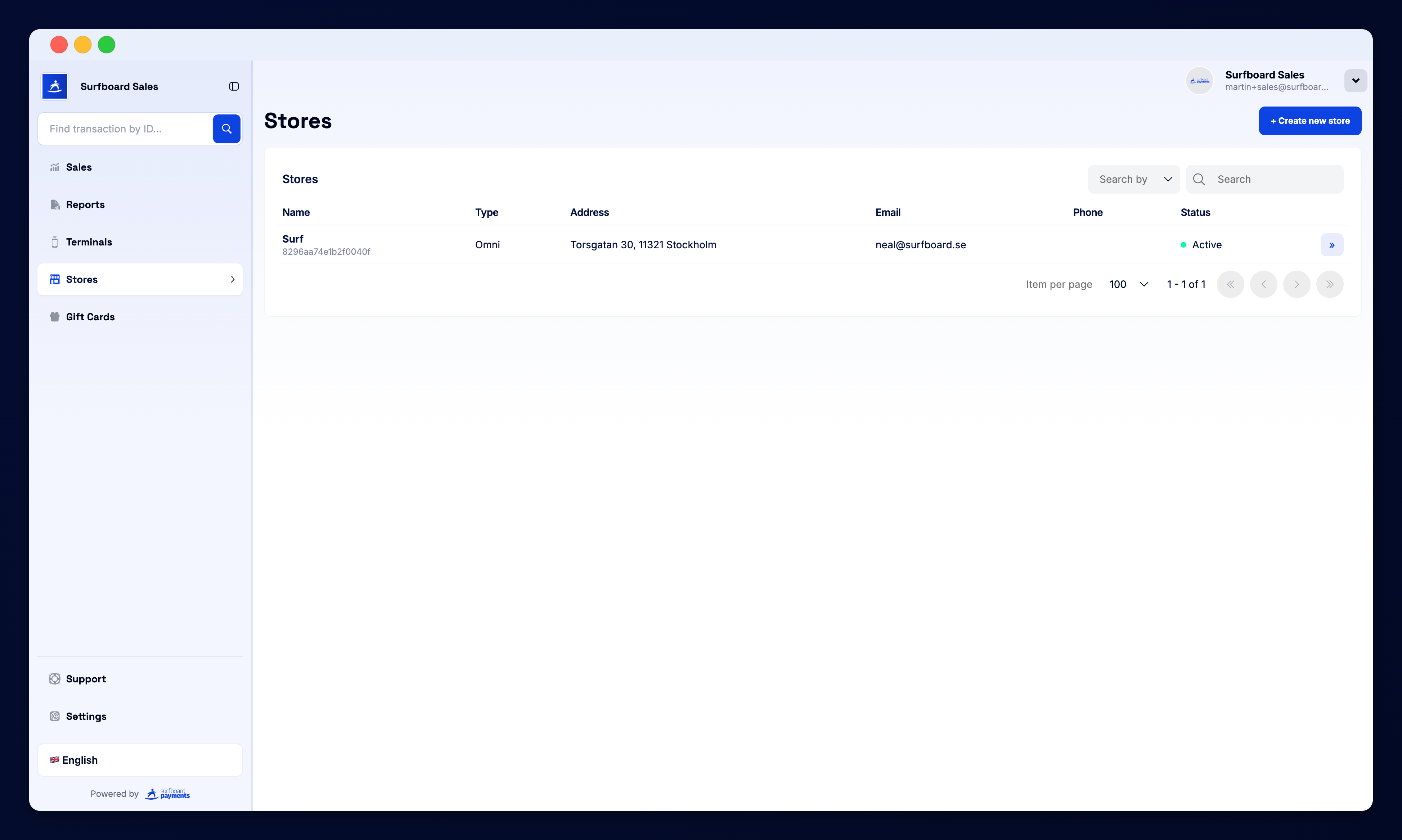
Store List
The Stores page lists every store in your business. Each row shows:
- Name and store ID
- Type — Store (in-store), Omni (omnichannel), or Online
- Address — street, postal code, and city
- Email — store contact email
- Phone — contact number
- Status — Active or inactive
Click Details » on any row to open the store’s configuration.
Creating a Store
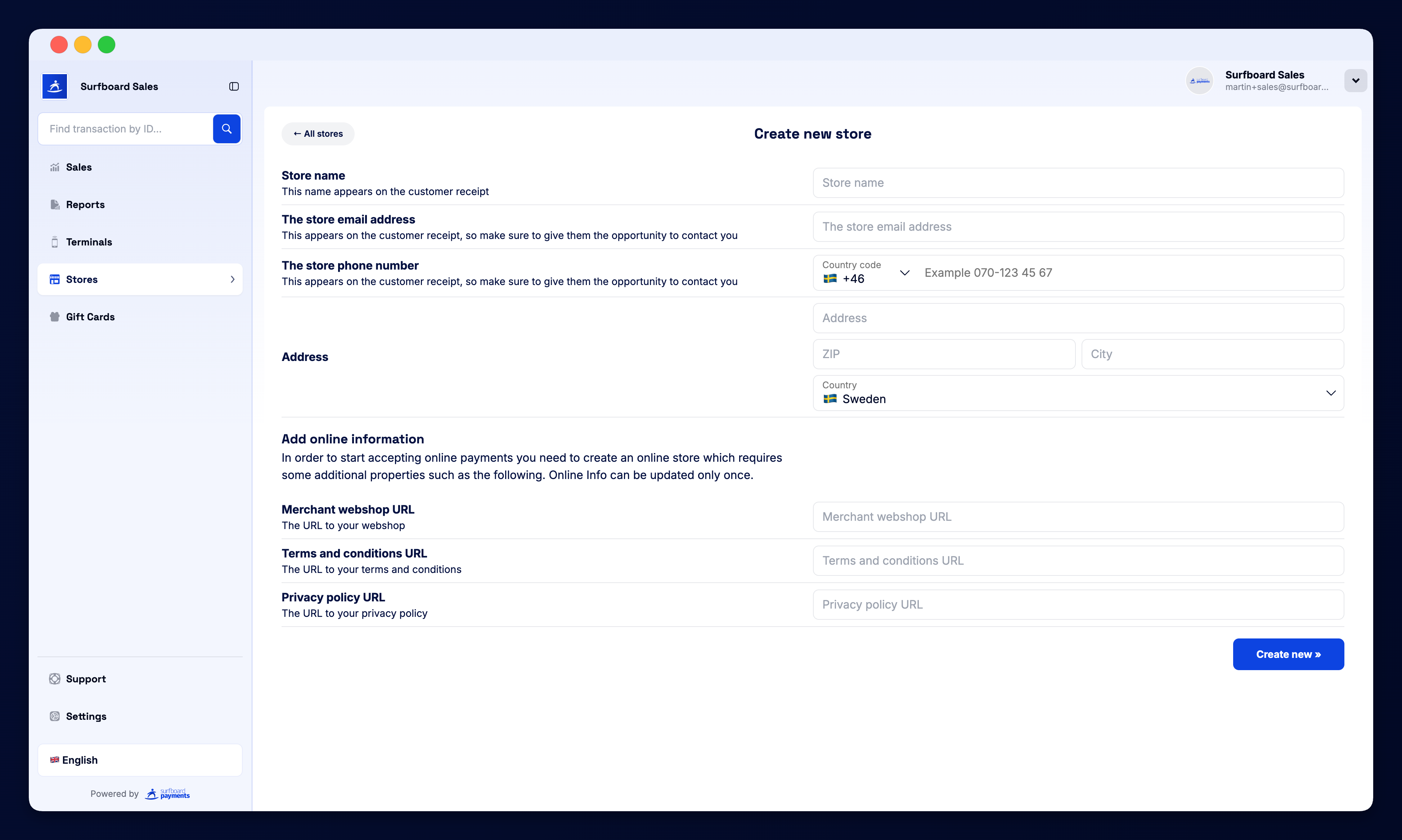
Click + Create new Store at the top of the page. The wizard asks for:
- Store name — visible to customers and on receipts
- Store type — physical, online, or omnichannel
- Address — legal address of the location
- Contact details — email and phone for support and notifications
- Currency — the default currency for this store
Once saved, the store is immediately ready to accept payments.
Store Detail Page
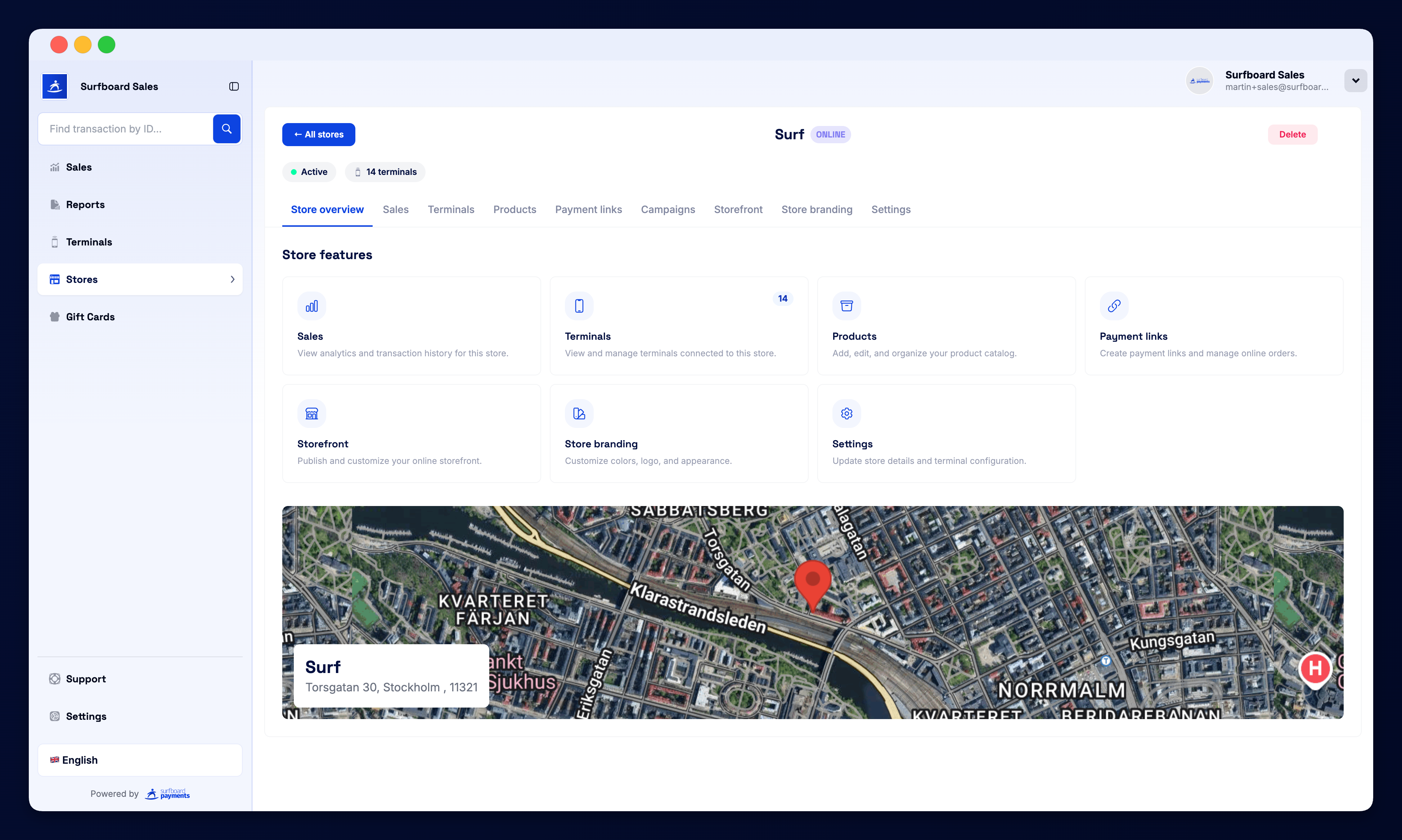
Opening a store gives you a tabbed view with everything you need to run it:
Overview
A summary of recent activity, terminals, sales, and key metrics for that store.
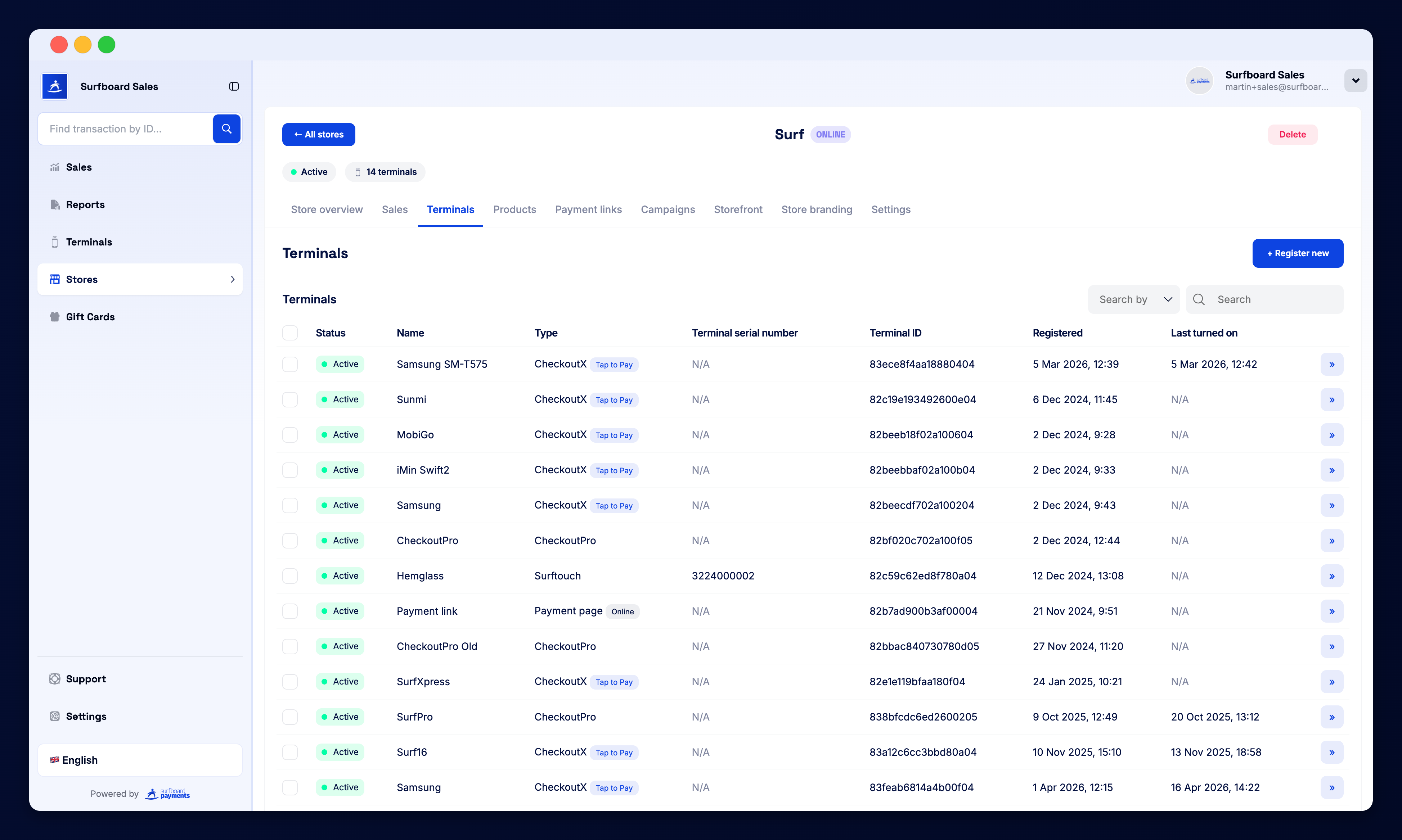
Terminals
Every card terminal registered to this store, with serial, status, and last-active time. You can register new terminals here too.
Products
The product catalogue used at this store — for menu-based or retail use cases.
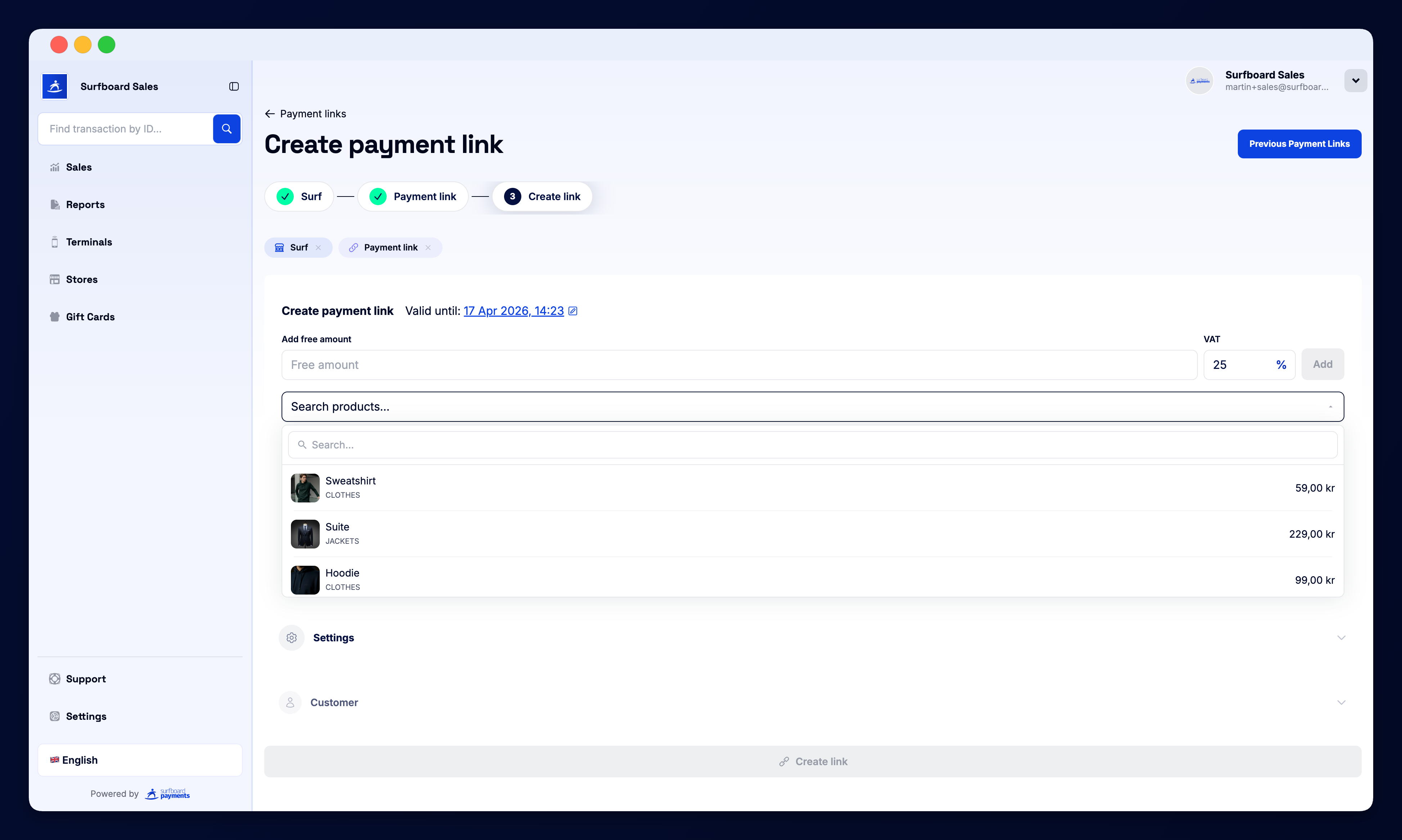
Payment Links
Online and email-based payment links generated from this store’s online configuration.
ECR Setup
Connect an Electronic Cash Register (ECR / POS system) to the store’s terminals. Configure the integration, terminal IDs, and connection method.
Storefront
If the store has online capability, manage the published online storefront URL, logo, banner, and product visibility from here.
Branding
Per-store overrides for colours, fonts, logos, and button shapes — so each location can match its own visual identity.
Settings
Per-store configuration: default tip percentages, receipt footer, opening hours, and tax settings.
Campaigns
Run terminal-displayed campaigns scoped to this single store (see the Campaigns guide for details).
Why Stores Matter
Stores let you:
- Separate sales, reports, and payouts per location
- Apply different branding, products, and pricing per store
- Restrict team-member access by store
- Roll up multi-store performance on the dashboard
Verifying a Store
When a store is first created, certain countries or acquirer requirements need an additional Verify step (KYB-style). The portal walks you through this from the store’s settings tab if needed.