Merchant Management
Browse, search, and manage your merchant accounts. Access detailed merchant profiles including transactions, stores, terminals, payment methods, and more.
Overview
The Merchants page is your central directory for managing all merchant accounts in your portfolio. From here you can browse merchants, access detailed profiles, and perform actions like editing merchant details, inviting users, or managing their payment setup.
Merchant List
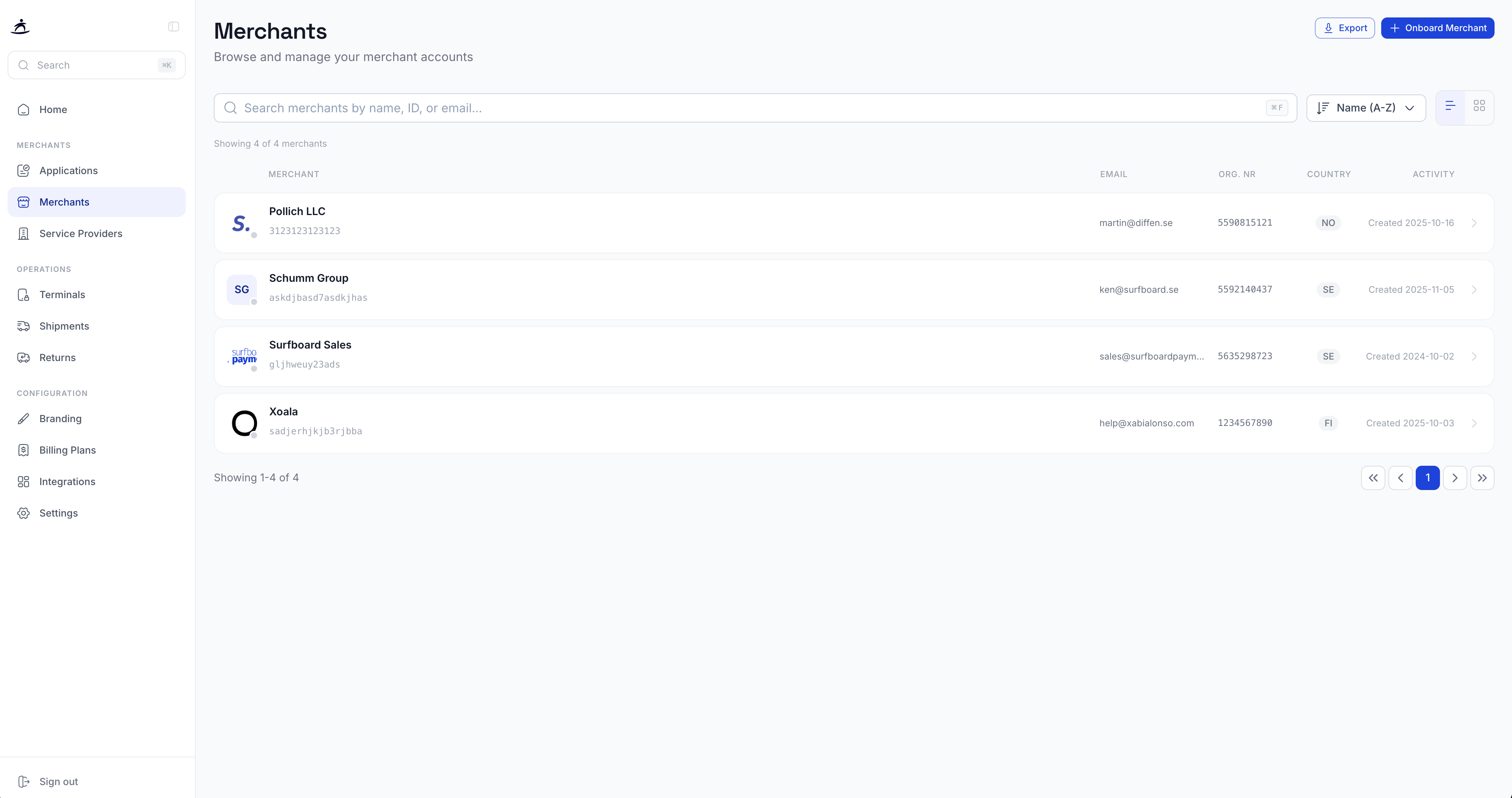
The merchant list displays all your onboarded merchants with the following columns:
| Column | Description |
|---|---|
| Merchant | Business name, logo, and merchant ID |
| Primary contact email | |
| Org. Nr | Corporate registration number |
| Country | Country code |
| Activity | Date the merchant was created |
Search & Sort
- Search — find merchants by name, ID, or email using the search bar
- Sort — use the sort dropdown (default: Name A-Z) to order merchants
- View toggle — switch between list view and grid/card view
Quick Actions
- Export — download your merchant list
- + Onboard Merchant — start a new merchant application directly from the merchants page
Merchant Detail Page
Click on any merchant to access their full profile. The merchant detail page is organized with tabs across the top for different management areas.
Header Information
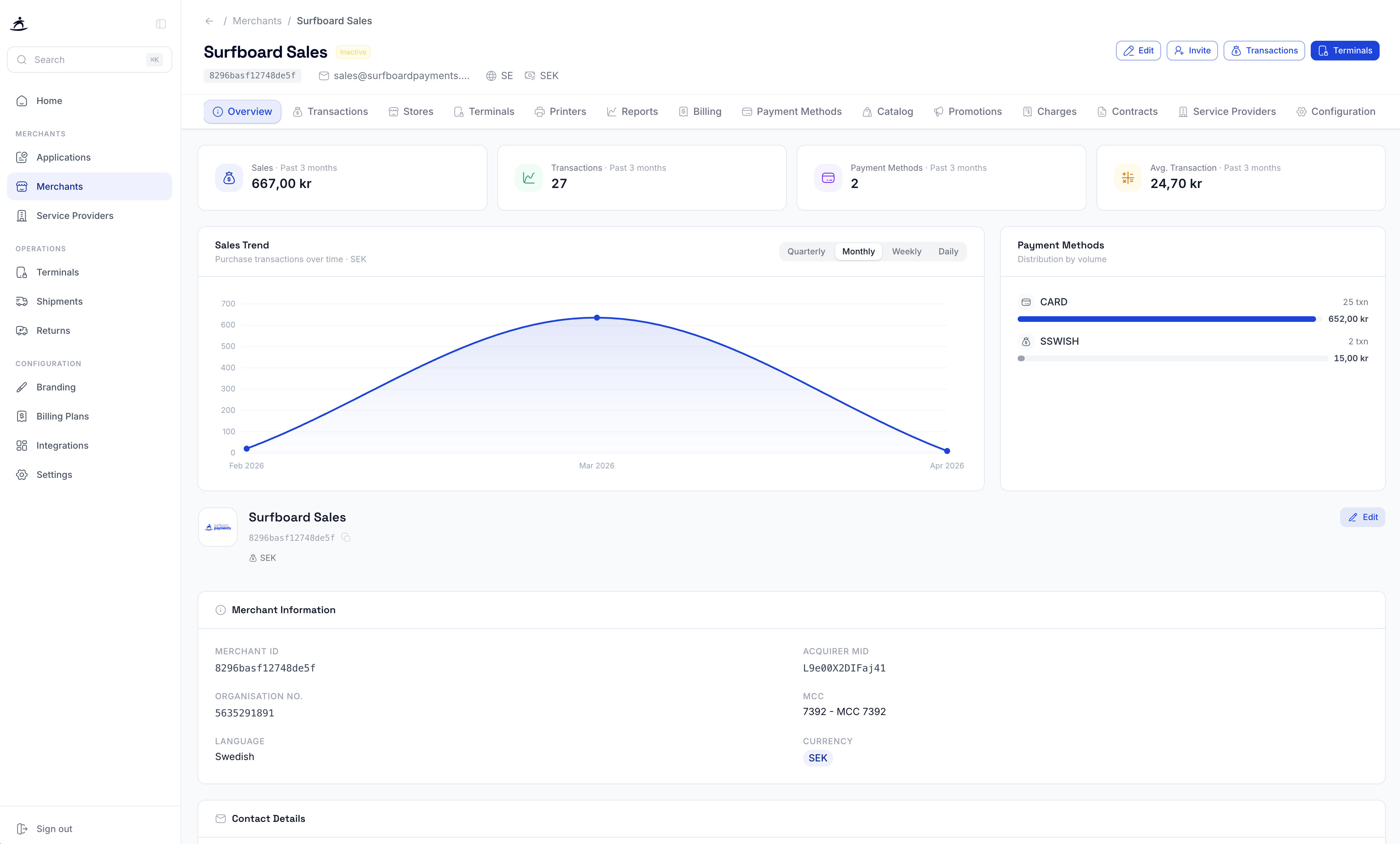
At the top of the merchant page you’ll see:
- Merchant name and status badge (Active/Inactive)
- Merchant ID with copy button
- Contact email, country, and currency
- Quick action buttons: Edit, Invite, Transactions, Terminals
Overview Tab
The default view shows a business overview with:
Summary Cards (past 3 months):
- Sales volume in the merchant’s currency
- Transaction count
- Number of active payment methods
- Average transaction amount
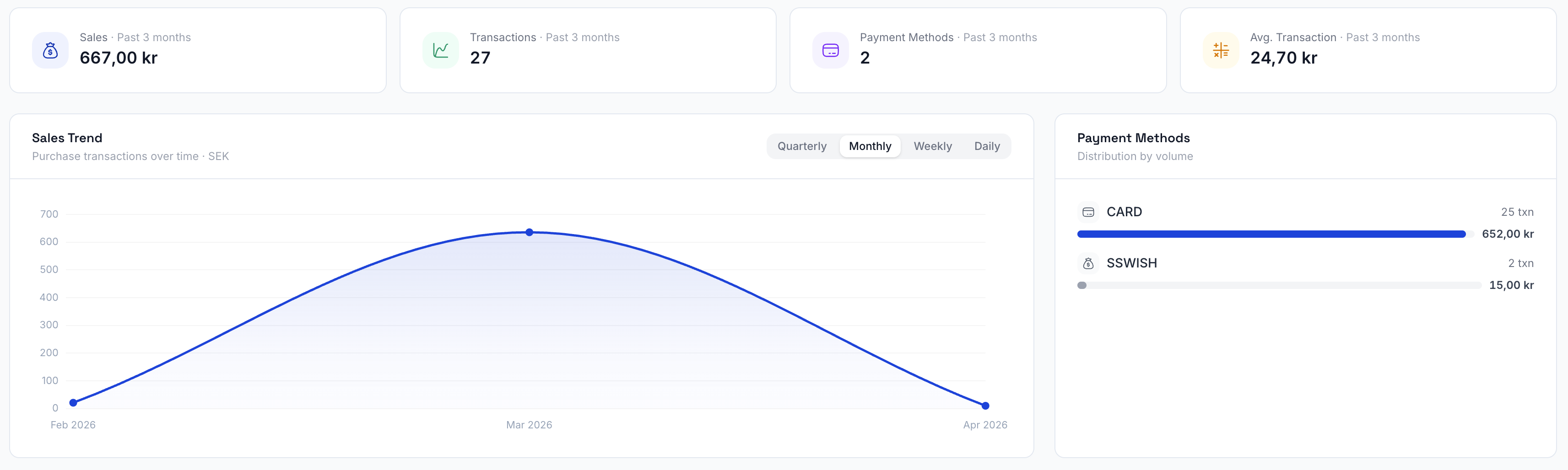
Sales Trend Chart — shows purchase volume over time with toggles for Quarterly, Monthly, Weekly, or Daily views.
Payment Methods Distribution — shows which payment methods are used and their respective volumes (e.g., CARD, SWISH).
Merchant Information Section:
- Merchant ID and Acquirer MID
- Organisation number and MCC code
- Language and currency settings
Contact Details:
- Email and phone number
- Business address
Transactions Tab
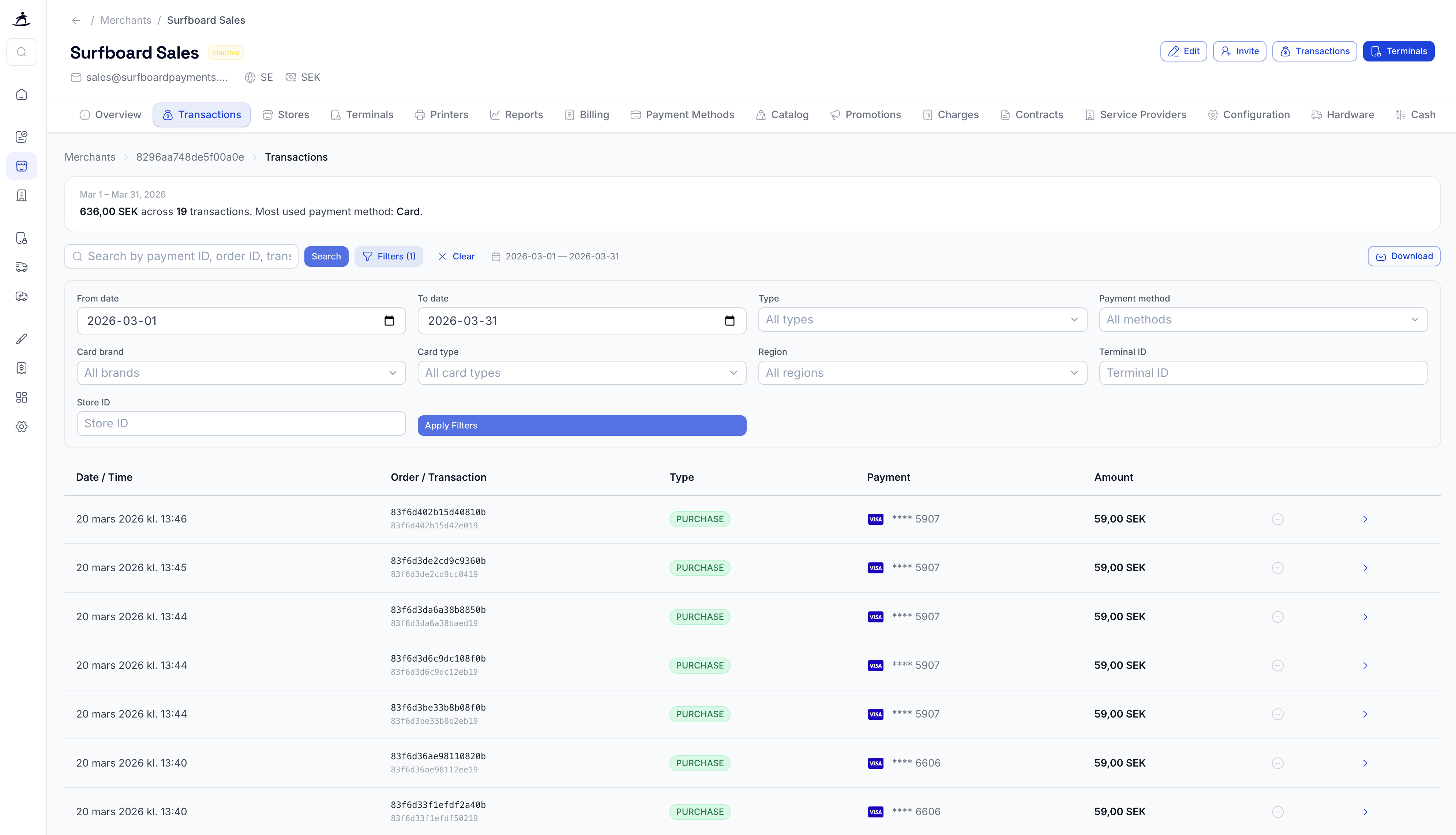
View all transactions for the merchant with powerful filtering and search:
- Date range filtering — select start and end dates
- Search — find transactions by payment ID, order ID, or transaction ID
- Advanced filters — filter by payment method, card brand, card type, region, terminal, or store
- Download — export transactions as CSV with all details including adjustments
Each transaction shows amount, terminal ID, currency, payment method, type, and timestamp. Click a transaction to view full details.
Stores Tab
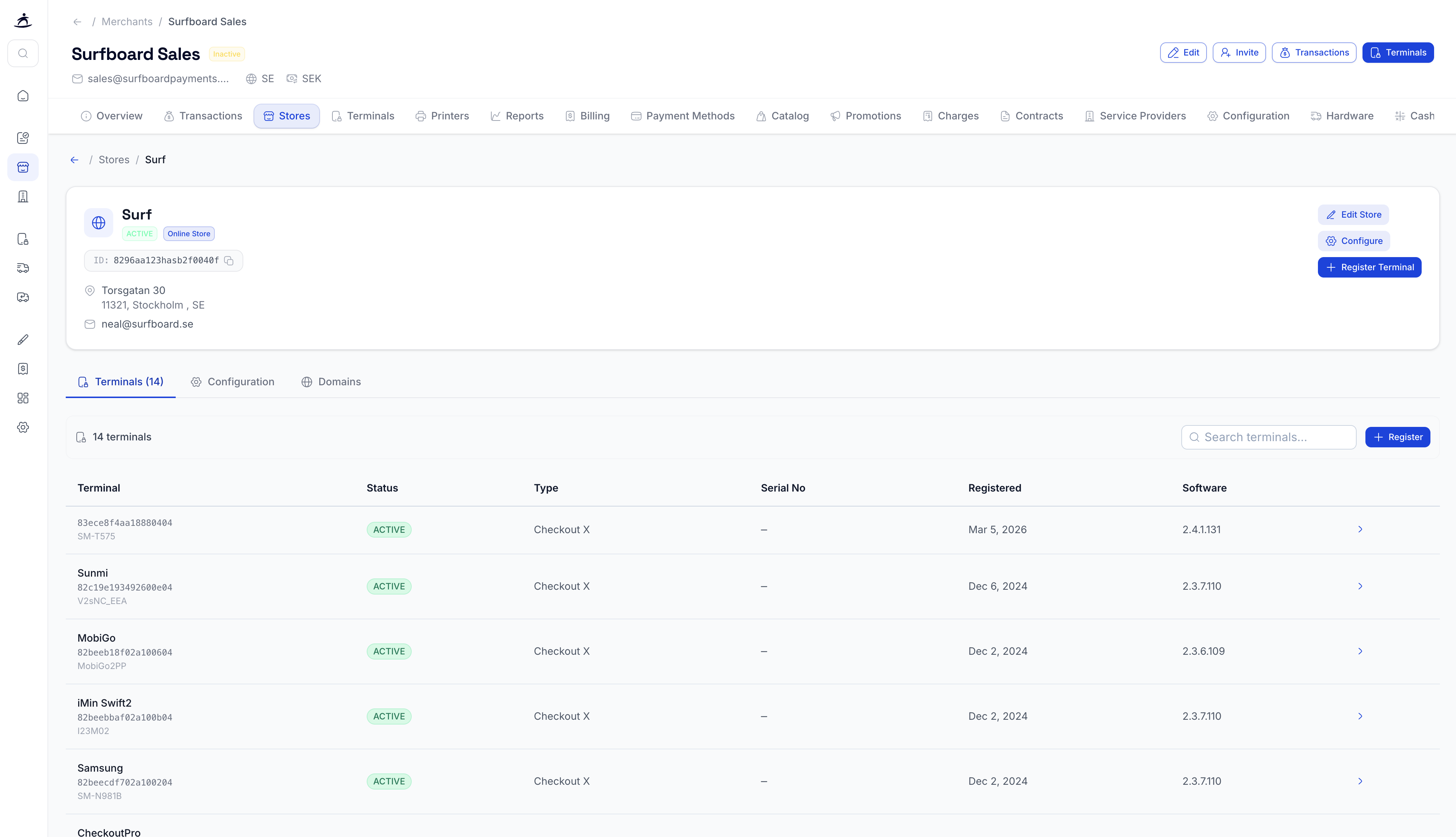
Manage the merchant’s store locations:
- View all stores with name, type (Online/In-Store), email, phone, and status
- + Create Store — add a new store for the merchant
- Click a store to view and edit its details, manage domains (for online stores), and configure tips
Terminals Tab
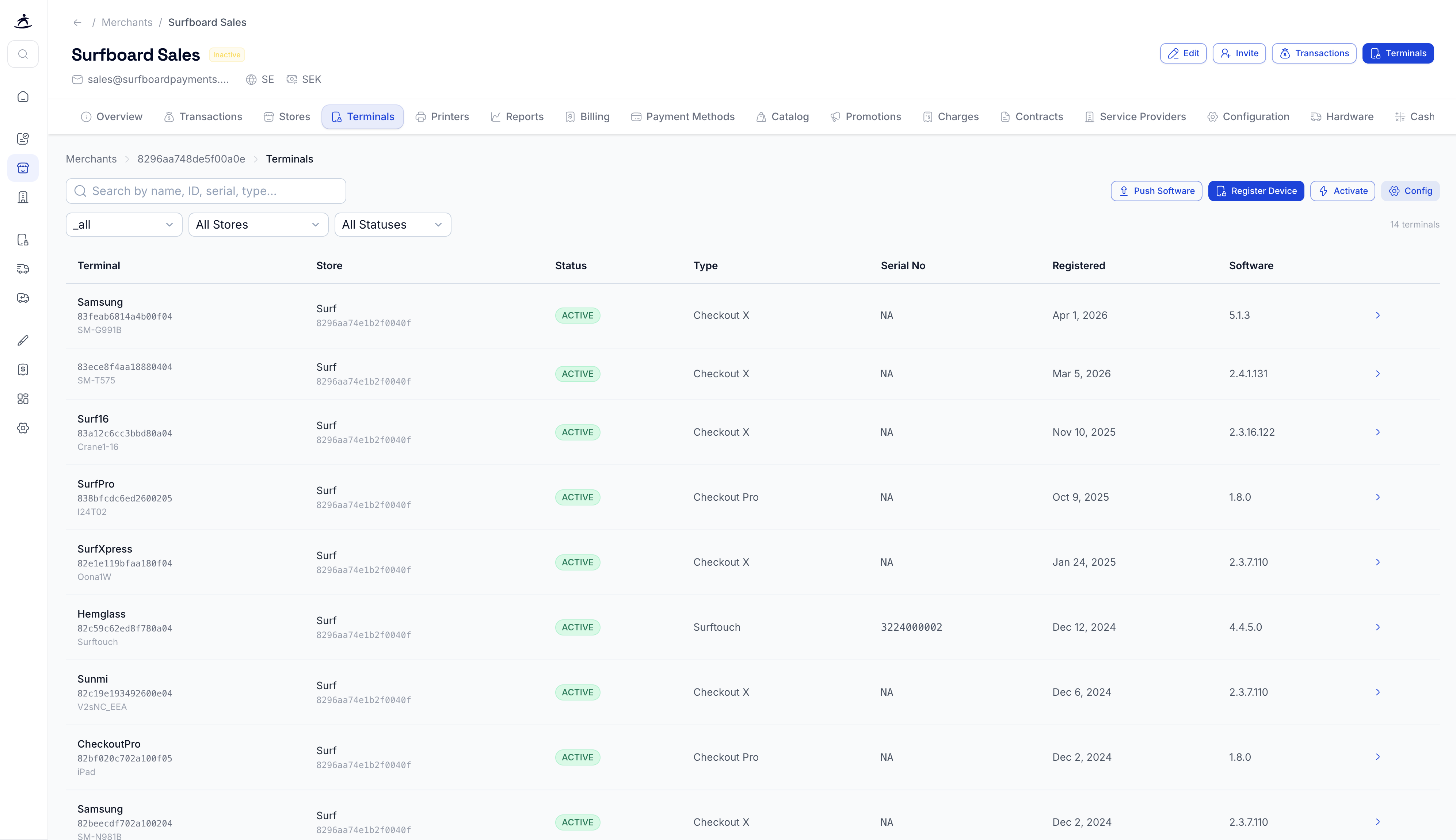
View and manage all terminals assigned to the merchant:
- See terminal ID, serial number, store assignment, status, and software version
- Register Device — register a new physical terminal
- Register Online Terminal — set up an online/virtual terminal
- Move terminals between stores or delink them
- Push latest configuration or software updates to individual terminals
Printers Tab
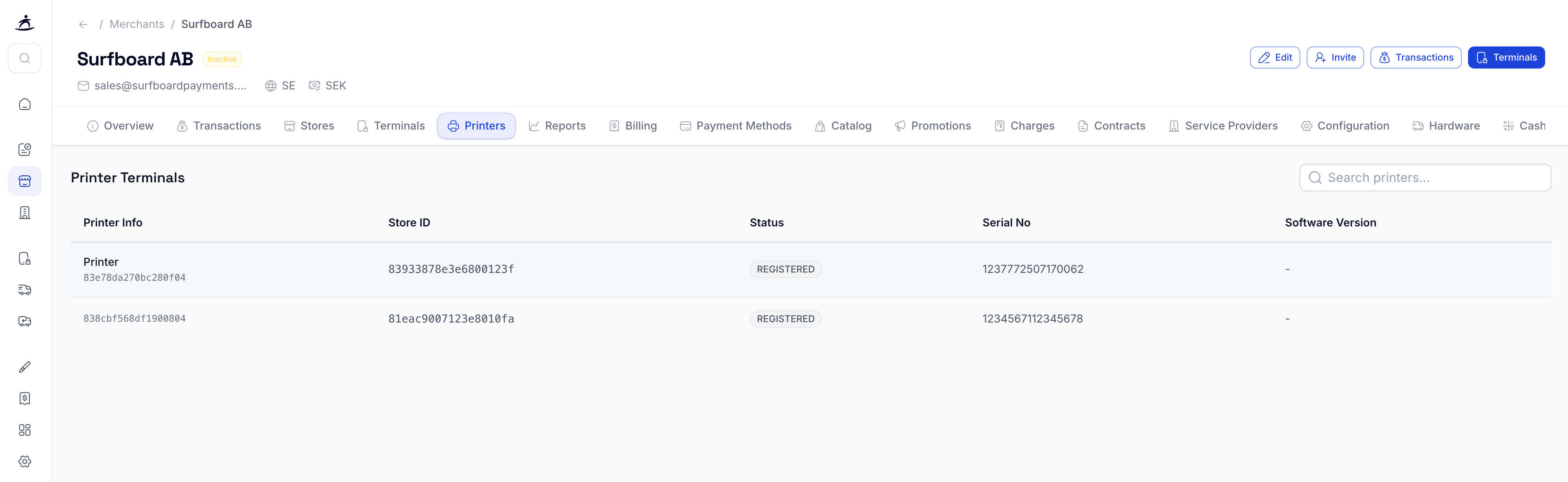
Manage printer terminals separately from payment terminals. View printer terminal assignments and configurations.
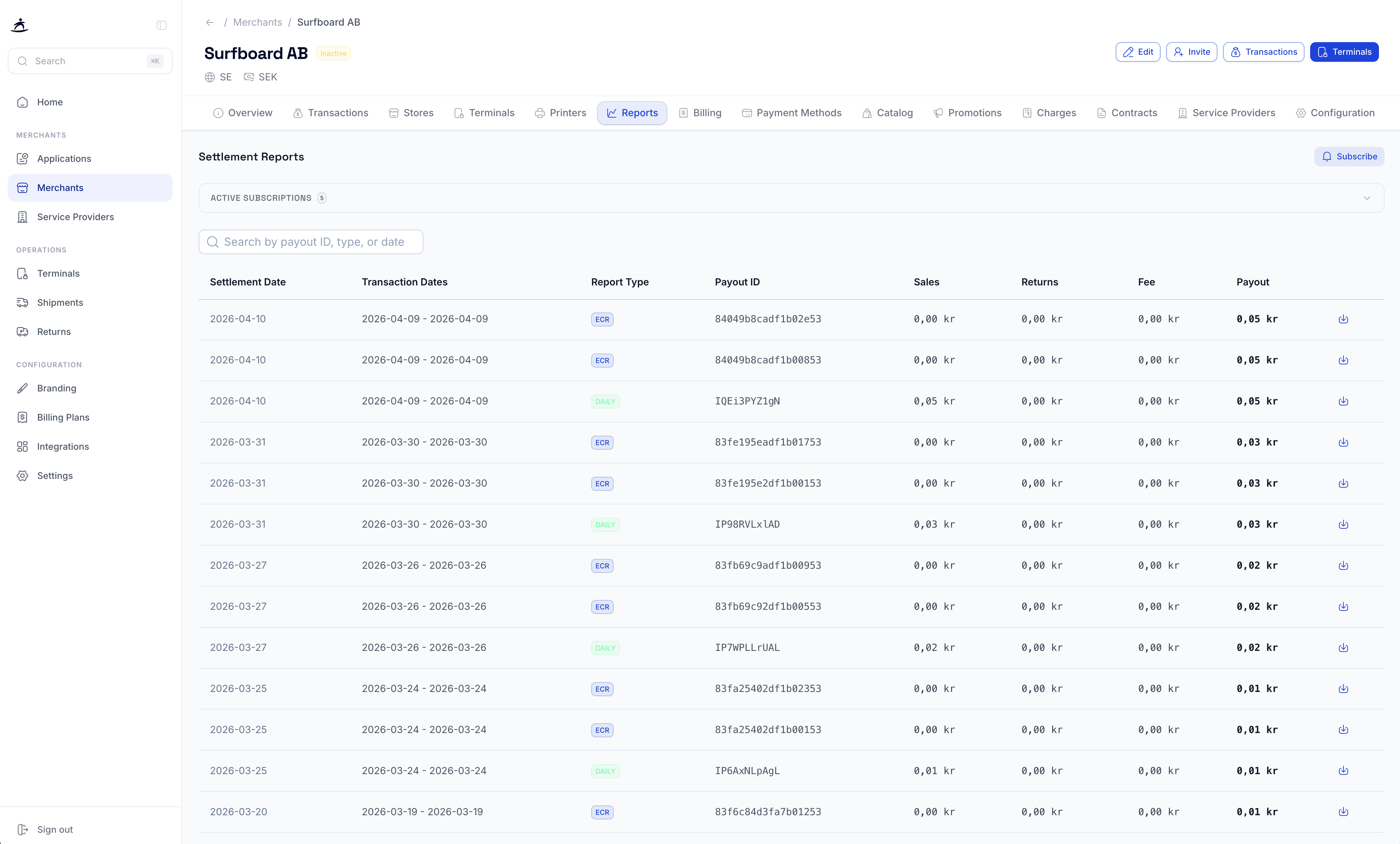
Reports Tab
Access merchant settlement and payout reports.
Payment Methods Tab
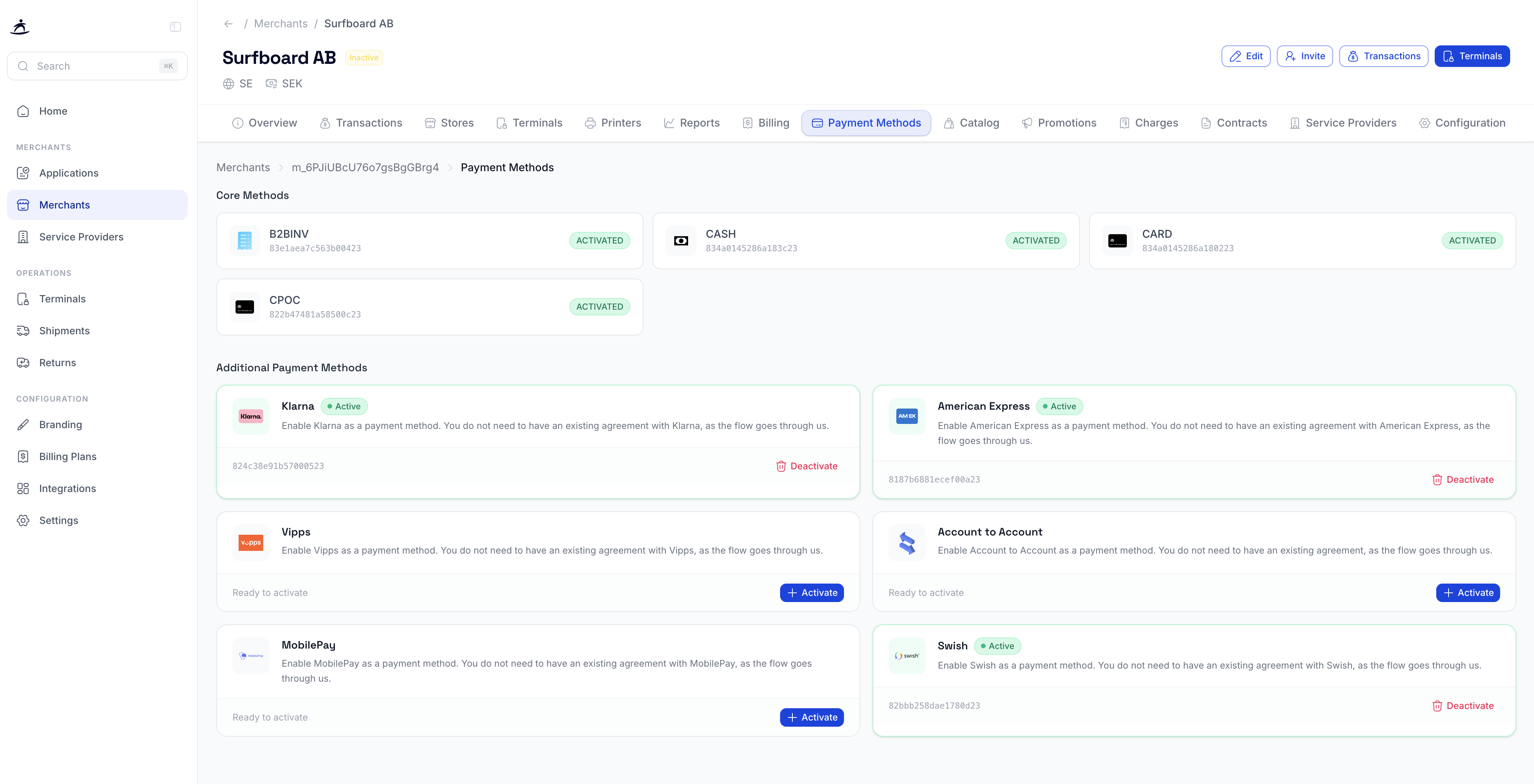
Enable or disable payment methods for the merchant:
Core Methods (always available):
- CPOC (SoftPOS)
- CASH
- CARD
Additional Payment Methods (activate/deactivate as needed):
- Klarna
- American Express
- Vipps
- Swish
- MobilePay
- Account to Account
And more…
Each additional method shows its current status and availability. Click + Activate to enable a method or Deactivate to disable it.
Note: Some payment methods may show “Not available for your partner configuration” if they haven’t been enabled for your partner account.
Billing Tab
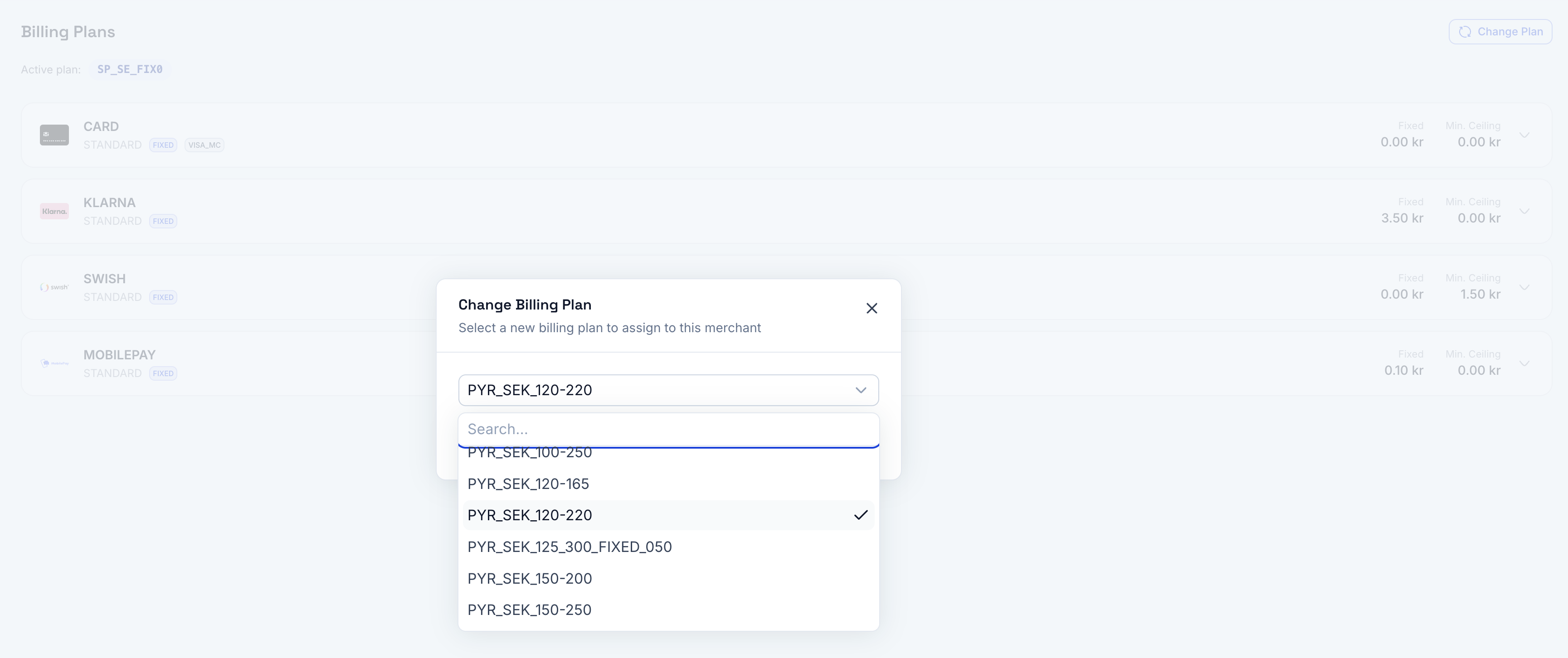
View and manage the merchant’s billing plan assignment. Assign one of your configured billing plans to the merchant, and change it if needed.
Catalog Tab
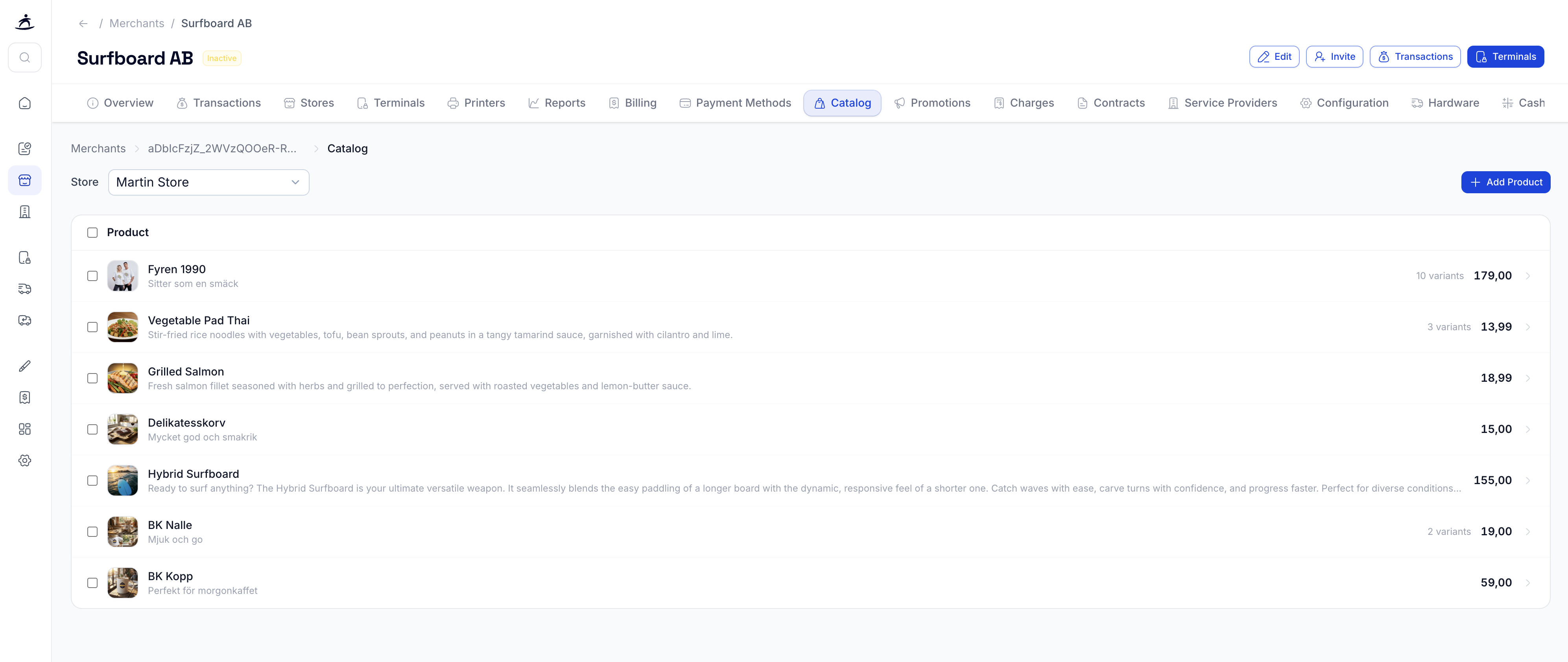
Manage the merchant’s product catalog for in-store sales. Available for partners who have enabled the catalog feature.
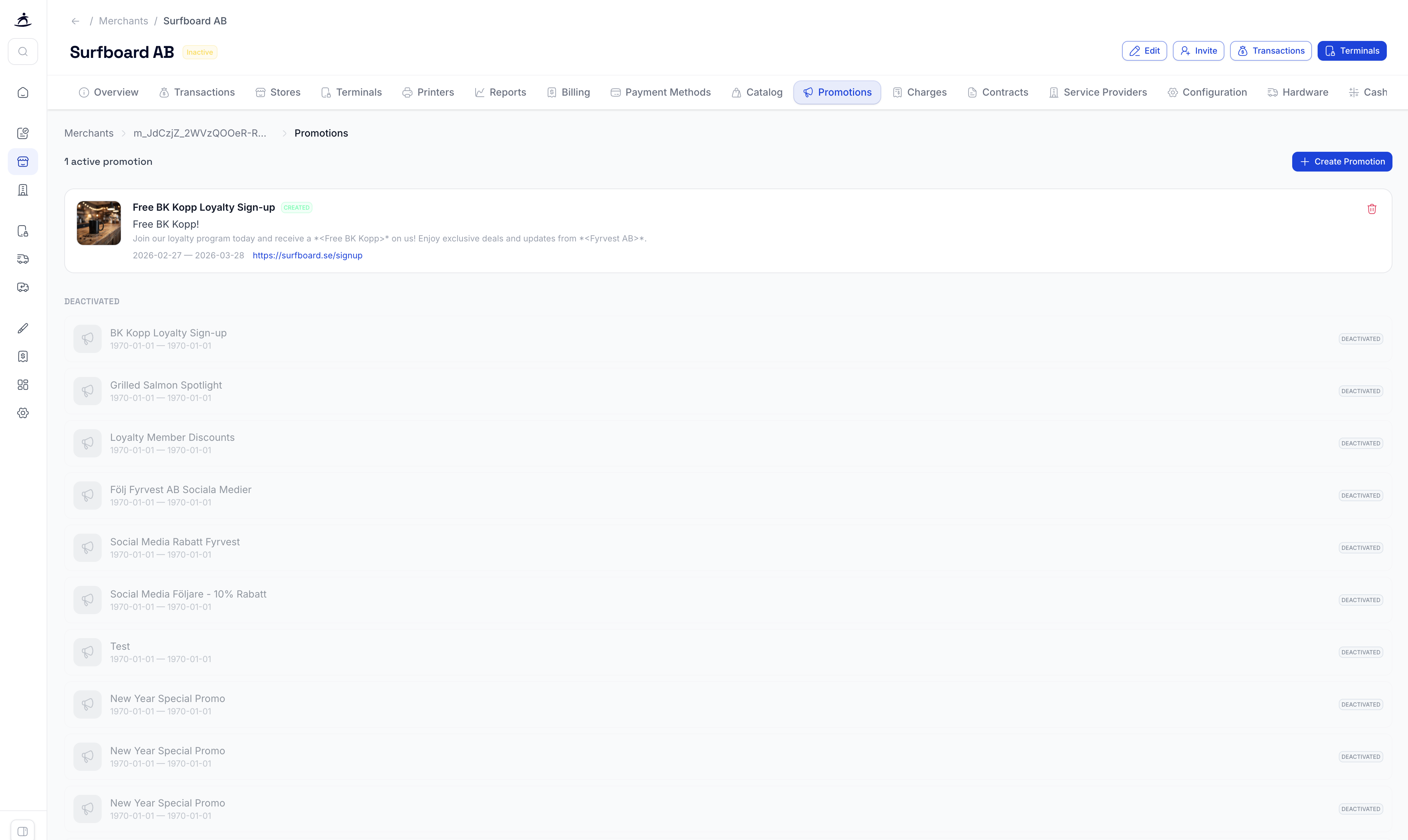
Promotions Tab
View and manage active promotions for the merchant.
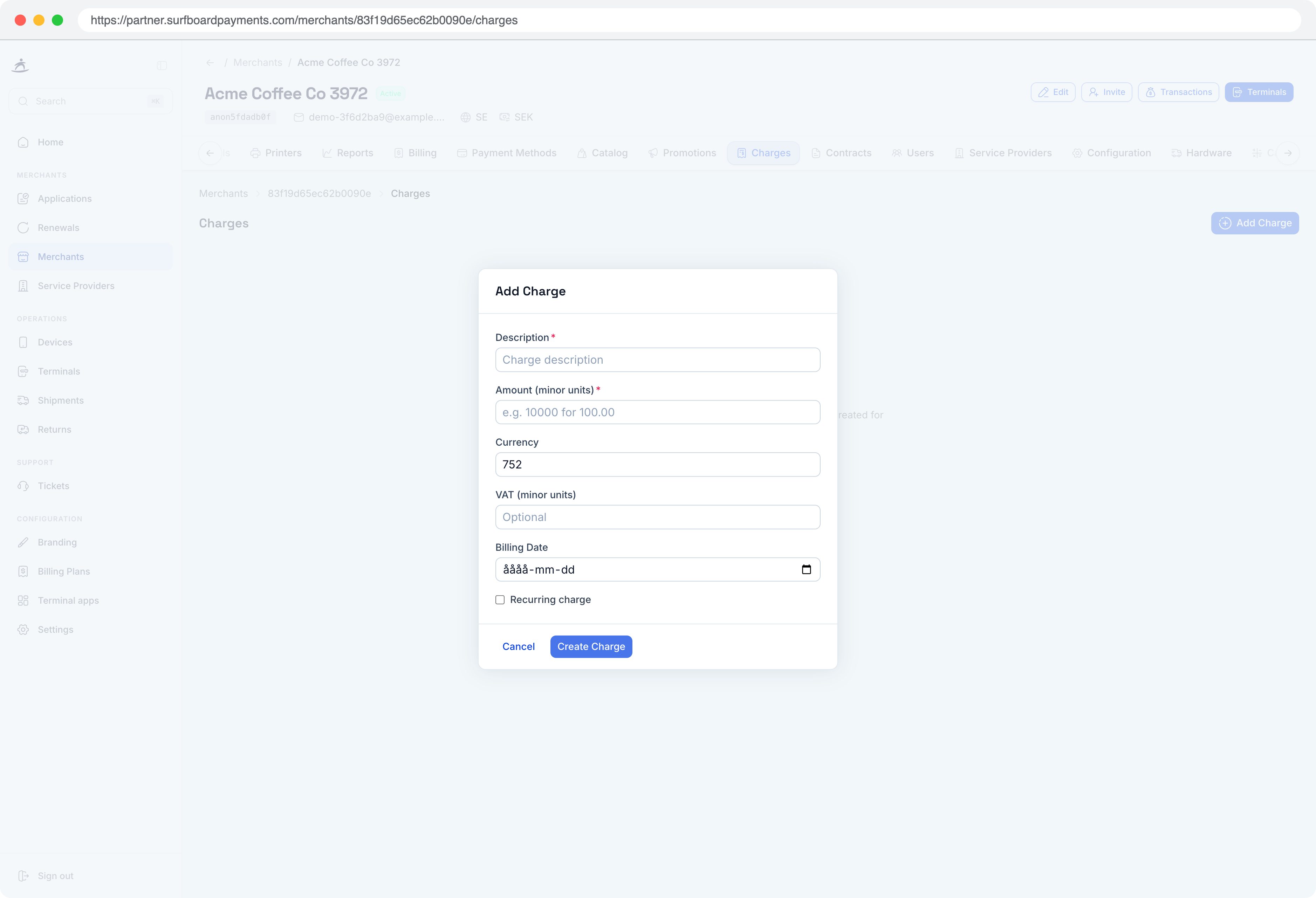
Charges Tab
View charges and fees associated with the merchant’s account.
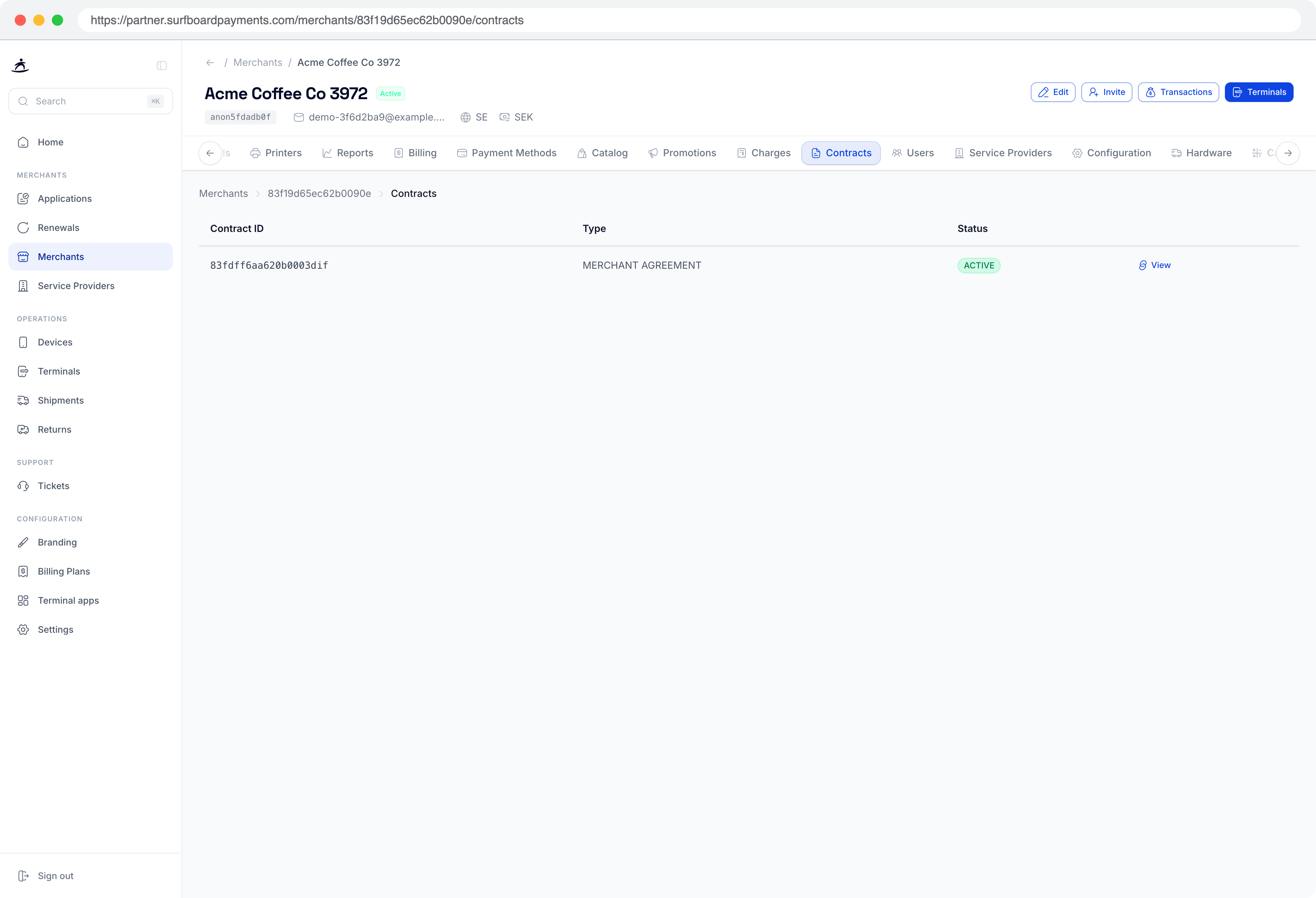
Contracts Tab
Access and manage merchant contracts and agreements.
Service Providers Tab
View and link service providers to the merchant. Manage which service providers have access to this merchant’s data.
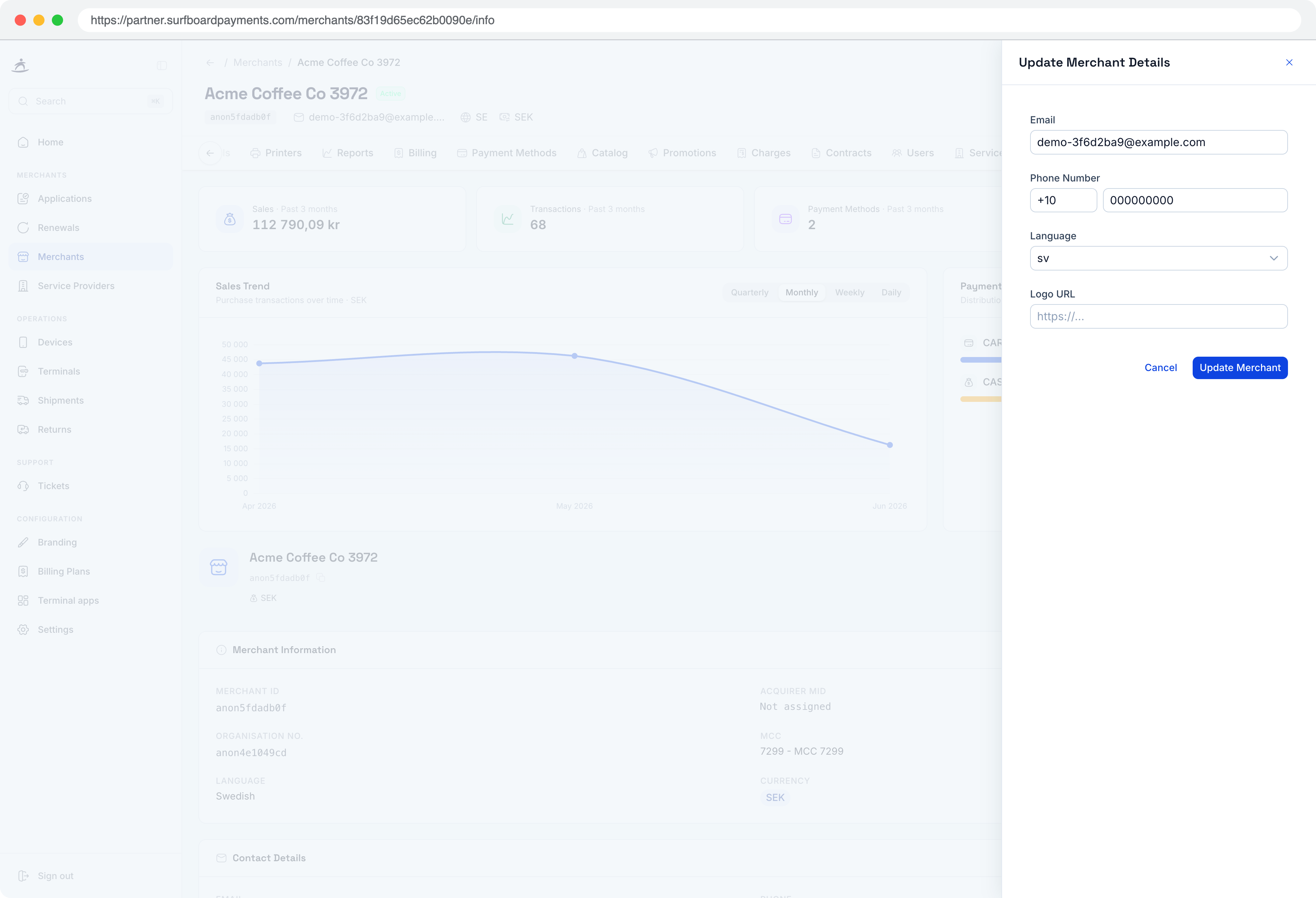
Editing Merchant Details
Click the Edit button on the merchant header to modify:
- Merchant contact information
- Phone number
- Default language
- Logotype
Inviting Merchant Users
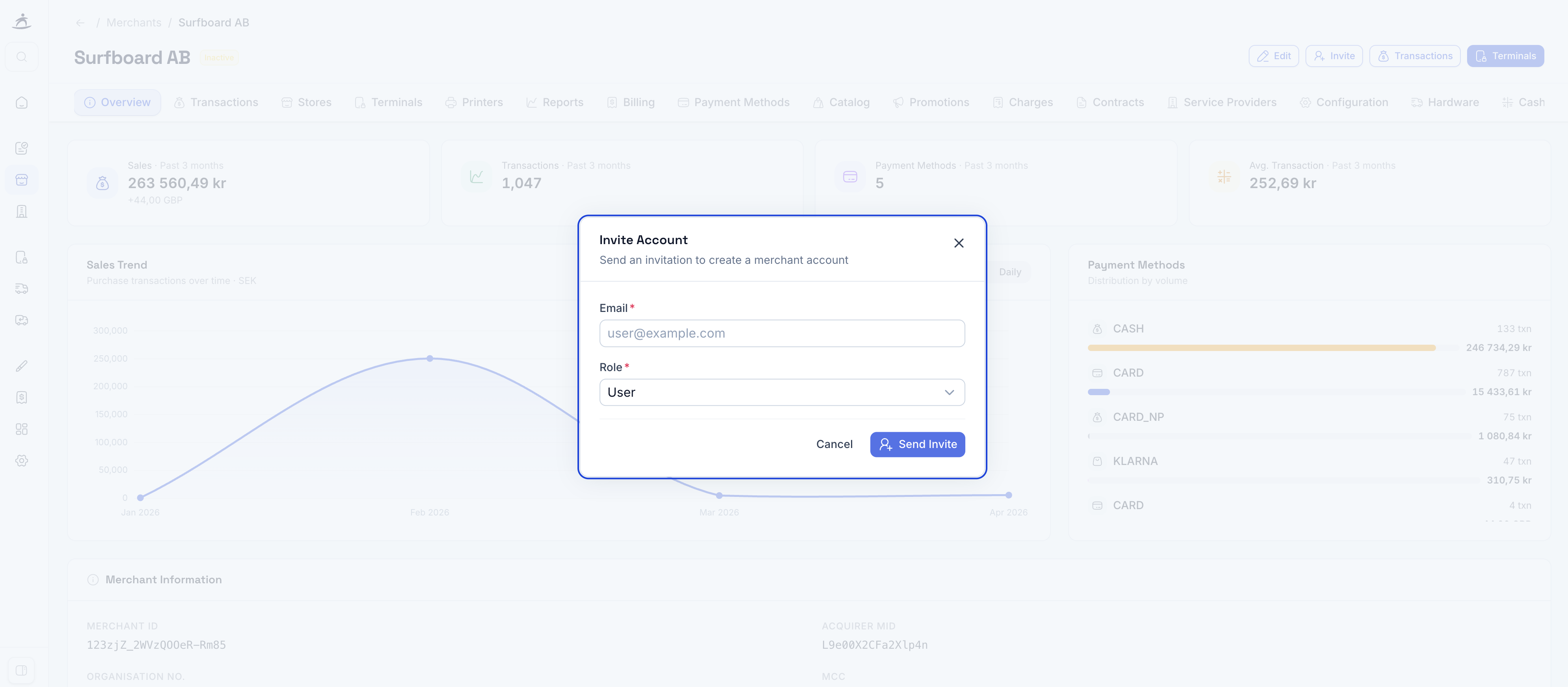
Click the Invite button to send portal access invitations to merchant team members. This allows merchants to access their own portal view for managing day-to-day operations.